How to Convert HTML to JPG Offline
Render a local HTML file as a JPG without uploading it. Use Playwright or wkhtmltoimage, handle offline assets, and choose dimensions and quality.
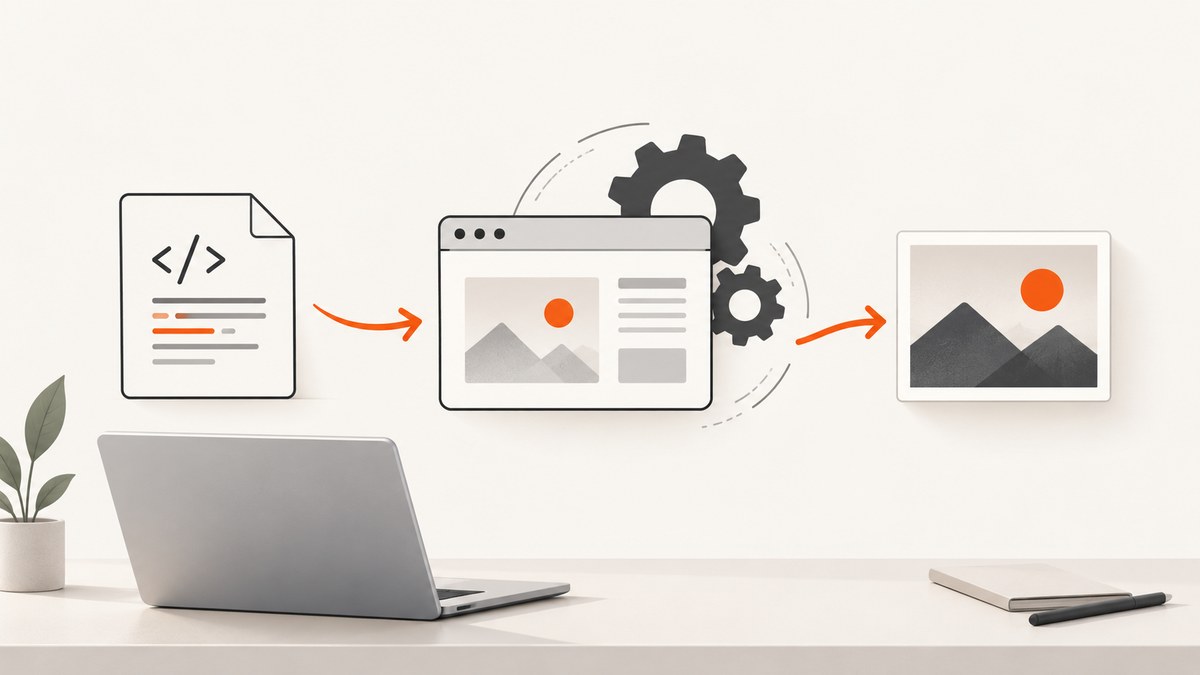
To convert HTML to JPG offline, render the page with a browser engine installed on your computer and save its screenshot as JPEG. With Playwright, set the HTML as page content, choose a viewport, and call page.screenshot() with type: "jpeg" and a local output path. Nothing needs to be uploaded, provided the renderer and the page’s required assets are already available locally.
Renaming .html to .jpg does not convert the file. HTML describes content and layout; a renderer must turn it into pixels. This guide covers a runnable Playwright workflow, a command-line alternative, offline dependencies, image settings, errors, and when an online API may be more convenient.
1. What “offline” means for HTML to JPG
An offline conversion can mean that the HTML file itself stays on your computer, or that the entire render works without a network connection. The second meaning requires more preparation. The browser engine, runtime, stylesheets, scripts, images, fonts, and any data the page uses must be installed or stored locally before disconnecting.
A local HTML file may still refer to remote resources such as https://example.com/site.css, a web font, an image CDN, or an API. If those resources cannot load, the JPG may have missing styles, blank image areas, fallback fonts, or incomplete dynamic content. Copying the HTML alone does not make those dependencies available offline.
| Need | What to prepare |
|---|---|
| Static local page | HTML plus its local images, stylesheets, and fonts; verify relative paths. |
| Script-rendered page | Local JavaScript and any data it needs; allow the script to finish before capture. |
| Truly disconnected workflow | Install the renderer and browser beforehand, bundle dependencies, then test with networking disabled. |
Offline completeness depends on the page’s resources and behavior. Test the actual local copy with the network disabled if the output must be reproducible without internet access.
2. Convert HTML to JPG with Playwright and Node.js
Playwright can assign markup to a page with page.setContent(), then save a screenshot to a local path. Its screenshot API supports JPEG output, a quality value from 0 to 100, and full-page capture. The default JPEG quality is documented as 80. See the [Playwright Page API](https://playwright.dev/docs/api/class-page).
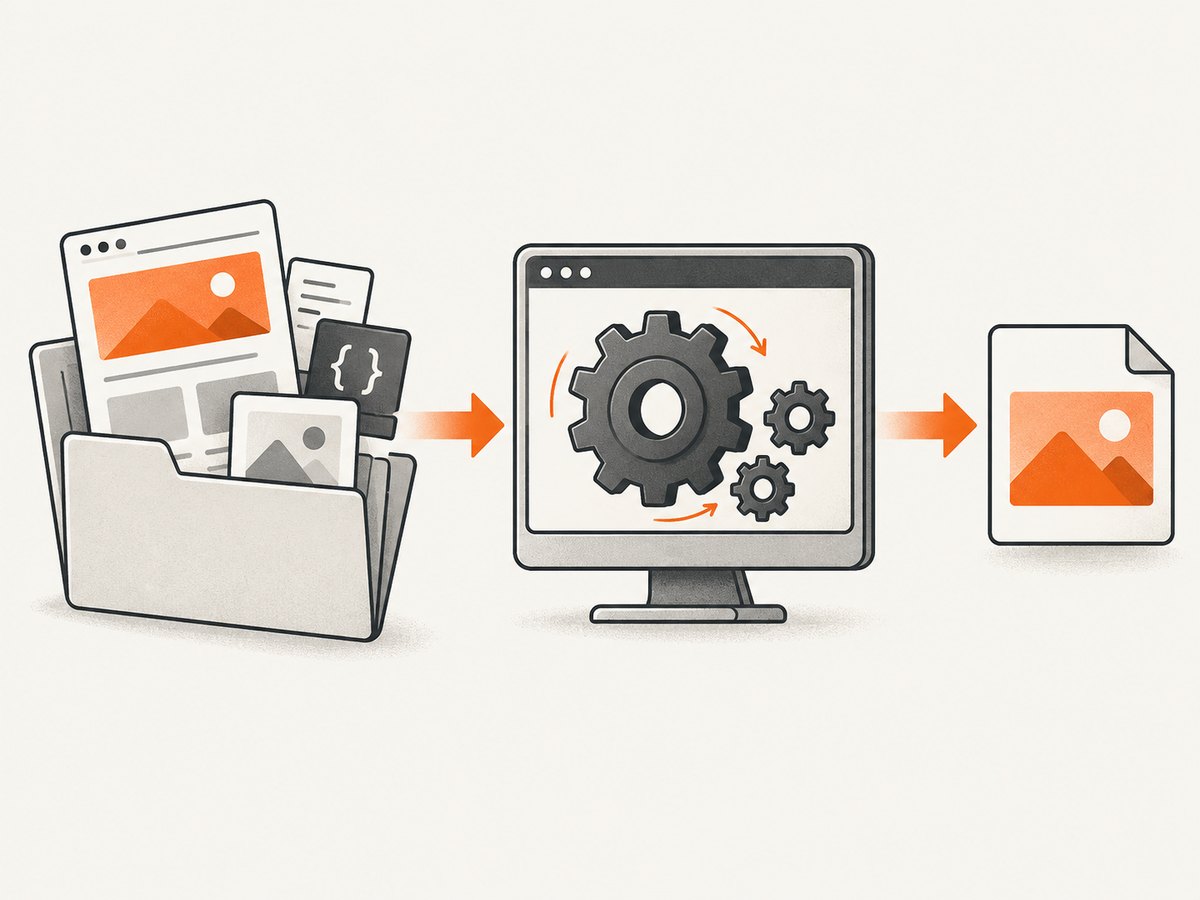
Install before going offline
Install Node.js, the Playwright package, and its browser while you still have network access. For example, in a project directory:
npm init -y
npm install playwright
npx playwright install chromium
These installation commands may download packages and browser files. They are setup steps, not part of the disconnected conversion. Keep the project’s package files and installed browser available for later offline runs.
Save this script as html-to-jpg.mjs
import { chromium } from 'playwright';

const html = `
<!doctype html>
<html lang="en">
<head>
  <meta charset="utf-8">
  <meta name="viewport" content="width=device-width, initial-scale=1">
  <title>Offline HTML render</title>
  <style>
    body { font: 18px/1.5 system-ui, sans-serif; margin: 40px; color: #182230; }
    main { max-width: 760px; margin: auto; }
    h1 { color: #155eef; }
  </style>
</head>
<body>
  <main>
    <h1>Rendered locally</h1>
    <p>This page is rendered by a local browser engine.</p>
  </main>
</body>
</html>`;

const browser = await chromium.launch({ headless: true });
try {
  const page = await browser.newPage({
    viewport: { width: 1280, height: 900 },
    deviceScaleFactor: 1,
  });
  await page.setContent(html, { waitUntil: 'load' });
  await page.screenshot({
    path: 'output.jpg',
    type: 'jpeg',
    quality: 85,
    fullPage: true,
  });
} finally {
  await browser.close();
}
Run it from the project directory:
node html-to-jpg.mjsThe result is output.jpg in the current working directory. The example uses inline CSS and markup so it does not need remote assets. For an existing file, load it as a local file URL instead of embedding its contents:
import { chromium } from 'playwright';
import { pathToFileURL } from 'node:url';
import { resolve } from 'node:path';

const browser = await chromium.launch({ headless: true });
try {
  const page = await browser.newPage({ viewport: { width: 1280, height: 900 } });
  await page.goto(pathToFileURL(resolve('page.html')).href, { waitUntil: 'load' });
  await page.screenshot({ path: 'page.jpg', type: 'jpeg', quality: 85, fullPage: true });
} finally {
  await browser.close();
}
Using a file URL gives relative references a local document location to resolve against. Confirm that linked assets are beside the document in the expected folder structure. A local page that calls remote services can still make network requests; disconnecting or blocking network access is a useful way to reveal hidden dependencies.
3. Choose dimensions, page area, and JPEG quality
The captured pixels depend on the viewport and capture mode. Set the viewport before loading or rendering content when layout responds to screen size. Playwright documents that viewport dimensions affect page dimensions and recommends setting them before navigation if changing them could affect page behavior.
| Setting | Effect | Practical choice |
|---|---|---|
| Viewport width and height | Sets the browser’s visible page area and can change responsive layout. | Match the target display or the width your page is designed for. |
fullPage: false |
Captures the visible viewport area. | Use for a screen-sized preview or a specific above-the-fold view. |
fullPage: true |
Captures the entire scrollable page. | Use when the whole document must appear in one image; very tall pages create large files. |
quality |
Sets JPEG compression quality from 0 through 100; higher values generally preserve more detail at a larger file size. | Start around 80–90, inspect small text and edges, then adjust for your use. |
deviceScaleFactor |
Changes the pixel density of the browser viewport capture. | Use 1 for ordinary output; a higher factor gives more pixels and may increase memory and file size. |
JPEG does not preserve transparency. Playwright’s omitBackground setting does not apply to JPEG. If you need transparent pixels, choose an image format that supports transparency instead. If the HTML itself contains large blank margins or fixed-size elements, inspect the output and adjust the page CSS or viewport rather than expecting JPEG quality to fix layout.
Wait for content that appears after load
A page’s load event is not a universal signal that every delayed widget, animation, or application request has completed. For markup that adds content asynchronously, wait for a meaningful condition—for example, a particular element becoming visible—before taking the screenshot. A fixed delay can work for a known local script, but it is less reliable when render time varies. Avoid waiting indefinitely for network idle if the page maintains connections or keeps polling.
4. Use wkhtmltoimage from the command line
wkhtmltoimage is a command-line option for converting an HTML page into an image. Its man page documents the input/output command shape and options for output format, screen height, image loading, JavaScript, and JavaScript delay. Check the installed version’s help or the [Debian wkhtmltoimage man page](https://manpages.debian.org/unstable/wkhtmltopdf/wkhtmltoimage.1.en.html) for exact switches available in your environment.
wkhtmltoimage --format jpg --javascript-delay 500 page.html page.jpgThe delay value above is an example, not a universal readiness setting. If the document is static, JavaScript may be unnecessary; the tool also documents controls for enabling or disabling JavaScript and loading images. Preserve image loading when those assets are part of the intended result. For a remote dependency, a delay cannot make an unreachable resource available offline.
Choose this route if a simple command-line input/output workflow fits your task. Choose Playwright when you need programmatic control over page setup, viewport dimensions, or the capture process. Neither choice removes the need to install its runtime and rendering components before disconnecting.
5. Other workflow: Browsershot for PHP projects
[Browsershot](https://github.com/spatie/browsershot) is a PHP-oriented project that uses Puppeteer running headless Google Chrome to render pages as images or PDFs, and its README documents HTML input. It can fit an existing PHP application, but it still depends on the relevant runtime and browser components being installed locally. Prepare those dependencies while online and verify asset paths and rendering behavior in the offline environment.
6. Troubleshooting offline HTML to JPG conversion
| Symptom | Likely cause | Fix |
|---|---|---|
| JPG is blank or mostly empty | The wrong input path loaded, the page is waiting on unavailable data, or content has not rendered yet. | Open the same local file in a browser, check its console/network errors, and wait for a specific content condition before capture. |
| Styles or fonts are missing | A stylesheet or font uses a remote URL or a broken relative path. | Download or bundle the resource, update the local reference, and test with networking disabled. |
| Images are missing | The path is incorrect, the image is remote, or image loading was disabled. | Check the file location and URL, keep image loading enabled, and confirm the resource is present locally. |
| Output cuts off the lower page | Only the viewport was captured. | Set fullPage: true for a full document capture. |
| Text wraps differently than expected | The viewport width, font availability, or responsive breakpoints differ from the intended display. | Set the viewport before rendering and make the intended fonts available locally. |
| Text or edges look blocky | JPEG compression is too strong or the output dimensions are too small. | Increase quality, increase capture pixel dimensions if appropriate, or use a lossless format if the workflow allows it. |
| Browser executable is missing | The Playwright browser was not installed for the local package or is unavailable in the offline machine. | Install the browser component before disconnecting and retain the local package/browser cache or installation. |
| Command reports an unknown option | The installed wkhtmltoimage version does not support that switch. |
Consult that installation’s help and man page; options can vary by package version. |
| Script content is absent | JavaScript is disabled, a dependency is missing, or capture happens too early. | Enable scripts when needed, supply their dependencies locally, and wait for an application-specific ready state. |
7. Performance, reliability, and cost
A local workflow has no per-image API charge, but it uses your machine’s CPU, memory, disk, and maintenance time. Browser startup adds overhead; for many images, keeping a browser process open and reusing it can avoid repeated launches. Large full-page captures, high device scale factors, and complex pages can consume more memory and produce larger files. Process pages in manageable batches and close browser resources in a finally block, as in the examples.
Reliability depends on having the same renderer version and the same local assets available each time. Keep the source HTML, styles, scripts, fonts, browser/runtime version, and capture settings together when a repeatable result matters. Dynamic content may vary if it depends on current time, randomness, external services, or asynchronous work. The cited renderer documentation does not promise pixel-identical output across environments, so inspect the generated JPG for your specific page.
For a one-off page, installation and setup may take longer than the conversion itself. For recurring batches, automate the script and record its viewport, quality, and readiness condition. No single JPEG quality value is best for every page: fine text and sharp edges need careful inspection, while photographic pages may tolerate more compression.
8. Or skip the browser setup
If the input is a public website and you do not need an offline conversion, ScreenshotNeo can return a screenshot through one API request. Its API captures websites as PNG, JPEG, WebP, or PDF. See the ScreenshotNeo API documentation for request options.
curl -G "https://api.screenshotneo.com/v1/shot" -d access_key=YOUR_API_KEY --data-urlencode url=https://stripe.com -o shot.webpimport requests
r = requests.get(
"https://api.screenshotneo.com/v1/shot",
params={"access_key": "YOUR_API_KEY", "url": "https://stripe.com"},
timeout=90,
)
open("shot.webp", "wb").write(r.content)const q = new URLSearchParams({ access_key: 'YOUR_API_KEY', url: 'https://stripe.com' });
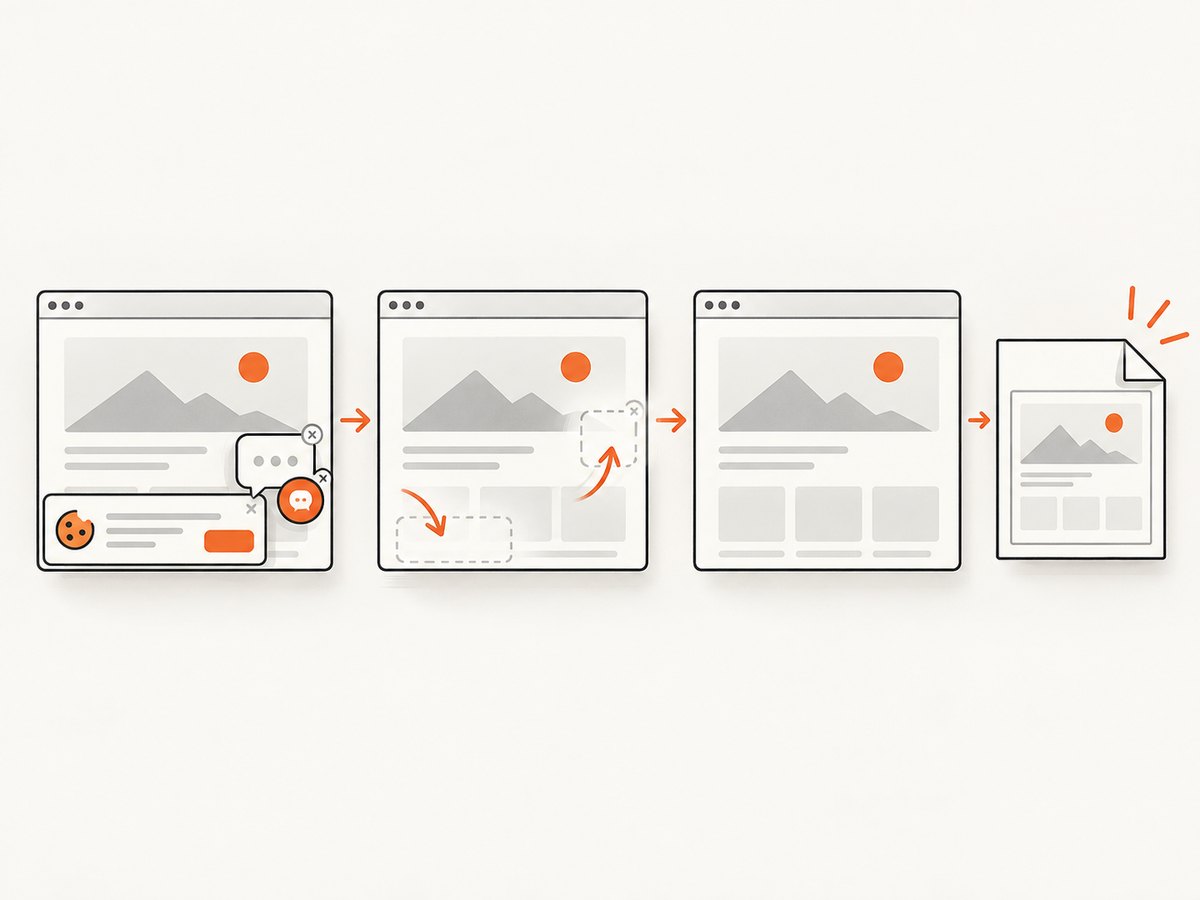
const res = await fetch(`https://api.screenshotneo.com/v1/shot?${q}`);ScreenshotNeo accepts cookie or consent banners and removes more than 60 known consent platforms, newsletter popups, and chat widgets before capture; each of those steps can be turned off. Bot checks or CAPTCHAs, blank pages, timeouts, failed loads, and cache hits are not billed, and the response identifies the page verdict and billing state in its headers. It also offers an MCP server for AI agents using Claude, Cursor, or another MCP client.
The free plan includes 1,000 screenshots per month with no card. Paid plans start at $5 for 3,000 screenshots; yearly billing gives two months free, and every feature is on every plan. A remote API requires a network connection and is for public website captures, so use the local workflows above when the HTML must remain entirely offline. Create a free ScreenshotNeo account to get 1,000 screenshots a month with no card.
9. Frequently asked questions
Can I convert HTML to JPG without uploading the file?
Yes. A local browser renderer can load the file and write the screenshot to disk. For a fully disconnected run, install the software first and ensure the page does not depend on remote assets or services.
Can a JPG have a transparent background?
No. JPEG is an opaque image format. Use a format with transparency if preserving a transparent background is a requirement.
Should I use a screenshot or a dedicated HTML converter?
A browser screenshot is a practical conversion when you want the rendered appearance of the page. Select a renderer and capture settings that suit the page’s scripts, layout, dimensions, and available assets.
Why does my local page look different when disconnected?
It may request fonts, stylesheets, images, scripts, or data from the internet. Make those resources available locally and test again without a network connection.


