How to Convert HTML to JPG or PNG
Render HTML in a browser, then save a viewport, full-page, or element screenshot as JPG or PNG with Chrome, Playwright, or ScreenshotNeo.
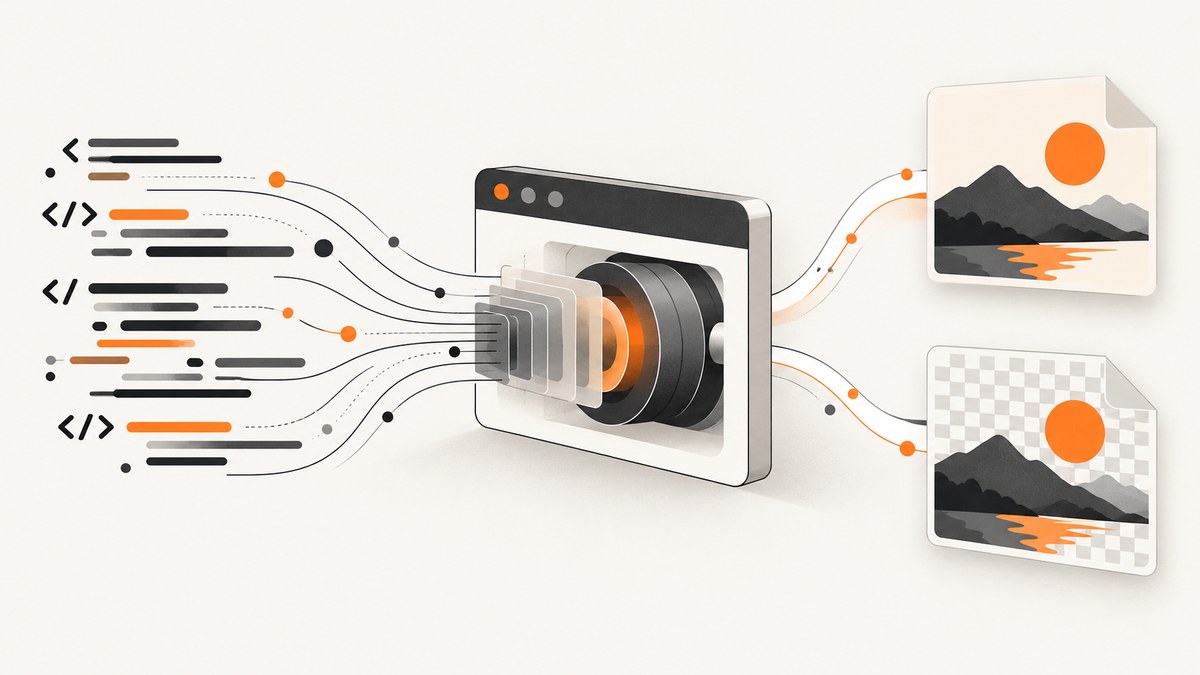
Direct answer: HTML must be rendered by a browser engine before it can become a JPG or PNG. For a one-off URL, Chrome Headless can save a screenshot. For repeatable automation, Playwright can capture the viewport, the full scrollable page, or one element and write PNG, JPEG, or WebP. If you want a hosted endpoint without maintaining a browser, ScreenshotNeo converts a URL to an image with one GET request.
What “convert HTML to JPG or PNG” actually means
HTML is a document structure, not a bitmap. CSS, fonts, images, JavaScript, and browser layout rules determine the rendered pixels. A conversion workflow therefore has two stages:
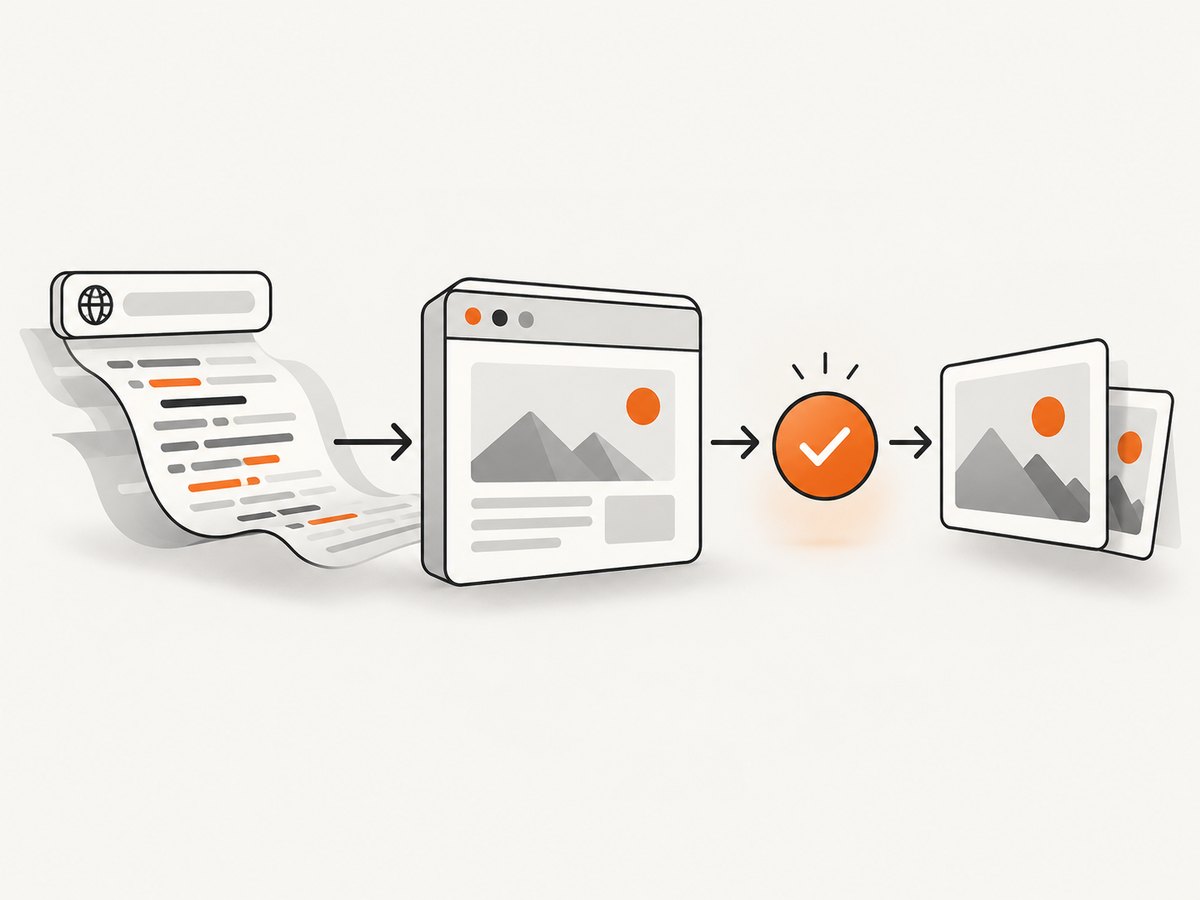
- Load the HTML in a browser engine and wait until the required content is ready.
- Capture the rendered viewport, a full page, or a selected element as PNG or JPEG.
This distinction matters for dynamic pages. A screenshot taken immediately after navigation can miss web fonts, lazy images, client-rendered data, animations, or consent overlays. Always define a readiness condition and inspect the resulting image.
Choose PNG or JPG
| Use case | Recommended format | Reason |
|---|---|---|
| Transparency, diagrams, text-heavy UI | PNG | Playwright documents PNG as the default and supports transparent backgrounds with omitBackground. |
| Photos or a smaller lossy file | JPG | JPEG quality is configurable from 0 to 100; Playwright documents a default quality of 80. |
| Modern web delivery | WebP | Playwright also supports WebP where the installed browser supports it. |
omitBackground does not apply to JPEG because JPEG has no alpha channel. Do not assume one format is always smaller or sharper; choose based on transparency, text fidelity, and your delivery requirements.
Method 1: Chrome Headless from the command line
Chrome Headless provides a quick URL-to-image route. The official command-line documentation describes --screenshot, --window-size, and a --timeout maximum wait. Check the flags supported by your installed Chrome version because command-line behavior can change.
google-chrome --headless --disable-gpu \
  --screenshot=page.png \
  --window-size=1440,900 \
  https://example.com
For JPEG output, use a JPEG filename if your Chrome build supports that behavior, or use a programmatic API where the output type is explicit. The command above captures the viewport. It does not automatically guarantee a full-page image or that every asynchronous component has finished loading.
Useful command-line considerations
- Set a viewport large enough for the layout you need.
- Use a timeout when pages continue loading indefinitely.
- Run in an environment with the required fonts installed.
- For authenticated pages, supply browser profile or network configuration carefully; never put secrets in shell history.
- Verify the output dimensions and inspect for cookie banners, bot checks, blank content, or missing images.
Method 2: Playwright for repeatable conversion
Playwright is the most flexible DIY option when you need code, waiting, selectors, device emulation, or controlled output. Its screenshot guide describes capturing “the viewport, a specific element, or the full scrollable page,” and documents PNG, JPEG, and WebP types.
Install
npm install playwright
npx playwright install chromium
Capture a viewport as PNG
import { chromium } from 'playwright';

const browser = await chromium.launch();
const page = await browser.newPage({ viewport: { width: 1440, height: 900 } });
await page.goto('https://example.com', { waitUntil: 'networkidle', timeout: 90000 });
await page.screenshot({ path: 'page.png', type: 'png' });
await browser.close();
Capture a full-page JPG
import { chromium } from 'playwright';

const browser = await chromium.launch();
const page = await browser.newPage({ viewport: { width: 1440, height: 900 } });
await page.goto('https://example.com', { waitUntil: 'domcontentloaded', timeout: 90000 });
await page.screenshot({
  path: 'page.jpg',
  type: 'jpeg',
  quality: 82,
  fullPage: true
});
await browser.close();
Capture one element
const card = page.locator('[data-testid="invoice"]');
await card.waitFor({ state: 'visible', timeout: 30000 });
await card.screenshot({ path: 'invoice.png', type: 'png' });
Capture HTML instead of a URL
const html = `<!doctype html>
<html><body><h1>Invoice</h1></body></html>`;
await page.setContent(html, { waitUntil: 'networkidle' });
await page.screenshot({ path: 'invoice.png' });
For local files, navigate to a file:// URL only when your deployment policy allows it. A library such as Spatie Browsershot documents URL, HTML-string, and local-file inputs while using Puppeteer and headless Chrome behind the scenes.
Important Playwright options
| Option | What it controls | Typical use |
|---|---|---|
fullPage |
Captures the complete scrollable page | Reports, documentation, long landing pages |
type |
png, jpeg, or webp |
Choose output format explicitly |
quality |
JPEG/WebP quality from 0–100 | Balance file size and detail |
scale |
CSS-pixel or device-pixel output scale | Retina assets or predictable dimensions |
omitBackground |
Preserves transparency for supported formats | Transparent PNG overlays |
clip |
Captures a rectangular region | Fixed-coordinate crops |
animations |
Controls screenshot behavior while animations run | Stable visual regression images |
Use a locator screenshot when the target is a semantic component. Use clip only when coordinates are stable across viewport sizes. A CSS-pixel scale is usually easier to reason about; a device-pixel scale is useful when the image will be displayed on high-density screens.
Waiting for dynamic content
Navigation completion is not the same as application readiness. Pick the narrowest reliable signal:
await page.goto(url, { waitUntil: 'domcontentloaded', timeout: 90000 });
await page.locator('.report-chart').waitFor({ state: 'visible', timeout: 30000 });
await page.waitForTimeout(500); // only when a short, known delay is required
await page.screenshot({ path: 'report.png', fullPage: true });- Prefer a selector that proves the required component exists.
- Use
networkidleonly when the site eventually becomes quiet; analytics, WebSockets, and polling can prevent it. - Disable or freeze animations when visual consistency matters.
- Scroll through long pages when lazy-loaded images require scrolling to trigger loading, then capture.
- Check the saved image instead of assuming every asynchronous element appeared.
Handling fonts, images, and browser state
Missing fonts change line wrapping and therefore image dimensions. Install the same fonts in every capture environment or load web fonts before capture:
await page.evaluate(() => document.fonts.ready);
await page.waitForLoadState('networkidle');
For private pages, create a browser context with the required cookies or headers. For deterministic output, set timezone, locale, color scheme, viewport, and device scale factor explicitly. Disable transitions with an injected stylesheet when motion causes inconsistent captures:
await page.addStyleTag({ content: `
  *, *::before, *::after {
    animation: none !important;
    transition: none !important;
    caret-color: transparent !important;
  }
` });
Alternative libraries and legacy tools
Spatie Browsershot is a library route for URL, HTML-string, and local-file input through Puppeteer and headless Chrome. wkhtmltoimage is an open-source Qt WebKit command-line tool described by its project page; verify current maintenance and rendering compatibility before adopting it. Hosted HTML-to-image services can be convenient, but review their current privacy, retention, pricing, and terms before sending confidential HTML.

Or skip the browser setup
ScreenshotNeo is a hosted website screenshot API. It removes cookie and consent banners, newsletter popups, and chat widgets before capture; bot checks, blank pages, timeouts, failed loads, and cache hits are not billed. Every response identifies the result with X-Page-Verdict and X-Billed headers. It also provides an MCP server with take_screenshot, get_page_info, and capture_pdf tools for Claude, Cursor, and other MCP clients.
See the ScreenshotNeo API documentation for all options. A basic PNG, JPEG, or WebP capture is one request:
cURL
curl -G "https://api.screenshotneo.com/v1/shot" \
  -d access_key=YOUR_API_KEY \
  --data-urlencode url=https://stripe.com \
  -o shot.webp
Python
import requests

r = requests.get(
    "https://api.screenshotneo.com/v1/shot",
    params={"access_key": "YOUR_API_KEY", "url": "https://stripe.com"},
    timeout=90,
)
r.raise_for_status()
open("shot.webp", "wb").write(r.content)
Node.js
const q = new URLSearchParams({ access_key: 'YOUR_API_KEY', url: 'https://stripe.com' });
const res = await fetch(`https://api.screenshotneo.com/v1/shot?${q}`);
if (!res.ok) throw new Error(`HTTP ${res.status}`);
const buffer = Buffer.from(await res.arrayBuffer());
await import('node:fs/promises').then(fs => fs.writeFile('shot.webp', buffer));
ScreenshotNeo supports full-page capture with lazy images loaded, CSS-selector element capture, dark mode, 12 device presets or custom viewports, retina scale, custom CSS and JavaScript, clicks, selector or delay waits, network-idle waits, request and resource blocking, headers, cookies, user agents, Authorization, timezone, geolocation, transparent backgrounds, resizing, cache TTLs, signed image links, asynchronous jobs with signed webhooks, bulk capture of up to 100 URLs per call, a usage API, and an OpenAPI specification. Parameter names used by other screenshot APIs also work, which can simplify migration.
The Free plan includes 1,000 shots per month with no card. Starter is $5 for 3,000 shots, Growth $15 for 15,000, Pro $39 for 60,000, Scale $99 for 250,000, and Business $249 for 1,000,000. Yearly billing gives two months free, and every feature is available on every plan. Create a free ScreenshotNeo account to start with 1,000 screenshots a month and no card.
Troubleshooting
The image is blank
Cause: the page failed to load, requires JavaScript, blocked the browser, or was captured before rendering. Fix: inspect console and network errors, increase the timeout, wait for a meaningful selector, and test the URL in the same browser environment. With ScreenshotNeo, inspect X-Page-Verdict; blank pages and failed loads are identified and not billed.
Cookie banners or chat widgets cover the page
Cause: consent and third-party overlays are part of the DOM. Fix: click the consent control, hide known selectors, or inject CSS before capture. ScreenshotNeo accepts consent banners and removes 60+ known consent platforms, newsletter popups, and chat widgets before the shot.
Images are missing
Cause: lazy loading, blocked requests, expired signed URLs, or a capture taken before images decoded. Fix: scroll the page, wait for the target image, confirm network access, and avoid overly aggressive resource blocking.
The page differs between runs
Cause: animations, rotating content, time zones, responsive breakpoints, ads, or changing data. Fix: set viewport, scale, locale, timezone, and color scheme; disable animation; block ads and trackers where appropriate; and wait for stable content.
Text wraps differently in production
Cause: different fonts, font loading timing, device scale, or viewport width. Fix: install or preload the same fonts, await document.fonts.ready, and make dimensions explicit.
JPEG looks soft
Cause: lossy compression or a low device scale. Fix: raise JPEG quality, capture at a suitable scale, or use PNG when crisp text and transparency matter.
The command never finishes
Cause: a page keeps connections open through analytics, polling, or WebSockets. Fix: use domcontentloaded plus a selector wait instead of waiting for global network idle, and enforce a timeout.
Performance, reliability, and cost
- Reuse browsers: keep one Playwright browser process alive and create isolated contexts for jobs instead of launching Chrome for every image.
- Control concurrency: limit simultaneous pages to available CPU and memory; excessive parallelism causes timeouts and renderer crashes.
- Cache stable pages: cache by URL and capture settings when the source changes infrequently. ScreenshotNeo lets you choose a cache TTL.
- Reduce payload: block ads, trackers, or unnecessary resource types only when they cannot affect the target image.
- Use async jobs for batches: webhooks avoid holding an HTTP request open for slow pages. ScreenshotNeo supports signed webhooks and bulk capture for 100 URLs per call.
- Budget by successful images: local automation costs infrastructure time. ScreenshotNeo bills only clean shots; bot checks, blank pages, timeouts, failed loads, and cache hits cost nothing.
- Protect secrets: keep API keys, cookies, and Authorization headers in a secret manager and redact them from logs.
Conversion checklist
- Decide whether you need the viewport, full page, or one element.
- Choose PNG for transparency and crisp text, or JPEG when lossy output is acceptable.
- Set viewport, scale, and color scheme explicitly.
- Wait for the selector, fonts, images, or data that define readiness.
- Disable animations and remove overlays that would obscure the result.
- Set a timeout and handle navigation, HTTP, and rendering errors.
- Inspect dimensions, file type, and the final pixels before publishing.
- For production workloads, reuse browsers or call ScreenshotNeo and record its verdict and billing headers.
FAQ
Can I convert an HTML string without hosting it?
Yes. Use Playwright’s page.setContent() and then call page.screenshot(). Libraries such as Browsershot also document HTML-string input.
How do I make a transparent PNG?
Use a browser screenshot with a transparent page background and Playwright’s omitBackground: true. JPEG cannot contain transparency.
Why is my full-page image extremely tall?
fullPage: true captures the entire scrollable document. For a bounded result, capture a specific element or use a clip rectangle.
Should I use a hosted converter for private HTML?
Check the service’s current privacy, retention, security, and terms before uploading confidential content. A local browser keeps the rendering environment under your control.
Can an AI agent take screenshots?
ScreenshotNeo includes an MCP server with screenshot, page-info, and PDF tools for Claude, Cursor, and other MCP clients.


