How to Convert HTML to JPG with PHP
Render HTML in headless Chrome with PHP, save a real JPEG, handle URLs and strings, troubleshoot failures, and compare a hosted ScreenshotNeo option.
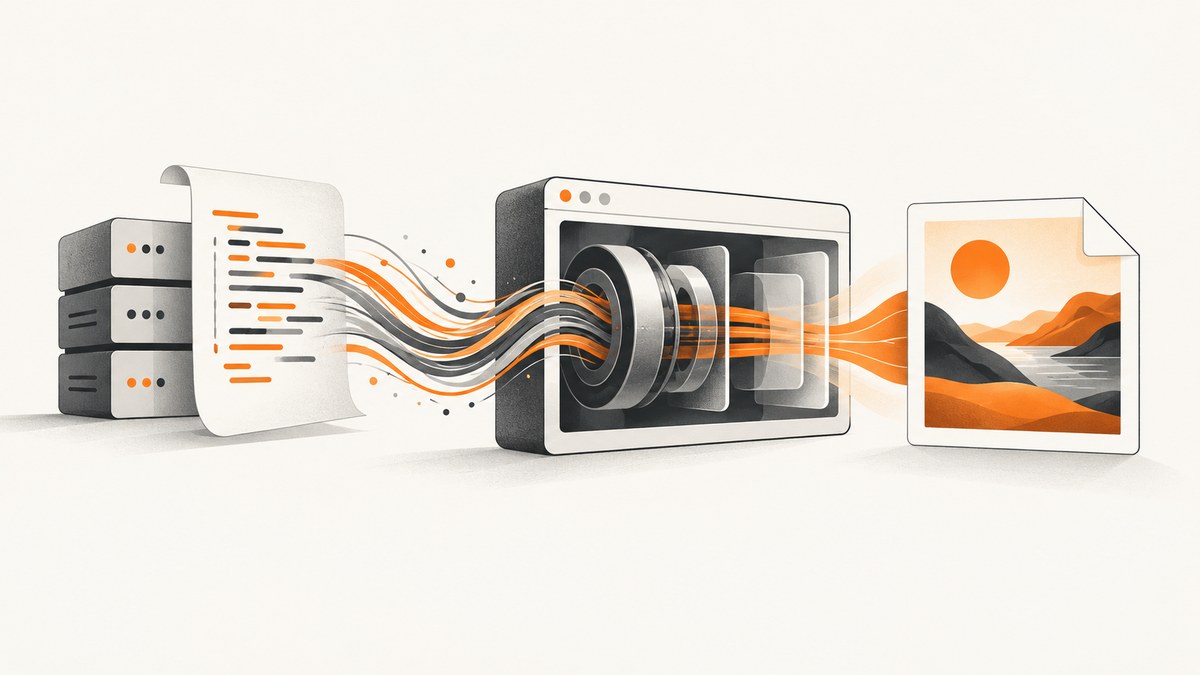
To convert HTML to JPG with PHP, render the markup in a real browser engine and then encode the screenshot as JPEG. A practical PHP solution is Spatie Browsershot: it provides a PHP API while Puppeteer controls headless Google Chrome. This handles modern CSS, web fonts, JavaScript, images, and responsive layouts that PHP’s image functions do not render.
What the conversion involves
There are two separate jobs:
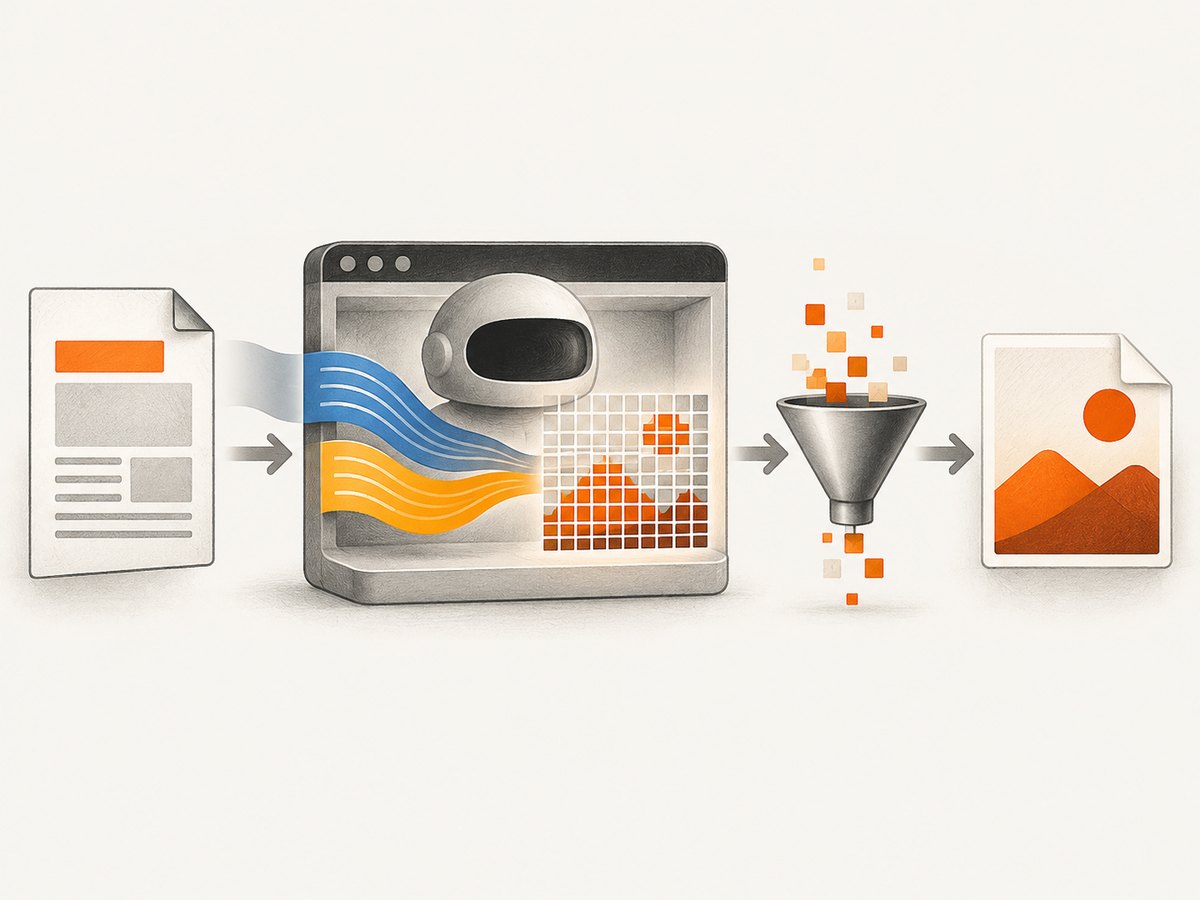
- Rendering: Chrome loads a URL or HTML string, executes CSS and JavaScript, waits for the page to settle, and paints pixels.
- Encoding: the rendered pixels are written as a JPEG with a selected quality level.
PHP’s GD extension can create and manipulate bitmap images and write formats such as PNG, but the PHP manual does not describe it as a browser-like renderer for arbitrary HTML and CSS. Use a browser for rendering; use GD or another image library afterward when you need cropping, compositing, or additional processing.
Prerequisites and installation
Browsershot requires PHP, Composer, Node.js, Puppeteer, and a Chromium-compatible browser. Check your installed package version before deployment. Packagist metadata for Browsershot 5.4.0 lists PHP ^8.2, ext-fileinfo, ext-json, spatie/temporary-directory, and Symfony Process dependencies; version requirements can change.
composer require spatie/browsershot
npm install puppeteer
Confirm that the machine can launch the browser from the account running PHP. On a server, verify the PHP version, Node runtime, executable permissions, shared-memory limits, and the Chrome dependencies required by your operating system. No particular hosting provider is required, but the host must permit a headless browser process.
Convert an HTML string to JPG
This complete example renders an HTML string at a fixed viewport and saves a JPEG. The setScreenshotType call is important because screenshot output defaults to PNG in the documented API.
<?php
require __DIR__ . '/vendor/autoload.php';

use Spatie\Browsershot\Browsershot;

$html = '<!doctype html>
<html>
<head>
  <meta charset="utf-8">
  <style>
    body { margin: 0; font-family: Arial, sans-serif; background: #f4f6f8; }
    .card { width: 900px; padding: 48px; box-sizing: border-box; background: white; }
    h1 { margin-top: 0; color: #202124; }
  </style>
</head>
<body>
  <section class="card">
    <h1>Invoice preview</h1>
    <p>Rendered from an HTML string.</p>
  </section>
</body>
</html>';

Browsershot::html($html)
    ->setScreenshotType('jpeg', 90)
    ->windowSize(1000, 500)
    ->save(__DIR__ . '/output.jpg');
Quality is an integer from 0 to 100. Higher values preserve more detail and usually create larger files. The value 90 is an illustrative choice; choose based on your file-size and visual-quality requirements.
Use a heredoc for maintainable templates
$html = <<<'HTML'
<!doctype html>
<html><body>
  <h1>Monthly report</h1>
  <p>Generated at 1200 × 800 CSS pixels.</p>
</body></html>
HTML;

Browsershot::html($html)
    ->setScreenshotType('jpeg', 85)
    ->windowSize(1200, 800)
    ->save(__DIR__ . '/report.jpg');
Convert a webpage URL to JPG
For a public webpage, pass the URL to Browsershot::url. Chrome fetches the document and its assets before taking the image.
<?php
require __DIR__ . '/vendor/autoload.php';

use Spatie\Browsershot\Browsershot;

Browsershot::url('https://example.com')
    ->setScreenshotType('jpeg', 90)
    ->windowSize(1440, 900)
    ->save(__DIR__ . '/example.jpg');
For pages that load content asynchronously, configure an explicit wait. Browsershot supports waiting for a selector or delaying capture; use the smallest wait that reliably produces the content you need. A selector wait is usually more robust than a fixed sleep because it describes the condition you actually need.
Browsershot::url('https://example.com/dashboard')
    ->setScreenshotType('jpeg', 88)
    ->windowSize(1365, 900)
    ->waitForSelector('.dashboard-ready')
    ->save(__DIR__ . '/dashboard.jpg');
Control dimensions, regions, and page length
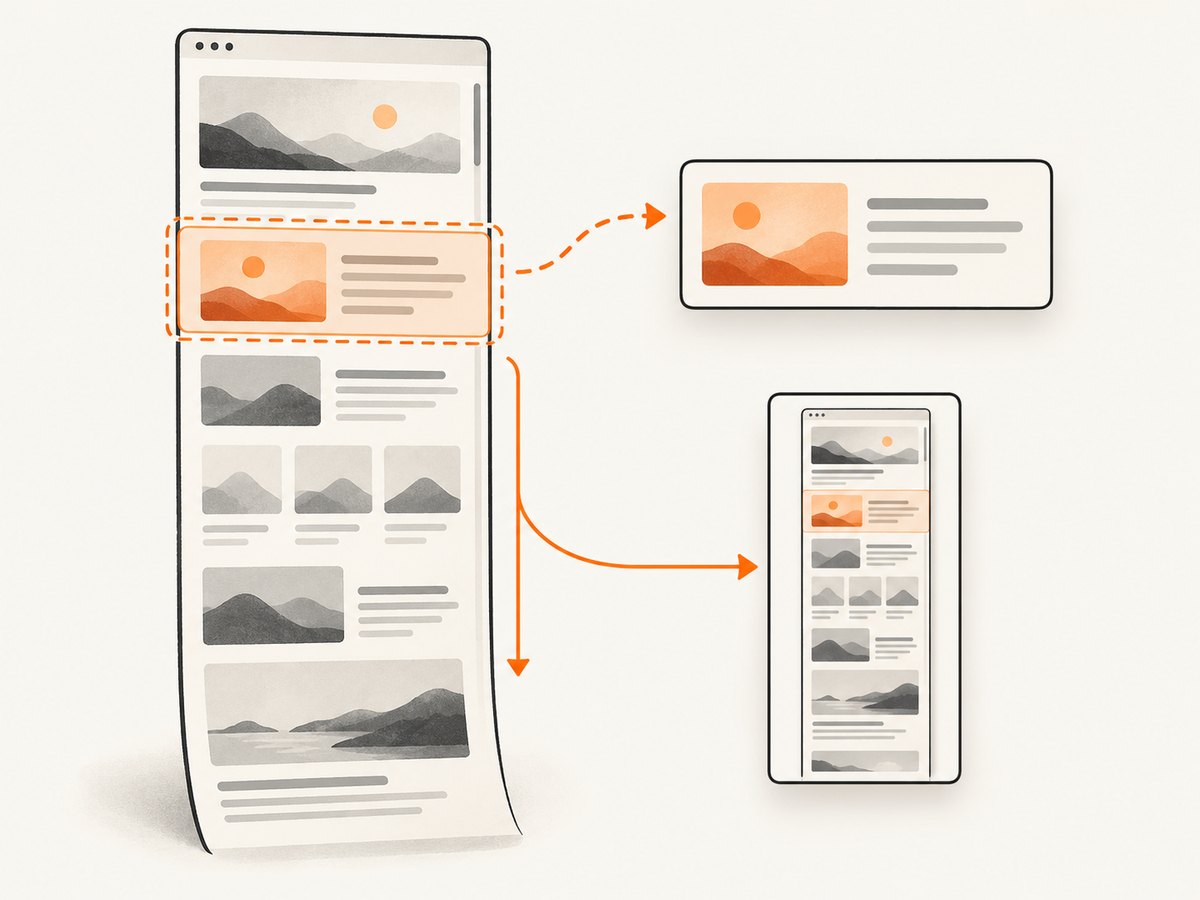
Viewport dimensions affect responsive breakpoints, line wrapping, and the resulting JPG. Set the viewport before capture with windowSize. For a long document, use the documented full-page option so Chrome captures the complete scrollable page rather than only the viewport.
Browsershot::url('https://example.com/article')
    ->setScreenshotType('jpeg', 85)
    ->windowSize(1280, 900)
    ->fullPage()
    ->save(__DIR__ . '/article-full.jpg');
You can also capture a particular element or clip a region when the output should contain a component instead of the entire document. Element capture is useful for cards, charts, invoices, and social previews. Make sure the selector exists after JavaScript has finished; otherwise the capture fails or produces an unexpected result.
Browsershot::url('https://example.com/report')
    ->setScreenshotType('jpeg', 90)
    ->windowSize(1400, 1000)
    ->select('.report-card')
    ->save(__DIR__ . '/report-card.jpg');
Make the output deterministic
- Set an explicit viewport so responsive CSS does not change between runs.
- Use a stable font stack or install the fonts your design requires. Missing fonts change line breaks and card heights.
- Wait for a meaningful selector when content is asynchronous.
- Use absolute URLs for assets when rendering an HTML string outside its original site.
- Keep image dimensions and aspect ratios explicit to reduce layout shifts.
- Choose JPEG only for photographic or complex imagery. Text-heavy graphics may look sharper as PNG, but the requirement here is a JPG.
HTML strings, local files, and user input
An HTML string is convenient for server-generated documents. If your template references relative CSS, JavaScript, or images, those paths need a meaningful base URL or must be changed to absolute paths. A local file can be rendered by converting its path to a file URL or by reading it and passing the contents to Browsershot::html; ensure the browser process has permission to read the files.
Validate URLs and HTML before passing them to Browsershot. Spatie documents that this validation is the application’s responsibility. Treat submitted markup as untrusted: do not allow it to access internal network services, private files, or credentials. Apply your normal URL allowlists, authentication boundaries, and request limits.
Useful capture options
| Need | Approach | Reason |
|---|---|---|
| Exact desktop layout | windowSize(width, height) |
Controls CSS breakpoints and viewport pixels. |
| Long page | fullPage() |
Captures the complete scrollable document. |
| One component | Element selection or clipping | Removes surrounding navigation and whitespace. |
| Dynamic content | Wait for a selector or delay | Allows client-side rendering to finish. |
| Smaller file | Lower JPEG quality | Reduces bytes at the cost of compression artifacts. |
| Pixel density | Use a larger viewport or device scale configuration supported by your Browsershot version | Produces more pixels for high-density displays. |
Common errors and fixes
“Chrome/Chromium could not be found”
Cause: Puppeteer did not download a browser, or the runtime cannot find its executable. Fix: install Puppeteer’s browser, configure the executable path supported by your Browsershot version, and run the command as the same user that executes PHP.
“Process timed out”
Cause: the page is slow, blocked, waiting on an API, or stuck in an infinite script. Fix: test the URL in the target environment, remove unnecessary third-party resources, wait for a specific ready selector, and set a sensible process timeout. Do not solve every timeout by making the timeout unlimited.
The JPG is blank or partly rendered
Cause: capture happened before fonts, images, or JavaScript content arrived. Fix: wait for a selector, add a short delay where necessary, make assets reachable from the server, and check browser console or network errors.
CSS or images are missing
Cause: relative paths resolve differently in a generated string or the browser cannot reach a private asset. Fix: use absolute URLs, provide the required authentication in a controlled way, or inline critical CSS and images.
The output is PNG even though the filename ends in .jpg
Cause: the screenshot format was not explicitly selected. Fix: call setScreenshotType('jpeg', quality) before saving.
Fonts, animations, or layout vary between runs
Cause: nondeterministic web fonts, animation timing, remote content, or responsive viewport changes. Fix: install fonts, disable or pause animations with custom CSS where appropriate, wait for stable content, and use fixed dimensions.
Performance, reliability, and cost
Each capture starts browser work and may download a complete dependency graph. Reuse a warm worker or queue jobs when your application needs many images, but bound concurrency so the host does not run out of memory. Cache identical inputs when the source content has not changed. For full-page captures, very tall documents create large bitmaps and larger JPEG files; consider element captures or a controlled content height.
Reliability depends on the target page as well as your PHP code. Pages protected by bot checks, pages requiring a login, unstable third-party APIs, and sites that change their markup can fail even when a small example works. Record the URL, viewport, wait condition, browser error, and output path for diagnosis. Set job-level timeouts and retry only transient failures; repeated retries can overload both your worker and the destination site.
Self-hosted conversion costs include the server, browser runtime, bandwidth, and engineering time. Browsershot itself is a PHP interface over Puppeteer and Chrome, so it is not a pure-PHP operation. Verify browser compatibility before choosing a shared host.
Or skip the browser setup
ScreenshotNeo provides a hosted website screenshot API. One GET request returns PNG, JPEG, WebP, or PDF, and its options cover full-page capture, element selectors, device presets, custom viewports, retina scale, waits, custom CSS and JavaScript, headers, cookies, user agents, geolocation, caching, signed links, asynchronous jobs, bulk capture, and more. See the ScreenshotNeo documentation for the current request parameters.
curl -G "https://api.screenshotneo.com/v1/shot" -d access_key=YOUR_API_KEY --data-urlencode url=https://stripe.com -o shot.webpimport requests
r = requests.get("https://api.screenshotneo.com/v1/shot", params={"access_key": "YOUR_API_KEY", "url": "https://stripe.com"}, timeout=90)
open("shot.webp", "wb").write(r.content)const q = new URLSearchParams({ access_key: 'YOUR_API_KEY', url: 'https://stripe.com' });
const res = await fetch(`https://api.screenshotneo.com/v1/shot?${q}`);Before capture, ScreenshotNeo accepts cookie and consent banners and removes more than 60 known consent platforms, newsletter popups, and chat widgets; each step can be disabled. Bot checks and CAPTCHAs, blank pages, timeouts, failed loads, and cache hits are not billed, and the response reports the result in X-Page-Verdict and X-Billed headers. An MCP server lets Claude, Cursor, and other MCP clients call take_screenshot, get_page_info, and capture_pdf. The free plan includes 1,000 screenshots per month with no card; paid plans start at $5 for 3,000 shots.
Create a free ScreenshotNeo account and start with 1,000 screenshots a month at no charge.
FAQ
Can PHP convert HTML to JPG without Chrome?
Not reliably for modern HTML and CSS. GD can process pixels, but a browser engine is needed to render arbitrary web layouts, fonts, and JavaScript.
Should I use JPG or PNG?
Use JPG when smaller photographic output is useful. PNG is often sharper for text and flat-color graphics, but explicitly select JPEG when a JPG file is required.
Why does my local HTML look different on the server?
Compare browser versions, installed fonts, viewport size, asset permissions, environment variables, and network access. These differences affect layout and loading.
Can I capture only one HTML element?
Yes. Use Browsershot’s element-selection or clipping features, wait until the selector exists, and save the selected region as JPEG.
How do I handle private pages?
Run Browsershot in an authenticated environment or provide controlled request credentials. Validate all inputs and avoid exposing internal URLs or secrets to untrusted HTML.


