How to Convert HTML to JPG
Render HTML in a browser, wait for fonts and data, then capture the page as a JPEG with the right viewport, quality, and full-page settings.
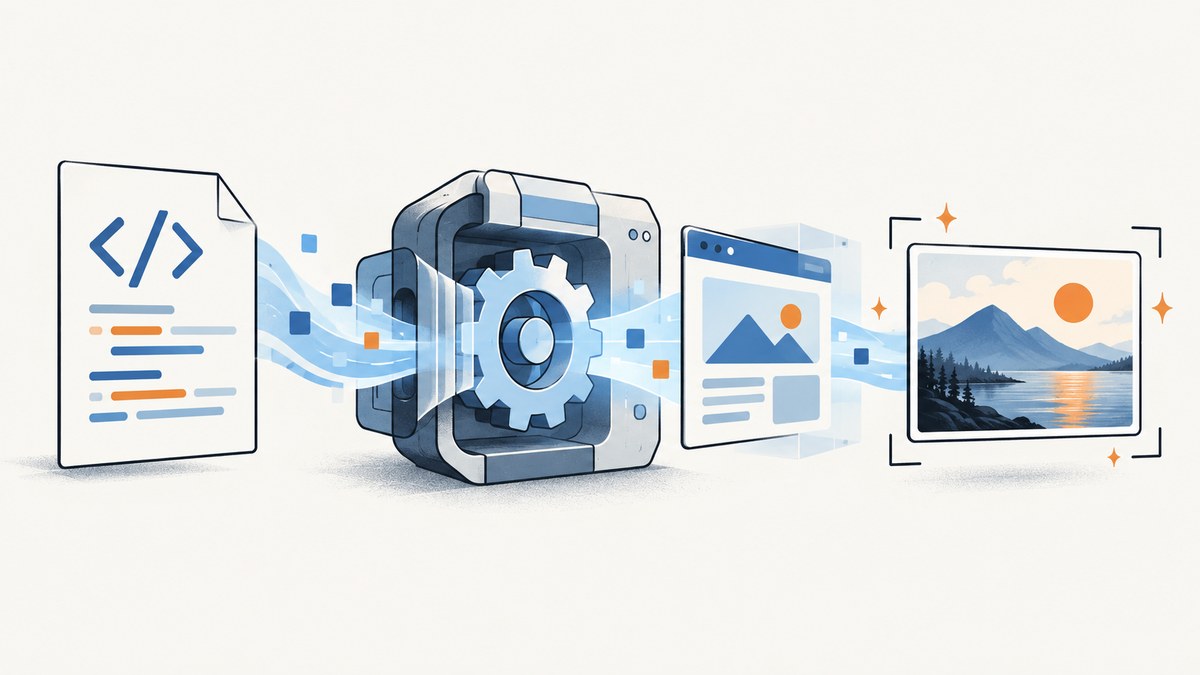
Direct answer: HTML must be rendered by a browser before it can become a JPG. Open the URL, local file, or HTML string in a browser engine, wait until fonts, images, JavaScript, and data have settled, then capture the rendered page with JPEG output. For repeatable conversions, use Puppeteer or Playwright and set the screenshot type to jpeg.
This guide covers one-off browser exports, automated Node.js workflows, local files, HTML strings, PHP applications, full-page images, quality and scaling choices, troubleshooting, and a hosted option when you do not want to maintain a browser.
1. Understand what is being converted
An HTML file is source markup. A JPG is a raster image. The conversion step is therefore a rendering process:

- Load the HTML in a browser engine.
- Resolve CSS, fonts, images, and JavaScript.
- Choose a viewport and device scale.
- Capture the visible viewport, one element, or the entire page.
- Encode the pixels as JPEG at the required quality.
A text-only parser cannot reproduce the final appearance of a modern page because layout, CSS painting, and client-side rendering happen in the browser. The same rule applies to a live webpage: navigate to its URL, allow the page to reach the state you need, and then take the screenshot.
2. Choose the right workflow
| Need | Best fit | Reason |
|---|---|---|
| One occasional image | Browser capture | Minimal setup and manual control are enough. |
| JavaScript automation | Puppeteer | Its high-level API automates Chrome and Firefox and supports page screenshots. Chrome for Developers documentation describes Puppeteer this way. |
| Cross-browser automation and explicit image controls | Playwright | The screenshot API exposes JPEG type, quality, scale, path, and full-page controls. See the Page screenshot API. |
| PHP application integration | Browsershot | Browsershot accepts URLs, arbitrary HTML, and local files through Puppeteer and headless Chrome. |
3. Convert HTML to JPG in a browser
For a single conversion, open the HTML file or webpage in a current browser. Use the browser’s capture or screenshot command, choose the visible viewport or full page, and export as JPG if that format is offered. This is practical for occasional work, but manual capture is difficult to reproduce exactly because viewport size, browser version, loaded fonts, and page timing can vary.
- Open the URL or local
.htmlfile. - Resize the browser window or set the required viewport dimensions.
- Wait for images, fonts, charts, and asynchronous data to finish loading.
- Capture the viewport or the full document.
- Choose JPEG and set quality if the browser exposes that option.
Use PNG instead when you need lossless edges around small text or UI icons. JPEG is lossy, so text-heavy pages may show ringing or block artifacts at low quality.
4. Convert a webpage to JPG with Puppeteer
Install Puppeteer in a Node.js project:
npm install puppeteerCreate capture.mjs:
import puppeteer from 'puppeteer';

const browser = await puppeteer.launch();
const page = await browser.newPage();
await page.setViewport({ width: 1440, height: 900, deviceScaleFactor: 1 });
await page.goto('https://example.com', { waitUntil: 'networkidle2' });
await page.screenshot({
  path: 'page.jpg',
  type: 'jpeg',
  quality: 90,
  fullPage: true
});
await browser.close();
Run it with node capture.mjs. The networkidle2 condition waits until there are no more than two active network connections, but it does not guarantee that every application task is complete. If the page renders data after navigation, wait for a selector or an explicit application condition:
await page.goto('https://example.com/dashboard', { waitUntil: 'domcontentloaded' });
await page.waitForSelector('[data-report-ready]', { timeout: 30000 });
await page.screenshot({ path: 'dashboard.jpg', type: 'jpeg', quality: 92, fullPage: true });
Confirm the exact screenshot options supported by the Puppeteer version installed in your project. Pin the package and browser revision when identical output matters across machines.
5. Convert HTML to JPG with Playwright
Install Playwright:
npm install playwright
npx playwright install chromium
Save this as capture.mjs:
import { chromium } from 'playwright';

const browser = await chromium.launch();
const page = await browser.newPage({ viewport: { width: 1440, height: 900 } });
await page.goto('https://example.com', { waitUntil: 'networkidle' });
await page.screenshot({
  path: 'page.jpg',
  type: 'jpeg',
  quality: 90,
  fullPage: true,
  scale: 'css'
});
await browser.close();
Playwright supports png, jpeg, and webp through type. fullPage: true captures the complete scrollable page. scale: 'css' keeps dimensions in CSS pixels; use device-pixel scaling when you intentionally need a denser raster for print or high-resolution output.
Capture one element
const card = page.locator('.invoice-card');
await card.screenshot({ path: 'invoice-card.jpg', type: 'jpeg', quality: 95 });
Element capture is useful for cards, receipts, charts, and previews. Make sure the element is visible and has finished rendering before the call.
6. Convert a local HTML file
Browsers can load a local file, but relative assets must resolve from the correct directory. With Playwright, convert the absolute path to a file URL:
import { chromium } from 'playwright';
import { pathToFileURL } from 'node:url';

const browser = await chromium.launch();
const page = await browser.newPage({ viewport: { width: 1280, height: 800 } });
const fileUrl = pathToFileURL('/absolute/path/report.html').href;
await page.goto(fileUrl, { waitUntil: 'networkidle' });
await page.screenshot({ path: 'report.jpg', type: 'jpeg', quality: 90, fullPage: true });
await browser.close();
Use absolute paths for CSS, images, and fonts when relative paths are unreliable. A local page that fetches remote APIs may also be affected by browser security policy; serving the directory through a local HTTP server can make asset and request behavior closer to production.
7. Convert an HTML string
When markup is generated by your application, write it into a page and capture it directly:
import { chromium } from 'playwright';

const html = `<!doctype html>
<html>
  <head>
    <style>body { font-family: Arial; padding: 40px; }</style>
  </head>
  <body><h1>Generated report</h1><p>Rendered before capture.</p></body>
</html>`;

const browser = await chromium.launch();
const page = await browser.newPage({ viewport: { width: 1200, height: 800 } });
await page.setContent(html, { waitUntil: 'networkidle' });
await page.screenshot({ path: 'generated.jpg', type: 'jpeg', quality: 92, fullPage: true });
await browser.close();
If the string references external fonts or images, wait for those resources explicitly. Inline critical CSS and embed small assets when you need a self-contained, repeatable result.
8. PHP with Browsershot
Browsershot keeps the browser automation behind a PHP-facing API. The documented patterns include URL, arbitrary HTML, and local-file inputs:
use Spatie\Browsershot\Browsershot;

Browsershot::url('https://example.com')
    ->setOption('type', 'jpeg')
    ->quality(90)
    ->fullPage()
    ->save('/absolute/path/page.jpg');

Browsershot::html('<h1>Generated report</h1>')
    ->setOption('type', 'jpeg')
    ->save('/absolute/path/report.jpg');

Browsershot::htmlFromFilePath('/absolute/path/report.html')
    ->setOption('type', 'jpeg')
    ->save('/absolute/path/file-report.jpg');
Install and configure Chrome, Node.js, and Puppeteer according to your deployment environment and the Browsershot version you use.
9. Options that control the JPG
| Option | What it changes | Practical guidance |
|---|---|---|
| Viewport | Layout width and visible height | Set fixed dimensions for reproducible wrapping and responsive breakpoints. |
| Full page | Captures content below the fold | Enable it for long documents; omit it for a viewport thumbnail. |
| Quality | JPEG compression level | Start around 85–95 for text and graphics; lower values reduce file size but add artifacts. |
| Scale | CSS pixels versus device pixels | Use CSS scale for predictable dimensions; device scale for higher-resolution output. |
| Fonts | Text metrics and line wrapping | Wait for document.fonts.ready when web fonts load asynchronously. |
| JavaScript | Data, animations, and component state | Wait for a ready selector and disable animations when deterministic output matters. |
| Background | Painted page background | Set an explicit background color if transparent or default backgrounds vary. |
await page.evaluate(() => document.fonts.ready);
await page.addStyleTag({ content: `*, *::before, *::after { animation: none !important; transition: none !important; }` });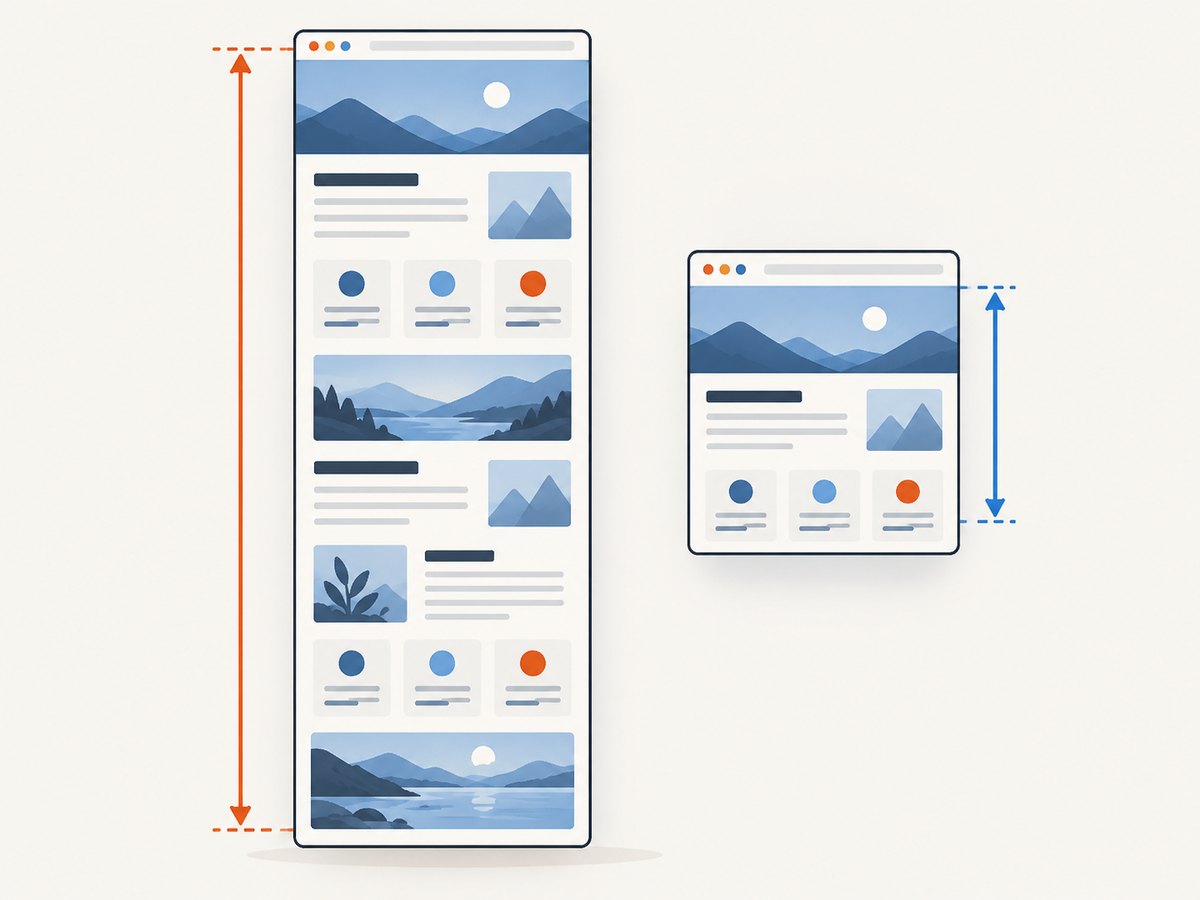
10. Or skip the browser setup
ScreenshotNeo is a website screenshot API. One GET request renders a URL and returns PNG, JPEG, WebP, or PDF. The API accepts the familiar screenshot parameters used by other services, so an existing integration can usually switch with little code. See the ScreenshotNeo documentation for the complete option list.
cURL:
curl -G "https://api.screenshotneo.com/v1/shot" -d access_key=YOUR_API_KEY --data-urlencode url=https://stripe.com -o shot.webpPython:
import requests
r = requests.get("https://api.screenshotneo.com/v1/shot", params={"access_key": "YOUR_API_KEY", "url": "https://stripe.com"}, timeout=90)
open("shot.webp", "wb").write(r.content)
Node.js:
const q = new URLSearchParams({ access_key: 'YOUR_API_KEY', url: 'https://stripe.com' });
const res = await fetch(`https://api.screenshotneo.com/v1/shot?${q}`);
For HTML-to-JPG work, set the target URL and the output format parameter described in the documentation. ScreenshotNeo supports full-page capture, CSS-element capture, custom CSS and JavaScript, click actions, selector or delay waits, network-idle waits, viewport and device presets, retina scale, custom headers and cookies, user agents, authorization, timezone, geolocation, image resizing, request blocking, caching with a chosen TTL, asynchronous jobs, signed webhooks, bulk capture of up to 100 URLs per call, and usage reporting.
It also removes more than 60 known consent platforms, newsletter popups, and chat widgets before capture; each cleanup step can be turned off. Bot checks and CAPTCHAs, blank pages, timeouts, failed loads, and cache hits are not billed as clean shots. The response identifies the result with X-Page-Verdict and X-Billed headers. An MCP server provides take_screenshot, get_page_info, and capture_pdf tools for Claude, Cursor, and other MCP clients.
The Free plan includes 1,000 shots each month with no card. Paid plans start at $5 for 3,000 shots; yearly billing gives two months free, and every feature is included on every plan. Create a free ScreenshotNeo account and start with the 1,000 included screenshots.
11. Troubleshooting
Only the visible viewport appears
Set fullPage: true in Puppeteer or Playwright. If the page uses nested scroll containers, capture the relevant element or adjust its scroll behavior; full-page mode normally follows the document, not every internal panel.
Fonts or images are missing
The screenshot ran before asynchronous resources completed. Wait for a specific selector, call document.fonts.ready, and verify image load state. Check that remote assets are reachable from the machine running Chrome.
The JPG is blurry or unexpectedly large
Choose the scale deliberately. Device-pixel capture increases dimensions and file size; CSS scale is predictable. Increase JPEG quality for small text, or use PNG when lossless edges matter.
Output changes between machines
Pin Node.js, Puppeteer or Playwright, and the browser revision. Use fixed viewport dimensions, install the same fonts, freeze animations, and wait for a deterministic ready condition.
Charts or data are empty
Navigation completion is not application completion. Wait for the chart’s rendered selector or a page-specific readiness marker. For dashboards, block capture until API data and client-side rendering finish.
Local assets return 404 errors
Use an absolute file URL or serve the project directory over HTTP. Confirm that relative paths are relative to the loaded document, not the process’s current working directory.
Navigation times out
Check DNS, authentication, redirects, and resources that never finish. Use a less strict wait condition, then wait for the exact content you need. Set a sensible per-page timeout and record the URL and failure stage for retries.
JPEG has visible compression artifacts
Raise quality, reduce unnecessary rescaling, or capture PNG first when the downstream system permits it. JPEG is inherently lossy.
12. Performance, reliability, and cost
- Reuse browsers: For batch jobs, keep one browser process alive and create isolated pages or contexts instead of launching Chrome for every image.
- Control page weight: Block analytics, advertising, video, and irrelevant resource types when they do not affect the screenshot.
- Use targeted waits: A selector or application-ready signal is often faster and more reliable than an arbitrary long delay.
- Limit concurrency: Too many simultaneous pages consume CPU and memory and can trigger rate limits or overload the target site.
- Cache deliberately: Cache stable pages, but invalidate when content, fonts, or authenticated state changes.
- Retry safely: Retry transient navigation failures with backoff, while recording whether the target returned an HTTP error, a blank page, or a browser timeout.
- Secure credentials: Keep cookies, authorization headers, and API keys out of source control and logs.
Self-hosted browser automation costs the resources needed to run Chrome and the target page. A hosted API changes that to request usage and removes browser installation and maintenance. ScreenshotNeo charges only clean shots; cache hits and failed or unusable captures are identified and not billed according to the product rules above.
13. A repeatable conversion checklist
- Define whether the output is a viewport, element, or full document.
- Set an explicit viewport width, height, and scale.
- Choose JPEG quality based on text density and file-size limits.
- Wait for fonts, images, data, and any required selector.
- Disable animations and blinking carets for deterministic output.
- Pin browser and automation package versions for reproducible builds.
- Use retries, timeouts, and structured logs in production.
- Inspect the output dimensions and file size before publishing it.
14. FAQ
Can I convert HTML to JPG without opening a browser?
The HTML still has to be rendered by a browser engine somewhere. You can automate that engine with Puppeteer, Playwright, Browsershot, or a hosted screenshot API.
Should I use PNG or JPG for text?
PNG preserves sharp edges without compression loss. JPG is smaller and widely supported, but choose a higher quality when the image contains small text.
What is the difference between full-page and viewport capture?
Viewport capture records only the currently sized browser area. Full-page capture extends the image through the document’s scrollable content.
Why does the same HTML wrap differently?
Wrapping depends on viewport width, browser version, available fonts, device scale, and loaded content. Fix those inputs when output consistency matters.
Can a screenshot API convert generated HTML strings?
That depends on the service’s inputs. Browser libraries such as Playwright and Browsershot can load HTML strings directly; ScreenshotNeo is designed around rendering a URL and provides custom CSS and JavaScript controls for the page being captured.


