Convert HTML to Multiple JPG Images
Convert local HTML files or web pages into separate JPG images with Playwright. Learn full-page capture, batch naming, quality settings, and troubleshooting.
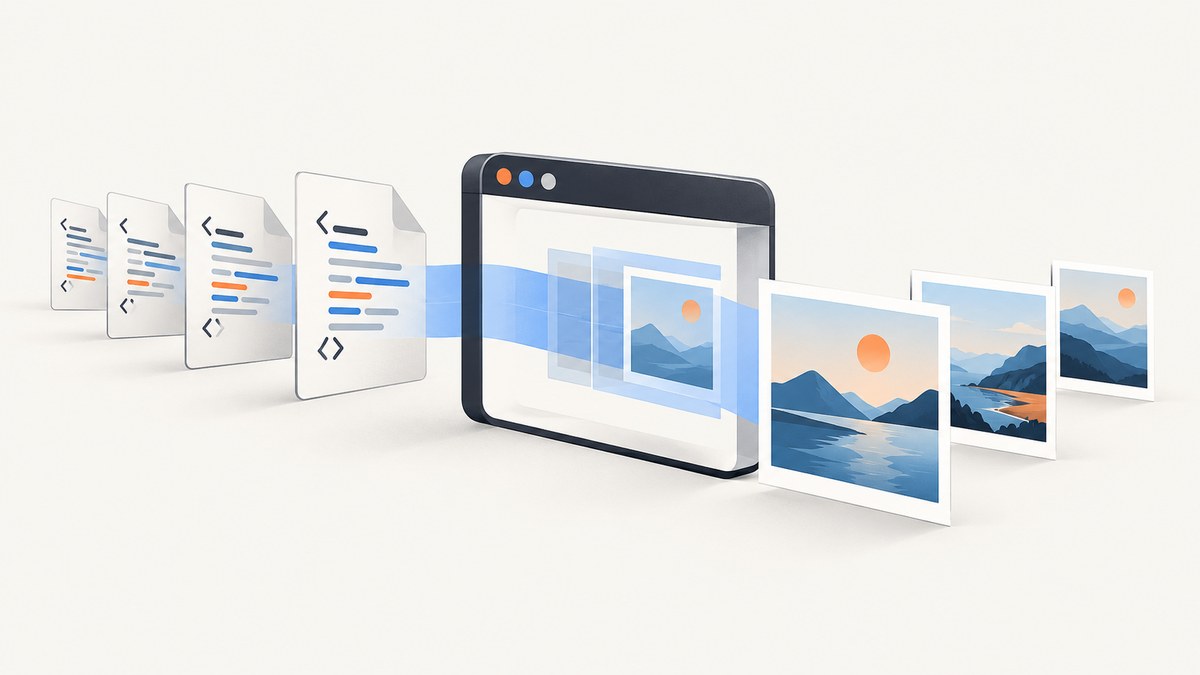
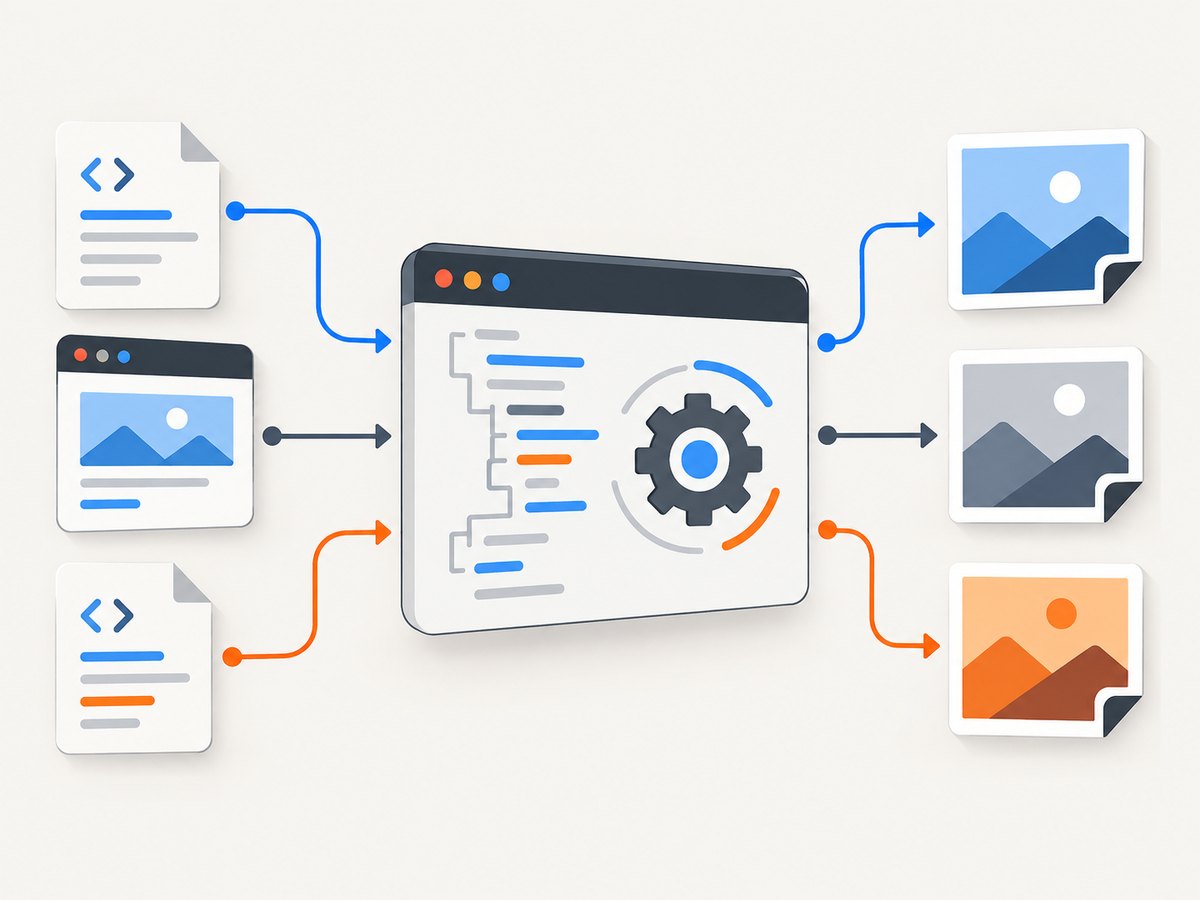
To convert multiple HTML files or webpages into separate JPG images, render each input in a real browser and save a JPEG screenshot for it. Playwright is a practical choice: open one Chromium browser, visit each file or URL, wait until its content is ready, then call page.screenshot({ type: 'jpeg', quality: 85, fullPage: true, path }). This produces one JPG per input; it does not combine several pages into a single multi-page image format.
This guide covers how to convert an HTML file or webpage to JPG, how to save a full webpage as a JPEG, and how to convert many HTML pages into separate JPG images with stable filenames. For faithful output, a browser renderer matters: it applies CSS layout, web fonts, JavaScript, and responsive behavior before taking the image.
1. Choose a browser renderer and define the output
Use Playwright or Puppeteer when the result needs to resemble the rendered page. Both expose screenshot methods with JPEG output and full-page capture. The examples below use Playwright with JavaScript. Playwright’s official screenshot guide and Page API describe the screenshot workflow, full-page behavior, JPEG quality, clipping, scaling, and screenshot bytes.
Before writing the batch, decide these details:
- Inputs: local file paths, URLs, or a combination. Local paths should be converted to absolute
file://URLs. - Capture extent: viewport only, or the entire scrollable document with
fullPage: true. - Viewport: a fixed width and height make responsive layouts predictable.
- JPEG quality: choose an explicit value from 0 through 100; higher quality usually creates larger files.
- Readiness: decide what signal means the page has finished rendering. A generic network idle event may not fit every site.
- Naming: preserve input order and assign deterministic names so you can identify and retry failures.
JPEG is a lossy format. It suits photographs, gradients, and ordinary webpage screenshots where compact files matter. For sharp text, diagrams, or flat color areas, PNG may preserve edges better; if JPG is required, inspect the result at the intended display size and raise quality if artifacts are visible.
2. Install Playwright and prepare a batch
Create a project and install Playwright. Its browser binary must also be installed. The following commands use npm:
mkdir html-to-jpg
cd html-to-jpg
npm init -y
npm install playwright
npx playwright install chromium
Save this input list as inputs.json. Each entry can be a local HTML path or an absolute HTTP(S) URL:
[
  "./pages/home.html",
  "./pages/pricing.html",
  "https://example.com/"
]
Set the project to use ES modules, or save the script with an .mjs extension. For a package-level setting:
{
  "type": "module",
  "scripts": {
    "capture": "node capture.mjs"
  }
}
Keep local assets reachable from the HTML document. Relative stylesheets and images resolve relative to the HTML file, so moving only the HTML file can break its appearance. If pages depend on a local development server or authenticated application, use the appropriate URL and browser context instead of assuming file:// has the same access rules.
3. Convert multiple inputs into separate JPGs
This runnable script reads the manifest, launches Chromium once, visits each item sequentially, and writes output-001.jpg, output-002.jpg, and so on. It records failures and continues with later inputs, then exits with a nonzero status if any item failed. Sequential capture keeps browser load bounded and output numbering tied to the original list.
import { chromium } from 'playwright';
import { readFile, mkdir } from 'node:fs/promises';
import path from 'node:path';
import { pathToFileURL } from 'node:url';

const inputs = JSON.parse(await readFile('inputs.json', 'utf8'));
const outputDir = 'jpg-output';
await mkdir(outputDir, { recursive: true });

const browser = await chromium.launch();
const failures = [];

try {
  const page = await browser.newPage({
    viewport: { width: 1440, height: 900 },
    deviceScaleFactor: 1
  });

  for (const [index, input] of inputs.entries()) {
    const source = input.startsWith('http://') || input.startsWith('https://')
      ? input
      : pathToFileURL(path.resolve(input)).href;
    const filename = `output-${String(index + 1).padStart(3, '0')}.jpg`;
    const destination = path.join(outputDir, filename);

    try {
      const response = await page.goto(source, {
        waitUntil: 'domcontentloaded',
        timeout: 30000
      });
      if (response && !response.ok()) {
        throw new Error(`Navigation returned HTTP ${response.status()}`);
      }

      // Wait for fonts when the page uses web fonts.
      await page.evaluate(() => document.fonts.ready);
      await page.screenshot({
        path: destination,
        type: 'jpeg',
        quality: 85,
        fullPage: true
      });
      console.log(`Saved ${destination}`);
    } catch (error) {
      failures.push({ input, message: error.message });
      console.error(`Failed ${input}: ${error.message}`);
    }
  }
} finally {
  await browser.close();
}

if (failures.length) {
  console.error(`${failures.length} input(s) failed:`);
  for (const failure of failures) {
    console.error(`- ${failure.input}: ${failure.message}`);
  }
  process.exitCode = 1;
}
Run it with node capture.mjs. The script uses a single page and navigates it repeatedly. If one page changes browser state in a way that affects the next, create a fresh page per input or clear the relevant storage and cookies. For authenticated pages, use a browser context configured with the needed credentials; do not put secrets in a publicly shared manifest.
4. Control full-page capture, viewport, and JPEG quality
fullPage: true captures the full scrollable document rather than only the visible viewport. Omit it to capture the viewport. Very tall pages can produce large images, take longer to encode, and require substantial memory. If consumers need the page in sections, use screenshot clipping or divide the content into intentional ranges rather than assuming an extremely tall single image will be convenient.
The viewport controls responsive CSS. A page captured at 1440 pixels wide may have a desktop layout; a narrower viewport can trigger a mobile layout. Keep viewport dimensions fixed across a batch if outputs will be compared. Device scale affects output pixel dimensions; the example sets deviceScaleFactor: 1. Increase it when higher-density raster output is needed, while accounting for the larger memory and file size.
JPEG options relevant to this workflow include:
| Option | Effect | Use |
|---|---|---|
type: 'jpeg' |
Selects JPEG encoding. | Required when output filenames should contain JPG/JPEG data. |
quality |
Controls lossy image quality; integer from 0 to 100. | Set explicitly for repeatable file-size and quality tradeoffs. |
fullPage |
Captures the full scrollable document. | Use for a complete webpage; omit for viewport-only output. |
clip |
Captures a specified rectangle. | Use for a region or a controlled segment. |
scale |
Controls whether output follows CSS pixels or device pixels. | Choose based on downstream pixel dimensions and file size. |
JPEG does not support transparency. A page with transparent areas will be composited against a background by the renderer; choose a deliberate page background if the result must look consistent. Playwright’s screenshot API documents type, quality, clip, scale, and full-page capture. Puppeteer offers corresponding Page.screenshot() options, including fullPage, type, quality, and path in its screenshot options.
5. Wait for the page to be ready
The capture should happen after the content you care about is rendered. domcontentloaded is a useful starting point, but it does not guarantee that every image, font, or client-side component is ready. Conversely, networkidle can wait indefinitely or behave poorly on sites with analytics, ads, polling, streaming, or other ongoing requests. The right readiness signal depends on the page.
For a known application, wait for a meaningful selector:
await page.goto(url, { waitUntil: 'domcontentloaded' });
await page.locator('[data-render-complete="true"]').waitFor({
  state: 'visible',
  timeout: 15000
});
await page.evaluate(() => document.fonts.ready);
await page.screenshot({
  path: 'ready-page.jpg',
  type: 'jpeg',
  quality: 85,
  fullPage: true
});
If the application has no ready marker, use a short, justified delay only after navigation, or wait for a stable element and any specific images that matter. For lazy-loaded images, full-page screenshot behavior and page scripts can affect what has loaded. Check the captured output; if lower-page content is missing, scroll through the document before the final capture and wait for images to complete. Do not claim pixel-perfect consistency unless viewport, device scale, fonts, animation state, and external resources are controlled.
6. Batch reliability and post-processing
Keep a stable mapping from input position to output filename. The example does this with zero-padded numbering and reports the source of each failure. For resumable jobs, record success per item in a manifest and skip files already completed; retry only failed entries. This avoids wasting time recapturing a large batch after one transient network problem.
Sequential work is simple and limits resource use. If you need more throughput, use a small, bounded number of pages or browser workers and measure memory consumption on representative inputs. Unbounded parallel tabs can exhaust memory, overload the target site, or make output timing less predictable. Browser rendering is generally the expensive part; JPEG encoding and disk writes also grow with image dimensions and quality. There is no universal speed benchmark established by the cited documentation, so choose concurrency and quality from your own workload rather than assuming one tool is always faster.
After capture, ImageMagick can resize, recompress, or process a numbered sequence. Its documentation describes sequence formatting such as image-%d.jpg for output naming. Keep the browser responsible for HTML-to-pixels rendering; treat ImageMagick as a later image-processing step. Preserve originals if post-processing is destructive or if the capture may need to be audited.
7. Alternative: capture with Puppeteer
If the project already uses Puppeteer, its screenshot API handles the same general pattern: open a page, navigate, and save a JPEG. Install Puppeteer and let it manage its browser setup according to the current official installation guidance. The capture loop can look like this:
import puppeteer from 'puppeteer';
import { mkdir } from 'node:fs/promises';

const urls = [
  'https://example.com/',
  'https://example.org/'
];
await mkdir('puppeteer-jpg', { recursive: true });
const browser = await puppeteer.launch();

try {
  const page = await browser.newPage();
  await page.setViewport({ width: 1440, height: 900 });
  for (const [index, url] of urls.entries()) {
    await page.goto(url, { waitUntil: 'domcontentloaded', timeout: 30000 });
    await page.evaluate(() => document.fonts.ready);
    const name = `puppeteer-jpg/output-${String(index + 1).padStart(3, '0')}.jpg`;
    await page.screenshot({
      path: name,
      type: 'jpeg',
      quality: 85,
      fullPage: true
    });
  }
} finally {
  await browser.close();
}
Choose based on the runtime and operational fit already present in your application, browser coverage, readiness controls, full-page behavior, and screenshot options. The referenced documentation establishes that both support these screenshot capabilities; it does not provide a neutral speed or visual-fidelity benchmark.
8. Capture from the command line
Playwright’s CLI can capture a page without writing a loop for a one-off job. Its screenshot command supports JPEG output, full-page capture, a filename, and a device-pixel high-resolution mode. Check the current CLI help for the exact syntax supported by the installed version. A representative command is:
npx playwright screenshot --browser chromium --type=jpeg --full-page --filename=page.jpg https://example.com/For many inputs, a script is easier to maintain because it can assign stable names, report failures, customize readiness, and retry individual items. The CLI is useful for a quick manual capture or for a small shell-driven workflow.
9. Or skip the browser setup
If you want a hosted screenshot instead of installing and operating Chromium, ScreenshotNeo accepts one GET request with a URL and returns a PNG, JPEG, WebP, or PDF. The API supports batch capture of up to 100 URLs per call, and its parameter names used by other screenshot APIs also work. See the ScreenshotNeo API documentation for request options.
curl -G "https://api.screenshotneo.com/v1/shot" -d access_key=YOUR_API_KEY --data-urlencode url=https://stripe.com -o shot.webpimport requests
r = requests.get("https://api.screenshotneo.com/v1/shot", params={"access_key": "YOUR_API_KEY", "url": "https://stripe.com"}, timeout=90)
open("shot.webp", "wb").write(r.content)const q = new URLSearchParams({ access_key: 'YOUR_API_KEY', url: 'https://stripe.com' });
const res = await fetch(`https://api.screenshotneo.com/v1/shot?${q}`);
if (!res.ok) throw new Error(`Screenshot request failed: ${res.status}`);
const bytes = new Uint8Array(await res.arrayBuffer());
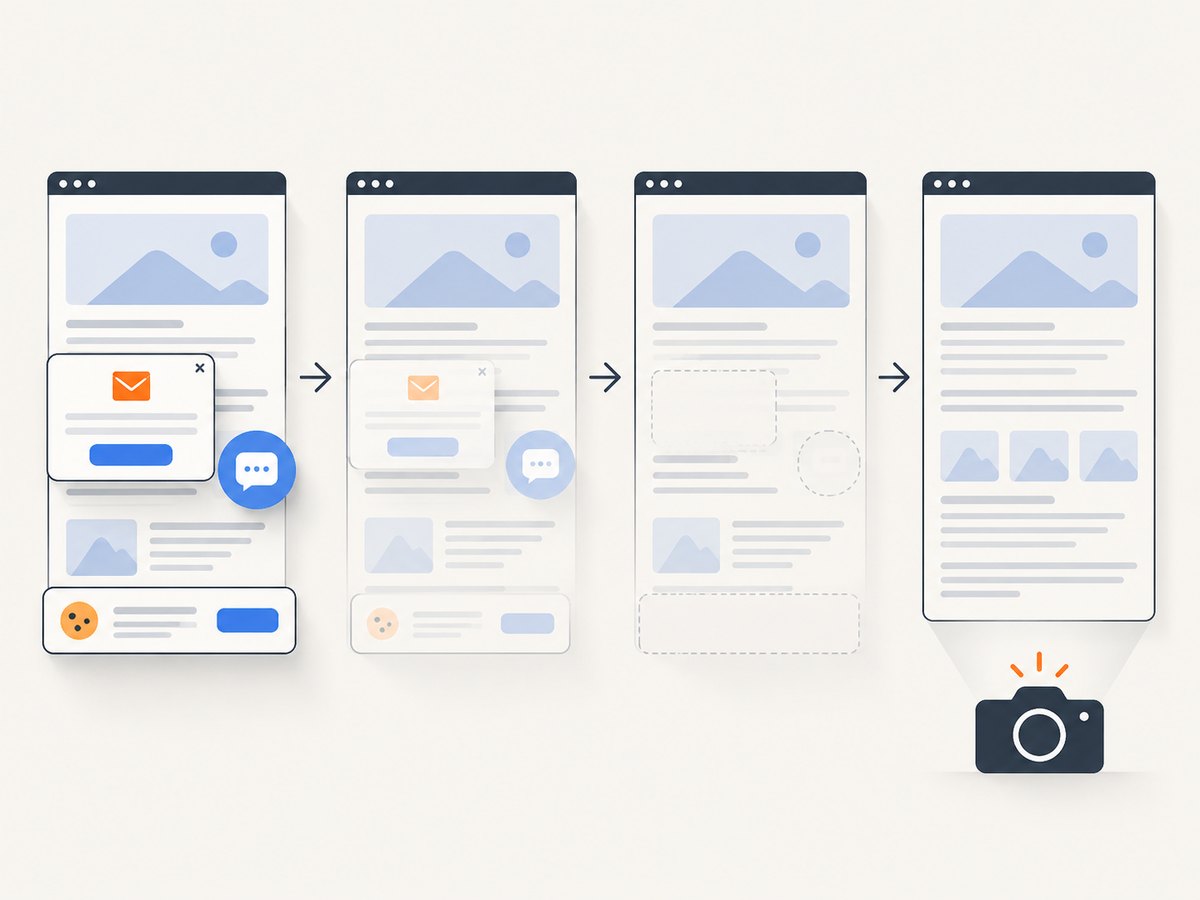
await import('node:fs/promises').then(({ writeFile }) => writeFile('shot.webp', bytes));Adapt the URL for each input and save each response under a deterministic filename. The sample output extension is WebP; choose the requested output format using the documented API parameter. ScreenshotNeo removes cookie/consent banners, newsletter popups, and chat widgets before capture; each cleanup step can be turned off. Bot checks or CAPTCHAs, blank pages, timeouts, failed loads, and cache hits are not billed, and response headers identify the page verdict and billing status. Its MCP server provides take_screenshot, get_page_info, and capture_pdf tools for Claude, Cursor, and other MCP clients. The free plan includes 1,000 shots a month without a card; paid plans start at $5 for 3,000 shots, and every feature is on every plan.
Sign up free for 1,000 screenshots a month, with no card required.
10. Troubleshooting
| Symptom | Likely cause | Fix |
|---|---|---|
| Chromium executable is missing | The Playwright package is installed, but its browser binary is not. | Run npx playwright install chromium in the project environment. |
| Local page has missing styles or images | Relative assets no longer resolve from the HTML file’s location, or the page expects a local server. | Keep the asset directory structure intact or serve the page over the expected local URL. |
| Screenshot contains a loading state | Navigation finished before client rendering, images, or fonts were ready. | Wait for an application-specific selector, document.fonts.ready, or the required image completion. |
| Capture hangs or times out | The page never reaches the chosen load state, the network is slow, or a request remains active. | Use a less restrictive navigation event, set a bounded timeout, and wait for the actual content signal. |
| Lower sections or lazy images are absent | They load only after scrolling or intersection with the viewport. | Scroll through the page before capture, wait for relevant images, then use full-page capture. |
| Output is only the visible screen | fullPage was omitted or set to false. |
Set fullPage: true for the full scrollable document. |
| Text looks soft or file is too large | JPEG quality, scale, and pixel dimensions are mismatched to the use case. | Adjust quality and device scale, then compare output dimensions and file size. |
| Some items fail but later captures succeed | A transient site error, network failure, timeout, or HTTP error affected one input. | Use the per-item failure report to retry that input; retain the original index-to-file mapping. |
| Images differ between repeated runs | Fonts, animation, dynamic data, viewport, or external resources changed. | Fix viewport and scale, wait for fonts and app readiness, and disable or stabilize changing page content where possible. |
11. Common questions
Can several HTML pages become one JPG?
A JPG is a single raster image. The batch workflow creates one image for each HTML input. If you need a composite contact sheet, capture the pages first and combine those images in a separate image-processing step.
Can I convert HTML to JPG without a browser?
A browser engine is the practical option when CSS, fonts, scripts, and responsive layout must render faithfully. A hosted rendering API can handle the browser operation remotely; a simple text-to-image converter will not reproduce normal webpage layout and behavior.
Should I use Playwright or Puppeteer?
Use the framework that best fits your existing runtime and browser automation setup. Both document JPEG screenshots, full-page capture, and quality controls. The sources used here do not establish a universal speed or fidelity winner.
Does full-page capture guarantee every lazy image loads?
No. Lazy-loading behavior depends on the page and browser state. Scroll the document and wait for the images or application signal that matters, then inspect the result.
12. Final checklist
- Use a browser renderer for HTML with CSS, fonts, JavaScript, or responsive layout.
- Set a fixed viewport and device scale for repeatable batches.
- Choose full-page capture only when the whole scrollable document is required.
- Set JPEG type and quality explicitly; use a deterministic output name per input.
- Wait for page-specific readiness and account for lazy-loaded content.
- Run with bounded concurrency, log failures, and retry only failed inputs.
- Use image tools after capture for resizing, compression, or sequence operations.


