How to Convert HTML to PDF on Android
Convert a webpage or HTML string to PDF on Android with Chrome, WebView, Kotlin, cURL, Python, Node.js, and a hosted API.

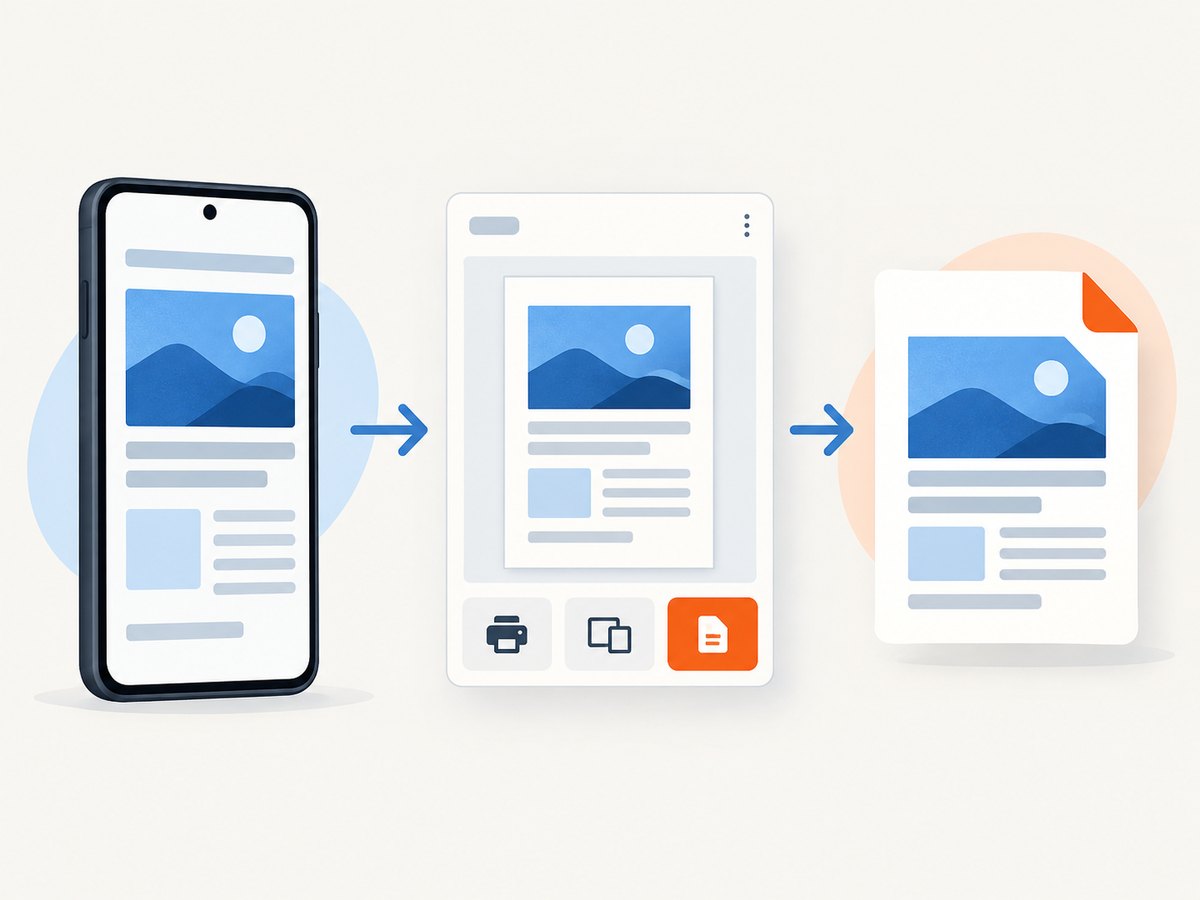
Direct answer: For a normal webpage, open it in Chrome on Android, tap More → Share → Print, choose Save as PDF, select a location, and tap Print. A physical printer is not required. Google documents this workflow for Chrome on Android; menu labels can vary by Android and Chrome version. Google Chrome Help
If you are building an Android app, use a WebView and Android’s print framework. Load the HTML, wait for the page to finish, call createPrintDocumentAdapter(String), and submit a print job. The adapter converts rendered WebView content to a PDF stream. Android recommends a dedicated off-screen WebView for printing. Android’s HTML printing guide · WebView API reference
1. Save a webpage as PDF with Chrome on Android
- Open the HTML webpage in Chrome.
- Tap the three-dot More menu.
- Tap Share, then select Print. If Print is not in the first row, inspect the complete Share sheet.
- In the printer selector, choose Save as PDF.
- Choose a folder and filename.
- Tap the save/print button to create the PDF.
Chrome renders the page before showing print preview. Review page breaks, margins, images, and the number of pages before saving when the document matters. The exact wording and placement of controls depend on the installed Chrome and Android versions, so use the Share sheet if the first menu does not show Print.
What this route can and cannot do
- Good for: one-off pages, articles, receipts, and documents you can open in Chrome.
- Requires: a page that Chrome can load and render. A login may be required before printing.
- Does not require: a physical printer or a separate converter app.
- Needs review: dynamic pages, unusual CSS, and content that changes while the page is loading.
For private or sensitive pages, check the destination folder and sharing permissions after saving. Chrome’s print flow is a user interface; it is not an automation API for repeated conversions.
2. Convert HTML to PDF inside an Android app
Android 4.4 (API 19) added HTML printing support to WebView. The documented sequence is:
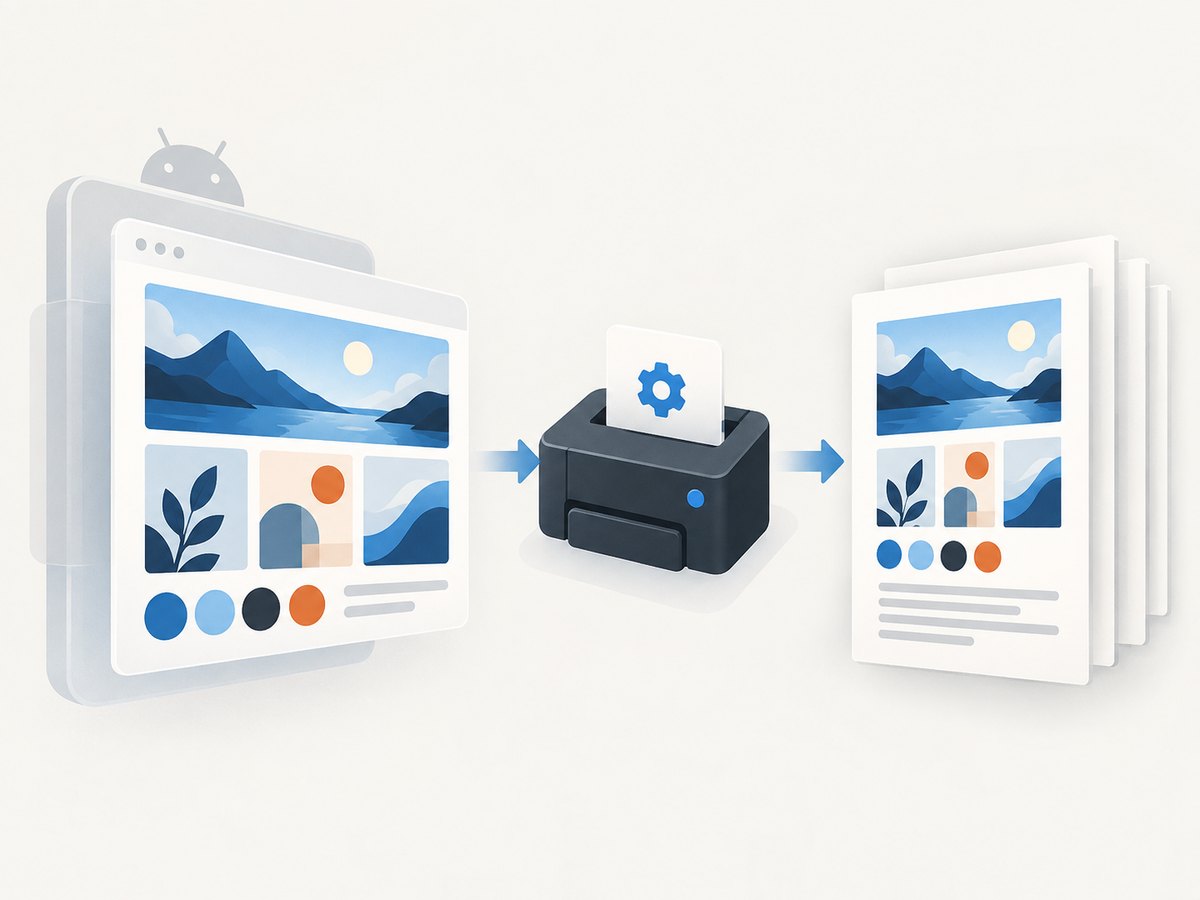
- Create a WebView dedicated to printing.
- Load a URL or an HTML string.
- Wait for
onPageFinished. - Create a print adapter with a document name.
- Submit a print job through
PrintManager.
Use the overload that accepts a document name. The no-argument createPrintDocumentAdapter() is deprecated from API 21. Do not draw the WebView while conversion is running; an off-screen instance avoids interfering with the visible UI.
Complete Kotlin example
import android.content.Context
import android.os.Bundle
import android.print.PrintAttributes
import android.print.PrintManager
import android.webkit.WebView
import android.webkit.WebViewClient
import androidx.appcompat.app.AppCompatActivity

class MainActivity : AppCompatActivity() {
    override fun onCreate(savedInstanceState: Bundle?) {
        super.onCreate(savedInstanceState)

        val html = """
            <!doctype html>
            <html>
            <head>
              <meta name=\"viewport\" content=\"width=device-width, initial-scale=1\">
              <style>
                @page { size: A4; margin: 16mm; }
                body { font-family: sans-serif; line-height: 1.45; }
                h1 { page-break-after: avoid; }
                img { max-width: 100%; }
              </style>
            </head>
            <body>
              <h1>Invoice</h1>
              <p>Generated from an HTML string.</p>
            </body>
            </html>
        """.trimIndent()

        val webView = WebView(this)
        webView.settings.javaScriptEnabled = true
        webView.settings.domStorageEnabled = true
        webView.webViewClient = object : WebViewClient() {
            override fun onPageFinished(view: WebView, url: String) {
                printWebView(view, "invoice")
            }
        }

        // The base URL lets relative links and assets resolve predictably.
        webView.loadDataWithBaseURL(
            "https://example.invalid/",
            html,
            "text/html",
            "UTF-8",
            null
        )
    }

    private fun printWebView(webView: WebView, documentName: String) {
        val printManager = getSystemService(Context.PRINT_SERVICE) as PrintManager
        val adapter = webView.createPrintDocumentAdapter(documentName)
        val attributes = PrintAttributes.Builder()
            .setMediaSize(PrintAttributes.MediaSize.ISO_A4)
            .setMinMargins(PrintAttributes.Margins.NO_MARGINS)
            .build()

        printManager.print(documentName, adapter, attributes)
    }
}
For a remote page, replace loadDataWithBaseURL with webView.loadUrl(url). Add the appropriate network permission in your manifest:
<uses-permission android:name="android.permission.INTERNET" />Only enable JavaScript when the page needs it. If the page is untrusted, avoid exposing JavaScript interfaces and do not load arbitrary URLs without an allowlist.
Loading local HTML and assets
loadDataWithBaseURL is useful for HTML held in memory. Give it a base URL when the document refers to relative CSS, images, fonts, or links. For packaged files, you can load a file:///android_asset/... URL, but local resource paths must be valid and accessible to WebView. For remote assets, the device needs network access while the page renders.
Wait for all content that affects layout. onPageFinished means the main navigation completed; images, web fonts, and JavaScript may still be changing the page. For a robust pipeline, inject a small JavaScript readiness flag after your application has finished rendering, then print only after that flag is true. A fixed delay can help with simple pages, but it is less reliable than an explicit readiness signal.
Print attributes and page layout
- Paper: choose A4, Letter, or another
PrintAttributes.MediaSize. - Margins: set minimum margins in the print attributes and use CSS
@pagemargins for document styling. - Orientation: select a landscape media size for wide tables or diagrams.
- Page breaks: use CSS such as
break-before,break-after, andbreak-inside; support varies with the WebView rendering engine. - Backgrounds: verify print-color behavior and avoid relying on a background image to carry essential information.
Always inspect a representative saved PDF. The Android documentation defines the API sequence, but it does not guarantee identical output for every CSS feature, dynamic page, login flow, or WebView version.
3. A hosted option for automated HTML-to-PDF jobs
If conversion runs on a server, a mobile client, a scheduled job, or an AI workflow, a hosted renderer avoids shipping browser setup and WebView lifecycle code in every app. ScreenshotNeo is a website screenshot API and MCP server. Its endpoint accepts a URL and can return a PDF; documentation is at screenshotneo.com/docs/.
Or skip the browser setup
Send one GET request to the ScreenshotNeo API. Set format=pdf when you want a PDF response.
curl -G "https://api.screenshotneo.com/v1/shot" \
  -d access_key=YOUR_API_KEY \
  --data-urlencode url=https://stripe.com \
  -d format=pdf \
  -o page.pdf
import requests
r = requests.get(
"https://api.screenshotneo.com/v1/shot",
params={
"access_key": "YOUR_API_KEY",
"url": "https://stripe.com",
"format": "pdf",
},
timeout=90,
)
r.raise_for_status()
open("page.pdf", "wb").write(r.content)const q = new URLSearchParams({
access_key: 'YOUR_API_KEY',
url: 'https://stripe.com',
format: 'pdf'
});
const res = await fetch(`https://api.screenshotneo.com/v1/shot?${q}`);
if (!res.ok) throw new Error(`HTTP ${res.status}`);
const pdf = Buffer.from(await res.arrayBuffer());
await Bun.write('page.pdf', pdf);ScreenshotNeo removes cookie and consent banners, newsletter popups, and chat widgets before capture. Bot checks, blank pages, timeouts, failed loads, and cache hits cost nothing; response headers identify the page verdict and whether the request was billed. Its MCP server provides take_screenshot, get_page_info, and capture_pdf tools for Claude, Cursor, and other MCP clients.
The service also supports full-page capture, lazy-image loading, CSS-selector element capture, dark mode, device presets or custom viewports, retina scale, paper size, margins, landscape mode, page ranges, custom CSS and JavaScript, click actions, selector waits, delays, network-idle waits, request blocking, custom headers and cookies, user agents, Authorization, timezone, geolocation, transparent backgrounds, resizing, selectable cache TTLs, signed links, asynchronous jobs with signed webhooks, bulk capture of up to 100 URLs per call, and a usage API. Parameter names used by other screenshot APIs also work, which can simplify migration.
Plans include 1,000 shots per month free with no card, Starter at $5 for 3,000, Growth at $15 for 15,000, Pro at $39 for 60,000, Scale at $99 for 250,000, and Business at $249 for 1,000,000. Yearly billing gives two months free. Every feature is available on every plan. Create a free ScreenshotNeo account.
4. Choosing the right conversion route
| Route | Best for | Trade-offs |
|---|---|---|
| Chrome print flow | A person saving one page | Manual; limited automation and repeatability |
| Android WebView print | An Android app that owns the HTML | You manage loading, readiness, WebView versions, and print UI |
| Third-party Android SDK | Apps needing vendor APIs or extra document controls | Review supported inputs, API levels, licensing, pricing, and network requirements |
| ScreenshotNeo API | Server jobs, mobile backends, bulk URLs, and AI agents | Requires an API key and network request |
Apryse documents an Android HTML-to-PDF SDK that accepts HTTP/HTTPS URLs, HTML strings, and content loadable in a WebView, with local conversion possible without internet access and URL conversion requiring connectivity. Treat those statements as the vendor’s documentation and check current licensing and compatibility before adoption. Apryse HTML-to-PDF documentation
5. Troubleshooting checklist
Print is missing in Chrome
Open the full Share sheet and look for Print there. Menu placement varies by Chrome and Android version. If the page is opened inside another app, open it in Chrome and retry.
The PDF is blank or incomplete
For WebView, print only after the page’s data, images, fonts, and JavaScript rendering are complete. Add a readiness callback instead of printing immediately after loadUrl. For Chrome, wait for print preview to finish rendering and inspect the preview before saving.
Remote HTML does not load in WebView
Confirm the INTERNET permission, TLS certificate, redirects, and authentication. Android network security rules can block cleartext HTTP. Prefer HTTPS and test the final URL directly in the same device environment.
Images or fonts are missing
Check relative URLs and the base URL passed to loadDataWithBaseURL. Confirm that the asset server permits access and that the resource is available before printing. Inline critical CSS or assets when deterministic output matters.
Content is cut off or pages break badly
Set paper size and margins consistently in print attributes and CSS. Add print-specific CSS, avoid fixed-height containers, and use page-break rules around headings, tables, and figures. Check both portrait and landscape layouts.
JavaScript content never appears
Enable JavaScript only when required, then wait for an application-level signal such as window.renderComplete = true. A short delay alone can race slow API calls.
ScreenshotNeo returns an error
Check the API key, URL encoding, response status, and timeout. Use a selector wait, delay, or network-idle option for pages that render asynchronously. Inspect X-Page-Verdict and X-Billed to distinguish a clean capture from a bot check, blank page, timeout, failed load, or cache hit.
6. Performance, reliability, and cost
- Reuse work: cache stable documents and choose a cache TTL when using ScreenshotNeo. In your Android app, avoid recreating WebViews for every request when a controlled queue can safely reuse them.
- Control readiness: wait for a selector or explicit render-complete event rather than using unnecessarily long fixed delays.
- Reduce page weight: remove nonessential trackers and media, provide appropriately sized images, and use print CSS.
- Bound concurrency: queue WebView print jobs and hosted requests so memory, CPU, and network usage remain predictable.
- Make retries safe: retry transient network failures with backoff, but record the URL and document version so duplicate PDFs do not confuse downstream systems.
- Measure output: store a hash, page count, and source revision where auditability matters. Compare a small set of representative pages after WebView or CSS changes.
With Chrome, cost is the built-in Android workflow. With WebView, account for app size, device resources, rendering time, and maintenance. With a hosted API, budget by successful captures and use caching or bulk calls where appropriate. ScreenshotNeo’s verdict and billing headers make it possible to identify non-billable failures and cache hits in your logs.
7. Security and privacy considerations
- Do not put API keys in an Android APK; call ScreenshotNeo from a backend or issue restricted credentials through your own service.
- Allowlist URLs when your app accepts user input to reduce server-side request abuse.
- Protect cookies, Authorization headers, and private HTML. Never log their values.
- Review third-party JavaScript, fonts, and images loaded by the page before converting confidential material.
- Use HTTPS for source pages and API calls.
8. FAQ
Can I save a PDF without a printer?
Yes. Chrome’s documented Android flow uses Save as PDF; a physical printer is not required.
Which Android API creates the PDF?
Use WebView.createPrintDocumentAdapter(String documentName) and submit the adapter to PrintManager.
Can WebView convert an HTML string?
Yes. Load it with loadDataWithBaseURL, provide a suitable base URL for relative assets, wait for rendering, and print the adapter.
Is a third-party SDK mandatory?
No. Chrome and Android WebView provide built-in routes. A third-party SDK or hosted API is a choice based on automation, controls, licensing, and maintenance.
Can an AI agent request a PDF?
Yes. ScreenshotNeo’s MCP server includes a capture_pdf tool for MCP clients such as Claude and Cursor.
How do I handle a page with a cookie banner?
In WebView, implement the consent flow or hide it with page-specific logic. ScreenshotNeo accepts the consent banner before capture and removes more than 60 known consent platforms, newsletter popups, and chat widgets.
9. Practical decision guide
- For a single page saved by a person, use Chrome’s print-to-PDF flow.
- For HTML your Android app owns, use a dedicated WebView, wait for a deterministic ready state, and submit a named print adapter.
- For repeatable server-side conversion, bulk URLs, or AI-agent workflows, use a hosted renderer and log verdicts, retries, and document versions.
- Before shipping, test representative pages with images, fonts, tables, authentication, lazy loading, and long content, then inspect the actual PDFs.
Or skip the browser setup: ScreenshotNeo handles the URL-to-PDF request, removes cookie banners, popups, and chat widgets before the shot, never bills bot checks, blank pages, and failed loads, and provides MCP tools for AI agents. You get 1,000 screenshots a month free with no card; paid plans start at $5 for 3,000. Start with a free ScreenshotNeo account.


