How to Convert HTML to PDF With Bootstrap Styles
Convert Bootstrap HTML to reliable PDFs with Puppeteer, Playwright, WeasyPrint, or wkhtmltopdf, including print CSS, assets, debugging, and automation.

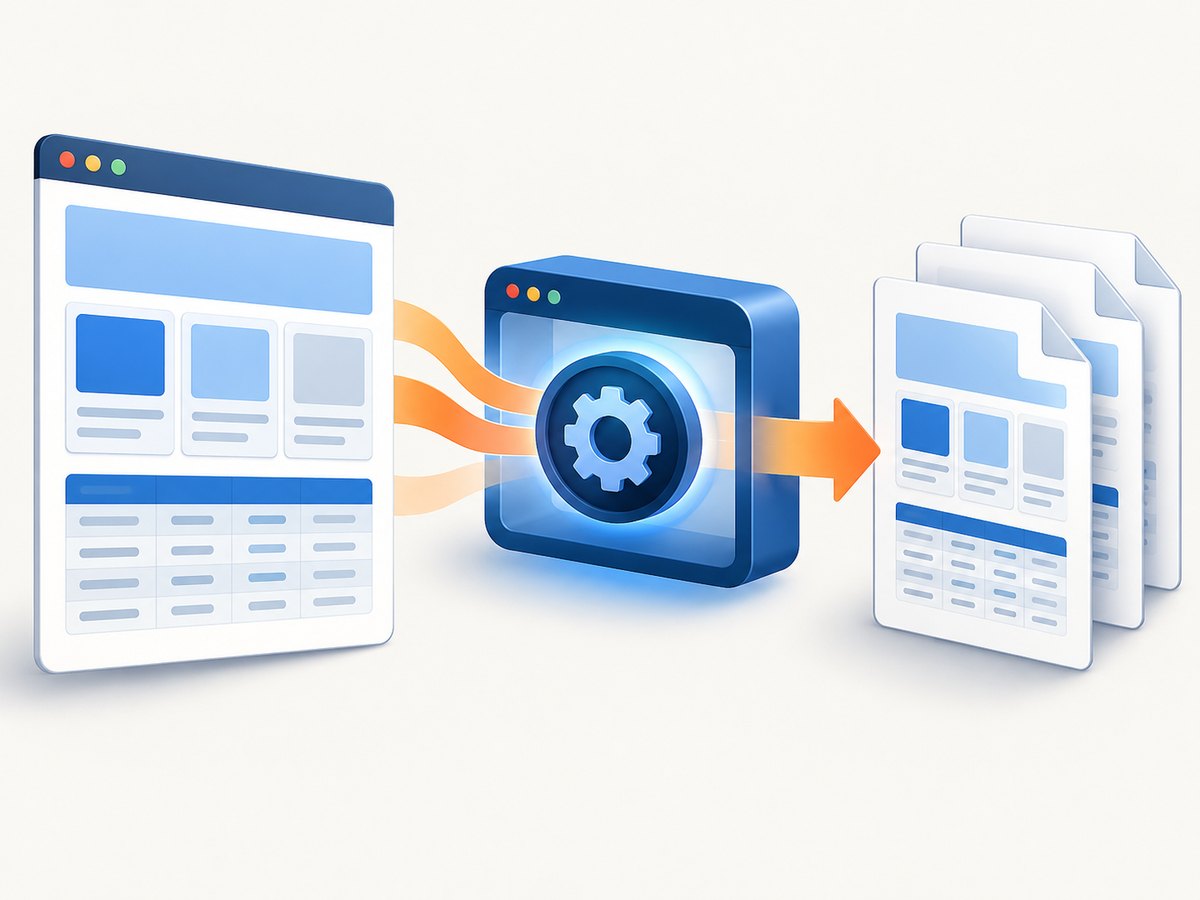
To convert Bootstrap HTML to PDF, render the page with a real Chromium browser when it uses JavaScript, modern CSS, web fonts, or client-side data. Puppeteer and Playwright are the practical defaults. For mostly static HTML and CSS, WeasyPrint provides a Python and command-line workflow with strong paged-media controls. wkhtmltopdf can still work for older templates, but its Qt WebKit engine is much older than current browser engines.
The most important detail is that PDF generation uses print media. Bootstrap styles that look correct in a browser can change at print time unless you add explicit @page and @media print rules, preserve backgrounds, wait for fonts and images, and remove screen-only controls.
1. Choose the renderer
| Renderer | Best fit | Strengths | Trade-offs |
|---|---|---|---|
| Puppeteer | JavaScript-heavy Bootstrap applications | Chromium CSS and JavaScript fidelity; PDF options for size, margins, ranges, and backgrounds | Requires a browser runtime and deployment planning |
| Playwright | Applications already using Playwright or needing browser automation | Chromium support, print-media controls, and a consistent automation API | Also requires browser binaries and more operational setup than a pure Python library |
| WeasyPrint | Static HTML/CSS and Python or CLI pipelines | @page, paged-media CSS, and custom URL fetchers |
Does not execute application JavaScript like Chromium |
| wkhtmltopdf | Legacy templates that were built and validated for it | Simple standalone command-line tool | Uses the older Qt WebKit engine; validate flexbox, Bootstrap components, fonts, and scripts carefully |
Use Puppeteer or Playwright if a page loads content after navigation, depends on Bootstrap JavaScript, renders charts, or needs browser-level CSS parity. Use WeasyPrint when you already have complete HTML and CSS and want a small Python document pipeline. Treat wkhtmltopdf as a compatibility choice rather than a first choice for a new Bootstrap system.
2. Prepare Bootstrap HTML for printing
Keep Bootstrap CSS and every image, font, and linked stylesheet reachable from the page URL. If you generate HTML from a string, use absolute asset URLs or a correct <base> URL. A missing base URL is a common reason that Bootstrap appears to disappear in the PDF.
<!doctype html>
<html lang="en">
<head>
  <meta charset="utf-8">
  <meta name="viewport" content="width=device-width, initial-scale=1">
  <base href="https://example.test/">
  <link rel="stylesheet" href="https://cdn.jsdelivr.net/npm/bootstrap@5.3.3/dist/css/bootstrap.min.css">
  <style>
    @page { size: A4; margin: 12mm; }

    @media print {
      .screen-only,
      .navbar,
      .btn,
      form { display: none !important; }

      .container { width: auto !important; max-width: none !important; }
      .table-responsive { overflow: visible !important; }
      .row { break-inside: avoid; }
      a { color: inherit; text-decoration: none; }
    }
  </style>
</head>
<body>
  <main class="container py-4">
    <h1>Invoice</h1>
    <div class="table-responsive">
      <table class="table table-striped">...</table>
    </div>
  </main>
</body>
</html>
Put your print overrides after Bootstrap so the cascade is predictable. Bootstrap provides print visibility utilities, and its Utility API can generate additional print-only classes. You can also create your own .screen-only and .pdf-only classes when the same template serves both contexts. Bootstrap documentation describes print visibility utilities and print-specific responsive behavior; see the Bootstrap visibility documentation and Bootstrap print styles.
Control page size, margins, and breaks
Use @page for document-level dimensions. A4 with 12 mm margins is a useful starting point, but use Letter when that is your business requirement. Avoid forcing every card to stay together if a card can be taller than one page. Prefer break-inside: avoid on rows, cards, and small panels, and add break-before or break-after for deliberate section boundaries.
Bootstrap’s responsive grid can select an unexpectedly narrow breakpoint in print because the print viewport width is different from your screen viewport. Set print-specific container widths and test the actual PDF. MDN’s @media documentation explains how print media rules are applied.
3. Convert a dynamic page with Puppeteer
Puppeteer’s page.pdf() generates a PDF using the print CSS media type. Navigate with networkidle2, wait for fonts, then preserve backgrounds and CSS page sizing.
import puppeteer from 'puppeteer';

const browser = await puppeteer.launch();
try {
  const page = await browser.newPage();
  await page.goto('https://example.test/invoice', {
    waitUntil: 'networkidle2',
    timeout: 90000
  });
  await page.evaluate(() => document.fonts?.ready);
  await page.pdf({
    path: 'invoice.pdf',
    format: 'A4',
    printBackground: true,
    preferCSSPageSize: true,
    margin: { top: '12mm', right: '12mm', bottom: '12mm', left: '12mm' }
  });
} finally {
  await browser.close();
}
printBackground: true keeps Bootstrap background colors, gradients, and colored table rows. preferCSSPageSize: true lets your @page rule control the dimensions. If you need the screen design rather than print styles, call await page.emulateMediaType('screen') before generating the PDF. The default is print media.
Generate a PDF from an HTML string
import puppeteer from 'puppeteer';

const html = `<!doctype html>
<html><head>
  <base href="https://example.test/">
  <link rel="stylesheet" href="https://cdn.jsdelivr.net/npm/bootstrap@5.3.3/dist/css/bootstrap.min.css">
</head><body><div class="container py-4"><h1>Report</h1></div></body></html>`;

const browser = await puppeteer.launch();
try {
  const page = await browser.newPage();
  await page.setContent(html, { waitUntil: 'networkidle0' });
  await page.evaluate(() => document.fonts?.ready);
  await page.pdf({ path: 'report.pdf', format: 'A4', printBackground: true });
} finally {
  await browser.close();
}
4. Convert with Playwright
Playwright uses the same print-media model and exposes equivalent PDF controls for Chromium. It is a good choice when your project already uses Playwright for end-to-end tests.
import { chromium } from 'playwright';

const browser = await chromium.launch();
try {
  const page = await browser.newPage();
  await page.goto('https://example.test/invoice', {
    waitUntil: 'networkidle',
    timeout: 90000
  });
  await page.evaluate(() => document.fonts?.ready);
  await page.pdf({
    path: 'invoice.pdf',
    format: 'A4',
    printBackground: true,
    preferCSSPageSize: true,
    margin: { top: '12mm', right: '12mm', bottom: '12mm', left: '12mm' }
  });
} finally {
  await browser.close();
}
Use an explicit wait for an application selector when network idle is not enough. For example, wait for [data-report-ready="true"] after your frontend finishes fetching data. A network can become idle while a single-page application is still rendering.
5. Convert static Bootstrap HTML with WeasyPrint
WeasyPrint accepts HTML strings, files, URLs, and file objects. It supports @page and custom URL fetchers, making it suitable for controlled Python document generation.
from weasyprint import HTML, CSS

html_text = """
<html><head>
  <base href="https://example.test/">
  <link rel="stylesheet" href="https://cdn.jsdelivr.net/npm/bootstrap@5.3.3/dist/css/bootstrap.min.css">
</head>
<body><main class="container py-4"><h1>Report</h1></main></body></html>
"""

css = CSS(string="""
@page { size: A4; margin: 12mm; }
@media print {
  .screen-only, .navbar, .btn, form { display: none !important; }
  .table-responsive { overflow: visible !important; }
}
""")

HTML(string=html_text, base_url="https://example.test/").write_pdf(
    "report.pdf", stylesheets=[css]
)
WeasyPrint does not execute your application’s JavaScript. Render data into the HTML first, then pass the completed document to WeasyPrint. Its documentation warns that untrusted HTML or CSS can create security problems, so isolate the process, restrict network access, and use a controlled URL fetcher for user-supplied content.
6. Use wkhtmltopdf when legacy compatibility requires it
wkhtmltopdf is an open-source command-line tool that renders HTML to PDF with Qt WebKit. A basic conversion is:
wkhtmltopdf --print-media-type --enable-local-file-access input.html output.pdfOnly enable local-file access when the input is trusted and the files are in a controlled directory. Validate Bootstrap flexbox, responsive utilities, web fonts, and JavaScript because the underlying WebKit engine predates many current CSS features.
7. Or skip the browser setup
ScreenshotNeo provides a website screenshot and PDF API. It accepts a URL in one GET request and returns a PNG, JPEG, WebP, or PDF. It can load lazy images, wait for a selector, delay, or network idle, apply custom CSS and JavaScript, set viewport and device options, and choose PDF paper size, margins, landscape mode, and page ranges.

curl -G "https://api.screenshotneo.com/v1/shot" -d access_key=YOUR_API_KEY --data-urlencode url=https://stripe.com -o shot.webpimport requests
r = requests.get("https://api.screenshotneo.com/v1/shot", params={"access_key": "YOUR_API_KEY", "url": "https://stripe.com"}, timeout=90)
open("shot.webp", "wb").write(r.content)const q = new URLSearchParams({ access_key: 'YOUR_API_KEY', url: 'https://stripe.com' });
const res = await fetch(`https://api.screenshotneo.com/v1/shot?${q}`);For PDF output, use the PDF option described in the ScreenshotNeo documentation. Cookie banners, newsletter popups, and chat widgets are removed before the shot. Bot checks, blank pages, timeouts, failed loads, and cache hits cost nothing, and the response identifies the result with X-Page-Verdict and X-Billed headers. An MCP server provides take_screenshot, get_page_info, and capture_pdf tools for Claude, Cursor, and other MCP clients. The free plan includes 1,000 screenshots a month with no card; paid plans start at $5 for 3,000 shots. Create a free ScreenshotNeo account.
8. Troubleshoot missing styles, assets, and layout
| Symptom | Likely cause | Fix |
|---|---|---|
| Bootstrap styles are absent | Relative CSS URL has no base URL, or the request failed | Use absolute URLs or <base>; inspect network errors and wait for stylesheets |
| Colors and backgrounds are missing | Print engines omit backgrounds by default | Enable printBackground: true in Chromium and avoid relying on browser print dialogs |
| Layout is stacked or too narrow | Print viewport activates a different Bootstrap breakpoint | Override .container, grid widths, and responsive utilities inside @media print |
| Images are blank | Lazy loading has not triggered, or the image URL is blocked | Scroll or trigger lazy loading, wait for the image selector, then wait for network idle and fonts |
| Web fonts are substituted | Font request is still pending or blocked by CORS | Wait for document.fonts.ready; serve fonts with correct CORS headers or use a local approved font |
| Tables are clipped | .table-responsive keeps horizontal overflow |
Set overflow: visible, remove fixed widths, and test wide columns |
| Content is cut at page edges | Fixed-height containers, transforms, or oversized elements | Remove fixed heights for print, inspect overflow, and use page breaks deliberately |
| PDF contains a loading screen | Capture happened before client rendering completed | Wait for a ready selector or application state, not only a short timeout |
9. Reliability, performance, and cost
- Pin versions: lock Bootstrap, Puppeteer or Playwright, browser binaries, and fonts. Renderer upgrades can change line wrapping and page breaks.
- Reuse browsers: for batches, keep one browser process and create isolated pages or contexts. Closing and relaunching Chromium for every PDF increases latency and resource use.
- Set bounded timeouts: use a navigation timeout and an application-ready timeout. Record the URL, renderer version, page options, and failure reason.
- Control concurrency: cap simultaneous pages according to available CPU and memory. A large PDF with many images can consume much more memory than a short document.
- Cache stable assets: serve Bootstrap CSS and fonts from a reliable internal cache when policy allows. Do not cache personalized pages without isolating cookies and authorization.
- Compare representative PDFs: keep fixtures containing cards, long tables, images, web fonts, and page breaks. Review output after every renderer or Bootstrap upgrade.
- Secure inputs: do not let untrusted HTML, CSS, cookies, headers, or arbitrary URLs reach a privileged browser without isolation. Restrict outbound requests and protect internal network addresses.
Hosted capture can reduce browser maintenance when you need repeatable URL-to-PDF calls, bulk capture, signed links, custom headers, cookies, geolocation, caching, or webhooks. ScreenshotNeo offers those options, plus usage reporting and an OpenAPI specification, while charging only for clean shots.
10. Production checklist
- Choose Chromium for JavaScript-heavy pages and WeasyPrint for completed static HTML.
- Add a correct base URL and verify every stylesheet, font, image, and script request.
- Add
@pagedimensions and margins. - Add print rules for navigation, buttons, forms, overflow containers, and page breaks.
- Wait for an application-ready selector, images, and
document.fonts.ready. - Enable background printing and choose whether print or screen media is required.
- Test A4 and Letter if your users can choose paper sizes.
- Inspect long tables, cards, charts, links, colors, and font substitution in the actual PDF.
- Pin dependencies, cap concurrency, record failures, and isolate untrusted input.
11. FAQ
Why does Bootstrap look different in a PDF?
PDF generation normally uses print media, which can select different breakpoints and print-specific rules. Add explicit print CSS and inspect the generated document rather than relying on a screen preview.
Can I keep the screen layout?
Yes. In Puppeteer call page.emulateMediaType('screen') before page.pdf(), then verify that the resulting pages still fit your chosen paper size.
Should I use WeasyPrint for a React or Vue page?
Only after the application has rendered complete HTML. WeasyPrint does not replace the JavaScript runtime; use Puppeteer or Playwright when the page must execute client-side code.
How do I prevent a card from splitting?
Apply break-inside: avoid to the card or row, but allow very tall content to split when keeping it together would create excessive blank space.
Which option is easiest to operate at scale?
A managed API avoids browser installation and patching. A self-hosted Chromium or WeasyPrint worker gives more control but requires capacity planning, security isolation, and version maintenance.


