How to Convert HTML to PDF with a CLI Tool
Convert a URL or local HTML file to PDF from the command line with Chrome Headless, WeasyPrint, or wkhtmltopdf. Compare options and troubleshoot output.

To convert a webpage to PDF from a shell with Chrome, run:
chrome --headless --print-to-pdf https://example.com/Chrome writes output.pdf in the current working directory by default. Add --no-pdf-header-footer to remove the printed header and footer. This is a practical starting point when the page relies on browser JavaScript. For a local file or a document-focused HTML/CSS workflow, WeasyPrint is another direct option:
weasyprint input.html output.pdfChoose based on how the page is built: browser behavior, print layout, compatibility needs, and how much you trust the input. The commands below are documented usage examples; verify the result with representative pages and your installed tool version before relying on it in production.
1. Choose a renderer for the page
| Tool | Use it when | Consider |
|---|---|---|
| Chrome Headless | The page needs browser JavaScript or browser rendering behavior. | Wait and page readiness need care; timing flags do not guarantee asynchronous content is complete. |
| WeasyPrint | You want a direct HTML/CSS-to-PDF workflow with print stylesheet control. | Its CSS support is not universal; check warnings and inspect the PDF. |
| wkhtmltopdf | You depend on its input/output flow or specific controls. | Its project documentation identifies Qt WebKit as the renderer. Verify compatibility and installed-version behavior for modern pages. |
Chrome documents headless PDF printing and JavaScript-aware page handling. WeasyPrint describes itself as a visual HTML/CSS rendering engine that exports PDF. These approaches differ, so a page can lay out differently across tools. Do not assume that a valid exit code means the PDF is visually correct.

2. Convert a URL with Chrome Headless
Run Chrome’s headless command with a URL:
chrome --headless --print-to-pdf https://example.com/On success, look for output.pdf in the shell’s current directory. If the executable is named differently or is not on PATH, use the browser executable path for your operating system. The precise path and available flags can vary by platform and browser version; check the installed browser’s command-line reference.
To suppress Chrome’s printed URL, date, and other header/footer material, use the documented option:
chrome --headless --print-to-pdf --no-pdf-header-footer https://example.com/Chrome also documents timing options. A maximum wait can be specified in milliseconds:
chrome --headless --timeout=5000 --print-to-pdf https://example.com/--timeout=5000 sets a maximum wait before capture, including when loading is still in progress. It is a ceiling, not proof that API calls, images, fonts, or client-side rendering have finished. For time-dependent JavaScript, Chrome documents a virtual time budget:
chrome --headless --virtual-time-budget=42000 --print-to-pdf https://example.com/Use timing flags only after checking the page’s behavior. A fixed delay can waste time on fast pages and still miss content that loads later or depends on interaction. Inspect the actual PDF for missing sections and incomplete images.
Make the command repeatable
- Run the command from a known working directory so you know where the default output lands.
- Use a stable URL and explicit timing behavior appropriate to the page.
- Check the generated file exists and has nonzero size.
- Open representative output and verify page breaks, fonts, images, margins, and the expected dynamic content.
- Record the browser version and flags in your automation so upgrades can be reviewed.
3. Convert a local HTML file or URL with WeasyPrint
Install WeasyPrint using the official installation instructions for your platform, then pass an input and output:
weasyprint input.html output.pdfThe CLI accepts [options] <input> <output>. The input can be a URL, a filename, or - for standard input; the output can be a filename or - for standard output. For example:
weasyprint https://example.com/ report.pdfTo apply an additional stylesheet, use -s:
weasyprint -s print.css input.html output.pdfA print stylesheet is useful for setting page-specific rules such as page margins, hiding navigation, and controlling page breaks. Verify exact CSS behavior against the installed WeasyPrint version: unsupported properties can produce warnings, and CSS support is not universal. Read warnings instead of assuming they are harmless, then inspect the PDF.
For a stream-based workflow, the CLI’s - input/output forms can connect to pipes, but make the data flow explicit and handle command failures in the calling script. If you convert many documents in a long-lived application, WeasyPrint’s guide recommends considering its Python API to avoid repeated process startup costs.
4. Use wkhtmltopdf when its compatibility fits
wkhtmltopdf provides a URL/file-to-PDF command-line workflow and documents options for print media, page dimensions, JavaScript, and local file access. Its usage guide is from the project’s master documentation, so confirm syntax and defaults for the version you have installed before standardizing a deployment.
wkhtmltopdf https://example.com/ output.pdfUse its page-size and media controls when your workflow needs them, and review the generated PDF. The project describes its renderer as Qt WebKit; do not assume modern browser parity for current CSS or JavaScript-heavy websites.
Pay particular attention to local file access. The documented --disable-local-file-access option prevents a local input from reading other local files unless they are specifically allowed. Avoid enabling broad access for untrusted HTML: a document may be able to reference files beyond the intended input.
5. Tune layout and content before scaling up
For reliable PDF output, decide the document requirements before choosing flags. Check page size, margins, portrait or landscape layout, headers and footers, font availability, image loading, link behavior, and page-break placement. A browser page’s screen layout may not match its print layout; use print-specific CSS when the renderer supports the rules you need.
- Dynamic content: identify what triggers it and whether it is rendered after load, after a timer, or after user interaction.
- Images and fonts: ensure resources are reachable from the conversion environment and give them enough time to load.
- Long tables and sections: inspect page breaks; avoid assuming a single page-size choice will yield readable pagination.
- Reproducibility: pin or record renderer versions and keep a representative set of inputs for visual review after upgrades.
- Output path: use an explicit destination in scripts and verify permissions before starting a batch job.
For many documents, process reuse can reduce repeated startup overhead where the tool supports it. The available documentation does not establish comparative performance numbers, so measure your own representative workload rather than estimating from tool names.
6. Troubleshoot common conversion failures
| Symptom | Likely cause | What to do |
|---|---|---|
| Command not found | The executable is missing or outside PATH. |
Install the renderer using its official platform instructions, or invoke its full executable path. Confirm the command name for your installed build. |
| PDF is missing or appears in the wrong directory | Chrome’s default output is in the current working directory, or the process lacks write permission. | Check the shell’s working directory, use an explicit output option/path where supported, and verify directory permissions. |
| Page is blank or content is missing | Navigation failed, the page needs JavaScript time, a resource failed, or capture occurred before content was ready. | Check URL accessibility from the conversion host, review logs, adjust documented timing controls, and inspect whether the content requires interaction. |
| Some CSS looks different | Renderer support differs or print styles override screen styles. | Test a print stylesheet and check renderer documentation for supported behavior. Choose a browser renderer when page browser behavior is important, then verify the output. |
| WeasyPrint reports CSS warnings | A property or value may be unsupported. | Review the warning, simplify or replace the rule, and inspect the rendered pages. Do not treat warnings as proof that the rest of the document failed. |
| Local images or stylesheets are absent | Paths resolve differently from the working directory, the resource is inaccessible, or local-file access is restricted. | Use correct absolute or document-relative paths and grant only the specific access needed. Avoid broad local access for untrusted input. |
| Output changes after an upgrade | Browser or renderer versions can change layout and option behavior. | Record versions, recheck flags, and compare representative PDFs before promoting the new version. |
7. Reliability, security, and cost
Command-line rendering is useful for repeatable jobs, but reliability depends on the input and execution environment. Network pages can be slow or unavailable; JavaScript may be delayed; fonts and images may fail independently. Capture errors, inspect exit status, set an operational timeout, and validate output rather than treating file creation as success.
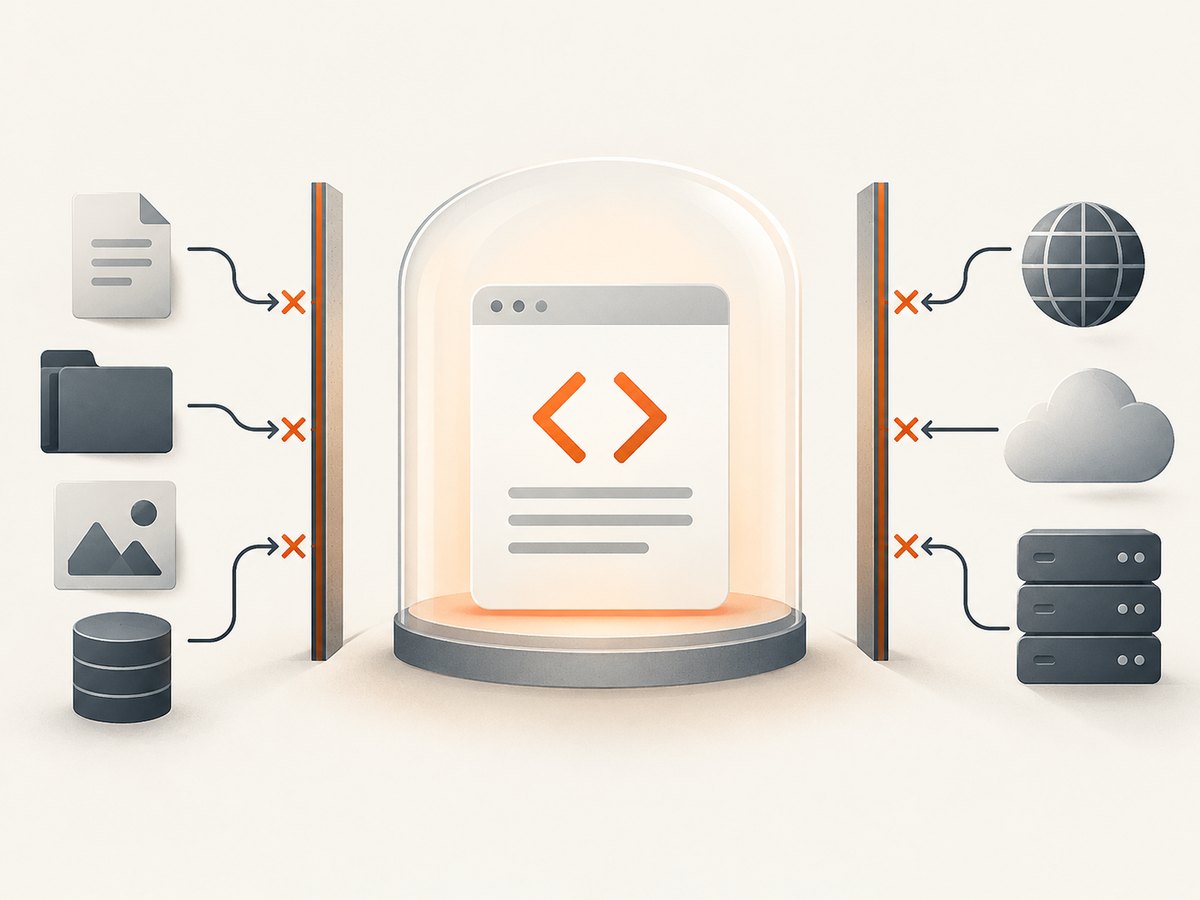
HTML and CSS can reference external resources. WeasyPrint explicitly warns that untrusted HTML or CSS can cause security problems. wkhtmltopdf documents local-file access controls. For user-supplied content, isolate the conversion process and constrain the files and network resources it can reach. Avoid enabling JavaScript or broad local access unless the use case requires them. The exact sandbox design depends on your deployment.
These tools are command-line software, and the cited documentation does not provide a comparative cost or speed benchmark. Account for compute, process startup, network transfer, and maintenance of the runtime in your own environment. For frequent conversions, reuse a process where supported and measure a representative batch.
8. Or skip the browser setup
If your goal is a screenshot of a URL as an image, ScreenshotNeo offers a single GET request; its API can also return a PDF. It is a website screenshot API and MCP server from Yorker Media. This does not replace a local HTML-to-PDF CLI workflow, but it can avoid installing and maintaining a browser for URL captures.
See the ScreenshotNeo API documentation for request options. Example image capture:
curl -G "https://api.screenshotneo.com/v1/shot" -d access_key=YOUR_API_KEY --data-urlencode url=https://stripe.com -o shot.webpCookie banners, newsletter popups, and chat widgets are removed before the shot, and each cleanup step can be turned off. Bot checks, blank pages, timeouts, failed loads, and cache hits cost nothing; response headers report the page verdict and billing status. The API offers an MCP server for AI agents with take_screenshot, get_page_info, and capture_pdf. The free plan includes 1,000 shots per month with no card; paid plans start at $5 for 3,000 shots. Sign up for 1,000 free screenshots a month, with no card.
9. FAQ
Does Chrome save to the same folder every time?
The documented default is output.pdf in the current working directory. Run from a known directory or configure the output location using the flags available in your browser version.
Can WeasyPrint read HTML from a pipe?
Its CLI accepts - as input for standard input and as output for standard output. Use the exact installed-version syntax and check the process result in your script.
Which renderer should I start with?
Start with Chrome for browser-dependent pages, WeasyPrint for a direct HTML/CSS document workflow, and wkhtmltopdf when its compatibility and controls match an existing need. Render and review an example before choosing for production.
Will a longer timeout guarantee complete content?
No. A timeout sets a time limit; asynchronous work can still be incomplete or require interaction. Determine how the target page becomes ready and verify the PDF.
Is conversion of untrusted HTML safe by default?
Do not assume so. WeasyPrint warns about untrusted HTML/CSS, and local-file access can expose unintended files. Isolate the renderer and restrict resources according to your deployment.


