How to Convert HTML to PDF for Free Without an API Key
Save webpages or local HTML as PDFs for free with Chrome, Headless Chrome, WeasyPrint, and practical troubleshooting—no API key required.
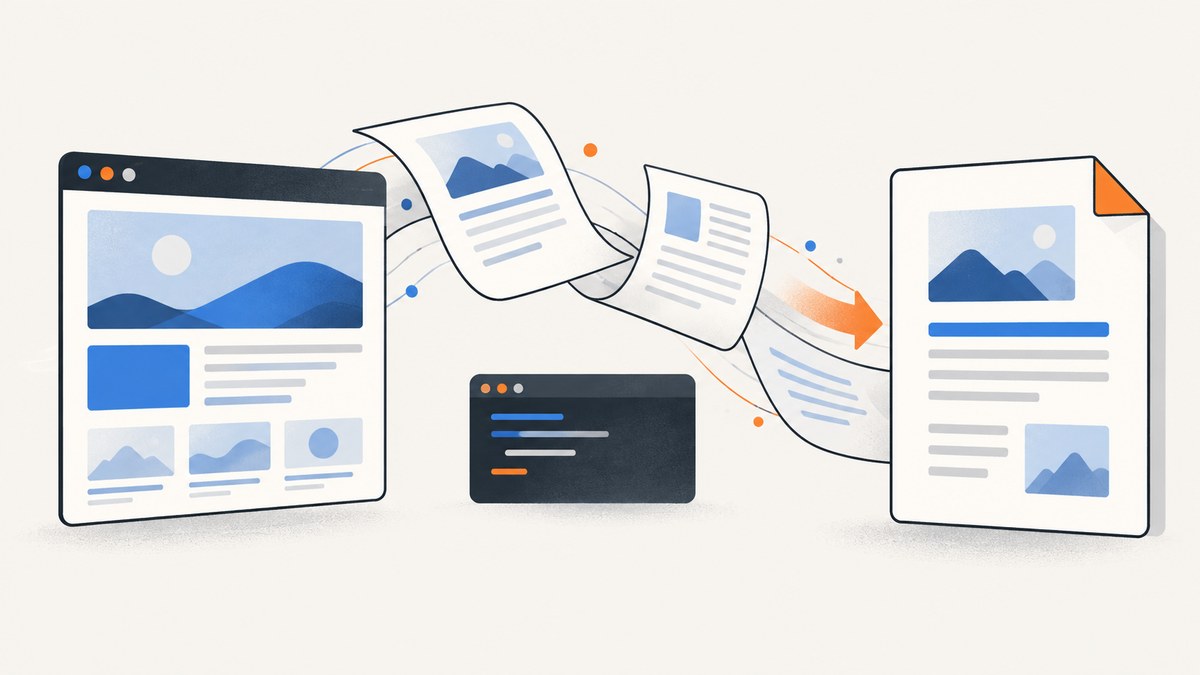
Yes. You can convert HTML to PDF for free without an API key. For a single webpage, open it in Chrome, choose Print, select Save as PDF, review the preview, and save the file. For repeatable automation, Chrome Headless can print a URL from the command line. For local HTML or Python programs, WeasyPrint provides both a CLI and a Python API.
This guide covers each route, when to use it, complete commands, layout controls, dynamic pages, authentication, troubleshooting, and the limits of each rendering engine. At the end, ScreenshotNeo provides an API option when you need repeatable PDF or screenshot jobs without maintaining a browser.
1. The fastest method: print a webpage to PDF in Chrome
Chrome’s print workflow needs no account, API key, or extra software.
- Open the webpage in Chrome.
- Press Ctrl+P on Windows or Linux, or Command+P on macOS. You can also open Chrome’s menu and choose Print.
- In the printer or destination field, choose Save as PDF.
- Set the paper size, orientation, margins, scale, and pages to include.
- Enable or disable background graphics depending on whether colors and images belong in the PDF.
- Inspect the preview for clipped content and bad page breaks, then click Save.
Chrome documents the keyboard shortcuts and the print flow in its help center: Chrome print help. On Android, open the page, select More → Share → Print, choose Save as PDF, and select a location.
Print settings that affect the result
| Setting | What it changes | Typical choice |
|---|---|---|
| Destination | Where the PDF is written | Save as PDF |
| Pages | All pages or a range such as 2–5 | All for a complete article |
| Layout | Portrait or landscape orientation | Portrait for documents, landscape for wide tables |
| Paper size | Page dimensions and wrapping | A4 or Letter, matching your audience |
| Margins | Blank space around printed content | Default first; custom for dense reports |
| Scale | How much content fits on each page | 100%; lower only when content is clipped |
| Background graphics | Colors, background images, and shaded sections | On when visual styling matters |
| Headers and footers | URL, title, date, and page numbers | On for an audit trail, off for a clean handout |
Print CSS can intentionally change the layout. A site may hide navigation, alter colors, or insert page breaks when the media is print. The print preview is therefore the source of truth for this manual workflow. Check long tables, code blocks, images, and links before distributing the PDF.
2. Convert a URL from the command line with Chrome Headless
Chrome Headless is useful when a script, cron job, or build pipeline must produce a PDF from a URL. The documented basic command is:
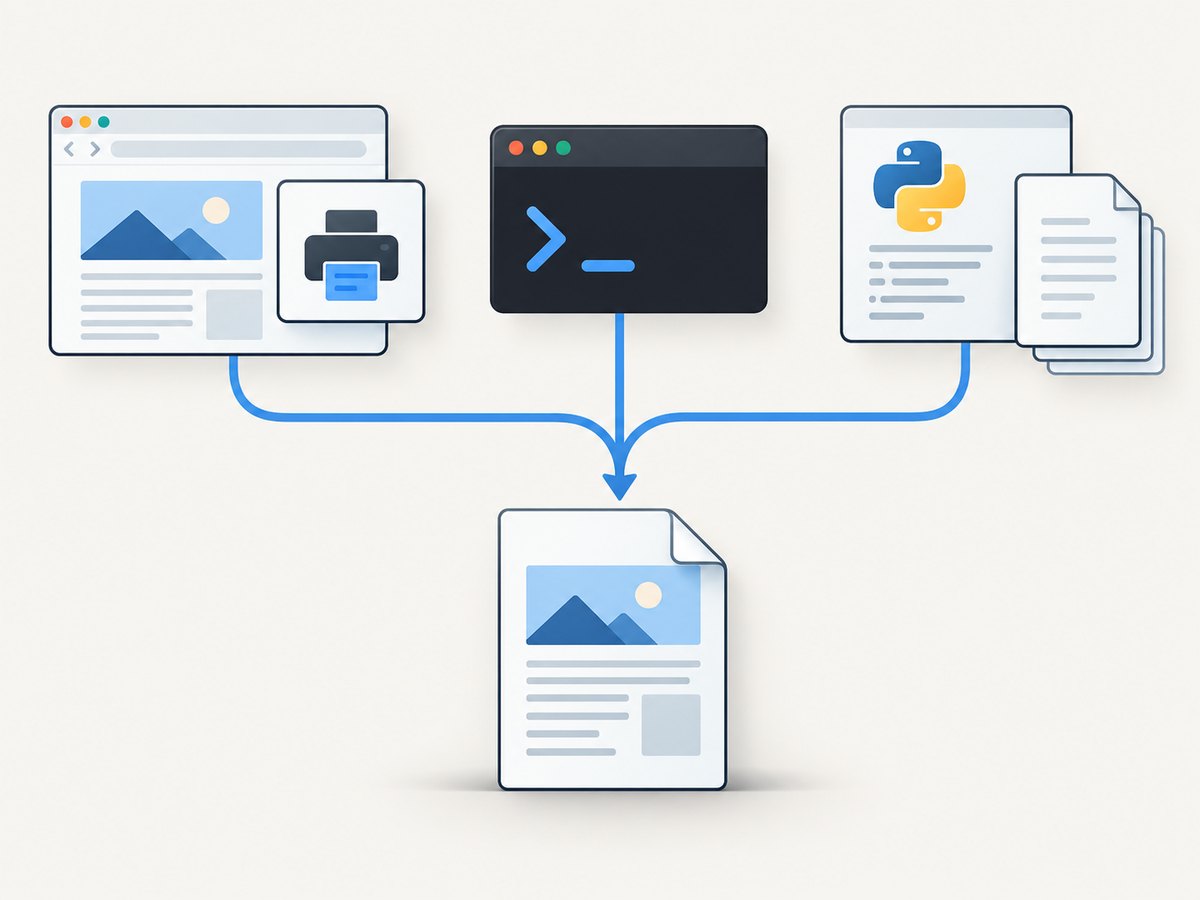
chrome --headless --print-to-pdf https://example.com/On systems where the executable is named differently, use google-chrome, chromium, or the full path to your installation. Chrome writes a PDF in the current directory unless you provide an output path.
Useful flags
# Choose an output file and remove printed headers and footers
chrome --headless \
  --print-to-pdf=/tmp/example.pdf \
  --no-pdf-header-footer \
  https://example.com/
--no-pdf-header-footer removes Chrome’s generated URL, title, date, and page number lines. Chrome’s headless documentation also describes --timeout, which bounds how long capture waits:
chrome --headless \
  --timeout=15000 \
  --print-to-pdf=/tmp/example.pdf \
  https://example.com/
See the Chrome Headless documentation for current command-line behavior. A timeout is a maximum wait, not proof that a JavaScript-heavy page has finished rendering. A page that loads content after the timeout can produce an incomplete PDF.
Automating several URLs
A simple shell loop is enough for a small batch:
#!/usr/bin/env bash
set -euo pipefail

mkdir -p pdf-output
while IFS= read -r url; do
  name=$(printf '%s' "$url" | sed 's#https\?://##; s#[^A-Za-z0-9._-]#_#g')
  chrome --headless \
    --no-pdf-header-footer \
    --print-to-pdf="pdf-output/${name}.pdf" \
    "$url"
done < urls.txt
Keep the batch small enough for the machine’s available memory. Run a representative URL first and inspect its page breaks before generating hundreds of files.
3. Convert local HTML with WeasyPrint
WeasyPrint is designed for HTML and CSS to PDF conversion and offers a command-line interface plus Python API. Install it according to the official first-steps documentation, then convert a local file:
weasyprint invoice.html invoice.pdfThe Python API is convenient when PDF creation belongs inside an application:
from weasyprint import HTML

HTML("invoice.html").write_pdf("invoice.pdf")
You can also render a URL:
from weasyprint import HTML

HTML("https://weasyprint.org/").write_pdf("site.pdf")
WeasyPrint may warn when CSS properties are unsupported. Read those warnings and compare the output with the browser version. Its default HTTP client also does not support every advanced request feature, including some cookie and authentication scenarios. A custom URL fetcher can supply headers, credentials, or locally controlled assets when your application needs them.
Local assets and relative paths
Use correct relative paths and a base URL when HTML refers to CSS, fonts, or images outside the current file:
from pathlib import Path
from weasyprint import HTML

source = Path("invoice.html").resolve()
HTML(filename=str(source), base_url=source.parent.as_uri()).write_pdf("invoice.pdf")
For untrusted HTML or CSS, isolate the conversion process and review the project’s security guidance. Rendering user-controlled content can expose files or consume excessive resources if it is not sandboxed.
4. Choosing the right route
| Need | Best starting point | Reason |
|---|---|---|
| One occasional webpage | Chrome Print | Fastest setup and visual preview |
| Repeatable URL capture | Chrome Headless | Scriptable and uses a browser engine |
| Local HTML in Python | WeasyPrint | Direct API and no browser window |
| Existing Qt WebKit workflow | wkhtmltopdf | Its project provides a command-line converter |
| Production capture without browser operations | ScreenshotNeo | Hosted capture, PDF options, and usage reporting |
wkhtmltopdf describes itself as an open-source command-line tool using Qt WebKit. Its indexed project homepage is older than the Chrome and WeasyPrint documentation, so verify maintenance and compatibility before choosing it for a new system. The available documentation does not establish a universal speed or fidelity winner; test your own pages.
5. Dynamic pages, fonts, and page breaks
Wait for JavaScript content
Headless Chrome begins navigation and then prints. Client-side applications that fetch data later may not be ready. Use a page-specific readiness signal where your automation framework allows it, increase the timeout when appropriate, and avoid assuming that a fixed delay works for every page. For Chrome’s command-line mode, test the page at the intended network conditions and inspect the PDF.
Control page breaks with print CSS
@media print {
  .page-break-before { break-before: page; }
  .avoid-split { break-inside: avoid; }
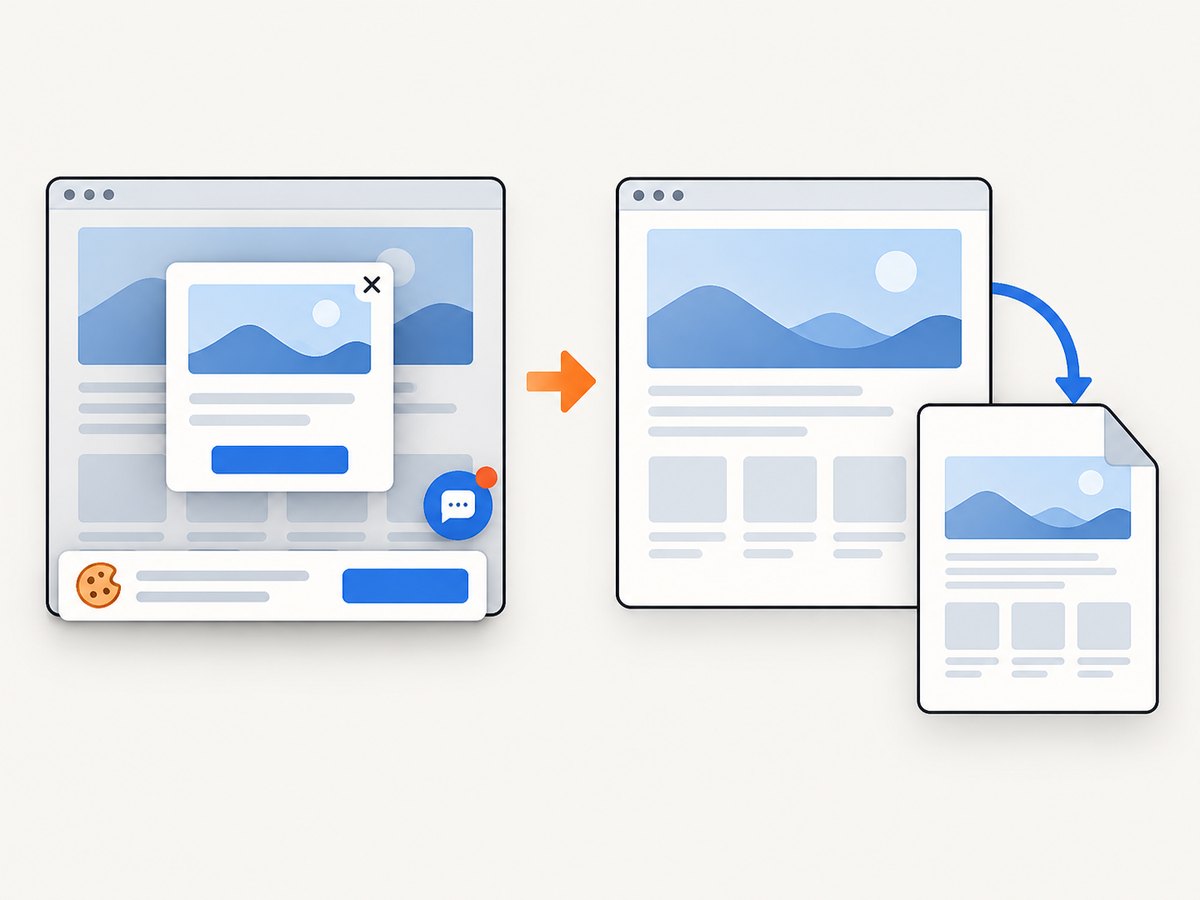
  nav, .cookie-banner, .chat-widget { display: none; }
}

@page {
  size: A4;
  margin: 18mm;
}
Modern break-before and break-inside rules are preferable, but test in the renderer you selected. Very large images, unbreakable code lines, and tables wider than the paper can still force awkward pages.
Fonts and images
Use absolute or correctly based URLs, ensure the conversion process can reach them, and wait for web fonts when using a browser automation library. Missing fonts change line wrapping, which can move headings and page breaks. A PDF that looks correct on your laptop can differ in a container with fewer installed fonts.
6. Troubleshooting common failures
| Symptom | Likely cause | Fix |
|---|---|---|
| Blank or nearly blank PDF | JavaScript content was not ready, navigation failed, or the page requires a login | Open the URL manually, verify access, then increase the wait or use a renderer with an explicit readiness step |
| Images missing | Relative paths, blocked requests, lazy loading, or unavailable private assets | Use a correct base URL, make assets reachable, and trigger lazy content before capture |
| Text or backgrounds look different | Print CSS or disabled background graphics | Inspect print styles and enable background graphics in Chrome |
| Content is cut off | Margins, scale, viewport width, or an oversized element | Review paper size, lower scale slightly, switch to landscape, or fix overflowing CSS |
| Headers and footers appear unexpectedly | Chrome print metadata is enabled | Disable headers and footers in the dialog or pass --no-pdf-header-footer |
| WeasyPrint warns about CSS | An unsupported property or value | Read the warning, provide a print-compatible fallback, and compare the output |
| Authenticated page fails | Cookies or Authorization were not sent | Use a browser session with credentials, or configure a custom URL fetcher for WeasyPrint |
| Huge or slow PDF | Full-resolution images, repeated resources, or an infinite page | Resize assets, cap content, and set an operational timeout |
7. Reliability, privacy, performance, and cost
All of the local methods are free in licensing or built-in browser use, but they still consume CPU, memory, disk, and engineering time. A browser process is heavier than a direct HTML renderer. WeasyPrint can be efficient for controlled documents but may require CSS adjustments. None of the cited documentation supplies a general benchmark, so measure representative pages before selecting a production route.
- Reliability: pin the browser or rendering package version, log the source URL and exit status, and retain failed inputs for inspection.
- Performance: reuse a browser process where your automation framework supports it, limit concurrency, and avoid downloading unnecessarily large assets.
- Security: treat untrusted HTML, CSS, URLs, cookies, and credentials as input boundaries. Sandbox conversion workers and restrict outbound access when appropriate.
- Privacy: local conversion keeps page data on your machine. Chrome’s OCR statement for scanned PDFs applies specifically to its PDF viewer’s on-device OCR and should not be generalized to every print workflow.
- Cost: the software may be free, while hosted runners, CI minutes, storage, and maintenance still have a cost.
8. Or skip the browser setup
When you need an HTTP call instead of a local browser, ScreenshotNeo provides website screenshots and PDFs through one endpoint. Its cleanup step accepts cookie or consent banners like a visitor and removes more than 60 known consent platforms, newsletter popups, and chat widgets; each step can be turned off. Bot checks or CAPTCHAs, blank pages, timeouts, failed loads, and cache hits are not billed, and each response reports the result in X-Page-Verdict and X-Billed headers.
See the ScreenshotNeo API documentation for PDF settings, authentication, waiting rules, custom headers and cookies, CSS and JavaScript, resource blocking, caching, signed links, asynchronous jobs, webhooks, bulk capture, and usage information.
curl -G "https://api.screenshotneo.com/v1/shot" -d access_key=YOUR_API_KEY --data-urlencode url=https://example.com -o shot.webpimport requests
r = requests.get("https://api.screenshotneo.com/v1/shot", params={"access_key": "YOUR_API_KEY", "url": "https://example.com"}, timeout=90)
open("shot.webp", "wb").write(r.content)const q = new URLSearchParams({ access_key: 'YOUR_API_KEY', url: 'https://example.com' }); const res = await fetch(`https://api.screenshotneo.com/v1/shot?${q}`);ScreenshotNeo also has an MCP server with take_screenshot, get_page_info, and capture_pdf tools for Claude, Cursor, and other MCP clients. Every feature is included on every plan: 1,000 shots per month are free with no card; paid plans start at $5 for 3,000 shots. Create a free ScreenshotNeo account.
9. A practical validation checklist
- Open the source URL and confirm it is publicly reachable or authenticated correctly.
- Choose the renderer based on whether you need browser fidelity, local HTML control, or hosted automation.
- Set paper size, margins, orientation, and background behavior deliberately.
- Wait for asynchronous data, images, and fonts.
- Inspect page breaks, tables, code, links, and the final page.
- Record renderer versions, source URL, timestamp, and errors for repeatable jobs.
- Keep a representative test set before changing browser or CSS versions.
FAQ
Can I convert HTML saved on my computer without uploading it?
Yes. Open the file in Chrome and print it, or run weasyprint file.html file.pdf. Ensure local CSS, images, and fonts use paths the renderer can read.
Does converting HTML to PDF require an API key?
No. Chrome’s print dialog, Chrome Headless, WeasyPrint, and wkhtmltopdf can work without an API key. An API is useful when you want a hosted, repeatable service.
Why is my PDF different from the webpage?
Print media styles, paper dimensions, missing fonts, disabled backgrounds, and content that loads after capture can all change the result. Compare print preview and inspect the renderer’s warnings.
Which method should run in a scheduled job?
Use Chrome Headless or WeasyPrint after testing your page set. Use ScreenshotNeo when you prefer an HTTP service with cleanup, verdict headers, asynchronous jobs, and usage controls.


