How to Convert HTML to PDF in an App
Learn how to convert modern HTML to reliable PDFs with Playwright, Puppeteer, Python options, print CSS, deployment guidance, troubleshooting, and an API shortcut.
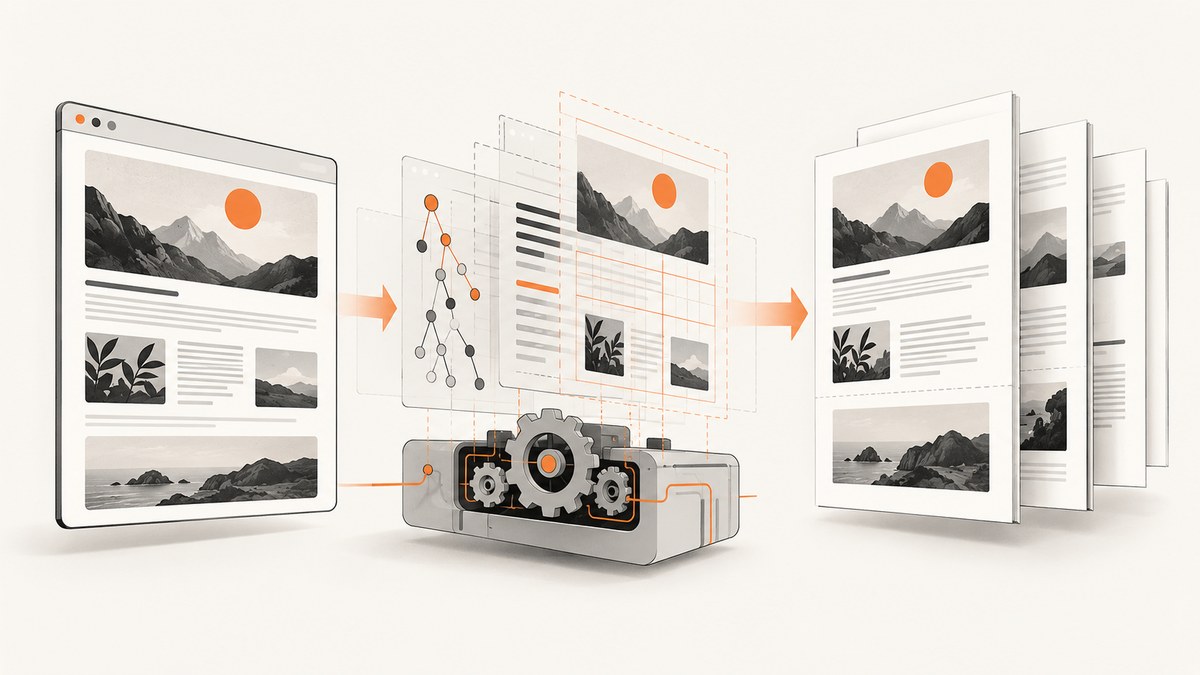
To convert HTML to PDF in an app, render the HTML in a browser engine and call its PDF API after the page, images, and fonts are ready. For modern JavaScript-heavy pages, Playwright or Puppeteer with Chromium usually gives the closest match to what users see in a browser. Configure print CSS, paper size, margins, backgrounds, and page breaks explicitly.
This guide shows a complete Node.js implementation, a Python approach, deployment and security practices, alternatives such as WeasyPrint and wkhtmltopdf, and a hosted option when you do not want to manage browser binaries.
1. Choose the right conversion approach
| Approach | Best fit | Trade-offs |
|---|---|---|
| Playwright/Chromium | Modern responsive pages, JavaScript, web fonts, and browser-faithful CSS | Requires browser binaries and operating-system dependencies; manage startup and concurrency. Playwright PDF API |
| Puppeteer/Chromium | Node.js services already using the Chrome DevTools ecosystem | Same browser-runtime and resource-management concerns; PDF uses print media by default. Puppeteer PDF guide |
| WeasyPrint | Python services needing a direct HTML/CSS-to-PDF API | CSS support differs from a browser. Its documentation warns that untrusted HTML or CSS can create security problems. WeasyPrint security |
| wkhtmltopdf | Existing command-line pipelines using its WebKit renderer | Separate executable and older WebKit behavior; validate modern CSS and JavaScript requirements. wkhtmltopdf project |
| PDFKit | Documents built programmatically from text, vectors, images, and layout primitives | It constructs PDFs; it does not render arbitrary HTML. PDFKit |
If the input is a real web page with client-side rendering, start with Playwright or Puppeteer. If you control a simple document template and do not need browser CSS behavior, a non-browser library may be easier to operate.
2. Convert HTML with Playwright in Node.js
Install the package and browser
npm install playwright
npx playwright install --with-deps chromium
The browser package and binaries should be kept aligned. In containers, install the browser, system libraries, and fonts in the image rather than downloading them during every request.

Complete HTML-to-PDF function
import { chromium } from 'playwright';
import { writeFile } from 'node:fs/promises';

const html = `<!doctype html>
<html>
<head>
  <meta charset="utf-8">
  <style>
    @page { size: A4; margin: 16mm 14mm; }
    @media print {
      nav, .toolbar, .no-print { display: none !important; }
      a { color: inherit; text-decoration: none; }
      h1, h2, h3 { break-after: avoid; }
      table, figure { break-inside: avoid; }
    }
    body { font-family: Inter, Arial, sans-serif; line-height: 1.5; }
    .card { background: #f1f5f9; padding: 16px; }
  </style>
</head>
<body>
  <nav class="no-print">Navigation</nav>
  <main>
    <h1>Quarterly report</h1>
    <div class="card">Revenue and operating notes</div>
  </main>
</body>
</html>`;

const browser = await chromium.launch({ headless: true });
try {
  const page = await browser.newPage({
    viewport: { width: 1280, height: 900 },
    deviceScaleFactor: 1
  });
  await page.setContent(html, { waitUntil: 'networkidle' });
  await page.evaluate(() => document.fonts.ready);
  await page.waitForFunction(() => [...document.images].every(img => img.complete));

  const pdf = await page.pdf({
    format: 'A4',
    printBackground: true,
    preferCSSPageSize: true,
    margin: { top: '16mm', right: '14mm', bottom: '16mm', left: '14mm' },
    path: 'document.pdf'
  });
  await writeFile('document.pdf', pdf);
} finally {
  await browser.close();
}
page.pdf() uses print CSS media by default, as documented in the Playwright API reference. The function waits for network idle, then waits for web fonts and images. For pages that continue polling or open WebSockets, network idle may never be reached; use a bounded delay or wait for a specific application selector instead.
Convert an existing URL
const page = await browser.newPage();
await page.goto('https://example.com/invoice/123', {
  waitUntil: 'domcontentloaded',
  timeout: 30000
});
await page.waitForSelector('#invoice-ready', { state: 'visible', timeout: 15000 });
await page.evaluate(() => document.fonts.ready);
await page.pdf({ format: 'A4', printBackground: true, path: 'invoice.pdf' });
Use domcontentloaded plus an application-ready selector when third-party analytics or long polling prevents a useful network-idle signal.
3. Control CSS, pages, and PDF output
Print versus screen styles
Browser PDF APIs render with the print media type. If the screen layout is the intended result, call await page.emulateMediaType('screen') before generating the PDF. Usually, a dedicated print stylesheet is more predictable:
@page {
  size: A4;
  margin: 16mm 14mm;
}
@media print {
  .navigation, .actions, .cookie-banner { display: none !important; }
  h1, h2, h3 { break-after: avoid; }
  .invoice-line, figure, table { break-inside: avoid; }
  .page-break { break-before: page; }
}
Important Playwright options
format: presets such as A4 or Letter.widthandheight: custom sheet dimensions.margin: top, right, bottom, and left values.printBackground: includes colored panels and background images.preferCSSPageSize: lets@pagecontrol size instead of scaling to the selected format.pageRanges: export selected pages, for example1-3.scale: adjusts output size when a template barely overflows.displayHeaderFooter,headerTemplate, andfooterTemplate: add running metadata.outlineandtagged: request document structure and tagged output where supported; validate accessibility with a PDF checker.
Use explicit dimensions and margins for invoices, labels, and reports. When a design already contains @page rules, set preferCSSPageSize: true. Set printBackground: true whenever backgrounds are part of the design.
4. Puppeteer equivalent
import puppeteer from 'puppeteer';

const browser = await puppeteer.launch({ headless: true });
try {
  const page = await browser.newPage();
  await page.setContent(html, { waitUntil: 'networkidle0' });
  await page.evaluate(() => document.fonts.ready);
  await page.pdf({
    path: 'document.pdf',
    format: 'A4',
    printBackground: true,
    preferCSSPageSize: true,
    margin: { top: '16mm', right: '14mm', bottom: '16mm', left: '14mm' }
  });
} finally {
  await browser.close();
}
Puppeteer documents the same launch, navigate, PDF, and close lifecycle. Its guide notes that PDF generation waits for fonts by default. Reuse a browser process or a bounded page pool for throughput, but always close pages and enforce per-job timeouts.
5. Python conversion options
Python with Playwright
from pathlib import Path
from playwright.sync_api import sync_playwright

html = Path('template.html').read_text(encoding='utf-8')
with sync_playwright() as p:
    browser = p.chromium.launch()
    page = browser.new_page()
    page.set_content(html, wait_until='networkidle')
    page.evaluate('document.fonts.ready')
    page.pdf(
        path='document.pdf',
        format='A4',
        print_background=True,
        prefer_css_page_size=True,
        margin={'top': '16mm', 'right': '14mm', 'bottom': '16mm', 'left': '14mm'}
    )
    browser.close()
Python with WeasyPrint
from weasyprint import HTML

HTML(string='<h1>Report</h1>').write_pdf('document.pdf')
WeasyPrint is useful when your templates fit its HTML/CSS model and you want a direct Python API. Its rendering behavior is not identical to Chromium, so verify complex flexbox, JavaScript-generated content, web fonts, and pagination before adopting it.
6. Assets, fonts, and dynamic content
- Use absolute, reachable URLs for remote images, stylesheets, and fonts, or inline critical assets.
- Wait for
document.fonts.ready; otherwise fallback fonts can change line wrapping and page count. - Wait for images with
document.images, or for a page-specific ready selector. - Inject data before rendering with a template engine or
page.evaluate; avoid timing-dependent DOM mutations. - Pin browser and library versions for repeatable output and keep representative HTML fixtures for regression checks.
Authenticated pages require deliberate cookie, header, or token handling. Never expose production bearer tokens or privileged cookies to untrusted page content.
7. Security for untrusted HTML
HTML and CSS can trigger network requests and consume CPU or memory. The WeasyPrint documentation warns that untrusted HTML or CSS may create security problems. Apply the same caution to browser renderers:
- Run conversion in an isolated worker or container.
- Set CPU, memory, navigation, and total job time limits.
- Restrict outbound network access and block cloud metadata endpoints.
- Validate local and remote asset URLs to prevent file disclosure and server-side request forgery.
- Sanitize user data before templating it into HTML.
- Use a fresh browser context per tenant when cookies or authentication differ.
8. Deployment, performance, and reliability
Install matching Chromium binaries and operating-system dependencies during image build. Include the fonts your documents require. Launching a browser for every request is simple but adds startup cost; a long-lived browser with a bounded page pool generally improves throughput. Recycle workers after a controlled number of jobs if memory grows.
Use a queue for large documents, return a job identifier, and store the resulting PDF in durable object storage. Enforce idempotency so retries do not create duplicate invoices. Log the URL or template identifier, browser version, duration, page count, and failure category without logging secrets or full private HTML.
There is no universal fastest library. Benchmark representative documents in the exact container, browser version, fonts, and concurrency you will deploy. Measure total latency, memory per concurrent page, timeout rate, and output differences after browser updates.
9. Troubleshooting common failures
| Symptom | Likely cause | Fix |
|---|---|---|
| Blank or incomplete PDF | Capture ran before client rendering finished | Wait for a specific ready selector, fonts, and images; avoid an arbitrary short sleep. |
| Missing colors or backgrounds | Background printing is disabled | Set printBackground: true or print_background=True. |
| Wrong paper size | Conflicting format and @page rules |
Choose one source of truth and enable preferCSSPageSize when CSS should win. |
| Navigation appears in output | Print rules do not hide it | Add a print selector such as .navigation { display:none !important }. |
| Text wraps differently | Font not loaded or missing in the image | Install the font, wait for document.fonts.ready, and use stable font URLs. |
| Timeout at network idle | Polling, analytics, or WebSockets keep requests active | Use domcontentloaded and a page-specific readiness selector with a hard timeout. |
| Browser fails in a container | Missing libraries, sandbox configuration, or browser binary | Run Playwright’s dependency installer, install Chromium during build, and inspect container logs. |
| Images are broken | Relative URLs, blocked requests, or private resources | Use absolute URLs, permit required hosts, or inline assets; verify access from the worker. |
| Pages split awkwardly | No pagination rules | Use break-inside: avoid, break-before, and headings with break-after: avoid. |
10. Verification checklist
- Confirm paper size, margins, orientation, and page ranges.
- Check fonts, images, links, headers, footers, and page breaks.
- Open the PDF in more than one viewer.
- Validate tagged or accessible output when required; an option named
taggeddoes not by itself prove conformance. - Compare output in the same pinned runtime after dependency updates.
- Test long text, empty data, missing images, right-to-left text, tables crossing pages, and very large documents.
11. Or skip the browser setup
ScreenshotNeo provides a website capture API that can return PNG, JPEG, WebP, or PDF. The PDF endpoint accepts paper size, margins, landscape mode, and page ranges, along with options for custom CSS and JavaScript, waiting for selectors or network idle, custom headers and cookies, and other capture controls. See the ScreenshotNeo documentation for the full option list.

curl -G "https://api.screenshotneo.com/v1/shot" \
  -d access_key=YOUR_API_KEY \
  --data-urlencode url=https://stripe.com \
  -d format=pdf \
  -o document.pdf
import requests
r = requests.get(
"https://api.screenshotneo.com/v1/shot",
params={"access_key": "YOUR_API_KEY", "url": "https://stripe.com", "format": "pdf"},
timeout=90,
)
r.raise_for_status()
open("document.pdf", "wb").write(r.content)const q = new URLSearchParams({
access_key: 'YOUR_API_KEY',
url: 'https://stripe.com',
format: 'pdf'
});
const res = await fetch(`https://api.screenshotneo.com/v1/shot?${q}`);
if (!res.ok) throw new Error(`HTTP ${res.status}`);
await Bun.write('document.pdf', res);ScreenshotNeo accepts cookie and consent banners before capture and removes more than 60 known consent platforms, newsletter popups, and chat widgets; each step can be disabled. Bot checks, blank pages, timeouts, failed loads, and cache hits are not billed, and response headers identify the page verdict and billing status. An MCP server provides take_screenshot, get_page_info, and capture_pdf tools for Claude, Cursor, and other MCP clients. The Free plan includes 1,000 shots each month without a card; paid plans start at $5 for 3,000 shots. Create a free ScreenshotNeo account.
12. Frequently asked questions
Should I use Playwright or Puppeteer?
Use Playwright when you want its broader browser automation API and explicit PDF options. Puppeteer is a natural choice for an existing Chrome DevTools-based Node.js service. Both require browser lifecycle and dependency management.
Why does my PDF have different pagination than the browser?
PDF generation uses print media by default, and print styles, fonts, margins, and page size change line wrapping. Inspect @media print, wait for fonts, and set preferCSSPageSize deliberately.
Can I convert HTML containing JavaScript?
Yes with a browser renderer. Navigate or set content, wait for the application’s ready state, then generate the PDF. WeasyPrint and wkhtmltopdf have different JavaScript and CSS behavior.
How do I export only selected pages?
Use Playwright’s or Puppeteer’s page-range option where supported, or split the document into separate templates. Confirm page numbering after fonts and dynamic data load.
How do I keep conversion safe for customer-submitted HTML?
Isolate workers, restrict network access, validate asset URLs, sanitize input, and apply strict resource and time limits. Treat every template and stylesheet as executable input.


