How to Convert HTML to PDF Using JavaScript
Choose browser printing, a client-side library, or Node.js with Chromium to turn HTML into PDFs. Get runnable examples, print CSS, and fixes for common failures.
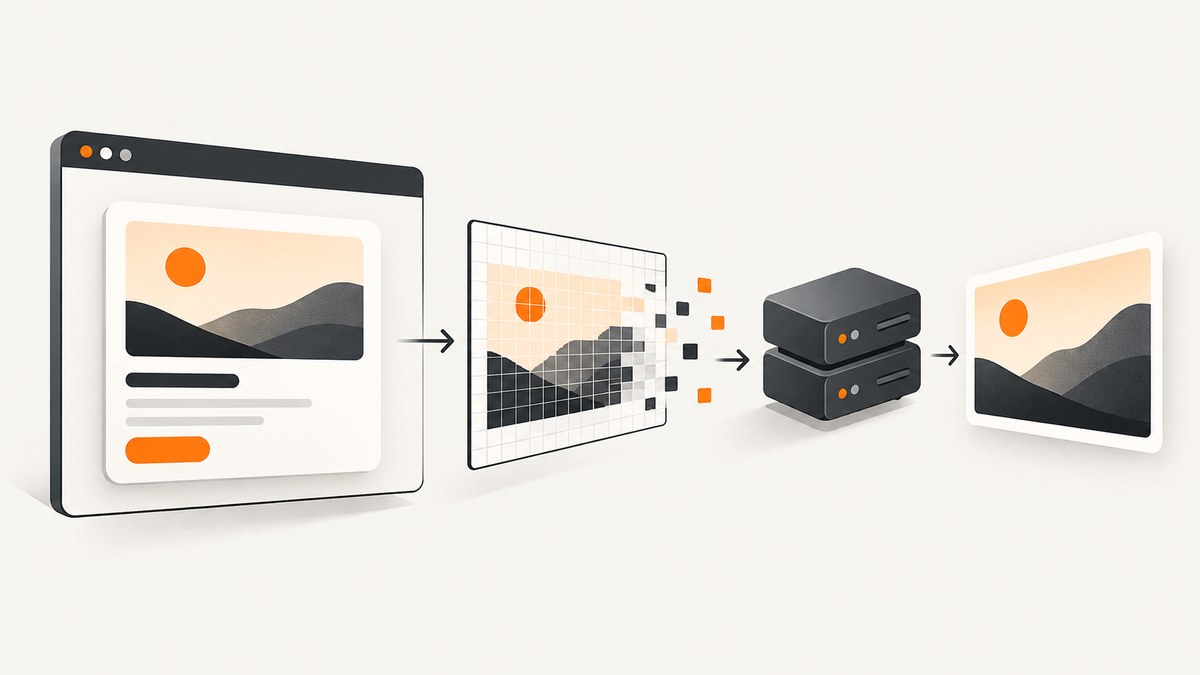
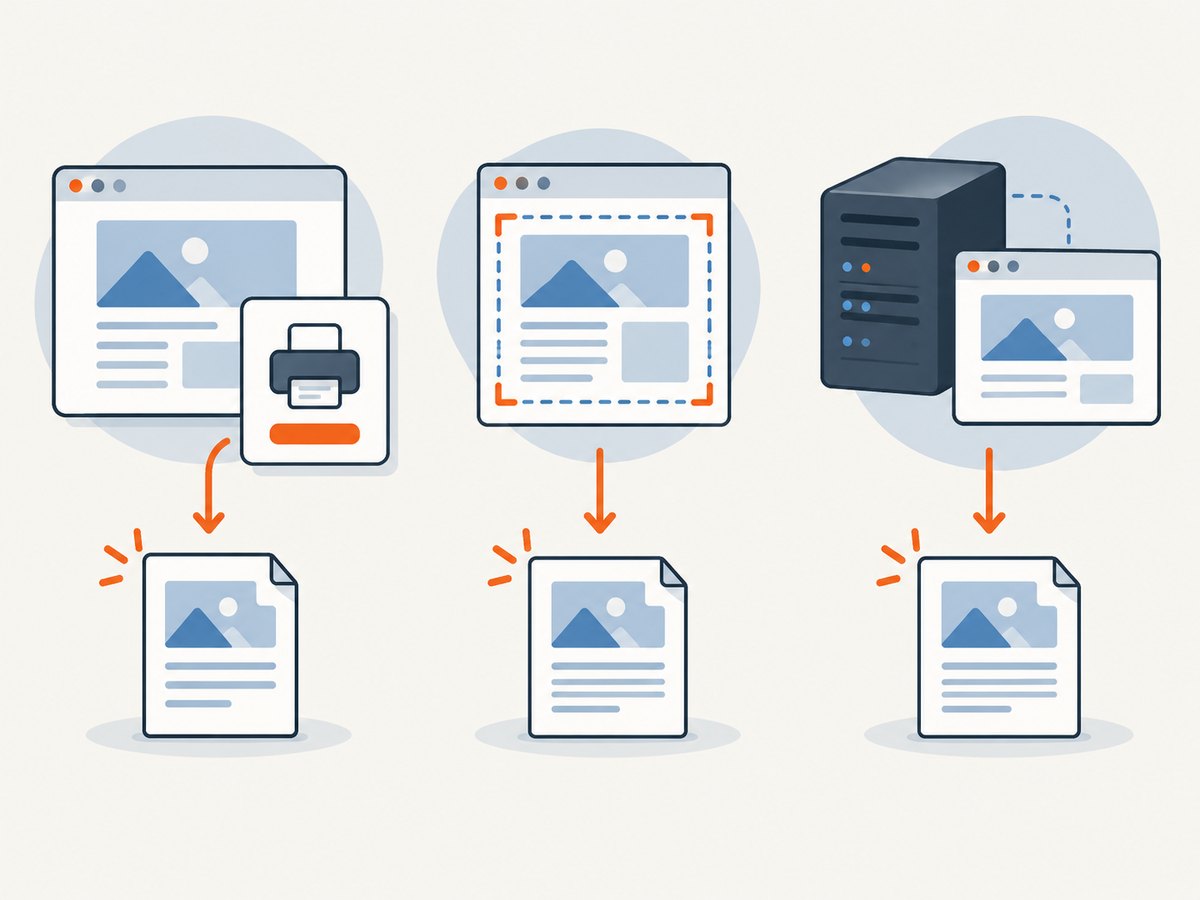
To convert HTML to PDF with JavaScript, choose the rendering path that matches who creates the file. Use window.print() when a person can save the current page through the browser. Use html2pdf.js for a small, browser-side export of a DOM element. For automated server-side documents, use Node.js with Puppeteer or Playwright and Chromium. Those browser tools execute page JavaScript and render HTML with print CSS before creating the PDF.
For a production server, a headless browser is usually the most useful starting point when the input is a modern HTML page. It still needs deliberate readiness checks, print styles, resource limits, and security controls. There is no single method that is best for every document.
1. Choose the right JavaScript-to-PDF method
| Method | Good fit | Main limitation |
|---|---|---|
window.print() |
A person saves the page using the browser’s print interface. | It opens a print workflow; it does not silently create a server-side file. |
html2pdf.js |
A small selected page section is downloaded in the browser. | Its canvas-based rendering can differ from native browser printing and use substantial memory. |
| Puppeteer or Playwright | Automated PDFs from URLs, HTML templates, or JavaScript-rendered pages. | You operate a browser runtime and must manage its resource use and security. |
| PDFKit or jsPDF | Documents built from PDF drawing and text primitives. | They are not, by themselves, general HTML-and-CSS print engines. |
| Hosted HTML-to-PDF API | A team wants a service to run the rendering infrastructure. | Check current pricing, quotas, data handling, and rendering behavior with the provider. |
For a user-triggered save, start with native printing. For a small in-browser invoice or certificate, consider html2pdf.js. For automated invoices, reports, or email attachments, use a headless browser or a hosted service. If you are drawing a document from structured data rather than converting an existing page, evaluate a PDF-generation library such as PDFKit or jsPDF.
2. Let the user print the current page
The browser-native option takes only a button and window.print(). The visitor chooses “Save to PDF” or an equivalent destination in the print interface.
<button id="print-button" type="button">Save as PDF</button>

<script>
  document.getElementById('print-button').addEventListener('click', () => {
    window.print();
  });
</script>
Use print styles to hide controls, remove screen-only decoration, set page dimensions, and avoid awkward breaks:
@page {
  size: Letter;
  margin: 0.6in;
}

@media print {
  .print-button,
  .navigation,
  .cookie-banner {
    display: none !important;
  }

  body {
    color: #000;
    background: #fff;
  }

  .invoice {
    width: auto;
    margin: 0;
  }

  h1, h2, h3 {
    break-after: avoid;
  }

  table, figure, .card {
    break-inside: avoid;
  }

  .page-break {
    break-before: page;
  }
}
@media print applies styles for printed output. @page specifies page size and margins. Browser support and the user’s print settings affect the final result, so check the actual target browsers. See MDN’s printing guide and CSS paged media guide.
3. Export a DOM element in the browser with html2pdf.js
html2pdf.js is a browser-side library that combines html2canvas and jsPDF. It is convenient for a download button when an export is modest in size and the result does not need to match Chromium’s native print pipeline exactly. The project documents browser usage; it is not a direct Node.js solution.
Install the package in a frontend project:
npm install html2pdf.jsExample using a module bundler:
<div id="invoice">
  <h1>Invoice</h1>
  <p>Invoice content goes here.</p>
</div>
<button id="download-pdf" type="button">Download PDF</button>

<script type="module">
  import html2pdf from 'html2pdf.js';

  document.getElementById('download-pdf').addEventListener('click', async () => {
    const element = document.getElementById('invoice');
    if (!element) throw new Error('Invoice element was not found');

    await html2pdf()
      .set({
        margin: 0.5,
        filename: 'invoice.pdf',
        image: { type: 'jpeg', quality: 0.95 },
        html2canvas: { scale: 2, useCORS: true },
        jsPDF: { unit: 'in', format: 'letter', orientation: 'portrait' },
        pagebreak: { mode: ['css', 'legacy'] }
      })
      .from(element)
      .save();
  });
</script>
The options illustrate margins, filename, image format and quality, canvas scale, CORS handling, paper format, orientation, and page-break modes. Adjust them for your document: higher canvas scale can improve raster detail while increasing memory use. For a CDN setup, follow the project’s version-pinned CDN instructions instead of relying on an unversioned “latest” asset.
This approach rasterizes content through a canvas-oriented pipeline. Text may not behave like text printed by Chromium, and complex CSS, large pages, external images, and pagination need careful review. A cross-origin image also depends on the image server’s CORS response; useCORS: true does not grant permission by itself.
4. Generate a PDF on the server with Puppeteer
Puppeteer launches Chromium and exposes page.pdf(). PDF rendering uses print media styles; the API waits for fonts by default. If no output path is supplied, the result is returned as a byte array. See the Puppeteer PDF guide, page.pdf() API, and PDF options.
Install Puppeteer, which includes a compatible browser download as part of its package setup:
npm install puppeteerThis runnable ES module converts an HTML string, writes a PDF, and always closes the browser:
import puppeteer from 'puppeteer';

async function htmlToPdf(html, outputPath = 'output.pdf') {
  const browser = await puppeteer.launch({ headless: true });
  try {
    const page = await browser.newPage();
    await page.setContent(html, { waitUntil: 'networkidle0' });
    await page.emulateMediaType('print');
    await page.evaluate(() => document.fonts.ready);

    await page.pdf({
      path: outputPath,
      format: 'Letter',
      printBackground: true,
      preferCSSPageSize: true,
      margin: {
        top: '0.6in',
        right: '0.6in',
        bottom: '0.6in',
        left: '0.6in'
      }
    });
  } finally {
    await browser.close();
  }
}

const html = `<!doctype html>
<html>
<head>
  <meta charset="utf-8">
  <style>
    @page { size: Letter; margin: 0.6in; }
    body { font-family: Arial, sans-serif; }
    .avoid-break { break-inside: avoid; }
  </style>
</head>
<body>
  <h1>Invoice</h1>
  <p>Generated from an HTML string.</p>
</body>
</html>`;

await htmlToPdf(html);
printBackground: true includes background colors and images that may otherwise be omitted. preferCSSPageSize: true lets a CSS @page size take precedence over API paper dimensions. Because print media is the default, include @media print rules in the HTML rather than assuming the screen layout will be used.
To render a URL instead, replace setContent with navigation:
await page.goto('https://example.com/report', {
  waitUntil: 'networkidle2'
});

await page.pdf({
  path: 'report.pdf',
  format: 'A4',
  printBackground: true,
  preferCSSPageSize: true
});
Network idle is a heuristic. Analytics, polling, charts, delayed API calls, or lazy assets can mean “idle” does not equal “document complete.” When you own the page, expose an application-ready signal and wait for it instead of guessing with a fixed delay:
// In the page, set this only after data and charts are ready:
window.reportReady = true;

// In the Puppeteer process:
await page.goto('http://localhost:3000/report', {
  waitUntil: 'domcontentloaded'
});
await page.waitForFunction(() => window.reportReady === true, {
  timeout: 15000
});
await page.evaluate(() => document.fonts.ready);
await page.pdf({ path: 'report.pdf', format: 'A4', printBackground: true });
For critical images, ensure their URLs are reachable and wait for loading before printing. This prevents a race with image loading, but does not fix failed requests:
await page.evaluate(async () => {
  await Promise.all(Array.from(document.images, (image) => {
    if (image.complete) return Promise.resolve();
    return new Promise((resolve) => {
      image.addEventListener('load', resolve, { once: true });
      image.addEventListener('error', resolve, { once: true });
    });
  }));
});
For headers and page numbers, use the PDF options for headers and footers. Puppeteer provides template classes such as pageNumber and totalPages:
await page.pdf({
  path: 'report.pdf',
  format: 'Letter',
  displayHeaderFooter: true,
  headerTemplate: '<div></div>',
  footerTemplate: '<div style="font-size:9px;width:100%;text-align:center">Page <span class="pageNumber"></span> of <span class="totalPages"></span></div>',
  margin: { top: '0.6in', bottom: '0.7in' }
});
5. Return a PDF from a Node.js endpoint
A service can return the PDF bytes directly instead of first writing a file. The example below reuses a browser process and creates a page per request. It adds a small input limit, but it is a starting point, not a complete public-service security boundary.
import express from 'express';
import puppeteer from 'puppeteer';

const app = express();
app.use(express.json({ limit: '1mb' }));
const browserPromise = puppeteer.launch({ headless: true });

app.post('/pdf', async (req, res, next) => {
  let page;
  try {
    if (typeof req.body.html !== 'string') {
      return res.status(400).json({ error: 'html must be a string' });
    }
    const browser = await browserPromise;
    page = await browser.newPage();
    await page.setContent(req.body.html, { waitUntil: 'networkidle0' });
    await page.emulateMediaType('print');
    const pdf = await page.pdf({
      format: 'Letter',
      printBackground: true,
      preferCSSPageSize: true
    });
    res.type('application/pdf').send(pdf);
  } catch (error) {
    next(error);
  } finally {
    if (page) await page.close();
  }
});

app.listen(3000);
Add authentication, request timeouts, a concurrency limit, browser lifecycle monitoring, and logs for navigation and resource failures before exposing such an endpoint. If callers submit URLs or HTML that can load remote resources, defend against server-side request forgery (SSRF): allowlist destinations, block loopback and private network addresses, and avoid exposing privileged cookies or local files to submitted content. Run the browser with isolation and resource limits. User-controlled pages can consume CPU and memory or make unexpected network requests.
6. Use Playwright when it fits your project
Playwright also supports Chromium PDF generation. If your project already uses it for browser automation or testing, using the same framework can simplify maintenance. Puppeteer and Playwright are both viable; compare the browser version, deployment image, cold-start behavior, and operational requirements in your environment rather than assuming one always renders better. Consult the Playwright Page API.
import { chromium } from 'playwright';

const browser = await chromium.launch();
try {
  const page = await browser.newPage();
  await page.goto('http://localhost:3000/invoice', {
    waitUntil: 'networkidle'
  });
  await page.emulateMedia({ media: 'print' });
  await page.evaluate(() => document.fonts.ready);
  await page.pdf({
    path: 'invoice.pdf',
    format: 'A4',
    printBackground: true,
    preferCSSPageSize: true
  });
} finally {
  await browser.close();
}
7. Print CSS and pagination details
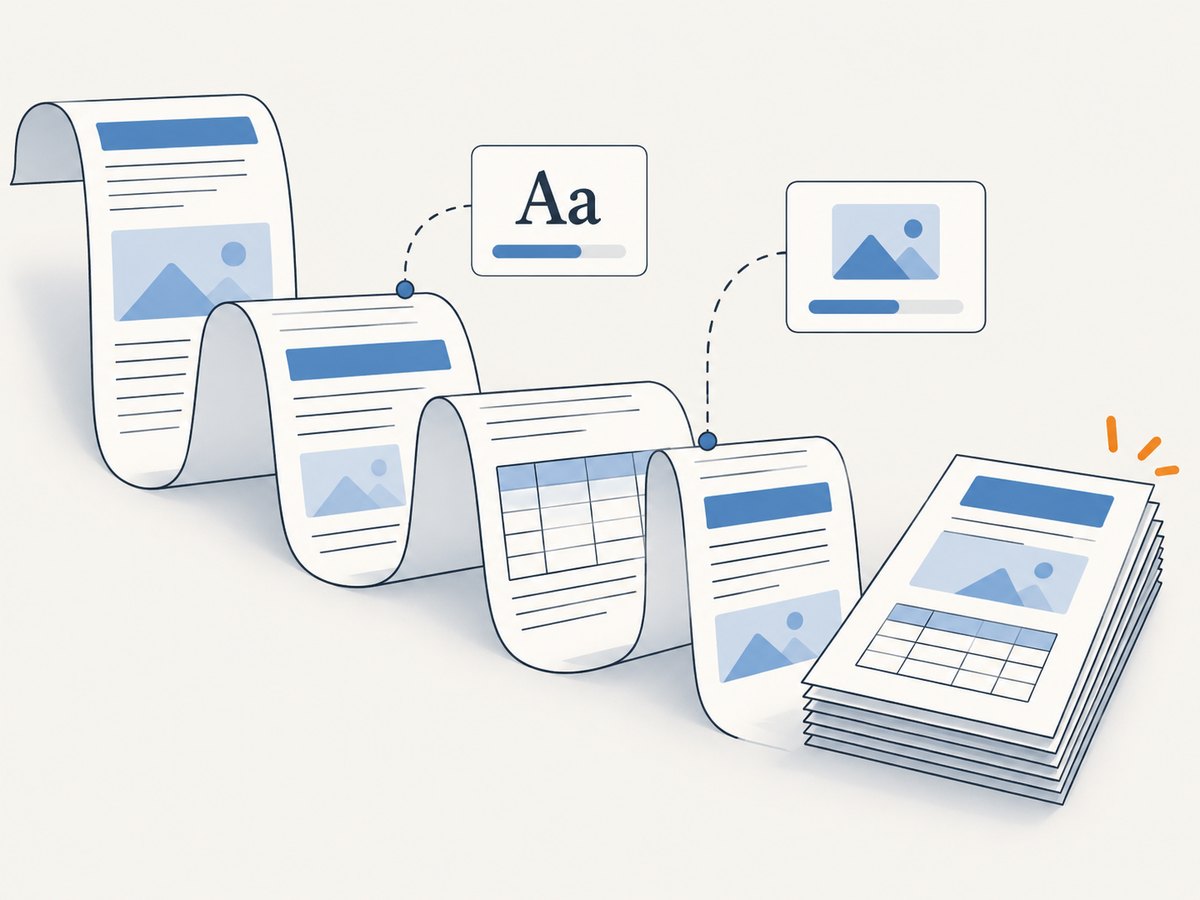
Good PDF output starts with a layout designed for pages. A wide dashboard may need a different paper size or orientation than an invoice; a long report needs rules for headings, tables, and figures. CSS paged media covers page dimensions and margins, while break properties guide fragmentation.
@page {
  size: A4 portrait;
  margin: 16mm 14mm 18mm;
}

@media print {
  .no-print { display: none !important; }
  a { color: inherit; text-decoration: none; }
  h1, h2, h3 { break-after: avoid; }
  table, figure, .card, .signature-block { break-inside: avoid; }
  .page-break { break-before: page; }
}- Use
break-inside: avoidfor cards, figures, and table rows where splitting would be confusing. An element taller than a page still has to split. - Use
break-before: pagefor deliberate section starts. Test the output because break handling can vary with document structure and browser version. - Use absolute image and stylesheet URLs when the HTML is rendered without the original page’s base URL. Confirm the browser process can reach those hosts and that signed links have not expired.
- Install or package the intended fonts in the production environment. A fallback font changes line wrapping and can shift every later page break.
- For browser printing, check the print dialog’s background and scale settings as well as your CSS; those settings are controlled by the user.
8. Troubleshoot common PDF failures
| Symptom | Likely cause | What to check |
|---|---|---|
| Blank PDF | Printing started before content rendered, the page is hidden in print CSS, or navigation failed. | Wait for a known selector or readiness marker; inspect page errors and take a debug screenshot before printing. |
| Missing styles | Stylesheets are unreachable, relative URLs resolve incorrectly, or print rules hide content. | Use reachable URLs and a correct base URL; inspect the page using print media. Use screen media only when the screen design is intended. |
| Missing backgrounds | Background printing is disabled. | Set Puppeteer’s printBackground: true; for manual printing, check the browser’s background graphics setting. |
| Missing images | CORS, expired links, authentication, bad relative paths, or printing before load. | Check the browser request and response, credentials, URL lifetime, and image readiness. CORS must be allowed by the image host. |
| Wrong typography or pagination | Font unavailable or still loading; a fallback changed text dimensions. | Make the font available to Chromium and wait for document.fonts.ready. |
| Cards or rows split | No break rule, or the element is taller than a page. | Add break-inside: avoid where suitable, then redesign oversized blocks that cannot fit. |
| Content clipped at the edge | Fixed-width layout, overflow, paper-size mismatch, or conflicting CSS/API size. | Review widths and transforms, define @page, and set preferCSSPageSize: true when CSS should control paper size. |
| JavaScript-generated content absent | The browser printed before data, charts, or app state was ready. | Wait on an application readiness signal; a fixed sleep or network idle alone is not proof. |
| Works locally but fails in deployment | Missing browser dependencies, fonts, outbound access, or memory; different browser versions can also affect layout. | Match the deployed browser runtime, package fonts and dependencies, and reproduce with the same container or environment. |
For diagnosis, save a screenshot from the same browser page immediately before PDF generation. If that screenshot is already wrong, the failure is in navigation, assets, or page rendering rather than the PDF writer.
9. Performance, reliability, and cost
Browser rendering costs CPU and memory. Large documents, high canvas scale, many images, and concurrent Chromium pages increase resource use. Bound input size and concurrency, set request and navigation timeouts, close each page in a finally block, and define how a browser process is restarted after failure. Reusing a browser can avoid launching Chromium for every request, but still isolate pages and cap simultaneous work.
For reliability, pin your application dependencies, make fonts and critical assets available, use an explicit readiness condition, and record failed requests and generation timeouts. Browser version, installed fonts, operating system, CSS, and external resources all influence output. A successful local render does not guarantee identical output in a serverless deployment or a different container.
Self-hosted Puppeteer and Playwright have no per-document API vendor charge, but browser infrastructure and engineering time still cost money. A hosted converter can reduce browser operations work, while adding service charges, quotas, vendor dependence, and data-processing considerations. Check current provider pricing and policies before choosing; prices and limits can change. For sensitive documents, decide whether sending HTML and its data to a third party is acceptable.
10. Or skip the browser setup
If your input is a live web page and you need a hosted capture rather than a Node-managed browser, ScreenshotNeo is a website screenshot API and MCP server. Its API can return a screenshot or PDF. The example below uses the documented request shape to save a WebP capture; consult the ScreenshotNeo docs for PDF output and its options rather than guessing a format parameter.
curl -G "https://api.screenshotneo.com/v1/shot" -d access_key=YOUR_API_KEY --data-urlencode url=https://stripe.com -o shot.webpimport requests
r = requests.get(
"https://api.screenshotneo.com/v1/shot",
params={"access_key": "YOUR_API_KEY", "url": "https://stripe.com"},
timeout=90
)
r.raise_for_status()
open("shot.webp", "wb").write(r.content)const q = new URLSearchParams({ access_key: 'YOUR_API_KEY', url: 'https://stripe.com' });
const res = await fetch(`https://api.screenshotneo.com/v1/shot?${q}`);
if (!res.ok) throw new Error(`Screenshot request failed: ${res.status}`);
await import('node:fs/promises').then(({ writeFile }) => writeFile('shot.webp', res));ScreenshotNeo removes known cookie and consent banners, newsletter popups, and chat widgets before capture; each cleanup step can be turned off. Bot checks, blank pages, timeouts, failed loads, and cache hits are not billed, and the response identifies page verdict and billing status in headers. Its MCP server provides screenshot and PDF tools for AI agents. The free plan includes 1,000 shots a month with no card; paid plans start at $5 for 3,000 shots. Create a free ScreenshotNeo account to get started.
11. Quick FAQ
Can JavaScript create a PDF without a server?
Yes. window.print() lets a person save through the browser, and html2pdf.js can generate a browser-side download. Both run on the user’s device.
Is jsPDF enough to convert an existing HTML page?
Not by itself for general HTML and CSS. jsPDF is a PDF-generation library; html2pdf.js adds a DOM rendering pipeline around html2canvas and jsPDF.
Should I choose Puppeteer or Playwright?
Use the framework that best fits your existing automation and deployment. Both can generate PDFs in Chromium; verify the actual fonts, browser build, and layout you plan to ship.
Why does the exported PDF have different page breaks than the web page?
PDF generation uses paged output and print media rules. Define paper size, margins, and break behavior for the document instead of expecting the scrolling screen layout to map directly to pages.
Can I accept any URL in my PDF endpoint?
That creates SSRF and resource-abuse risks. Restrict destinations, block private network ranges, limit runtime and concurrency, and avoid passing privileged credentials into untrusted pages.


