Convert HTML Files to PDF With JavaScript
Convert local HTML files and web pages to PDF in JavaScript with Puppeteer or Playwright. Control print CSS, page breaks, assets, and deployment.
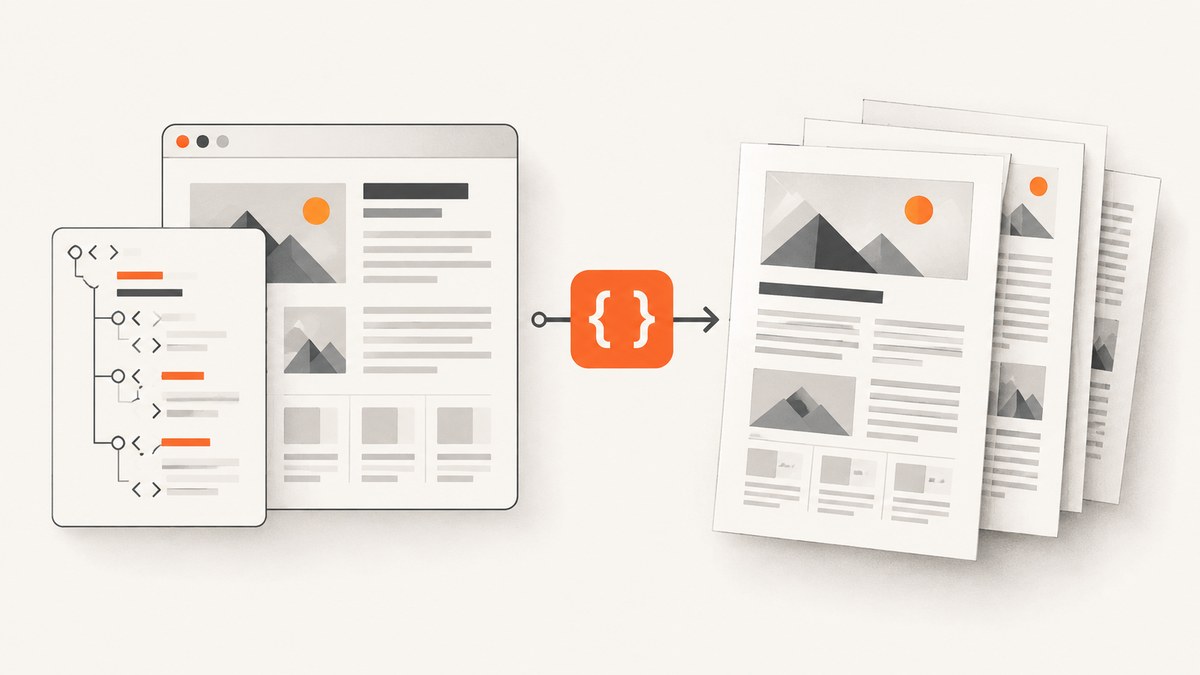
To convert an HTML file to PDF with JavaScript, render it in a headless browser and call its PDF API. Puppeteer and Playwright both use Chromium for this workflow. For a local file, navigate to its absolute file:// URL; for a web page, navigate to its HTTP or HTTPS URL. Then set paper size, margins, background printing, and readiness conditions explicitly.
This approach retains browser layout, CSS, and fonts instead of rebuilding the page by drawing text into a PDF. The examples below cover local files, URLs, print styling, common layout problems, and production considerations.
1. Install a browser automation library
Choose Puppeteer if Chromium is enough and you want its direct API. Choose Playwright if you also need its broader browser automation workflows or want to use its Chromium, Firefox, or WebKit browser support elsewhere in the same application. The PDF examples here use Chromium. Either library needs a compatible browser binary available where the code runs.
For Puppeteer, install the package in your project:
npm install puppeteerFor Playwright, install the package and its browser:
npm install playwright
npx playwright install chromium
These snippets use ECMAScript modules. Set "type": "module" in package.json, or save them with the .mjs extension. In deployment, install the browser as part of the application image or use a supported managed browser environment; installing only the JavaScript package does not guarantee the browser executable is present.
2. Convert a local HTML file with Puppeteer
Use an absolute file path so the browser resolves the input unambiguously. This complete script reads report.html next to the script and writes report.pdf in the current working directory.
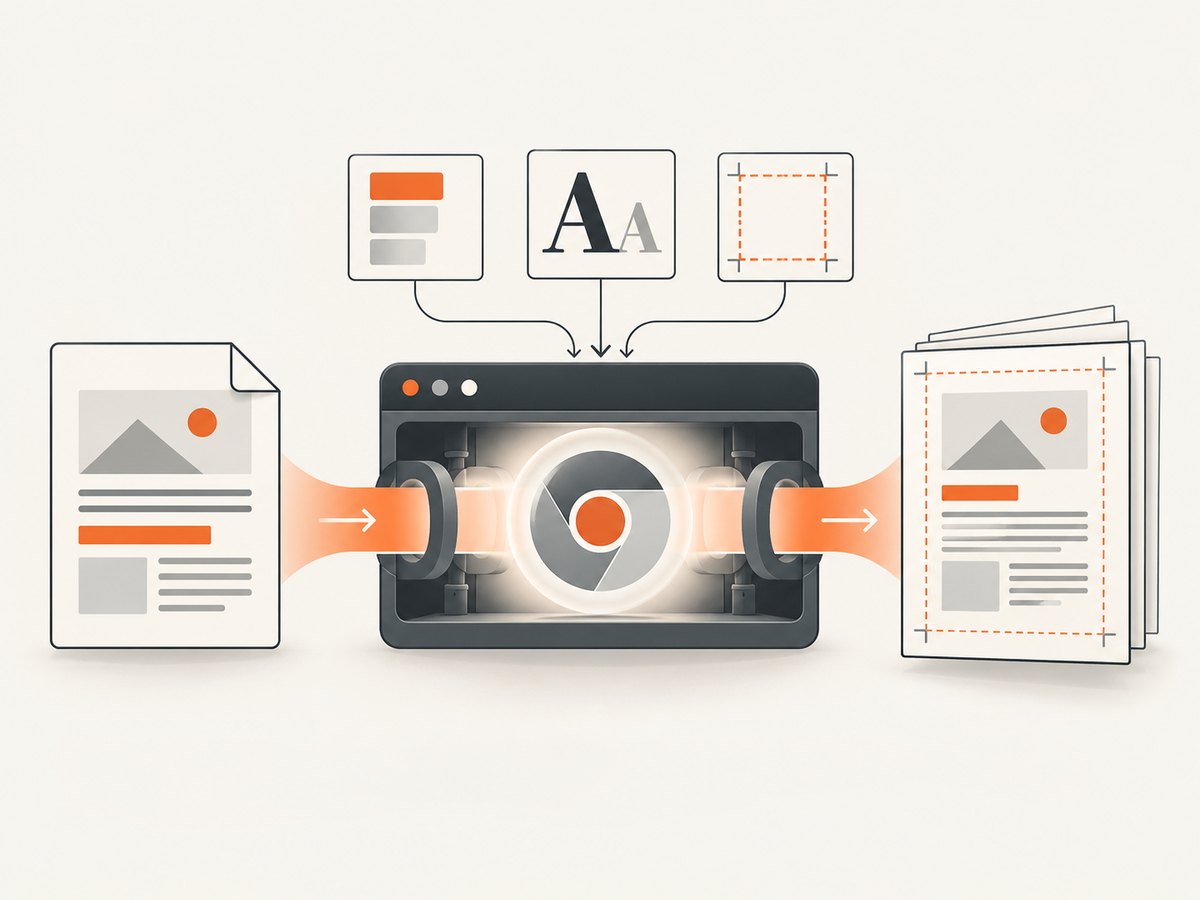
import path from 'node:path';
import { fileURLToPath } from 'node:url';
import puppeteer from 'puppeteer';

const here = path.dirname(fileURLToPath(import.meta.url));
const input = path.join(here, 'report.html');
const output = path.join(here, 'report.pdf');
const browser = await puppeteer.launch();

try {
  const page = await browser.newPage();
  await page.goto(`file://${input}`, { waitUntil: 'networkidle2' });
  await page.pdf({
    path: output,
    format: 'A4',
    printBackground: true,
    margin: { top: '16mm', right: '14mm', bottom: '16mm', left: '14mm' }
  });
  console.log(`Saved ${output}`);
} finally {
  await browser.close();
}
file:// paths need to be absolute. For paths with spaces or platform-specific characters, construct the URL with Node’s pathToFileURL(input).href from node:url rather than concatenating a string. If the HTML references a relative stylesheet or image, its path is resolved relative to the HTML file’s location. Check that those files exist and are readable by the process.
3. Convert a web page with Puppeteer
For a publicly available page, replace the file URL with the page URL. This version waits for network activity to settle and writes a PDF.
import puppeteer from 'puppeteer';

const browser = await puppeteer.launch();
try {
  const page = await browser.newPage();
  await page.goto('https://example.com/report', { waitUntil: 'networkidle2' });
  await page.pdf({
    path: 'report.pdf',
    format: 'A4',
    printBackground: true,
    margin: { top: '16mm', right: '14mm', bottom: '16mm', left: '14mm' }
  });
} finally {
  await browser.close();
}
For protected pages, authenticate the browser context before navigation, or provide the required cookies or headers using the library’s page and context APIs. Do not put credentials in a URL that may end up in logs. Treat arbitrary input URLs as untrusted: a server-side renderer can be abused to request internal network addresses or local files, so validate destinations and isolate the browser according to your threat model.
4. Return PDF bytes instead of writing a file
When an HTTP handler needs to stream or store the result, omit path. Puppeteer’s page.pdf() returns PDF bytes. Always close the browser, including when navigation or PDF generation fails.
import puppeteer from 'puppeteer';

const browser = await puppeteer.launch();
try {
  const page = await browser.newPage();
  await page.setContent('<h1>Monthly report</h1><p>Ready to archive.</p>', {
    waitUntil: 'networkidle0'
  });
  const pdfBytes = await page.pdf({ format: 'A4', printBackground: true });
  // Example: write bytes to a file. An HTTP handler can send the same bytes.
  await import('node:fs/promises').then(({ writeFile }) =>
    writeFile('report.pdf', pdfBytes)
  );
} finally {
  await browser.close();
}
For HTML assembled in memory, page.setContent() avoids creating a temporary input file. If the HTML refers to external assets, make sure their URLs are reachable from the browser and that the page has enough time and an explicit readiness condition to load them.
5. The Playwright equivalent
Playwright’s PDF API also accepts standard page formats, dimensions, margins, and print backgrounds. Install the package and Chromium as shown above, then run this script:
import { chromium } from 'playwright';

const browser = await chromium.launch();
try {
  const page = await browser.newPage();
  await page.goto('file:///absolute/path/report.html', { waitUntil: 'networkidle' });
  await page.pdf({
    path: 'report.pdf',
    format: 'A4',
    printBackground: true,
    margin: { top: '16mm', right: '14mm', bottom: '16mm', left: '14mm' }
  });
} finally {
  await browser.close();
}
Use an absolute path appropriate to your operating system; for robust local path conversion, use Node’s pathToFileURL(). As with Puppeteer, close the browser in a finally block so an exception does not leave a Chromium process running.
6. Set print styles and page geometry
Both tools generate PDFs using the print CSS media type by default. That means rules inside @media print apply, while screen-only styling may not. Create print-specific rules for predictable pagination and hide controls that do not belong in a document.
@page {
  size: A4;
  margin: 16mm 14mm;
}

@media print {
  .no-print { display: none !important; }
  h1, h2, h3 { break-after: avoid; }
  table, figure { break-inside: avoid; }
  .new-page { break-before: page; }
  body { -webkit-print-color-adjust: exact; }
}
printBackground: true includes CSS backgrounds in the output. Browsers can adjust colors for printing; -webkit-print-color-adjust: exact asks Chromium to preserve specified colors. Use it when color fidelity matters, but check contrast and ink-heavy blocks in the resulting document.
Set either format such as A4 or Letter, or explicit width and height values. CSS units such as mm, cm, in, and px can be used for geometry and margins. Avoid contradictory layout controls: choose the paper geometry deliberately, and use @page for stylesheet-level page rules. Playwright also supports options such as landscape output and page ranges; consult its PDF API reference for the exact option names supported by the installed version.
To render a screen-designed page rather than its print stylesheet, explicitly switch media before producing the PDF:
// Puppeteer
await page.emulateMediaType('screen');
await page.pdf({ path: 'screen-layout.pdf', printBackground: true });

// Playwright
await page.emulateMedia({ media: 'screen' });
await page.pdf({ path: 'screen-layout.pdf', printBackground: true });
Screen media can preserve a site’s screen layout, but it may produce awkward paper breaks or scale down wide content. A dedicated print stylesheet is usually easier to maintain for documents that matter.
7. Wait for content, fonts, and images
networkidle2 is a useful navigation baseline for pages that load data and assets. It is not a guarantee that every application is ready: long polling, analytics, delayed charts, lazy images, and timers can keep changing the page after navigation resolves. When possible, wait for a page-specific signal such as a report heading, a completed state, or a JavaScript promise exposed by your application.
await page.goto(url, { waitUntil: 'networkidle2' });
await page.waitForSelector('[data-report-ready="true"]');
await page.pdf({ path: 'report.pdf', format: 'A4', printBackground: true });
Puppeteer’s PDF generation waits for fonts by default. Still verify that the font files load successfully and include the glyphs your document needs. Missing font coverage can cause substitution even when the PDF call itself succeeds. Check images and stylesheets in browser console and request logs when the output is incomplete.
Lazy-loaded images may not load until scrolled into view. For a long document, the page can scroll through sections before capture, or the application can provide a print-ready state that eagerly loads document assets. Avoid arbitrary fixed sleeps as the only readiness check: they add latency on fast pages and still fail on slow ones.
8. Troubleshooting common PDF problems
| Symptom | Likely cause | Fix |
|---|---|---|
| Browser executable not found | The package is installed but its browser binary is absent, or the deployment path differs. | Install the matching Chromium browser during build/deployment, or configure the executable path for the environment. |
| Local file returns file-not-found | The URL was relative, malformed, or points to a different working directory. | Resolve the input with path.resolve() and convert it with pathToFileURL(). |
| PDF is unstyled | Stylesheet URLs are inaccessible, relative paths resolve incorrectly, or print CSS overrides screen styles. | Inspect asset requests, fix paths, and check the page in print media before exporting. |
| Fonts or glyphs are missing | Font download failed or the selected font lacks required characters. | Wait for font readiness, ensure the font host is reachable, and use a font with the necessary glyph coverage. |
| Images are blank | Images are lazy-loaded, blocked, remote requests fail, or capture happens before decode. | Wait for the app’s ready signal, scroll lazy content into view, and inspect failed requests. |
| Colors disappear | Background printing is off or print color adjustment changes colors. | Enable printBackground and consider -webkit-print-color-adjust: exact. |
| Headings split from content | Automatic page breaking separates a heading from the following block. | Apply break-after: avoid to headings and keep short blocks together with break-inside: avoid. |
| Output is tiny or clipped | Content width exceeds paper width, or custom dimensions and margins conflict. | Set page geometry explicitly, reduce wide content, and inspect print preview dimensions. |
| Navigation times out | A page never reaches the chosen network-idle state or has slow dependencies. | Wait for domcontentloaded plus a specific readiness selector, and set a bounded timeout appropriate to the job. |
| Chromium process remains after errors | Cleanup is skipped when a promise rejects. | Put browser.close() in a finally block. |
9. Reliability, performance, and deployment
Launching Chromium for every document is simple, but process startup adds overhead. A service that renders many documents can reuse a browser process and create an isolated page or context per job. Reuse reduces repeated startup work, but bound the number of concurrent pages: each page consumes memory and large or image-heavy documents can make usage spike. Close pages after each job, recycle browser processes when they become unhealthy, and set request and job timeouts.
Keep each conversion isolated from other tenants’ cookies and storage. Use a fresh browser context for jobs that need separation. On servers and containers, confirm Chromium has the libraries it needs and configure sandboxing in line with the host’s security model; do not disable protections without understanding the environment. Restrict navigations and remote resource access when input HTML or URLs come from users. A renderer that can access private network services or local files creates a security boundary that must be managed.
For reliability, record the input identifier, navigation result, duration, and failure category without logging secrets or document contents. Retry transient network failures selectively, with a limit; retrying deterministic layout or invalid-input failures only adds cost and load. Large documents can produce large buffers, so stream or persist output deliberately rather than retaining many PDFs in memory. Run representative documents through the same browser version and fonts used in production to catch rendering changes.
There is no universal conversion cost or speed figure: document size, browser startup, remote assets, fonts, concurrency, and hosting model all affect it. Self-hosting means accounting for browser CPU, memory, storage, and operations. Managed browser or hosted PDF services trade some infrastructure work for provider pricing and constraints; compare them against your document volume, privacy needs, and required control.
10. Or skip the browser setup
If the job is to capture a web page as a PDF, ScreenshotNeo provides a one-call screenshot API and can return a PDF. Its PDF options include paper size, margins, landscape mode, and page ranges. See the API documentation for parameters. This option is for a URL the service can reach; it does not replace rendering a private local HTML file unless you first make that content accessible to the API.

const q = new URLSearchParams({
  access_key: 'YOUR_API_KEY',
  url: 'https://stripe.com',
  format: 'pdf'
});
const res = await fetch(`https://api.screenshotneo.com/v1/shot?${q}`);
if (!res.ok) throw new Error(`ScreenshotNeo returned ${res.status}`);
await import('node:fs/promises').then(({ writeFile }) =>
  writeFile('page.pdf', Buffer.from(await res.arrayBuffer()))
);
ScreenshotNeo accepts and removes cookie consent banners, newsletter popups, and chat widgets before capture; each cleanup step can be turned off. Bot checks, blank pages, timeouts, failed loads, and cache hits are not billed, with response headers identifying the page verdict and billing status. Its MCP server lets AI agents use screenshot, page-info, and PDF-capture tools. The Free plan includes 1,000 shots a month with no card; paid plans start at $5 for 3,000. Every feature is on every plan.
Sign up for ScreenshotNeo’s free plan to get 1,000 screenshots a month with no card.
11. Frequently asked questions
Can I convert HTML without installing a browser?
For faithful browser rendering, a browser engine must run somewhere. You can operate Chromium yourself, use a managed browser environment, or send a reachable page to a hosted capture service. A service does not make a private local path reachable by itself.
Why does the PDF differ from my screen?
PDF generation uses print media by default, and paper dimensions require pagination. Print styles, page size, margins, missing assets, and late-loaded content can all change the result. Compare screen and print media deliberately and make the print rules explicit.
Can I set the PDF filename?
When writing locally, pass the desired path in the PDF options. For an HTTP response, set the download filename in the response’s content-disposition header in your server code.
Can JavaScript-generated charts appear in the PDF?
Yes, once the application has rendered them. Wait for an explicit chart-ready selector or state before calling the PDF API, especially when data fetching or animation happens after navigation.
For a conversion workflow you control, Puppeteer or Playwright lets you render local files, web pages, and generated HTML with Chromium. Explicit print CSS, asset readiness checks, and careful browser cleanup are what make the result repeatable.


