How to Convert HTML to PDF on a Laptop
Convert any webpage or local HTML file to PDF on Windows, Mac, or Linux with browser steps, print settings, fixes, and an API option.
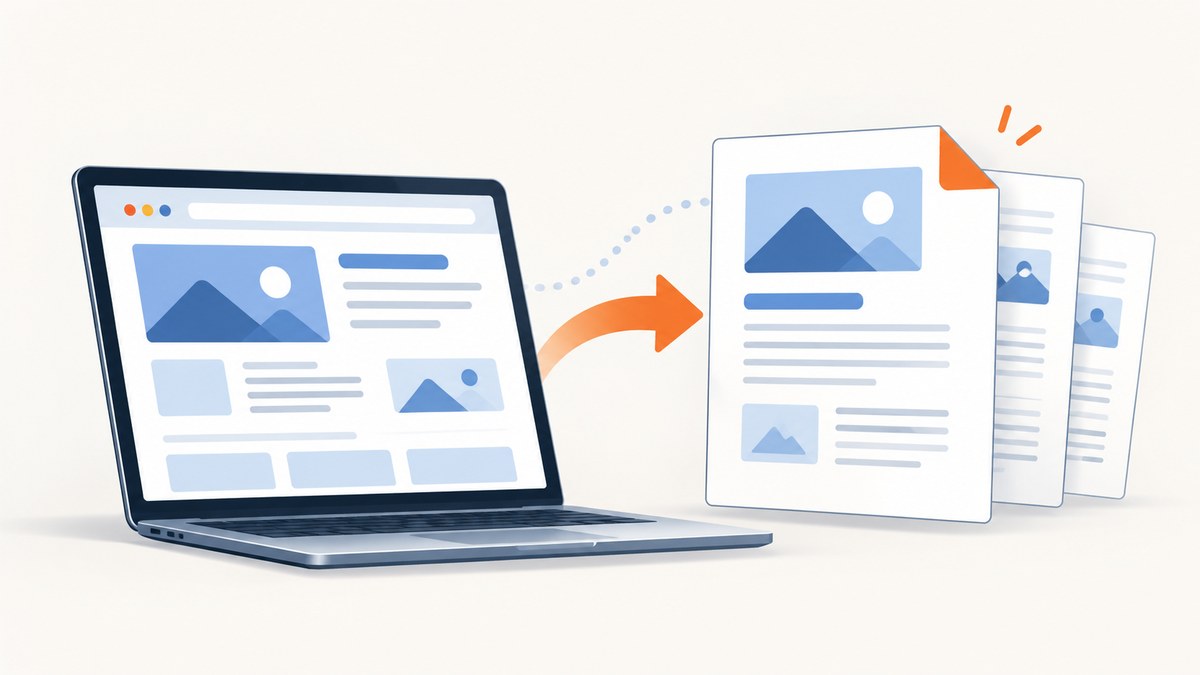
Open the webpage or HTML file in a desktop browser, press Ctrl+P on Windows/Linux or Command+P on Mac, choose Save as PDF (or the system PDF destination), review the preview, and save. Chrome, Edge, Firefox, Windows, and macOS include this workflow; no printer or paid converter is required for ordinary conversion.
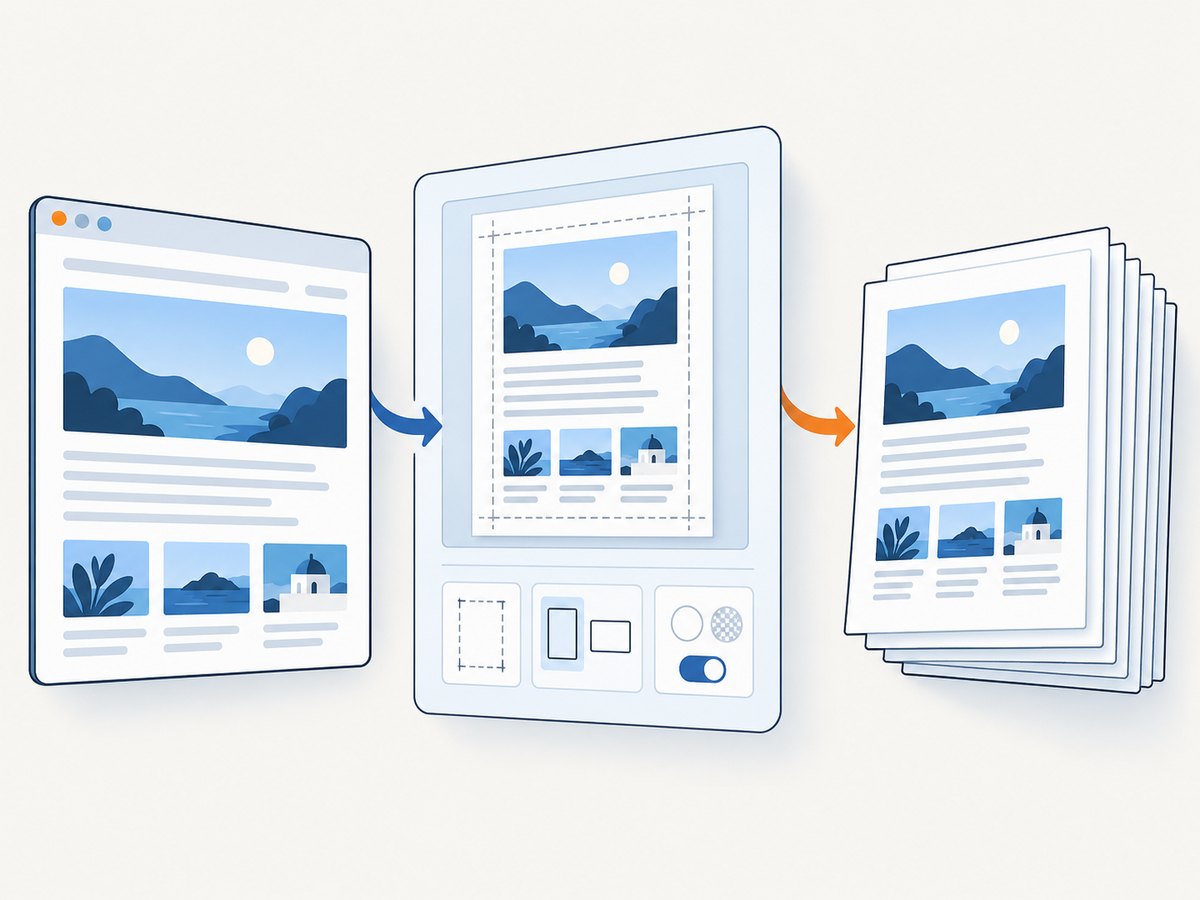
The exact destination label differs by browser and operating system. Always inspect the preview because paper size, margins, scale, orientation, backgrounds, and print-specific CSS can change the result.
Convert HTML to PDF in Chrome
- Open the webpage or local
.htmlfile in Chrome. - Press Ctrl+P on Windows or Linux, or Command+P on Mac. You can also open the three-dot menu and choose Print.
- For Destination, select Save as PDF. Chrome may also show a system PDF destination.
- Set pages, layout, paper size, margins, scale, and whether backgrounds should print.
- Check every page in the preview, click Save, choose a folder and filename, then confirm.
Chrome documents the desktop shortcut and print controls in its official print help.
Convert HTML to PDF in Microsoft Edge
- Open the webpage, web application, or local HTML file in Edge.
- Press Ctrl+P on Windows or Command+P on Mac, or choose Print from the browser menu.
- Select Save as PDF or another PDF destination.
- Choose orientation, paper size, page range, margins, scale, headers and footers, and background graphics.
- Review the preview and save the file.
If colors, cards, or background sections disappear, enable Background graphics. Edge also documents Immersive Reader as a clutter-reduction workaround on supported pages. Availability varies by site. See Microsoft’s Edge print guide.
Convert HTML to PDF in Firefox
- Open the page or HTML file in Firefox.
- Open the browser menu and choose Print.
- In the destination dropdown, select Save to PDF.
- Adjust orientation, pages, paper size, scale, margins, and background options.
- Use Simplified format when Firefox offers it and you want a cleaner reading copy; then save.
Firefox notes that websites can define a different print layout from the screen layout. Its controls are described in Mozilla’s print documentation.
Use the Windows or macOS PDF printer
Windows 10 and later
- Press Ctrl+P in your browser.
- Choose Microsoft Print to PDF or Save as PDF, depending on the browser and version.
- Set the page options, select Print, then choose a filename and folder.
On older Windows installations without Microsoft Print to PDF, Chrome’s Save as PDF destination can still create the file.
macOS
- Press Command+P.
- Open the PDF dropdown in the lower-left of the system dialog.
- Choose Save as PDF, enter a filename and location, and save.
The Consumer Financial Protection Bureau’s instructions cover the built-in Windows and Mac routes.
Convert a local HTML file
- Double-click the file or use Open with to load it in Chrome, Edge, or Firefox.
- Wait for fonts, images, charts, and script-generated content to finish loading.
- Use the browser’s print-to-PDF workflow above.
Local files that depend on a server, blocked cross-origin requests, unavailable fonts, or JavaScript data may render differently from the hosted page. If the file is an application rather than a static document, run its local development server first and print the resulting http://localhost URL.
Print settings that control the PDF
| Setting | Use it when | Common effect |
|---|---|---|
| Orientation | Tables, slides, or wide code | Landscape gives more horizontal space; portrait is usually easier to read |
| Paper size | Printing or matching a standard document | Affects line wrapping and page breaks |
| Margins | Content is clipped or wastes space | Smaller margins fit more; printer-safe margins may still apply |
| Scale | Headings or columns overflow | Reducing scale can prevent clipping but makes text smaller |
| Background graphics | Color panels, charts, or branding must appear | Disabled backgrounds produce a plain white document |
| Headers and footers | You need or want URL, title, and date metadata | Disable them for a cleaner report |
| Page range | Only selected pages are needed | Saves a subset without editing the source HTML |
Print preview is the reliable place to verify these choices before committing the file.
PDF versus saving the webpage as HTML
Choose PDF for a paginated snapshot that is easy to share, read, or print. Choose an HTML save when you need an offline webpage copy that can still open in a browser.
- Web page, complete: saves HTML plus images and supporting files, commonly in a separate directory.
- Web page, HTML only: keeps one HTML file and its links but omits images.
- Text only: keeps readable text while losing HTML structure and styling.
These formats have different archival tradeoffs; they are not alternate PDF conversion modes. Mozilla describes them in its webpage saving guide.
When browser printing is not enough
Browser printing is ideal for one-off documents. For repeatable captures, many URLs, authenticated pages, custom waiting rules, or server-side automation, use a rendering service so the same options can be applied on every run.
Or skip the browser setup
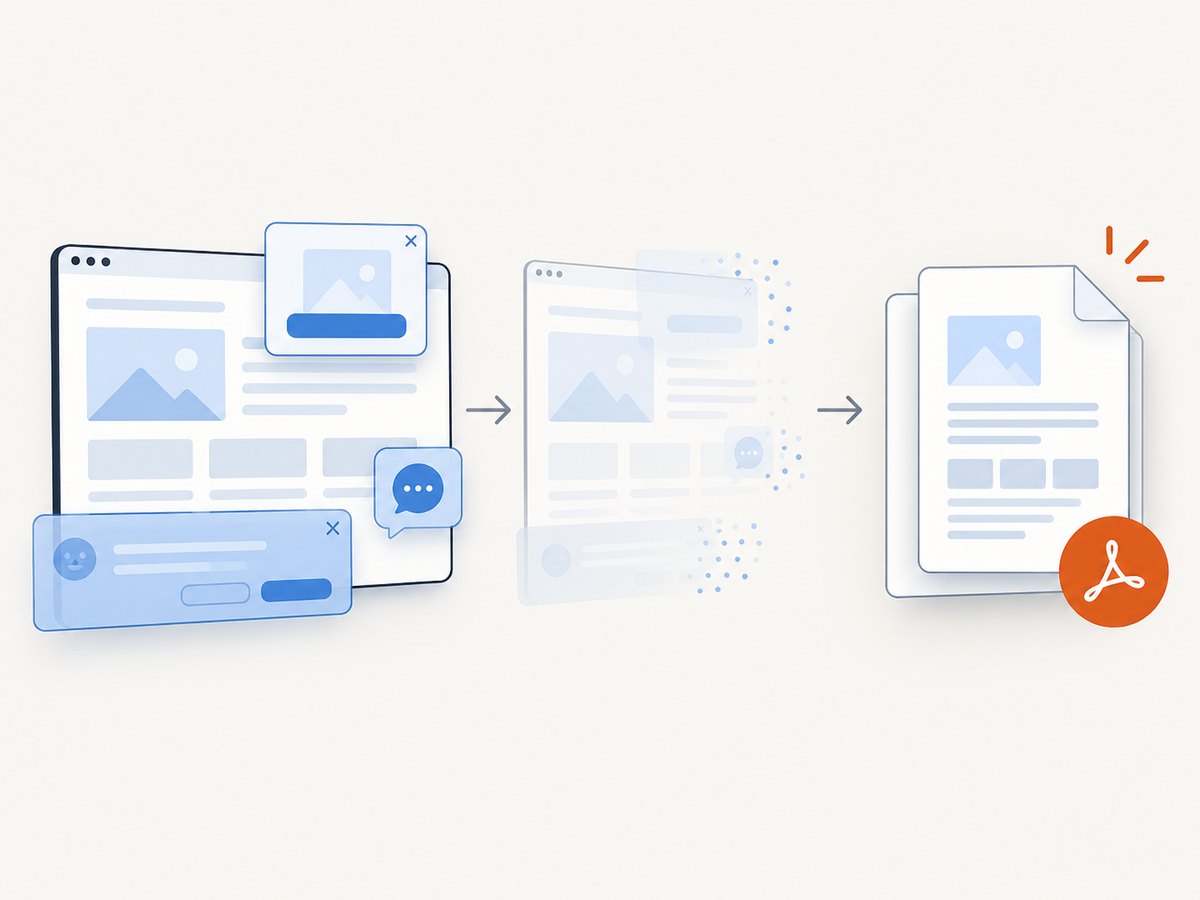
ScreenshotNeo converts a URL to a PDF with one GET request. It can accept cookie and consent banners before capture and remove more than 60 known consent platforms, newsletter popups, and chat widgets; each step can be disabled. Bot checks, blank pages, timeouts, failed loads, and cache hits are not billed, and the response identifies the result with X-Page-Verdict and X-Billed headers. Its MCP server lets Claude, Cursor, and other MCP clients call capture_pdf (as well as take_screenshot and get_page_info).
See the full parameter list in the ScreenshotNeo documentation.
cURL
curl -G "https://api.screenshotneo.com/v1/shot" \
  -d access_key=YOUR_API_KEY \
  --data-urlencode url=https://stripe.com \
  -d format=pdf \
  -o page.pdf
Python
import requests

r = requests.get(
    "https://api.screenshotneo.com/v1/shot",
    params={
        "access_key": "YOUR_API_KEY",
        "url": "https://stripe.com",
        "format": "pdf",
    },
    timeout=90,
)
r.raise_for_status()
open("page.pdf", "wb").write(r.content)
Node.js
const q = new URLSearchParams({
  access_key: 'YOUR_API_KEY',
  url: 'https://stripe.com',
  format: 'pdf'
});
const res = await fetch(`https://api.screenshotneo.com/v1/shot?${q}`);
if (!res.ok) throw new Error(`HTTP ${res.status}`);
const data = Buffer.from(await res.arrayBuffer());
require('fs').writeFileSync('page.pdf', data);
For PDFs, ScreenshotNeo supports paper size, margins, landscape mode, and page ranges. Other capture options include waiting for a selector, a delay, or network idle; custom CSS and JavaScript; cookies, headers, user agent, Authorization, timezone, and geolocation; blocking ads, trackers, requests, or resource types; caching with a chosen TTL; signed links; asynchronous jobs with signed webhooks; and bulk capture for up to 100 URLs per call. Every feature is available on every plan.
There is a free plan with 1,000 shots per month and no card. Paid plans start at $5 for 3,000 shots; yearly billing gives two months free. Create a free ScreenshotNeo account to try it.
Troubleshooting
Text or images are cut off
Switch between portrait and landscape, reduce scale, adjust margins, or choose a larger paper size. Check the preview after each change.
Colors and backgrounds are missing
Enable Background graphics in Chrome or Edge. Firefox has a Print backgrounds option, but Simplified format disables printed backgrounds.
Ads, navigation, or popups fill the PDF
Use Firefox Simplified format when available or Edge Immersive Reader on supported pages. If you need a repeatable automated result, use ScreenshotNeo’s consent, popup, and chat-widget removal options.
The PDF looks different from the screen
This can be intentional: sites often define print-specific CSS. Review print preview, disable simplified modes when fidelity matters, and check the source page’s print stylesheet.
A chart, image, or web font is blank
Wait for the page to finish loading before opening Print. For local files, confirm that referenced assets are reachable and that scripts are not blocked by local-file security rules.
Only part of the page is required
In Edge, select the text or images, right-click the selection, choose Print, and print the selection when that option is available. Otherwise copy the required content into a new document before printing.
The PDF is huge
Reduce image dimensions in the source, remove unnecessary backgrounds, print only the required page range, or use a lower scale. A PDF containing many full-resolution photographs will be larger than a text-heavy page.
The API returns an error or an unexpected verdict
Check that the URL is public and correctly encoded, the access key is valid, and your timeout allows the page to load. Inspect X-Page-Verdict and X-Billed; failed loads, blank pages, bot checks, timeouts, and cache hits are identified and are not billed as clean shots.
Performance, reliability, and cost notes
- One-off work: browser printing is fastest because it requires no account or setup.
- Repeat jobs: standardize paper size, margins, scale, and page ranges so output remains consistent.
- Dynamic pages: wait for a known selector, a delay, or network idle before capture; otherwise a PDF may contain a loading state.
- Large batches: use ScreenshotNeo bulk capture for up to 100 URLs per call, or asynchronous jobs with signed webhooks when a request should not stay open.
- Cost control: browser printing has no service charge. ScreenshotNeo bills only clean shots; cache hits and failed or unusable loads are not billed, and a free allowance covers 1,000 shots per month.
Checklist before you share the PDF
- All expected text, images, fonts, and charts are visible.
- Headings are not stranded at page bottoms.
- Tables and code fit the page width.
- Backgrounds and colors match your goal.
- Headers, footers, URL, and date are either useful or disabled.
- The filename identifies the page and version.
- Links work in the PDF viewer if the document will be used digitally.
FAQ
Can I convert HTML to PDF without installing software?
Yes. Chrome, Edge, Firefox, Windows, and macOS provide built-in print-to-PDF paths.
What keyboard shortcut saves a webpage as a PDF?
Use Ctrl+P on Windows or Linux and Command+P on Mac, then choose a PDF destination.
Does printing a page save its live behavior?
No. A PDF records the rendered document at capture time; interactive controls and live data do not remain interactive unless the PDF tool specifically creates such content.
Should I save HTML or PDF for offline reading?
Use PDF for a stable, paginated copy. Save complete HTML when preserving a browser-viewable offline page is more important.
Can I automate HTML-to-PDF conversion?
Yes. A browser automation stack or a service such as ScreenshotNeo can render URLs with repeatable waits, authentication, PDF settings, and batch processing.


