How to Convert HTML to PDF on a Mobile Device
Save any webpage as a PDF on iPhone, iPad, or Android using built-in browser tools, then learn when an API is better.
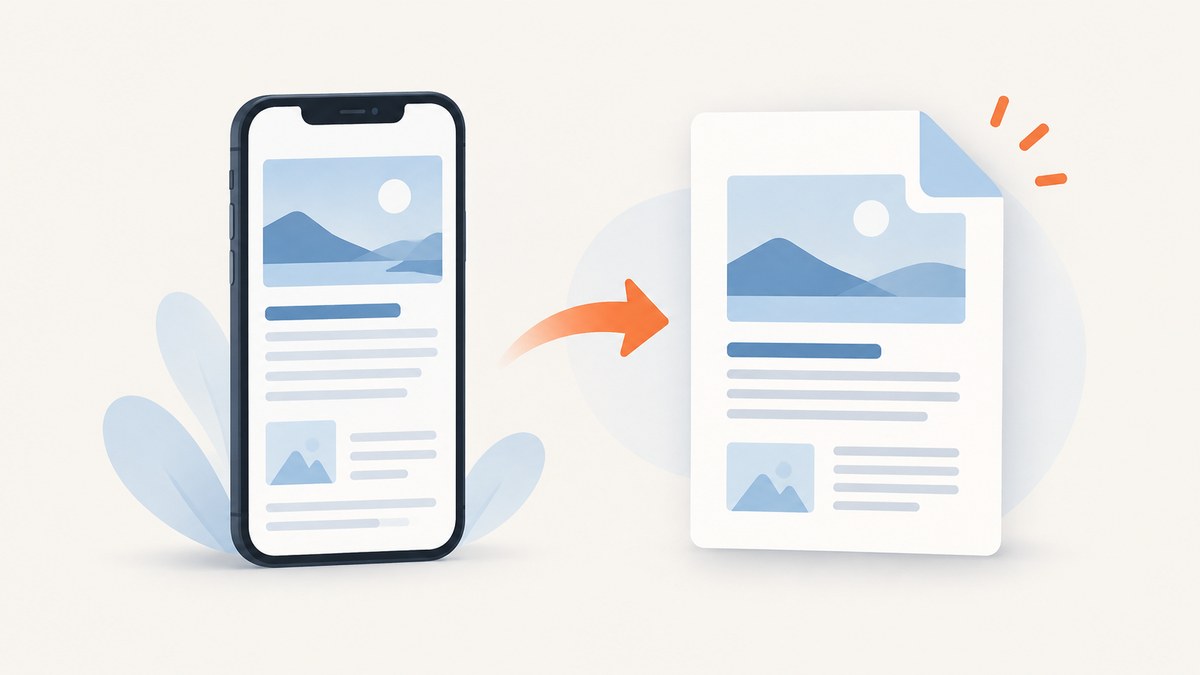
Quick answer: On iPhone or iPad, open the page in Safari, use Share (or More, then Share), choose Markup, tap Done, then choose Save File To. On Android, open the page in Chrome, choose More, Share, Print, select Save as PDF, choose a location, and tap Print. These built-in workflows save the PDF on your device and do not require a separate converter.
Choose the instructions for your device
| Device and browser | Built-in route | Best when |
|---|---|---|
| iPhone with Safari | Share → Markup → Save File To | You want to annotate or save a single webpage |
| iPad with Safari | Share → More → Markup → Save File To | You want a larger preview or markup tools |
| Android with Chrome | More → Share → Print → Save as PDF | You want print-preview controls before saving |
iPhone: save HTML as PDF in Safari
- Open the webpage in Safari and wait for the content to finish loading.
- Open Safari’s sharing controls. Depending on your tab layout, tap Share directly or tap More, then Share.
- Tap Markup.
- Add highlights, drawings, or notes if needed. Leave the page unchanged for a clean copy.
- Tap More, then Done.
- Choose Save File To, select a folder, enter a filename, and tap Save.
Apple documents this Share, Markup, and Save File To flow for saving a webpage as a PDF on iPhone. See Apple’s iPhone instructions.
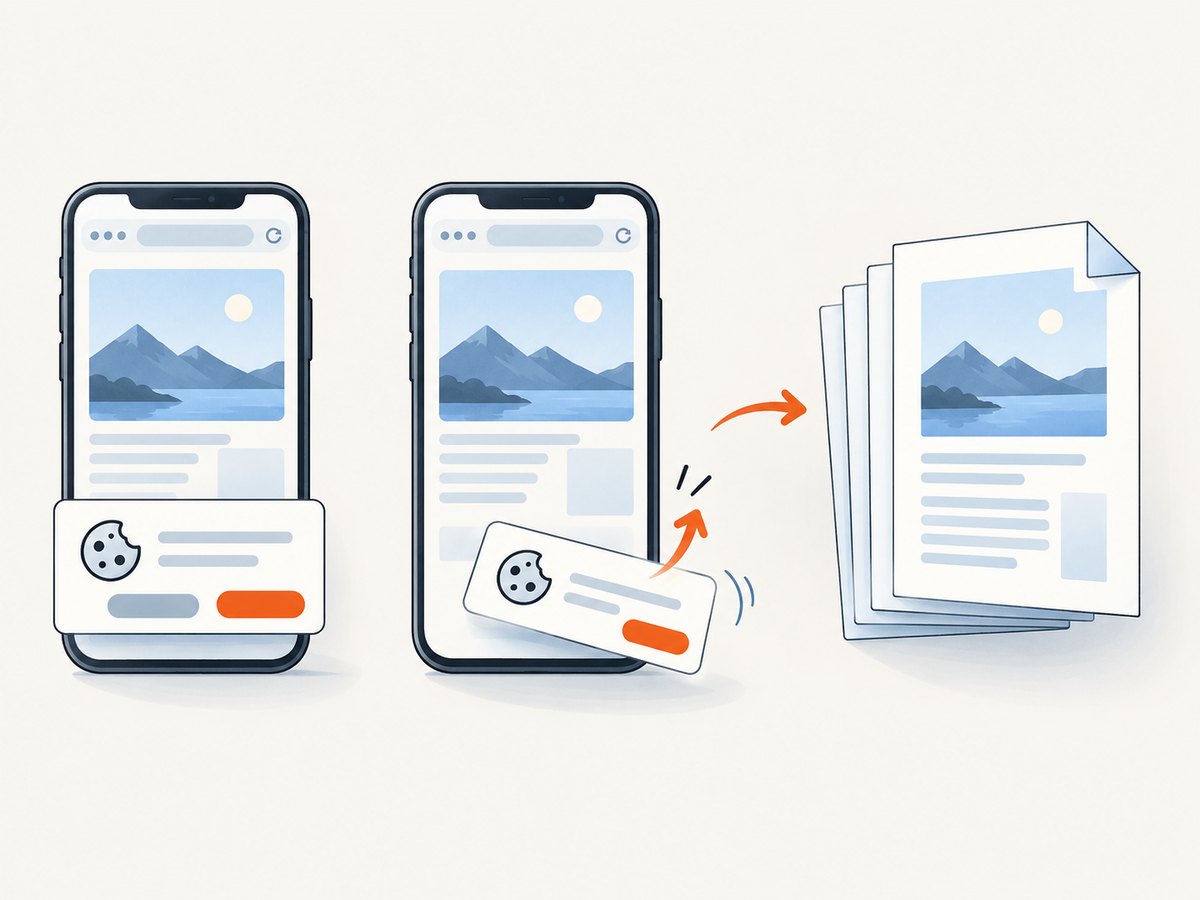
iPhone checklist
- Scroll through the page once if it uses lazy-loaded images.
- Close menus, cookie dialogs, and video overlays before opening Share.
- Use a descriptive filename and a folder you can find later in the Files app.
- Open the saved PDF and check the first, middle, and final pages.
iPad: save HTML as PDF in Safari
- Open the webpage in Safari.
- Tap Share.
- Tap More, then Markup.
- Annotate the page if required, or leave it unchanged.
- Tap Done.
- Choose Save File To, select a destination, name the file, and save it.
Apple’s iPad guide documents this route.
Android: save HTML as PDF in Chrome
- Open the webpage in Chrome and wait for it to load.
- Tap More (the three-dot menu).
- Tap Share.
- Select Print.
- In print preview, choose Save as PDF.
- Choose where to save the file, then tap Print to complete the save.
Google documents Chrome’s Android print-preview workflow in Print from Chrome.
Check the PDF after saving
Browser-generated PDFs do not promise identical rendering for every website. Open the file from your chosen location and inspect:
- Page breaks in long articles and tables.
- Images that appear late or are missing.
- Text hidden behind sticky headers, banners, or dialogs.
- Links, fonts, columns, and dark-mode colors.
- The final page, which can be blank when a page has unusual print styles.
If the result is incomplete, look for the site’s print view or an official downloadable PDF. Those alternatives may contain layout choices the browser cannot infer from the live page.
Why a mobile PDF can look different from the webpage
A webpage is interactive and responsive; a PDF is paginated. The browser must choose paper-sized page breaks, convert scrolling content into pages, and handle scripts, fonts, animations, and lazy loading. A page can therefore have different spacing, missing interactive controls, or split sections even when the source HTML is valid.
Common problems and fixes
| Problem | Likely cause | Fix |
|---|---|---|
| Share or Print is missing | The browser menu is collapsed or a different app opened the link | Open the URL directly in Safari or Chrome, then use the browser’s own menu. |
| Images are blank | Lazy loading, slow connection, or the page was saved before loading finished | Wait, scroll through the page once, then create the PDF again. |
| Cookie dialog covers content | The consent layer remains open during capture | Accept or dismiss it before saving, then regenerate the PDF. |
| Text is cut off | Responsive layout or a wide table does not fit the print page | Use the site’s print view, rotate the device when available, or save a desktop print version. |
| PDF has unexpected dark colors | Dark mode or site-specific print CSS | Switch the page to light mode and save again if the site provides that control. |
| File cannot be found | It was saved to a different Files, Downloads, or cloud folder | Repeat the save and note the selected destination; then search by filename. |
| Very long page creates awkward breaks | Content has no print-specific pagination rules | Use a print stylesheet or an automated PDF renderer that supports page settings. |
When to automate mobile webpage-to-PDF work
The built-in method is suitable for an occasional page. Automation is useful when you need repeatable output, many URLs, a fixed viewport, custom headers or cookies, selected page ranges, or a server-side workflow that does not depend on a person’s phone. Keep the source URL stable, wait for dynamic content to finish, and inspect representative PDFs after changing a page’s layout.
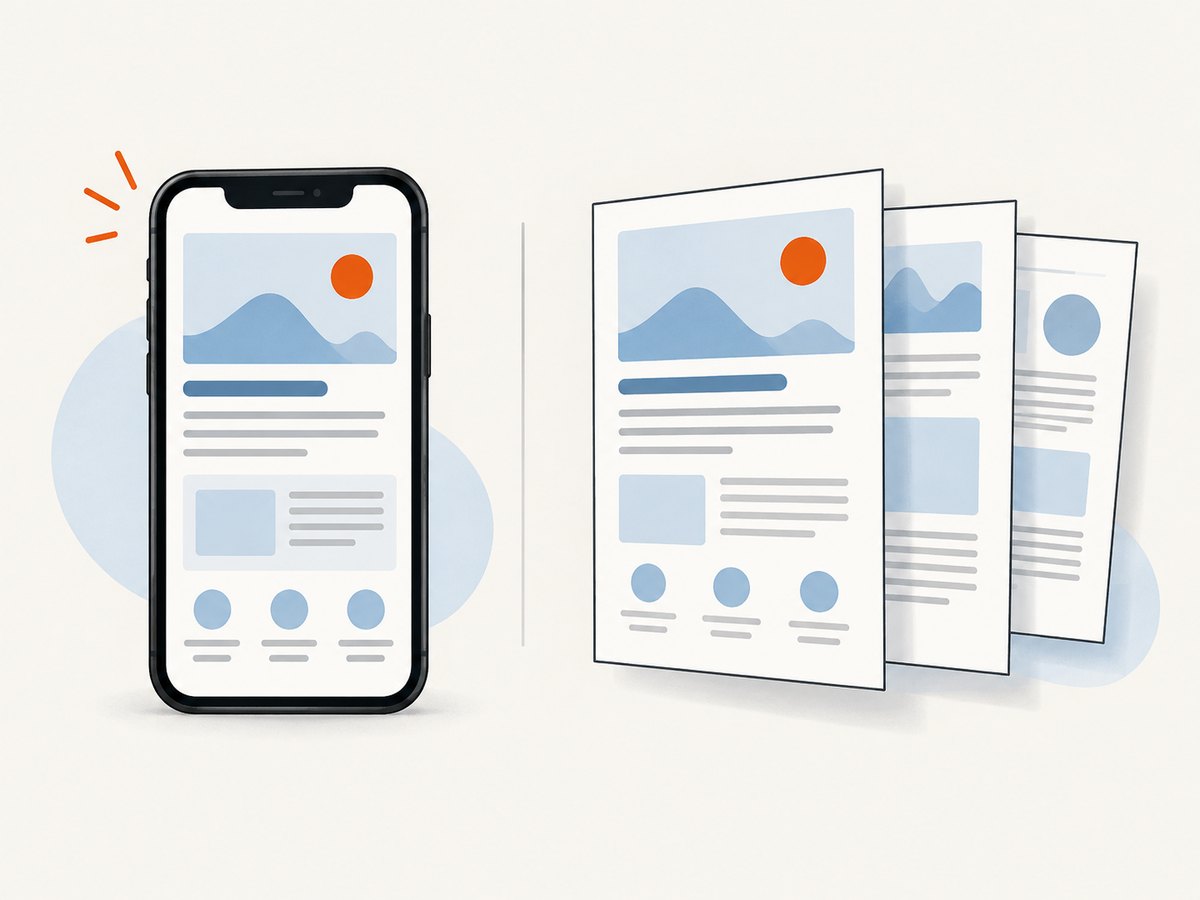
Or skip the browser setup
ScreenshotNeo is a website screenshot API and MCP server. One GET request can return a clean screenshot or PDF. Before capture it accepts cookie and consent banners and removes more than 60 known consent platforms, newsletter popups, and chat widgets; each step can be turned off. Bot checks, blank pages, timeouts, failed loads, and cache hits are not billed, and the response identifies the result with X-Page-Verdict and X-Billed headers. Its MCP server includes take_screenshot, get_page_info, and capture_pdf tools for Claude, Cursor, and other MCP clients.
See the ScreenshotNeo API documentation for PDF settings, paper size, margins, landscape mode, page ranges, waiting rules, CSS and JavaScript, cookies, headers, caching, signed links, async jobs, bulk capture, and usage details.
cURL
curl -G "https://api.screenshotneo.com/v1/shot" -d access_key=YOUR_API_KEY --data-urlencode url=https://stripe.com -o shot.webpPython
import requests
r = requests.get("https://api.screenshotneo.com/v1/shot", params={"access_key": "YOUR_API_KEY", "url": "https://stripe.com"}, timeout=90)
open("shot.webp", "wb").write(r.content)
Node.js
const q = new URLSearchParams({ access_key: 'YOUR_API_KEY', url: 'https://stripe.com' }); const res = await fetch(`https://api.screenshotneo.com/v1/shot?${q}`);The free plan includes 1,000 shots per month with no card. Paid plans start at $5 for 3,000 shots; every feature is included on every plan. Create a free ScreenshotNeo account.
Performance, reliability, and cost notes
- Performance: Waiting for network idle or a required selector improves completeness but increases capture time. Loading every lazy image also increases work on long pages.
- Reliability: Use explicit waits for pages driven by JavaScript, and retry only transient failures. Record the response verdict and billing headers so failed or clean captures are distinguishable.
- Cost: Browser saving has no converter fee. ScreenshotNeo bills only clean shots; bot checks, blank pages, timeouts, failed loads, and cache hits cost nothing. Choose a cache TTL when repeated captures can reuse a result.
- Scale: ScreenshotNeo supports bulk capture of up to 100 URLs per call and asynchronous jobs with signed webhooks when a mobile browser workflow would be too manual.
FAQ
Can I convert HTML to PDF without installing an app?
Yes. Safari on iPhone and iPad and Chrome on Android provide built-in save or print flows.
Where does the PDF go on my phone?
It goes to the folder you select in Save File To on Apple devices or the destination selected in Android’s print flow.
Will animations and buttons work in the PDF?
No. A PDF captures a paginated rendering; interactive behavior is not preserved as live webpage controls.
Why is a PDF different from a screenshot?
A PDF can contain selectable text and multiple pages. A screenshot is an image of the rendered page or element.
Can I save a page that requires login?
The phone browser can save what it can access after you sign in. For automated captures, use an authenticated workflow with the service’s supported headers or cookies and follow the site’s access rules.


