How to Convert HTML to PDF with Node.js and Puppeteer
Generate reliable PDFs from URLs or HTML with Node.js and Puppeteer, including print CSS, page sizes, margins, fonts, backgrounds, and troubleshooting.
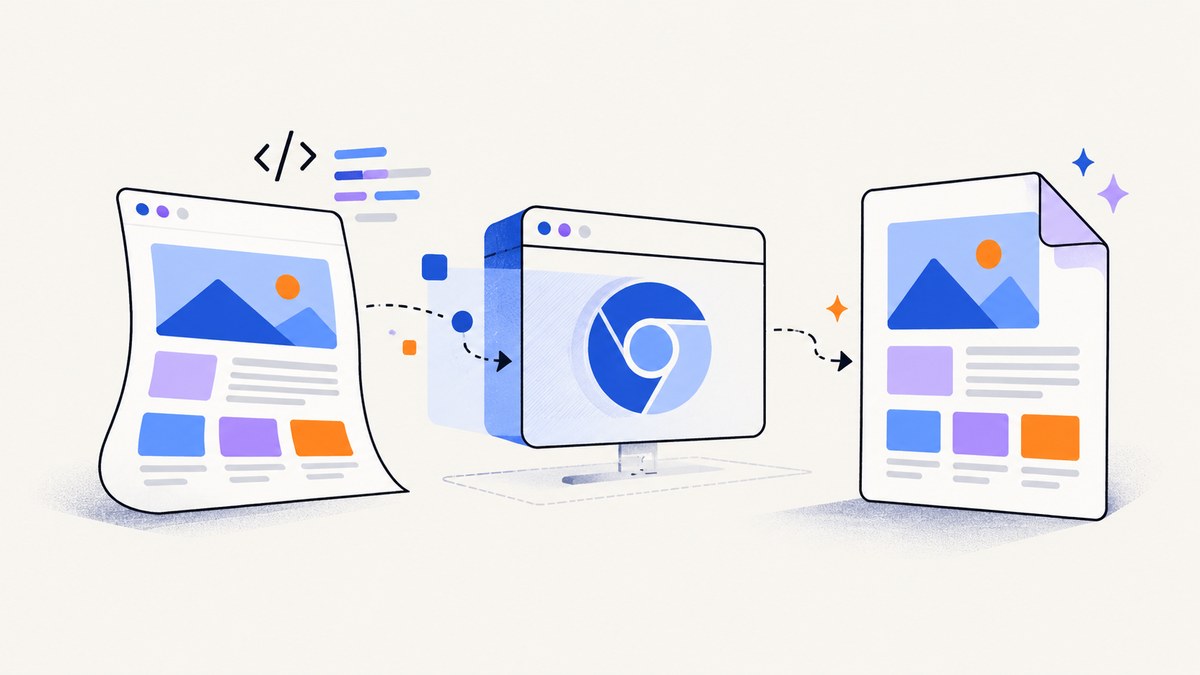
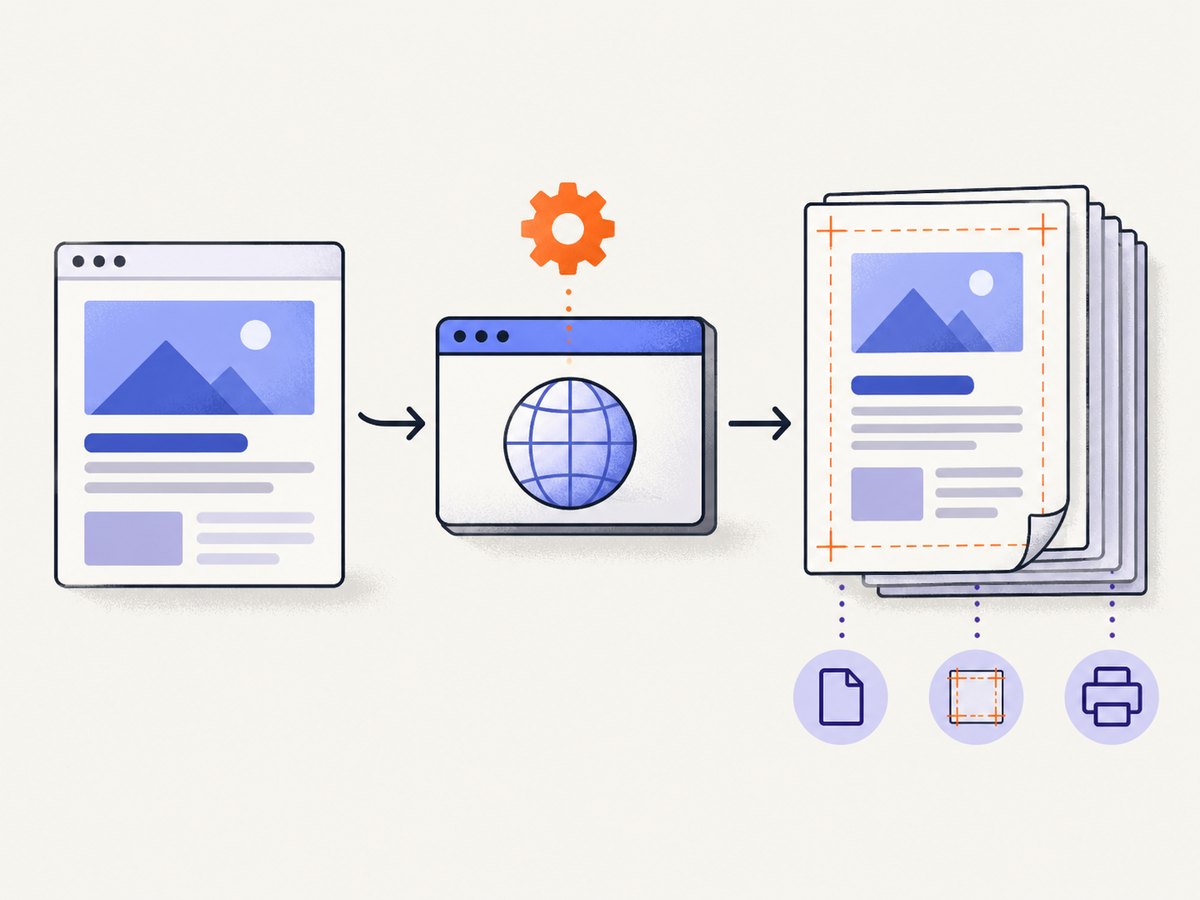
To convert HTML to PDF with Node.js and Puppeteer, launch Chromium, load a URL or HTML string, call page.pdf(), and close the browser. Puppeteer renders PDFs with the print CSS media type by default, so print styles, paper dimensions, margins, fonts, and background settings determine the final file.
This guide covers the complete workflow: URL pages and inline HTML, print versus screen CSS, paper sizing, CSS @page rules, colors, fonts, page ranges, returned bytes, streams, cleanup, production reliability, and common failures.
1. Install Puppeteer and create a PDF
Use the current installation instructions in the official Puppeteer documentation for your project and Node.js version. The basic program follows Puppeteer’s documented PDF flow: import Puppeteer, launch a browser, create a page, navigate, save with the path option, then close the browser.
import puppeteer from 'puppeteer';

const browser = await puppeteer.launch();

try {
  const page = await browser.newPage();
  await page.goto('https://example.com', {
    waitUntil: 'networkidle0'
  });

  await page.pdf({
    path: 'output.pdf',
    format: 'Letter'
  });
} finally {
  await browser.close();
}
page.pdf() returns a Promise<Uint8Array>. Supplying path writes the PDF to disk; a relative path is resolved from the current working directory. If you omit path, keep the returned bytes and send them to storage, an HTTP response, or another pipeline.
Save bytes instead of using a path
import puppeteer from 'puppeteer';
import { writeFile } from 'node:fs/promises';

const browser = await puppeteer.launch();
try {
  const page = await browser.newPage();
  await page.goto('https://example.com', { waitUntil: 'networkidle0' });

  const pdfBytes = await page.pdf({ format: 'A4' });
  await writeFile('output.pdf', pdfBytes);
} finally {
  await browser.close();
}
2. Convert an HTML string with setContent()
Use page.setContent() when your application already has the HTML instead of a public URL. This is useful for invoices, reports, templates, and generated documents.
import puppeteer from 'puppeteer';
const html = `
Invoice 1042
Thank you for your order.
`;
const browser = await puppeteer.launch();
try {
const page = await browser.newPage();
await page.setContent(html, { waitUntil: 'networkidle0' });
await page.pdf({
path: 'invoice.pdf',
format: 'A4',
printBackground: true,
preferCSSPageSize: true
});
} finally {
await browser.close();
}A URL navigation lets the page load its own assets and application state. setContent() gives your code direct control over the source markup, but you must make sure referenced fonts, images, stylesheets, and scripts are available to the browser.
3. Understand print CSS and screen CSS
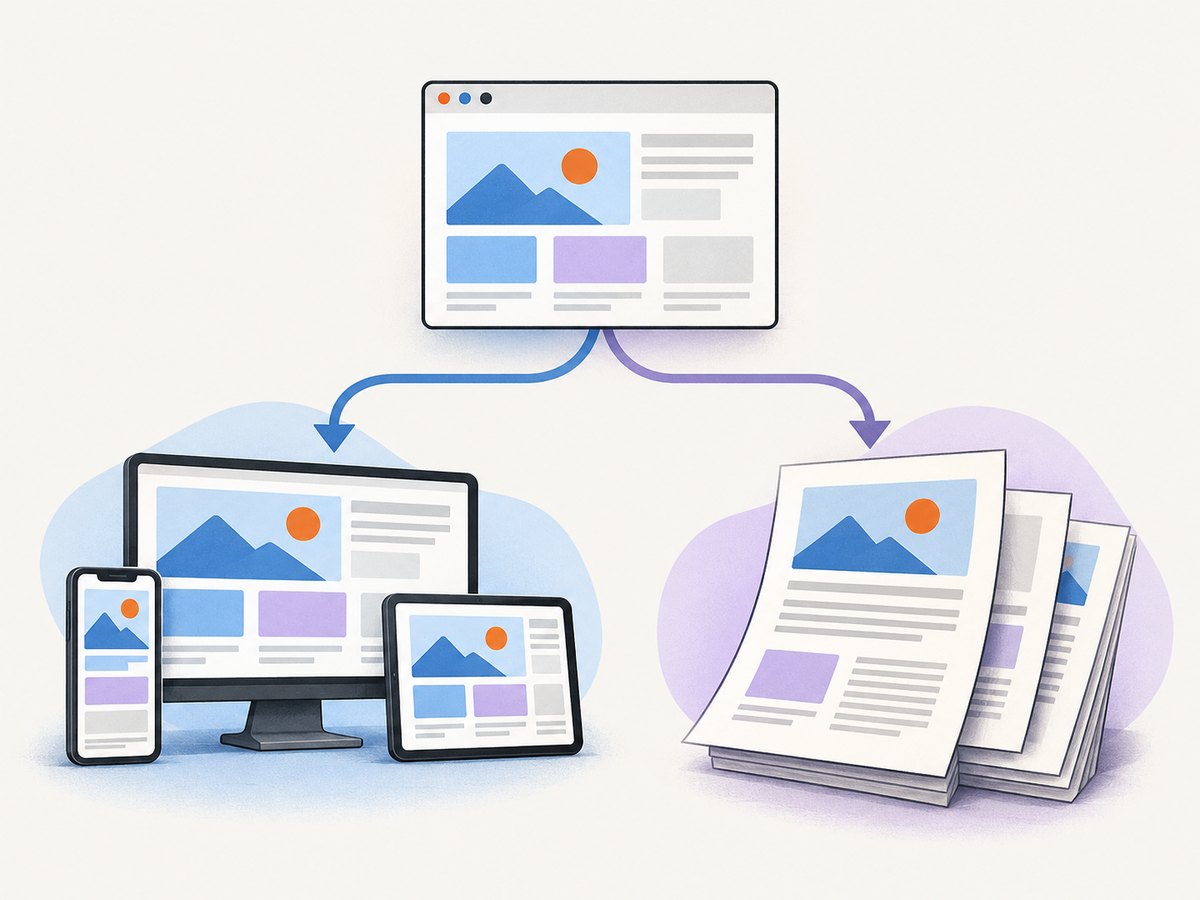
According to the API documentation, Page.pdf() generates a PDF with the print CSS media type. Rules inside @media print apply automatically. A navigation bar, interactive controls, and screen-only decorations may therefore disappear or change.
<style>
  .screen-only { display: block; }
  .print-only { display: none; }

  @media print {
    .screen-only { display: none; }
    .print-only { display: block; }
  }
</style>
If the PDF should use your screen layout, explicitly switch media before calling page.pdf():
await page.emulateMediaType('screen');
await page.pdf({
  path: 'screen-style.pdf',
  printBackground: true
});
Use print media for documents designed for paper. Use screen media when you need the same responsive arrangement users see in the browser. Always inspect the result at the target paper size because responsive breakpoints and line wrapping can change pagination.
4. Configure paper size, orientation, and margins
The PDF options reference supports standard formats, explicit dimensions, orientation, margins, scaling, page ranges, background graphics, and CSS page sizing. The documented default format is Letter.
| Option | Use it for | Key behavior |
|---|---|---|
format |
Standard paper such as A4 or Letter | When supplied, it takes priority over width and height. |
width, height |
Custom paper dimensions | Use CSS units supported by Puppeteer, such as mm, cm, in, or pixels. |
landscape |
Horizontal documents | Set true for wide tables or slides. |
margin |
Printable whitespace | Set top, right, bottom, and left values separately when needed. |
scale |
Fine size adjustment | The documented range is 0.1 to 2. |
pageRanges |
Export selected pages | Use values such as 1-3 when only part of a document is needed. |
await page.pdf({
  path: 'wide-report.pdf',
  format: 'A4',
  landscape: true,
  margin: {
    top: '12mm',
    right: '10mm',
    bottom: '14mm',
    left: '10mm'
  },
  scale: 0.95,
  pageRanges: '1-4'
});
Do not combine conflicting sizing rules accidentally. If format is set, it wins over width and height. If your stylesheet owns the paper size, use @page and preferCSSPageSize: true:
<style>
  @page {
    size: 210mm 297mm;
    margin: 16mm 14mm;
  }
</style>

<script>
  await page.pdf({
    path: 'css-sized.pdf',
    preferCSSPageSize: true
  });
</script>
With preferCSSPageSize: true, a CSS @page size takes priority over the API’s format, width, or height. Without it, Puppeteer scales page content to fit the requested paper size.
5. Preserve colors, backgrounds, and fonts
Background printing is disabled by default. Set printBackground: true when a document depends on colored panels, background images, charts, or branded sections.
await page.pdf({
  path: 'branded.pdf',
  format: 'A4',
  printBackground: true
});
PDF generation modifies colors for print by default. When exact color handling matters, the API documentation recommends -webkit-print-color-adjust. This helps preserve intended colors, but visual differences can still depend on the browser and rendering environment.
<style>
  * {
    -webkit-print-color-adjust: exact;
    print-color-adjust: exact;
  }
</style>
Puppeteer waits for fonts by default. The documented waitForFonts default is true, which waits for document.fonts.ready. You can leave that default in place for normal web fonts. If a page loads fonts through an application flow, also wait for a page-specific selector or readiness signal before generating the PDF.
6. Wait for dynamic content before capture
waitUntil: 'networkidle0' waits for a quiet network, but it does not guarantee that a client-side chart, image, or data table has finished rendering. Add an explicit selector wait or a short delay when the page has a known readiness condition.
await page.goto('https://example.com/report', {
  waitUntil: 'domcontentloaded',
  timeout: 30000
});

await page.waitForSelector('[data-report-ready]', {
  timeout: 30000
});

await page.pdf({
  path: 'report.pdf',
  format: 'A4',
  printBackground: true
});
The API reference documents a 30,000 millisecond default timeout. Treat defaults as version-specific and set timeouts deliberately for your environment. A page that loads third-party trackers indefinitely may never reach a useful network-idle state; in that case, wait for your own readiness marker instead.
7. Return a PDF from an HTTP endpoint
When your Node.js service creates PDFs on demand, omit path and send the returned bytes. The following Express-style handler illustrates the pattern.
import express from 'express';
import puppeteer from 'puppeteer';

const app = express();
const browser = await puppeteer.launch();

app.get('/report.pdf', async (req, res) => {
  const page = await browser.newPage();
  try {
    await page.goto('https://example.com/report', {
      waitUntil: 'networkidle0',
      timeout: 30000
    });

    const pdf = await page.pdf({
      format: 'A4',
      printBackground: true,
      preferCSSPageSize: true
    });

    res.type('application/pdf').send(Buffer.from(pdf));
  } finally {
    await page.close();
  }
});

app.listen(3000);
For pipelines that consume output progressively, the Page API also documents page.createPDFStream(). Choose the returned byte array for simple responses and the stream when your surrounding code is already stream-oriented.
8. Complete production checklist
- Choose URL navigation or
setContent()based on where the source HTML lives. - Decide whether the PDF should use print CSS or call
emulateMediaType('screen'). - Pick
formator explicit dimensions; avoid conflicting settings. - Use
@pagewithpreferCSSPageSize: truewhen CSS should control paper size. - Set margins and
landscapefor the target document. - Enable
printBackgroundfor backgrounds and graphics. - Wait for a page-specific readiness selector for client-rendered content.
- Keep the default font wait unless you have a measured reason to change it.
- Close every page and browser in
finallyblocks after errors. - Use a stable browser process strategy and limit concurrent pages according to available memory.
9. Troubleshooting Puppeteer PDF generation
| Symptom | Likely cause | Fix |
|---|---|---|
| Colors or panels are missing | Background printing is off. | Set printBackground: true and check print CSS. |
| The layout differs from the browser | Page.pdf() uses print media. |
Adjust @media print rules or call page.emulateMediaType('screen'). |
| Paper size is unexpected | format overrides dimensions, or CSS sizing is not preferred. |
Remove conflicting options or use preferCSSPageSize: true. |
| Web fonts are missing | Font assets are inaccessible or not ready. | Verify font URLs and wait for the documented font readiness behavior plus your own selector if needed. |
| Only part of a chart appears | PDF generation started before client rendering completed. | Wait for a chart-ready selector or application event. |
goto times out |
The page or a dependency does not finish within the timeout. | Set an appropriate timeout, use a less strict navigation condition, and wait for a specific readiness marker. |
| File is not created | The process lacks write access or the relative path is unexpected. | Use an absolute writable path or omit path and handle returned bytes. |
| Pages are clipped | Content exceeds the selected paper width or margins. | Choose a wider format, use landscape mode, reduce margins or scale, and inspect print CSS. |
10. Performance, reliability, and cost considerations
PDF generation has several moving parts: browser startup, navigation, asset downloads, JavaScript rendering, font loading, layout, and PDF encoding. The documentation does not establish performance rankings for these choices, so measure your own pages before selecting a concurrency limit.
Reuse a browser process when your service handles multiple requests, but create and close a fresh page for each job. Cap concurrent pages to avoid memory pressure. Set navigation and selector timeouts explicitly, record failures with the target URL and stage, and always close resources in finally. Cache stable source data when your application can do so safely.
Self-hosting Puppeteer means operating Chromium, fonts, sandbox settings, storage, and scaling. A hosted API can move those browser concerns outside your service.
11. Or skip the browser setup
ScreenshotNeo provides a one-call website capture API that can return PNG, JPEG, WebP, or PDF. It accepts cookie and consent banners like a visitor, removes more than 60 known consent platforms plus newsletter popups and chat widgets before capture, and lets each cleanup step be turned off. Bot checks, blank pages, timeouts, failed loads, and cache hits are not billed; the response identifies the result with X-Page-Verdict and X-Billed headers.
For PDF output and the full option list, see the ScreenshotNeo documentation.
curl -G "https://api.screenshotneo.com/v1/shot" \
  -d access_key=YOUR_API_KEY \
  --data-urlencode url=https://stripe.com \
  -o shot.webp
import requests
r = requests.get(
"https://api.screenshotneo.com/v1/shot",
params={"access_key": "YOUR_API_KEY", "url": "https://stripe.com"},
timeout=90
)
open("shot.webp", "wb").write(r.content)const q = new URLSearchParams({
access_key: 'YOUR_API_KEY',
url: 'https://stripe.com'
});
const res = await fetch(`https://api.screenshotneo.com/v1/shot?${q}`);ScreenshotNeo also provides PDF capture, custom CSS and JavaScript, waits for selectors or network idle, custom headers and cookies, device presets, full-page capture, caching, async jobs with signed webhooks, bulk capture, usage data, signed links, and an MCP server with take_screenshot, get_page_info, and capture_pdf tools for AI clients. The free plan includes 1,000 shots each month with no card; paid plans start at $5 for 3,000 shots. Create a free ScreenshotNeo account.
12. FAQ
Does Puppeteer create a PDF from a local HTML file?
Yes. Read the file in Node.js and pass the resulting string to page.setContent(). Ensure local assets use accessible paths or embedded data.
Can I create only selected pages?
Yes. Use the pageRanges PDF option, such as 1-3, after confirming the document’s pagination.
Why is my PDF different from a screenshot?
A PDF uses print layout rules and paper pagination. A screenshot uses viewport pixels. Set the intended media type and paper dimensions explicitly.
Should I use a path or returned bytes?
Use path for a straightforward local file. Use returned bytes for HTTP responses or object storage, and consider createPDFStream() for stream-based pipelines.
Can CSS control the PDF page size?
Yes. Define @page and set preferCSSPageSize: true so the CSS size takes priority.


