Convert HTML to PDF Using Node.js
Learn how to convert HTML to PDF with Node.js using Puppeteer or Playwright, control CSS and page layout, troubleshoot failures, and deploy reliably.
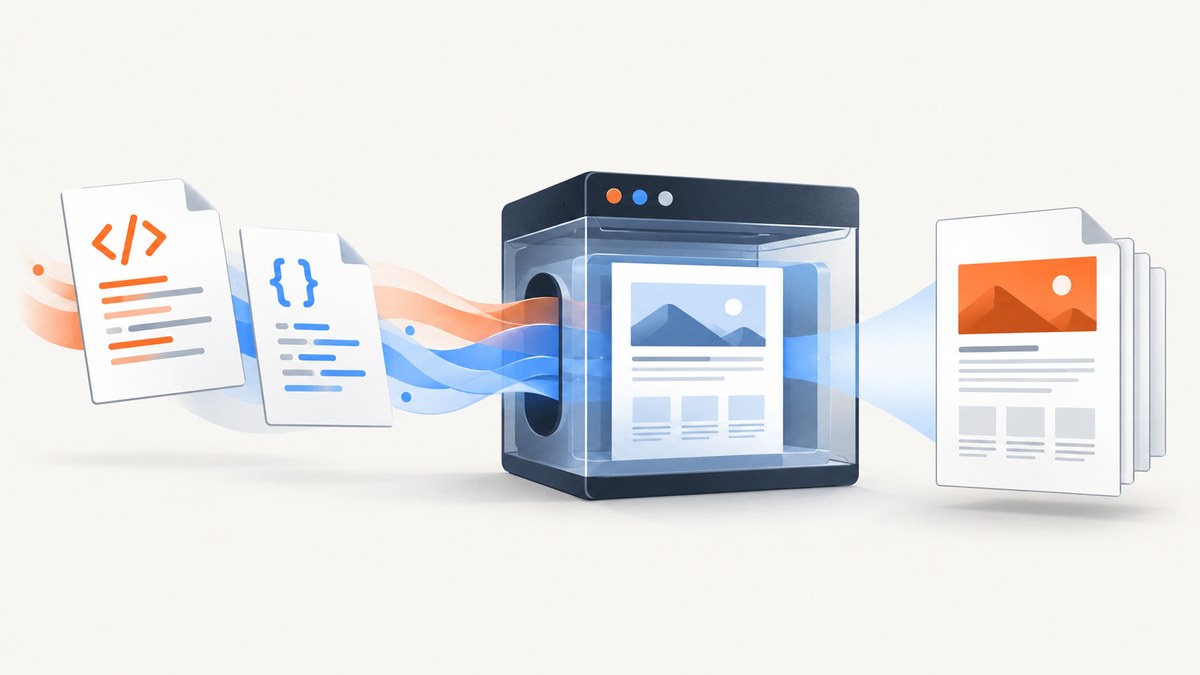
How do I convert HTML to PDF using Node.js? Use a headless browser when your source is HTML that depends on browser layout, CSS, web fonts, images, JavaScript, or responsive behavior. Puppeteer and Playwright both launch Chromium-based browsers, load your HTML or a URL, and expose a page.pdf() method. The basic sequence is:
- Install a browser automation package.
- Launch a browser and create a page.
- Load a URL or set HTML with
page.setContent(). - Choose print settings, paper size, margins, and media type.
- Write the PDF buffer to disk or return it from an HTTP response.
- Close the browser in a
finallyblock.
For HTML-to-PDF conversion, browser rendering is usually the right boundary: the browser computes layout, executes scripts, loads fonts, and applies print CSS. PDFKit is useful when you want to construct PDF content programmatically, but the cited PDFKit guide describes creating and streaming a PDFDocument; it does not establish PDFKit as an HTML renderer. (PDFKit documentation)
1. Convert HTML to PDF with Puppeteer
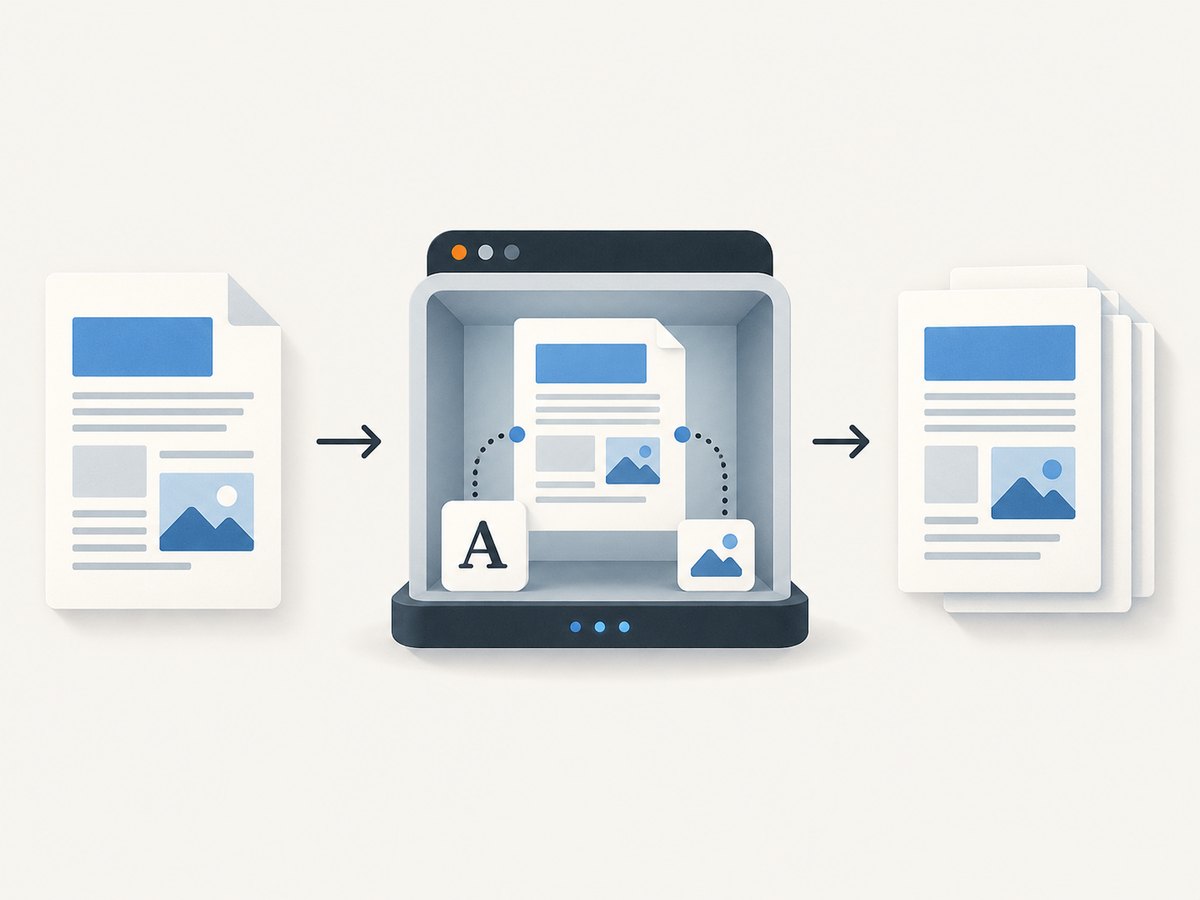
Puppeteer is a Node.js browser automation library. Its page.pdf() method generates a PDF using print CSS media by default. The method waits for fonts by default, which helps avoid a document being written before web fonts finish loading. (Puppeteer page.pdf() documentation)
Install
mkdir html-to-pdf
cd html-to-pdf
npm init -y
npm install puppeteer
The standard Puppeteer package downloads a compatible browser during installation. In a restricted build environment, you may instead need to supply an executable path and ensure the runtime has all libraries required by Chromium.
Complete runnable example
const puppeteer = require('puppeteer');
const fs = require('node:fs/promises');

async function htmlToPdf() {
  const html = `<!doctype html>
<html>
<head>
  <meta charset="utf-8">
  <title>Invoice</title>
  <style>
    @page { size: A4; margin: 18mm 16mm; }
    * { box-sizing: border-box; }
    body { font-family: Arial, sans-serif; color: #1f2937; margin: 0; }
    h1 { font-size: 24px; margin: 0 0 8px; }
    .muted { color: #6b7280; }
    .total { margin-top: 24px; font-size: 20px; font-weight: 700; }
    .avoid-break { break-inside: avoid; }
  </style>
</head>
<body>
  <h1>Invoice 1007</h1>
  <p class="muted">Generated from HTML with Node.js</p>
  <section class="avoid-break">
    <p>Consulting — 4 hours</p>
    <p>Total: $480.00</p>
  </section>
</body>
</html>`;

  const browser = await puppeteer.launch({ headless: true });
  try {
    const page = await browser.newPage();
    await page.setContent(html, { waitUntil: 'networkidle0' });
    await page.emulateMediaType('print');
    await page.pdf({
      path: 'invoice.pdf',
      format: 'A4',
      printBackground: true,
      preferCSSPageSize: true,
      margin: { top: '18mm', right: '16mm', bottom: '18mm', left: '16mm' }
    });
  } finally {
    await browser.close();
  }
}

htmlToPdf().catch(error => {
  console.error(error);
  process.exitCode = 1;
});
Save this as convert.js and run node convert.js. The output is invoice.pdf. networkidle0 waits until there are no active network connections; it is useful for pages that load fonts or images, but some applications keep analytics or WebSocket connections open forever. In those cases, use domcontentloaded plus an explicit wait for the content you need.
URL-to-PDF variant
const puppeteer = require('puppeteer');

(async () => {
  const browser = await puppeteer.launch({ headless: true });
  try {
    const page = await browser.newPage();
    await page.goto('https://example.com/report', {
      waitUntil: 'networkidle0',
      timeout: 60_000
    });
    await page.pdf({
      path: 'report.pdf',
      format: 'Letter',
      printBackground: true,
      displayHeaderFooter: true,
      headerTemplate: '<span></span>',
      footerTemplate: '<span style="font-size:10px">Page <span class="pageNumber"></span> of <span class="totalPages"></span></span>',
      margin: { top: '20mm', bottom: '20mm' }
    });
  } finally {
    await browser.close();
  }
})();
2. Use Playwright instead
Playwright offers a similar browser workflow and supports Chromium, Firefox, and WebKit automation. Its PDF API returns a buffer, which is convenient when an Express or Fastify route should stream the result instead of writing a temporary file. Playwright also uses print CSS media by default; call page.emulateMedia({ media: 'screen' }) when the PDF should follow screen styles. Width and height accept units such as px, in, cm, and mm, and documented paper formats include Letter and A4. (Playwright page.pdf() documentation)
npm install playwrightconst { chromium } = require('playwright');
const fs = require('node:fs/promises');
(async () => {
const browser = await chromium.launch({ headless: true });
try {
const page = await browser.newPage({ viewport: { width: 1280, height: 900 } });
await page.setContent(`
<html><head>
<style>
@page { size: A4; margin: 15mm; }
body { font-family: system-ui, sans-serif; }
.card { border: 1px solid #ddd; padding: 20px; break-inside: avoid; }
</style>
</head><body>
<h1>Quarterly report</h1>
<div class="card">Revenue and operating summary</div>
</body></html>`, { waitUntil: 'networkidle' });
const pdf = await page.pdf({
format: 'A4',
printBackground: true,
preferCSSPageSize: true,
margin: { top: '15mm', right: '15mm', bottom: '15mm', left: '15mm' }
});
await fs.writeFile('report.pdf', pdf);
} finally {
await browser.close();
}
})();3. Choose the rendering and PDF options
| Requirement | Setting or technique |
|---|---|
| Print stylesheet | Default behavior for Puppeteer and Playwright PDF generation. |
| Screen stylesheet | Puppeteer: page.emulateMediaType('screen'). Playwright: page.emulateMedia({ media: 'screen' }). |
| Paper size | Use format: 'A4' or format: 'Letter', or define dimensions. |
| Exact dimensions | Set width and height using px, mm, cm, or in where supported. |
| Backgrounds | Set printBackground: true. CSS colors can otherwise be adjusted for printing. |
| CSS page size | Use @page and preferCSSPageSize: true when CSS owns the paper definition. |
| Margins | Pass top, right, bottom, and left values as strings such as 12mm. |
| Headers and footers | Use the PDF API’s display-header-footer option and its template placeholders. |
| Pagination | Use break-before, break-after, break-inside: avoid, and @page. |
Print colors and CSS
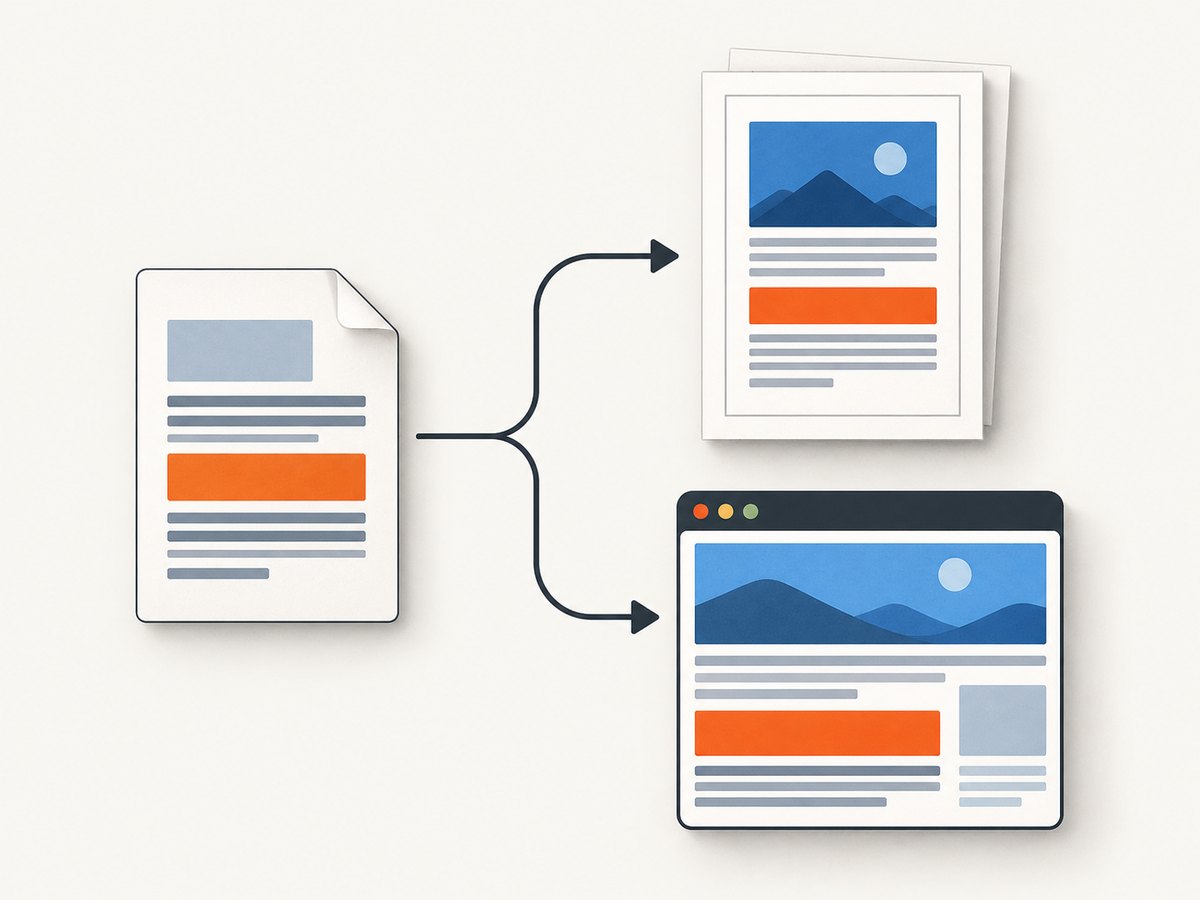
PDF output adjusts colors for printing by default. If exact colors matter, add -webkit-print-color-adjust: exact; to the relevant elements and keep printBackground: true. Validate the result with your actual fonts and images because print layout can differ from a screenshot in subtle ways.
Wait for dynamic content
Do not assume navigation completion means that an SPA has finished rendering. Wait for a stable selector:
await page.goto(url, { waitUntil: 'domcontentloaded' });
await page.waitForSelector('[data-report-ready]', { timeout: 30_000 });
await page.pdf({ path: 'ready.pdf', printBackground: true });
For a known client-side delay, use a short explicit wait, but prefer a selector that represents actual readiness. For images, ensure they are loaded before conversion:
await page.evaluate(async () => {
  const images = Array.from(document.images);
  await Promise.all(images.map(img => img.complete
    ? Promise.resolve()
    : new Promise(resolve => {
        img.addEventListener('load', resolve, { once: true });
        img.addEventListener('error', resolve, { once: true });
      })));
});
4. Return a PDF from an HTTP endpoint
For an API endpoint, keep the browser lifecycle bounded and send the resulting buffer with the correct content type:
const express = require('express');
const { chromium } = require('playwright');
const app = express();

app.get('/pdf', async (req, res) => {
  const browser = await chromium.launch({ headless: true });
  try {
    const page = await browser.newPage();
    await page.setContent('<h1>Server generated PDF</h1>', { waitUntil: 'load' });
    const pdf = await page.pdf({ format: 'A4', printBackground: true });
    res.type('application/pdf').set('Content-Disposition', 'inline; filename="document.pdf"').send(pdf);
  } catch (error) {
    res.status(500).json({ error: 'PDF generation failed' });
  } finally {
    await browser.close();
  }
});

app.listen(3000);
In production, validate or generate the HTML on the server. If users can submit arbitrary HTML, review whether external requests, scripts, or local file access are acceptable for your threat model.
5. Deployment, performance, and reliability
Browser startup
Launching a browser for every request is simple but adds startup work. A long-running worker can reuse one browser process and create a fresh page per job. Always close pages after each conversion and recycle the browser periodically if your workload shows memory growth.
Concurrency
Each PDF consumes CPU and memory while layout, fonts, images, and JavaScript execute. Start with a small queue rather than launching unlimited pages. Apply request and navigation timeouts, cap HTML size, and reject jobs that exceed your document limits.
Assets and fonts
Use absolute HTTPS URLs or inline assets when appropriate. A private network URL, blocked outbound request, expired certificate, or missing font can produce a valid PDF with missing content. If repeatability matters, package fonts with the application and wait for document.fonts.ready before calling pdf().
Reproducible layout
- Set the viewport explicitly.
- Define
@pagesize and margins. - Use print media intentionally.
- Mark tables, cards, and figures that must not split with
break-inside: avoid. - Keep a deterministic locale, timezone, and data snapshot for invoices and reports.
Cost and runtime planning
Self-hosting means budgeting for Node.js, the browser binary, memory, CPU, storage, and queueing. Browser-based conversion is a poor fit for very high-volume jobs unless you measure and tune concurrency. PDFKit can be more economical when you are drawing known primitives and do not need HTML rendering, but it is a different programming model.
6. Troubleshooting common failures
| Symptom | Likely cause | Fix |
|---|---|---|
| Browser fails to launch | Missing shared libraries, sandbox restrictions, or unavailable browser binary. | Install the runtime dependencies, use the package’s downloaded browser, or configure an approved executable path. Check container permissions. |
| PDF is blank | Conversion runs before SPA content or images render. | Wait for a readiness selector, fonts, and images. Inspect the page HTML before calling pdf(). |
| Styles look wrong | Print media is active, backgrounds are disabled, or CSS assets failed to load. | Choose print or screen media explicitly, set printBackground: true, and verify asset URLs. |
| Navigation times out | Analytics, sockets, or a slow third-party request keeps the page busy. | Use domcontentloaded and wait for a specific selector instead of indefinite network idle. |
| Images are missing | Lazy loading waits for viewport visibility or requests fail. | Scroll required regions, trigger loading in page JavaScript, wait for image completion, and check response status. |
| Fonts are substituted | Font files are blocked, cross-origin requests fail, or the PDF is generated too early. | Use reachable font URLs, configure CORS, await document.fonts.ready, and confirm the font family in computed styles. |
| Content is clipped | Fixed heights, overflow rules, or unsuitable margins. | Remove restrictive heights, review overflow, set page margins, and use print-specific CSS. |
| Pages split awkwardly | Break rules are missing or unsupported by the layout. | Apply break-inside: avoid to atomic blocks and add explicit page breaks where necessary. |
| Process memory grows | Pages or browsers are not closed, or concurrency is too high. | Close every page in cleanup code, bound the queue, and recycle workers. |
7. Or skip the browser setup
ScreenshotNeo provides a website capture API and MCP server. Its endpoint can return a screenshot or PDF, so you can submit a URL without packaging Chromium in your Node.js service. See the ScreenshotNeo documentation for PDF options and request configuration.
cURL:
curl -G "https://api.screenshotneo.com/v1/shot" -d access_key=YOUR_API_KEY --data-urlencode url=https://stripe.com -o shot.webpPython:
import requests
r = requests.get("https://api.screenshotneo.com/v1/shot", params={"access_key": "YOUR_API_KEY", "url": "https://stripe.com"}, timeout=90)
open("shot.webp", "wb").write(r.content)
Node.js:
const q = new URLSearchParams({ access_key: 'YOUR_API_KEY', url: 'https://stripe.com' });
const res = await fetch(`https://api.screenshotneo.com/v1/shot?${q}`);
It accepts cookie and consent banners before capture and removes more than 60 known consent platforms, newsletter popups, and chat widgets. Bot checks, blank pages, timeouts, failed loads, and cache hits are not billed; response headers identify the page verdict and whether the request was billed. The MCP server exposes take_screenshot, get_page_info, and capture_pdf for Claude, Cursor, and other MCP clients. You get 1,000 screenshots per month free with no card; paid plans start at $5 for 3,000 shots. Create a free ScreenshotNeo account.
8. Puppeteer or Playwright?
| Choose | When it fits |
|---|---|
| Puppeteer | You want a focused Chromium automation API, a straightforward page.pdf({ path }) flow, and direct control over a browser page. |
| Playwright | You prefer a multi-browser automation project, PDF buffers for HTTP responses, or Playwright’s page and context APIs. |
| PDFKit | You are constructing PDF primitives, text, and graphics programmatically and do not need a browser to render HTML and CSS. |
| ScreenshotNeo | You want a hosted URL capture/PDF path, consent cleanup, usage verdict headers, caching, and an MCP option without maintaining the browser runtime. |
9. FAQ
Does Puppeteer convert an HTML string directly?
Yes. Create a page, call page.setContent(html), wait for required assets, then call page.pdf().
Should I use print or screen media?
Use print media for a document intended for paper or standard PDF output. Select screen media when your existing screen stylesheet is the source of truth.
Can I create a PDF without a browser?
Yes, if you construct the document with a PDF library. That approach does not automatically provide browser HTML and CSS layout.
Why does my PDF have no background colors?
Enable printBackground: true and review print color adjustment rules.
Is a reusable browser safe for concurrent jobs?
It can be, provided each job gets an isolated page or context, concurrency is bounded, and cleanup runs on success and failure.


