How to Convert HTML to PDF on iPad
Save any webpage as a PDF on your iPad with Safari, compare Chrome’s print route, fix rendering issues, and automate captures with ScreenshotNeo.
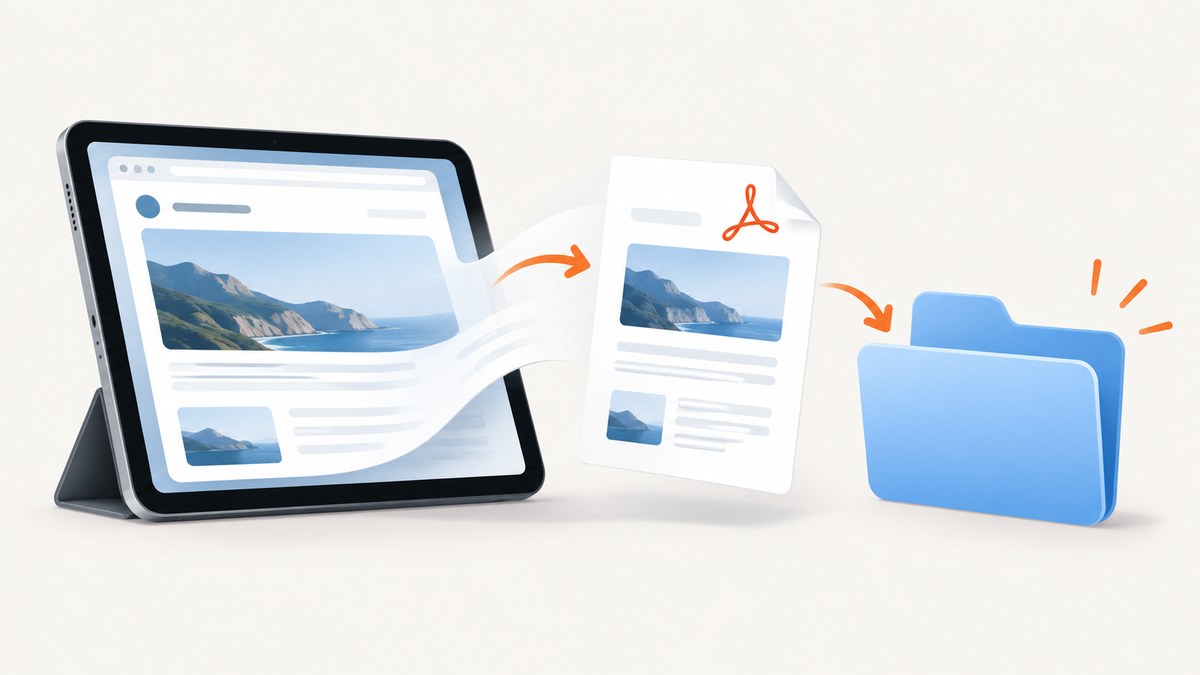
Safari on iPad can convert a webpage to a PDF without another app. Open the page, tap Share, choose More, select Markup, tap Done, then choose Save File To and pick a folder in Files. Apple documents this workflow for saving a webpage as a PDF.
Safari: save HTML as a PDF
- Open the HTML page in Safari and wait for images, fonts, and other content to finish loading.
- Tap the Share button.
- Tap More in the share sheet.
- Choose Markup. Safari prepares a PDF preview of the page.
- Optionally highlight, draw, or write notes with Markup. Apple describes Markup as optional when sharing a webpage as a PDF (Apple Support).
- Tap Done.
- Tap Save File To, select a location in Files, enter a filename, and tap Save.
The result is a PDF file in the folder you selected. Rename it with a descriptive name such as invoice-help-2026-10-01.pdf so it is easy to find later.

Alternate Share-sheet PDF option
Some iPad interfaces show an Options button in the share sheet. Tap it, select PDF, tap Done, then choose Save to Files and a destination. Apple’s education guidance documents this route as an alternative (Apple Education Community). If you do not see Options or PDF, use the Markup sequence above.
What gets converted
Safari creates a document representation of the loaded webpage. Static text, images, and most CSS are represented in the PDF, but a PDF is not an interactive copy of the HTML. JavaScript controls, forms, video players, hover states, live data, and authenticated sessions may not behave after conversion. Let lazy-loaded images finish loading before saving and inspect the PDF afterward.
Chrome on iPad
Chrome’s official iPad instructions document a printing workflow: open the page, tap Share, tap View more, choose Print, select print settings, and tap Print (Google Chrome Help). That flow is intended for AirPrint. It does not document a direct Save as PDF control. If you need a PDF file in Files, open the page in Safari and use Safari’s Markup or PDF option.
Before you save: a quality checklist
- Confirm the address is the final page, not a loading or redirect URL.
- Wait for charts, images, fonts, and expandable sections to finish loading.
- Dismiss cookie dialogs or overlays that cover the content you need.
- Sign in first if the page requires authentication; do not share the resulting PDF if it contains private information.
- Check the first and last pages for clipped content.
- Open the saved file from Files and verify links, page breaks, images, and text search.
Page layout and rendering limitations
The source material does not promise identical rendering for every website. Dynamic or interactive pages can produce different results from what you see on screen. Long pages may split headings, tables, or code across pages. Fixed-position headers can repeat or overlap content. If the PDF is important, compare it with the webpage and repeat the capture after the page is fully loaded.
Troubleshooting
Markup or Save File To is missing
Tap More in the share sheet and scroll through the available actions. If Markup still does not appear, use the Options > PDF route when available, or update iPadOS and try again.
The PDF is blank or incomplete
The page may still be loading, may require JavaScript, or may have blocked content. Reload, wait for the page to settle, scroll through the entire page to trigger lazy loading, and save again. Check that a consent dialog or login screen is not covering the page.
Images or fonts are missing
Confirm the device is online, wait for the assets to load, and retry. A content blocker, private relay setting, or the website itself can prevent an asset from loading. The PDF can only include resources Safari successfully loaded.
Content is cut off
Responsive layouts can change at print width. Rotate the iPad, zoom to the needed layout before sharing, or use the site’s own print view. For tables and code, verify every page in the saved PDF.
The file cannot be found
In the share sheet, note the folder shown beside Save File To. Open Files, browse to that folder, and search for the filename or “PDF”.
Chrome only offers printing
That matches Chrome’s documented iPad flow. Send the page to an AirPrint printer, or open the same URL in Safari when the required result is a PDF file.
Performance, reliability, and cost
On-device conversion is free and normally completes as soon as Safari has rendered the page. Time depends on page size, network speed, scripts, and images. A stable connection and a fully loaded page improve reliability. For repeated or unattended conversions, manual iPad capture is difficult to standardize because page state, login sessions, and dynamic content can change between attempts.
Or skip the browser setup
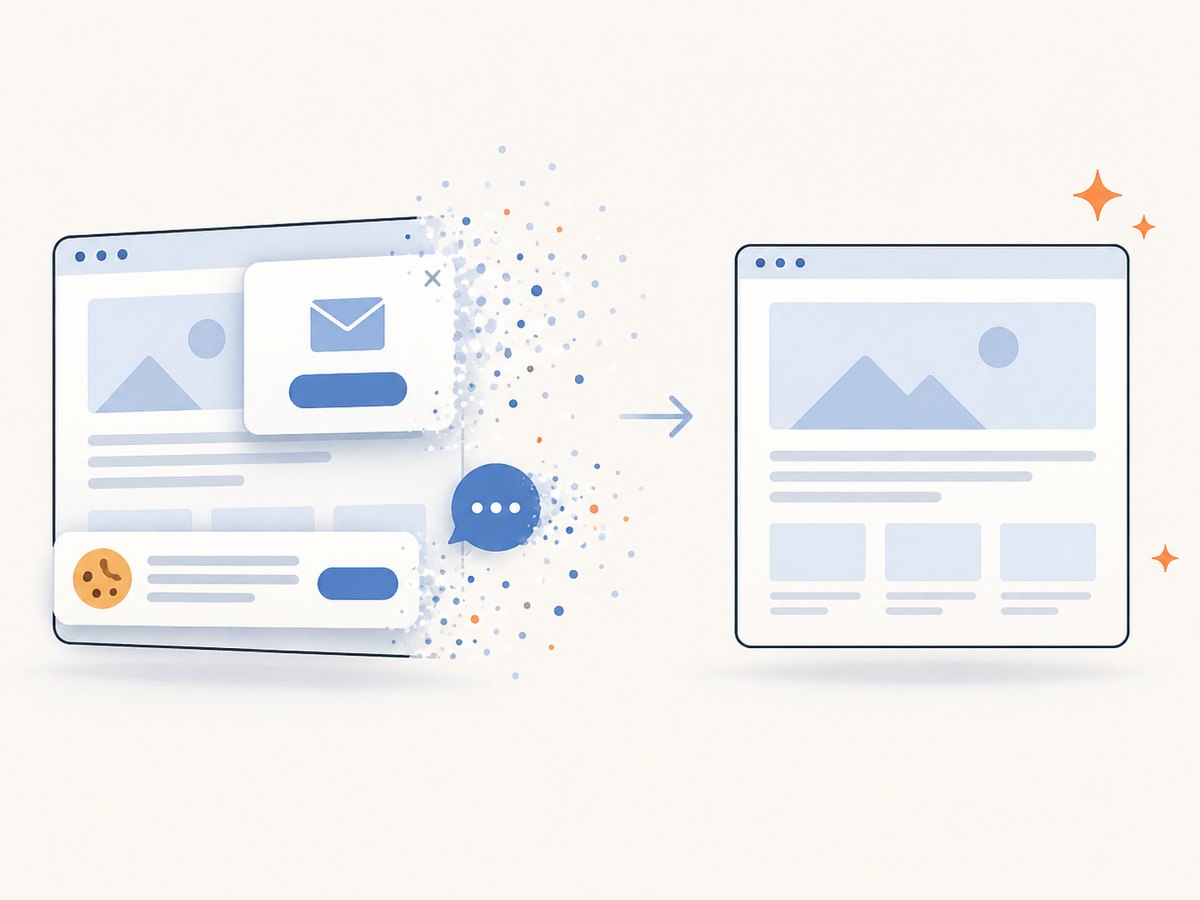
ScreenshotNeo provides an API and MCP server for website captures. Its PDF features can set paper size, margins, landscape mode, and page ranges. A request can load a URL and return the capture; see the ScreenshotNeo API documentation for PDF parameters.
curl -G "https://api.screenshotneo.com/v1/shot" \
  -d access_key=YOUR_API_KEY \
  --data-urlencode url=https://example.com \
  -d format=pdf \
  -o page.pdf
import requests
r = requests.get(
"https://api.screenshotneo.com/v1/shot",
params={"access_key": "YOUR_API_KEY", "url": "https://example.com", "format": "pdf"},
timeout=90,
)
r.raise_for_status()
open("page.pdf", "wb").write(r.content)const q = new URLSearchParams({
access_key: 'YOUR_API_KEY',
url: 'https://example.com',
format: 'pdf'
});
const res = await fetch(`https://api.screenshotneo.com/v1/shot?${q}`);
if (!res.ok) throw new Error(`HTTP ${res.status}`);
const file = Buffer.from(await res.arrayBuffer());
require('fs').writeFileSync('page.pdf', file);ScreenshotNeo removes cookie banners, newsletter popups, and chat widgets before capture. Bot checks, blank pages, failed loads, timeouts, and cache hits are not billed, and response headers identify the page verdict and billing status. Its MCP server includes take_screenshot, get_page_info, and capture_pdf tools for AI agents. The Free plan includes 1,000 screenshots each month without a card; paid plans start at $5 for 3,000. Create a free ScreenshotNeo account.
FAQ
Can I convert an HTML file stored on my iPad?
Open the file in Safari or another browser that can render it, then use the same Share and PDF workflow. Local files that depend on unavailable scripts or assets may render differently.
Does Markup have to be used?
No. Markup is the documented Safari route, and it is optional for annotations. If your share sheet provides Options and PDF, that route also saves a PDF.
Can I preserve animations or video?
No. A PDF stores a document snapshot, not interactive playback. Save the webpage URL separately when the motion or interaction matters.
Is Chrome able to save a PDF directly?
Google’s iPad help documents Share, View more, Print, and AirPrint. For a file saved in Files, use Safari’s PDF workflow.
How do I automate many URLs?
Use a capture API such as ScreenshotNeo, which supports bulk capture, asynchronous jobs, signed webhooks, caching, custom headers and cookies, and PDF options. Review the API documentation before sending authenticated or private URLs.


