How to Convert HTML to PDF Online on Mac
Save a rendered webpage as PDF on Mac, convert local HTML, fix layout problems, and use ScreenshotNeo when you need repeatable PDF capture.
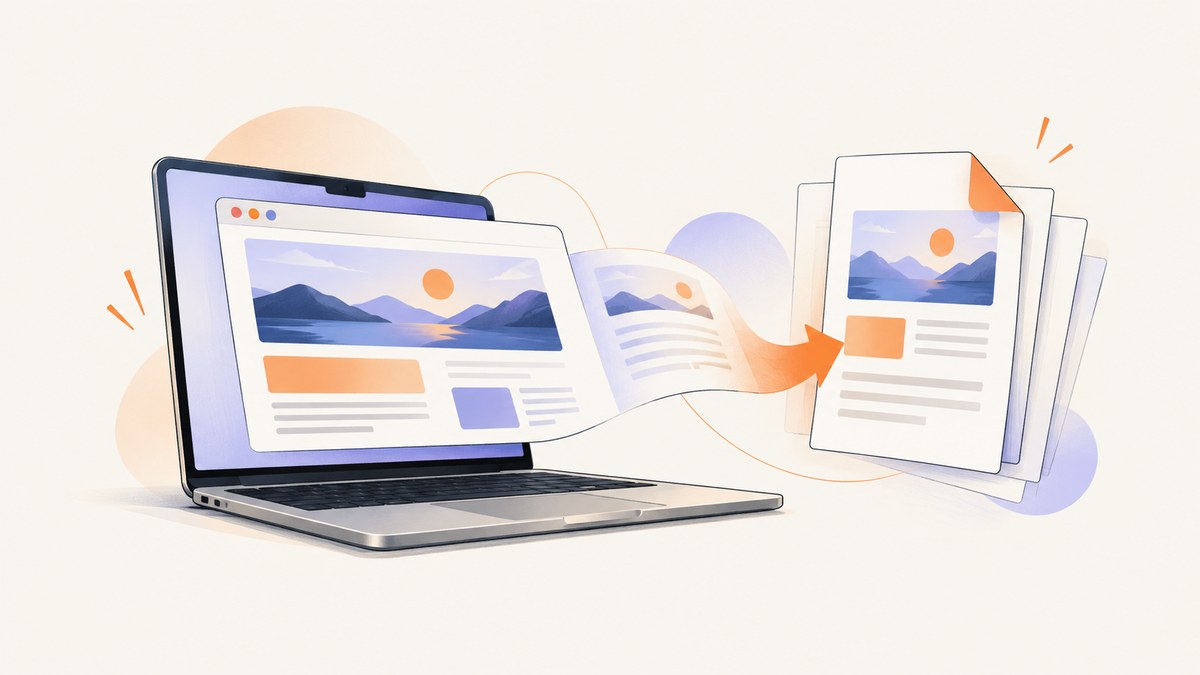
Short answer: To turn an open webpage into a PDF on a Mac, open it in your browser, choose File > Print, then select Save as PDF from the PDF menu. Choose a filename and destination, save the file, and inspect the result for missing images, cut-off tables, and unexpected page breaks. Apple documents this built-in workflow, so you do not need an online converter for a page that is already open in Safari, Chrome, or another browser.
The phrase “convert HTML to PDF online” can describe several different jobs:
- Saving a rendered webpage that is open in a browser.
- Converting a local
.htmlfile. - Capturing several pages from a website.
- Sending HTML to a cloud service for conversion.
- Creating repeatable PDFs in an application or API.
These workflows produce different results and have different privacy and layout implications. This guide explains each practical route on macOS, how to choose page settings, how to diagnose bad output, and how to automate capture when the Mac print dialog is not enough.
1. Save an open webpage as a PDF with the Mac print dialog
This is the fastest route for a single page. It uses the browser’s rendered view, including the layout you see after scripts and styles have loaded.
- Open the webpage in your browser.
- Wait for the page to finish loading. Scroll through it if images or other content load lazily.
- Choose File > Print.
- In the print window, click the PDF button or PDF menu.
- Choose Save as PDF.
- Enter a filename, select a folder, and click Save.
- Open the saved PDF in Preview or another PDF viewer.
Apple’s instructions also describe PDF-menu actions such as sending the file by email or saving it to iCloud Drive. See Apple’s guide to saving a document as a PDF on Mac.
Check the PDF before you share it
- Page breaks: A long webpage is divided into multiple paper-sized pages. A section that looks continuous in the browser may split across two pages.
- Wide content: Tables, dashboards, and code blocks can be clipped at the right edge.
- Images: Confirm that remote images, charts, and lazy-loaded images appear.
- Backgrounds: Some print settings omit background colors or images.
- Links and text: Select text in Preview to confirm that the output contains a usable text layer rather than only a visual image.
If the first result is poor, return to the print dialog and adjust paper size, orientation, scale, and margins. Previewing the actual PDF is essential because the browser view is not a reliable representation of the final pagination.
2. Understand what you are saving: PDF, source HTML, or Web Archive
A PDF is a rendered document. It is different from saving the HTML source code. In Safari, Page Source saves the page’s HTML source, while Web Archive stores a webpage with its graphics for later viewing. Neither is the same as a paginated PDF. Apple explains these distinctions in its Safari webpage-saving guide.
Use a PDF when the recipient needs a portable document that can be opened in Preview or another PDF viewer. Use the source when you need to inspect or edit markup. Use a Web Archive when your goal is to preserve a Safari-viewable page rather than create a print-ready document.
Some pages restrict saving or behave differently when printed. Authentication screens, interactive editors, video players, and pages that render content only after interaction may require a different capture method.
3. Convert a local HTML file or several pages with Acrobat desktop
If you have a local .html file, need more layout controls, or want to capture multiple levels of a site, Adobe documents a desktop Acrobat workflow. In Acrobat, use the web-page creation workflow, enter a URL or browse to an HTML file, set the scope and levels to capture, adjust conversion settings, and create the PDF. Read Adobe’s web-page conversion documentation for the current desktop steps.
Typical Acrobat decisions
- Input: Enter a webpage URL or browse to a local HTML file.
- Scope: For a site, choose how many link levels to follow and which pages or domains are allowed.
- Images and backgrounds: Enable or disable image inclusion and background retention according to the intended output.
- Page layout: Select paper size, orientation, margins, and scaling for wide content.
- Structure: Configure PDF tags and bookmarks when the document needs navigation or accessibility structure.
- Encoding: Adjust language and character-encoding settings if symbols or non-Latin text are corrupted.
Adobe lists these conversion controls in its web-to-PDF settings reference. Capture only the pages you need: multi-level conversion can create a large document and may include navigation pages, duplicate content, or links outside the intended section.
4. Use an online converter when cloud upload is acceptable
An online PDF service can be convenient when you do not want to install desktop software or when the source file is already on your Mac. The normal sequence is:
- Open the converter in a browser.
- Choose the HTML file or provide the page URL, depending on the service.
- Upload or submit the source.
- Wait for conversion.
- Download the PDF and inspect it.
Cloud conversion changes the data-handling decision. Adobe states that Acrobat online services upload files to Adobe cloud storage. Its FAQ says uploaded files are private by default and are deleted from its servers within a short time if you do not sign in, but service terms and limits can change. Do not upload confidential HTML, credentials, private customer data, or unpublished documents until you have checked the current provider terms. See Adobe’s online-services FAQ.
Adobe’s consumer instructions also describe a browser-toolbar conversion route and list Firefox in the Mac steps. Treat that as Adobe’s documented workflow for its extension; browser extensions and settings do not necessarily behave identically across every browser. The current compatibility information in Adobe’s FAQ includes macOS 11.7.10 or later with Safari 15.2 or later, Firefox, or Chrome for its online services. Verify current requirements before relying on a particular browser or operating-system combination.
5. Fix common layout problems
Wide tables or code are cut off
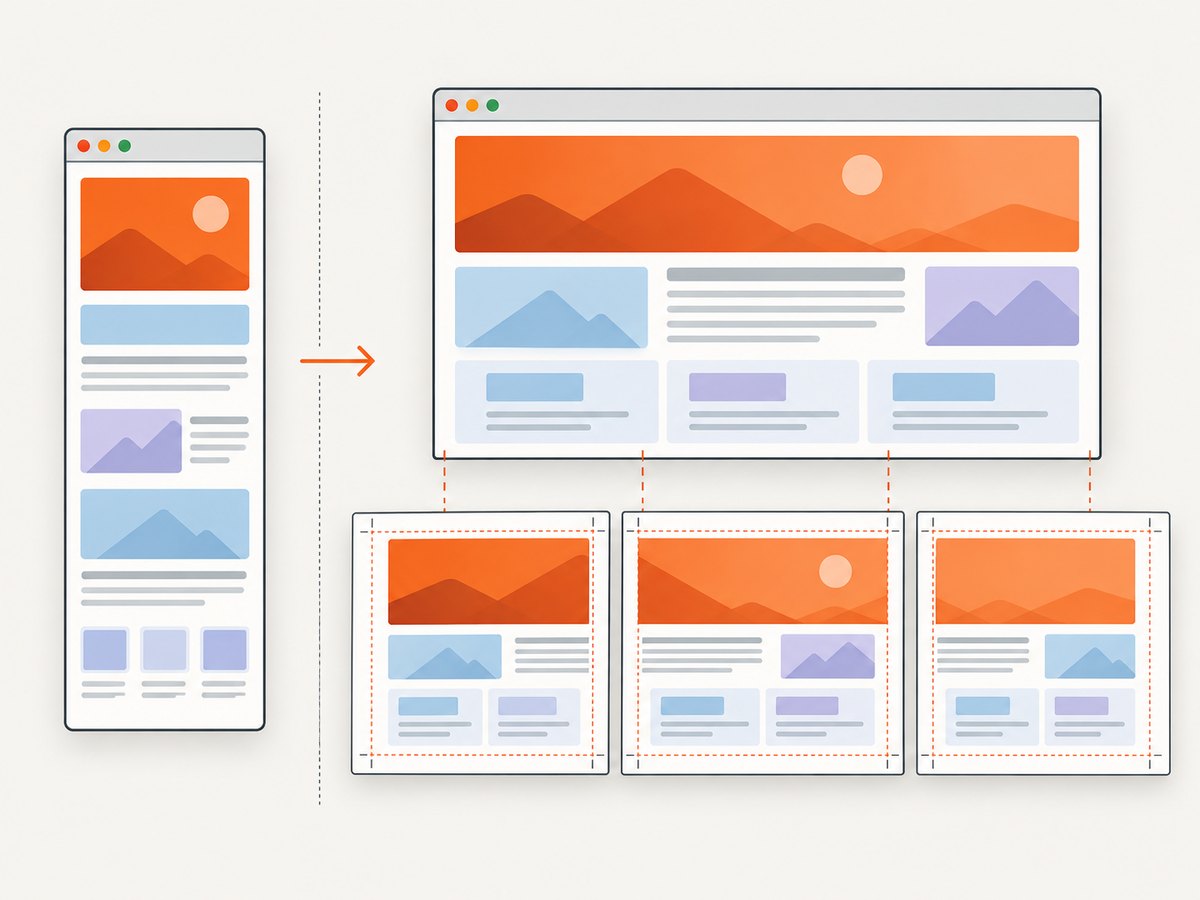
Switch to landscape orientation, reduce scale, choose a larger paper size, or change margins. If the content is still clipped, the page may have a fixed-width layout that does not respond to print media. Acrobat’s scaling and page-layout settings can help when the browser print output is too narrow.
Blank pages appear
Blank pages often result from a forced page break, an oversized element, or a print stylesheet. Try a different scale and margins, then inspect the source page’s print preview. For a controlled conversion, use a tool that lets you define page dimensions and CSS or use an API capture workflow.
Images are missing
Wait for lazy-loaded images before printing and scroll through the page once. An image can also require authentication, block third-party requests, or be excluded by print CSS. Downloading the HTML source does not guarantee that its external assets will be available later.
Fonts or symbols are wrong
Allow web fonts to finish loading, then print again. For local files, check the document’s encoding and font references. Acrobat exposes language and encoding controls for cases where characters do not survive conversion.
The PDF has unexpected pagination
PDF pages have fixed dimensions; webpages generally do not. Adjust paper size, orientation, margins, and scale, then reopen the generated PDF and check every section. Adobe notes that one web page can become multiple standard-size PDF pages, so pagination should always be reviewed.
The page requires login or interaction
Sign in before using the browser print workflow if you are authorized to access the content. If the page needs a click to reveal content, perform that action before printing. A converter that fetches only the initial URL may not reproduce a session, a click, or client-side state.
6. Or skip the browser setup: ScreenshotNeo
For repeatable HTML-to-PDF capture, ScreenshotNeo provides a website screenshot API and MCP server. One GET request accepts a URL and returns a PDF or an image. The API can wait for a selector, delay, or network idle; load lazy images in full-page captures; use a custom viewport or device preset; set cookies, headers, user agents, authorization, timezone, and geolocation; run custom CSS or JavaScript; click an element; hide selectors; block ads, trackers, requests, or resource types; and choose PDF paper size, margins, landscape mode, and page ranges. Full option details are in the ScreenshotNeo documentation.
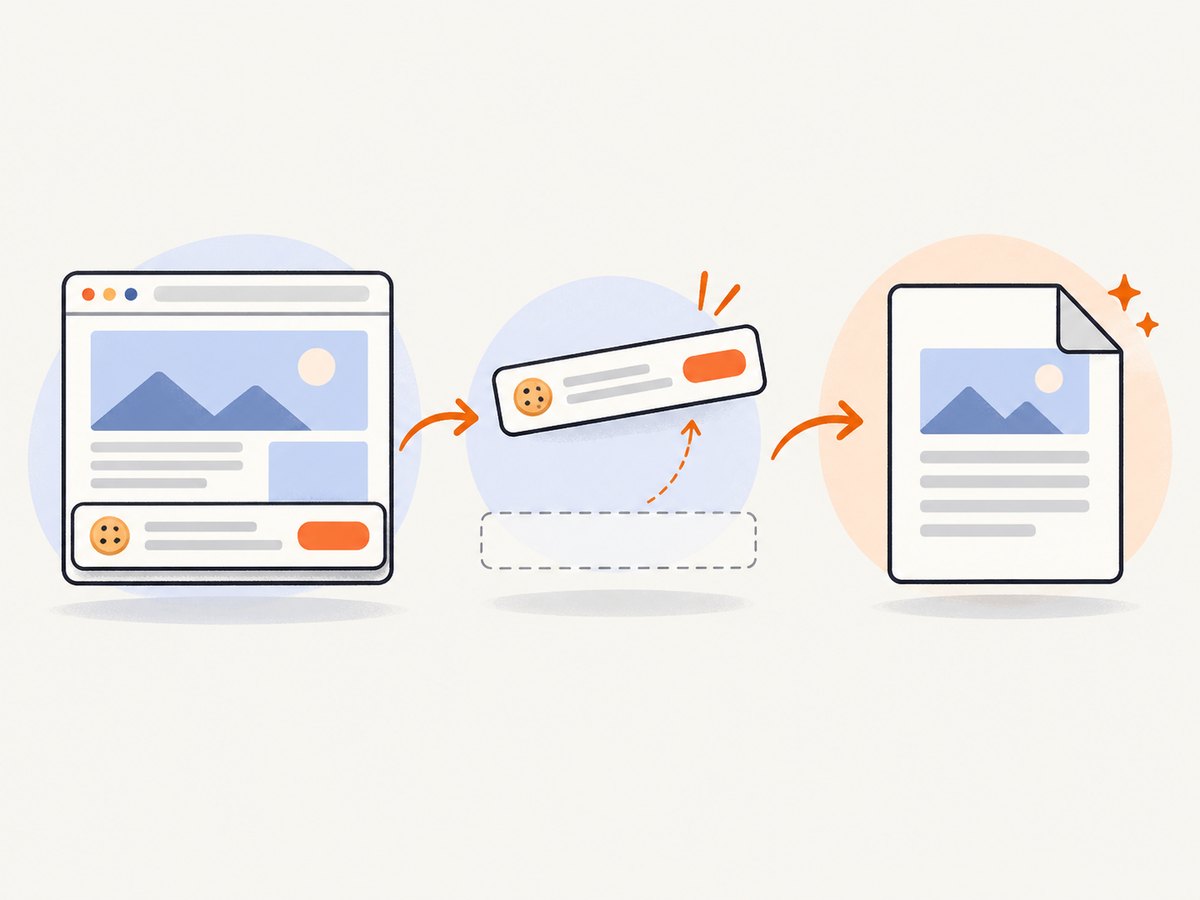
Before capture, ScreenshotNeo accepts cookie or consent banners like a visitor and removes more than 60 known consent platforms, newsletter popups, and chat widgets. Each step can be disabled. Clean shots are the only billable results: bot checks or CAPTCHAs, blank pages, timeouts, failed loads, and cache hits cost nothing, and response headers identify the page verdict and whether it was billed.
cURL
curl -G "https://api.screenshotneo.com/v1/shot" \
  -d access_key=YOUR_API_KEY \
  --data-urlencode url=https://stripe.com \
  -o shot.pdf
The endpoint also returns PNG, JPEG, or WebP when you request an image format. Replace the target URL with the page you are authorized to capture. Keep the access key server-side rather than exposing it in public browser code.
Python
import requests

r = requests.get(
    "https://api.screenshotneo.com/v1/shot",
    params={"access_key": "YOUR_API_KEY", "url": "https://stripe.com"},
    timeout=90,
)
r.raise_for_status()
open("shot.pdf", "wb").write(r.content)
Node.js
const q = new URLSearchParams({
  access_key: 'YOUR_API_KEY',
  url: 'https://stripe.com'
});
const res = await fetch(`https://api.screenshotneo.com/v1/shot?${q}`);
if (!res.ok) throw new Error(`HTTP ${res.status}`);
const data = Buffer.from(await res.arrayBuffer());
require('fs').writeFileSync('shot.pdf', data);
When an API is a better fit
- Scheduled reports: Use the same URL and options from a job without opening a browser.
- Authenticated pages: Supply cookies, custom headers, or authorization when permitted.
- Consistent rendering: Fix viewport, device, scale, timezone, and geolocation values.
- Large batches: Bulk capture supports up to 100 URLs per call.
- Agent workflows: The MCP server exposes
take_screenshot,get_page_info, andcapture_pdffor Claude, Cursor, and other MCP clients. - Public embeds: Signed links can be used in public
<img>tags.
ScreenshotNeo includes 1,000 screenshots per month on the free plan with no card. Paid plans start at $5 for 3,000 shots; yearly billing gives two months free. Every feature is available on every plan. Create a free ScreenshotNeo account to begin.
7. Reliability, performance, and cost checklist
| Concern | Browser print | Online service or API |
|---|---|---|
| One-off page | Fastest setup; no upload required for Apple’s built-in flow. | Usually more setup than necessary. |
| Local sensitive HTML | Keep the file on the Mac when possible. | Check cloud-storage and deletion terms before uploading. |
| Repeatability | Manual settings can vary between captures. | Store URL, viewport, wait conditions, and PDF settings with the job. |
| Dynamic content | Wait and interact manually before printing. | Use selector, delay, network-idle, cookies, headers, or JavaScript options. |
| Cost | Uses the Mac workflow or software you already have. | Check current service limits; ScreenshotNeo bills only clean shots. |
- Use a stable URL and record the capture date when the PDF is evidence or documentation.
- Set a deliberate page size and orientation instead of accepting defaults for wide layouts.
- Wait for fonts, images, and client-rendered content before capture.
- Open the final PDF and check the first, middle, and last pages on long documents.
- For automated jobs, handle timeouts and failed loads, log response status and verdict headers, and retry only when the failure is transient.
8. Frequently asked questions
Can I convert HTML to PDF on a Mac without installing software?
Yes. Open the webpage in a browser and use File > Print > Save as PDF. This is Apple’s documented route for saving a rendered page.
Does saving a webpage as PDF save its source code?
No. The PDF is rendered output. Use Safari’s Page Source command when you need the HTML source, or Web Archive when you need Safari’s archived webpage format.
Can I convert a local HTML file?
Open it in a browser and print it, or use Acrobat desktop’s web-page creation workflow to browse to the file and apply additional conversion settings.
Why does my PDF look different from the webpage?
PDF uses fixed page dimensions and print rules. Wide elements, backgrounds, lazy images, and forced page breaks can all change the result. Inspect the PDF and adjust scale, margins, orientation, or page size.
Is an online converter safe for private HTML?
It depends on the provider’s handling terms. Adobe says its online Acrobat services upload files to cloud storage. Review current privacy and deletion terms before uploading confidential material.
Can an API create a PDF without opening a Mac browser?
Yes. ScreenshotNeo accepts a URL at https://api.screenshotneo.com/v1/shot and can return a PDF. Its wait, authentication, device, CSS, JavaScript, and PDF options support pages that need more control than the print dialog.


