How to Convert HTML to PDF Online in High Quality
Convert a webpage or HTML file to PDF with browser print settings, print CSS, or code. Learn how to tune page size, margins, backgrounds, and layout.
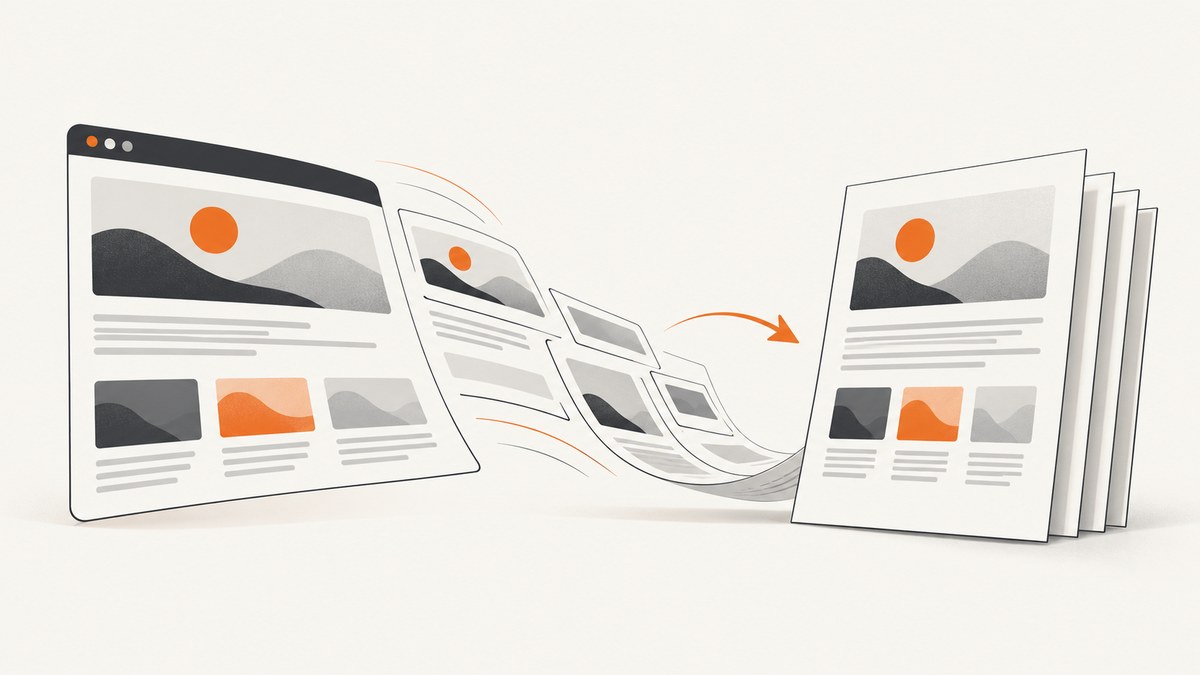
The quickest way to convert HTML to PDF online is to open the webpage in a desktop browser, choose Print, select Save as PDF, adjust the print preview, and save. For a local HTML file, open it in a browser first. Set the paper size, orientation, margins, scale, and background graphics before saving, then inspect every page for clipped or missing content.
A browser print dialog is usually enough for a one-off PDF. If you need repeatable output, control of custom HTML, or batch generation, use print-specific CSS and a browser automation library such as Puppeteer. A PDF always has fixed page dimensions, while a webpage may reflow to fit different screens, so no workflow can promise pixel-perfect results for every page.
1. Convert a webpage or HTML file using browser print
- Open the source. Navigate to the webpage in a desktop browser. To convert a local file, open its HTML file in the browser. Confirm linked stylesheets, fonts, scripts, and images are available; a file copied without its companion assets can look incomplete.
- Open the print dialog. Use the browser’s Print command. The menu label and keyboard shortcut vary by browser and operating system.
- Choose the PDF destination. Select Save as PDF or the equivalent PDF destination in the printer selector.
- Check the preview. Choose paper size, portrait or landscape orientation, scale, and margins. If the page has colored blocks or background images, enable background graphics if the dialog offers that option.
- Save and review the PDF. Check every page, including the last one. Look for cut-off columns, unexpected blank pages, missing images, awkward page breaks, and text that has become too small.
Browser controls differ, so use the preview as the source of truth. Adobe also describes browser Print → Save as PDF as an alternative to its own HTML converter. See Adobe’s HTML-to-PDF guide.
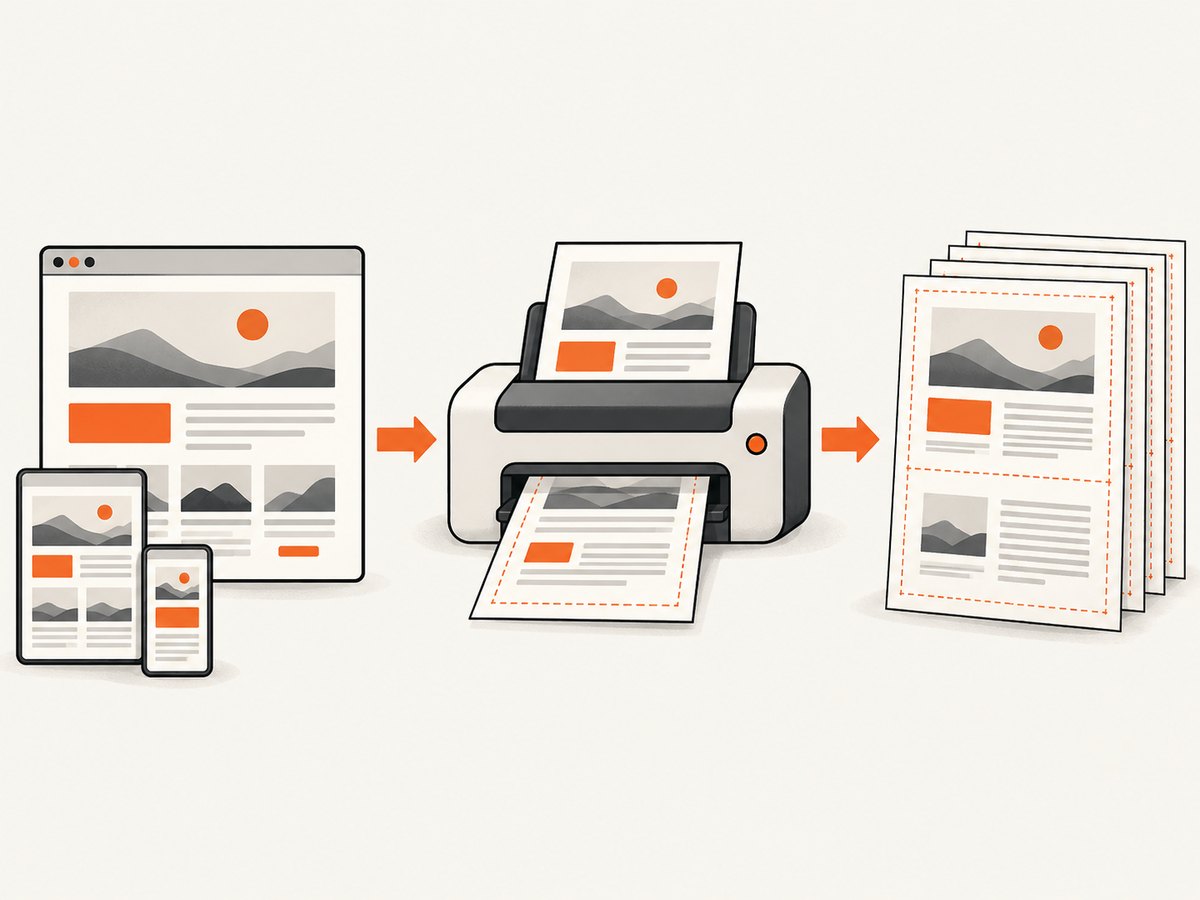
Choose the page dimensions and scale
Start with the paper size the PDF is meant for. A wide dashboard or table may need landscape orientation or a larger sheet. If portrait is mandatory, decide whether to reduce the scale, remove nonessential columns, or print only the relevant section. Shrinking a wide page to fit can technically prevent clipping while making the text too small to read.
Margins trade printable space for breathing room. Narrower margins can help fit content, but may cause edge clipping on some printers or PDF viewers. Use the preview to ensure headers, footers, and page numbers do not overlap the body. Adobe documents page size, orientation, margins, and scaling controls in its web-page conversion instructions.
Preserve backgrounds and images
Print dialogs often omit background colors and images by default to save ink. Enable Background graphics or a similarly named option when shaded sections or background artwork carry meaning. Check that foreground text still has enough contrast after printing. If an image is absent, confirm it finished loading and is accessible to the browser before printing.
For a local HTML file, keep its referenced assets in the expected paths. For a website, use the full page URL and make sure it is not behind a login, browser challenge, or other access restriction. A normal print operation uses the page as the browser can access it; it does not guarantee access to protected content.
2. Tune HTML and CSS for print
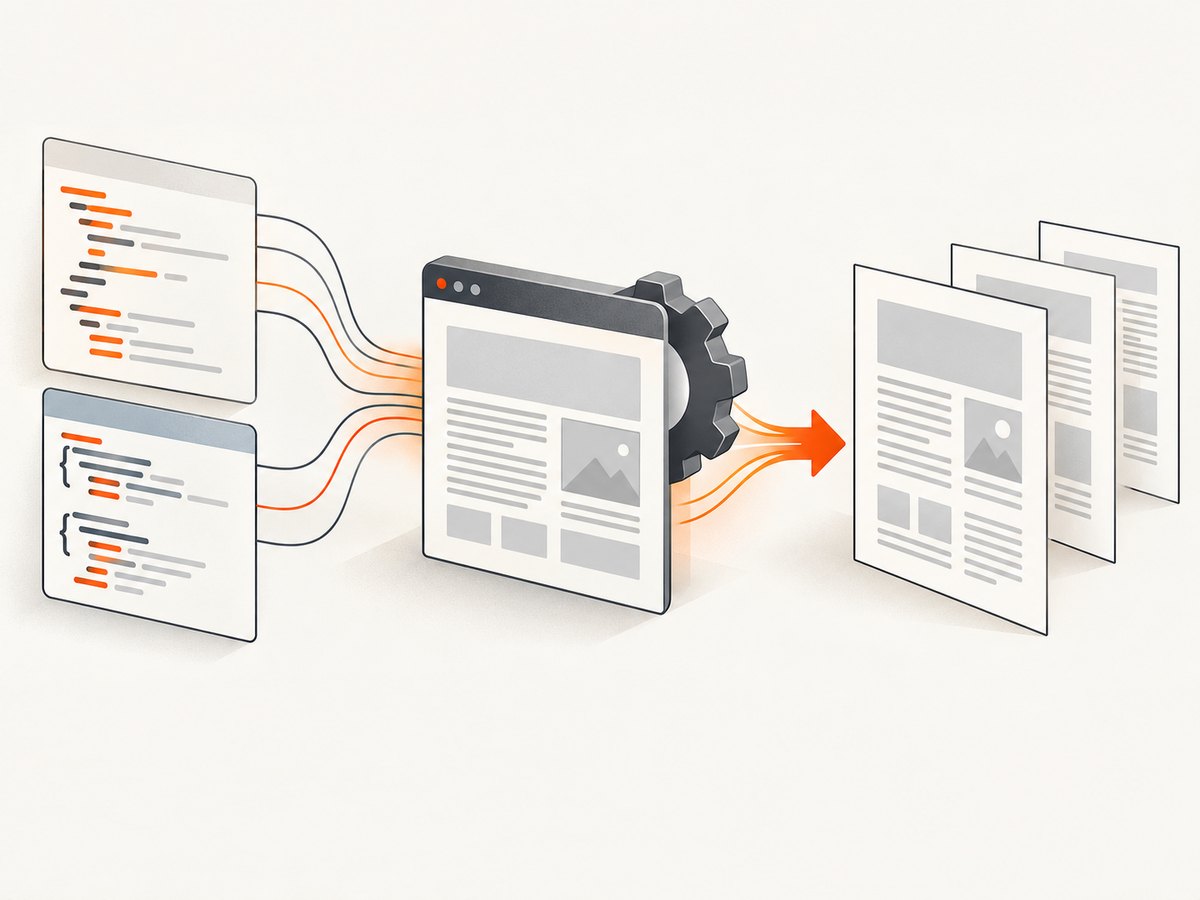
If you control the HTML, a print stylesheet is the most direct way to adapt screen content to fixed pages. Use @media print to hide navigation and other screen-only controls, and @page to declare page dimensions and margins. Add page-break rules around sections that should stay together. Print CSS also works when a person chooses Print in the browser.
<!doctype html>
<html lang="en">
<head>
  <meta charset="utf-8">
  <title>Quarterly report</title>
  <style>
    @page {
      size: A4 portrait;
      margin: 18mm 16mm;
    }

    @media print {
      nav, .screen-only, button { display: none !important; }
      body { color: #111; background: #fff; font: 11pt/1.45 sans-serif; }
      h1, h2 { break-after: avoid-page; }
      figure, table, .keep-together { break-inside: avoid-page; }
      a { color: inherit; text-decoration: none; }
    }
  </style>
</head>
<body>
  <nav>Site navigation</nav>
  <main>
    <h1>Quarterly report</h1>
    <p>This content is formatted for both the browser and printed pages.</p>
  </main>
</body>
</html>
The page size shown is an example. Choose a size appropriate to your readers and region. Rules such as break-inside: avoid-page are requests to the rendering engine; a table taller than one page cannot stay together without overflowing, so test long content and allow it to split where necessary. Avoid fixing every element to screen-sized pixel dimensions: those dimensions can be unsuitable for paper.
Keep layout, content, and accessibility in mind
- Use semantic headings and tables so the document has a meaningful structure.
- Keep long links from stretching beyond the page; consider showing a short label and a separate URL where readers need the destination.
- Use page-break controls sparingly. Forcing every section onto a new page can create large blank areas.
- For long tables, repeat header rows where supported and verify that rows do not split in confusing places.
- Inspect reading order and document structure if the PDF must be accessible. A tagged or structured PDF option is useful, but conversion alone does not establish that the result is accessible.
3. Automate conversion with Puppeteer
For repeatable generation from HTML you control, Puppeteer drives a browser and exposes a PDF method. Install it in a Node.js project, save the following as convert.mjs, and run it with Node. It loads a local HTML file, waits for the page load event, applies print CSS, includes backgrounds, and writes a PDF.
npm install puppeteer// convert.mjs
import puppeteer from 'puppeteer';
import { pathToFileURL } from 'node:url';
import { resolve } from 'node:path';
const inputPath = resolve(process.argv[2] ?? 'report.html');
const outputPath = resolve(process.argv[3] ?? 'report.pdf');
const browser = await puppeteer.launch({ headless: true });
try {
const page = await browser.newPage();
await page.goto(pathToFileURL(inputPath).href, { waitUntil: 'networkidle0' });
await page.pdf({
path: outputPath,
format: 'A4',
printBackground: true,
preferCSSPageSize: true,
margin: { top: '18mm', right: '16mm', bottom: '18mm', left: '16mm' }
});
console.log(`Saved ${outputPath}`);
} finally {
await browser.close();
}node convert.mjs ./report.html ./report.pdfPuppeteer’s Page.pdf() generates a PDF with the print CSS media type by default. If your design depends on screen styles, emulate screen media before generating the PDF, while recognizing that screen CSS may not be suitable for fixed paper pages. The Page.pdf API documents the behavior.
Important Puppeteer PDF options
| Option | What it controls | When to use it |
|---|---|---|
format |
Named paper format, such as A4 or Letter. | Use for a known paper target. Avoid conflicting dimensions unless you intend to override them. |
width, height |
Explicit paper dimensions. | Use when a named format does not fit. Provide supported CSS units such as mm, cm, in, or px. |
landscape |
Orientation. | Set true for content that reads better on a wider page. |
margin |
Top, right, bottom, and left page margins. | Keep headers and body content inside the printable area. |
scale |
Scales rendered content. | Use carefully: reducing it can fit content but also shrink text. |
printBackground |
Whether to print CSS backgrounds; defaults to false. | Enable when color fills or background images matter. |
preferCSSPageSize |
Whether CSS @page dimensions take priority over API paper dimensions. |
Enable when the stylesheet owns the paper size. Otherwise set dimensions through the API. |
pageRanges |
Which pages to include. | Use for a selected range when the generated document is longer than needed. |
displayHeaderFooter |
Browser-generated header and footer. | Enable only when you want the browser templates; supply templates as required by the API. |
tagged |
Requests tagged PDF output. | The documented option is experimental. Validate structure and reading order before relying on it. |
Consult Puppeteer’s current PDFOptions reference for the complete option list and supported values. In print CSS, -webkit-print-color-adjust: exact can request exact colors in supported rendering, but always inspect the result; it is not a guarantee that every viewer or printer will reproduce screen colors exactly.
Generating a PDF from a URL
For a public URL, use page.goto('https://example.com', ...) instead of converting a local file URL. Wait for a meaningful ready condition: networkidle0 can suit pages whose network becomes quiet, but analytics, polling, or long-lived connections can prevent network idle. In those cases, wait for a page-specific selector or a bounded delay, then verify that critical images and fonts are ready. Do not use an unbounded wait in a production job.
Web pages may render differently when printed, load content only after scrolling, or depend on authenticated session state. Set viewport and authentication deliberately if the page requires them, and confirm that the generated PDF contains the intended content. For HTML you do not control, browser print or a converter may be simpler than building and maintaining a rendering service.
4. When to use Acrobat or a conversion API
Adobe Acrobat is a named option when you want controls beyond a browser’s ordinary print dialog, or need to capture linked pages at selected site levels. Adobe documents conversion from a URL or HTML file, limits such as same path or server, and settings for retaining backgrounds and expanding scrollable blocks. Its browser extension offers a toolbar conversion flow; extension details can vary by browser and release. See Adobe’s conversion instructions and conversion settings.
For developers integrating conversion into a service, Adobe documents a PDF Services API for static or dynamic HTML, ZIP packages, and URLs. This requires an application integration; consult the current API documentation for setup and request details rather than copying an obsolete endpoint. Puppeteer is another code-first option when you need direct control of a browser-rendered page.
Acrobat can capture multiple levels or larger site scopes. Begin with a limited path or a small set of pages and review the output. Adobe notes that very large captures can consume substantial memory and disk resources and may slow the system or cause it to crash.
5. Troubleshooting common PDF problems
| Problem | Likely cause | Fix |
|---|---|---|
| Text or columns are too small | A wide responsive page was scaled down to fit portrait paper. | Try landscape, a larger sheet, narrower margins, or a focused content view. Do not accept unreadable scale just to fit one page. |
| Background colors or artwork are missing | Print backgrounds are disabled. | Enable background graphics in the dialog. With Puppeteer, set printBackground: true. |
| Styles or images are absent | Assets did not load, paths are wrong, or the URL is incomplete or inaccessible. | Open the page normally and check the assets first. For local HTML, preserve relative paths. For remote pages, use the complete URL and resolve access restrictions. |
| A scrollable panel shows only part of its content | The print capture kept the panel’s screen-height scrolling box. | Use a print stylesheet to expand or restyle the panel. Acrobat has an “Expand Scrollable Blocks” setting for this case. |
| Content overlaps or breaks awkwardly | Screen layout rules, fixed heights, or page-break rules do not suit paper. | Add print-specific CSS, remove fixed heights where appropriate, and adjust break rules. Recheck long tables and sections that span pages. |
| Puppeteer hangs waiting for network idle | The page keeps connections open or continuously polls. | Wait for a selector that marks the content ready, or use a bounded timeout and check required assets explicitly. |
| The PDF has blank pages | Forced page breaks, oversized fixed elements, or paper-size conflicts pushed content onto extra pages. | Check @page, API dimensions, margins, and break rules. Remove redundant forced breaks and regenerate. |
| Authenticated content is missing | The conversion browser is not signed in or lacks the right session. | Use a workflow that can access the page with authorized credentials, and protect those credentials. Do not assume a public URL converter can capture private content. |
6. Quality, reliability, and cost considerations
For a one-off document, browser print has no separate converter integration to build; the main work is checking the preview and correcting the source layout. Automated conversion adds browser setup, dependency updates, resource loading, and failure handling. In return, it can make output repeatable and can fit a server workflow.
For reliability, set timeouts, record conversion failures, and distinguish navigation completion from the point at which important content is ready. Retry transient network failures selectively rather than retrying malformed HTML forever. Close browser instances in a finally block, limit concurrent jobs to the capacity you have, and test representative pages after changes to CSS or browser versions. These are operational practices, not guarantees of identical rendering across all pages.
For cost, compare the time and infrastructure required for automation with the frequency and volume of conversion. The sources cited here do not establish current prices for Acrobat or Adobe PDF Services, so check the vendor’s current terms directly before choosing. Large crawls may require meaningful local resources; converting a single page is a different workload from traversing an entire site.
7. Or skip the browser setup
For a PDF from a URL, ScreenshotNeo provides a single-request capture endpoint with PDF output. It is a website screenshot API and MCP server from ScreenshotNeo. A screenshot is an image; when you need a PDF, set the output format to PDF according to the API documentation.
curl -G "https://api.screenshotneo.com/v1/shot" \
  -d access_key=YOUR_API_KEY \
  --data-urlencode url=https://stripe.com \
  -o shot.pdf
import requests
r = requests.get(
"https://api.screenshotneo.com/v1/shot",
params={"access_key": "YOUR_API_KEY", "url": "https://stripe.com", "format": "pdf"},
timeout=90,
)
r.raise_for_status()
open("shot.pdf", "wb").write(r.content)const q = new URLSearchParams({
access_key: 'YOUR_API_KEY',
url: 'https://stripe.com',
format: 'pdf'
});
const res = await fetch(`https://api.screenshotneo.com/v1/shot?${q}`);
if (!res.ok) throw new Error(`ScreenshotNeo request failed: ${res.status}`);
await Bun.write('shot.pdf', await res.arrayBuffer());ScreenshotNeo accepts cookie or consent banners like a visitor and removes more than 60 known consent platforms, newsletter popups, and chat widgets before capture; each step can be turned off. Bot checks and CAPTCHAs, blank pages, timeouts, failed loads, and cache hits cost nothing, and response headers identify the page verdict and billing status. Its MCP server gives AI agents tools for screenshots, page information, and PDF capture. The free plan includes 1,000 shots a month with no card; paid plans start at $5 for 3,000 shots. Every feature is available on every plan. For print-oriented PDF controls such as page size and margins, review the API documentation and verify the returned PDF against your requirements.
Sign up for 1,000 free screenshots a month, with no card required.
8. Frequently asked questions
How do I change an HTML file to a PDF?
Open the file in a desktop browser, use Print, choose Save as PDF, and review the preview before saving. Keep the file’s linked CSS, fonts, and images available.
How can I preserve HTML formatting in the PDF?
Check print preview, choose suitable paper dimensions and orientation, enable backgrounds when needed, and use print-specific CSS for HTML you control. Review every page because screen layouts can reflow in print.
Can I convert a whole website into one PDF?
Browser print usually captures the current page. Acrobat provides site and linked-page capture controls. For a custom workflow, write a crawler or conversion integration with a clearly limited scope and check resource use.
Will the PDF look exactly like the webpage?
Not necessarily. A responsive page adapts to available screen width; a PDF has fixed page dimensions and print styles can alter layout and colors. Tune for the intended paper size and inspect the result.
Can I make a searchable or accessible PDF?
Text-based HTML conversion commonly preserves selectable text, but structure, reading order, tags, and assistive-technology behavior need their own validation. Do not infer accessibility from the file format alone.


