How to Convert HTML to PDF with pdf-creator-node
Convert HTML or Handlebars templates to PDFs in Node.js with pdf-creator-node, including options, print CSS, assets, errors, and deployment guidance.

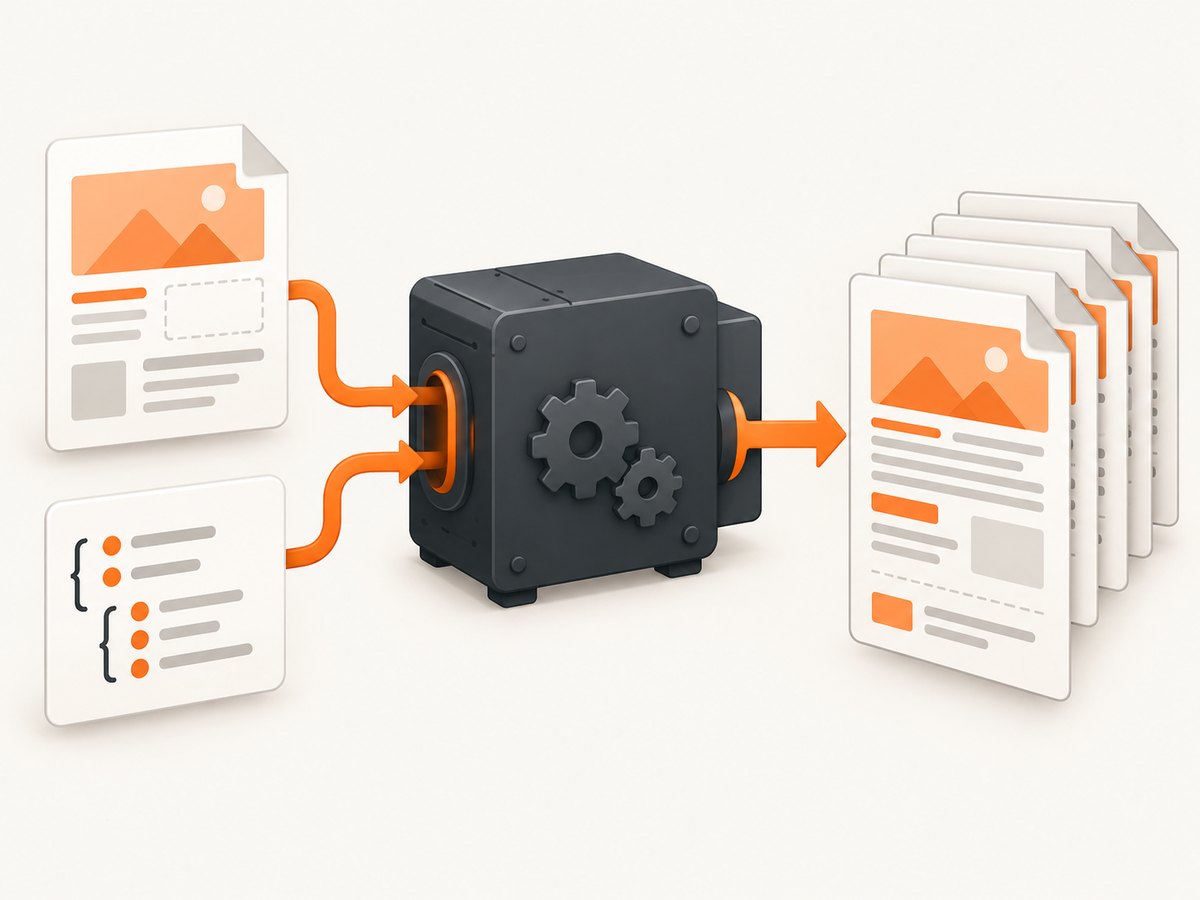
Use pdf-creator-node when your PDF should follow HTML and CSS. It accepts an HTML string, optional template data, and output options, then uses Puppeteer and headless Chromium to print the rendered page. The smallest working example is:
const pdf = require("pdf-creator-node");
const fs = require("node:fs");

const html = fs.readFileSync("template.html", "utf8");
const document = {
  html,
  data: { title: "Monthly report" },
  path: "./output.pdf",
};
const options = {
  format: "A4",
  orientation: "portrait",
  border: "10mm",
};

pdf.create(document, options)
  .then((result) => console.log(result))
  .catch((error) => console.error(error));
Install Node.js 18 or newer and the package first. Puppeteer downloads a compatible Chromium build during installation by default, so installation and runtime are larger than those of a drawing-only PDF library. Check the package documentation for the API that matches your installed version: npm package and pdf-creator-node documentation.
1. Install and create a minimal project
mkdir html-pdf-example
cd html-pdf-example
npm init -y
npm install pdf-creator-node
Create template.html:
<!doctype html>
<html>
  <head>
    <meta charset="utf-8">
    <title>{{title}}</title>
    <style>
      body { font-family: Arial, sans-serif; margin: 0; color: #222; }
      h1 { color: #164e63; }
      .page-break { break-after: page; }
    </style>
  </head>
  <body>
    <h1>{{title}}</h1>
    <p>Generated from an HTML template.</p>
  </body>
</html>
Save the JavaScript example as generate.js and run:
node generate.jsThe document object normally contains:
| Property | Purpose |
|---|---|
html |
HTML string or template content to render. |
data |
Values supplied to the Handlebars template. Provide an object even when there are no variables. |
path |
Destination for file output. |
type |
Documented output mode for buffer or stream output instead of a file. |
2. Render data with a Handlebars template
pdf-creator-node is designed for HTML and Handlebars workflows. Put placeholders in the template and pass matching values in data:
<h1>{{customer.name}}</h1>
<p>Invoice: {{invoiceNumber}}</p>
<ul>
  {{#each items}}
    <li>{{name}} — {{price}}</li>
  {{/each}}
</ul>
const document = {
html: fs.readFileSync("invoice.html", "utf8"),
data: {
customer: { name: "Ada Lovelace" },
invoiceNumber: "INV-1007",
items: [
{ name: "Consulting", price: "$500" },
{ name: "Support", price: "$120" },
],
},
path: "./invoice.pdf",
};
pdf.create(document, { format: "A4", border: "12mm" })
.then(({ filename }) => console.log(`Wrote ${filename}`))
.catch(console.error);Keep template compilation errors separate from browser errors. First confirm that the HTML and data values are present, then inspect rendering and asset loading.
3. Choose output type
Use a file path when you want pdf-creator-node to write a PDF directly. The package also documents buffer and stream modes through its type option. Select the mode that matches your HTTP response or storage layer, and follow the option names in the version installed in your project.
// File output
const fileDocument = { html, data: {}, path: "./report.pdf" };

// For buffer or stream output, use the package's documented `type` value
// and omit `path` when that output mode does not require a filename.
pdf.create(fileDocument, options).then((result) => {
  // Inspect the result shape for your installed pdf-creator-node version.
  console.log(result);
});
4. Set paper, orientation, margins, and page layout
Common controls include paper format, custom dimensions, portrait or landscape orientation, borders or margins, and headers and footers. pdf-creator-node maps its wrapper options to Puppeteer and Chromium. In version 4, the documentation also describes pdfChrome for Chromium layout and repeating header/footer behavior; direct wrapper options take precedence when both specify the same setting. Verify names against your installed version because older PhantomJS-style options should not be assumed to work.
const options = {
  format: "A4",
  orientation: "landscape",
  border: {
    top: "12mm",
    right: "10mm",
    bottom: "15mm",
    left: "10mm",
  },
  header: {
    height: "18mm",
    contents: "<div style=\"font-size:9px;text-align:center\">Monthly report</div>",
  },
  footer: {
    height: "15mm",
    contents: "<div style=\"font-size:9px;text-align:center\">Confidential</div>",
  },
};
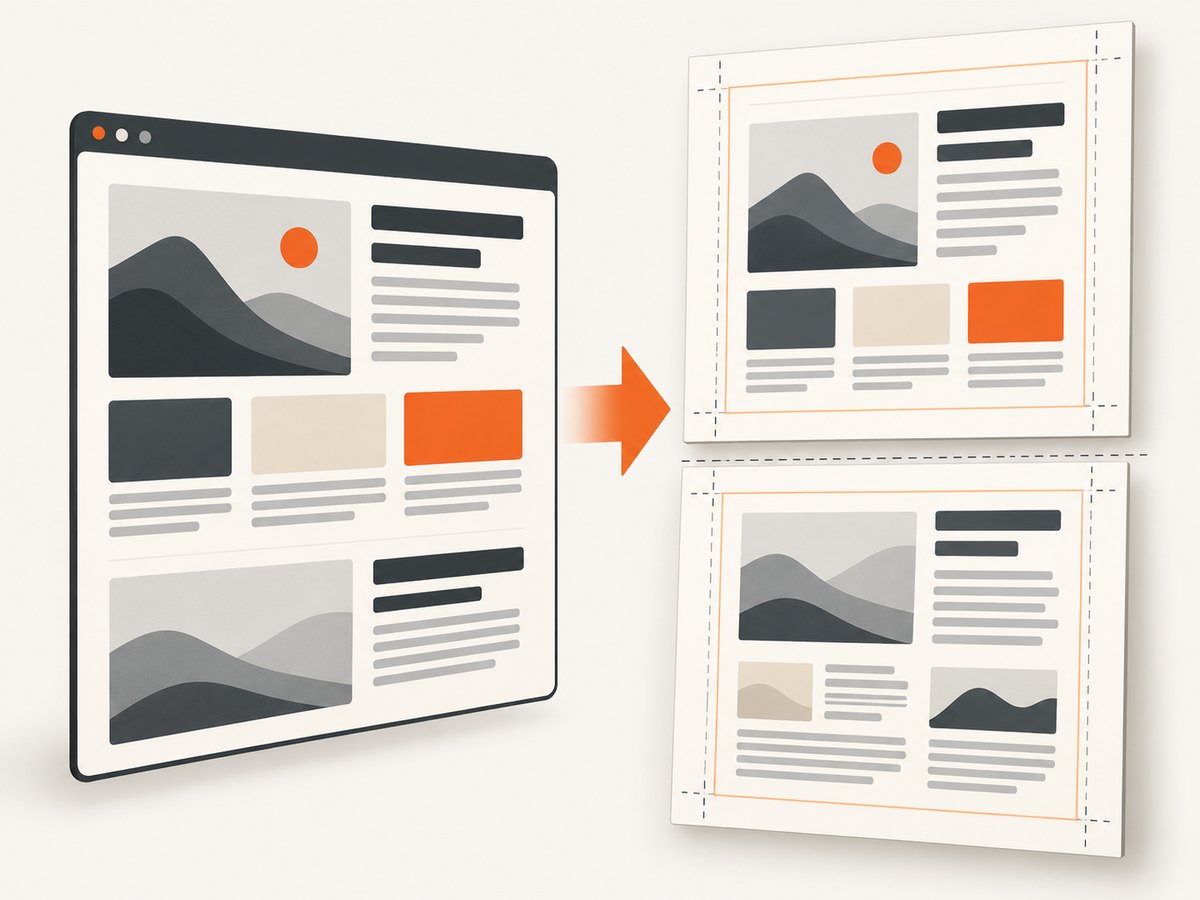
For exact Chromium-level controls such as paper width and height, print backgrounds, page ranges, scale, and header/footer templates, consult the Puppeteer PDFOptions reference. Puppeteer’s Page.pdf() API generates a PDF using the print CSS media type, so your print stylesheet determines much of the final result.
5. Make CSS behave in print
Screen and PDF output can differ because Chromium switches to print media. Add a print stylesheet and inspect the actual PDF:
@media print {
  .screen-only { display: none !important; }
  body { print-color-adjust: exact; -webkit-print-color-adjust: exact; }
  .avoid-split { break-inside: avoid; }
  .new-page { break-before: page; }
}

@page {
  size: A4;
  margin: 12mm;
}
Check page breaks, clipped content, repeated table headers, margins, background colors, and font loading. Puppeteer waits for fonts by default, but a missing or inaccessible font can still change line wrapping and page count.
6. Load images, fonts, and local assets
Relative assets must resolve from the document’s base location. Configure the package’s documented base-directory setting when your template references local files, and use paths that exist inside the deployment environment. For remote assets, make sure Chromium can reach the host during generation.
Headers and footers are rendered separately from the main document. They do not automatically inherit the document’s styles, so repeat required CSS or font references in the header/footer markup. If an image or font is missing, inspect its URL from the deployed process rather than only from your development machine.
7. A complete HTTP endpoint
const express = require("express");
const pdf = require("pdf-creator-node");
const fs = require("node:fs/promises");

const app = express();
app.use(express.json());

app.post("/invoices/:id.pdf", async (req, res) => {
  try {
    const html = await fs.readFile("invoice.html", "utf8");
    const document = {
      html,
      data: {
        invoiceNumber: req.params.id,
        customer: req.body.customer,
        items: req.body.items,
      },
      path: `./tmp-${req.params.id}.pdf`,
    };
    const result = await pdf.create(document, {
      format: "A4",
      orientation: "portrait",
      border: "10mm",
    });
    res.download(result.filename, `invoice-${req.params.id}.pdf`);
  } catch (error) {
    console.error(error);
    res.status(500).json({ error: "PDF generation failed" });
  }
});

app.listen(3000, () => console.log("Listening on http://localhost:3000"));
Use a unique temporary path per request, remove temporary files after delivery, and validate input before handing it to the template.
8. Troubleshooting
| Symptom | Likely cause | Fix |
|---|---|---|
| “HTML is required” or an empty PDF | The html value is missing or empty. |
Read the template successfully and check its length before calling pdf.create(). |
| Template compilation error | Invalid Handlebars syntax or missing data. | Validate delimiters, pass a data object, and render a minimal template first. |
| File-output validation error | path is missing or its directory is not writable. |
Use an absolute or known writable directory and create it before generation. |
Cannot find module or Chromium launch failure |
Dependencies were not installed, or the browser download was skipped. | Run npm install, confirm the Puppeteer browser exists, and check container launch requirements. |
| Styles or images missing | Relative URLs resolve from the wrong base directory, or remote resources are unreachable. | Set the documented base directory, use valid paths, and test resource access from the server. |
| Header/footer has different styling | It is rendered in a separate context. | Repeat the required styles and font references in the header/footer HTML. |
| Unexpected page count | Print CSS, margins, fonts, or media queries changed layout. | Inspect @media print, @page, explicit breaks, and loaded fonts. |
| Process becomes slow or runs out of memory | Chromium uses more resources than a pure PDF drawing library, especially with concurrent jobs. | Limit concurrency, reuse a controlled worker strategy, reduce asset size, and measure your own workload before setting capacity. |
9. Production and performance considerations
- Installation size: Puppeteer’s compatible Chromium download makes deployments larger.
- Containers and serverless: confirm that the runtime supports Chromium’s required libraries and sandbox configuration. Treat package guidance as workload-specific; do not assume a universal memory or speed figure.
- Concurrency: bound simultaneous PDF jobs. Start with a small queue, observe CPU, memory, and generation time, then tune worker count.
- Reliability: use deterministic templates, local or authenticated assets that the renderer can reach, request timeouts at your HTTP layer, and structured error logging.
- Security: never insert untrusted HTML or URLs into a privileged rendering process without sanitizing and restricting access to internal network resources.
- Alternatives: if you need direct drawing rather than HTML and CSS, the package page names PDFKit and pdf-lib. The sources here do not provide a full comparison.
10. Or skip the browser setup
If your goal is a rendered page capture or PDF rather than maintaining Chromium yourself, ScreenshotNeo provides a website screenshot API. Its capture pipeline accepts cookie and consent banners before removing more than 60 known consent platforms, newsletter popups, and chat widgets; each step can be disabled. Bot checks, CAPTCHAs, blank pages, timeouts, failed loads, and cache hits are not billed, and responses identify the result with X-Page-Verdict and X-Billed headers. It can return PNG, JPEG, WebP, or PDF.
See the ScreenshotNeo API documentation for request options. A one-call request looks like this:
curl -G "https://api.screenshotneo.com/v1/shot" -d access_key=YOUR_API_KEY --data-urlencode url=https://stripe.com -o shot.webpimport requests
r = requests.get(
"https://api.screenshotneo.com/v1/shot",
params={"access_key": "YOUR_API_KEY", "url": "https://stripe.com"},
timeout=90,
)
open("shot.webp", "wb").write(r.content)const q = new URLSearchParams({ access_key: 'YOUR_API_KEY', url: 'https://stripe.com' });
const res = await fetch(`https://api.screenshotneo.com/v1/shot?${q}`);ScreenshotNeo also includes an MCP server with take_screenshot, get_page_info, and capture_pdf tools for Claude, Cursor, and other MCP clients. One thousand screenshots per month are free with no card; paid plans start at $5 for 3,000. Create a free ScreenshotNeo account.
FAQ
Does pdf-creator-node convert a URL directly?
The documented flow supplies HTML and template data. Fetch a URL yourself, or render the page through Puppeteer or another service before passing HTML to the package.
Why does my screen layout differ from the PDF?
Chromium prints with the print media type. Review print media queries, page margins, background printing, fonts, and explicit page-break rules.
Can I return the PDF from an API without saving it?
Yes. The package documents buffer and stream output modes; use the documented type value for your installed version instead of file output.
Which Node.js version should I use?
The package listing required Node.js 18 or newer at research time. Recheck the current package requirements before upgrading or deploying.


