How to Convert HTML to PDF Locally with Playwright
Generate PDFs from local HTML with Playwright. Set paper size, print styles, backgrounds, headers, and waits for dynamic content.

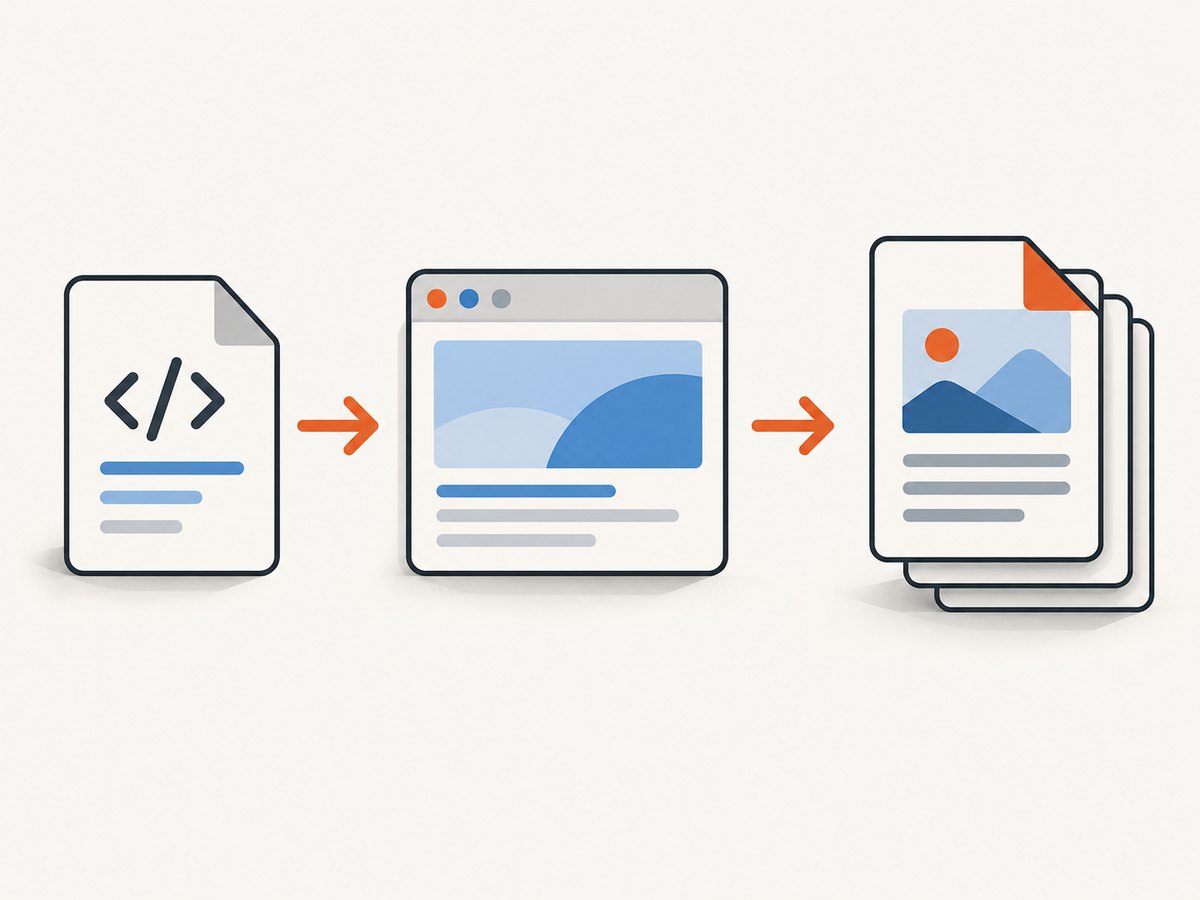
Use Playwright’s Chromium browser and page.pdf() to convert local HTML to PDF. Open the file with page.goto(), wait for the content and assets your document needs, then print it. Playwright prints using CSS print media by default; set printBackground: true to include background graphics, and use format: 'A4' or CSS @page rules to control paper size.
This guide covers a complete Node.js workflow, local-file and local-server input, print styling, page sizing, margins, headers and footers, dynamic content, buffers, troubleshooting, and practical performance and reliability considerations. PDF generation with page.pdf() is documented for Chromium. See the Playwright Page API and browser installation guide.
1. Install Playwright and Chromium
Start with a Node.js project and install Playwright. Then install the Chromium browser binary that Playwright uses. Browser binaries are separate from the package, so a working package installation alone may not be enough on a new machine or CI runner.
mkdir html-to-pdf
cd html-to-pdf
npm init -y
npm install playwright
npx playwright install chromium
Playwright documents browser installation options, including a Chromium headless shell intended for CI use. Use the installation command that matches your deployment environment and follow the official browser setup instructions. Avoid setting executablePath to an arbitrary system browser unless you have a specific compatibility reason: Playwright cautions that using a custom executable path requires care.
2. Convert a local HTML file
Save the following as convert.js. Replace the example file path with an absolute path to your HTML. This complete script launches Chromium, opens the document, writes an A4 PDF, and closes the browser even if navigation or PDF generation fails.
const path = require('node:path');
const { pathToFileURL } = require('node:url');
const { chromium } = require('playwright');

(async () => {
  const inputPath = path.resolve('document.html');
  const inputUrl = pathToFileURL(inputPath).href;
  const browser = await chromium.launch();

  try {
    const page = await browser.newPage();
    await page.goto(inputUrl, { waitUntil: 'load' });

    await page.pdf({
      path: 'output.pdf',
      format: 'A4',
      printBackground: true,
      preferCSSPageSize: true,
      margin: {
        top: '18mm',
        right: '16mm',
        bottom: '18mm',
        left: '16mm'
      }
    });
  } finally {
    await browser.close();
  }
})();
Run it with node convert.js. When path is supplied, Playwright saves the PDF at that path. The method also returns a PDF buffer; omit path if you want to handle the bytes in your application instead.
Use a local HTTP server when the document needs one
A file:// URL works well for self-contained static HTML. Use a local HTTP URL if the page relies on relative asset paths, JavaScript modules, application routes, or server-side rendering. Start your app or static server, then navigate to its local URL:
await page.goto('http://127.0.0.1:3000/report', {
  waitUntil: 'load'
});
await page.pdf({ path: 'output.pdf', format: 'A4' });
Make sure the server is reachable from the process running Chromium. If the page depends on authentication or application state, establish that state before printing, for example by setting the required cookies or navigating through the app’s normal flow.
3. Choose print or screen styles
page.pdf() uses print CSS media by default. That means print-specific rules such as @media print apply, and screen-only styling may not. This is usually appropriate for documents, but it can surprise you when the PDF is expected to look like the visible browser page.
To render the screen stylesheet instead, emulate screen media before calling pdf():
await page.emulateMedia({ media: 'screen' });
await page.pdf({ path: 'screen-styled.pdf', printBackground: true });
Use print media for document-oriented output, such as removing navigation and controlling page breaks. Use screen media when fidelity to the on-screen layout is the goal. The page API describes the print-media behavior and the available PDF options: page.pdf().
Include backgrounds and preserve colors
Background graphics are disabled by default. Enable them explicitly when your page uses colored sections, background images, or other background styling:
await page.pdf({
  path: 'output.pdf',
  printBackground: true
});
Chromium may adjust colors for printing. If color fidelity matters, add -webkit-print-color-adjust: exact to the relevant CSS:
@media print {
  html {
    -webkit-print-color-adjust: exact;
  }
}
This asks Chromium to preserve the specified print colors. Check the resulting document in your target PDF viewer and on the printer or workflow that matters; output appearance can depend on CSS, browser rendering, and downstream print settings.
4. Set paper size, margins, scale, and page ranges
For a standard paper size, use format, for example 'A4' or 'Letter'. You can also set explicit width and height with units such as pixels, inches, centimeters, or millimeters. The format option takes priority over width and height when both are provided.

| Need | Option | Example |
|---|---|---|
| Standard paper | format |
format: 'Letter' |
| Custom dimensions | width and height |
width: '210mm', height: '297mm' |
| Use CSS paper declaration | preferCSSPageSize |
preferCSSPageSize: true |
| Printable whitespace | margin |
margin: { top: '20mm' } |
| Selected pages | pageRanges |
pageRanges: '1-3, 5' |
| Content scaling | scale |
scale: 0.9 |
When the document’s CSS should determine the paper size, define an @page rule and set preferCSSPageSize: true:
@page {
  size: A4;
  margin: 18mm 16mm;
}

@media print {
  .screen-only { display: none; }
  h1, h2 { break-after: avoid; }
  .new-page { break-before: page; }
}
await page.pdf({
path: 'output.pdf',
preferCSSPageSize: true,
printBackground: true
});CSS page size preference gives the CSS declaration priority for the page dimensions. If you specify format, it takes priority over explicit width and height. Be deliberate about mixing CSS page rules and PDF options: choose one source of truth for dimensions so layout changes remain predictable.
scale defaults to 1 and accepts values from 0.1 through 2. Scaling can help fit content but also shrinks text and graphics. Prefer correcting page width, margins, or print CSS before using a large scale adjustment. Use pageRanges when you only need a subset of a long document; refer to the API documentation for the option syntax and supported details.
5. Add headers and footers
Set displayHeaderFooter: true and supply a header and/or footer template. Playwright can inject the date, document title, URL, current page number, and total page count using documented classes:
await page.pdf({
  path: 'output.pdf',
  format: 'A4',
  displayHeaderFooter: true,
  headerTemplate: '<div style="font-size:9px;width:100%;text-align:center"><span class="title"></span></div>',
  footerTemplate: '<div style="font-size:9px;width:100%;text-align:center">Page <span class="pageNumber"></span> of <span class="totalPages"></span></div>',
  margin: { top: '20mm', bottom: '20mm' }
});
Header and footer templates have important limits: scripts in them are not evaluated, and the page’s styles are not visible inside the templates. Put any needed template styling directly in the template markup. Reserve enough top and bottom margin so the header and footer do not overlap document content. The available injected fields and constraints are documented in the PDF API reference.
6. Wait for dynamic content and assets
A page reaching the load event does not guarantee that every application-specific asynchronous update, web font, or external image is ready for printing. Add a wait that reflects how your page actually becomes complete. For example, wait for a report container populated by your app, then wait for fonts before printing:
await page.goto('http://127.0.0.1:3000/report', {
  waitUntil: 'load'
});

await page.locator('[data-report-ready="true"]').waitFor({
  state: 'visible',
  timeout: 15000
});

await page.evaluate(async () => {
  if (document.fonts) await document.fonts.ready;
});

await page.pdf({
  path: 'report.pdf',
  format: 'A4',
  printBackground: true
});
Use a readiness signal owned by the page when possible, such as a selector that appears only after the report data has rendered. A fixed delay is a fallback for known timing behavior, but it can waste time on fast runs and still be too short on slow ones. Network idleness can be useful for some pages, but applications with long polling or persistent requests may never become idle. Playwright does not define one universal wait that guarantees all page-specific assets are ready; choose and validate the condition for your document.
7. Return the PDF buffer instead of writing a file
If another part of your program stores, streams, or uploads the output, call page.pdf() without a path and use its returned buffer:
const pdfBuffer = await page.pdf({
  format: 'A4',
  printBackground: true
});

// Example: write the buffer after applying application-specific handling.
require('node:fs').writeFileSync('output.pdf', pdfBuffer);
For an HTTP service, return the buffer with a PDF content type and a deliberate filename. Avoid holding many large buffers in memory at once; process jobs with bounded concurrency and release pages and browsers when each job finishes.
8. Or skip the browser setup
If you need a hosted screenshot or PDF endpoint instead of maintaining a local Chromium installation, ScreenshotNeo accepts a URL in one GET request and can return a PDF. It also supports website screenshots in PNG, JPEG, or WebP. The API supports PDF paper size, margins, landscape orientation, and page ranges. See the ScreenshotNeo API docs for request options.
curl -G "https://api.screenshotneo.com/v1/shot" -d access_key=YOUR_API_KEY --data-urlencode url=https://stripe.com -o shot.webpimport requests
r = requests.get(
"https://api.screenshotneo.com/v1/shot",
params={"access_key": "YOUR_API_KEY", "url": "https://stripe.com"},
timeout=90,
)
open("shot.webp", "wb").write(r.content)const q = new URLSearchParams({ access_key: 'YOUR_API_KEY', url: 'https://stripe.com' });
const res = await fetch(`https://api.screenshotneo.com/v1/shot?${q}`);Set the request’s output options to PDF when you need a document. ScreenshotNeo removes cookie banners, newsletter popups, and chat widgets before capture; bot checks, blank pages, and failed loads are never billed. Its MCP server lets AI agents take screenshots, and the free plan includes 1,000 screenshots per month with no card; paid plans start at $5 for 3,000. Sign up for 1,000 free screenshots a month, with no card required.
9. Troubleshooting
| Symptom | Likely cause | Fix |
|---|---|---|
| Browser executable missing | The Playwright package is installed but its browser binary is not. | Run npx playwright install chromium in the target environment and follow the official browser setup guide. |
| PDF has no background colors or images | Background printing is disabled by default. | Set printBackground: true; consider -webkit-print-color-adjust: exact for print CSS. |
| PDF styling differs from the browser | page.pdf() uses print media by default, so print rules apply. |
Use print CSS intentionally, or call page.emulateMedia({ media: 'screen' }) before printing. |
| Wrong paper size | format overrides width and height, or CSS page sizing is not preferred. |
Choose the intended sizing source. Set preferCSSPageSize: true to honor CSS @page. |
| Content is clipped or cramped | Margins, fixed-width layout, or scaling do not match the paper dimensions. | Adjust print CSS and margins, check the paper format, and use scale sparingly. |
| Images or fonts are missing | Printing started before application assets were ready, or relative URLs do not resolve from file://. |
Serve the page over local HTTP where appropriate and wait for app readiness, fonts, and required assets. |
| Header/footer is blank or unstyled | Template scripts do not run and page styles are not available in the template. | Put static markup and inline styling in the template, and reserve sufficient margin. |
| Navigation times out | The page did not reach the chosen load state within the timeout, possibly because of slow resources or persistent activity. | Check server reachability and failed requests; choose a suitable navigation condition and wait for a specific app-ready signal. |
10. Performance, reliability, and cost
Keep rendering predictable
- Use one Chromium browser process for a batch of documents where appropriate, with a fresh page per independent document. Close pages after each job and close the browser during shutdown.
- Set explicit timeouts for navigation and application readiness so a stuck page cannot occupy a worker indefinitely.
- Wait for meaningful readiness signals instead of adding large fixed sleeps to every job.
- Limit concurrent PDF jobs according to available memory and the complexity of your pages. Large images, long documents, and many pages can raise memory use.
- Pin and deploy a consistent Playwright package and browser installation together. A browser binary mismatch or missing OS dependencies can make local and CI behavior diverge.
- Capture errors with enough context to identify the input and failed stage, while avoiding logging secrets embedded in URLs, headers, or page content.
Think through failure handling
For production jobs, distinguish navigation failure, application readiness timeout, and PDF writing or delivery failure. Retry only failures that may be transient, and cap retries so a broken input does not loop forever. If output is written to a file, write to a temporary path and move it into place after generation succeeds to avoid consumers reading a partial artifact. If the returned buffer is large, stream or store it promptly instead of accumulating many documents in memory.
Understand the operating cost
Local generation has no per-request screenshot API fee, but it uses compute, memory, storage, and engineering time to install and maintain Chromium and its runtime dependencies. The workload and infrastructure determine the actual cost; the research sources provide no benchmark or universal per-document estimate. Measure representative documents in your deployment environment, including asset-heavy pages and the largest expected PDFs, before choosing worker size and concurrency.
11. FAQ
Can Playwright convert HTML that is not hosted on the internet?
Yes. Navigate Chromium to a local file:// URL for a static file, or serve the app locally over HTTP when it needs relative URLs, modules, or application routes.
Does page.pdf() return data as well as save a file?
Yes. It returns a PDF buffer. Providing path also saves the PDF to that path.
Can I produce a PDF that follows the screen layout?
Yes. Call page.emulateMedia({ media: 'screen' }) before page.pdf(); the default is print media.
Which browser engine should I use for PDF generation?
Use Chromium for this workflow. Playwright documents PDF generation through Chromium’s page API.


