How to Convert HTML to PDF in Power Apps
Learn the three reliable ways to convert HTML to PDF in Power Apps, including native PDF(), Word templates, connectors, troubleshooting, and alternatives.
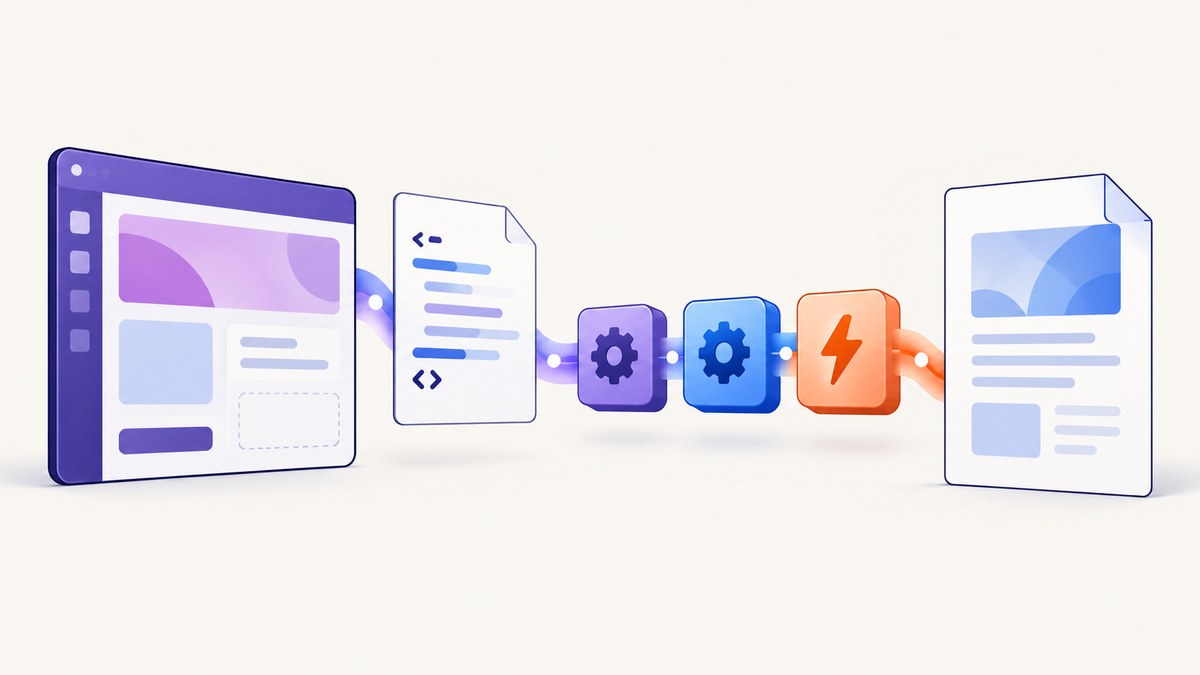
Direct answer: Power Apps can create a PDF from a canvas screen with the experimental PDF() function, but it does not act as a general HTML and CSS renderer. For invoices, reports, and letters, the documented production route is usually a Word template populated by Power Automate and then converted to PDF. If you need arbitrary HTML or a public URL rendered with browser-level CSS support, use a connector or service that explicitly accepts HTML or URL input.
Your choice depends on the source document:
| Source | Best route | Main limitation |
|---|---|---|
| Existing Power Apps screen | Native PDF() |
Experimental and screen/control-oriented |
| Structured business document | Word template + Power Automate | Requires named content controls and Word storage |
| Arbitrary HTML or URL | HTML-to-PDF connector or service | Premium licensing, connector availability, and fidelity vary |
1. Use the native Power Apps PDF() function
Microsoft documents PDF() as generating a PDF from the contents of a screen or certain controls. The feature is experimental and disabled by default. Enable it under Settings > Upcoming features > Experimental. Microsoft’s example uses PDF(SubmitInspectionScreen); in a button’s OnSelect property. See Microsoft’s PDF function documentation.
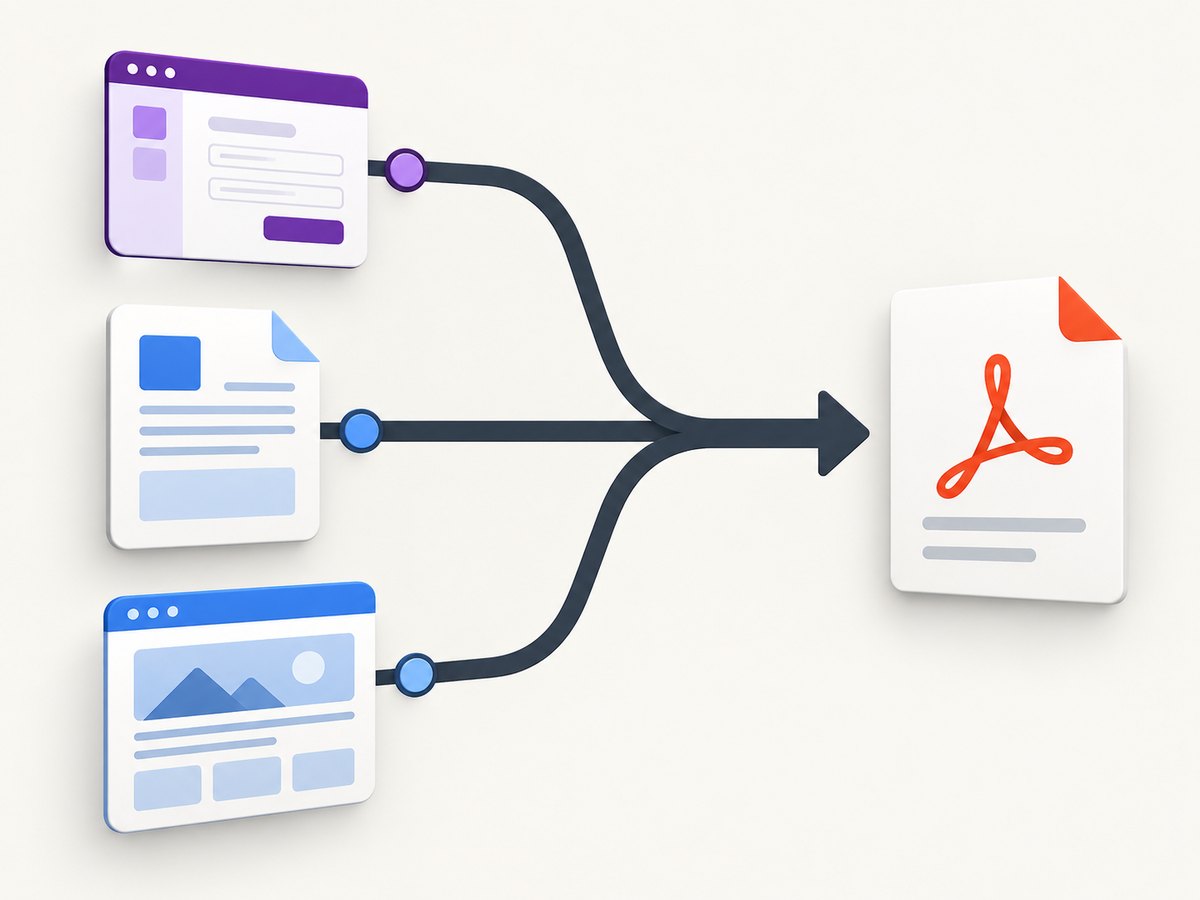
Step-by-step
- Open the app in Power Apps Studio.
- Open Settings, choose Upcoming features, then enable the experimental PDF feature.
- Make sure the screen contains the fields, labels, galleries, images, and controls that should appear in the document.
- Add a button and set its
OnSelectproperty toPDF(SubmitInspectionScreen). - Pass the resulting file to a connector or Power Automate flow for storage, email, or further processing.
// Button.OnSelect
PDF(SubmitInspectionScreen)
PDF() is useful when the screen is already your document layout. It is not documented as a general-purpose HTML string renderer. If you have an HTML string, you normally need to represent that content with app controls first, or send the HTML to a connector designed for HTML-to-PDF conversion.
When the native route fits
- Inspection summaries assembled from controls on one or more screens.
- Simple forms where the app layout is the desired print layout.
- Scenarios where you want to keep data and presentation inside Power Apps.
Important limitations
- The feature is experimental, so validate it after Power Apps updates.
- Screen layout, control sizing, hidden controls, and responsive behavior affect the PDF.
- There is no documented promise of full browser HTML/CSS compatibility.
- You still need a connector or flow to save, email, or archive the binary.
2. Populate a Word template, then convert it to PDF
The Word Online (Business) connector provides Populate a Microsoft Word template and Convert Word Document to PDF. This is the most predictable approach for invoices, letters, certificates, and reports with a controlled layout. Microsoft lists the connector as Premium for Power Apps and Power Automate in supported regions. See the Word Online (Business) connector reference.
Prepare the template
- Create a
.docxfile in OneDrive for Business or a SharePoint document library. - Open it in Word and insert named content controls for every value the flow must fill.
- Use tables for repeating rows, and reserve areas for logos, signatures, totals, and terms.
- Save the template where the connector can access it. The connector reference supports Word files in document libraries handled through Microsoft Graph, including OneDrive for Business, SharePoint Online Sites, and Office 365 Groups.
Build the flow
- Trigger the flow from Power Apps, passing the record ID or the values required by the document.
- Add Populate a Microsoft Word template and select the template.
- Map each content control to Power Apps values or data retrieved from Dataverse, SharePoint, or another source.
- Save the populated document to temporary storage.
- Add Convert Word Document to PDF.
- Save the PDF, return it to Power Apps, email it, or place it in a document library.
// Conceptual Power Fx call to a flow
CreateInvoice.Run(
    ThisItem.ID,
    User().Email
)
The exact formula depends on your flow name and parameters. Keep the template stable and version it when changing content controls. A renamed or deleted control can break the mapping.
Word-template design checklist
- Use explicit page breaks where a section must start on a new page.
- Set paper size, margins, header, and footer in Word before running the flow.
- Keep table widths within the printable area.
- Use a repeating section or a table strategy that the connector supports for line items.
- Test long names, empty values, long descriptions, and zero-row collections.
3. Convert HTML or a URL with a dedicated connector
If your input is already HTML, pass the HTML string or HTML file content to an action that explicitly supports HTML-to-PDF. Connector catalogs list actions with controls such as landscape mode, image quality, headers, footers, paper format, margins, page ranges, and scale. However, the catalogued Power2Apps Convert HTML to PDF operations are marked deprecated. Verify the replacement action and connector version in your tenant before building a production flow.
Other catalogued alternatives include LatinShare, PDF4me, Plumsail, and Muhimbi. Their actions differ in HTML fidelity, authentication, rendering engine, paper settings, headers, footers, viewport, media type, and conversion delay. They may require premium licensing or a separate account. Confirm current terms and regional availability in your environment.
Typical HTML flow
- Collect or generate the HTML in Power Apps or Power Automate.
- Sanitize or validate external values before inserting them into the markup.
- Call an action whose input explicitly says HTML content, HTML file, or URL.
- Set paper size, orientation, margins, scale, headers, footers, and page range.
- Inspect the returned binary and save it with a deterministic filename.
- Return a file link or attachment to Power Apps.
<!doctype html>
<html>
<head>
  <style>
    @page { size: A4; margin: 18mm; }
    body { font-family: Arial, sans-serif; color: #222; }
    .total { text-align: right; font-weight: 700; }
  </style>
</head>
<body>
  <h1>Invoice</h1>
  <p>Customer: Example Ltd</p>
  <p class="total">Total: $125.00</p>
</body>
</html>
Do not assume that CSS supported by a desktop browser is supported by every connector. Test fonts, remote images, flexbox or grid layouts, page breaks, fixed positioning, and JavaScript-dependent content with the selected rendering engine.
4. Choosing between the routes
| Decision | Recommended route |
|---|---|
| The PDF should look exactly like an app screen | Native PDF() |
| The document has a fixed business format | Word template |
| You already have HTML/CSS | Dedicated HTML-to-PDF connector |
| You need a public URL rendered as a page | URL-capable HTML or browser rendering service |
| You need page ranges, margins, headers, and footers | Connector with documented controls |
5. Troubleshooting common failures
The PDF feature is missing
Cause: The experimental feature is disabled or unavailable in the environment. Fix: Enable it under Settings, Upcoming features, Experimental. If governance policies prevent it, use Word or a connector.
The PDF is blank or missing controls
Cause: The target screen is not the screen being displayed, controls are conditionally hidden, or data has not finished loading. Fix: Capture the intended screen, ensure controls are visible, and trigger generation only after the data state is ready.
HTML appears as plain text
Cause: The action is treating the input as text or a Word field rather than HTML. Fix: Select an action explicitly documented for HTML content or a URL.
Images or fonts are missing
Cause: The renderer cannot reach private URLs, requires authentication, or does not support the font. Fix: Use accessible asset URLs, embed required resources where supported, and choose fonts available to the rendering engine.
Word mapping fails
Cause: A content control was renamed, removed, duplicated, or is in an unsupported structure. Fix: Reopen the template in the action, refresh fields, and keep control names stable.
The connector action is unavailable
Cause: Premium licensing, region restrictions, connector deprecation, or environment policy. Fix: Check the connector reference and tenant licensing, then verify the current replacement action before changing your flow.
Pages break in the wrong place
Cause: Content height changes with real data, or the engine handles CSS page-break rules differently. Fix: Add explicit page breaks, reduce oversized blocks, and test with the longest expected values.
6. Performance, reliability, and cost
- Performance: Keep HTML small, compress large images, avoid unnecessary remote assets, and do not render data that will not appear in the document.
- Reliability: Add retries for transient connector failures, log the source record ID and output location, and make filenames deterministic so retries do not create confusion.
- Security: Treat user-provided HTML as untrusted input. Sanitize markup, avoid injecting secrets, and restrict access to generated files.
- Licensing: The native function is experimental. Word Online (Business) and many HTML connectors are Premium or have separate licensing. Check your tenant and region before rollout.
- Deprecation: The catalogued Power2Apps HTML actions are marked deprecated. Confirm the current action name and support status before committing to that design.
7. Or skip the browser setup
If your real requirement is to turn a URL into a clean image or PDF without maintaining a browser renderer, ScreenshotNeo provides a website screenshot API and MCP server. It accepts one GET request and returns PNG, JPEG, WebP, or PDF. Cookie and consent banners are accepted and removed before capture, along with more than 60 known consent platforms, newsletter popups, and chat widgets. Each step can be turned off.
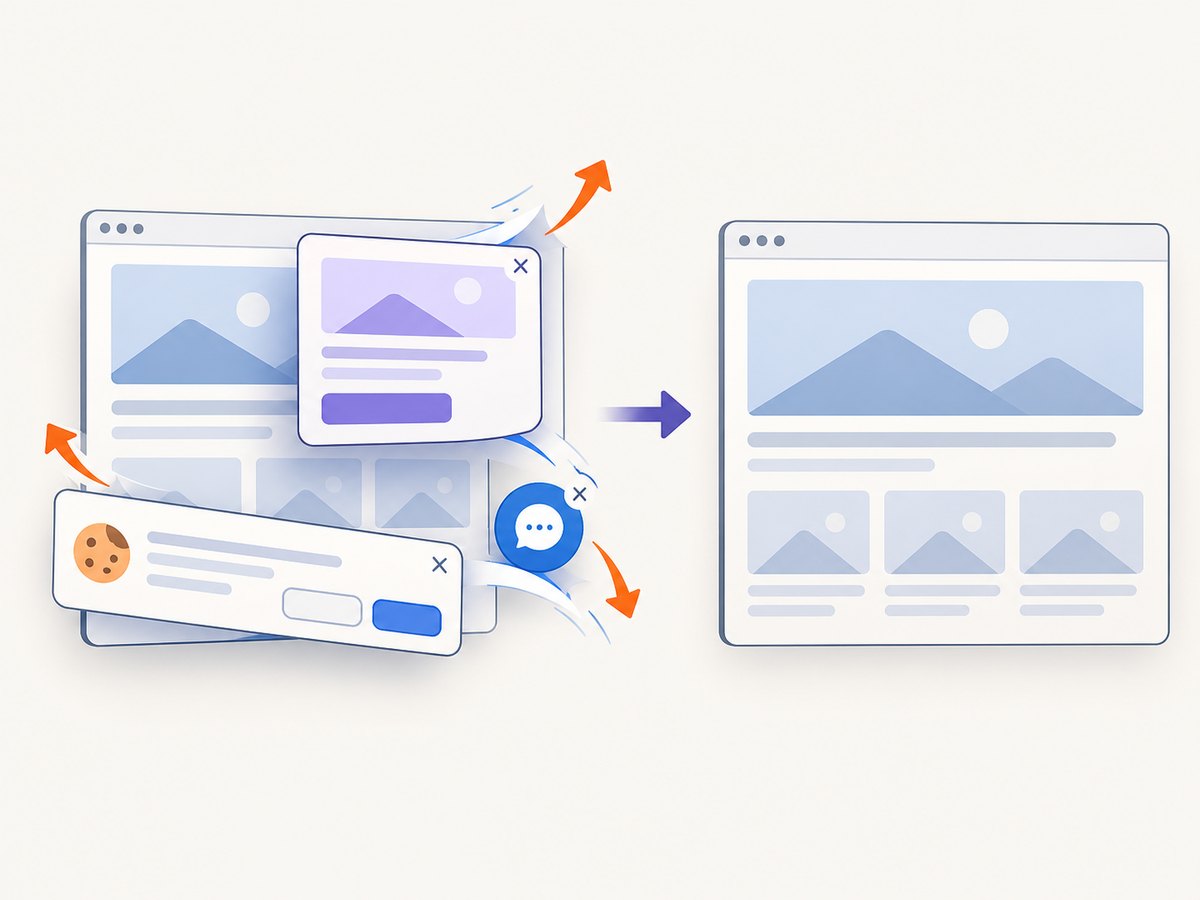
Only clean shots are billed. Bot checks, CAPTCHAs, blank pages, timeouts, failed loads, and cache hits cost nothing, and the response reports the result with X-Page-Verdict and X-Billed headers. Its MCP server exposes take_screenshot, get_page_info, and capture_pdf for Claude, Cursor, and other MCP clients.
See the ScreenshotNeo API documentation for all options. A basic PDF or image capture starts with the same endpoint:
curl -G "https://api.screenshotneo.com/v1/shot" \
  -d access_key=YOUR_API_KEY \
  --data-urlencode url=https://stripe.com \
  -o shot.webp
import requests

r = requests.get(
    "https://api.screenshotneo.com/v1/shot",
    params={"access_key": "YOUR_API_KEY", "url": "https://stripe.com"},
    timeout=90,
)
r.raise_for_status()
open("shot.webp", "wb").write(r.content)
const q = new URLSearchParams({
  access_key: 'YOUR_API_KEY',
  url: 'https://stripe.com'
});
const res = await fetch(`https://api.screenshotneo.com/v1/shot?${q}`);
if (!res.ok) throw new Error(`HTTP ${res.status}`);
const file = await res.arrayBuffer();
ScreenshotNeo supports full-page capture with lazy images loaded, CSS element capture, dark mode, device presets and custom viewports, retina scale, PDF paper and margin settings, custom CSS and JavaScript, clicks, selector or network-idle waits, request blocking, headers, cookies, user agents, authorization, timezone, geolocation, transparent backgrounds, resizing, caching with a chosen TTL, signed links, asynchronous jobs with signed webhooks, bulk capture of up to 100 URLs per call, a usage API, and an OpenAPI specification. Parameter names used by other screenshot APIs also work, which helps when switching.
There is a free tier of 1,000 screenshots per month with no card. Paid plans start at $5 for 3,000 shots; yearly billing gives two months free, and every feature is on every plan. Create a free ScreenshotNeo account and try the endpoint with no card.
8. FAQ
Can Power Apps convert an HTML string directly?
Not with the documented native PDF() function. Render the content into controls, use a Word template, or call a connector that explicitly accepts HTML.
Is PDF() production-ready?
Microsoft documents it as experimental. Validate it in your environment and have a connector-based fallback if the feature is unsuitable for production.
Which route gives the most predictable layout?
A Word template is usually most predictable for fixed business documents. HTML connectors are better when preserving existing markup matters more than template governance.
Can I convert a public webpage?
Use a connector or service that accepts a URL and documents browser rendering. Confirm authentication, JavaScript, images, page ranges, and licensing behavior.
How should I archive generated PDFs?
Store them in SharePoint or another governed document system with a deterministic filename, source record ID, creation timestamp, and retry-safe flow logic.


