How to Convert HTML to PDF While Preserving the Original Layout
Convert fully rendered HTML to PDF without unexpected reflow using Puppeteer or Playwright, with controls for CSS, paper size, fonts, colors, and margins.
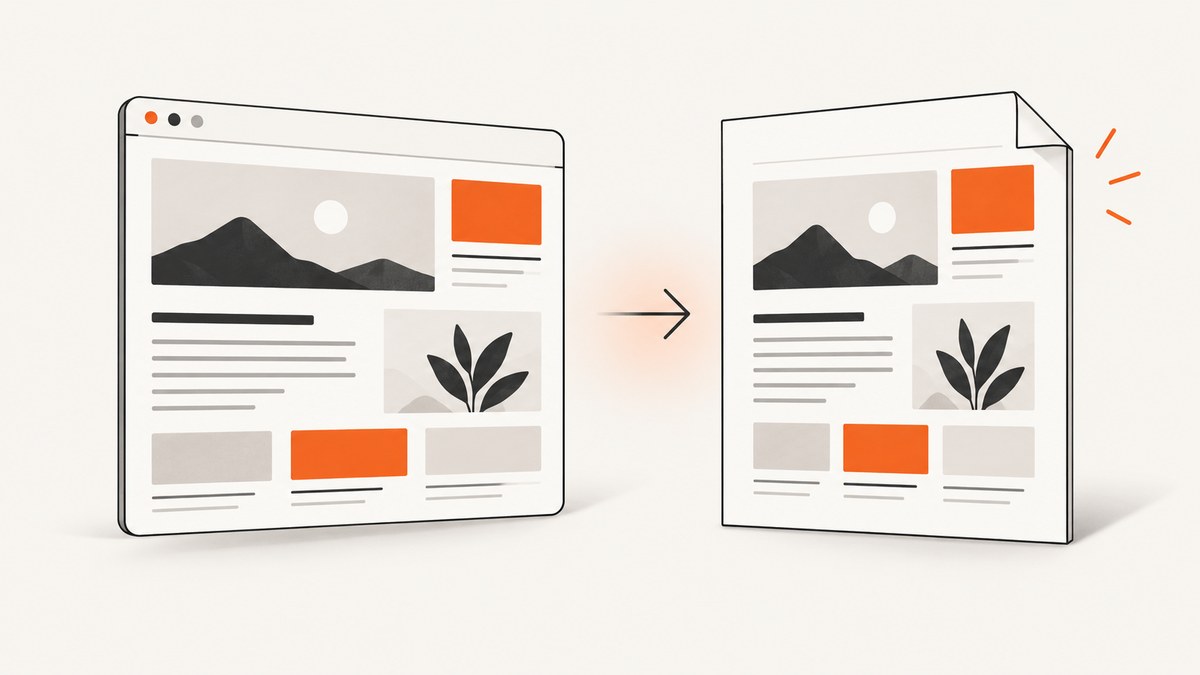
Use a real browser rendering engine, wait for the page to finish rendering, choose the intended CSS media type, and set paper dimensions explicitly. Puppeteer and Playwright both render the page before creating the PDF. Their PDF methods use print CSS by default, so print rules can change the screen layout. If the screen design is the required output, emulate screen media before calling page.pdf(). Exact pixel preservation is not guaranteed for arbitrary pages; validate the generated file.
1. Decide what “preserve the layout” means
- Screen appearance: use screen media and reproduce the viewport design in the PDF.
- Print appearance: keep print media and provide deliberate
@media printrules. - Physical page geometry: match the intended paper size, orientation, margins, and CSS
@pagesize. - Visual assets: enable background graphics and wait for fonts, images, and client-side rendering before capture.
Puppeteer documents that Page.pdf() generates a PDF with print CSS media and that screen media requires page.emulateMediaType('screen') first. Puppeteer Page.pdf() and Playwright page.pdf() document the same print-media behavior.
2. Prepare HTML and CSS for deterministic pagination
<!doctype html>
<html>
<head>
  <meta charset="utf-8">
  <style>
    @page {
      size: A4;
      margin: 18mm 16mm 20mm;
    }

    * { box-sizing: border-box; }
    html, body { margin: 0; padding: 0; }
    body {
      font-family: Inter, Arial, sans-serif;
      color: #172033;
      background: white;
      -webkit-print-color-adjust: exact;
      print-color-adjust: exact;
    }

    .report { width: 100%; }
    .cover { break-after: page; min-height: 240mm; }
    .section { break-inside: avoid; margin: 0 0 14mm; }
    table, figure, img { break-inside: avoid; }
    h1, h2, h3 { break-after: avoid; }

    @media print {
      .screen-only, nav, .chat-widget { display: none !important; }
    }
  </style>
</head>
<body>
  <main class="report">
    <section class="cover"><h1>Quarterly report</h1></section>
    <section class="section"><h2>Summary</h2><p>Rendered content goes here.</p></section>
  </main>
</body>
</html>
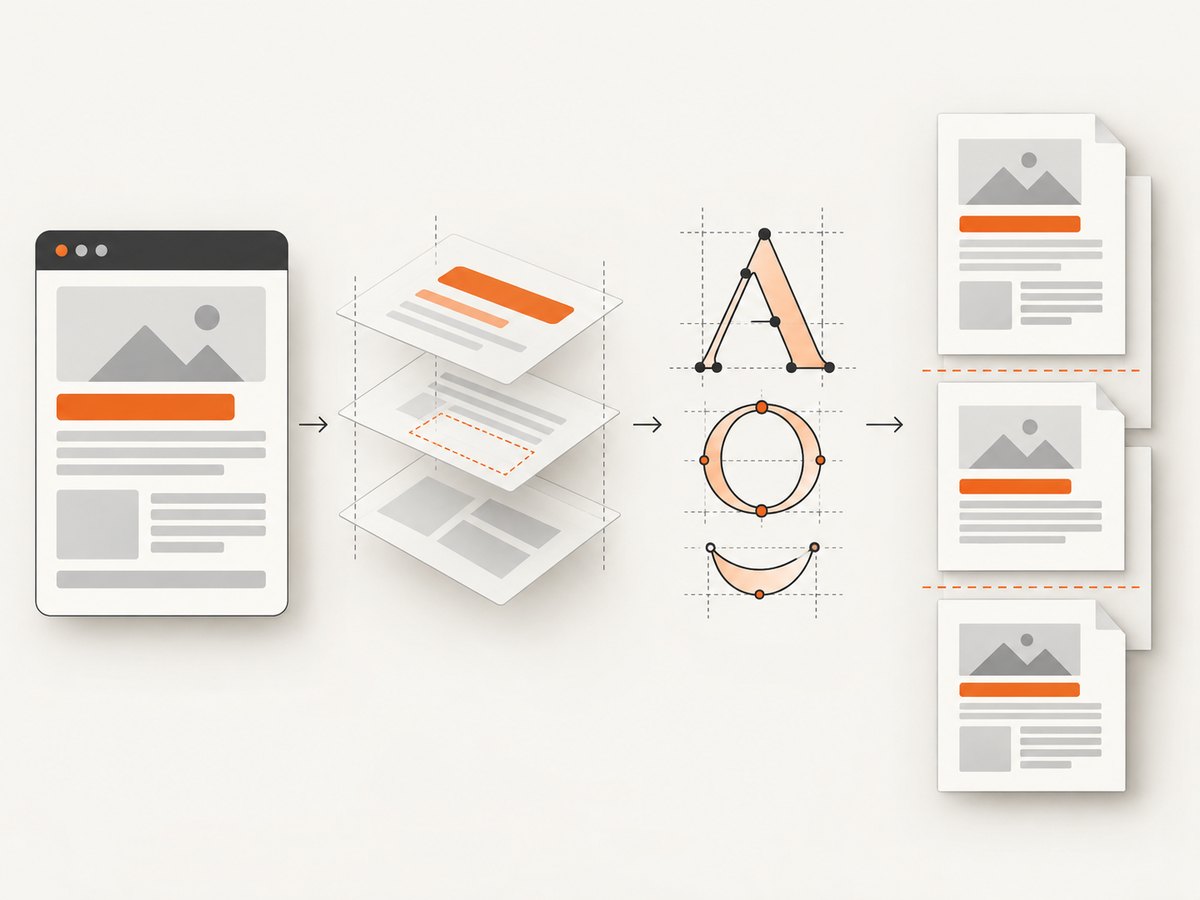
Use break-before, break-after, and break-inside to control page boundaries. Keep important blocks together, but do not force every element to stay on one page: an oversized table or image still has to fit somewhere.
3. Puppeteer: complete Node.js conversion
Install Puppeteer with npm install puppeteer. The script below waits for network activity to settle, waits for fonts, selects screen media, enables backgrounds, and lets CSS @page sizing control the output.
const puppeteer = require('puppeteer');

(async () => {
  const browser = await puppeteer.launch({ headless: true });
  try {
    const page = await browser.newPage();
    await page.setViewport({ width: 1280, height: 900, deviceScaleFactor: 1 });

    await page.goto('https://example.com/report', {
      waitUntil: 'networkidle2',
      timeout: 90000
    });

    // Use this when the PDF must match screen CSS.
    await page.emulateMediaType('screen');

    // Give application code a chance to finish rendering.
    await page.evaluate(() => document.fonts.ready);
    await page.waitForSelector('#report-ready', { timeout: 30000 });

    await page.pdf({
      path: 'output.pdf',
      preferCSSPageSize: true,
      printBackground: true,
      margin: { top: '0', right: '0', bottom: '0', left: '0' },
      scale: 1,
      waitForFonts: true
    });
  } finally {
    await browser.close();
  }
})();
Remove emulateMediaType('screen') when the print stylesheet is the intended design. Puppeteer’s guide shows navigation with waitUntil: 'networkidle2' followed by page.pdf(), and states that PDF generation waits for fonts by default. Treat network idle as a useful signal, not proof that every application resource is complete.
4. Puppeteer PDF options that affect layout
| Option | Effect | Layout guidance |
|---|---|---|
format |
Named paper size such as Letter or A4. | Use when the document targets a standard sheet. |
width, height |
Explicit dimensions with units such as mm, cm, in, or px. |
Useful for invoices, labels, and custom pages. |
preferCSSPageSize |
Lets CSS @page size override the API paper size. Default is false. |
Set true when CSS defines the canonical page geometry. |
margin |
Top, right, bottom, and left PDF margins. | Coordinate these with @page margins; avoid accidental double margins. |
landscape |
Rotates the paper orientation. | Use for wide tables or dashboards. |
scale |
Scales rendered content from 0.1 to 2. | Fix page dimensions first; scaling can make text too small. |
printBackground |
Prints background graphics. Default is false. | Set true for colored panels, hero sections, and charts. |
pageRanges |
Prints ranges such as 1-5, 8. |
Useful for extracting selected pages. |
displayHeaderFooter |
Enables header and footer templates. | Templates have limited styling and do not execute scripts. |
waitForFonts |
Controls font waiting behavior. | Keep enabled unless you have a measured reason not to. |
Puppeteer documents these settings in its PDFOptions reference. PDF colors are modified for printing by default; -webkit-print-color-adjust: exact requests exact colors, although the final file should still be inspected.
5. Playwright equivalent
import { chromium } from 'playwright';

const browser = await chromium.launch();
try {
  const page = await browser.newPage({ viewport: { width: 1280, height: 900 } });
  await page.goto('https://example.com/report', {
    waitUntil: 'networkidle',
    timeout: 90000
  });
  await page.emulateMedia({ media: 'screen' });
  await page.evaluate(() => document.fonts.ready);
  await page.waitForSelector('#report-ready');
  await page.pdf({
    path: 'output.pdf',
    preferCSSPageSize: true,
    printBackground: true,
    margin: { top: '0', right: '0', bottom: '0', left: '0' }
  });
} finally {
  await browser.close();
}
Choose the library already used by your project. The reviewed documentation supports the shared print-media behavior; it does not establish a universal performance or fidelity winner.
6. Validate the generated PDF
- Open the PDF at 100% zoom and compare headings, line breaks, images, and colors with the source page.
- Check every page edge for clipped content and unexpected whitespace.
- Confirm the PDF page dimensions and orientation match the requirement.
- Test pages with long text, tables, large images, missing optional data, and slow API responses.
- Run the same capture more than once when animations, ads, timestamps, or randomized content are present.
7. Troubleshooting common layout failures
| Symptom | Likely cause | Fix |
|---|---|---|
| Screen layout becomes a narrow print layout | PDF uses print media by default. | Call emulateMediaType('screen') or emulateMedia({media:'screen'}). |
| Backgrounds disappear | printBackground defaults to false. |
Set printBackground: true and use print color adjustment CSS. |
| Content is unexpectedly scaled | Paper format conflicts with CSS @page. |
Match dimensions and set preferCSSPageSize: true when CSS should win. |
| Fonts are substituted | Web fonts were not loaded before capture. | Wait for document.fonts.ready, keep waitForFonts enabled, and verify font URLs. |
| Images are blank | Lazy loading or image requests finished after navigation. | Wait for a page-ready selector, scroll lazy content if needed, and confirm image requests succeed. |
| Rows or cards split badly | Pagination rules are missing or unsupported by the layout. | Apply break-inside: avoid to small blocks and allow large blocks to flow. |
| Capture times out | Long-running requests prevent the chosen readiness condition. | Use a realistic timeout, wait for a specific application selector, and diagnose failed resources. |
| Colors differ from the browser | Print color adjustment changes output. | Use screen media when appropriate and add -webkit-print-color-adjust: exact. |
8. Performance, reliability, and cost
- Reuse a browser process for batches of documents, but create a fresh page per job so cookies and state do not leak.
- Set navigation and selector timeouts explicitly. Record the URL, media mode, paper size, and failure stage with each job.
- Prefer a deterministic readiness selector over an arbitrary long sleep. Keep a short delay only for animations or late layout work you can identify.
- Cache stable assets and avoid loading analytics, ads, or chat widgets when they are irrelevant to the document.
- Do not use
scaleto hide an incorrect paper size; it trades layout fit for readability. - Browser rendering consumes CPU and memory. Queue large batches and monitor failures rather than launching an unbounded browser per request.
9. Or skip the browser setup
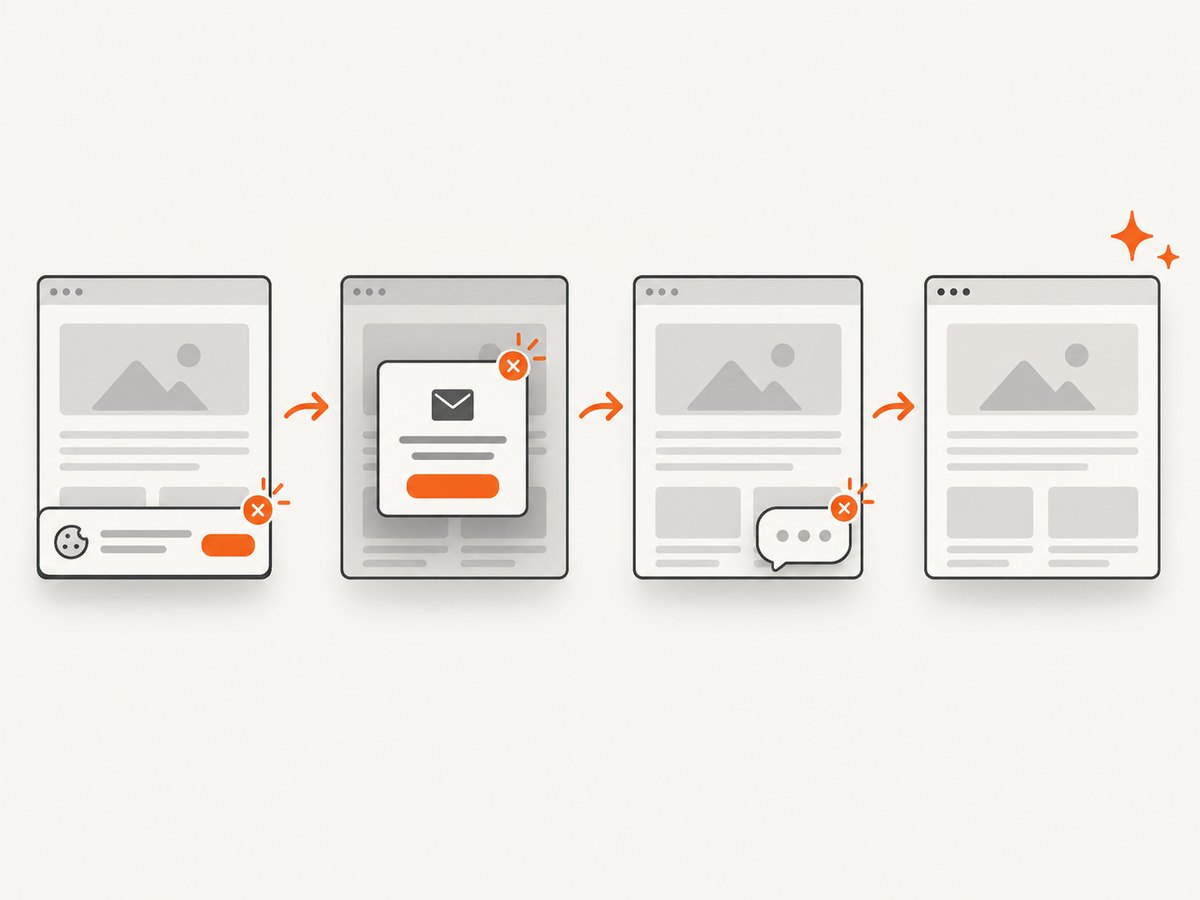
ScreenshotNeo provides a website capture API that can return a PDF after rendering the page. Its capture pipeline accepts cookie and consent banners, removes more than 60 known consent platforms plus newsletter popups and chat widgets, and lets you turn each cleanup step off. Bot checks, blank pages, timeouts, failed loads, and cache hits are not billed; the response identifies the result with X-Page-Verdict and X-Billed headers. See the ScreenshotNeo API documentation for PDF paper size, margins, landscape mode, page ranges, waiting conditions, custom CSS and JavaScript, headers, cookies, blocking rules, caching, and asynchronous jobs.
curl -G "https://api.screenshotneo.com/v1/shot" -d access_key=YOUR_API_KEY --data-urlencode url=https://stripe.com -o shot.webpimport requests
r = requests.get("https://api.screenshotneo.com/v1/shot", params={"access_key": "YOUR_API_KEY", "url": "https://stripe.com"}, timeout=90)
open("shot.webp", "wb").write(r.content)const q = new URLSearchParams({ access_key: 'YOUR_API_KEY', url: 'https://stripe.com' }); const res = await fetch(`https://api.screenshotneo.com/v1/shot?${q}`);Configure PDF output and layout options in the API documentation for your request. ScreenshotNeo also provides an MCP server with take_screenshot, get_page_info, and capture_pdf tools for Claude, Cursor, and other MCP clients. The free plan includes 1,000 screenshots a month with no card; paid plans start at $5 for 3,000. Create a free ScreenshotNeo account.
10. FAQ
Should I use print or screen CSS?
Use print CSS for a document designed for paper. Use screen CSS when preserving the web page’s visual arrangement is the priority.
Why does my PDF have a different number of pages?
Paper size, margins, font metrics, media rules, and content dimensions all affect pagination. Match those inputs before adjusting scale.
Can HTML-to-PDF be perfectly pixel identical?
No universal guarantee applies to arbitrary pages. Browser print rules, fonts, resource timing, and physical page constraints can change the result, so inspect representative outputs.
Is Puppeteer required?
No. Playwright exposes a comparable browser PDF workflow. Select the stack that fits your existing automation code.


