How to Convert HTML to PDF with Python and Flask
Build a Flask endpoint that renders Jinja templates to PDF with WeasyPrint, handles assets and CSS, and avoids common deployment failures.

To convert HTML to PDF with Flask, render a print-specific Jinja template and pass the resulting HTML to WeasyPrint through Flask-WeasyPrint. The converter returns PDF bytes that Flask can send inline in a browser or as a download.
This approach keeps your templates in Flask, resolves application assets through Flask’s request context, and avoids writing an intermediate HTML file. The complete example below supports a browser preview, a downloadable PDF, custom CSS, page metadata, and a plain HTML string.
1. How the Flask conversion works
There are three separate pieces:
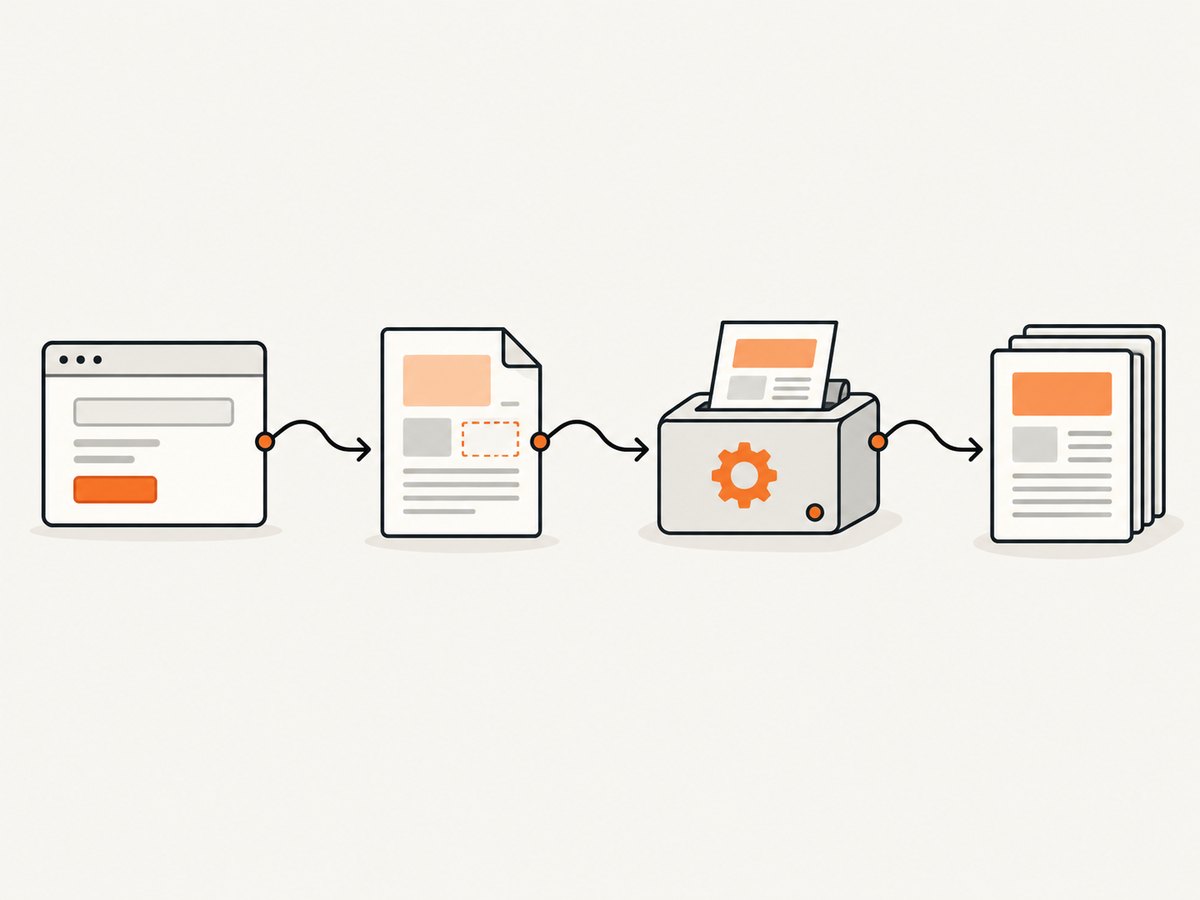
- Flask and Jinja produce HTML from a template and data. Flask’s template system exposes
url_for(), so a print template can refer to static CSS and images using application URLs. See the Flask templating documentation. - Flask-WeasyPrint adapts WeasyPrint’s URL fetching to Flask. Inside a request context, local application URLs can be handled through the WSGI application instead of making a separate network request. The integration’s setup and context requirements are described in its official documentation.
- WeasyPrint parses HTML and print CSS, lays out pages, and returns a PDF byte string when
write_pdf()is called without a destination. Its accepted inputs and output methods are listed in the WeasyPrint API reference.
WeasyPrint is a document renderer, not a full browser. It does not provide browser-equivalent JavaScript execution, and CSS or layout behavior can differ from Chromium. Design a dedicated print template and test it with representative content.
2. Install Flask-WeasyPrint
Install the integration in the same Python environment as your Flask application:
python -m pip install flask flask-weasyprintThe Flask-WeasyPrint package documentation states that this command installs the integration and its Flask and WeasyPrint dependencies. Native dependencies and compatible versions vary by operating system and base image, so check the current WeasyPrint installation guidance for your deployment target before building a production image. Do not copy an unverified system-library list into a Dockerfile.
3. Create a print template
Use a separate template for PDF output. This lets you remove navigation, interactive controls, and screen-only spacing while keeping your normal web page unchanged.
<!-- templates/invoice_pdf.html -->
<!doctype html>
<html lang="en">
<head>
  <meta charset="utf-8">
  <title>Invoice {{ invoice.number }}</title>
  <link rel="stylesheet" href="{{ url_for('static', filename='pdf.css') }}">
</head>
<body>
  <header class="document-header">
    <h1>Invoice {{ invoice.number }}</h1>
    <p>Issued {{ invoice.issued_at }}</p>
  </header>

  <section class="customer">
    <h2>Bill to</h2>
    <p>{{ invoice.customer_name }}<br>{{ invoice.customer_email }}</p>
  </section>

  <table>
    <thead>
      <tr><th>Description</th><th>Qty</th><th>Amount</th></tr>
    </thead>
    <tbody>
      {% for item in invoice.items %}
      <tr>
        <td>{{ item.description }}</td>
        <td>{{ item.quantity }}</td>
        <td>{{ item.amount }}</td>
      </tr>
      {% endfor %}
    </tbody>
  </table>

  <p class="total">Total: {{ invoice.total }}</p>
</body>
</html>
Add print CSS with explicit page rules. WeasyPrint supports @page and print-oriented properties, but the exact feature set is documented by the renderer rather than by a browser specification.
/* static/pdf.css */
@page {
  size: A4;
  margin: 18mm 16mm 20mm;
  @bottom-right {
    content: "Page " counter(page) " of " counter(pages);
    font-size: 9pt;
    color: #666;
  }
}

* { box-sizing: border-box; }
body {
  font-family: sans-serif;
  font-size: 10.5pt;
  line-height: 1.45;
  color: #202124;
}
h1 { font-size: 22pt; margin: 0 0 4mm; }
h2 { font-size: 13pt; margin: 10mm 0 3mm; }
table { width: 100%; border-collapse: collapse; margin-top: 8mm; }
th, td { border-bottom: 0.2mm solid #bbb; padding: 3mm 2mm; text-align: left; }
th:last-child, td:last-child { text-align: right; }
tr { break-inside: avoid; }
.total { text-align: right; font-weight: bold; margin-top: 8mm; }
4. Return a PDF from a Flask route
The following application renders the template, converts it in the active request context, and returns bytes with headers that control browser behavior.
from flask import Flask, render_template, make_response
from flask_weasyprint import HTML

app = Flask(__name__)

@app.get("/invoices/<int:invoice_id>.pdf")
def invoice_pdf(invoice_id: int):
    invoice = {
        "number": f"INV-{invoice_id:05d}",
        "issued_at": "2026-09-30",
        "customer_name": "Ada Lovelace",
        "customer_email": "ada@example.com",
        "items": [
            {"description": "Consulting", "quantity": 2, "amount": "$400.00"},
            {"description": "Support", "quantity": 1, "amount": "$100.00"},
        ],
        "total": "$900.00",
    }

    # Render the Flask template to a string, then let Flask-WeasyPrint
    # resolve url_for() URLs through the current application context.
    html = render_template("invoice_pdf.html", invoice=invoice)
    pdf_bytes = HTML(string=html, base_url=request_base_url()).write_pdf()

    response = make_response(pdf_bytes)
    response.headers["Content-Type"] = "application/pdf"
    response.headers["Content-Disposition"] = (
        f"inline; filename=invoice-{invoice_id}.pdf"
    )
    response.headers["Content-Length"] = str(len(pdf_bytes))
    return response


def request_base_url() -> str:
    # Use the application URL as the base for relative assets.
    # In a real app, derive this from the request or configured public URL.
    return "http://localhost:5000/"

if __name__ == "__main__":
    app.run(debug=True)
For a production application, derive the base URL from the current request or an explicit configuration value that matches how users reach the app. If your integration version provides a request-aware HTML wrapper, use that wrapper as shown in its documentation. The important details are that conversion occurs inside a request context and that relative assets have a resolvable base URL.
Inline display versus download
Use Content-Disposition: inline to ask the browser to display the PDF in its viewer. Use attachment when you want a download prompt:
response.headers["Content-Disposition"] = \
    "attachment; filename=invoice-42.pdf"
5. Convert an HTML string directly
You do not have to render a Jinja template. WeasyPrint accepts a named in-memory HTML string and can return bytes:
from flask import Flask, request, make_response
from flask_weasyprint import HTML

app = Flask(__name__)

@app.post("/html-to-pdf")
def html_to_pdf():
    html_source = request.get_data(as_text=True)
    if not html_source.strip():
        return {"error": "Request body is empty"}, 400

    pdf_bytes = HTML(string=html_source, base_url="http://localhost:5000/").write_pdf()
    response = make_response(pdf_bytes)
    response.headers["Content-Type"] = "application/pdf"
    response.headers["Content-Disposition"] = "inline; filename=document.pdf"
    return response
Only expose this endpoint to trusted input unless you have reviewed the security implications. WeasyPrint’s security guidance warns that untrusted HTML or CSS can create security problems, including dangerous resource fetching. Sanitize or generate the markup yourself, restrict URL schemes and hosts, and set request size limits.
6. Convert a Flask-rendered page by URL
WeasyPrint’s API also accepts an absolute URL. A URL-based conversion is useful when a page is already rendered by a route:
from flask_weasyprint import HTML

pdf_bytes = HTML("https://example.com/report").write_pdf()
For pages inside the same Flask application, Flask-WeasyPrint’s request-aware fetching can avoid a network round trip. External URLs introduce availability, authentication, DNS, and security concerns. Prefer rendering a template directly when the data is already in the current process.
7. Assets, CSS, fonts, and images
- Use
url_for('static', filename='...')in templates rather than hard-coded filesystem paths. - Set
base_urlwhen passing an in-memory string so relative links can resolve. - Pass a stylesheet explicitly when converting a file or string that does not contain a
<link>element:
from weasyprint import HTML, CSS

pdf_bytes = HTML(string=html_source, base_url="https://app.example/").write_pdf(
    stylesheets=[CSS(string="@page { size: Letter; margin: 0.7in; }")]
)
Use absolute, reachable font and image URLs, and verify that your production worker can read them. A missing image should be treated as a deployment defect even when the PDF still renders. Keep print stylesheets small and avoid relying on browser-only JavaScript to insert content.
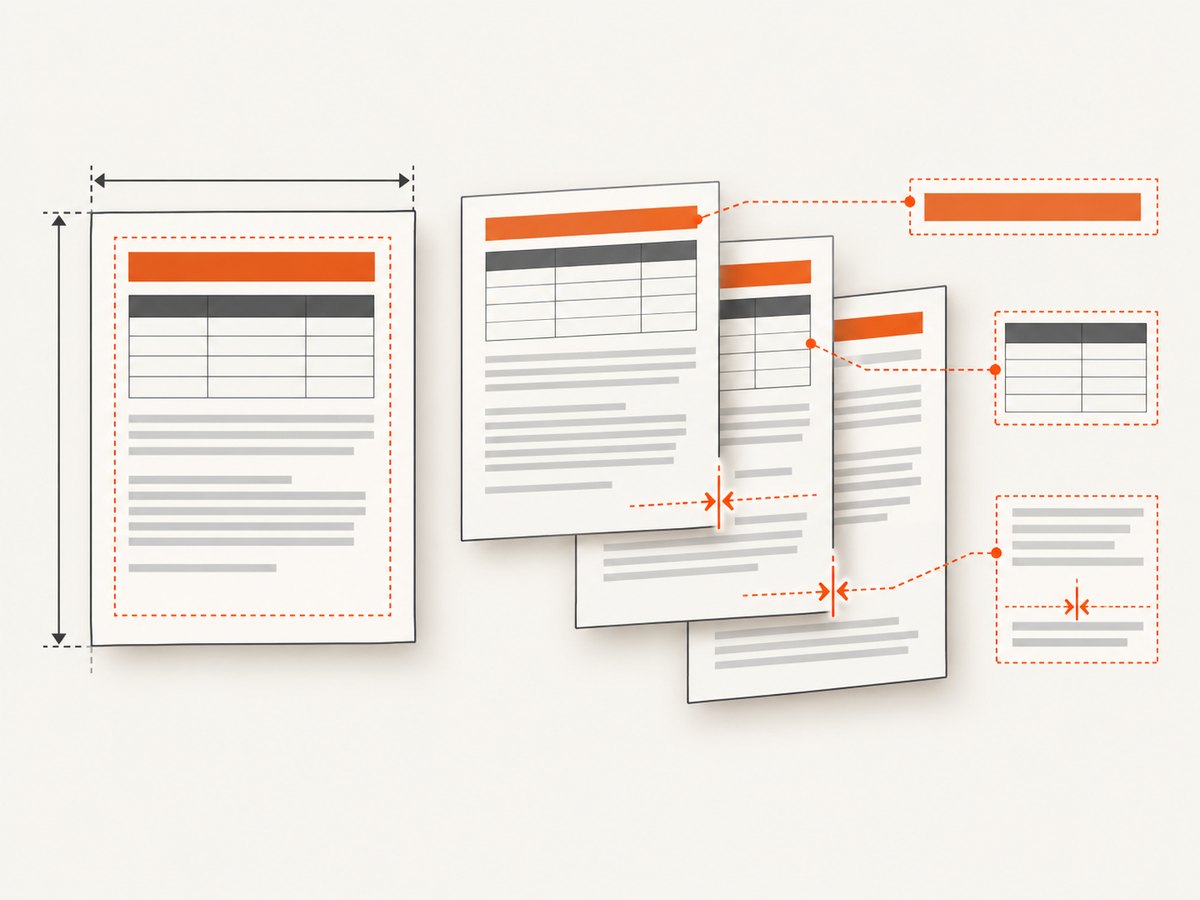
8. PDF layout options and page-break control
| Requirement | Typical CSS or API choice |
|---|---|
| Paper size | @page { size: A4; }, Letter, or a custom size |
| Margins | @page { margin: 15mm; } |
| Landscape pages | @page { size: A4 landscape; } |
| Keep a card together | break-inside: avoid |
| Start a new page | break-before: page |
| Repeat table headers | Keep headers in <thead> and test long tables |
Test long paragraphs, wide tables, missing data, and very large images. A layout that looks correct with one record can overflow when a customer name or description wraps to a second line.
9. Calling the Flask endpoint from clients
Once the route is deployed, any HTTP client can retrieve the PDF. With cURL:
curl -L "http://localhost:5000/invoices/42.pdf" \
  -o invoice-42.pdf
With Python:
import requests

r = requests.get("http://localhost:5000/invoices/42.pdf", timeout=90)
r.raise_for_status()
with open("invoice-42.pdf", "wb") as file:
    file.write(r.content)
With Node.js:
const res = await fetch('http://localhost:5000/invoices/42.pdf');
if (!res.ok) throw new Error(`HTTP ${res.status}`);
const buffer = Buffer.from(await res.arrayBuffer());
await import('node:fs/promises').then(fs => fs.writeFile('invoice-42.pdf', buffer));
10. Troubleshooting common failures
| Symptom | Likely cause | Fix |
|---|---|---|
ModuleNotFoundError: flask_weasyprint |
Package installed in another interpreter | Run python -m pip install flask-weasyprint with the same Python used by the worker. |
| Native-library import error | OS packages required by the current WeasyPrint build are absent | Follow the current WeasyPrint installation instructions for your exact OS or container image. |
| CSS or images missing | Relative URLs have no base URL, or the worker cannot reach the asset | Use url_for(), provide base_url, and test the URL from the deployment environment. |
| PDF is blank | Template data is empty, markup is invalid, or content is inserted by JavaScript | Log the rendered HTML, validate required data, and move essential content into server-rendered HTML. |
| Page breaks split cards | Break rules are absent or unsupported for the structure | Apply break-inside: avoid to the smallest practical block and test with realistic content. |
| Conversion times out | Large images, slow external resources, or too many documents in one request | Resize assets, restrict external fetching, set application timeouts, and move heavy work to a queue. |
| Fonts differ between machines | Font files are unavailable or fallback fonts are used | Bundle approved fonts, reference them with reachable URLs, and verify licensing. |
11. Performance, reliability, and cost
PDF generation consumes CPU and memory. Measure your own documents because the available project documentation does not provide universal throughput benchmarks. Reuse templates, avoid unnecessarily high-resolution images, and cap input size. For occasional invoices, a synchronous route is simple. For large reports or batch exports, enqueue a job, store the result, and return a status URL so a web worker is not held for the entire render.
Set timeouts around external resources and decide whether a missing image should fail the document or produce a warning. Log document ID, render duration, output size, and the exception category. Do not log sensitive HTML or personal data by default.
Cache PDFs only when the underlying data and authorization are stable. Include a version or content hash in the cache key, and never serve a cached private document to a different user. If a renderer process can consume unbounded memory, isolate it with worker limits and restart policies.
12. Security checklist
- Generate HTML from trusted templates and escaped values.
- Do not accept arbitrary HTML/CSS without sanitization and a reviewed threat model.
- Allow only the URL schemes and hosts required for assets.
- Prevent access to local files, metadata endpoints, and internal services through URL fetching.
- Limit request body size, image dimensions, and report length.
- Apply authentication and authorization before rendering private records.
- Keep WeasyPrint and Flask dependencies current according to your compatibility policy.
Or skip the browser setup
If you need a screenshot or PDF of a public web page instead of a server-rendered business document, ScreenshotNeo provides a single API request. Its capture process accepts consent banners like a visitor and removes more than 60 known consent platforms, newsletter popups, and chat widgets before the shot. Bot checks, blank pages, timeouts, failed loads, and cache hits are not billed, and response headers identify the page verdict and billing result.
cURL:
curl -G "https://api.screenshotneo.com/v1/shot" -d access_key=YOUR_API_KEY --data-urlencode url=https://stripe.com -o shot.webpPython:
import requests
r = requests.get("https://api.screenshotneo.com/v1/shot", params={"access_key": "YOUR_API_KEY", "url": "https://stripe.com"}, timeout=90)
open("shot.webp", "wb").write(r.content)
Node.js:
const q = new URLSearchParams({ access_key: 'YOUR_API_KEY', url: 'https://stripe.com' });
const res = await fetch(`https://api.screenshotneo.com/v1/shot?${q}`);
See the ScreenshotNeo API documentation for the other capture options. It also provides an MCP server so Claude, Cursor, and other MCP clients can use take_screenshot, get_page_info, and capture_pdf. One thousand screenshots per month are free with no card; paid plans start at $5 for 3,000. Create a free ScreenshotNeo account.
FAQ
Can WeasyPrint execute JavaScript?
Do not depend on browser JavaScript. Render required content in Flask/Jinja or choose a browser-based renderer when the page fundamentally needs JavaScript.
Can I write directly to a file?
Yes. write_pdf('/path/output.pdf') writes a file; calling write_pdf() without a destination returns PDF bytes.
Should PDF conversion run in a background worker?
Use a queue for large, slow, or high-volume reports. A synchronous response is appropriate for small documents with predictable render time.
Why does a PDF differ from my browser page?
WeasyPrint implements print layout independently from browser engines. Use a dedicated print stylesheet and validate page breaks, fonts, images, and unsupported CSS with real documents.


