How to Convert HTML to PDF with Images
Convert HTML to PDF with images using Puppeteer, Playwright, or WeasyPrint. Learn how to load images reliably, preserve CSS, set page options, and fix common failures.
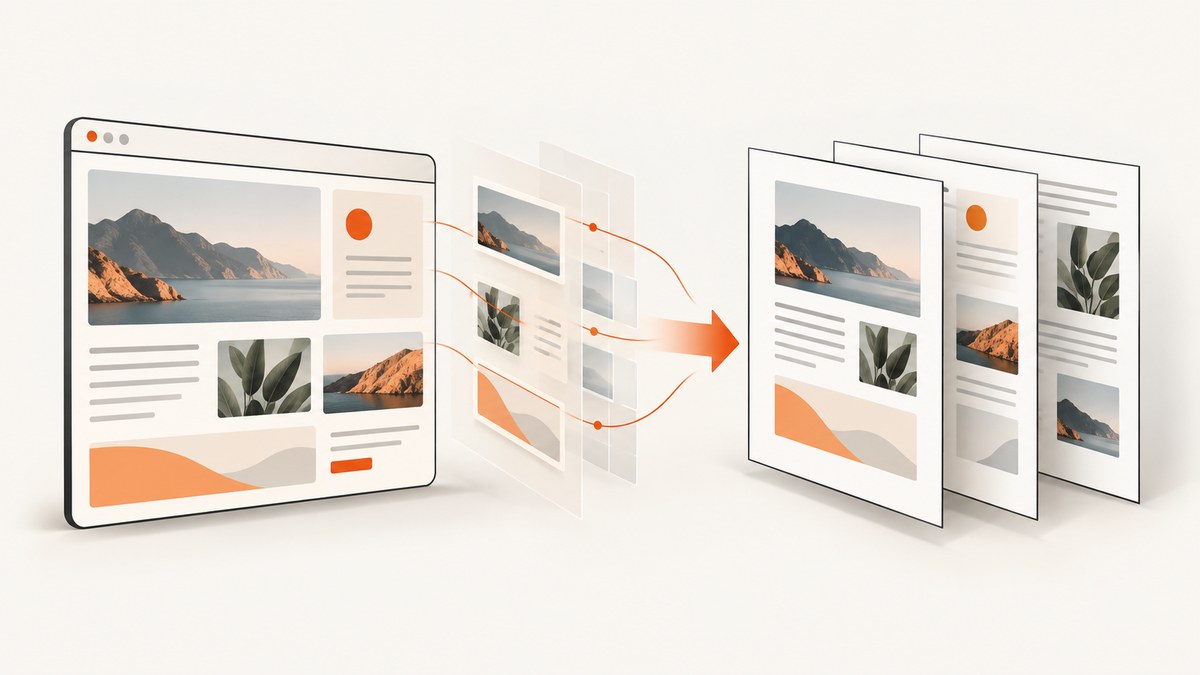
To convert HTML to PDF with images, use a browser renderer such as Puppeteer or Playwright when the page needs JavaScript or browser-accurate layout. Wait for the page and its images to load, then call the renderer’s PDF method with background printing enabled. For a Python workflow that does not need browser JavaScript, WeasyPrint can render HTML and CSS directly. Images usually go missing because their URLs have no usable base, the resource cannot be reached, rendering starts too early, or print styles hide them.
This guide covers remote web pages and HTML you control. The right method depends on where your HTML lives, whether it runs JavaScript, how resources are addressed, and whether your PDF should follow print or screen styling.
1. Choose a renderer
| Situation | Good starting point | Reason |
|---|---|---|
| Page relies on JavaScript, modern browser layout, or client-side image loading | Puppeteer or Playwright | They render with Chromium and can wait for DOM, network, fonts, and application-specific conditions. |
| Node.js service and Chromium is already part of your stack | Puppeteer | Its concise page navigation and PDF API cover common capture workflows. |
| You want browser automation in a Node.js or other supported Playwright setup | Playwright | It offers browser automation with PDF generation and configurable page options. |
| Python pipeline, static HTML/CSS, no browser JavaScript required | WeasyPrint | It converts HTML and CSS to a PDF without launching a browser. |
Puppeteer and Playwright generate PDFs using print CSS by default. That means a site’s @media print rules may change layout or hide images. WeasyPrint is a separate HTML/CSS renderer; check its CSS support against the features your document uses. Official references: Puppeteer Page API, Playwright Page API, and WeasyPrint first steps.
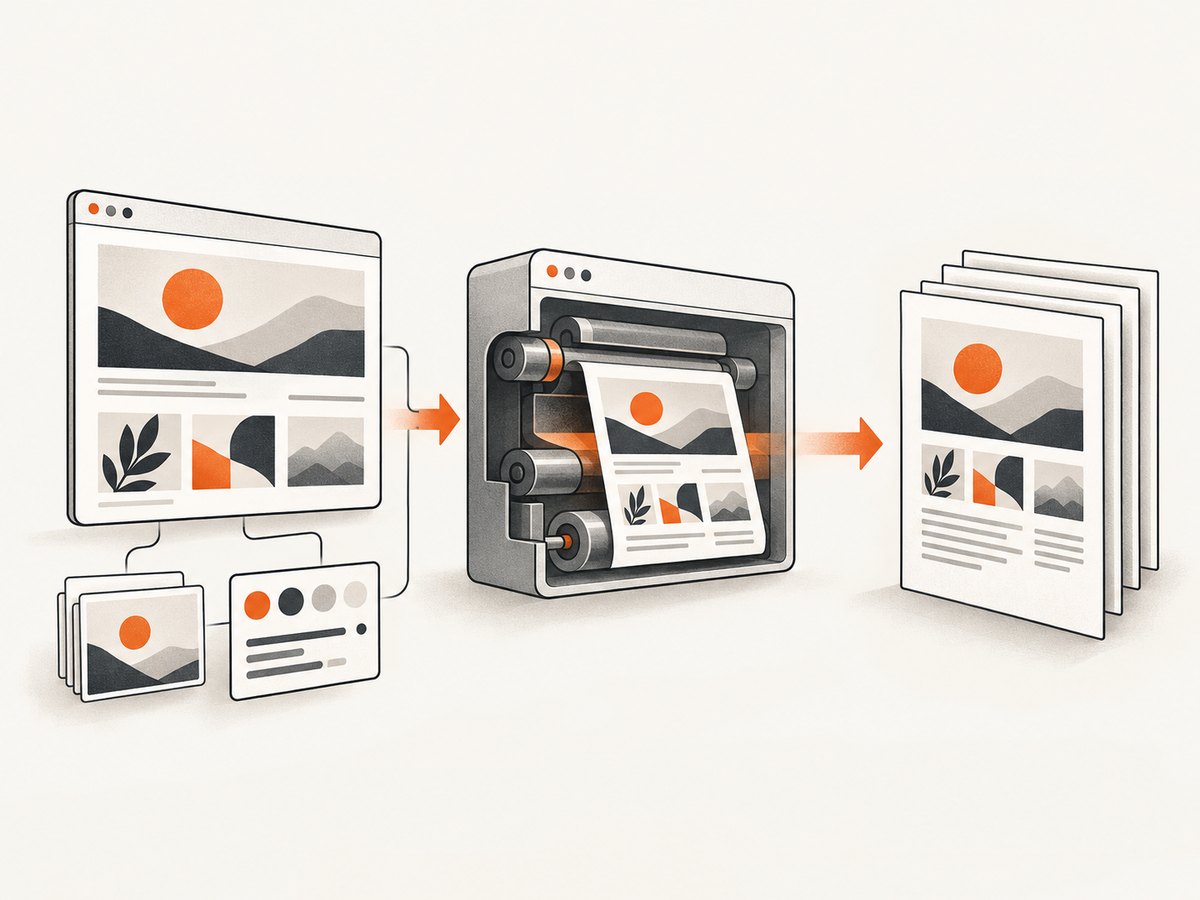
2. Convert a page with Puppeteer
The minimum workflow is to launch Chromium, navigate to a real URL, wait for the page to settle, write the PDF, and close the browser. Install Puppeteer in a Node.js project with npm install puppeteer. The package manages a compatible browser installation for its standard setup.
const puppeteer = require('puppeteer');

async function main() {
  const url = process.argv[2] || 'https://example.com';
  const browser = await puppeteer.launch({ headless: true });
  try {
    const page = await browser.newPage();
    await page.goto(url, { waitUntil: 'networkidle2', timeout: 60000 });
    await page.evaluate(() => document.fonts.ready);
    await page.pdf({
      path: 'output.pdf',
      format: 'A4',
      printBackground: true,
      margin: { top: '12mm', right: '12mm', bottom: '12mm', left: '12mm' }
    });
    console.log('Wrote output.pdf');
  } finally {
    await browser.close();
  }
}

main().catch(error => {
  console.error(error);
  process.exitCode = 1;
});
Run it with node convert.js https://example.com. networkidle2 is a useful initial wait condition, but it is not proof that every application-specific image is ready. Pages with analytics, long polling, or continuously active requests can also make network-idle waits unsuitable. In those cases, wait for a meaningful selector or image state instead of relying only on network quiet.
Wait for images that matter
For images already present in the DOM, wait for their load or error events. This example has a timeout so one broken image does not hang the job forever. For lazy-loaded images, scrolling them into view can prompt the page to request them. Use a bounded strategy on very long pages because forcing every lazy image to load can increase time and memory use.
await page.evaluate(async () => {
  const images = Array.from(document.images);
  await Promise.all(images.map(img => {
    if (img.complete) return Promise.resolve();
    return new Promise(resolve => {
      const done = () => resolve();
      img.addEventListener('load', done, { once: true });
      img.addEventListener('error', done, { once: true });
      setTimeout(done, 10000);
    });
  }));
});
For content that is inserted after an API call, wait for the application’s result container rather than every request on the page:
await page.waitForSelector('.report-chart img', { timeout: 20000 });When the site uses lazy loading and the entire page must be present, scroll incrementally and allow content to appear, then return to the top before printing. Tune the scroll step and delay to the site; there is no universal delay that guarantees all content is ready.
3. Convert with Playwright
Install Playwright for Node.js with npm install playwright, then install its browser using npx playwright install chromium where required by your environment. This runnable script uses Chromium, waits for navigation, prints a PDF, and closes the browser even if conversion fails.
const { chromium } = require('playwright');

async function main() {
  const url = process.argv[2] || 'https://example.com';
  const browser = await chromium.launch({ headless: true });
  try {
    const page = await browser.newPage();
    const response = await page.goto(url, {
      waitUntil: 'networkidle',
      timeout: 60000
    });
    if (response && response.status() >= 400) {
      throw new Error(`Page returned HTTP ${response.status()}`);
    }
    await page.evaluate(() => document.fonts.ready);
    await page.pdf({
      path: 'page.pdf',
      format: 'A4',
      printBackground: true,
      margin: { top: '12mm', right: '12mm', bottom: '12mm', left: '12mm' }
    });
    console.log('Wrote page.pdf');
  } finally {
    await browser.close();
  }
}

main().catch(error => {
  console.error(error);
  process.exitCode = 1;
});
Run node convert-playwright.js https://example.com. A successful navigation call does not necessarily mean the page returned a successful HTTP status: inspect the response status as above. You can wait for a selector, image completion, or a site-specific ready signal before calling page.pdf().
4. Convert HTML with WeasyPrint
Choose WeasyPrint for a Python service or script that needs HTML/CSS rendering and does not depend on JavaScript execution. Install it using the method appropriate for your platform, then use either a URL or an HTML string. The base URL is essential when an in-memory document contains relative image or stylesheet paths.
from weasyprint import HTML

# A web page URL gives relative resources a document location.
HTML('https://example.com').write_pdf('output.pdf')

# For an HTML string, supply the origin or directory used by relative paths.
html_text = '''
<!doctype html>
<html>
  <head>
    <meta charset="utf-8">
    <style>
      @page { size: A4; margin: 12mm; }
      img { max-width: 100%; height: auto; }
    </style>
  </head>
  <body>
    <h1>Report</h1>
    <img src="images/chart.png" alt="Chart">
  </body>
</html>
'''
HTML(string=html_text, base_url='https://example.com/reports/').write_pdf('report.pdf')
In the second example, the image resolves relative to https://example.com/reports/, so the final resource path is under that location. If the asset is local, use a suitable file URL or an absolute base path. WeasyPrint’s documentation supports URL, filename, file object, and in-memory HTML inputs, and describes HTML.write_pdf() for output.
5. Make images and styles render correctly
Check image delivery before tuning page layout. A renderer can only embed an image if it can resolve and fetch it. Browser renderers inherit the page’s origin and session context; WeasyPrint can retrieve local and remote resources, but advanced cookies and authentication need a custom URL fetcher.
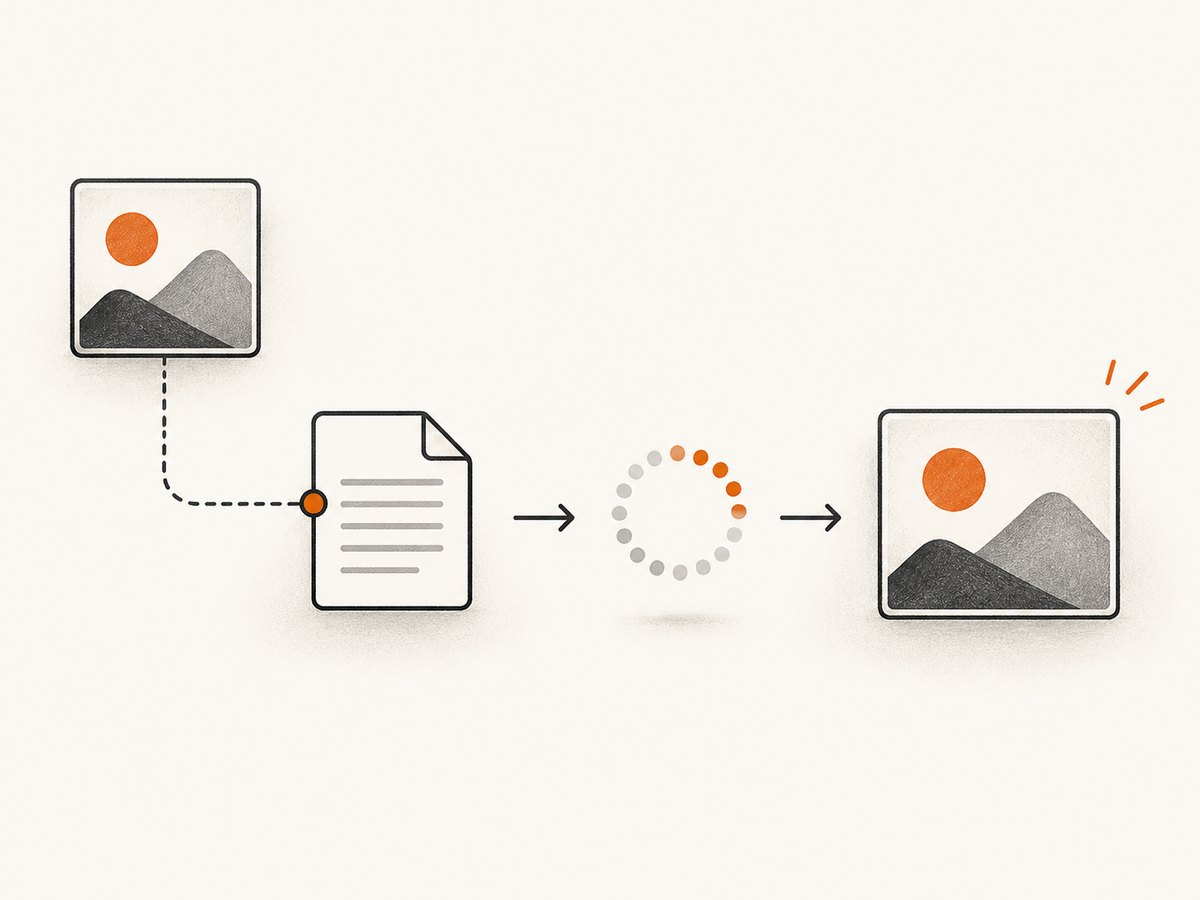
- Resolve the URL. Replace relative paths with absolute URLs for remote captures, or provide the correct document URL/base URL. For an HTML string, explicitly set
base_url. - Check access. Open each image URL from the same environment that runs conversion. Look for 404s, redirects, expired signed links, authorization requirements, mixed-content blocks, or hotlink protection.
- Wait for creation. If JavaScript inserts the image, wait for its selector or a page-specific ready state. If it is lazy-loaded, scroll it into view or trigger the page’s loading behavior.
- Inspect print rules. Search for
@media printrules that set images todisplay: none,visibility: hidden, or zero opacity. Remove or override only the rules that should not affect the PDF. - Enable CSS backgrounds. Set
printBackground: truein Puppeteer or Playwright when CSS background images, fills, or colors are part of the document. Ordinary<img>elements are not the same as CSS backgrounds. - Check sizing and page breaks. Large images can overflow the printable area or be split awkwardly. Set a maximum width, preserve aspect ratio, and use print CSS such as
break-inside: avoidwhere appropriate.
@media print {
  img, svg {
    max-width: 100%;
    height: auto;
  }
  figure, .keep-together {
    break-inside: avoid;
  }
}

/* Chromium browsers can preserve exact colors in print output. */
html {
  -webkit-print-color-adjust: exact;
  print-color-adjust: exact;
}
6. Choose print CSS or screen CSS
Print media is usually the right default for a document: it may remove navigation, change widths, add page breaks, and simplify colors. If the intended output should look like the browser viewport, switch to screen media before creating the PDF. This can also cause screen-only navigation, fixed banners, or layouts wider than paper to appear in the file.
// Puppeteer
await page.emulateMediaType('screen');
await page.pdf({ path: 'screen-layout.pdf', printBackground: true });
// Playwright
await page.emulateMedia({ media: 'screen' });
await page.pdf({ path: 'screen-layout.pdf', printBackground: true });For exact colors in Chromium output, add -webkit-print-color-adjust: exact to the relevant CSS. It can preserve colored backgrounds that print styling would otherwise alter. Always inspect a representative output: screen and print styles can differ substantially, and exact color rendering does not fix a hidden or unloaded image.
7. Set paper, margins, scale, and page ranges
Use built-in paper formats such as A4 or Letter, or set explicit dimensions. Puppeteer and Playwright accept paper width, height, margins, scale, page ranges, and a CSS page-size preference. In Playwright, unlabeled numeric dimensions are pixels; labeled values can use px, in, cm, or mm. Puppeteer documents similar PDF options. Confirm the exact options supported by your installed version.
| Need | Option or CSS | Consideration |
|---|---|---|
| Standard sheet | format: 'A4' or format: 'Letter' |
Pick the size expected by your readers or printer. |
| Custom sheet | width and height |
Use units for clear physical dimensions. |
| Landscape | landscape: true |
Useful for wide tables and charts. |
| Margins | margin option or CSS @page |
Leave enough room for content and any headers or footers. |
| Honor CSS page size | preferCSSPageSize: true |
Give @page size priority over the API’s paper setting. |
| Selected pages | pageRanges: '1-3, 6' |
Check ranges against the final pagination. |
| Fit overall layout | scale |
Use sparingly; scaling changes text and image size together. |
await page.pdf({
  path: 'selected-pages.pdf',
  format: 'A4',
  landscape: false,
  printBackground: true,
  preferCSSPageSize: true,
  pageRanges: '1-3, 6',
  scale: 1,
  margin: { top: '15mm', right: '12mm', bottom: '15mm', left: '12mm' }
});
When using WeasyPrint, define page dimensions and margins through CSS @page. WeasyPrint also documents image optimization, JPEG quality, DPI, and caching controls. Lower quality or DPI can reduce file size but also reduce visual detail; check charts, text embedded in images, and photographs before using those settings broadly.
8. cURL, Python, and Node.js with ScreenshotNeo
For an already-hosted URL, ScreenshotNeo offers a one-request PDF capture endpoint. It avoids installing and operating a browser in your own script. It is a screenshot and PDF API, so it captures a rendered URL; for arbitrary local HTML strings or files, use one of the self-hosted methods above. Read the ScreenshotNeo API documentation for request and option details.
cURL
curl -G "https://api.screenshotneo.com/v1/shot" \
  -d access_key=YOUR_API_KEY \
  --data-urlencode url=https://example.com \
  -d format=pdf \
  -o page.pdf
Python
import requests

r = requests.get(
    "https://api.screenshotneo.com/v1/shot",
    params={
        "access_key": "YOUR_API_KEY",
        "url": "https://example.com",
        "format": "pdf",
    },
    timeout=90,
)
r.raise_for_status()
with open("page.pdf", "wb") as output:
    output.write(r.content)
Node.js
const q = new URLSearchParams({
  access_key: 'YOUR_API_KEY',
  url: 'https://example.com',
  format: 'pdf'
});
const res = await fetch(`https://api.screenshotneo.com/v1/shot?${q}`);
if (!res.ok) throw new Error(`ScreenshotNeo returned HTTP ${res.status}`);
const bytes = Buffer.from(await res.arrayBuffer());
require('node:fs').writeFileSync('page.pdf', bytes);
ScreenshotNeo supports PDF settings including paper size, margins, landscape orientation, and page ranges. Its API also supports waiting for a selector, delay, or network idle; custom headers and cookies; and other capture controls. Check the docs for the accepted parameter names and values. A page that requires authentication may need suitable request credentials, and a URL that is only available inside a private network will not be reachable to a hosted service.
Or skip the browser setup
ScreenshotNeo accepts one GET request with a URL and returns a PDF or image. Cookie banners, popups, and chat widgets are removed before the shot; bot checks, blank pages, and failed loads are never billed. Its MCP server lets AI agents take screenshots, and 1,000 screenshots a month are free with no card; paid plans start at $5 for 3,000. Every feature is on every plan. For a hosted page, the cURL example above is a direct starting point; see the API docs for configuration. Sign up for the free plan.
9. Troubleshooting missing images and broken PDFs
| Symptom | Likely cause | Fix |
|---|---|---|
| Image area is blank | Bad relative URL, inaccessible host, or authorization requirement | Use an absolute URL or correct base URL; verify the image is reachable from the conversion environment and provide the needed credentials. |
| Some images appear, others do not | Lazy loading, late JavaScript rendering, rate limits, or an individual broken asset | Wait for the relevant selector or image events, scroll lazy images into view, and inspect failed requests. |
| Background art or colored blocks are absent | Background graphics disabled, or print CSS removes them | Enable printBackground; inspect print styles and color-adjust rules. |
| Fonts or image dimensions are wrong | PDF generated before fonts/resources settle or unavailable font files | Wait for document.fonts.ready; verify font URLs and image intrinsic dimensions. |
| Navigation wait times out | Persistent requests prevent network idle, or the page is slow | Use a shorter navigation condition such as domcontentloaded, then wait for a meaningful selector or bounded resource condition. |
| PDF is blank or shows an error page | Navigation returned an error, redirect or bot check; the site may require a session | Inspect response status and final URL, provide authorized headers/cookies, and handle blocked pages explicitly. |
| Content is clipped or oddly scaled | Wrong paper size, fixed-width layout, margins, or oversized image | Set a suitable format or CSS @page, constrain media width, and inspect scale and margin values. |
| WeasyPrint cannot find local assets | HTML string has no base URL or resource path is invalid | Supply base_url and confirm local file paths or URL fetcher behavior. |
10. Performance, reliability, cost, and security
Rendering speed depends on the page, network, images, fonts, JavaScript, and output size. There is no universal benchmark that predicts which renderer will be fastest for your workload. Measure with representative documents and keep timeouts bounded. Reuse browser processes for batches when your application architecture supports it, but create isolated pages or contexts per job so cookies and state do not leak between users. Always close pages and browsers after failures.
Reliability improves when the conversion pipeline checks navigation status, waits for a known ready condition, records failed image requests, and validates the output. For important documents, verify that the PDF exists, has nonzero size, and contains the expected pages or visual content. Avoid retrying every failure identically: an expired credential, invalid URL, or blocked request needs a different correction than a transient network error.
PDF cost includes more than the renderer: browser compute, memory, network transfer, image hosting, and retries all contribute in a self-hosted service. Smaller image payloads, sensible DPI and quality, and reuse of downloaded assets can reduce work, but optimize only after checking output readability. Hosted APIs trade local browser operations for per-plan usage; ScreenshotNeo’s published plans include Free with 1,000 shots/month at no card, Starter $5 for 3,000, Growth $15 for 15,000, Pro $39 for 60,000, Scale $99 for 250,000, and Business $249 for 1,000,000. Yearly billing gives two months free. Confirm current plan details on its site before choosing.
Treat HTML, CSS, and URLs as security-sensitive inputs in a conversion service. WeasyPrint warns that untrusted HTML or CSS can create security problems. A document can reference remote resources, local files, or redirecting URLs; those fetches can expose network access or consume resources. Run conversions with least privilege, restrict outbound destinations and file access, limit input size and runtime, and sanitize or isolate user-supplied content. Do not expose credentials to arbitrary pages or accept untrusted URLs without controls.
11. A practical production checklist
- Choose Chromium for JavaScript-dependent pages; choose WeasyPrint when its HTML/CSS rendering fits the content.
- Make relative image and stylesheet URLs resolvable from the document’s actual origin or base URL.
- Wait for the page’s meaningful ready condition, fonts, and images, with timeouts.
- Decide explicitly whether the PDF should use print media or screen media.
- Set background printing, paper format, margins, orientation, page ranges, and scale intentionally.
- Check response status, failed resources, output size, and at least one representative PDF visually.
- Isolate untrusted HTML and restrict resource fetching when operating a conversion service.
12. FAQ
Can I convert HTML containing SVG images?
WeasyPrint supports SVG images and can render them as vectors in the PDF. Browser-based renderers can also render SVG as part of the page; confirm that the SVG URL loads and that print styling does not hide it.
Will JavaScript run in WeasyPrint?
Do not choose WeasyPrint for a page whose content depends on browser JavaScript. Use Puppeteer or Playwright to execute the page and wait for the generated content.
Can a PDF preserve the exact colors I see on screen?
Use screen media if screen styling is the desired layout, enable background printing, and apply print color adjustment where appropriate. Review output because paper size and print rules can still change composition.
Why does a page work locally but not on a server?
The server may lack access to local files, credentials, browser libraries, fonts, or the target network. Reproduce the conversion environment and check resource requests and permissions there.
Should I use a browser library or a screenshot API?
Use a library when you need local HTML, full control over the runtime, or custom integration. For a publicly reachable URL and a managed capture flow, consider an API such as ScreenshotNeo, whose PDF options and request parameters are documented at its API docs.


