How to Convert HTML to PDF with wkhtmltopdf
Convert a local HTML file or web page to PDF with wkhtmltopdf. Learn the key options, JavaScript limits, security precautions, and fixes for common rendering problems.
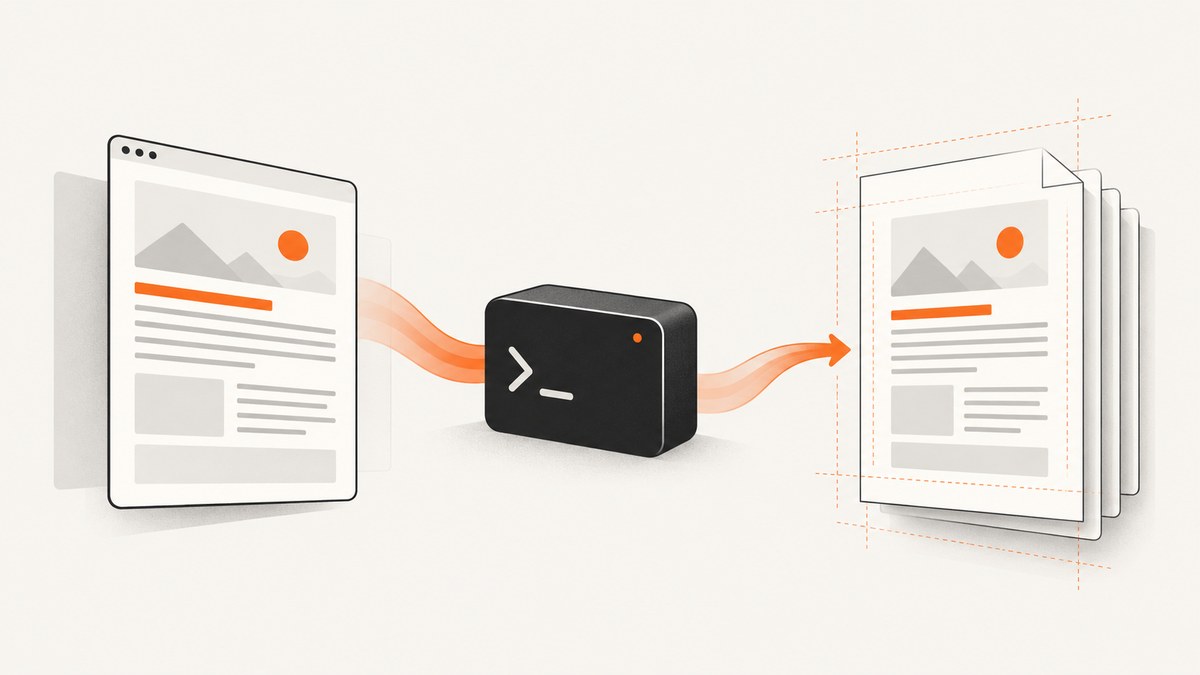
wkhtmltopdf converts HTML files and web pages to PDF from the command line. For a local file, run wkhtmltopdf input.html output.pdf. For a website, pass its URL instead: wkhtmltopdf https://example.com page.pdf. Set page size, margins, and orientation explicitly when the PDF must print consistently. The tool uses Qt WebKit, so it can be suitable for controlled documents but may not render modern JavaScript-heavy sites like a current browser.
1. Install wkhtmltopdf
The project describes wkhtmltopdf as an open-source command-line tool under LGPLv3. You can download a precompiled binary or build it from source. Its downloads page lists the 0.12.6 stable series, released June 11, 2020, with packages for Windows, macOS, and selected Debian architectures. Check the package, operating-system compatibility, and required dependencies for your deployment before relying on it.
After installation, confirm the binary is available:
wkhtmltopdf --version
wkhtmltopdf --help
If your shell reports that the command is not found, verify the installation path and add the binary directory to the service or user’s PATH. A web application often runs as a different account from your interactive shell, so check the environment where the conversion process will actually run.
2. Convert a local HTML file
Save a complete HTML document as input.html, then run:
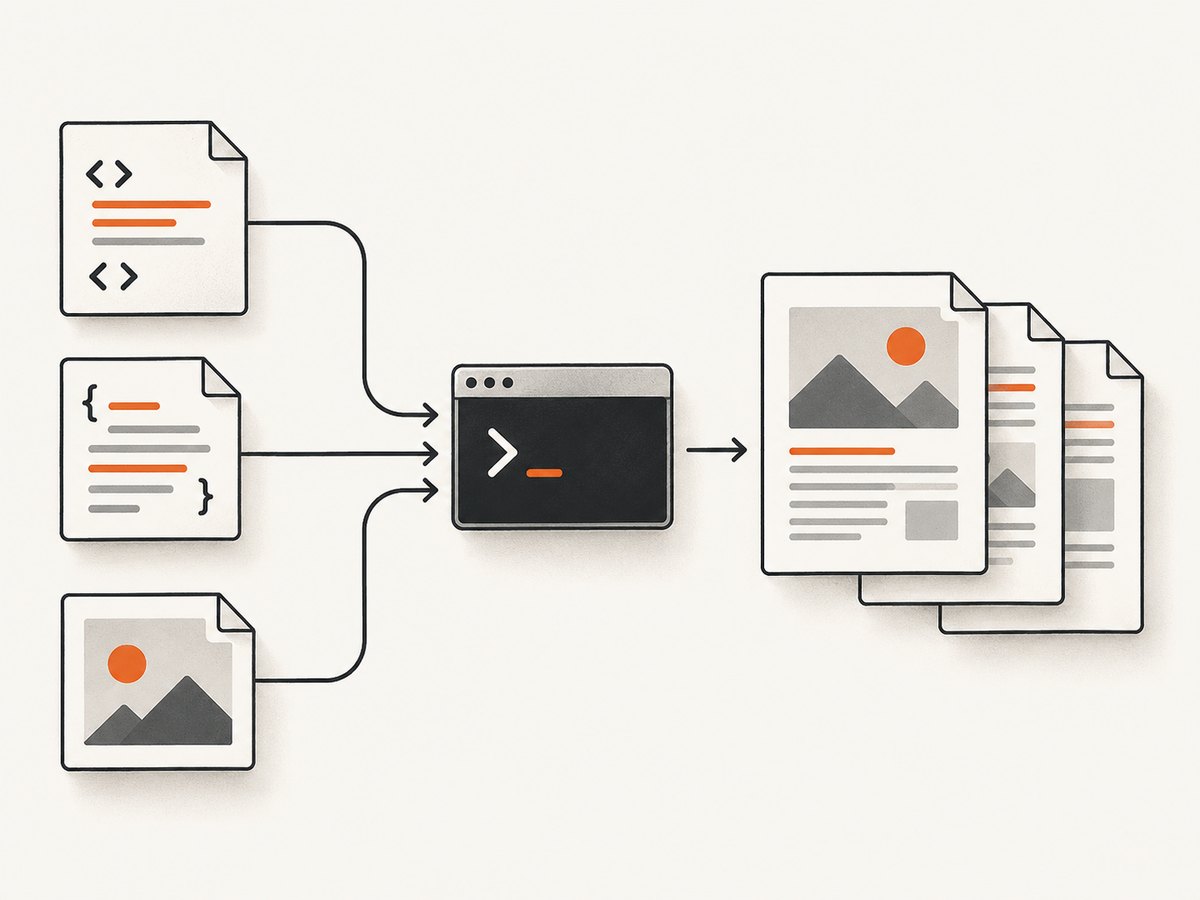
wkhtmltopdf input.html output.pdfThe basic command takes one or more page objects followed by the output filename. The documented general syntax is wkhtmltopdf [GLOBAL OPTION]... [OBJECT]... <output file>. For a multi-page local document that references adjacent CSS or image files, use absolute asset URLs where practical, or run from a predictable directory and deliberately configure access to the required files.
For a remote page:
wkhtmltopdf https://example.com page.pdfThe machine running the command must be able to resolve and reach the site. Authentication, redirects, bot challenges, delayed rendering, and remote asset access can all affect the result. A URL that works in your desktop browser may behave differently from a headless server process.
3. Set print layout options
Choose page geometry explicitly instead of relying on defaults that may differ between environments:
wkhtmltopdf \
  --page-size A4 \
  --margin-top 15mm \
  --margin-bottom 15mm \
  --orientation Portrait \
  --print-media-type \
  input.html output.pdf
Useful controls include:
| Need | Option or approach |
|---|---|
| Paper dimensions | --page-size, such as A4 or a supported named size |
| Custom dimensions | --page-width and --page-height |
| Page direction | --orientation Portrait or Landscape |
| Whitespace around content | --margin-top, --margin-right, --margin-bottom, and --margin-left |
| Print-specific CSS | --print-media-type to use print media styles |
| Headers and footers | Header and footer options documented in the manual, including spacing and text or HTML sources |
| Links | Choose whether to retain external links and generate internal links |
| Images | Control image loading with the documented image options |
Use CSS print rules for content-specific pagination, such as page breaks and hiding navigation. Options and CSS solve different parts of layout: command-line settings define the sheet, while the document’s styles define how content sits on it. Inspect the output when tables, long URLs, or large images cross page boundaries.
4. Handle JavaScript and delayed content
JavaScript is enabled by default. If scripts should not execute, use --disable-javascript. For pages that populate content shortly after load, a fixed delay can help:
wkhtmltopdf --javascript-delay 2000 https://example.com report.pdfThe manual also documents --window-status, which waits for a page status value, and controls for JavaScript execution. A fixed delay is simple but can waste time on fast pages and still be too short on slow ones. A page status signal is more targeted when you control the page and can set it after the content is ready.
These switches do not make the Qt WebKit engine a modern browser. The project status page recommends Puppeteer or similar browser-based tools when a site depends on dynamic JavaScript. Test representative pages before selecting wkhtmltopdf for a production workflow.
5. Add multiple pages, a cover, or a table of contents
The command supports page objects, cover objects, and a table-of-contents object. The order in the command determines their order in the resulting PDF. This lets you combine a cover, several HTML pages, and a generated contents section in one output. The manual also describes customizing TOC styling through the default XSLT that the tool can dump.
For more involved conversions, read the official wkhtmltopdf usage manual and use the documented syntax for the exact object and option you need. Avoid assuming an option applies to every object: global settings, page settings, and object-specific settings have different scopes.
6. Call wkhtmltopdf from an application
Many application integrations invoke the command-line binary as a child process. Keep arguments separate rather than constructing a shell command from user-controlled strings. Set a process timeout, capture standard error and the exit status, and verify the output file exists and is non-empty before returning it to a caller.
A minimal Python example using a fixed, trusted input and subprocess argument list:
import subprocess
from pathlib import Path

source = Path("input.html").resolve()
target = Path("output.pdf").resolve()

result = subprocess.run(
    ["wkhtmltopdf", str(source), str(target)],
    check=False,
    capture_output=True,
    text=True,
    timeout=60,
)

if result.returncode != 0:
    raise RuntimeError(f"wkhtmltopdf failed: {result.stderr}")
if not target.exists() or target.stat().st_size == 0:
    raise RuntimeError("wkhtmltopdf produced no PDF")
For native embedding, libwkhtmltox documents a C API workflow: initialize it, create global settings, assign settings, create a converter, and add page objects. Wrapper libraries may change escaping, timeout behavior, binary discovery, or error reporting, so check their documentation and test those details in your own environment.
7. Restrict file and network access
Local HTML can reference local files, and rendering a remote page can trigger network requests. The manual documents local-file access controls and custom headers and cookies. When a trusted document needs local assets, allow only the directory that contains those assets:
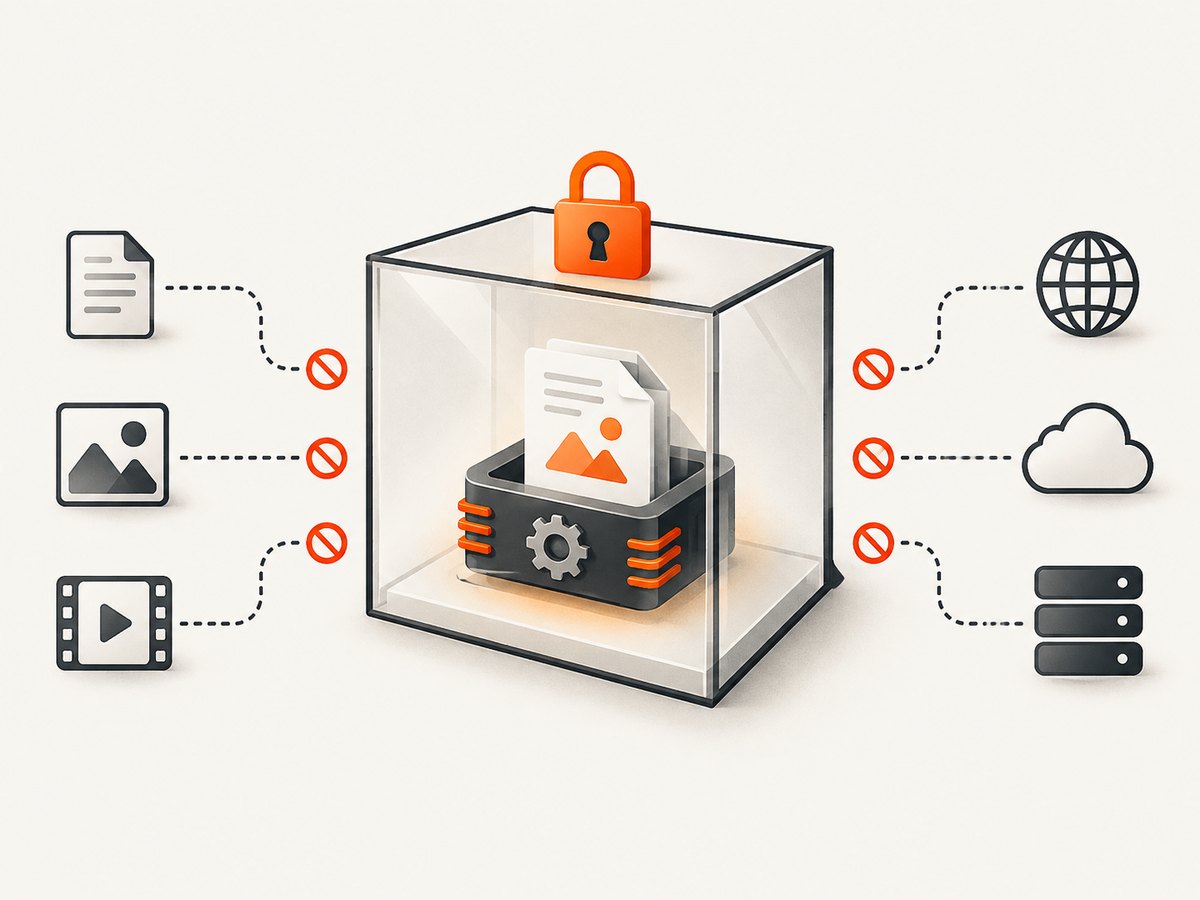
wkhtmltopdf --allow /srv/reports/assets /srv/reports/input.html /srv/reports/output.pdfKeep local-file access disabled for untrusted or mixed-origin inputs, and enable it only for deliberately controlled files. Treat HTML and JavaScript as active input: a document may request remote resources or exploit the rendering process. The project’s warning is explicit: “Do not use wkhtmltopdf with any untrusted HTML – be sure to sanitize any user-supplied HTML/JS, otherwise it can lead to complete takeover of the server it is running on!”
Disabling local-file access is not a complete security boundary. The project’s AppArmor guidance notes that an attacker exploiting a vulnerability in a prebuilt binary might bypass the setting. Run conversions in a least-privilege isolated worker, restrict filesystem and network access, and apply operating-system controls such as AppArmor or SELinux where appropriate. Do not pass raw user uploads directly to the converter.
8. Troubleshoot common problems
| Symptom | Likely cause | What to check |
|---|---|---|
| Blank or incomplete PDF | Wrong input path, page load error, or content rendered after capture | Confirm the URL or file exists, inspect stderr and exit code, and use --javascript-delay or --window-status for known asynchronous content. |
| Missing CSS, fonts, or images | Bad relative paths, inaccessible resources, permissions, or local access disabled | Check URLs, encoding, filesystem permissions, and resource reachability. For trusted local assets, scope access with --allow. |
| Layout differs from browser | Different print settings or older WebKit rendering behavior | Set page size, margins, orientation, and print-media behavior explicitly. Use a browser-based renderer for pages relying on modern browser features. |
| JavaScript content absent | Dynamic content was not ready, or the page feature is unsupported | Wait for an explicit status or a suitable delay, then verify whether the page works with Qt WebKit at all. |
| Command works locally but not in a service | Different PATH, user permissions, dependencies, or working directory | Run under the service account and check binary discovery, file access, and installed libraries. |
| Conversion hangs or takes too long | Slow page, stalled network request, or scripts that never settle | Set an application-level timeout, inspect the page and resource dependencies, and avoid waiting indefinitely for general network activity. |
| Security concern with uploaded HTML | HTML or JavaScript can access resources or exploit the renderer | Reject or sanitize untrusted markup and isolate the worker with minimal permissions and OS-level controls. |
9. Performance, reliability, and cost
The official sources do not publish a reproducible speed, memory, or CSS-coverage benchmark, so there is no evidence-based universal throughput figure to plan around. Measure with your own representative documents, page sizes, fonts, and network conditions. Include cold starts, remote assets, slow pages, and failure cases in the workload.
Reliability depends on more than the conversion binary: input availability, network access, resource loading, process limits, and how your application handles nonzero exit codes all matter. Queue conversions if they compete with request handling, cap execution time and worker resources, record stderr for diagnosis, and validate produced PDFs. Keep the binary and its operating-system dependencies pinned and reviewed in deployment.
The software is open source under LGPLv3, but deployment still has costs: engineering time, worker compute, storage, network traffic, monitoring, and isolation. Compare those costs with a maintained browser-rendering service or another renderer if modern CSS and JavaScript fidelity is a requirement. The project status page frames WeasyPrint and PrinceXML as options for controlled reports and Puppeteer for dynamic JavaScript; choose based on fidelity, isolation, footprint, licensing, and support needs rather than an unsupported speed claim.
10. Or skip the browser setup
ScreenshotNeo is a website screenshot API and MCP server. For a PDF, make one request and set the output format to PDF. See the API documentation for parameters and formats. Basic request pattern:
curl -G "https://api.screenshotneo.com/v1/shot" \
  -d access_key=YOUR_API_KEY \
  --data-urlencode url=https://example.com \
  -d format=pdf \
  -o page.pdf
import requests
r = requests.get(
"https://api.screenshotneo.com/v1/shot",
params={"access_key": "YOUR_API_KEY", "url": "https://example.com", "format": "pdf"},
timeout=90,
)
r.raise_for_status()
open("page.pdf", "wb").write(r.content)const q = new URLSearchParams({
access_key: 'YOUR_API_KEY',
url: 'https://example.com',
format: 'pdf'
});
const res = await fetch(`https://api.screenshotneo.com/v1/shot?${q}`);
if (!res.ok) throw new Error(`Request failed: ${res.status}`);
await Bun.write('page.pdf', res);ScreenshotNeo removes cookie banners, newsletter popups, and chat widgets before capture, and each step can be turned off. Bot checks, blank pages, timeouts, failed loads, and cache hits are not billed; response headers report the page verdict and billing status. Its MCP server provides take_screenshot, get_page_info, and capture_pdf tools for AI agents. The free plan includes 1,000 shots per month with no card; paid plans start at $5 for 3,000 shots. See the docs for the current request options, then sign up free for 1,000 screenshots a month, with no card required.
Frequently asked questions
Is wkhtmltopdf still suitable for new projects?
It can fit stable, controlled HTML-to-PDF workflows. Its 0.12.6 stable series dates to 2020, so validate it against your current CSS and JavaScript requirements before adopting it.
Can wkhtmltopdf convert HTML without saving it first?
It accepts a URL as an input, so a reachable web page can be rendered directly. For generated HTML strings, write a controlled temporary file or use an integration that safely supports the required input form.
Can it make a PDF from several HTML documents?
Yes. The command supports ordered page objects and also cover and table-of-contents objects. Consult the manual for the object syntax and option scope.
Should I use wkhtmltopdf for user-submitted HTML?
No. The project warns that untrusted HTML and JavaScript can lead to complete server takeover. Sanitize or reject it and isolate any conversion worker that processes influenced content.


