How to Convert HTML to PNG in Angular
Convert an Angular element to PNG with html2canvas, handle SSR, CORS, fonts, large canvases, and compare a hosted screenshot API.
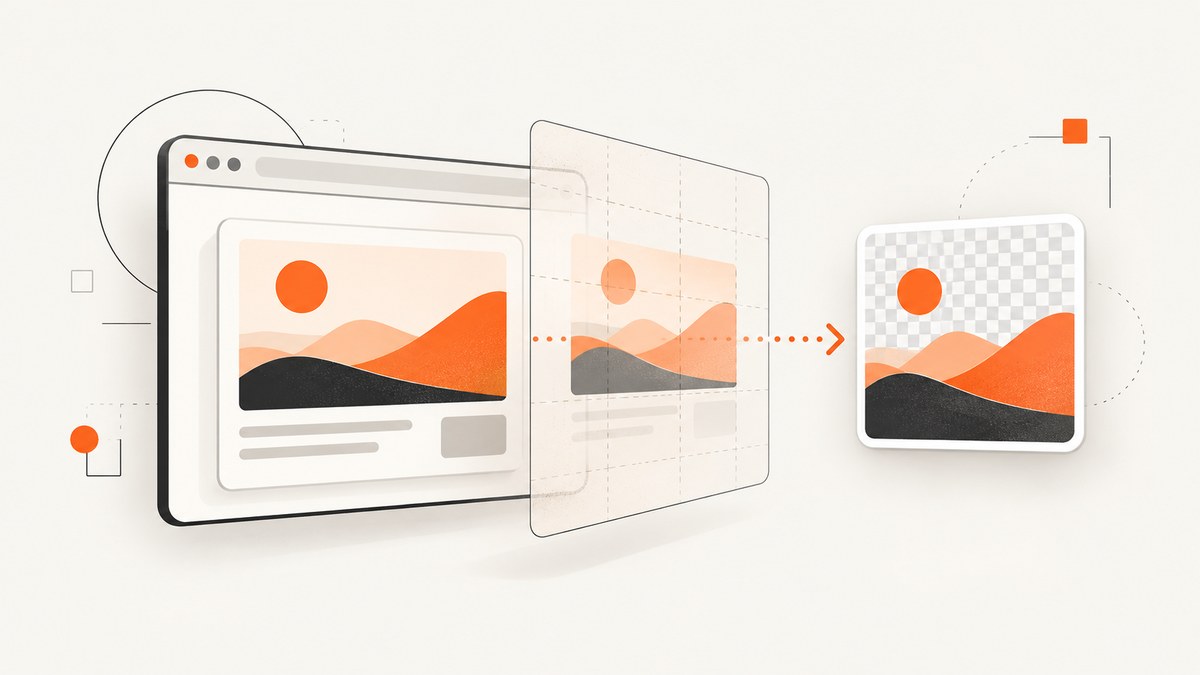
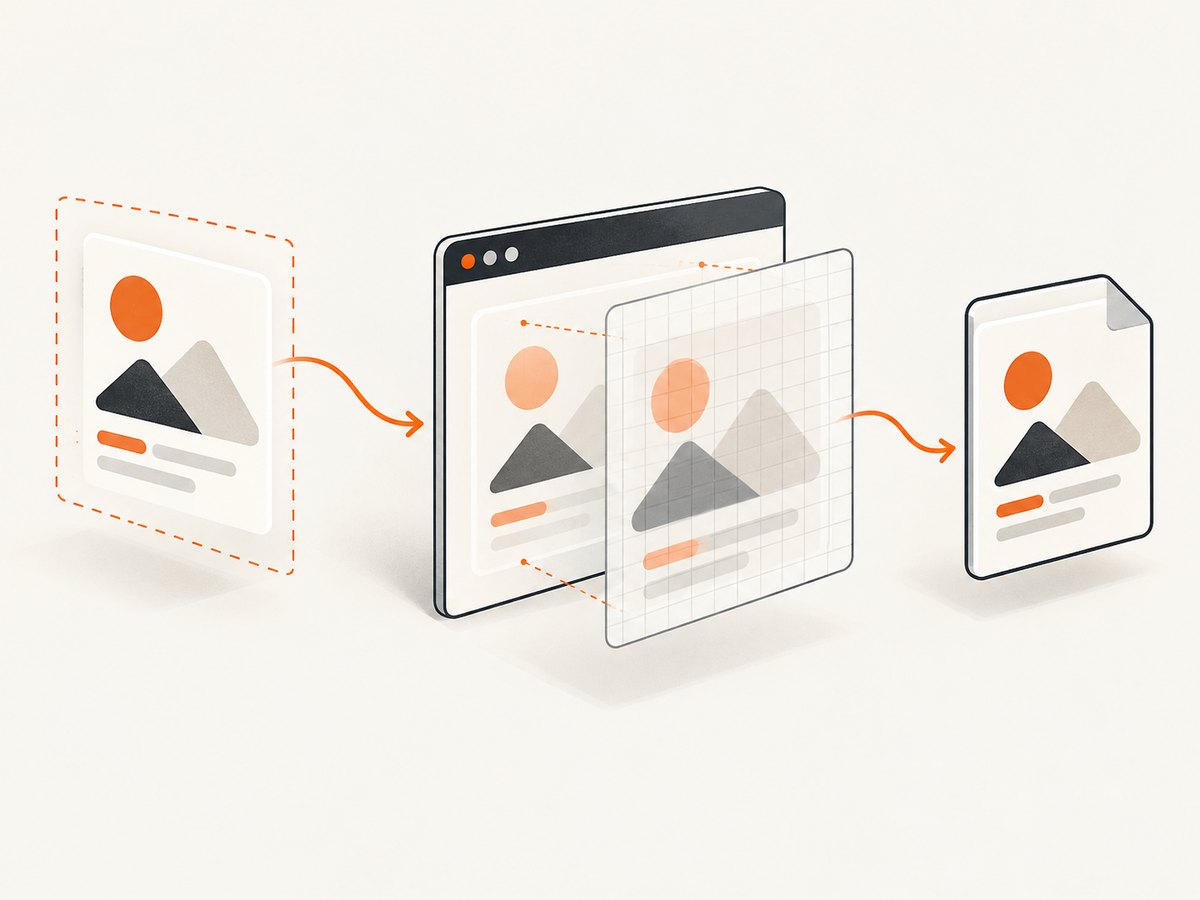
Direct answer: To convert rendered HTML to PNG in Angular, capture the element in the browser with html2canvas, await the returned canvas, and export it with canvas.toDataURL('image/png') or canvas.toBlob(). Run the capture only after Angular has rendered the element and its images and fonts are ready. This creates a bitmap reconstruction of the DOM; it is not a native browser screenshot, so unsupported CSS, cross-origin images, very large canvases, and server-side rendering need deliberate handling.
1. Install html2canvas
Install the package in the Angular project:
npm install html2canvas
The package runs in a browser because it reads window, document, computed styles, and image resources. Do not invoke it while Angular Universal is rendering on the server.
2. Capture an Angular element and download a PNG
The following standalone component captures one card after Angular has rendered it. Using a specific element keeps the output predictable and avoids capturing navigation, unrelated widgets, or the whole document by accident.
import { Component, ElementRef, ViewChild } from '@angular/core';
import html2canvas from 'html2canvas';

@Component({
  selector: 'app-card-export',
  standalone: true,
  template: `
    <section #capture class='card'>
      <h1>Quarterly report</h1>
      <p>Revenue increased 18% this quarter.</p>
    </section>
    <button type='button' (click)='downloadPng()'>Download PNG</button>
  `,
  styles: [`
    .card {
      width: 640px;
      padding: 32px;
      color: #172033;
      background: #ffffff;
      border: 1px solid #d9dfeb;
      border-radius: 16px;
      font-family: Arial, sans-serif;
    }
  `]
})
export class CardExportComponent {
  @ViewChild('capture', { static: true }) capture!: ElementRef;

  async downloadPng(): Promise {
    const element = this.capture.nativeElement;
    const canvas = await html2canvas(element, {
      backgroundColor: '#ffffff',
      scale: window.devicePixelRatio,
      useCORS: true
    });

    const link = document.createElement('a');
    link.download = 'quarterly-report.png';
    link.href = canvas.toDataURL('image/png');
    link.click();
  }
}
The official TypeScript example uses an import, awaits html2canvas(element), and exports a PNG data URL. The scale option uses the display pixel ratio for sharper output, while also increasing memory use. See the official examples before choosing options for your component.
3. Export with Blob instead of a data URL
toDataURL() keeps the entire image in a string and can consume a lot of memory for large captures. A Blob is usually better for larger images or uploads.
async saveAsBlob(element: HTMLElement): Promise {
  const canvas = await html2canvas(element, {
    backgroundColor: '#fff',
    useCORS: true
  });

  canvas.toBlob((blob) => {
    if (!blob) {
      throw new Error('The browser could not encode the canvas as PNG.');
    }

    const url = URL.createObjectURL(blob);
    const link = document.createElement('a');
    link.download = 'component.png';
    link.href = url;
    link.click();
    URL.revokeObjectURL(url);
  }, 'image/png');
}
For an upload, pass the Blob to FormData instead of creating a download link.
4. Capture after Angular has finished rendering
A click handler normally runs after the current view exists, but data-driven components can still be waiting for an HTTP response, an image decode, a web font, or a second change-detection pass. Capture only after the content required in the PNG is present.
Wait for images
async waitForImages(root: HTMLElement): Promise {
  const images = Array.from(root.querySelectorAll('img'));
  await Promise.all(images.map((image) => {
    if (image.complete) {
      return image.decode?.().catch(() => undefined);
    }
    return new Promise<void>((resolve) => {
      image.addEventListener('load', () => resolve(), { once: true });
      image.addEventListener('error', () => resolve(), { once: true });
    });
  }));
}
Call this method before html2canvas. If your component adds content asynchronously, wait for the observable or signal that controls that content, then allow Angular to update the view before capturing.
Wait for fonts
await document.fonts?.ready;
Fonts that are still loading can change line wrapping and element dimensions. The dom-to-image-more documentation also recommends waiting for fonts and dynamically added stylesheets before rendering.
5. Configure html2canvas for real applications
| Option | Use it for | Important behavior |
|---|---|---|
backgroundColor |
Consistent PNG background | Use a CSS color; set null when transparency is required and supported by your design. |
scale |
Sharper output | window.devicePixelRatio improves detail but multiplies canvas dimensions and memory. |
useCORS |
Images served with CORS headers | The image host must send suitable CORS headers; this option cannot bypass browser security. |
allowTaint |
Special cases involving cross-origin images | A tainted canvas cannot be read or exported, so this is not a general CORS fix. |
proxy |
Images that need a controlled proxy | Operate the proxy yourself and configure it to fetch only resources your application is allowed to access. |
windowWidth, windowHeight |
Matching a component’s scroll dimensions | Useful when content is cut off because the clone uses the viewport dimensions. |
ignoreElements |
Removing buttons or transient controls | Return true for nodes that should not appear in the output. |
Options vary by html2canvas version. Check the installed package’s type definitions and documentation when upgrading.
6. Full-page, scrollable, and element captures
Prefer an element reference for invoices, cards, charts, and reports. For a scrollable panel, temporarily set its height and overflow so all required content is in the DOM, then restore the styles after capture. A full-page capture can become too large for browser canvas limits; split long documents into sections or export a PDF workflow instead.
const panel = this.panel.nativeElement;
const oldHeight = panel.style.height;
const oldOverflow = panel.style.overflow;

try {
  panel.style.height = `${panel.scrollHeight}px`;
  panel.style.overflow = 'visible';
  const canvas = await html2canvas(panel, {
    windowWidth: panel.scrollWidth,
    windowHeight: panel.scrollHeight,
    scale: 1
  });
  canvas.toBlob(/* upload or download */);
} finally {
  panel.style.height = oldHeight;
  panel.style.overflow = oldOverflow;
}
Virtualized lists are a common surprise: rows not present in the DOM cannot be reconstructed. Render the rows you need before capture.
7. SSR and Angular Universal
html2canvas cannot run where document is absent. Keep browser-only code behind the application’s browser guard and call it from a user action or a browser lifecycle path. The exact guard depends on your Angular version and whether you use standalone bootstrapping or Angular Universal.
import { isPlatformBrowser } from '@angular/common';
import { Inject, PLATFORM_ID } from '@angular/core';

constructor(@Inject(PLATFORM_ID) private platformId: object) {}

async captureInBrowser(): Promise<void> {
  if (!isPlatformBrowser(this.platformId)) {
    return;
  }
  // Importing and calling html2canvas belongs in this browser-only path.
}
If your bundler evaluates a browser-only import during server rendering, use a dynamic import inside the guard and verify the Universal build.
8. Cross-origin images, fonts, and CSS
A cross-origin image can taint the canvas. When the image server provides the required CORS headers, set useCORS: true and ensure the image is requested with the expected credentials mode. Otherwise, host the asset on an origin you control or use a carefully restricted proxy. A proxy does not authorize access to private resources and should not be used to ignore access controls.
External fonts and stylesheets can also produce differences. Wait for document.fonts.ready, ensure stylesheet links have loaded, and test the exact image hosts used in production. CSS effects that html2canvas does not support may be missing or rendered differently.
9. Fidelity limits: reconstruction versus screenshot
html2canvas walks the DOM and paints a new canvas from readable DOM and CSS information. It does not ask the browser for native pixels. Unsupported CSS, browser-native controls, filters, complex blend modes, animations, video, and content outside the DOM can differ from what a user sees. Disable animation during capture, use a representative test component, and compare output in every browser and device class your application supports.
10. Large canvases and performance
- Capture the smallest useful element.
- Use
scale: 1for large exports, then increase it only when the output needs more detail. - Split very long pages into sections.
- Remove shadows, animations, and hidden content that do not belong in the image.
- Prefer Blob output for large files.
- Run capture outside rapid change detection loops; debounce repeated exports.
Canvas dimension limits differ by browser and platform and can change. A capture that is blank, truncated, or throws an allocation error is often too large. Reduce the region, lower scale, or divide the document and test on target devices.
11. Troubleshooting checklist
| Symptom | Likely cause | Fix |
|---|---|---|
| Blank or partly blank PNG | Canvas dimensions exceed browser limits | Capture smaller regions, lower scale, or split the page. |
| SecurityError when exporting | Canvas was tainted by a cross-origin image | Enable CORS on the asset host, use useCORS, or use a controlled proxy. |
| Images missing | Capture started before image load or decode | Wait for image load and decode(); verify the URL and CORS headers. |
| Wrong font or line wrapping | Web font was still loading | Await document.fonts.ready and stylesheet loading. |
| Element is cut off | Scrollable dimensions differ from viewport dimensions | Set windowWidth/windowHeight and temporarily expand overflow. |
| SSR error: document is undefined | Browser code ran on the server | Guard with a browser check and dynamically import the library if needed. |
| Some list items are absent | Virtualization kept them out of the DOM | Render the required items before capture. |
| CSS effect differs | Property is unsupported or browser-native | Use a simpler equivalent style or evaluate a different capture method. |
12. Alternative: dom-to-image-more
dom-to-image-more can render a DOM node to PNG, JPEG, or SVG. It also requires a browser DOM and documents issues around fonts, stylesheets, and unsupported rendering cases. Prototype both libraries against the same component, browsers, external images, fonts, and maximum size before choosing. There is no universal winner established by the available research.
13. Or skip the browser setup
If your goal is a screenshot of a deployed Angular route rather than a client-side export, ScreenshotNeo returns a PNG, JPEG, WebP, or PDF from one request. Its capture options include full-page lazy-image loading, CSS selectors for one element, custom CSS and JavaScript, waits, device presets, retina scale, headers, cookies, user agents, timezone, geolocation, hiding selectors, and request blocking. Cookie banners, newsletter popups, and chat widgets are removed before the shot. Bot checks, blank pages, failed loads, timeouts, and cache hits are not billed, and response headers identify the page verdict and billing result.

See the ScreenshotNeo API documentation for all options. The same request works from cURL, Python, or Node.js:
curl -G "https://api.screenshotneo.com/v1/shot" -d access_key=YOUR_API_KEY --data-urlencode url=https://stripe.com -o shot.webpimport requests
r = requests.get('https://api.screenshotneo.com/v1/shot', params={'access_key': 'YOUR_API_KEY', 'url': 'https://stripe.com'}, timeout=90)
open('shot.webp', 'wb').write(r.content)
const q = new URLSearchParams({ access_key: 'YOUR_API_KEY', url: 'https://stripe.com' });
const res = await fetch(`https://api.screenshotneo.com/v1/shot?${q}`);
ScreenshotNeo also provides an MCP server with take_screenshot, get_page_info, and capture_pdf tools for Claude, Cursor, and other MCP clients. One thousand screenshots per month are free with no card; paid plans start at $5 for 3,000 shots. Create a free ScreenshotNeo account.
14. Cost, reliability, and deployment notes
Client-side html2canvas has no API request cost, but it uses the user’s CPU and memory and depends on that browser’s fonts, CORS policy, canvas limits, and network state. It is a good fit for an export button inside your Angular app. A hosted capture API is more consistent for server jobs, scheduled captures, public previews, and AI workflows, but you should handle HTTP errors, retries, timeouts, and output storage.
For repeatable results, freeze the component state, disable animation, wait for assets, use a fixed viewport, and record the browser and library versions used to generate important files. For production exports, keep representative fixtures and compare generated PNGs after dependency upgrades.
FAQ
Can html2canvas capture the entire Angular page?
Yes, if the required content is in the DOM and within browser canvas limits. Long pages are safer when divided into smaller captures.
Does it work in Angular Universal?
The capture call must run only in a browser. It cannot execute during server rendering because browser DOM APIs are unavailable.
Why is my PNG not pixel-perfect?
html2canvas reconstructs the DOM from supported CSS; it is not a native screenshot API. Unsupported effects, fonts, cross-origin assets, and browser-native controls can differ.
Should I use PNG or JPEG?
PNG preserves text and transparency well. JPEG can be smaller for photographic content but introduces lossy compression.
When should I use ScreenshotNeo?
Use it when you need a deployed URL captured without maintaining browser automation, when consent and popup removal matter, or when an AI agent needs screenshot tools through MCP.


