How to Convert HTML to PNG with a Browser Extension
Capture a rendered webpage as a PNG with a browser extension. Choose full-page or visible-area capture, check the result, and troubleshoot common limits.
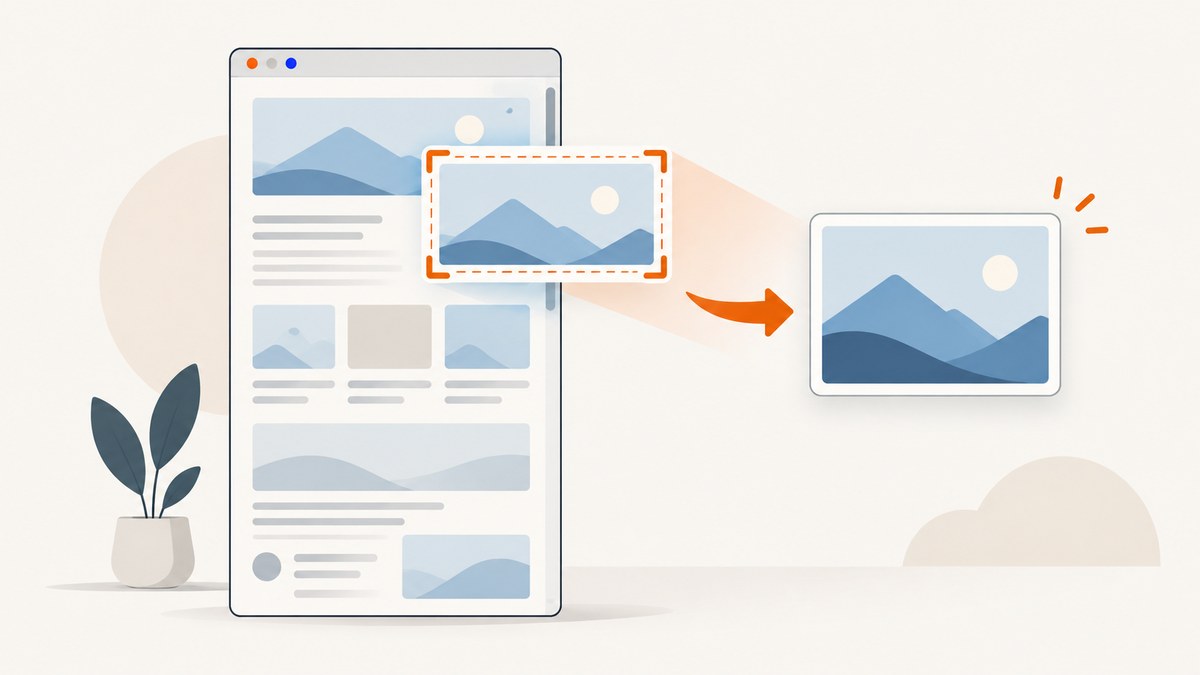
A browser extension can save a rendered webpage as a PNG. Open the page, let the content you need load, choose a full-page or visible-area capture, select PNG as the export format, and save the image. Use full-page capture for content below the screen; use visible-area capture for just the current viewport. Then open the PNG and check that the text and images you need are present.
This method captures what the browser has rendered. It is useful for a page you can open in a tab; it is not a universal converter for arbitrary local HTML files and every linked asset. For a reliable result, check the extension’s browser compatibility, permissions, privacy disclosure, capture modes, and export options before installing it.
1. What a browser extension captures
An extension takes an image of page content as displayed in the browser. The page’s current state matters: loaded images, expanded menus, banners, scrolling position, animations, and other visible elements can affect the result. A PNG is a lossless format, which is generally suitable for text, diagrams, and interface details. Some extensions also export JPEG, WebP, or PDF.
“HTML to PNG” can mean different things. If you have a website open in a normal tab, an extension can capture its rendered appearance. If you have an HTML file on disk, open it in the browser first and confirm that its stylesheets, fonts, scripts, and images load correctly. An extension may be unable to capture browser-internal pages or files whose access is restricted. Page to Image, for example, says its extension blocks settings pages, the extension store, and developer tools; check the current listing for the tool you choose.
Choose the capture area
| Mode | What it includes | Use it when |
|---|---|---|
| Visible area | The current browser view | You need a quick screenshot of what is on screen |
| Full page | The page extending below the viewport | You need a long article or complete page in one image |
| Selected region | A rectangle you select | You need a particular portion of the page |
| Element | A page element selected by the tool | You need one chart, panel, or component |
Capture modes differ by extension. For example, FireShot’s Chrome listing describes full-page, visible-area, and selected-area capture with PNG export. PageSaver’s listing describes full-page, region, and element capture with several export formats. These are publisher feature descriptions, not independent reliability tests; verify the current store listing before you rely on a feature.
2. Convert a webpage to PNG with an extension
- Choose an extension for your browser. Check that it supports your browser and the capture mode you need. Examples listed for Chrome include Page to Image and FireShot; Firefox Add-ons lists Full Page Screenshot T7. These names are options to evaluate, not a tested ranking.
- Review permissions and privacy information. Read the current store listing, requested permissions, and the publisher’s privacy disclosure. Some publishers say processing happens locally in the browser; that statement is the publisher’s claim, not an independent audit.
- Open the page in a normal tab. Navigate to the webpage you want to capture. Browser settings pages, extension stores, developer tools, and other internal pages may be inaccessible to extensions.
- Prepare the page. Wait for the content you want to appear. Scroll through the page if it loads more content as you move, expand anything that must be visible, and dismiss or accept overlays if they obstruct the content you need.
- Invoke the extension. Select the extension from the browser toolbar or its menu. Choose full-page, visible-area, selected-region, or element capture according to the scope you need.
- Set PNG as the output. If the extension presents a format selector, choose PNG. Some tools save directly after capture; others show a preview or export menu.
- Save and inspect the file. Choose the save or download action, then open the PNG. Check the top, bottom, text legibility, and any important images. Retry after adjusting the page if content is missing or covered.
Page to Image describes saving a capture to Downloads. The exact controls and save location depend on the extension and browser version, so use the current listing and extension interface as your guide.
3. Prepare long and dynamic pages
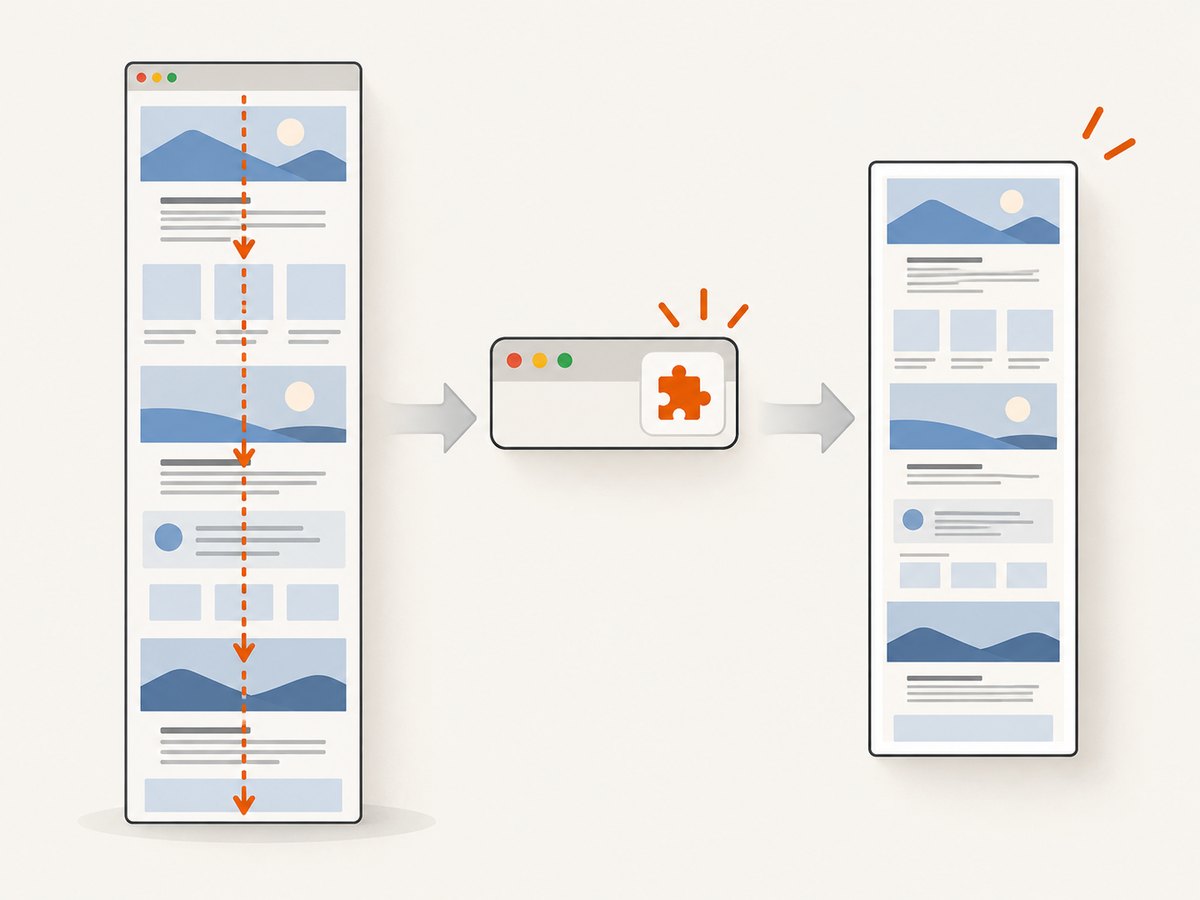
Full-page capture has more edge cases than a screenshot of the visible screen. A page may load images only when they approach the viewport, use an internal scrolling panel, or update while the extension is stitching the capture. No store feature description guarantees a perfect result on every site.
- Lazy-loaded images: Scroll through the page before capturing so images have a chance to load. Return to the top before starting if the extension captures from the current position.
- Internal scroll areas: A document may have a scrollable panel inside the page. If the extension offers a scrollable-area mode, select the panel or use that mode. Firefox’s Full Page Screenshot T7 listing describes automatic scrolling and a mode for internal scrollable areas; confirm that the current version supports your use case.
- Fixed headers and overlays: Sticky navigation, cookie banners, chat widgets, and newsletter popups can cover content or appear repeatedly in a long capture. Close them where possible. Page to Image’s listing describes an option to hide fixed overlays, but availability and behavior may vary.
- Animation and changing data: A carousel, video, live chart, or rotating banner can change during capture. Pause it or wait for the frame you need, then inspect the result.
- Browser zoom and page state: Zoom, responsive layout, and expanded controls affect the rendered page. Set the browser to the desired state before capturing and keep it consistent if you need comparable images.
4. Pick an extension using practical checks
Store listings describe available features, but they do not establish a universal best extension or prove how reliably it works across websites. Compare the current options against your actual capture need.
| Check | Question to answer |
|---|---|
| Browser support | Is the extension listed for the browser and version you use? |
| Capture scope | Does it offer full-page, visible-area, selected-region, or element capture? |
| Long-page behavior | Does it describe handling internal scrolling or long pages? |
| Output format | Can you export PNG, and are there limits or upgrade requirements? |
| Permissions | Are the requested permissions appropriate for the task? |
| Privacy | What does the publisher say about processing and data collection? |
| Restrictions | Are browser-internal pages or particular sites blocked? |
Options described in the reviewed listings include Page to Image and FireShot for Chrome, Full Page Screenshot T7 for Firefox, GoFullPage for Chrome, and PageSaver for Chrome. Feature sets and versions can change. Recheck each listing for current formats, compatibility, permissions, privacy disclosures, limits, and upgrade terms before installing. Store descriptions are publisher-provided claims; they should not be read as independent security audits or performance comparisons.
5. When you need a repeatable capture
Extensions work well for a manual capture of a page you are viewing. For a script, scheduled task, batch of URLs, or a capture that should run without an interactive browser, consider an API. ScreenshotNeo is a website screenshot API and MCP server: a GET request with a URL can return a PNG, JPEG, WebP, or PDF. Its options include full-page capture, CSS selector capture, custom CSS and JavaScript, waits, headers, cookies, viewport settings, and more. See the ScreenshotNeo API documentation for parameters and setup.

Or skip the browser setup
Send a GET request with the page URL and your API key. This cURL example saves a WebP image:
curl -G "https://api.screenshotneo.com/v1/shot" -d access_key=YOUR_API_KEY --data-urlencode url=https://stripe.com -o shot.webpFor PNG output, request the documented PNG format parameter and save the response with a .png filename. The service also supports full-page capture, element selection, viewport and device settings, waits, custom headers and cookies, and other options described in the docs.
ScreenshotNeo accepts cookie and consent banners like a visitor and removes more than 60 known consent platforms, newsletter popups, and chat widgets before capture; each step can be turned off. Bot checks and CAPTCHAs, blank pages, timeouts, failed loads, and cache hits cost nothing, and response headers identify the page verdict and billing status. An MCP server offers take_screenshot, get_page_info, and capture_pdf tools for Claude, Cursor, and other MCP clients. The free plan includes 1,000 screenshots per month with no card; paid plans start at $5 for 3,000 shots. Every feature is on every plan.
Sign up for 1,000 free screenshots a month, with no card required.
6. Troubleshooting
| Problem | Likely cause | What to try |
|---|---|---|
| The extension does not capture the page | The tab is an internal browser page or a restricted destination | Try a normal website tab. Check the extension listing for blocked pages; Page to Image names settings, the extension store, and developer tools as blocked examples. |
| The PNG is only the visible screen | Visible-area mode was selected | Choose full-page capture. Confirm the preview or resulting image includes content below the fold. |
| The bottom of the page is missing | Full-page capture did not handle the page’s length, loading behavior, or nested scrolling as expected | Scroll through the page first, wait for content, and try a scrollable-area mode if the content is inside a panel. Inspect the export before sharing it. |
| Images or sections are blank | They had not loaded, were lazy-loaded, or depend on page scripts | Scroll to the affected content and wait for it to load, then retry. If the page still renders incorrectly in the browser, the extension may capture the same incomplete state. |
| Text or content is covered | A fixed banner, popup, or chat widget overlaps the page | Dismiss the overlay or use an extension option to hide fixed overlays if available. Check that removing it does not hide content you need. |
| The exported file is not PNG | The default format is another type, or the extension’s export controls were skipped | Select PNG in the export menu. Do not just rename a JPEG or WebP file; verify the actual format in an image viewer. |
| The capture looks different from the tab | Zoom, responsive layout, animation, or page state changed | Set the browser viewport and zoom first, pause changing content if possible, and capture again. |
| The extension asks for broad permissions | It may need access to pages to capture them, but the request still needs review | Read the current permission explanation and privacy disclosure. Install only if the access matches your intended use. |
7. Performance, reliability, and cost
A visible-area screenshot captures less content and is usually the simpler choice. Full-page capture may need to scroll or process a long document, so it can take longer and is more exposed to lazy loading, sticky elements, nested scroll areas, and content that changes during capture. The reviewed listings do not provide a comparable performance benchmark, so expect behavior to vary by page, browser, and extension.
For reliability, keep the browser open on the intended page, wait for important content, and inspect every capture. If the same capture must be repeated, recorded, or run across many URLs, an API can make the request parameters explicit and support automation. ScreenshotNeo offers caching with a chosen TTL, async jobs with signed webhooks, bulk capture of up to 100 URLs per call, a usage API, and signed links for public image tags. Its listed monthly prices are Free: 1,000 shots; Starter: $5 for 3,000; Growth: $15 for 15,000; Pro: $39 for 60,000; Scale: $99 for 250,000; and Business: $249 for 1,000,000. Yearly billing gives two months free. Check the product page for current plan details before purchasing.
Browser extensions may be free, have optional upgrades, or apply export limits; check the current store listing. For Page to Image and Firefox’s Full Page Screenshot T7, the publishers describe local processing. Treat those as publisher disclosures rather than independent audits. Review permissions and privacy information for whichever extension you install.
8. FAQ
Can an extension convert any HTML file directly?
An extension captures content rendered in a browser tab. Open the HTML in the browser and confirm its assets load; access restrictions and local-file behavior can vary by browser and extension.
Should I choose PNG or JPEG?
Choose PNG when preserving crisp text, interface details, or diagrams matters. JPEG may suit photographic content when a smaller file is more useful. Check which formats the extension supports.
Why does full-page capture differ from taking several screenshots?
Full-page tools may scroll or assemble a longer page. Multiple manual captures show separate viewport states and may not line up. Inspect the output because neither method guarantees that a dynamic page will remain unchanged throughout capture.
Can I capture a browser’s settings or extension store page?
Some internal pages are blocked. Page to Image specifically names browser settings, the extension store, and developer tools; restrictions depend on the browser and extension.
Is a publisher’s “local processing” statement a security audit?
No. It is a disclosure from the publisher. Read it alongside current permissions and decide whether it fits your use case.


