How to Convert HTML to PNG With a Chrome Extension
Capture a webpage or local HTML file as PNG in Chrome. Learn which extension settings matter, how to handle large pages, and when an API is simpler.
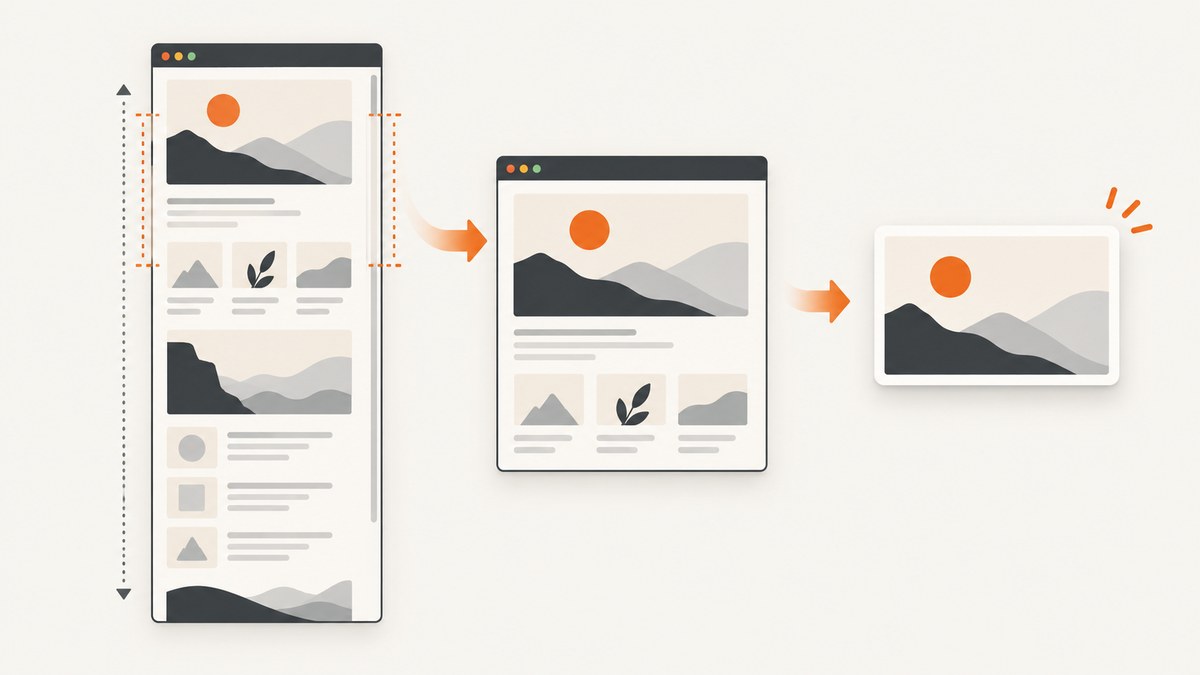
To convert HTML to PNG with a Chrome extension, open the rendered webpage in Chrome, click an installed screenshot extension, choose Full page or Visible area, select PNG, and save the image. If you mean an .html file stored on your computer, the extension may also need permission to access file URLs. This captures what Chrome rendered; it does not convert the source markup into an image by itself.
For example, the Page to Image Chrome Web Store listing describes full-page and visible-area capture, PNG and JPEG output, and saving the result to Downloads. Its listing says captures are processed locally; treat that as the publisher’s statement, not an independently verified guarantee. Features and permissions vary by extension, so check the listing for the extension you install. Page to Image listing.
1. Choose the right kind of HTML capture
“HTML” can mean two different things in this workflow:
- A webpage: a URL that Chrome has loaded and rendered. The extension captures the page as it appears in the browser, including rendered styles and visible content.
- A local HTML file: a file such as
file:///…/report.htmlopened directly from your computer. Chrome treats file access separately from ordinary website access, and the extension may need an explicit permission.
Before choosing a tool, decide what should appear in the PNG. Use visible-area capture for the viewport currently on screen. Use full-page capture for a long document. If you need a particular element, check whether the extension supports selecting an area or element; do not assume that every extension has the same controls.
2. Convert a webpage to PNG step by step
- Open the target URL in Chrome. Navigate to the exact page you want to save. If it requires sign-in, confirm the page is displaying the expected account and content.
- Wait for rendering to settle. Let visible text and images load. If the page uses animations, video, or delayed content, pause or wait until the intended frame is visible. A screenshot records a moment in time.
- Open the extension. Click its toolbar button. If it is not visible, open Chrome’s Extensions menu and pin it to the toolbar if desired.
- Select the capture area. Choose Visible area for only the current viewport, or Full page for the scrolling document. Some tools also offer a selected-region mode.
- Choose PNG. PNG is suitable for crisp interface text, diagrams, and lossless image detail. If the extension offers JPEG, that can produce a smaller file for photographic content, usually with some image quality tradeoff.
- Capture and save. Follow the extension’s save or download control. Page to Image says its capture is saved to Downloads. Verify the resulting file opens and includes the expected area.
Extension controls differ. A listing that advertises PDF or JPG export does not mean another extension supports those formats. GoFullPage, for example, lists PNG, JPG, and PDF export. Compare the specific listing for capture modes, formats, permissions, and limits before relying on a feature.
3. Capture a local .html file
For a file on disk, open it in Chrome and then try the extension’s capture action. If the extension cannot access the tab, look in Chrome’s extensions management settings for its separate Allow access to file URLs permission. The GoFullScreenshot listing says this setting is needed for its local HTML workflow and that, once enabled, its extension supports full-page, visible-area, and selection capture on local files. Other extensions can behave differently. GoFullScreenshot listing.
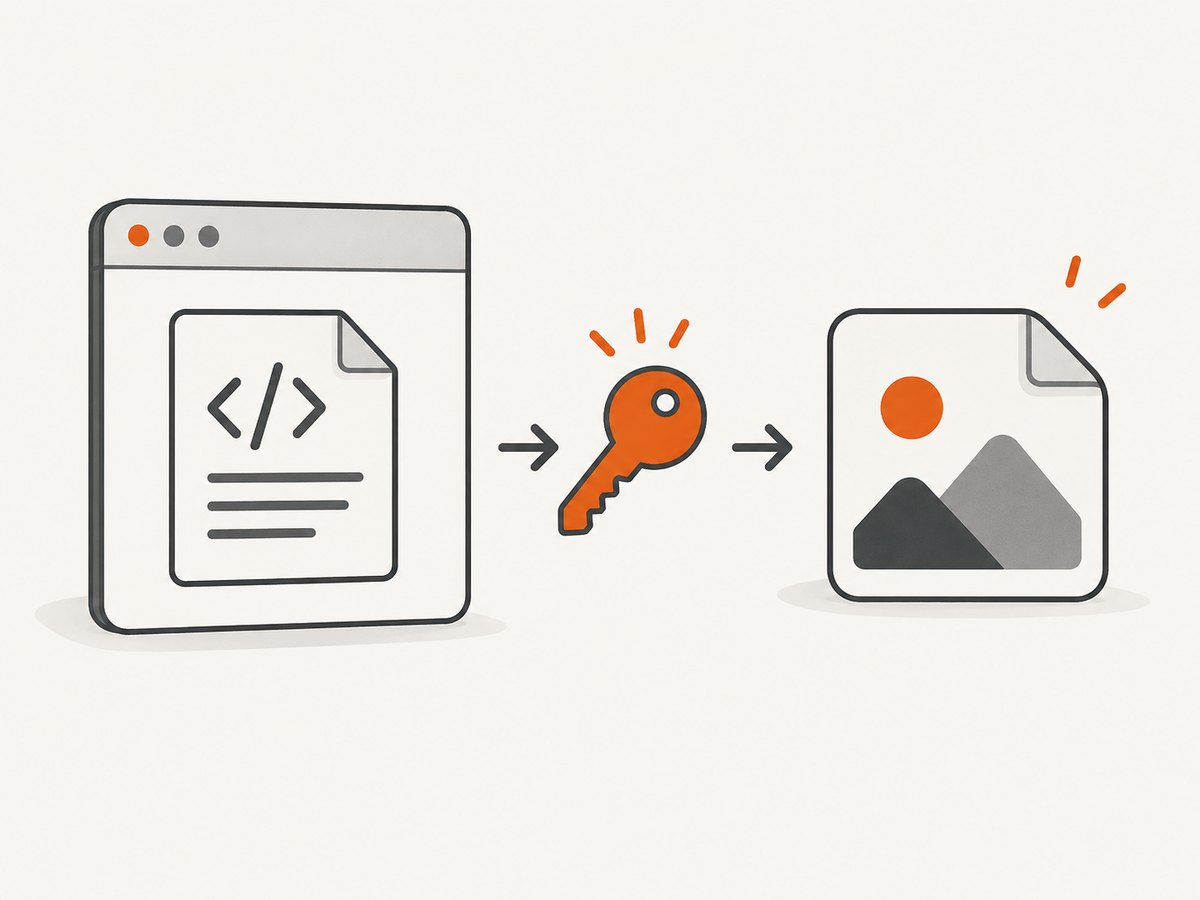
After enabling file access, reload the local file and retry. If the document refers to CSS, fonts, images, or scripts using relative paths, confirm those resources resolve from the file’s location. A screenshot cannot include content that failed to load or was not rendered.
Only enable file access for an extension you trust and need for this task. The permission allows that extension to interact with local-file tabs; review the extension’s stated permissions and privacy information before use.
4. Pick output and capture scope
| Need | Choice | What to consider |
|---|---|---|
| Save only what is on screen | Visible-area PNG | Fast and predictable, but content below the fold is omitted. |
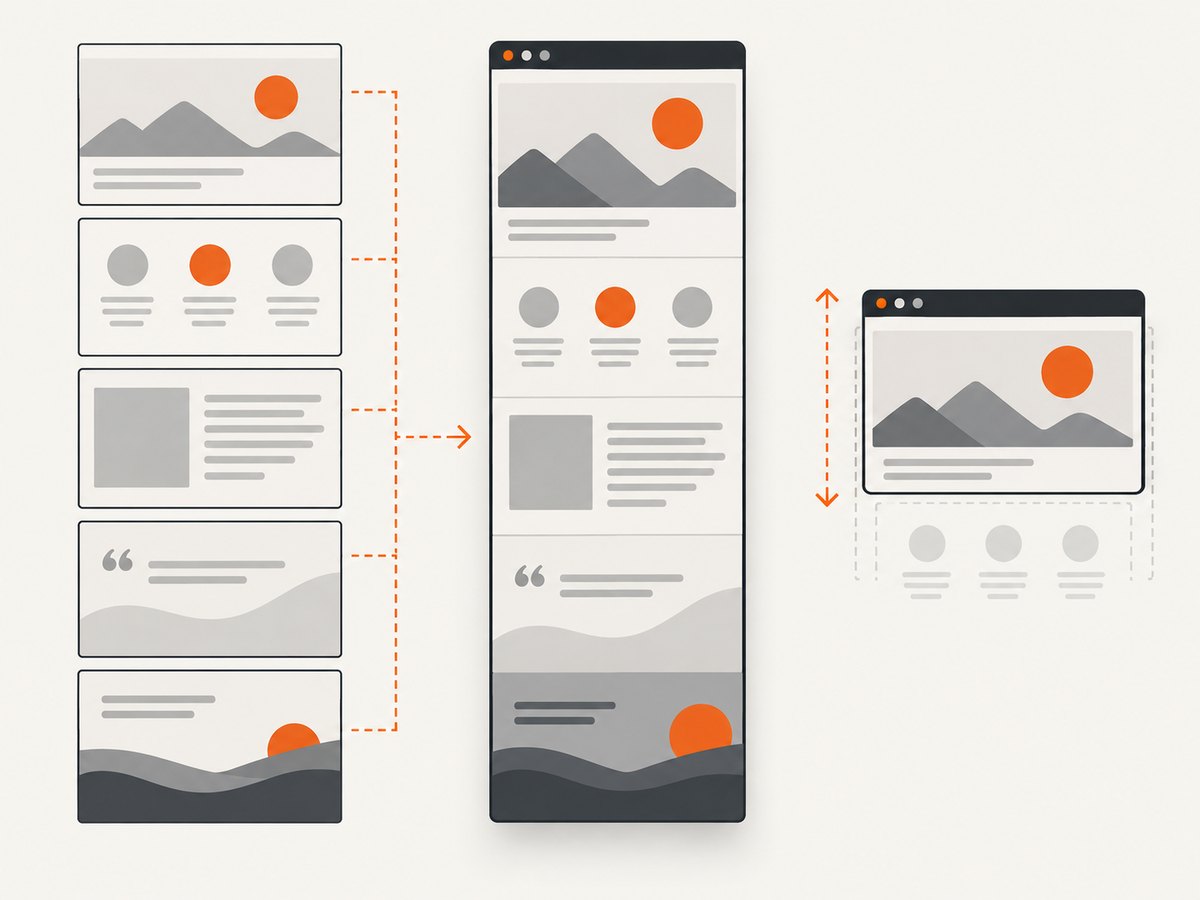
| Save a long article or report | Full-page PNG | The extension may scroll and combine page sections; very tall pages can exceed image or canvas limits. |
| Save text, diagrams, or interface detail | PNG | Lossless image output preserves sharp edges well, at the cost of larger files than some lossy formats. |
| Save a photo-oriented image at smaller size | JPEG, if offered | JPEG is lossy; inspect quality settings and fine text before using it. |
| Archive the page with resources | MHTML | This is an archive format, not a PNG screenshot. |
Chrome’s pageCapture extension API is not a PNG exporter. Chrome for Developers documents it as saving a tab as MHTML, an archive that packages a page with its resources. Use a screenshot extension when the deliverable needs to be an image. Chrome for Developers: pageCapture API.
5. Understand what the screenshot includes
A screenshot records the browser’s rendered state at capture time. It is not a clean transcription of the HTML source, and it does not guarantee that content hidden behind interactions will be shown. Check the page before capture for:
- lazy-loaded images that appear only after scrolling;
- cookie banners, chat widgets, or promotional popups covering content;
- sticky headers or fixed buttons repeated across a full-page capture;
- incomplete fonts, images, or other resources;
- dynamic content that changes during capture.
For full-page capture, some extensions scroll the page and combine segments. That can reveal lazy content, but fixed elements may appear repeatedly or the layout may shift while the page is being captured. Inspect the output rather than assuming every long-page result is seamless.
6. Troubleshooting common problems
| Symptom | Likely cause | What to try |
|---|---|---|
| The extension cannot capture a local file | File URL access is disabled or unsupported by that extension. | Check the extension’s Chrome settings for Allow access to file URLs, enable it if appropriate, reload the file, and retry. Confirm the extension listing supports local files. |
| Only the visible screen was saved | Visible-area mode was selected. | Open the extension again and choose its full-page option, if available. |
| The bottom of the page is missing | Capture was limited to the viewport, the page did not finish loading, or the page exceeded a size limit. | Wait for load completion, select full page, and retry. For very long documents, capture smaller sections or use a workflow designed for large pages. |
| Capture fails on a browser page | Chrome restricts extension access to some protected pages. | Capture an ordinary webpage instead. Page to Image says protected pages, including Chrome settings and the Chrome Web Store, cannot be captured. |
| The PNG has blank areas or missing images | Resources did not load, content is delayed, or the page uses lazy loading. | Wait for resources, scroll through the page before capture if appropriate, and confirm the content is present in Chrome first. |
| The extension reports that the image cannot be created | The page may be too large for safe image or canvas creation. | Reduce the capture scope or split the page into smaller captures. GoFullScreenshot’s listing says it displays an error when it cannot safely create an image. |
| The output is blurry or unexpectedly large | Format or scale settings do not match the content. | Use PNG for text and diagrams; use JPEG only when its compression is acceptable. If scale controls are offered, choose a practical scale and verify readability. |
The protected-page and size-limit behavior above is stated in the respective extension listings, not a universal guarantee about every Chrome extension. See the Page to Image listing and GoFullScreenshot listing.
7. Privacy, reliability, and file size
A browser extension can request access to pages you visit, and local-file access is an additional setting when supported. Read the listing’s permissions and privacy disclosures and use only the access needed for the capture. Page to Image says it processes captures locally; that is a claim in its Chrome Web Store listing. Verify current disclosures directly because listing details and extension behavior can change.
For reliability, capture after the page reaches the state you need, keep the browser tab open until the extension finishes, and review the saved PNG. Full-page captures depend on both the page and the extension’s capture technique; exceptionally tall or dynamic pages can be less reliable than a single viewport. A PNG’s file size also grows with pixel dimensions and visual complexity. If the image is too large to share, check whether the extension offers JPEG or capture only the required sections.
8. Or skip the browser setup
If you need repeatable captures from code or want to avoid configuring a browser extension, ScreenshotNeo is a website screenshot API and MCP server. One GET request can return PNG, JPEG, WebP, or PDF. Its clean-shot flow accepts cookie and consent banners like a visitor and removes 60+ known consent platforms, newsletter popups, and chat widgets before capture; each step can be turned off.
Here is the one-call cURL example (replace the URL with the page you need):
curl -G "https://api.screenshotneo.com/v1/shot" -d access_key=YOUR_API_KEY --data-urlencode url=https://stripe.com -o shot.webpSee the ScreenshotNeo API documentation for request options. ScreenshotNeo says bot checks and CAPTCHAs, blank pages, timeouts, failed loads, and cache hits cost nothing; response headers report the page verdict and billing status. Its MCP server provides take_screenshot, get_page_info, and capture_pdf for Claude, Cursor, and other MCP clients. The free plan includes 1,000 shots per month with no card; paid plans start at $5 for 3,000 shots, and every feature is on every plan.
Sign up for 1,000 free screenshots a month with no card.
9. FAQ
Does a Chrome extension convert the HTML source code into a PNG?
It captures the page Chrome rendered. To make an image of source code itself, open or display that code as page content first, then capture it.
Can I use Chrome’s pageCapture API to make a PNG?
No. The documented output is MHTML. Use a screenshot extension for a rendered PNG capture.
Why does my extension need file URL access?
Chrome separates local-file access from normal webpage access. An extension that supports local HTML capture may require you to enable that permission in its settings.
Can I save a whole webpage as one image?
Use a full-page mode if the extension provides it. Very long pages may exceed its safe image limits, in which case smaller captures may work better.


