Convert HTML to PNG in C#
Render HTML or a live URL as a PNG in C# with Playwright, alternatives, troubleshooting, and a browser-free ScreenshotNeo option.
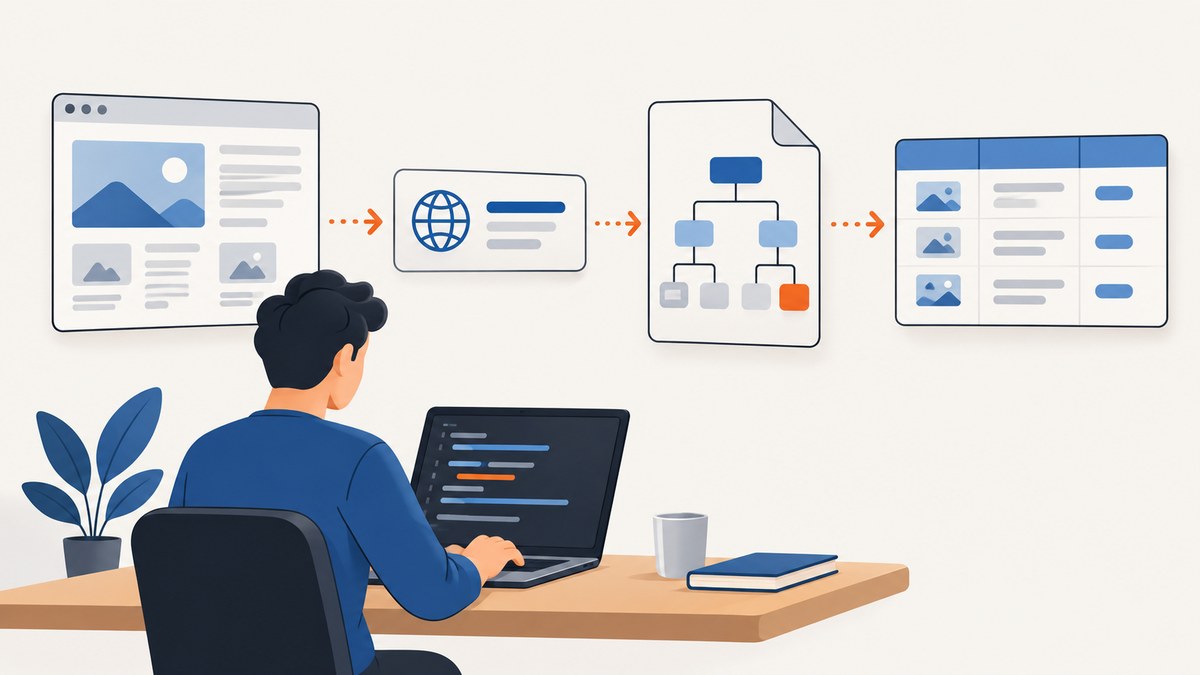
To convert HTML to PNG in C#, render the HTML in a browser engine and capture the page. For most cross-platform applications, Playwright for .NET is the clearest route: create a browser, load either a URL or an HTML string, then call ScreenshotAsync. The same API supports viewport screenshots, full-page captures, element screenshots, transparent backgrounds, and in-memory image bytes.
This guide covers local HTML, remote pages, CSS and JavaScript, fonts and images, full-page output, element capture, deployment, errors, performance, and cost. It also shows when Puppeteer Sharp or WebView2 makes more sense, followed by a hosted option that removes browser setup.
1. Use Playwright for .NET
Playwright’s .NET screenshot guide documents saving screenshots to a file, full-page capture, element capture, and returning image bytes. The Page API reference lists screenshot options such as type, scale, timeout, and transparency. The project README describes Playwright for .NET as the official .NET port for automating Chromium, Firefox, and WebKit with one API.
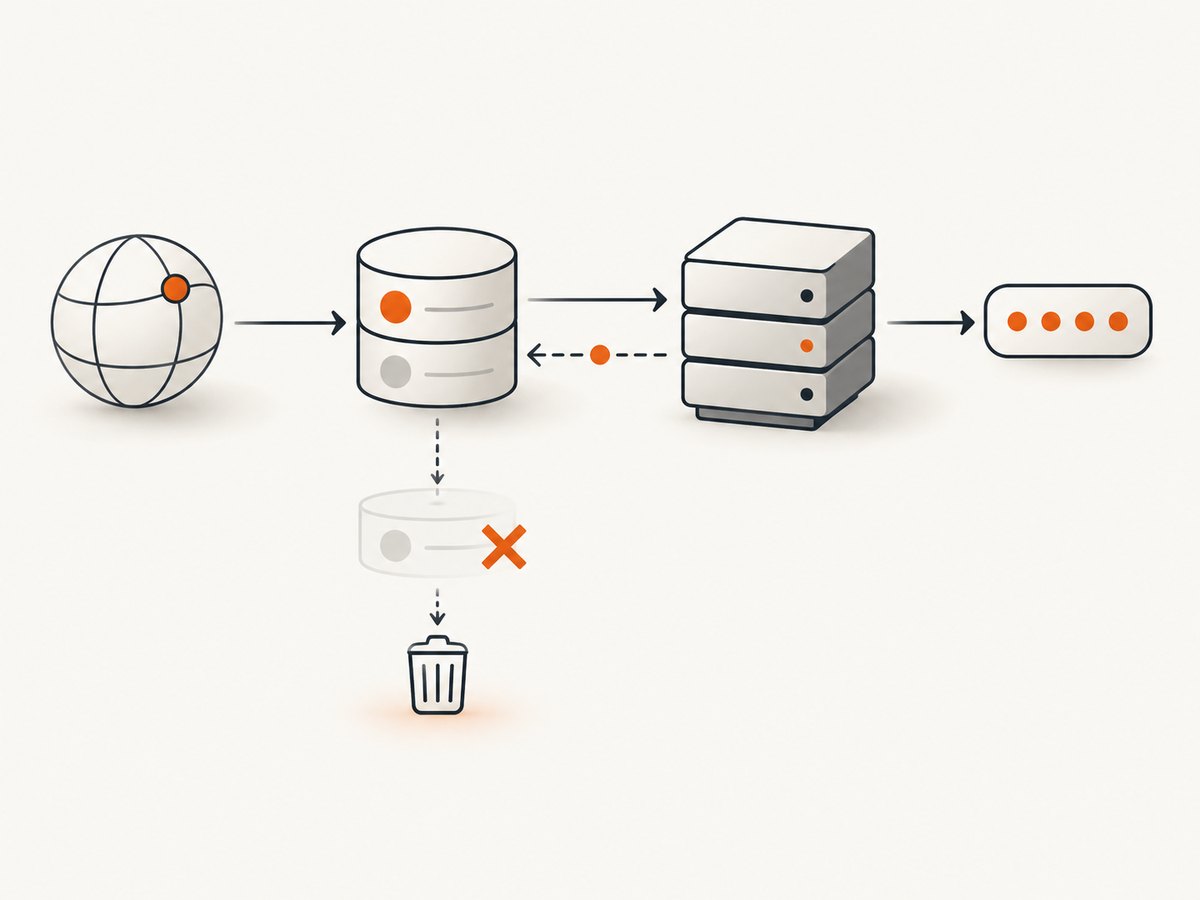
Install the package and browser
dotnet new console -n HtmlToPng
cd HtmlToPng
dotnet add package Microsoft.Playwright
dotnet build
# Install the browser binaries required by Playwright
pwsh bin/Debug/net8.0/playwright.ps1 install chromium
Use the current installation instructions for your target .NET version and operating system. Browser binaries are separate from the NuGet package, so a deployment pipeline must install or package them as well.
Convert an HTML string to PNG
using Microsoft.Playwright;
using var playwright = await Playwright.CreateAsync();
await using var browser = await playwright.Chromium.LaunchAsync(new BrowserTypeLaunchOptions
{
Headless = true
});
var page = await browser.NewPageAsync(new BrowserNewPageOptions
{
ViewportSize = new ViewportSize { Width = 1280, Height = 720 },
DeviceScaleFactor = 1
});
await page.SetContentAsync("""
Hello from C#
This HTML becomes a PNG.
SetContentAsync injects the HTML into the page. FullPage = true expands the capture to the complete scrollable document. Omit it to capture only the viewport. PNG is the documented default screenshot type, but setting Type explicitly makes the intent clear.
Convert a live URL
using Microsoft.Playwright;

using var playwright = await Playwright.CreateAsync();
await using var browser = await playwright.Chromium.LaunchAsync();
var page = await browser.NewPageAsync(new BrowserNewPageOptions
{
    ViewportSize = new ViewportSize { Width = 1440, Height = 900 }
});

await page.GotoAsync("https://example.com", new PageGotoOptions
{
    WaitUntil = WaitUntilState.NetworkIdle,
    Timeout = 60_000
});

await page.ScreenshotAsync(new PageScreenshotOptions
{
    Path = "example.png",
    FullPage = true,
    Type = ScreenshotType.Png
});
GotoAsync navigates to the URL. A navigation timeout does not necessarily mean the page is unusable: sites can keep analytics or streaming requests open. In those cases, use WaitUntil = WaitUntilState.Load, wait for a specific selector, or add a short delay after navigation.
2. Control the rendered output
Viewport, device scale, and transparent backgrounds
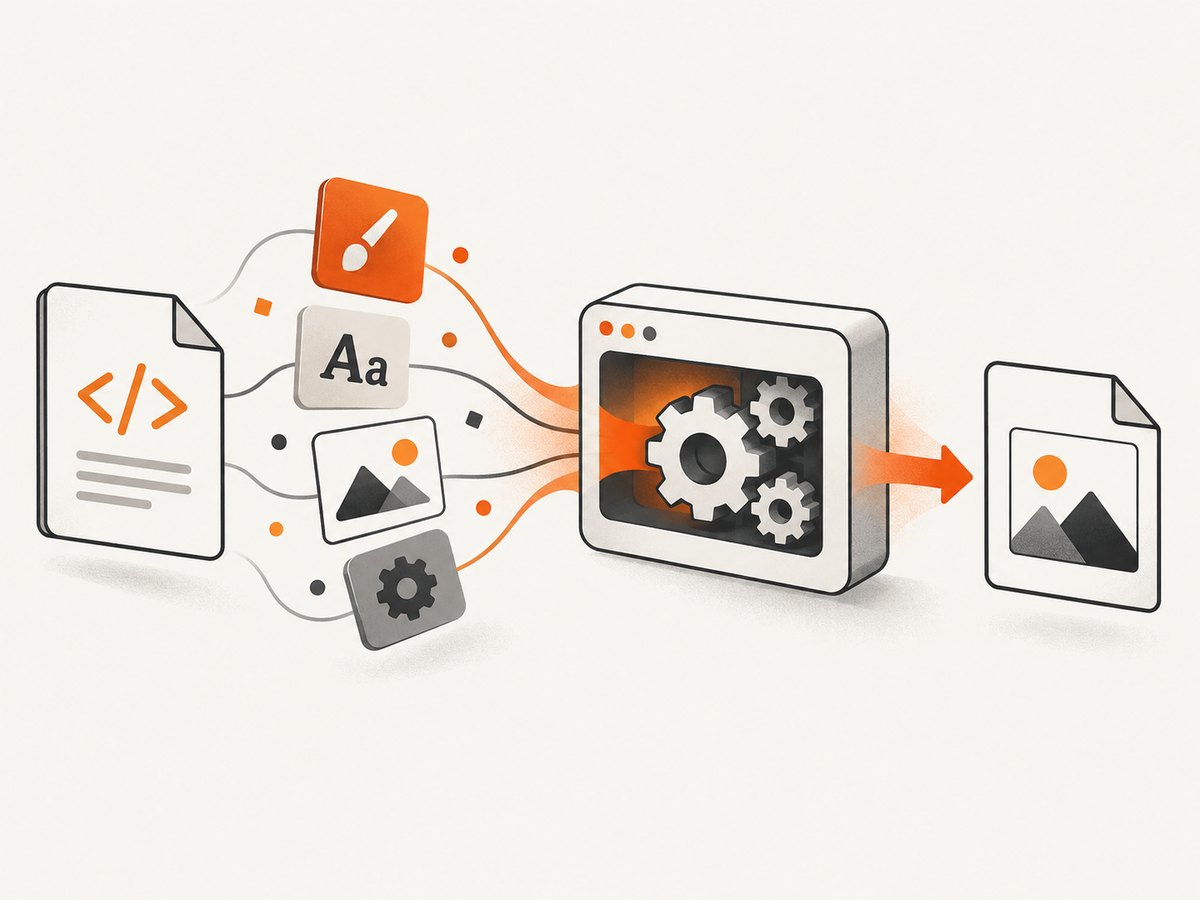
The viewport controls CSS layout. A 1280-pixel viewport can produce a desktop layout while a 375-pixel viewport triggers mobile media queries. DeviceScaleFactor controls pixel density; a value of 2 produces a retina-style image with twice as many output pixels in each dimension. Set OmitBackground = true for a transparent PNG when the page background permits transparency.
var page = await browser.NewPageAsync(new BrowserNewPageOptions
{
    ViewportSize = new ViewportSize { Width = 375, Height = 812 },
    DeviceScaleFactor = 2,
    ColorScheme = ColorScheme.Dark
});
Color scheme, locale, timezone, geolocation, user agent, cookies, and extra HTTP headers can affect what the page renders. Configure them when the HTML uses responsive rules, localized content, authentication, or time-dependent output.
Wait for fonts, images, and application state
Screenshot only after the content you need is ready. A selector wait is usually more reliable than an arbitrary sleep.
await page.GotoAsync(url, new PageGotoOptions { WaitUntil = WaitUntilState.DOMContentLoaded });
await page.Locator("main.dashboard").WaitForAsync(new LocatorWaitForOptions
{
    State = WaitForSelectorState.Visible,
    Timeout = 30_000
});
await page.EvaluateAsync("document.fonts.ready");
await page.WaitForTimeoutAsync(500);
await page.ScreenshotAsync(new PageScreenshotOptions { Path = "dashboard.png" });
For lazy-loaded images, scroll through the page before a full-page capture or use a page that exposes all content after a known trigger. If the application renders asynchronously, wait for its finished state rather than relying only on network idle.
Capture one element
var card = page.Locator("article.invoice");
await card.ScreenshotAsync(new LocatorScreenshotOptions
{
    Path = "invoice-card.png",
    Type = ScreenshotType.Png
});
Element capture is useful for invoices, charts, social cards, and components whose bounds are smaller than the page. Make sure the locator resolves to one visible element and that animations have finished.
Capture bytes instead of a file
byte[] png = await page.ScreenshotAsync(new PageScreenshotOptions
{
    Type = ScreenshotType.Png,
    FullPage = true
});
await File.WriteAllBytesAsync("output.png", png);
Returning bytes lets an ASP.NET endpoint stream the result, upload it to object storage, or post-process it without a temporary file. PNG does not use the quality option documented for JPEG and WebP.
3. Complete example for an ASP.NET endpoint
using Microsoft.Playwright;

var builder = WebApplication.CreateBuilder(args);
var app = builder.Build();

app.MapPost("/render", async (RenderRequest request) =>
{
    if (string.IsNullOrWhiteSpace(request.Html))
        return Results.BadRequest("html is required");

    using var playwright = await Playwright.CreateAsync();
    await using var browser = await playwright.Chromium.LaunchAsync();
    var page = await browser.NewPageAsync(new BrowserNewPageOptions
    {
        ViewportSize = new ViewportSize { Width = 1200, Height = 800 }
    });

    await page.SetContentAsync(request.Html, new PageSetContentOptions
    {
        WaitUntil = WaitUntilState.Load,
        Timeout = 30_000
    });
    await page.EvaluateAsync("document.fonts.ready");

    var bytes = await page.ScreenshotAsync(new PageScreenshotOptions
    {
        Type = ScreenshotType.Png,
        FullPage = true
    });
    return Results.File(bytes, "image/png", "render.png");
});

app.Run();

record RenderRequest(string Html);
For production throughput, keep a browser process alive and create a fresh page or context per request. Do not share mutable cookies or page state between tenants. Apply request size limits and validate any remote URL or HTML that untrusted users can submit.
4. CSS, JavaScript, images, and external resources
HTML conversion is browser rendering, so relative URLs need a base URL. A local HTML string containing <img src="images/logo.png"> will not find that file unless you provide a resolvable URL or embed the asset as a data URL. For a live page, navigate to its URL so relative stylesheets, scripts, and images resolve naturally.
Inline CSS works with SetContentAsync. For additional CSS, inject it after loading:
await page.AddStyleTagAsync(new PageAddStyleTagOptions
{
    Content = "body { print-color-adjust: exact; } .debug { display: none !important; }"
});
Run page JavaScript only when needed for deterministic setup. Disable animations and transitions to avoid capturing an intermediate frame:
await page.AddStyleTagAsync(new PageAddStyleTagOptions
{
    Content = "*, *::before, *::after { animation: none !important; transition: none !important; }"
});
Remote resources can fail because of DNS, TLS, authentication, CORS, robots policies, or a blocked network in your hosting environment. Listen for failed requests during diagnosis and log the final URL, status, and browser console messages.
5. Full-page, print, and very tall documents
FullPage captures the document’s full scroll height as one PNG. Extremely tall pages can consume significant memory and create an image that is awkward to display. For reports, consider capturing sections separately or generating a PDF, then rasterizing selected pages. If the page uses fixed headers, verify whether the repeated header is desired in a single tall image.
Do not confuse a screenshot with print layout. CSS print media, page breaks, and paper dimensions apply to PDF or print rendering. If your requirement is a paginated document, use a PDF workflow rather than assuming a full-page PNG will paginate correctly.
6. Alternative .NET routes
Puppeteer Sharp is a .NET port of the Node.js Puppeteer API. It can launch a headless browser, navigate, set a viewport, inject HTML, and save screenshots. Choose it when your team already uses its API or ecosystem. The reviewed sources do not establish a performance or fidelity advantage over Playwright.
WebView2 fits a Windows desktop application that already embeds Microsoft’s Edge Chromium renderer. Its control runs on the creating UI thread, asynchronous calls should not block that thread, and the WebView2 Runtime must be present on the target machine. Microsoft documents Evergreen Runtime updates and Fixed Version deployment when exact control is required; Fixed Version distribution is described as adding roughly 100–250 MB. WebView2 is not presented here as a one-call PNG API, so expect to build capture coordination around the embedded control.
| Requirement | Best starting point | Reason |
|---|---|---|
| Cross-platform service or batch job | Playwright for .NET | Browser automation and screenshot APIs in one .NET package. |
| Existing Puppeteer codebase | Puppeteer Sharp | Familiar API and ecosystem. |
| Windows desktop UI with embedded Edge | WebView2 | Uses the renderer already integrated into the application. |
| No browser installation to operate | ScreenshotNeo | Hosted capture API with clean shots and usage-based plans. |
7. Or skip the browser setup
ScreenshotNeo is a hosted website screenshot API. One GET request returns a PNG, JPEG, WebP, or PDF. It accepts HTML-page capture options such as full-page mode, CSS selectors, custom CSS and JavaScript, waits, device presets, dark mode, cookies, headers, geolocation, caching, and bulk capture. Its consent step accepts cookie banners and removes more than 60 known consent platforms, newsletter popups, and chat widgets before capture; each step can be turned off.
Only clean shots are billed. Bot checks or CAPTCHAs, blank pages, timeouts, failed loads, and cache hits cost nothing, and response headers identify the page verdict and whether the request was billed.
See the ScreenshotNeo API documentation for the current options. The basic call is:
curl -G "https://api.screenshotneo.com/v1/shot" -d access_key=YOUR_API_KEY --data-urlencode url=https://stripe.com -o shot.webpimport requests
r = requests.get(
"https://api.screenshotneo.com/v1/shot",
params={"access_key": "YOUR_API_KEY", "url": "https://stripe.com"},
timeout=90,
)
r.raise_for_status()
open("shot.webp", "wb").write(r.content)const q = new URLSearchParams({ access_key: 'YOUR_API_KEY', url: 'https://stripe.com' });
const res = await fetch(`https://api.screenshotneo.com/v1/shot?${q}`);
if (!res.ok) throw new Error(`Screenshot failed: ${res.status}`);
const image = Buffer.from(await res.arrayBuffer());
await import('node:fs/promises').then(fs => fs.writeFile('shot.webp', image));ScreenshotNeo also provides an MCP server with take_screenshot, get_page_info, and capture_pdf tools for Claude, Cursor, and other MCP clients. The free plan includes 1,000 screenshots per month with no card; paid plans start at $5 for 3,000 shots. Create a free ScreenshotNeo account to get an access key.
8. Troubleshooting checklist
“Executable doesn’t exist” or browser launch failure
Cause: Playwright’s browser binaries were not installed, or the deployment image cannot find them. Fix: run the generated Playwright install script during image build, keep the package and browser versions aligned, and confirm the process has execute permission.
Blank or partially rendered PNG
Cause: capture happened before client-side rendering, fonts, or images completed. Fix: wait for a meaningful selector, await document.fonts.ready, wait for a known application state, and inspect console and request failures.
Navigation timeout
Cause: a page keeps connections open or a resource is slow. Fix: choose DOMContentLoaded or Load, then wait for the selector you need. Increase the timeout only after identifying the slow dependency.
Relative images or styles are missing
Cause: an HTML string has no base URL. Fix: use absolute URLs, embed assets as data URLs, or navigate to a page URL whose origin supplies the resources.
Text differs between machines
Cause: different installed fonts, browser versions, device scale factors, locale, or timezone. Fix: pin the browser/runtime used by your deployment, install required fonts, and set locale and timezone explicitly.
Element screenshot fails
Cause: the selector matches no element, multiple elements, or a hidden element. Fix: use a precise locator, wait for visibility, and verify the page state before calling the locator screenshot method.
Memory pressure on long pages
Cause: one very tall bitmap and several concurrent browser pages. Fix: limit concurrency, close contexts promptly, capture sections, reduce device scale, or use a paginated format.
9. Performance, reliability, and cost
- Reuse browsers: launching Chromium for every request adds startup time. Keep a controlled browser process and create isolated contexts or pages per job.
- Control concurrency: each page consumes CPU and memory. Use a queue and a fixed worker count instead of accepting unlimited parallel screenshots.
- Make readiness deterministic: selector waits and application signals are more repeatable than long fixed delays.
- Cache stable output: hash the HTML, URL, and rendering settings when the same input can be reused.
- Record diagnostics: log URL, viewport, browser version, navigation timing, final URL, and failed resources without logging secrets.
- Budget external capture: Playwright has infrastructure costs for browser hosts, while ScreenshotNeo charges only clean shots; cache hits and failed or blocked captures are not billed by ScreenshotNeo.
No reviewed source supplies a fair benchmark between Playwright, Puppeteer Sharp, and WebView2, or a universal rendering-fidelity guarantee. Measure your own pages, fonts, concurrency, and hosting environment before selecting a production architecture.
10. FAQ
Can I convert HTML without opening a visible browser window?
Yes. Playwright and Puppeteer Sharp launch headless browser processes. WebView2 is an embedded Windows control and has different UI-thread requirements.
Can Playwright save JPEG instead of PNG?
Yes, select the documented JPEG screenshot type and quality option. The quality option does not apply to PNG.
Should I use a screenshot or PDF for invoices?
Use PNG for a pixel image or preview. Use PDF when paper size, margins, page ranges, and pagination matter.
How do I capture a page that requires login?
Create a browser context with the required cookies or headers, or complete the login flow before capturing. Keep credentials out of logs and isolate contexts between users.
Does ScreenshotNeo replace Playwright for local HTML?
Playwright is appropriate when the HTML and browser must run inside your application. ScreenshotNeo is useful when you want a hosted URL capture API, clean consent and popup handling, MCP tools, and no browser runtime to operate.


