How to Convert HTML to PNG in Firefox
Save a rendered webpage as PNG in Firefox, capture a full page or element, or automate screenshots with Firefox DevTools and Playwright.
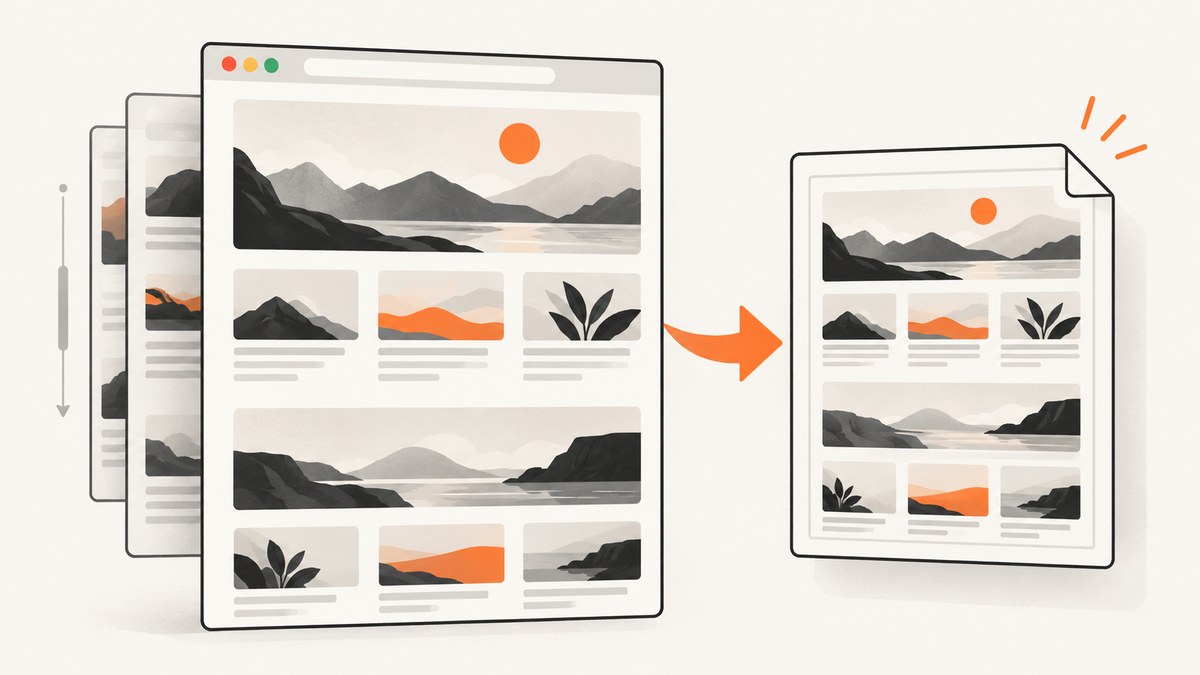
To convert a webpage to PNG in Firefox, open the rendered page, right-click an empty area and choose Take Screenshot. Use Save visible for the current viewport or Save full page for the whole scrollable page, then download the image. Firefox saves the screenshot as a PNG image. You can also select a region or a highlighted page element. Mozilla’s Firefox screenshot guide documents these options.
This captures the page as Firefox renders it; it does not turn the HTML source code itself into a picture. If you mean a local .html file, open it in Firefox and try the same workflow. Some local files or special browser pages may behave differently from ordinary websites.
1. Save a webpage as PNG in Firefox
- Open the webpage in Firefox and wait for the content you need to appear.
- Right-click an empty part of the page and select Take Screenshot. You can also use Ctrl+Shift+S on Windows or Linux, or Command+Shift+S on macOS.
- Choose a capture mode: Save visible, Save full page, a selected region, or a page element Firefox highlights.
- Download the image. The Firefox support guide describes the downloaded screenshot as a PNG.
For a full-page image, choose the full-page option rather than scrolling and capturing multiple viewport images. A full-page capture includes the scrollable page in one image. If you only need a chart, dialog, or other component, use element selection or draw a region to avoid capturing unnecessary page content.
You can add a Screenshot button to the Firefox toolbar through the toolbar customization view. This is optional; the context menu and keyboard shortcut work without changing the toolbar.
2. Choose the capture that fits the task
| Need | Firefox option | Useful for |
|---|---|---|
| What is currently on screen | Save visible | A quick record of the current viewport or a bug report. |
| The complete scrollable page | Save full page | Long articles, landing pages, and page review. |
| A particular area | Region selection | A cropped section when an element selector is not convenient. |
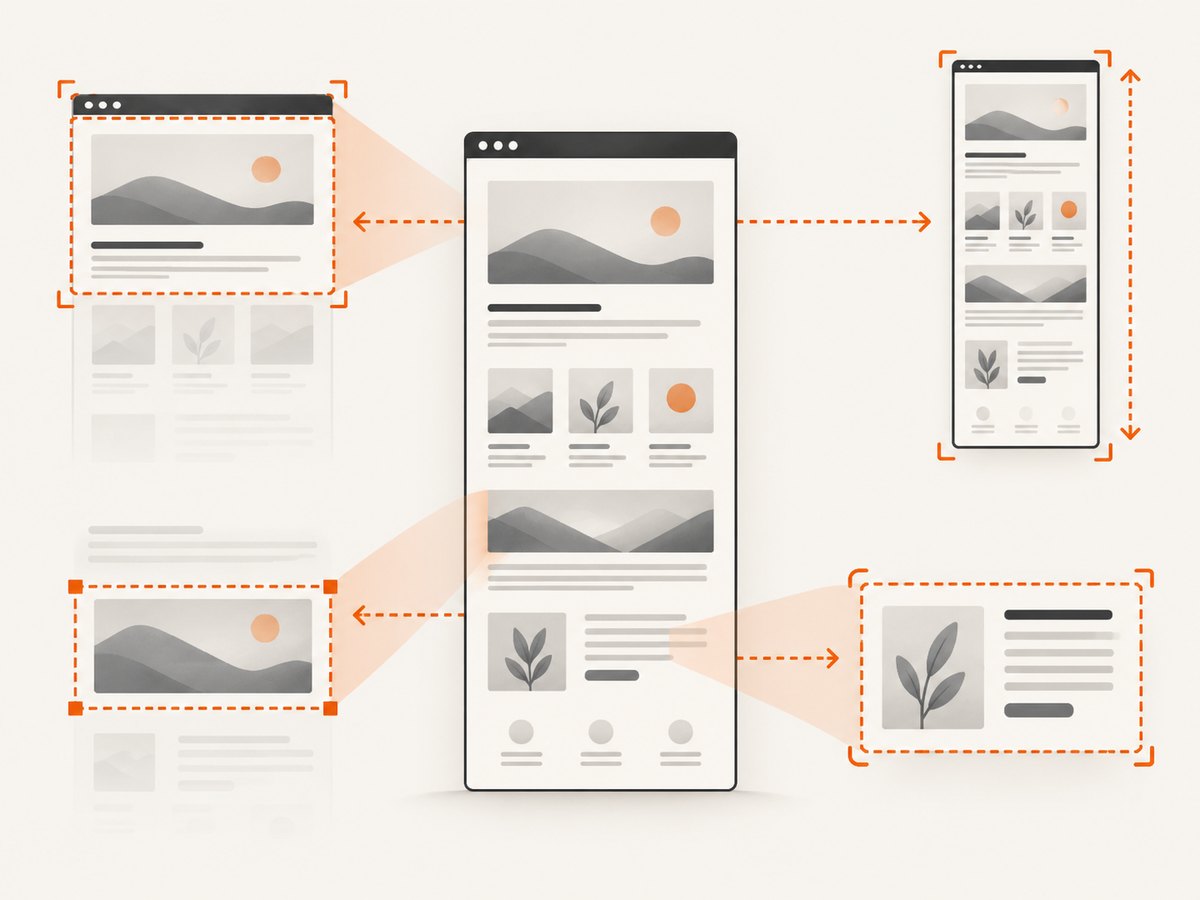
| One page component | Highlighted element | A card, image, table, or other distinct element. |
The screenshot represents the rendered result at capture time. Content that is hidden, still loading, or only appears after interaction may not be present. For a repeatable result, make the page state consistent before capturing it: use the same viewport, wait for important content, and dismiss any dialogs that should not appear in the image.
3. Capture through Firefox Developer Tools
For a developer workflow, Firefox Developer Tools provide screenshot commands. Mozilla documents enabling the screenshot button in Developer Tools settings, and using the Web Console screenshot command with options such as --fullpage and --filename. This is useful when you want to capture from the browser’s developer interface rather than the regular screenshot picker.
- Open Developer Tools and its settings, then enable the screenshot button if you want it available in the tool interface.
- Open the Web Console and enter the screenshot command with the desired options. For example, add
--fullpagefor the whole page and--filenameto specify an output filename. - Review the command’s result and save the image where your project expects it.
Console command details can change between Firefox versions. Consult Mozilla’s Web Console command documentation for current syntax and available options. Use the normal screenshot picker for a one-off capture if you do not need a repeatable developer workflow.
4. Automate screenshots with Playwright
For repeated captures, Playwright’s Firefox browser automation can save screenshots to a file, capture the full scrollable page, or target a particular element. The following Node.js example opens a page in Firefox and writes a full-page PNG. Install Playwright and its Firefox browser as described in the official Playwright setup guide.
const { firefox } = require('playwright');

(async () => {
  const browser = await firefox.launch({ headless: true });
  const page = await browser.newPage({ viewport: { width: 1440, height: 900 } });
  try {
    await page.goto('https://example.com', { waitUntil: 'networkidle' });
    await page.screenshot({ path: 'page.png', fullPage: true });
  } finally {
    await browser.close();
  }
})();
Save the code as screenshot.js and run it with Node.js after installing Playwright. Replace the example URL with the page you need. The finally block closes the browser even if navigation or capture fails.
To capture one element instead, locate it and call its screenshot method:
const card = page.locator('.product-card');
await card.screenshot({ path: 'product-card.png' });
To capture only the current viewport, omit fullPage or set it to false. Playwright’s Firefox screenshot API and page options are documented at Playwright screenshots.
5. Make automated captures more reliable
Automation is useful when captures run in a build, scheduled job, or batch. A screenshot can still be inconsistent if the page is mid-animation, content is delayed, or a remote service is slow. Use these practices to make the capture reflect the state you intend:

- Choose a stable viewport. Responsive layouts change with viewport width and height. Set the dimensions explicitly when creating the page.
- Wait for the content you need. Network idle can be a useful starting point, but pages with long-running requests may never become idle. Prefer waiting for a specific selector when the target content has a clear marker.
- Handle lazy content. Full-page capture does not guarantee that every lazy-loaded image or component has finished loading. If an image matters, wait for it to load or for a page-specific ready state before capturing.
- Capture the intended state. Log in or perform the needed interaction before the screenshot. Keep test data stable if you compare captures over time.
- Use element screenshots when appropriate. A component image avoids generating a very tall full-page file when only one section is needed.
- Close the browser in cleanup. Releasing the browser process on success and failure helps long-running jobs avoid accumulating processes.
For current behavior and all available screenshot parameters, check the Playwright API documentation; browser automation APIs evolve. Playwright is appropriate when the capture belongs in a code workflow. For a single manual image, Firefox’s built-in picker requires less setup.
6. Or skip the browser setup
ScreenshotNeo is a website screenshot API and MCP server. A single GET request can return a rendered screenshot in PNG, JPEG, or WebP, or a PDF. See the ScreenshotNeo API documentation for request options. This cURL example saves the target page as WebP:
curl -G "https://api.screenshotneo.com/v1/shot" \
  -d access_key=YOUR_API_KEY \
  --data-urlencode url=https://stripe.com \
  -o shot.webp
Python:
import requests

r = requests.get(
    "https://api.screenshotneo.com/v1/shot",
    params={"access_key": "YOUR_API_KEY", "url": "https://stripe.com"},
    timeout=90,
)
r.raise_for_status()
open("shot.webp", "wb").write(r.content)
Node.js:
const q = new URLSearchParams({
  access_key: 'YOUR_API_KEY',
  url: 'https://stripe.com'
});
const res = await fetch(`https://api.screenshotneo.com/v1/shot?${q}`);
if (!res.ok) throw new Error(`Screenshot request failed: ${res.status}`);
await Bun.write('shot.webp', res);
ScreenshotNeo accepts cookie banners as a visitor before capture and removes more than 60 known consent platforms, newsletter popups, and chat widgets; each cleanup step can be turned off. Bot checks and CAPTCHAs, blank pages, timeouts, failed loads, and cache hits are not billed. Responses include X-Page-Verdict and X-Billed headers to describe the result. Its MCP server exposes take_screenshot, get_page_info, and capture_pdf tools for Claude, Cursor, and other MCP clients. The free plan includes 1,000 screenshots a month with no card; paid plans start at $5 for 3,000 screenshots.
Create a free ScreenshotNeo account to get 1,000 screenshots a month with no card.
7. Troubleshooting
| Symptom | Likely cause | What to do |
|---|---|---|
| “Take Screenshot” is missing from the context menu | The click landed on a browser-controlled area, or the menu differs in this Firefox version. | Click an empty part of the webpage, use the keyboard shortcut, or open the toolbar customization view and add the Screenshot button. |
| The saved image only shows the visible screen | The visible capture mode was selected. | Repeat the capture and choose Save full page. |
| The screenshot is blank or missing content | The page may not have finished rendering, may require an interaction, or may be a special page that does not behave like a normal website. | Wait for the page, reload if appropriate, and try capturing a regular web page. For automation, wait for the target content before taking the screenshot. |
| A Playwright screenshot omits late content | Navigation completion did not mean the particular content was ready, or a network-idle wait was unsuitable. | Wait for a meaningful selector or page-specific ready signal, and check that lazy images have loaded. |
| A full-page capture is unexpectedly tall or slow | The page has a long scrollable document or a large amount of content. | Capture a specific element or viewport if that is all you need; set a deliberate viewport and avoid unnecessary full-page captures. |
| Automation fails before writing the file | The browser may not have launched, the URL may be unreachable, or navigation may time out. | Confirm the Playwright browser setup, verify the URL from the running environment, and handle navigation timeouts according to the page’s expected loading behavior. |
| A local HTML file does not capture as expected | Local files and special browser pages can behave differently from ordinary websites. | Open the file directly in Firefox and use the normal screenshot flow. If the page depends on remote assets or scripts, confirm those resources load. |
8. Performance, reliability, and file size
A viewport capture generally has less content to render and save than a full-page capture. Full-page screenshots can take longer and create larger files because they include more pixels. Element capture can keep the result focused and smaller. The actual capture time and output size depend on the page, its assets, browser state, viewport, and image content; there is no single size or duration that applies to every site.
For automation, reuse a consistent configuration and capture only what the task needs. Set a fixed viewport, wait for the content you care about, and make failures visible to the calling script instead of silently treating a missing file as success. If a page is intermittently unavailable, retry only when appropriate and avoid making a tight retry loop that adds load to the destination site.
PNG is a lossless raster format, which is useful when text and sharp edges need to remain crisp. Very large full-page PNGs can consume storage. If a smaller deliverable is acceptable, an image conversion step or a screenshot service that supports alternate formats may fit better. Firefox’s built-in screenshot download is documented as PNG; do not assume the picker offers another format unless your Firefox version shows that option.
Firefox’s built-in feature has no separate capture API charge described in Mozilla’s support instructions. Automation consumes your own machine or build resources. ScreenshotNeo’s stated plans are Free: 1,000 shots per month; Starter: $5 for 3,000; Growth: $15 for 15,000; Pro: $39 for 60,000; Scale: $99 for 250,000; and Business: $249 for 1,000,000. Yearly billing gives two months free, and every feature is available on every plan. The service bills only clean shots under its stated rules; its response headers report verdict and billing status. Check the product site for current plan details before choosing a plan.
9. FAQ
Does Firefox convert the HTML source code itself into PNG?
No. The screenshot is an image of the page as Firefox renders it. HTML that is not displayed on the page does not appear as visible text in the screenshot.
Can I save only one part of a page?
Yes. Firefox’s picker can select a region or a highlighted page element. In Playwright, take a screenshot of a locator for a repeatable element capture.
Can I automate Firefox screenshots?
Yes. Mozilla documents a Web Console screenshot command, and Playwright provides an automation API for Firefox screenshots. Use the Firefox interface for one-off captures and automation for repeated jobs.
Will every local HTML file work?
The same screenshot workflow can be tried after opening a local file in Firefox, but the cited Firefox instructions do not specify behavior for every local file or special page. Results can depend on how that file and its resources render.


