Convert HTML to PNG in Go: Chromedp, Playwright, and Pure-Go Options
Convert an HTML string or URL to a PNG in Go with chromedp, Playwright, or a pure-Go renderer, including full-page capture and troubleshooting.
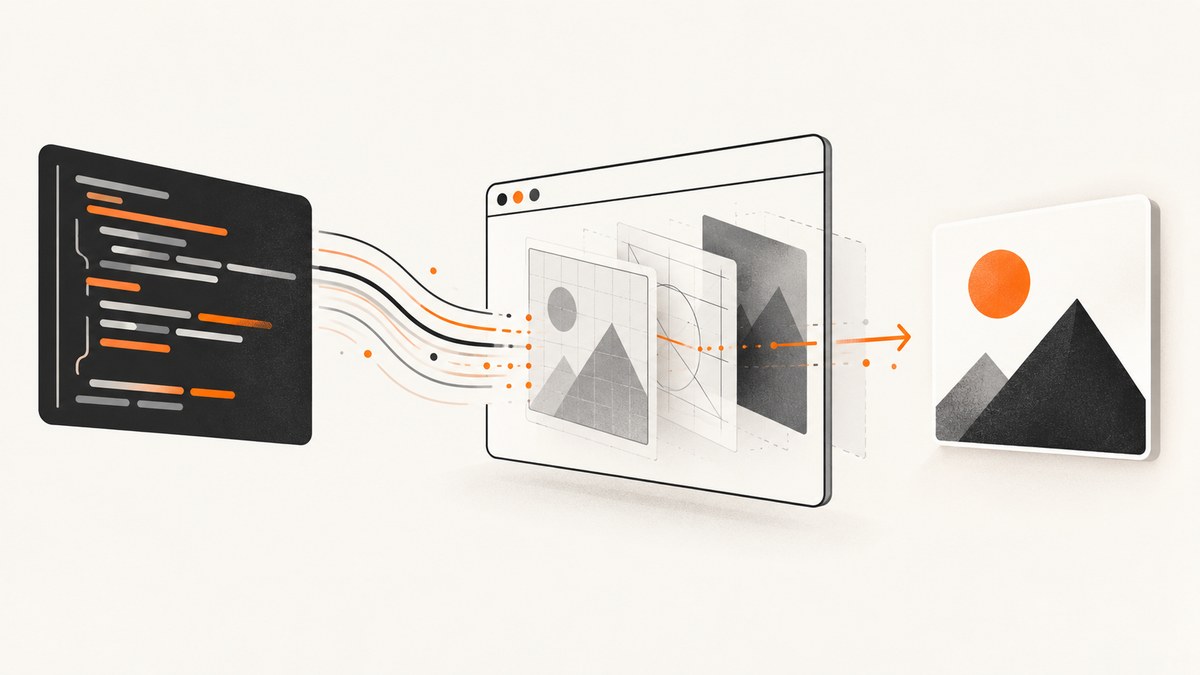
Short answer: use a headless Chromium browser when the PNG must match modern HTML, CSS, fonts, images, and JavaScript. In Go, chromedp gives direct Chrome DevTools Protocol control, while Playwright Go provides a higher-level page API. If you cannot install Chromium, a pure-Go engine such as go-webengine can render a documented subset of HTML, CSS, and JavaScript, but you should verify compatibility with your pages first.
This guide shows how to convert both an HTML string and a URL into a viewport, full-page, or element PNG. It also covers waiting for dynamic content, fonts and images, deployment, errors, performance, and a hosted alternative.
Choose the rendering method
| Method | Best for | Runtime | Important trade-off |
|---|---|---|---|
| chromedp | Chrome fidelity and direct CDP control | Chrome or Chromium executable | You manage the browser process, sandbox, and concurrency |
| Playwright Go | Readable browser automation and isolated contexts | Playwright-managed Chromium | Pin the Go module and browser versions together |
| go-webengine | CGO-free deployments without Chromium | Pure Go | HTML, CSS, JavaScript, fonts, SVG, and layout support differ from Chrome |
Convert an HTML string with chromedp
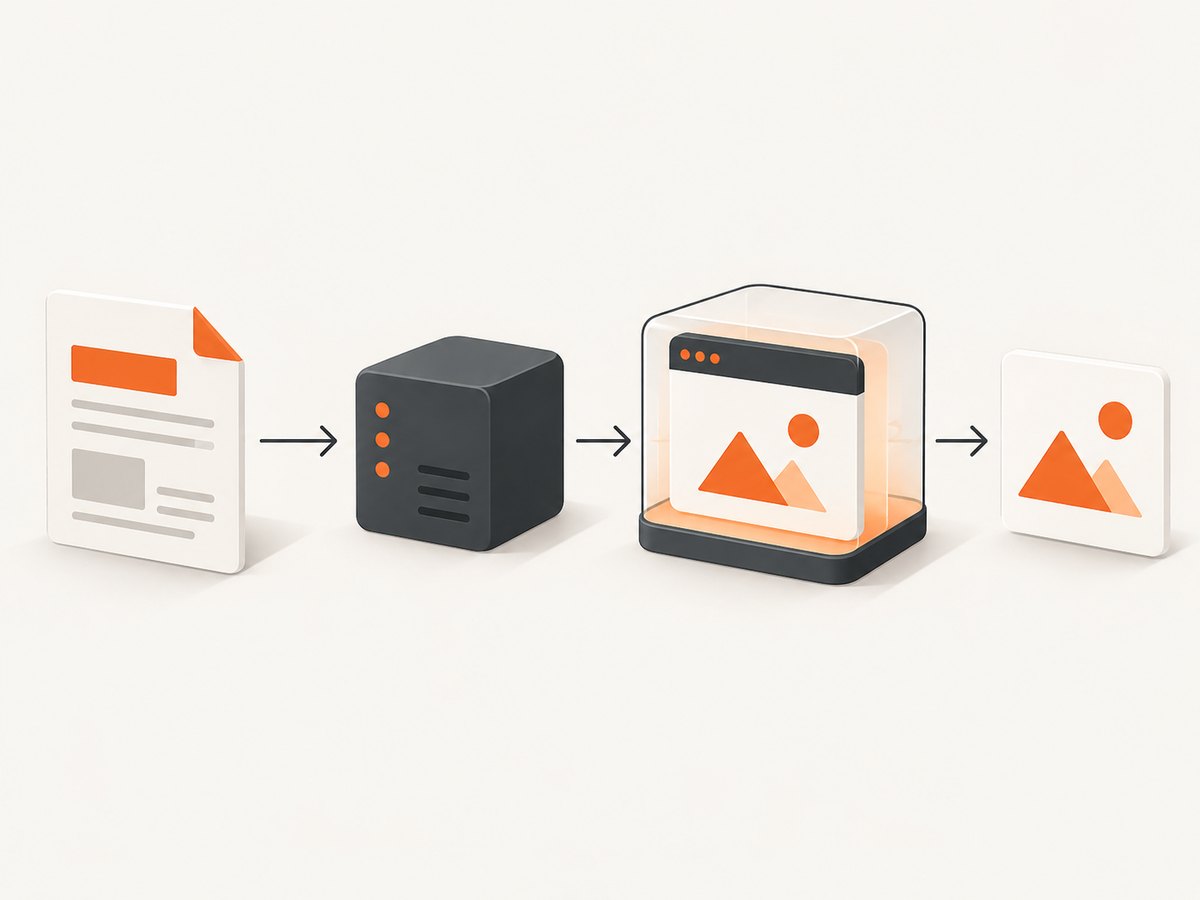
chromedp describes itself as a high-level Chrome DevTools Protocol client. The sequence is: create a context, navigate to a data URL containing your HTML, wait for a deterministic ready condition, capture the image, and write the bytes to disk.
Install
mkdir html-to-png
cd html-to-png
go mod init example.com/html-to-png
go get github.com/chromedp/chromedp
Complete example
package main

import (
    "context"
    "encoding/base64"
    "fmt"
    "os"
    "time"

    "github.com/chromedp/chromedp"
)

const html = `<!doctype html>
<html>
<head>
  <meta charset="utf-8">
  <style>
    * { box-sizing: border-box; }
    body { margin: 0; font: 18px system-ui, sans-serif; background: #f4f7fb; color: #152238; }
    main { width: 900px; margin: 0 auto; padding: 64px; background: white; }
    .ready { color: #176b45; }
  </style>
</head>
<body>
  <main>
    <h1>HTML rendered by Go</h1>
    <p class="ready" id="ready">ready</p>
  </main>
</body>
</html>`

func main() {
    ctx, cancel := context.WithTimeout(context.Background(), 60*time.Second)
    defer cancel()

    // Set WINDOW_SIZE in an allocator in production when you need exact dimensions.
    browserCtx, cancel := chromedp.NewContext(ctx)
    defer cancel()

    dataURL := "data:text/html;base64," + base64.StdEncoding.EncodeToString([]byte(html))
    var png []byte
    err := chromedp.Run(browserCtx,
        chromedp.Navigate(dataURL),
        chromedp.WaitVisible(`#ready`),
        chromedp.FullScreenshot(&png, 100),
    )
    if err != nil {
        panic(err)
    }
    if err := os.WriteFile("out.png", png, 0o644); err != nil {
        panic(err)
    }
    fmt.Printf("wrote %d bytes to out.png\n", len(png))
}
chromedp.FullScreenshot(&png, 100) captures the entire page. The documented quality range is 0–100; quality 100 produces PNG, while lower values produce JPEG. For the current viewport only, use chromedp.CaptureScreenshot(&png). To capture one element, use chromedp.Screenshot("#ready", &png). These actions are documented in the chromedp API reference.
Capture a URL instead of an HTML string
err := chromedp.Run(browserCtx,
    chromedp.Navigate("https://example.com"),
    chromedp.WaitVisible("body"),
    chromedp.FullScreenshot(&png, 100),
)
For local HTML that references relative CSS, images, or fonts, serve it from a controlled local HTTP origin instead of a data URL. A data URL has no normal directory base URL, so relative assets may not resolve.
Set the viewport and wait for dynamic content
The screenshot is only as correct as the page state at capture time. Set the intended viewport before navigation, then wait for a selector or an application-ready signal. A fixed delay alone is fragile: it can be too short on a busy machine and unnecessarily slow on a fast one.
import (
    "github.com/chromedp/cdproto/emulation"
    "github.com/chromedp/chromedp"
)

err := chromedp.Run(browserCtx,
    emulation.SetDeviceMetricsOverride(1440, 900, 1, false),
    chromedp.Navigate("https://example.com/dashboard"),
    chromedp.WaitVisible("[data-render-complete]"),
    chromedp.FullScreenshot(&png, 100),
)
For pages that load images or web fonts after the ready selector, add an application-specific readiness flag or a short bounded wait. A wait does not guarantee that an unavailable third-party resource will load. If you control the page, set data-render-complete only after the data, images, and fonts needed in the image are ready.
Convert HTML with Playwright Go
Playwright’s Go API provides a concise flow: launch Chromium, create a page, call SetContent, and save page.Screenshot. The official examples are in the Playwright page API documentation.
Install and run
go get github.com/mxschmitt/playwright-go
go run .
package main
import (
"log"
"github.com/mxschmitt/playwright-go"
)
func main() {
pw, err := playwright.Run()
if err != nil { log.Fatal(err) }
defer pw.Stop()
browser, err := pw.Chromium.Launch()
if err != nil { log.Fatal(err) }
defer browser.Close()
page, err := browser.NewPage(playwright.BrowserNewPageOptions{
Viewport: &playwright.Size{Width: 1440, Height: 900},
})
if err != nil { log.Fatal(err) }
html := `<html><body><h1>Hello from Go</h1></body></html>`
if _, err = page.SetContent(html); err != nil { log.Fatal(err) }
if _, err = page.Screenshot(playwright.PageScreenshotOptions{
Path: playwright.String("html.png"),
FullPage: playwright.Bool(true),
Type: playwright.ScreenshotTypePng,
}); err != nil { log.Fatal(err) }
}Use a browser context per job or tenant when rendering untrusted content. Configure navigation and action timeouts in the host service, close pages promptly, and pin the Playwright module with the browser build used in deployment.
Pure-Go rendering without installing Chrome
go-webengine advertises a CGO_ENABLED=0 headless engine with local HTML rendering, a PNG Screenshot helper, and a DisableJS option. Its README describes a real CSS subset, DOM-bound JavaScript, layout, and image painting. The viewport width is fixed by the render rectangle and the output height grows to fit the page, at least the viewport height.
// Check the project's current module path and API before pinning it.
package main

import (
    "context"
    "image"
    "os"

    "github.com/go-webengine/engine"
)

func main() {
    ctx := context.Background()
    e := engine.New()
    e.DisableJS = false

    // RenderHTML is intended for local HTML. Use a base URL when assets are relative.
    page, err := e.RenderHTML(ctx, `<html><body><h1>Pure Go</h1></body></html>`, "")
    if err != nil { panic(err) }

    png, err := page.Screenshot(ctx, image.Rect(0, 0, 1024, 768))
    if err != nil { panic(err) }
    if err := os.WriteFile("out.png", png, 0o644); err != nil { panic(err) }
}
Because the engine’s supported CSS and JavaScript surface is not Chrome’s, test your exact templates before switching. Pay particular attention to web fonts, complex grid or flex layouts, SVG, animations, lazy images, and third-party scripts. If fidelity is more important than a CGO-free deployment, use Chromium.
Full-page, element, and viewport capture checklist
- Choose the viewport width, height, and device scale before loading the page.
- Use a deterministic ready selector or application signal.
- Wait for required fonts and images; otherwise fallback fonts can change wrapping and dimensions.
- Use full-page capture when content extends below the viewport.
- Use element capture for cards, charts, invoices, or components.
- Give relative assets a resolvable origin and base URL.
- Apply navigation and resource timeouts in your service.
- Isolate browser contexts for untrusted or user-supplied HTML.
Common errors and fixes
| Error or symptom | Likely cause | Fix |
|---|---|---|
| Chrome executable not found | No browser installed or the path is not visible in the container. | Install Chromium/Chrome, configure the executable path, or use the documented headless-shell container approach for chromedp. |
| Screenshot is blank | Capture ran before navigation or client rendering completed. | Wait for a visible, page-specific selector and inspect console/network failures. |
| Missing images or fonts | Relative URLs from a data URL, blocked requests, or capture occurred too early. | Serve HTML from a controlled origin, use absolute asset URLs, and wait for assets. |
| Full page is cut off | Viewport capture was used, or the page height was not settled. | Use FullScreenshot or Playwright’s fullPage option after layout is complete. |
| Text wraps differently in production | Different viewport, device scale, browser build, or font availability. | Pin browser and fonts, set metrics explicitly, and compare output dimensions. |
| Timeouts on external pages | Slow or unavailable third-party resources. | Set bounded timeouts, block nonessential resources where appropriate, and define a page-ready condition. |
| Untrusted HTML is unsafe | Browser pages can execute scripts and request network resources. | Use isolated contexts, restrict network access, sanitize input, and run the browser with an appropriate sandbox. |
Performance, reliability, and cost
- Startup: launching a browser for every image adds latency. Keep a controlled browser process alive and create short-lived contexts, while recycling workers after failures or a bounded number of jobs.
- Concurrency: more pages consume CPU and memory. Measure your own templates; no controlled benchmark establishes a universal winner between chromedp, Playwright Go, and go-webengine.
- Determinism: pin Go modules, browser versions, fonts, viewport metrics, timezone, and locale. Disable animations when pixel stability matters.
- Retries: retry transient navigation failures with a limit and capture diagnostics. Do not blindly retry invalid HTML, blocked domains, or authentication failures.
- Output: PNG is lossless and can be large. If JPEG is acceptable, chromedp’s quality below 100 produces JPEG; choose format based on image content and downstream size requirements.
- Cost: self-hosted rendering costs your compute, browser images, storage, and operations time. A hosted API can shift browser maintenance and scaling to the provider.
Or skip the browser setup
ScreenshotNeo is a website screenshot API and MCP server. Its one-call endpoint returns PNG, JPEG, WebP, or PDF, and the API docs list the capture options. Cookie and consent banners, newsletter popups, and chat widgets are removed before capture. Bot checks, blank pages, timeouts, failed loads, and cache hits are not billed, and response headers identify the page verdict and billing result. Its MCP server lets Claude, Cursor, and other MCP clients call take_screenshot, get_page_info, and capture_pdf.

curl -G "https://api.screenshotneo.com/v1/shot" -d access_key=YOUR_API_KEY --data-urlencode url=https://stripe.com -o shot.webpimport requests
r = requests.get("https://api.screenshotneo.com/v1/shot", params={"access_key": "YOUR_API_KEY", "url": "https://stripe.com"}, timeout=90)
open("shot.webp", "wb").write(r.content)const q = new URLSearchParams({ access_key: 'YOUR_API_KEY', url: 'https://stripe.com' });
const res = await fetch(`https://api.screenshotneo.com/v1/shot?${q}`);Every feature is included on every plan. The free plan includes 1,000 screenshots per month with no card; paid plans start at $5 for 3,000 shots. Create a free ScreenshotNeo account.
FAQ
Can Go render HTML to PNG without Chrome?
Yes. A pure-Go engine such as go-webengine can do this, but compatibility is narrower and must be checked against your HTML and CSS. Chromium remains the closest match to modern browser behavior.
What is the difference between viewport and full-page screenshots?
A viewport screenshot captures what is visible in the current browser viewport. A full-page screenshot includes content below the fold after the browser determines the document height.
Why does my screenshot show fallback fonts?
The font may not be installed, may be blocked, or may not have finished loading. Package the required fonts or wait for the page’s font readiness signal before capture.
Should I use chromedp or Playwright?
Choose chromedp for direct CDP control and a small abstraction layer. Choose Playwright when its browser contexts, page lifecycle, and screenshot API fit your service better. Benchmark your own workload.
How do I capture only one component?
With chromedp, pass a CSS selector to chromedp.Screenshot. With Playwright, locate the element and call its screenshot method. Ensure the element is visible and its layout is settled first.


