How to Convert HTML to PNG in JavaScript
Convert a rendered HTML element to PNG with html2canvas, download it safely, handle CORS and rendering issues, and choose when browser automation fits better.
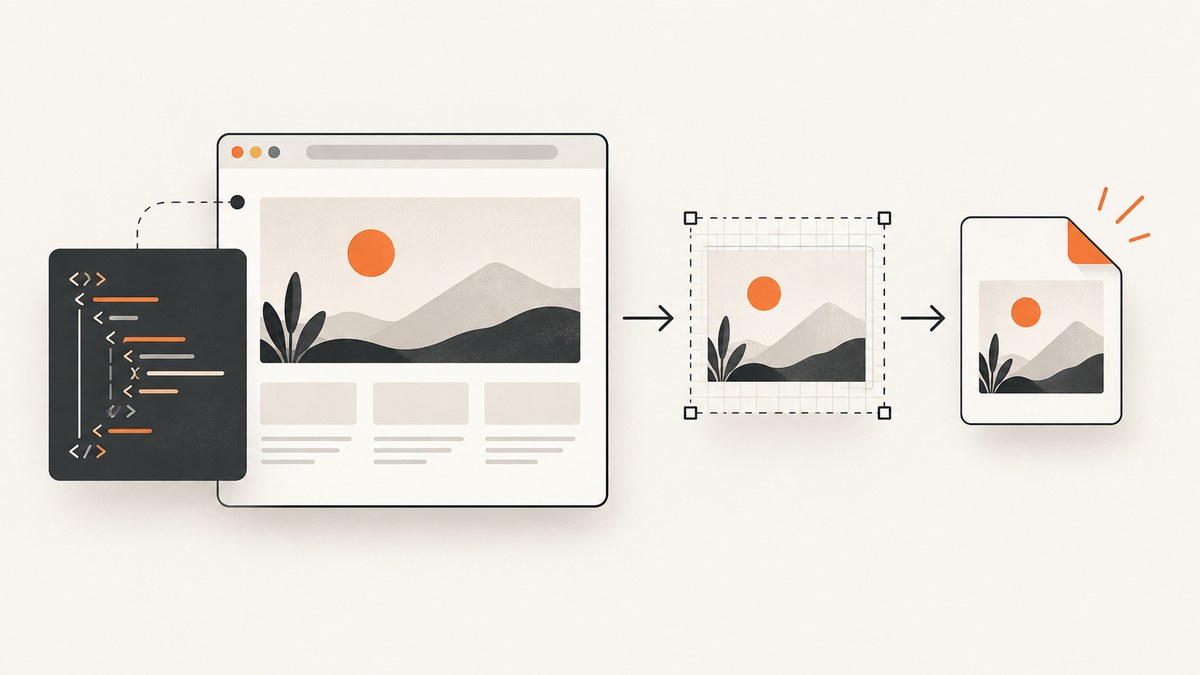
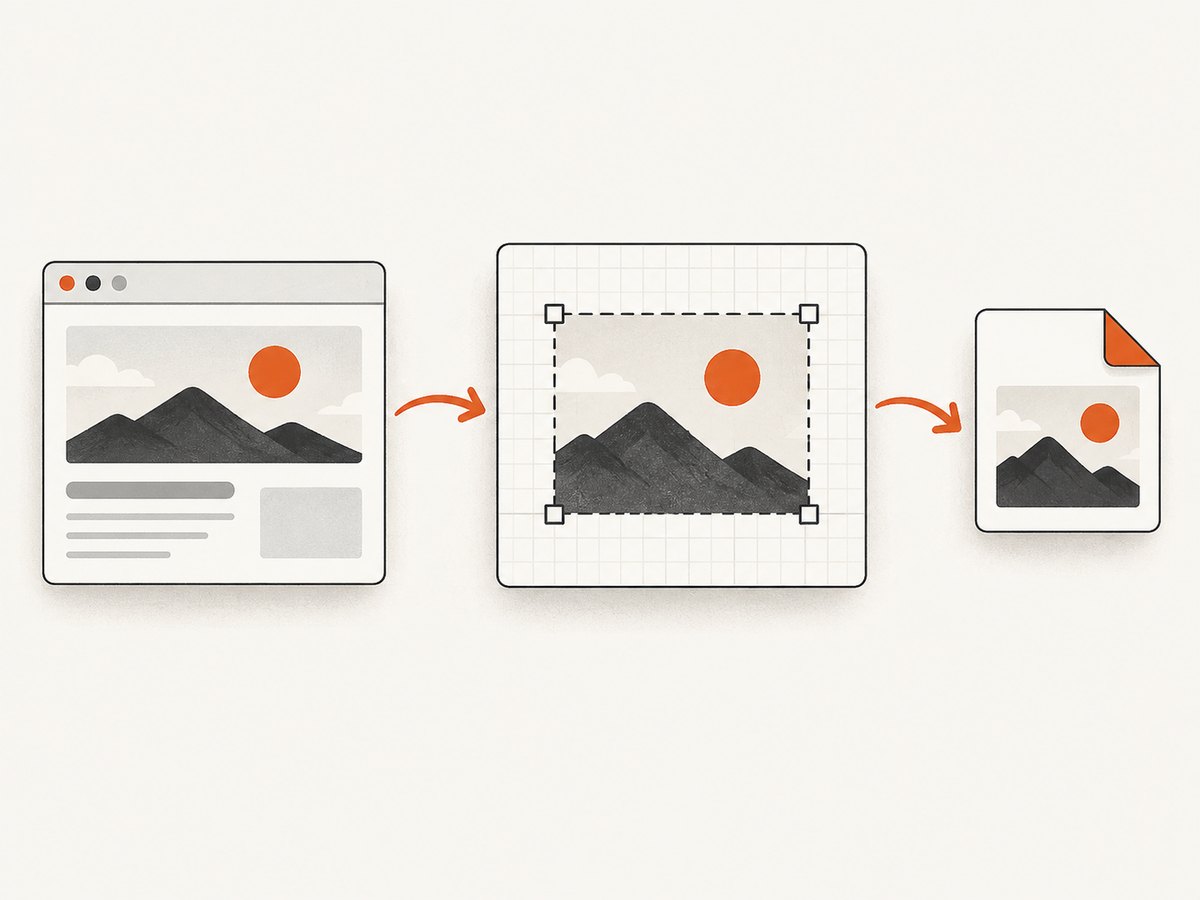
To convert a rendered HTML element to PNG in JavaScript, select the element, render it to a canvas with html2canvas, then export the canvas with toBlob(). This is a browser-side method for cards, invoices, charts, and other DOM content. It reconstructs the element from DOM and CSS; it is not a native screenshot, so unsupported styles or cross-origin assets can make the result differ from what you see on screen.
The short version is: element → canvas → PNG Blob → download. The example below includes installation, readiness checks, a PNG download, and cleanup.
1. Install html2canvas and prepare a capture target
Install the package in a frontend project:
npm install html2canvasGive the content you intend to export a stable selector. Keep the target’s layout independent of controls such as buttons that should not appear in the downloaded file.
<article id="capture">
  <h1>Quarterly summary</h1>
  <p>Revenue increased 12% this quarter.</p>
</article>
<button id="download" type="button">Download PNG</button>
2. Render the element and download a PNG
This complete browser example waits for fonts and images, calls html2canvas, converts the canvas to a PNG Blob, and triggers a download. It assumes a modern browser with ES modules and canvas Blob support.
import html2canvas from 'html2canvas';

async function waitForImages(element) {
  const images = [...element.querySelectorAll('img')];
  await Promise.all(images.map(async image => {
    if (image.complete) {
      if (image.decode) await image.decode().catch(() => {});
      return;
    }
    await new Promise(resolve => {
      image.addEventListener('load', resolve, { once: true });
      image.addEventListener('error', resolve, { once: true });
    });
  }));
}

async function downloadPng() {
  const element = document.querySelector('#capture');
  if (!(element instanceof HTMLElement)) {
    throw new Error('Capture element #capture was not found');
  }

  if (document.fonts?.ready) await document.fonts.ready;
  await waitForImages(element);

  const canvas = await html2canvas(element, {
    backgroundColor: null,
    scale: window.devicePixelRatio,
    useCORS: true,
    logging: false
  });

  const blob = await new Promise((resolve, reject) => {
    canvas.toBlob(result => {
      if (result) resolve(result);
      else reject(new Error('PNG export returned an empty Blob'));
    }, 'image/png');
  });

  const objectUrl = URL.createObjectURL(blob);
  const link = document.createElement('a');
  link.href = objectUrl;
  link.download = 'quarterly-summary.png';
  document.body.append(link);
  link.click();
  link.remove();
  // Delay cleanup so the browser can begin consuming the download URL.
  setTimeout(() => URL.revokeObjectURL(objectUrl), 1000);
}

document.querySelector('#download')?.addEventListener('click', () => {
  downloadPng().catch(error => {
    console.error('Could not create PNG:', error);
    alert('The image could not be exported. Check the console for details.');
  });
});
The image wait helper treats failed images as settled so one broken asset does not hang the capture. The failed asset may be absent from the result; if it matters, check image loading explicitly and show an error before capture. If your page uses lazy loading, scroll the target into view or load its content before invoking this function.
3. Understand the output options
The html2canvas options that most affect a PNG export are:
| Option | What it changes | Use it when |
|---|---|---|
scale |
Raster resolution multiplier. Defaults to the browser’s device pixel ratio. | You need sharper output or smaller files. Larger values consume more memory. |
backgroundColor |
Canvas background color. Set to null for transparency. |
You need a transparent PNG; ensure the target’s own background is transparent too. |
useCORS |
Attempts to load images using CORS. | The remote asset server permits cross-origin access. This option cannot override server policy. |
allowTaint |
Allows drawing tainting content into the canvas. | Usually not appropriate for exports: a tainted canvas cannot be read or serialized. |
imageTimeout |
Maximum wait for image loading. | You want a bounded wait for slow or unresponsive assets. |
windowWidth, windowHeight |
Viewport dimensions used for rendering and media queries. | The element is clipped or responsive styles need a specific viewport. |
logging |
Controls diagnostic console output. | Enable during investigation; disable for quieter production runs. |
onclone |
Callback for modifying the cloned document before rendering. | You need to remove controls or adjust styles without changing the live page. |
For the full configuration list and supported behavior, see the html2canvas configuration reference and documentation. CSS support is incomplete because the library rebuilds an image from DOM and computed styles. Validate fonts, SVGs, pseudo-elements, transforms, filters, and complex layouts on representative pages; there is no universal guarantee of pixel-perfect output.
4. Choose the right conversion route
Use html2canvas for a client-side element export
Choose it when the element is already in a browser page and reconstructing its appearance is adequate. It requires no screenshot server, but its result depends on supported CSS and browser security rules. html2canvas itself needs window and document, so it is not a Node.js HTML-to-image renderer.
Use a browser screenshot for actual browser pixels
If the requirement is a real rendered page screenshot, server-side conversion, or closer fidelity to browser output, run a browser with Playwright or Puppeteer and use its screenshot API. This has operational overhead: browser installation, page loading, font and image readiness, viewport selection, and process resources. The html2canvas FAQ points to browser automation for server-side screenshots and browser extension screenshot APIs for extension tabs.
Export an existing canvas directly
If your chart or drawing is already in a <canvas>, skip DOM reconstruction:
const source = document.querySelector('#chart');
if (!(source instanceof HTMLCanvasElement)) throw new Error('Canvas not found');

source.toBlob(blob => {
  if (!blob) throw new Error('Could not encode PNG');
  const url = URL.createObjectURL(blob);
  const link = document.createElement('a');
  link.href = url;
  link.download = 'chart.png';
  link.click();
  setTimeout(() => URL.revokeObjectURL(url), 1000);
}, 'image/png');
Canvas PNG encoding is built into browsers. A canvas that contains restricted cross-origin pixels is not origin-clean and cannot be read or exported.
5. Use data URLs only when you need inline data
toDataURL('image/png') returns a base64 data URL, which can be assigned to an image source or embedded in a document. For a download or large image, a Blob is usually more memory-conscious because a data URL puts the full encoded file into a JavaScript string.
const dataUrl = canvas.toDataURL('image/png');
document.querySelector('#preview').src = dataUrl;
The PNG format is supported by canvas; if an unsupported format is requested, browsers may fall back to PNG. Calling toDataURL() on a non-origin-clean canvas can throw a SecurityError. See MDN’s toDataURL reference and consider toBlob for downloadable output.
6. Handle CORS, timing, and page complexity
Cross-origin images
A remote image must permit cross-origin loading for the canvas to remain exportable. Set useCORS: true and ensure the asset server returns appropriate CORS headers. If it does not, the browser may omit the image or the resulting canvas may be tainted. A controlled same-origin proxy is an option only when you are entitled to fetch and serve the asset. Do not use allowTaint expecting to bypass browser security: tainted content still cannot be serialized.
Fonts and dynamic content
Wait until web fonts are ready, data-driven components have rendered, and images have settled. If a capture races with a chart animation or asynchronous API response, pause the animation or wait for the component’s own ready condition. A generic timeout is not a reliable substitute for knowing that the content is ready.
Viewport and crop behavior
Responsive CSS and media queries depend on the rendering viewport. If content is clipped, compare the target’s rendered and scroll dimensions, then set appropriate windowWidth and windowHeight. Large dimensions are constrained by browser, GPU, operating system, and device; oversized canvases can render blank or partially. Reduce the target area or scale, or capture sections separately and compose them if the design permits.
Pixel dimensions and memory
The output pixel width and height are approximately the CSS dimensions multiplied by scale. Doubling scale in both directions produces roughly four times as many pixels. Keep the scale only as high as the destination needs, especially on mobile devices or for tall full-page elements.
7. Troubleshoot common failures
| Symptom | Likely cause | Fix |
|---|---|---|
| Remote image is missing | Image was not ready, URL failed, or server CORS policy blocked it. | Wait for load/decode, inspect the network request, and configure CORS on the asset host. Use a permitted same-origin proxy if needed. |
SecurityError during export |
The canvas is tainted by cross-origin pixels. | Make assets same-origin or CORS-enabled and capture again. The client cannot override the remote server’s policy. |
| Text uses a fallback font | Capture began before the web font finished loading. | Await document.fonts.ready; verify that the font request succeeds and that the chosen weight/style exists. |
| Shadows, filters, SVG, or pseudo-elements look wrong | The CSS feature is unsupported or reconstructed differently. | Check the supported CSS list, simplify the capture-specific styling, or switch to a real browser screenshot. |
| Element is clipped | Viewport dimensions or overflow styles constrain rendering. | Inspect scroll dimensions, overflow ancestors, and rendering viewport options. Capture a smaller region if necessary. |
| Blank or partial output on large targets | Canvas dimensions exceed platform limits or memory. | Lower scale, split the capture, reduce dimensions, and retry on the target devices. |
| PNG download never starts | Blob creation failed, object URL was revoked too soon, or browser download handling differed. | Check for a null Blob, append the anchor before clicking, and defer URL cleanup briefly. |
Node reports window is not defined |
html2canvas expects a browser DOM. | Run it in a browser, or use Playwright/Puppeteer for server-side rendering. |
8. Or skip the browser setup
If what you need is a screenshot of a URL rather than a DOM element already open in your app, ScreenshotNeo provides a website screenshot API and MCP server. One GET request returns PNG, JPEG, WebP, or PDF. Its capture flow accepts cookie and consent banners and removes more than 60 known consent platforms, newsletter popups, and chat widgets before the shot; each step can be turned off. Bot checks and CAPTCHAs, blank pages, timeouts, failed loads, and cache hits cost nothing, and response headers report the page verdict and whether it was billed. See the API documentation.

curl -G "https://api.screenshotneo.com/v1/shot" \
  -d access_key=YOUR_API_KEY \
  --data-urlencode url=https://stripe.com \
  -o shot.webp
import requests
r = requests.get(
"https://api.screenshotneo.com/v1/shot",
params={"access_key": "YOUR_API_KEY", "url": "https://stripe.com"},
timeout=90,
)
r.raise_for_status()
open("shot.webp", "wb").write(r.content)const q = new URLSearchParams({
access_key: 'YOUR_API_KEY',
url: 'https://stripe.com'
});
const res = await fetch(`https://api.screenshotneo.com/v1/shot?${q}`);
if (!res.ok) throw new Error(`Screenshot request failed: ${res.status}`);
await Bun.write('shot.webp', res);In Node.js, the final line uses Bun’s file helper; with Node, save the response body using writeFile:
import { writeFile } from 'node:fs/promises';
const bytes = new Uint8Array(await res.arrayBuffer());
await writeFile('shot.webp', bytes);
ScreenshotNeo also offers an MCP server with take_screenshot, get_page_info, and capture_pdf tools for Claude, Cursor, and other MCP clients. Plans include 1,000 free shots each month with no card, then paid tiers starting at $5 for 3,000 shots; every feature is on every plan. Sign up for 1,000 free screenshots a month, with no card required.
9. Production checklist
- Capture only after the target content, fonts, and required images are ready.
- Confirm whether reconstructed DOM output meets the visual fidelity requirement.
- Test CORS behavior for every external asset host.
- Choose a scale based on final display size and available memory.
- Handle a missing target, failed images, null Blob, and export exceptions.
- Revoke object URLs after the download has begun.
- Test representative content and browsers, including the largest expected capture.
- Use browser automation when the target is server-side or must match browser-rendered pixels.
10. Frequently asked questions
Can JavaScript convert an HTML string directly to PNG?
Not with html2canvas alone: it renders a live DOM element. Put the markup in a browser document, wait for styles and assets, and capture the element. For server-side HTML rendering, use a browser automation workflow.
Can I convert the entire webpage?
Yes, but large full-page canvases can exceed device limits. Prefer a browser screenshot tool for full-page capture, or reduce scale and test the actual page size and target browsers.
Will html2canvas capture content outside the viewport?
It can render an element beyond the visible viewport, but dimensions and viewport settings affect the result. Verify overflow, lazy loading, and the configured window size for your page.
Why is the PNG different from the browser screenshot?
html2canvas reconstructs the DOM using the CSS features it supports. Unsupported styles, timing, fonts, cross-origin images, and viewport-dependent layout can change the output. Use native browser screenshots when pixel fidelity is the requirement.


