How to Convert HTML to PNG or JPEG
Render HTML in a browser, wait for its content, then capture the viewport, full page, or an element as PNG or JPEG with Playwright.
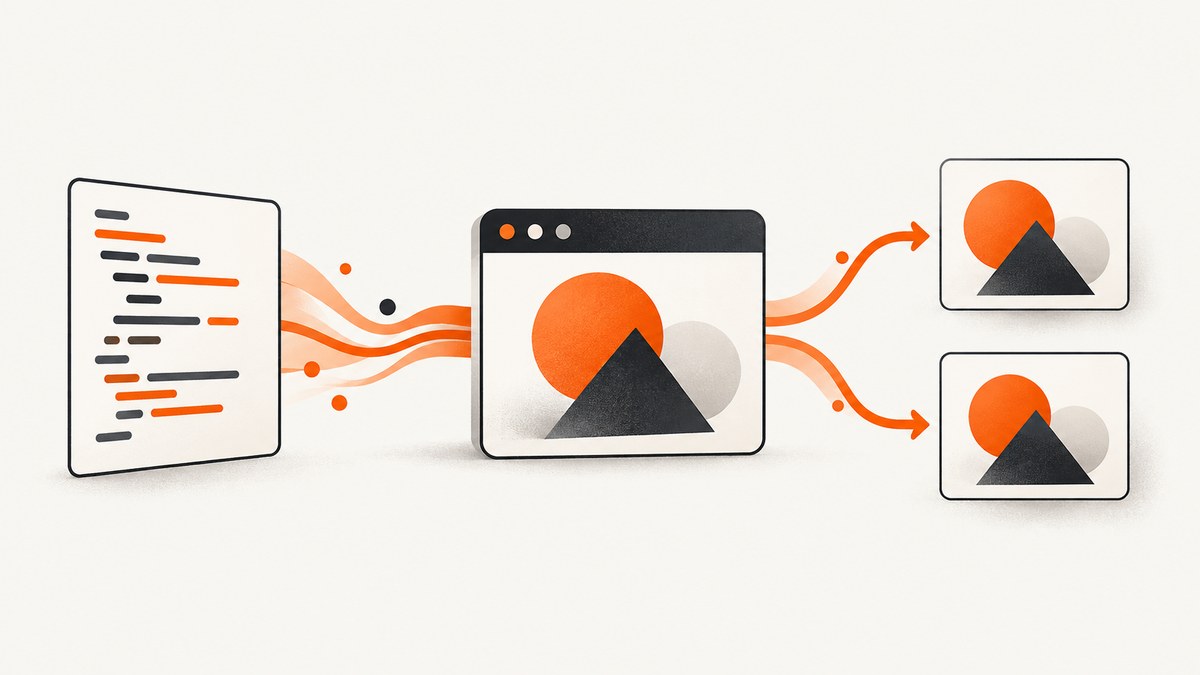
Direct answer: HTML is converted to PNG or JPEG by rendering it in a browser engine and taking a screenshot. A browser resolves CSS, fonts, images, JavaScript, and layout before pixels are produced. Playwright is a practical choice because its Page API supports navigation, loading markup with setContent, viewport or full-page capture, element capture, PNG, JPEG, WebP, quality settings, and transparent PNG output. See the Playwright Page API and its CLI screenshot guide.
1. Choose what your HTML means
There are two common inputs:
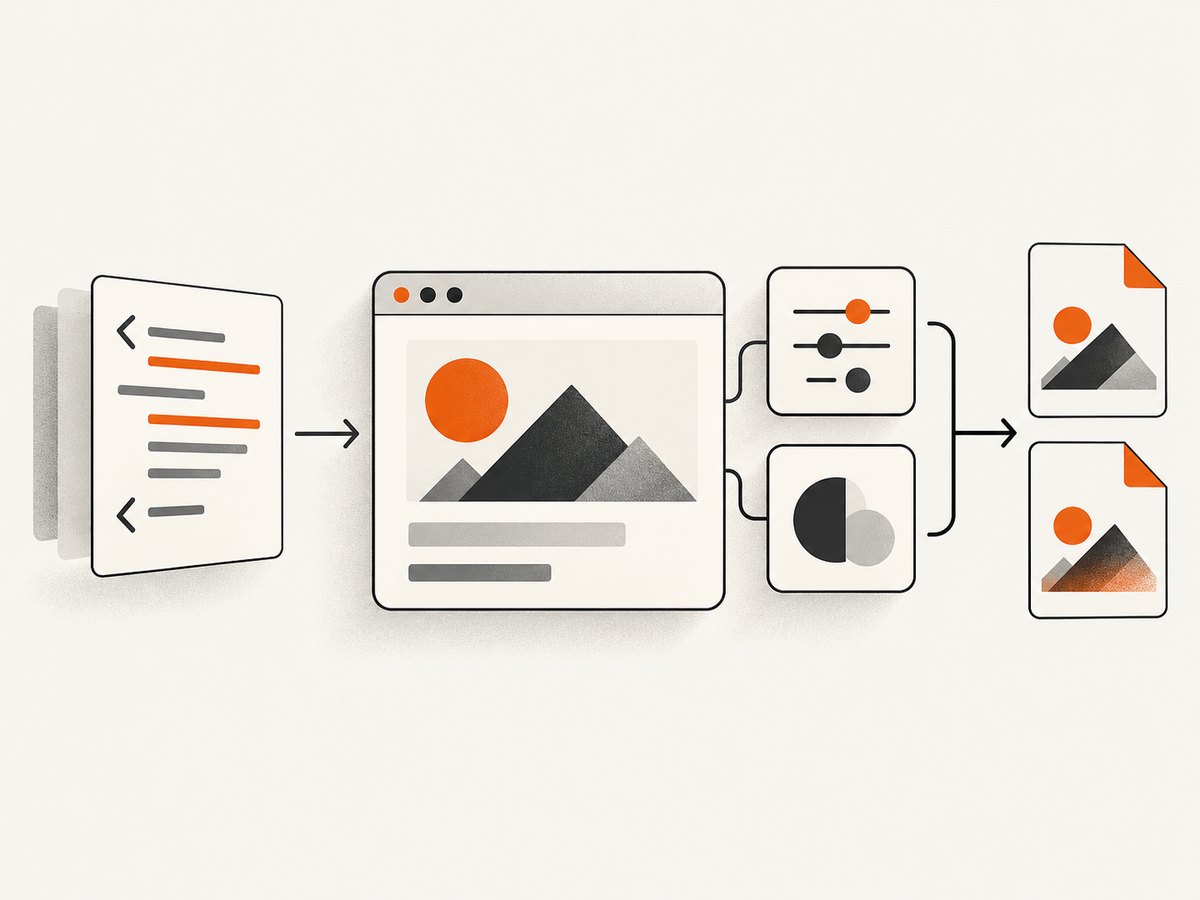
- A URL: the browser navigates to a deployed page, local development server, or authenticated route.
- HTML markup: the browser creates a document with
page.setContent(). This is useful for invoices, reports, email previews, and generated cards.
Do not treat this as a text-format conversion. An HTML file has no pixels until a browser lays it out. If your markup references relative CSS, images, or fonts, serve those assets from a reachable origin or use absolute URLs.
2. Install Playwright and a browser
npm install playwright
npx playwright install chromium
The browser installation command downloads the engine used by your script. In CI, run it during image or environment setup. Version the Playwright package and browser installation together so rendering changes are deliberate.
3. Convert HTML markup to PNG or JPEG
This complete Node.js example writes both formats. It waits for fonts and images, captures the viewport, and then captures the complete scrollable page.
const { chromium } = require('playwright');

(async () => {
  const browser = await chromium.launch();
  const page = await browser.newPage({
    viewport: { width: 1440, height: 900 },
    deviceScaleFactor: 1
  });

  const html = `<!doctype html>
  <html>
    <head>
      <meta charset="utf-8">
      <style>
        body { margin: 0; font-family: Arial, sans-serif; background: #f4f6f8; }
        main { width: 760px; margin: 40px auto; padding: 40px; background: white; }
        h1 { color: #17202a; }
        .card { padding: 20px; border: 1px solid #d9dee5; }
      </style>
    </head>
    <body>
      <main>
        <h1>Monthly report</h1>
        <div class="card">Rendered from HTML in Chromium.</div>
      </main>
    </body>
  </html>`;

  await page.setContent(html, { waitUntil: 'load' });
  await page.evaluate(() => document.fonts.ready);

  // PNG: lossless, suitable for text, diagrams, and transparency.
  await page.screenshot({ path: 'report.png', type: 'png' });

  // JPEG: smaller lossy output. Quality is 0-100.
  await page.screenshot({ path: 'report.jpg', type: 'jpeg', quality: 85 });

  // Capture the entire scrollable document.
  await page.screenshot({ path: 'report-full.png', fullPage: true });
  await browser.close();
})();
PNG is lossless and is usually the better choice for text, UI screenshots, diagrams, and transparency. JPEG is lossy and often smaller for photographs or pages with many gradients. Playwright documents that quality does not apply to PNG and that transparent backgrounds are not applicable to JPEG.
4. Convert a URL instead of inline markup
const { chromium } = require('playwright');

(async () => {
  const browser = await chromium.launch();
  const page = await browser.newPage({ viewport: { width: 1365, height: 768 } });
  await page.goto('https://example.com', { waitUntil: 'networkidle' });
  await page.screenshot({ path: 'page.png', type: 'png', fullPage: true });
  await browser.close();
})();
networkidle can be unsuitable for applications that keep analytics or WebSocket connections open. In that case, use waitUntil: 'domcontentloaded' and wait for a meaningful selector instead:
await page.goto('https://example.com/dashboard', { waitUntil: 'domcontentloaded' });
await page.locator('[data-testid="dashboard-ready"]').waitFor({ state: 'visible' });
await page.screenshot({ path: 'dashboard.png', type: 'png' });
5. Select the viewport, full page, or one element
| Capture | Playwright option | Use it for |
|---|---|---|
| Viewport | Default screenshot | What a user sees without scrolling |
| Full page | fullPage: true |
Long articles, landing pages, and complete reports |
| Element | locator.screenshot() |
Cards, charts, invoices, or a component |
await page.locator('.invoice').screenshot({
  path: 'invoice.jpg',
  type: 'jpeg',
  quality: 90
});
Full-page screenshots can become very tall. If a browser or downstream image service has pixel limits, capture sections or use a PDF for paginated output. Element screenshots depend on the element’s computed size; hidden, detached, or zero-size elements need to be made visible first.
6. Control dimensions and resolution
CSS pixels determine layout. deviceScaleFactor determines how many output pixels represent each CSS pixel. A scale factor of 2 creates a retina-style image and approximately quadruples raw pixel count, so memory and file size increase.
const page = await browser.newPage({
  viewport: { width: 1200, height: 800 },
  deviceScaleFactor: 2
});
await page.screenshot({ path: 'retina.png', type: 'png' });
Set a fixed viewport for reproducible output. Responsive breakpoints, browser scrollbars, and default margins can otherwise change the result. For transparent PNG output, set the page background to transparent and use Playwright’s background omission option where supported:
await page.screenshot({
  path: 'transparent.png',
  type: 'png',
  omitBackground: true
});
7. Make dynamic HTML deterministic
- Wait for the application shell and the specific content you need.
- Wait for web fonts with
document.fonts.ready. - Wait for images to finish loading.
- Disable animations and transitions when visual stability matters.
- Use a fixed timezone, locale, viewport, and test data if the page contains dates or randomized content.
await page.goto(url, { waitUntil: 'domcontentloaded' });
await page.addStyleTag({ content: `
  *, *::before, *::after {
    animation: none !important;
    transition: none !important;
    caret-color: transparent !important;
  }
` });
await page.evaluate(async () => {
  await document.fonts.ready;
  await Promise.all([...document.images].map(img => {
    if (img.complete) return Promise.resolve();
    return new Promise(resolve => {
      img.addEventListener('load', resolve, { once: true });
      img.addEventListener('error', resolve, { once: true });
    });
  }));
});
await page.screenshot({ path: 'stable.png', fullPage: true });
Lazy-loaded images may not exist until their scroll position is reached. Scroll through the page before capture or use a capture service that explicitly loads lazy images. Cross-origin resources must permit browser access; a failed image request leaves an empty or broken region in the output.
8. Use the Playwright CLI
The CLI is useful for one-off captures and shell scripts:
npx playwright screenshot --device="Desktop Chrome" https://example.com page.png
npx playwright screenshot --full-page https://example.com page-full.png
npx playwright screenshot --type=jpeg --quality=85 https://example.com page.jpg
PNG is the CLI default when neither the type nor filename extension selects another format. Check npx playwright screenshot --help for the options available in your installed version.
9. Python and cURL alternatives
For a self-hosted browser workflow, install the Python package and browser:
pip install playwright
playwright install chromium
from playwright.sync_api import sync_playwright
with sync_playwright() as p:
browser = p.chromium.launch()
page = browser.new_page(viewport={"width": 1280, "height": 800})
page.set_content("<h1>Hello</h1><p>PNG output</p>", wait_until="load")
page.screenshot(path="hello.png", type="png")
page.screenshot(path="hello.jpg", type="jpeg", quality=85)
browser.close()cURL alone cannot render HTML. It can download an already generated image, or call a screenshot API.
10. Or skip the browser setup
ScreenshotNeo provides a GET endpoint that renders a URL as PNG, JPEG, WebP, or PDF. Read the API documentation for all options.

curl -G "https://api.screenshotneo.com/v1/shot" -d access_key=YOUR_API_KEY --data-urlencode url=https://stripe.com -o shot.webpimport requests
r = requests.get("https://api.screenshotneo.com/v1/shot", params={"access_key": "YOUR_API_KEY", "url": "https://stripe.com"}, timeout=90)
open("shot.webp", "wb").write(r.content)const q = new URLSearchParams({ access_key: 'YOUR_API_KEY', url: 'https://stripe.com' });
const res = await fetch(`https://api.screenshotneo.com/v1/shot?${q}`);ScreenshotNeo removes cookie and consent banners, newsletter popups, and chat widgets before capture. Bot checks, blank pages, failed loads, timeouts, and cache hits are not billed; response headers identify the page verdict and billing result. It also offers an MCP server for AI agents, including Claude, Cursor, and other MCP clients. The free plan includes 1,000 screenshots per month with no card; paid plans start at $5 for 3,000 shots. Create a free ScreenshotNeo account.
11. Troubleshooting
| Symptom | Likely cause | Fix |
|---|---|---|
| Blank or unfinished image | Capture happened before app rendering completed | Wait for a stable selector, fonts, and images. |
| Missing web font | Font request was still pending or blocked | Await document.fonts.ready; verify the font URL and CORS headers. |
| Images are broken | Relative paths, lazy loading, authentication, or failed requests | Serve assets from a reachable origin, authenticate requests, and scroll or wait for images. |
| JPEG option has no effect | quality was supplied for PNG |
Use type: 'jpeg'; PNG ignores quality. |
| Transparent output is opaque | JPEG cannot preserve transparency, or the page has a background | Use PNG and omitBackground: true; remove CSS backgrounds. |
| Content is clipped | Viewport capture was used for a long document or fixed element | Use fullPage: true or capture the target element. |
| Timeout on navigation | Long polling, blocked resource, or slow server | Use a targeted wait condition, increase timeout, and inspect failed requests. |
| Different output in CI | Different browser, fonts, timezone, or viewport | Pin versions, install the same browser, set viewport and timezone, and bundle fonts. |
12. Performance, reliability, and cost
- Reuse browsers: launch Chromium once and create pages per job. Browser startup is expensive compared with a page screenshot.
- Limit concurrency: too many simultaneous full-page captures exhaust CPU and memory. Queue jobs and cap workers.
- Reduce pixels: use the smallest viewport and device scale that meets your output requirement.
- Cache stable pages: avoid repeated rendering when the source and capture options have not changed.
- Observe failures: record navigation errors, HTTP status, screenshot duration, output dimensions, and file size.
- Protect secrets: keep API keys and authenticated cookies out of HTML, logs, and public image URLs.
Self-hosting costs compute, browser maintenance, and storage. A hosted API converts that into per-capture usage and can handle browser setup, cleanup, and failure classification. Compare the total cost of your worker fleet with the value of predictable operations; do not estimate cost from image bytes alone because browser rendering dominates many workloads.
13. Practical checklist
- Choose URL navigation or
setContent. - Set a fixed viewport and device scale factor.
- Wait for the content selector, fonts, and images.
- Choose viewport, full page, or element capture.
- Use PNG for lossless or transparent output; JPEG for smaller photographic images.
- Set JPEG quality only for JPEG.
- Disable animations when comparing or archiving images.
- Pin browser versions in CI.
- Validate dimensions, file type, and nonzero file size.
FAQ
Can I convert an HTML file without opening a browser?
No. A browser or browser engine must calculate layout and paint the page before a screenshot can represent its appearance.
Which format is best for text?
PNG generally preserves sharp text and lines better because it is lossless. JPEG is useful when smaller files matter and minor compression artifacts are acceptable.
Can screenshots include a transparent background?
Use PNG with background omission. JPEG does not preserve transparency.
Why does my full-page image look different from the visible viewport?
Full-page capture lays out and stitches the complete scrollable document. Fixed headers, lazy loading, and responsive behavior can change what appears outside the initial viewport.
Is an API better than Playwright?
Playwright gives maximum control when you own the browser environment. An API is simpler when you need repeatable URL captures without installing and operating browsers.


