How to Convert HTML to PNG on macOS
Render HTML in a browser and save a PNG on macOS. Compare Safari, Playwright, full-page captures, scaling, troubleshooting, and ScreenshotNeo.
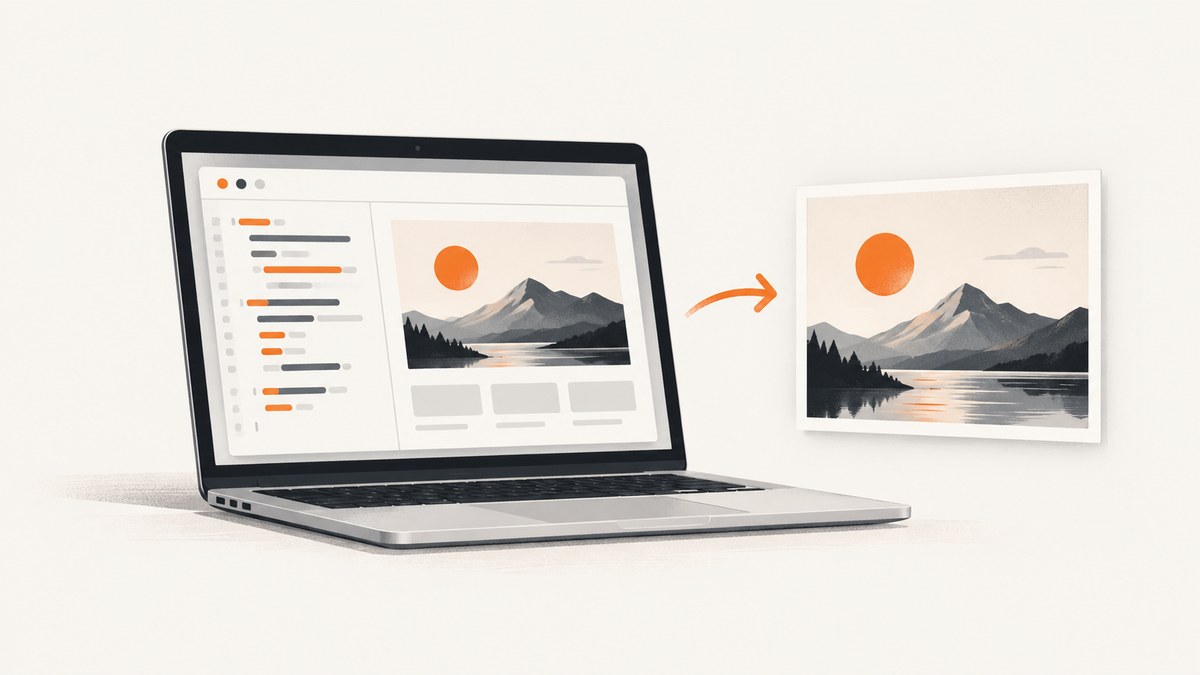
Direct answer: convert HTML to PNG on macOS by rendering the document in a browser, then saving a screenshot of the rendered page. For a repeatable workflow, use Playwright: navigate to the page and call page.screenshot({ path: 'screenshot.png' }). Playwright infers PNG output from the .png extension and also supports viewport, full-page, element, and pixel-scale captures. The result is an image of the rendered page, not a copy of the HTML source.
For a one-off image, Safari can display the page while you use macOS screenshot tools. Safari’s documented save options are Web Archive and Page Source; Page Source saves HTML, not a rendered PNG. See Apple’s Safari documentation. For automation, browser APIs are more reliable than manually cropping a screen.
Choose the capture method
| Need | Recommended method | Why |
|---|---|---|
| One visible screen | macOS screenshot or Playwright viewport capture | Captures only the current viewport. |
| Entire scrollable page | Playwright fullPage: true |
Stitches the page’s scrollable content into one PNG. |
| One component | Playwright locator screenshot | Captures a selected element instead of the whole page. |
| Repeatable builds | Playwright script | Viewport, browser, wait conditions, and output path are explicit. |
| Safari-oriented rendering | Playwright WebKit | Closest Playwright setup to Safari on macOS, with an engine caveat. |
Decide whether you need the visible viewport or the complete page, then choose the pixel scale. With CSS scale, one output pixel represents one CSS pixel. With device scale, high-DPI settings can produce a larger image. The choice changes pixel dimensions and file size.
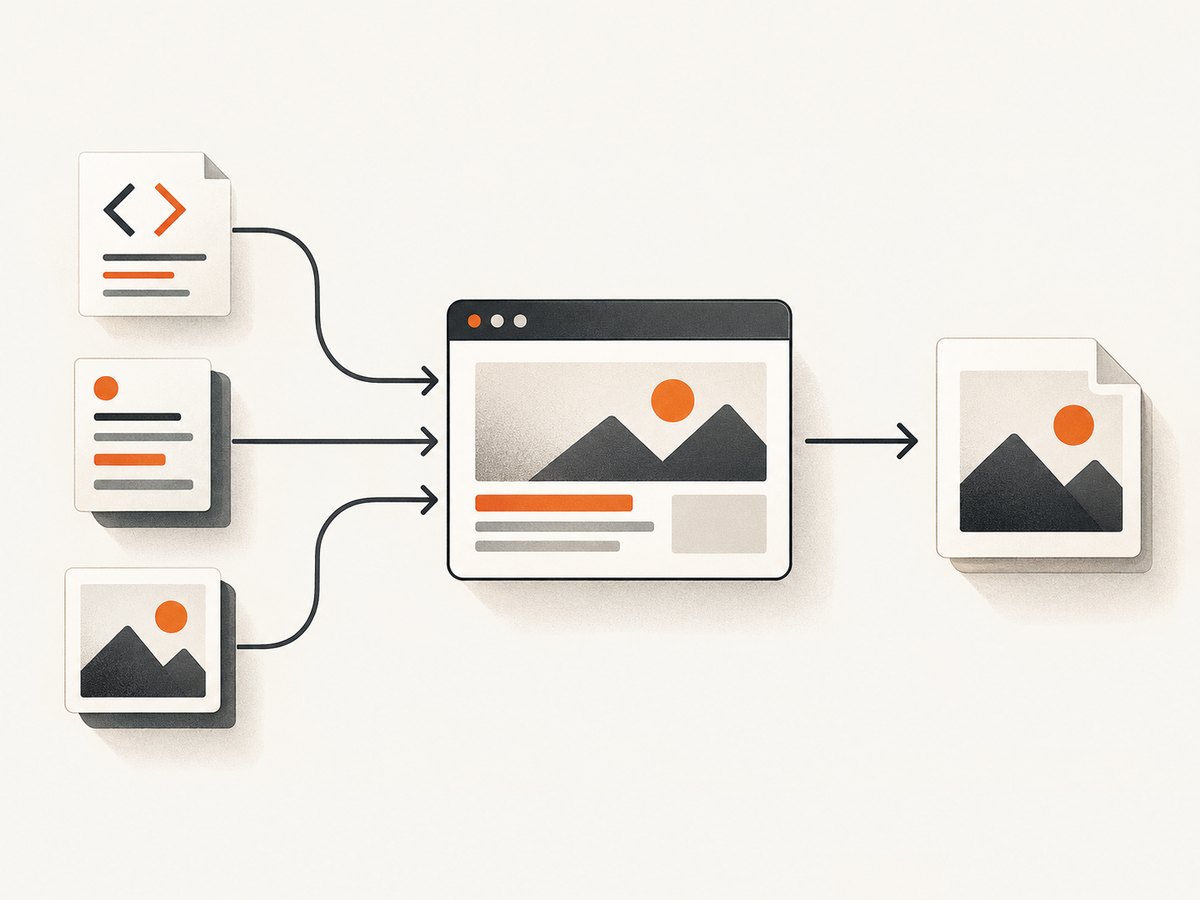
Convert a web page to PNG with Playwright
Playwright’s Page API documents PNG screenshots, full-page capture, element screenshots, and format inference from the filename: Page API documentation. The following JavaScript example is a complete capture script.
1. Create a project
mkdir html-to-png
cd html-to-png
npm init -y
npm install -D playwright
npx playwright install
2. Capture a URL
const { chromium } = require('playwright');

(async () => {
  const browser = await chromium.launch();
  const page = await browser.newPage({
    viewport: { width: 1440, height: 900 },
    deviceScaleFactor: 1
  });

  await page.goto('https://example.com', { waitUntil: 'networkidle' });
  await page.screenshot({ path: 'screenshot.png', fullPage: true });
  await browser.close();
})();
Run it with node capture.js. Replace the URL with the page you need. The browser renders HTML, CSS, fonts, images, and JavaScript before the screenshot call runs.
Capture a local HTML file
A local document must be loadable by the browser, and its referenced stylesheets, scripts, fonts, and images must resolve. A robust approach is to serve the folder through a local HTTP server, then navigate to its localhost URL. This avoids problems caused by relative paths and browser restrictions around local resources.
python3 -m http.server 8000
# In another terminal, run your Playwright script against:
# http://127.0.0.1:8000/index.html
Use a local HTML string
const { chromium } = require('playwright');

(async () => {
  const browser = await chromium.launch();
  const page = await browser.newPage({ viewport: { width: 1200, height: 800 } });
  await page.setContent(`
    <!doctype html>
    <html>
      <head>
        <style>body { font-family: sans-serif; padding: 40px; }</style>
      </head>
      <body><h1>Rendered HTML</h1><p>PNG output.</p></body>
    </html>`);
  await page.screenshot({ path: 'inline.png', type: 'png' });
  await browser.close();
})();
Viewport, full-page, and element screenshots
Visible viewport
await page.screenshot({ path: 'viewport.png' });This captures the browser viewport only. Content below the fold is excluded.
Entire page
await page.screenshot({ path: 'full-page.png', fullPage: true });Use this for documentation, reports, invoices, and long landing pages. Lazy-loaded content may need scrolling or an explicit wait before capture.
One element
await page.locator('.pricing-card').screenshot({ path: 'pricing-card.png' });The selector must identify an element that exists and has a visible layout. For a stable capture, wait for the selector before taking the screenshot.
Control dimensions and pixel scale
const page = await browser.newPage({
  viewport: { width: 1280, height: 720 },
  deviceScaleFactor: 2
});
A deviceScaleFactor of 1 produces CSS-sized output. A factor of 2 produces twice as many pixels in each dimension and approximately four times as many image pixels. Use a fixed viewport and scale when comparing screenshots in source control or generating visual documentation.
Make the rendered state deterministic
Screenshot output can change with fonts, image loading, animation, viewport width, browser engine, and application state. Settle the page before capture:
await page.goto(url, { waitUntil: 'domcontentloaded' });
await page.waitForLoadState('networkidle');
await page.locator('#report').waitFor({ state: 'visible' });
await page.waitForTimeout(300);
await page.screenshot({ path: 'report.png', fullPage: true });
Prefer a selector wait for an application-specific ready condition. A fixed delay is useful for short animations but is less reliable when load time varies. Disable animations when visual consistency matters:
await page.addStyleTag({ content: `
  *, *::before, *::after {
    animation: none !important;
    transition: none !important;
    caret-color: transparent !important;
  }
` });
Using WebKit when Safari fidelity matters
Playwright’s WebKit build is derived from a recent WebKit branch and can contain changes before they reach Apple Safari. Playwright describes WebKit on macOS as the closest Safari-like setup, but it is not the branded Safari browser and should not be treated as guaranteed identical. See Playwright’s browser guide.
const { webkit } = require('playwright');
const browser = await webkit.launch();
const page = await browser.newPage({ viewport: { width: 1440, height: 900 } });
await page.goto('https://example.com', { waitUntil: 'networkidle' });
await page.screenshot({ path: 'webkit.png', fullPage: true });
await browser.close();
Other runnable clients
cURL
For a service that renders the page remotely and returns PNG bytes:

curl -G "https://api.screenshotneo.com/v1/shot" \
  -d access_key=YOUR_API_KEY \
  --data-urlencode url=https://stripe.com \
  -o shot.webp
See the ScreenshotNeo API documentation for parameters and response headers.
Python
import requests

r = requests.get(
    "https://api.screenshotneo.com/v1/shot",
    params={"access_key": "YOUR_API_KEY", "url": "https://stripe.com"},
    timeout=90,
)
r.raise_for_status()
open("shot.webp", "wb").write(r.content)
Node.js
const q = new URLSearchParams({ access_key: 'YOUR_API_KEY', url: 'https://stripe.com' });
const res = await fetch(`https://api.screenshotneo.com/v1/shot?${q}`);
if (!res.ok) throw new Error(`HTTP ${res.status}`);
require('fs').writeFileSync('shot.webp', Buffer.from(await res.arrayBuffer()));
Or skip the browser setup
ScreenshotNeo is a website screenshot API and MCP server. One GET request renders a URL and returns a PNG, JPEG, WebP, or PDF. Cookie and consent banners are accepted and 60+ known consent platforms, newsletter popups, and chat widgets are removed before the shot; each step can be turned off. Bot checks, blank pages, timeouts, failed loads, and cache hits are not billed, and the response identifies the result with X-Page-Verdict and X-Billed headers. Its MCP server provides take_screenshot, get_page_info, and capture_pdf tools for Claude, Cursor, and other MCP clients.
The API also supports full-page captures with lazy images loaded, CSS element capture, dark mode, device presets and custom viewports, retina scale, custom CSS and JavaScript, clicks, selector or network-idle waits, blocking ads and resource types, headers, cookies, user agents, Authorization, timezone, geolocation, transparent backgrounds, resizing, selectable cache TTLs, signed image links, asynchronous jobs with signed webhooks, bulk capture of up to 100 URLs per call, usage data, and an OpenAPI specification. Parameter names used by other screenshot APIs also work, which helps when switching.
Free includes 1,000 shots per month with no card. Paid plans start at $5 for 3,000 shots; every feature is available on every plan. Create a free ScreenshotNeo account and start with the included monthly shots.
Troubleshooting
The PNG is blank
The page may still be loading, may require JavaScript, or may have failed navigation. Wait for a meaningful selector, inspect the response status, and capture after the application has rendered its content.
Images or fonts are missing
Check relative URLs, CORS rules, authentication, and whether the asset request finishes before capture. Serve local files over localhost and wait for the relevant image or font-dependent element.
The full-page image is too short
The page may use an internal scrolling container instead of document scrolling, or content may be lazy loaded only after scrolling. Identify the scroll container, trigger loading, and wait before calling fullPage.
The screenshot differs between runs
Fix the viewport, device scale, browser engine, fonts, timezone, and page state. Disable animations and wait for a stable application-specific selector. Dynamic ads, timestamps, and rotating content can still change pixels.
Playwright cannot launch
Install the browser binaries with npx playwright install. If a managed machine blocks browser launch, use an approved browser runtime or a remote screenshot API.
Safari and Chromium do not match
Different engines implement CSS, font rendering, and layout details differently. Use WebKit when Safari-like behavior is the requirement, and record the engine alongside the image.
Performance, reliability, and cost
- Use viewport captures when a full document is unnecessary; they transfer fewer pixels.
- Reuse a browser process for batches of URLs instead of launching one process per page.
- Wait for the smallest reliable readiness condition rather than an excessive fixed delay.
- Full-page and high device-scale screenshots consume more memory and produce larger files.
- Cache stable pages when the content does not need to be current. For remote captures, choose a cache TTL deliberately.
- For production jobs, record URL, viewport, scale, browser engine, wait condition, output type, and failure reason.
- Use retries for transient navigation failures, but do not blindly retry deterministic bot checks or invalid URLs.
FAQ
How do I save a webpage as a PNG on a Mac?
Use a macOS screen capture for the visible window, or use Playwright for a repeatable viewport or full-page PNG.
Can Safari export a webpage directly as PNG?
Safari’s documented save options include Web Archive and Page Source. Page Source is HTML, not a rendered PNG, so use a screenshot workflow for PNG output.
What is the difference between HTML-to-PNG and saving source?
HTML-to-PNG renders CSS, fonts, images, and scripts into pixels. Saving source preserves markup and assets but does not create an image.
Should I use CSS scale or device scale?
Use CSS scale for smaller, predictable files. Use device scale for sharper high-density output when the larger dimensions and file size are acceptable.
Can I capture only one chart or card?
Yes. Playwright’s locator screenshot captures the selected element after it becomes visible.


