How to Convert HTML to PNG Offline
Render local HTML in a headless browser and capture its pixels as PNG with Chrome, Playwright, or Puppeteer—without an internet connection.
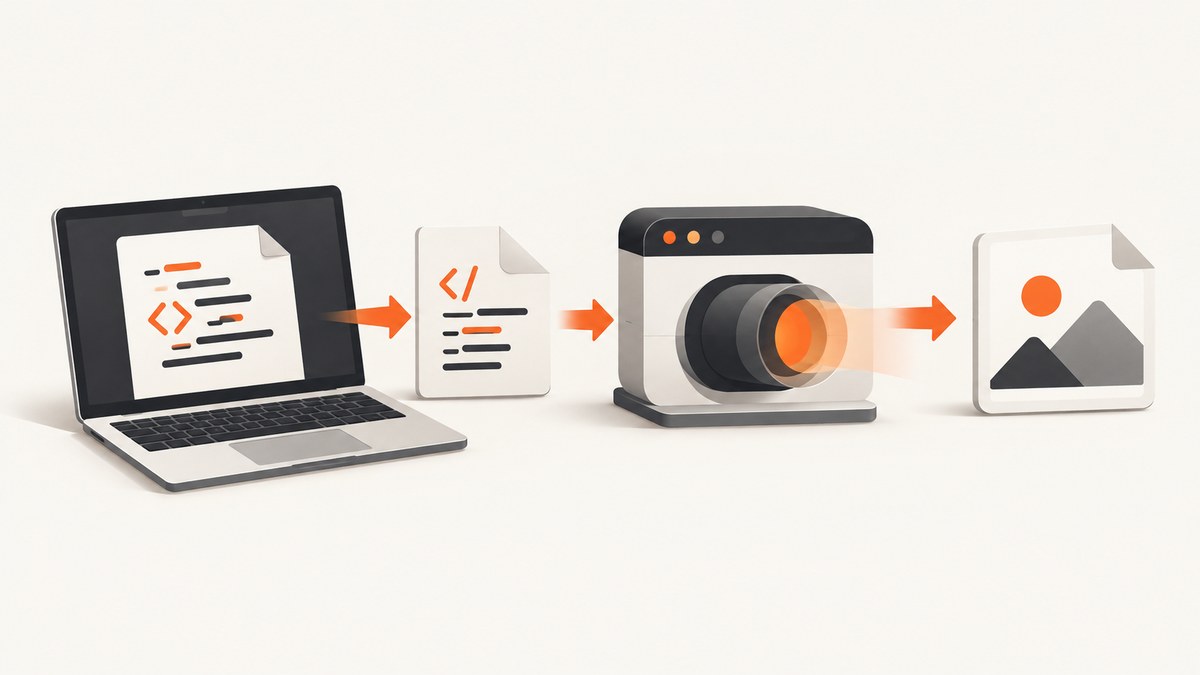
Direct answer: To convert HTML to PNG offline, render the document in a local browser engine and capture the rendered pixels. This preserves CSS layout, web fonts, images, and JavaScript behavior more accurately than parsing HTML as text. For a one-off conversion, use Chrome Headless. For repeatable automation, use Playwright or Puppeteer with a locally installed browser and locally bundled assets.
This guide answers “How do I convert HTML to PNG without an internet connection?”, “How can I screenshot a local HTML file from the command line?”, and “What is the best offline HTML-to-image converter?” It covers local files, HTML held in memory, full-page output, viewport screenshots, deterministic rendering, failures, and production considerations.
1. What offline HTML-to-PNG conversion actually does
A browser performs several steps before a PNG exists:
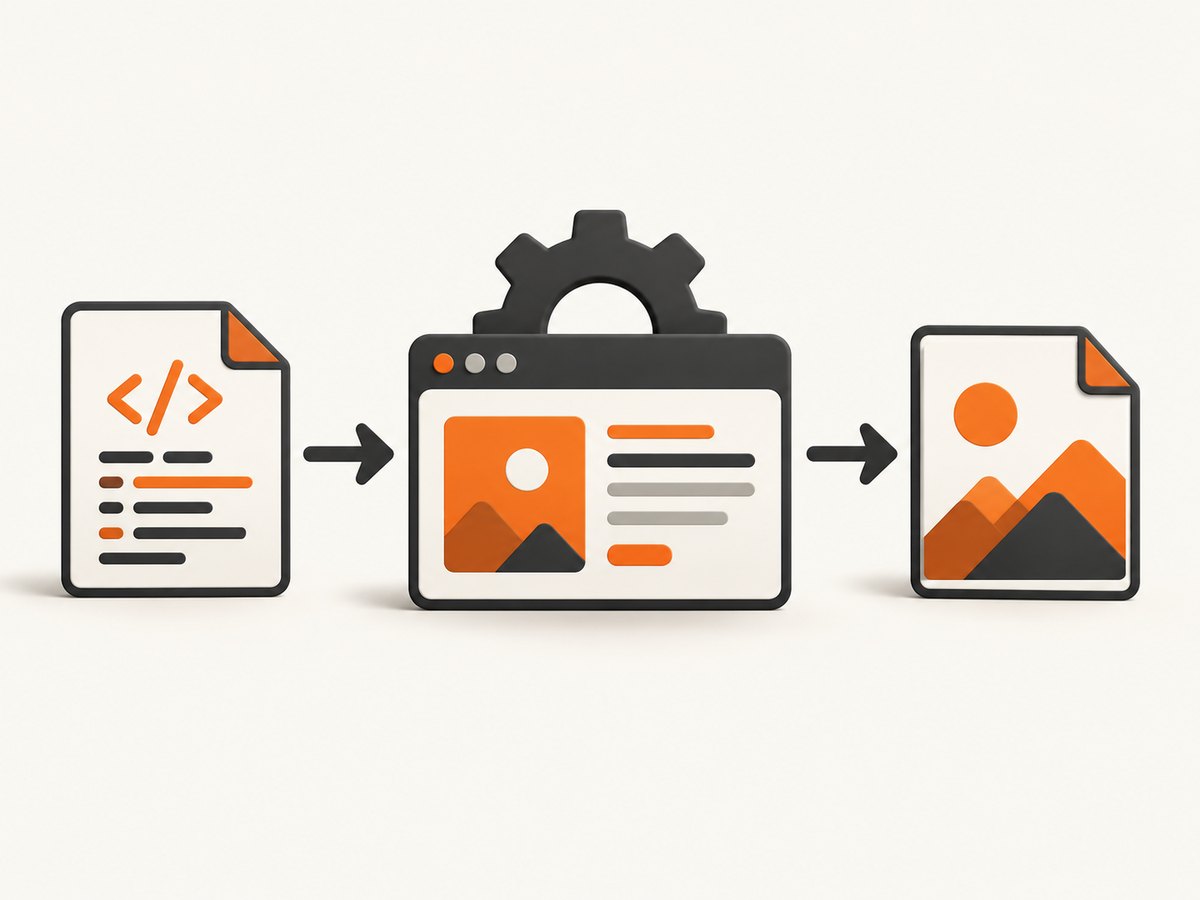
- It loads your HTML from a
file://URL or from an in-memory string. - It resolves local CSS, images, JavaScript, fonts, and data files.
- It calculates layout using the selected viewport and device scale.
- It paints the page, including canvas and SVG content.
- It encodes the painted pixels as PNG.
“Offline” means the renderer does not need an external network connection. It does not mean the document can reference unavailable resources. Remote stylesheets, images, JavaScript bundles, APIs, analytics, and hosted fonts will fail unless you download and bundle them first.
2. Fastest command-line method: Chrome Headless
Chrome’s headless mode has a small command surface. The --screenshot flag captures the target page and writes screenshot.png; --window-size controls the viewport and --timeout gives scripts time to settle. See the Chrome Headless documentation.
Basic local-file command
chrome --headless --screenshot --window-size=1200,800 file:///absolute/path/page.htmlRun the command from the directory where you want the PNG. Chrome writes screenshot.png there. Use an absolute path in the file URL. On systems where the executable is named differently, use chromium, chromium-browser, or the full path to your Chrome binary.
Allow local scripts to settle
chrome --headless --screenshot --window-size=1200,800 --timeout=5000 file:///absolute/path/page.htmlThe timeout is useful when local JavaScript builds a chart or inserts content after the initial document load. It is a fixed delay, so it cannot know whether your page is actually ready. For reliable pipelines, Playwright or Puppeteer lets you wait for a selector or a specific application condition.
Command-line checklist
- Use three slashes in an absolute Linux or macOS URL:
file:///home/me/site/page.html. - Quote paths containing spaces.
- Set
--window-sizedeliberately because responsive breakpoints affect the result. - Keep CSS, scripts, images, fonts, and JSON beside the document or use correct relative paths.
- Use a fixed timeout when animations or client-side rendering are involved.
3. Playwright: the most configurable offline option
Playwright’s page.screenshot API supports PNG output, a destination path, full-page screenshots, element screenshots, and CSS-pixel or device-pixel scaling. The documented API is at Page.screenshot, with examples in the screenshots guide.
Install and run
npm install playwright
npx playwright install chromium
The browser download must happen before the machine is disconnected. In a fully air-gapped build, cache the Playwright browser bundle in your build image or install it from an approved internal artifact.
import { chromium } from 'playwright';

const browser = await chromium.launch();
const page = await browser.newPage({
  viewport: { width: 1200, height: 800 },
  deviceScaleFactor: 1
});

await page.goto('file:///absolute/path/page.html', { waitUntil: 'load' });
await page.screenshot({
  path: 'output.png',
  type: 'png',
  fullPage: true,
  scale: 'css'
});

await browser.close();
fullPage: true captures the entire scrollable document. Remove it for a viewport-sized image. scale: 'css' makes output dimensions track CSS pixels; scale: 'device' uses device pixels and can produce a denser, larger image on high-DPI settings.
Convert HTML held in memory
import { chromium } from 'playwright';

const html = `<!doctype html>
<html>
  <head>
    <meta charset="utf-8">
    <style>body { font: 20px sans-serif; padding: 40px }</style>
  </head>
  <body><h1>Offline report</h1></body>
</html>`;

const browser = await chromium.launch();
try {
  const page = await browser.newPage({ viewport: { width: 1200, height: 800 } });
  await page.setContent(html, { waitUntil: 'load' });
  await page.screenshot({ path: 'memory.png', type: 'png', fullPage: true });
} finally {
  await browser.close();
}
Wait for local assets and application state
await page.goto('file:///absolute/path/dashboard.html', { waitUntil: 'load' });
await page.locator('#chart').waitFor({ state: 'visible' });
await page.evaluate(() => document.fonts.ready);
await page.screenshot({ path: 'dashboard.png', fullPage: true, animations: 'disabled' });
Waiting for document.fonts.ready prevents a capture while fallback fonts are still being replaced. Wait for a meaningful selector rather than adding a long arbitrary delay whenever possible.
Capture one element
await page.locator('.invoice').screenshot({
  path: 'invoice.png',
  type: 'png'
});
Element capture is useful for cards, invoices, diagrams, and social images. The element must be visible and have a non-zero bounding box.
4. Puppeteer: a concise JavaScript and Chrome API
Puppeteer automates Chrome and Firefox and exposes page.screenshot and page.setContent. Its API documents PNG output, fullPage, and output paths at Page.screenshot; browser automation is described in the Puppeteer documentation.
npm install puppeteerimport puppeteer from 'puppeteer';
const browser = await puppeteer.launch({ headless: true });
try {
const page = await browser.newPage();
await page.setViewport({ width: 1200, height: 800, deviceScaleFactor: 1 });
await page.goto('file:///absolute/path/page.html', { waitUntil: 'networkidle0' });
await page.screenshot({ path: 'output.png', fullPage: true, type: 'png' });
} finally {
await browser.close();
}Use HTML directly
const page = await browser.newPage();
await page.setContent(html, { waitUntil: 'load' });
await page.screenshot({ path: 'inline.png', type: 'png', fullPage: true });
Choose Puppeteer when your project is already centered on JavaScript and Chrome automation. Choose Playwright when you need its broader browser support and richer screenshot controls. There is no published universal speed winner in the referenced documentation, so select based on your runtime and required controls.
5. Preparing HTML for genuinely offline rendering
Bundle every dependency
Replace remote URLs with local files or inline assets:
- Copy CSS files and fix relative
url()references. - Store images locally; verify case-sensitive filenames on Linux.
- Bundle JavaScript and mock API responses that would normally come from a server.
- Download web fonts and define local
@font-facesources. - Keep JSON fixtures beside the HTML and load them with paths that the browser can read.
A browser cannot retrieve a CDN stylesheet or an API response after the network is removed. If your page uses module imports, test the same file:// or local HTTP setup used in production; browser security rules can differ between the two.
Use a local HTTP server when file URLs cause restrictions
Some applications rely on fetch, modules, or service workers that behave differently under file://. Serve the already local directory:
python3 -m http.server 8000 --directory /absolute/path/siteThen capture http://127.0.0.1:8000/page.html. This remains offline: the server and all assets are on the same machine.
Make output deterministic
- Fix viewport width, height, and device scale factor.
- Disable CSS transitions and animations for snapshot jobs.
- Freeze dates, random values, and generated IDs when they appear in the image.
- Wait for fonts, images, charts, and client-rendered content.
- Use the same browser version in development and CI.
6. Choosing viewport, full-page, and scale settings
| Need | Setting | Result |
|---|---|---|
| Visible browser frame | Omit fullPage |
Exactly the configured viewport area |
| Entire document | fullPage: true |
One tall PNG containing the scrollable page |
| Predictable dimensions | scale: 'css' |
CSS-pixel sizing |
| High-density output | scale: 'device' or higher device scale |
More physical pixels and a larger file |
| Responsive layout testing | Set viewport width explicitly | Consistent breakpoint selection |
Very tall pages can create large PNGs and consume substantial memory. Capture sections or elements separately when a downstream system has image-dimension limits.
7. Troubleshooting common failures
“No such file” or a blank page
Cause: The URL is relative, incorrectly escaped, or points to a missing asset. Fix: Convert the HTML path to an absolute file:/// URL, quote shell arguments, and inspect all CSS and image paths.
Styles or images are missing
Cause: The document references a remote dependency or a case-mismatched filename. Fix: bundle the dependency locally, correct the path, and verify it from the same working tree used by the renderer.
Fonts are replaced by a fallback
Cause: The font is remote, blocked, or not loaded before capture. Fix: provide a local font file, check @font-face URLs, and await document.fonts.ready.
JavaScript content is absent
Cause: Capture occurs before hydration or a chart finishes drawing. Fix: wait for a specific selector, an application-ready flag, or a known local event. A fixed Chrome --timeout can help for simple scripts.
Full-page capture cuts off content
Cause: Content is inside a scrollable container rather than the document, or it expands after measurement. Fix: capture the container element, wait for its final state, or adjust the page CSS so the intended content participates in document scrolling.
“Browser failed to launch” in CI
Cause: The browser binary is absent, dependencies are missing, or sandbox policy blocks launch. Fix: install the browser during image creation, use the documented CI dependencies for your distribution, and apply only the sandbox setting permitted by your environment.
Different PNGs on different machines
Cause: Browser versions, fonts, device scale, locale, timezone, or animation timing differ. Fix: pin the runtime, bundle fonts, set locale and timezone where supported, disable animations, and wait on deterministic readiness conditions.
8. Performance, reliability, and cost considerations
For occasional conversions, Chrome Headless has the least setup. For batches, keep one browser process alive and create or reuse pages instead of launching a new browser for every file. Limit concurrency to the CPU and memory available; many full-page captures can exhaust memory. Use CSS scale when you need smaller predictable files, and capture only the required element when a complete page is unnecessary.
Reliability comes from controlling inputs: local assets, fixed browser versions, explicit viewports, deterministic data, and readiness checks. Store the source HTML and renderer version alongside generated images when you need auditability. PNG is lossless but can be large; if the consumer accepts it, a later conversion to JPEG or WebP can reduce storage, but that is a separate step from HTML rendering.
The offline methods have no API request charge, but they do have operational costs: browser installation, CI image size, CPU time, memory, and maintenance of bundled assets. A hosted API can be simpler when you need to capture public URLs, run jobs outside your infrastructure, or avoid browser lifecycle management.
9. Or skip the browser setup
ScreenshotNeo provides a website screenshot API and MCP server. It is designed for URL captures rather than local-only files, so upload or publish the HTML where the API can reach it. The API accepts one GET request and returns PNG, JPEG, WebP, or PDF. Full options and parameter names are in the ScreenshotNeo documentation.
cURL
curl -G "https://api.screenshotneo.com/v1/shot" -d access_key=YOUR_API_KEY --data-urlencode url=https://stripe.com -o shot.webpPython
import requests

r = requests.get(
    "https://api.screenshotneo.com/v1/shot",
    params={"access_key": "YOUR_API_KEY", "url": "https://stripe.com"},
    timeout=90,
)
r.raise_for_status()
open("shot.webp", "wb").write(r.content)
Node.js
const q = new URLSearchParams({ access_key: 'YOUR_API_KEY', url: 'https://stripe.com' });
const res = await fetch(`https://api.screenshotneo.com/v1/shot?${q}`);
if (!res.ok) throw new Error(`HTTP ${res.status}`);
const fs = await import('node:fs/promises');
await fs.writeFile('shot.webp', Buffer.from(await res.arrayBuffer()));
ScreenshotNeo can load lazy images, capture a CSS-selected element or a full page, set dark mode and device presets, apply custom CSS or JavaScript, click before capture, wait for a selector, delay, or network idle, and block ads, trackers, requests, or resource types. It also supports headers, cookies, user agents, authorization, timezone, geolocation, transparent backgrounds, resizing, cache TTLs, signed links, asynchronous jobs with signed webhooks, bulk capture of up to 100 URLs per call, a usage API, and an OpenAPI specification.
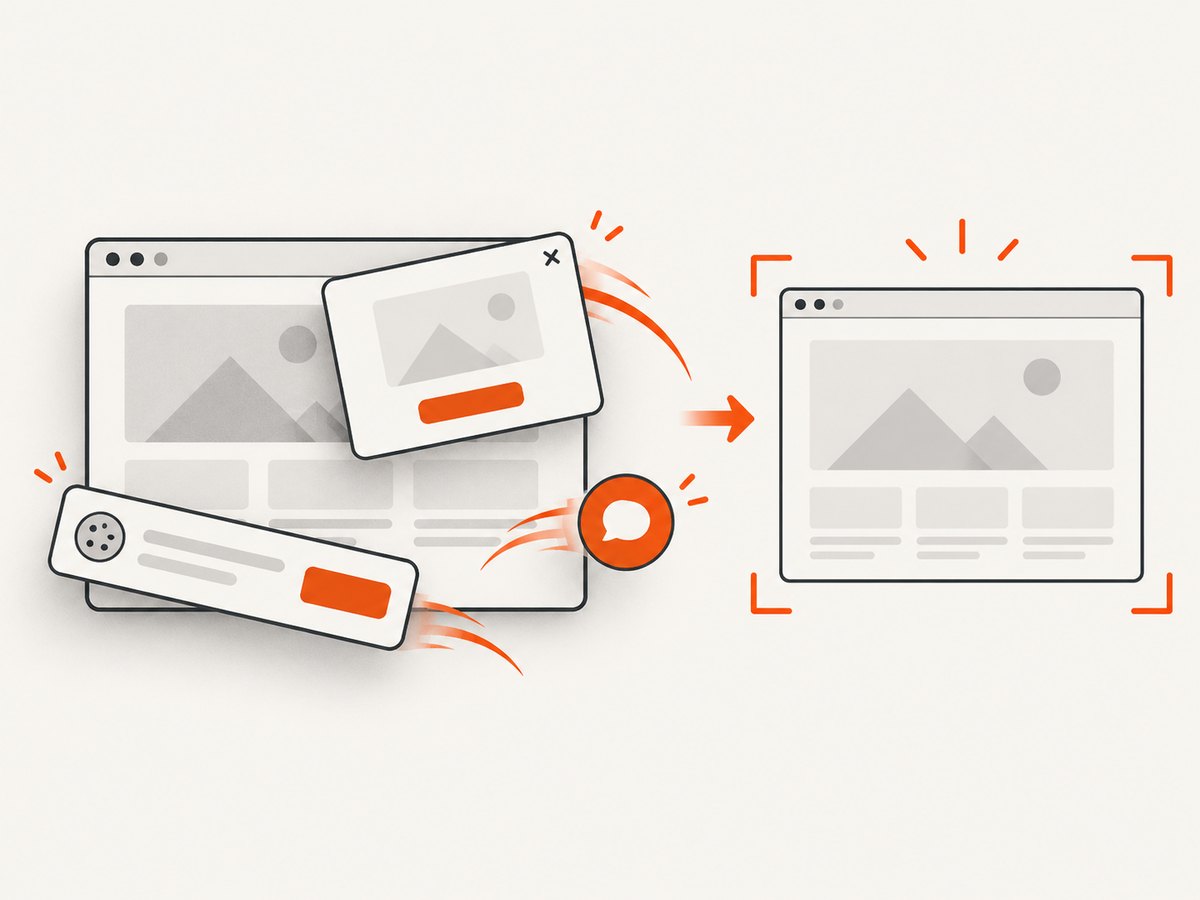
Before capture it accepts cookie and consent banners and removes more than 60 known consent platforms, newsletter popups, and chat widgets; each step can be turned off. Only clean shots are billed. Bot checks or CAPTCHAs, blank pages, timeouts, failed loads, and cache hits cost nothing, and the response reports the result through X-Page-Verdict and X-Billed headers. Its MCP server exposes take_screenshot, get_page_info, and capture_pdf for Claude, Cursor, and other MCP clients.
The Free plan includes 1,000 shots per month without a card. Paid plans start at $5 for 3,000 shots; yearly billing gives two months free, and every feature is available on every plan. Create a free ScreenshotNeo account.
10. Offline conversion FAQ
Can I convert HTML to PNG with no internet at all?
Yes, if the browser binary and every page dependency are already installed locally. Remote resources must be bundled or replaced with local fixtures.
Is a browser better than an HTML parser?
For a visual PNG, yes. A browser computes CSS layout and executes JavaScript before painting pixels; a parser alone does not reproduce that rendering process.
Should I use Chrome, Playwright, or Puppeteer?
Use Chrome Headless for a minimal command, Playwright for configurable automation and screenshot controls, and Puppeteer for a concise JavaScript and Chrome workflow.
How do I create a PNG from a string instead of a file?
Use Playwright’s page.setContent(html) or Puppeteer’s page.setContent(html), wait for fonts and generated content, then call page.screenshot.
Why is my output the wrong size?
Viewport dimensions, full-page mode, and device scale determine the result. Set them explicitly and use CSS scale when you need predictable pixel dimensions.
Can I make the result reproducible in CI?
Pin the browser version, bundle assets and fonts, fix viewport and locale settings, disable animations, freeze dynamic data, and wait for explicit readiness conditions before capture.


