How to Convert HTML to PNG Images with Python
Use Playwright to render HTML in a real browser and save accurate PNG screenshots, with options for full pages, elements, HTML strings, and automation.
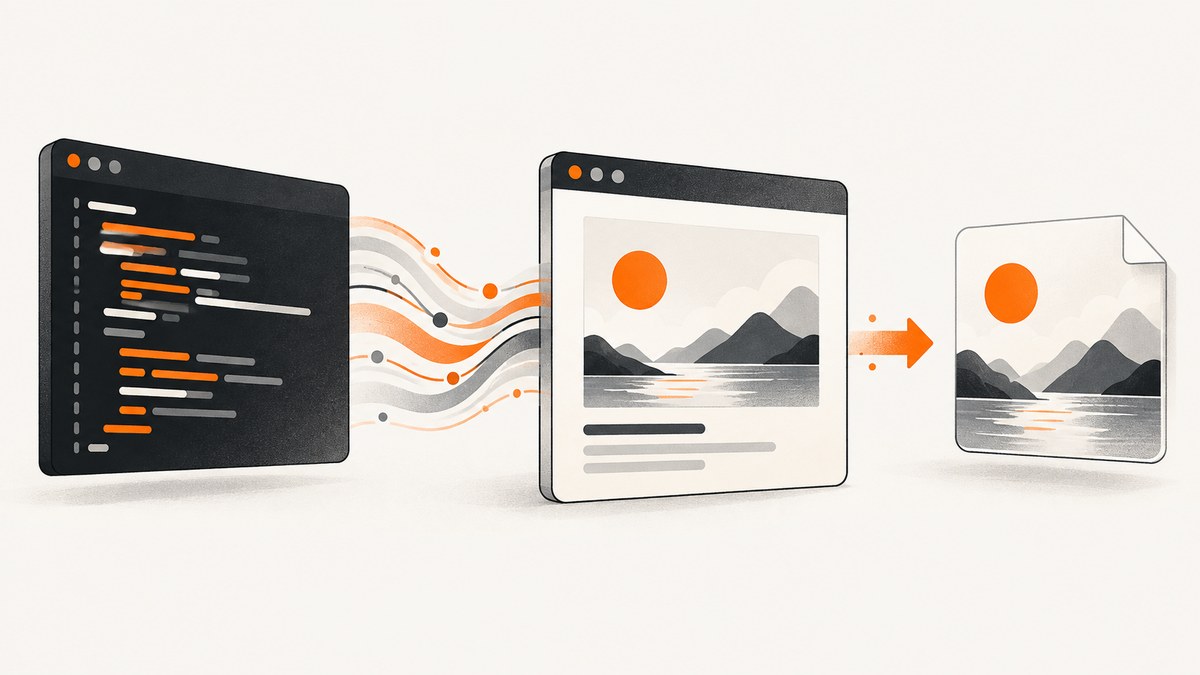
Direct answer: use Playwright for Python when the PNG must match browser rendering, including CSS, fonts, images, and JavaScript. Install the package and browser binaries, open a URL or inject an HTML string, wait for the content your page needs, then call page.screenshot(path="output.png").
1. Install Playwright and its browsers
Playwright needs both the Python package and browser binaries. Run:
python -m pip install playwright
playwright install
The browser installer provides Chromium, Firefox, and WebKit. Playwright runs headlessly by default. Use headless=False while debugging if you need to see the browser window.
2. Convert a webpage URL to PNG
This synchronous script opens a URL and saves a viewport screenshot:

from playwright.sync_api import sync_playwright

with sync_playwright() as p:
    browser = p.chromium.launch()
    page = browser.new_page(viewport={"width": 1440, "height": 900})
    page.goto("https://example.com")
    page.screenshot(path="output.png")
    browser.close()
PNG is the default screenshot format. The screenshot represents the current viewport, so set the viewport explicitly when consistent dimensions matter.
3. Convert an HTML string to PNG
When your application already has markup in memory, use page.set_content() instead of navigating to a URL:
from playwright.sync_api import sync_playwright
html = """
Invoice preview
Rendered from HTML.
External stylesheets, fonts, images, and scripts referenced by the markup still need to be reachable from the browser process. For self-contained output, inline the assets or serve them from a URL that the browser can access.
4. Capture a full page or one element
Full scrollable page
page.screenshot(path="full-page.png", full_page=True)full_page=True captures the entire scrollable document as one PNG. Very tall pages can produce large images; consider splitting the page or using a PDF workflow when a paginated document is the real requirement.
One element
page.locator("#invoice").screenshot(path="invoice.png")A locator screenshot is useful for cards, charts, invoices, or components. Make sure the selector resolves to the intended element and that it is visible before capture.
Keep the image in memory
png_bytes = page.screenshot()
with open("output.png", "wb") as image_file:
    image_file.write(png_bytes)
Omitting path returns PNG bytes, which you can upload to object storage or return from an HTTP endpoint without creating a temporary file.
5. Wait for dynamic content before capture
Navigation finishing does not guarantee that client-rendered data, images, or animations are ready. Wait for a condition that describes your page:
page.goto("https://example.com/dashboard")
page.locator("[data-ready='true']").wait_for()
page.screenshot(path="dashboard.png")
You can also wait for a known component, perform an application-specific action, or use a short delay when no better readiness signal exists:
page.goto("https://example.com")
page.wait_for_timeout(1000)
page.screenshot(path="after-delay.png")
A fixed sleep is only a fallback. Choose a selector or state that reflects the content you actually need.
6. Useful capture options
| Goal | Playwright option | Example |
|---|---|---|
| Full document | full_page=True |
page.screenshot(path="page.png", full_page=True) |
| Transparent PNG | omit_background=True |
page.screenshot(path="logo.png", omit_background=True) |
| Retina-style output | Context device_scale_factor |
browser.new_context(device_scale_factor=2) |
| JPEG instead of PNG | type="jpeg" |
page.screenshot(path="image.jpg", type="jpeg", quality=85) |
| Specific element | Locator screenshot | page.locator(".hero").screenshot(path="hero.png") |
Transparent backgrounds apply to PNG; omit_background does not apply to JPEG. Use a browser context when you need a device scale factor or other context-wide settings:
from playwright.sync_api import sync_playwright

with sync_playwright() as p:
    browser = p.chromium.launch()
    context = browser.new_context(
        viewport={"width": 1280, "height": 800},
        device_scale_factor=2,
        color_scheme="dark",
    )
    page = context.new_page()
    page.goto("https://example.com")
    page.screenshot(path="retina-dark.png", full_page=True)
    context.close()
    browser.close()
7. Async Python version
Use the async API in asyncio applications, workers, and services that already use asynchronous I/O:
import asyncio
from playwright.async_api import async_playwright

async def main():
    async with async_playwright() as p:
        browser = await p.chromium.launch()
        page = await browser.new_page(viewport={"width": 1440, "height": 900})
        await page.goto("https://example.com")
        await page.screenshot(path="async-output.png")
        await browser.close()

asyncio.run(main())
Keep the sync and async styles consistent within a function. Always close the browser, including when production code handles exceptions.
8. Complete command-line example
Save this as html_to_png.py and run python html_to_png.py https://example.com output.png:
import sys
from playwright.sync_api import sync_playwright

if len(sys.argv) != 3:
    raise SystemExit("Usage: python html_to_png.py URL OUTPUT.png")

url, output_path = sys.argv[1:]

with sync_playwright() as p:
    browser = p.chromium.launch()
    try:
        page = browser.new_page(viewport={"width": 1440, "height": 900})
        page.goto(url, wait_until="load")
        page.screenshot(path=output_path, full_page=True)
    finally:
        browser.close()
9. cURL, Python, and Node.js alternatives
If you are calling a remote screenshot service instead of managing a local browser, these are complete request examples. See the ScreenshotNeo API documentation for parameters and response details.
cURL
curl -G "https://api.screenshotneo.com/v1/shot" -d access_key=YOUR_API_KEY --data-urlencode url=https://stripe.com -o shot.webpPython
import requests
r = requests.get("https://api.screenshotneo.com/v1/shot", params={"access_key": "YOUR_API_KEY", "url": "https://stripe.com"}, timeout=90)
open("shot.webp", "wb").write(r.content)
Node.js
const q = new URLSearchParams({ access_key: 'YOUR_API_KEY', url: 'https://stripe.com' });
const res = await fetch(`https://api.screenshotneo.com/v1/shot?${q}`);
10. Troubleshooting
“Executable doesn’t exist” or browser launch failure
Cause: the Python package is installed but browser binaries are missing. Fix: run playwright install in the same environment, container, or virtual environment that runs your script.
The PNG is blank or missing application data
Cause: capture happened before client-side rendering completed, or the page requires authentication. Fix: wait for a page-specific selector, configure the correct login/session state, and verify that the browser can reach every API and asset host.
Images or fonts are absent
Cause: blocked requests, inaccessible URLs, or a font that has not finished loading. Fix: check browser logs and network access, use reachable asset URLs, and wait for the component that depends on those resources.
The full-page image is unexpectedly tall
Cause: full_page=True includes the complete scrollable document, including long feeds and hidden layout space. Fix: capture a bounded locator, set a fixed viewport, or remove unintended overflow in the page CSS.
Transparent output is white
Cause: the page or an ancestor has an opaque background. Fix: use omit_background=True and ensure the relevant CSS backgrounds are transparent.
Different runs produce different pixels
Cause: animations, changing data, remote assets, fonts, or responsive layout. Fix: set viewport and device scale explicitly, wait for a stable application state, disable or finish animations with CSS, and control the data used for the render.
11. Performance, reliability, and cost considerations
- Startup: launching a browser for every image adds overhead. Reuse a browser process and create isolated contexts or pages when your service captures many images.
- Concurrency: limit concurrent pages to the CPU and memory available. Large full-page PNGs consume more memory than viewport captures.
- Reliability: close pages, contexts, and browsers in
finallyor async context managers. Add timeouts and log the URL, readiness condition, and failure stage. - Determinism: pin your browser/runtime environment where reproducible image diffs matter, and make fonts and remote assets available.
- Cost: local Playwright has infrastructure costs for browser CPU, memory, storage, and maintenance. A hosted API can shift browser operations to a service; compare request volume, latency needs, and required controls.
12. Or skip the browser setup
ScreenshotNeo is a website screenshot API and MCP server. One GET request returns a PNG, JPEG, WebP, or PDF, while handling browser setup for you.

curl -G "https://api.screenshotneo.com/v1/shot" -d access_key=YOUR_API_KEY --data-urlencode url=https://stripe.com -o shot.webpIt removes cookie and consent banners, newsletter popups, and chat widgets before capture. Bot checks, blank pages, failed loads, timeouts, and cache hits are not billed, and response headers identify the page verdict and billing result. Its MCP server lets Claude, Cursor, and other MCP clients use take_screenshot, get_page_info, and capture_pdf. The free plan includes 1,000 screenshots each month with no card; paid plans start at $5 for 3,000 screenshots. Create a free ScreenshotNeo account.
13. FAQ
Can Python convert HTML to PNG without a browser?
It can for limited, static rendering libraries, but browser-based Playwright is the documented choice when JavaScript and browser CSS behavior matter.
What is the difference between viewport and full-page screenshots?
A viewport screenshot captures the visible browser area. A full-page screenshot captures the document’s complete scrollable height.
Can I return PNG bytes from a web endpoint?
Yes. Call page.screenshot() without a path and return the resulting bytes with an image/png content type.
Should I use WeasyPrint instead?
Evaluate it against your exact requirements. Its API reference covers HTML/CSS and PDF features, but the cited documentation does not establish it as a direct HTML-to-PNG replacement or prove browser-equivalent JavaScript behavior.


