Convert HTML to PNG in Python
Use Playwright to render HTML in a real browser and save a faithful PNG, with full-page, element, async, and API options explained.
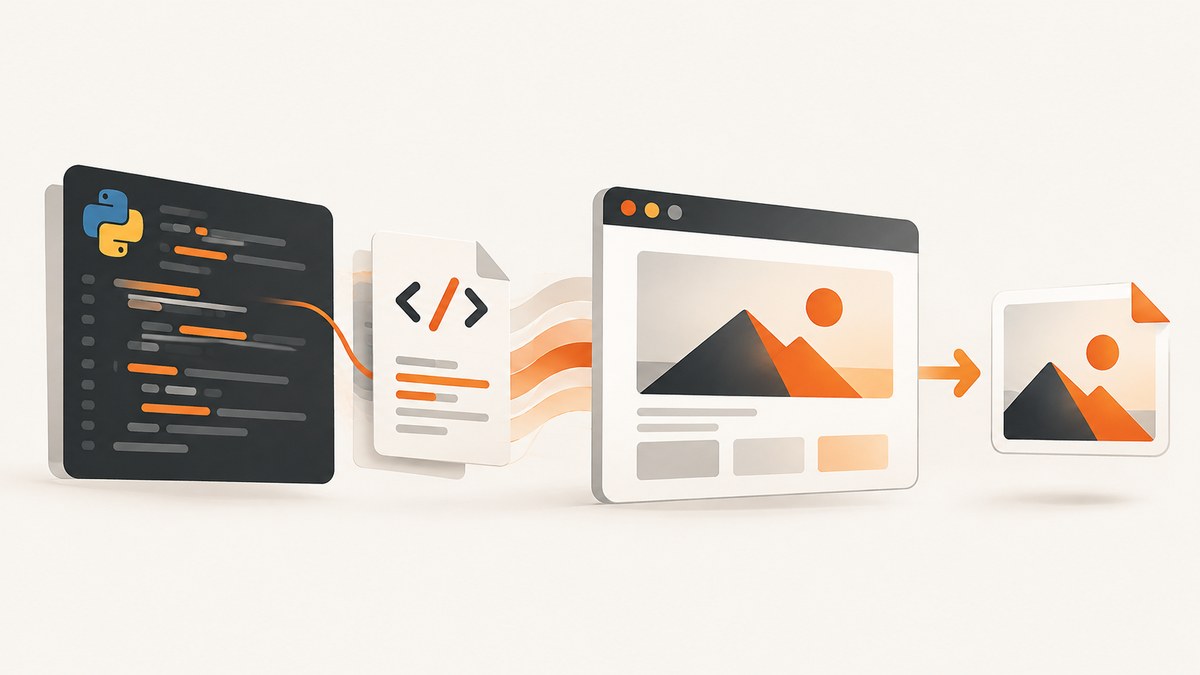
To convert HTML to PNG in Python with browser-level fidelity, use Playwright. Launch a browser, load a URL with page.goto() or provide markup with page.set_content(), wait for the content you need, and call page.screenshot(path="output.png"). Playwright can capture the viewport, a complete page, a locator, or image bytes returned directly to your program.
This approach renders HTML, CSS, fonts, and JavaScript in Chromium, Firefox, or WebKit. It is the practical choice when the result must look like a page in a real browser. A document renderer such as WeasyPrint can be useful for document-style HTML, but its PNG tutorial reference is for version 52.5; check current documentation before depending on that API.
1. Render HTML and save a PNG with Playwright
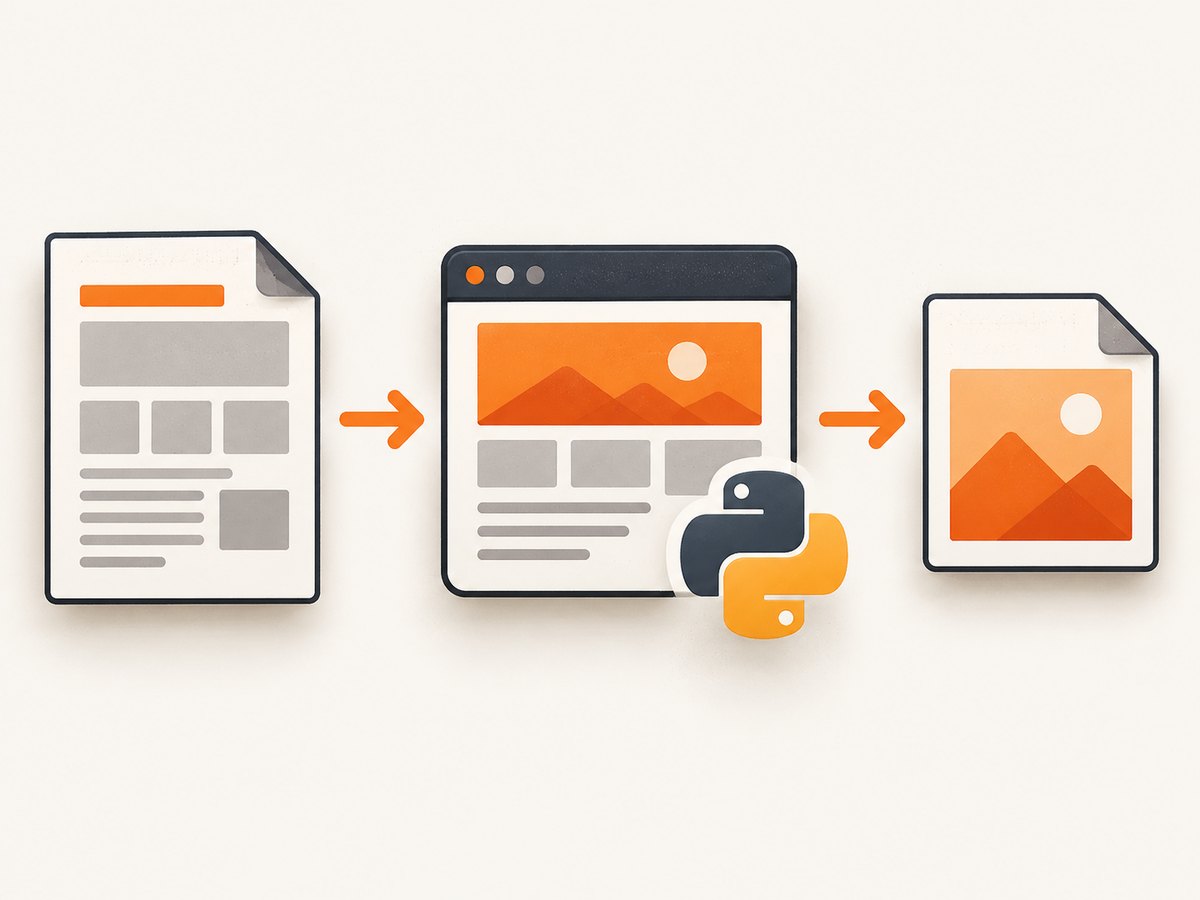
Install the Playwright Python package and the browser runtime using the current official installation instructions. The documentation covers browser installation and the synchronous and asynchronous APIs. The smallest synchronous example is:
from playwright.sync_api import sync_playwright
html = """
Hello from Python
This HTML was rendered into a PNG.
"""
with sync_playwright() as p:
browser = p.chromium.launch()
page = browser.new_page(viewport={"width": 1200, "height": 800})
page.set_content(html)
page.screenshot(path="output.png")
browser.close()The file extension selects PNG output. Use page.goto("https://example.com") instead of set_content when the source is a web page. See the Playwright Python screenshot documentation and Page API for the complete option set.
2. Convert a web URL to PNG
A URL may still be loading when navigation returns, especially when JavaScript inserts content after the initial document. Choose a navigation wait condition that matches the page and then wait for a specific selector when possible.
from playwright.sync_api import sync_playwright

with sync_playwright() as p:
    browser = p.chromium.launch()
    page = browser.new_page(viewport={"width": 1440, "height": 900}, device_scale_factor=1)
    page.goto("https://example.com", wait_until="domcontentloaded", timeout=30_000)
    page.locator("main").wait_for(state="visible", timeout=30_000)
    page.screenshot(path="page.png", full_page=True)
    browser.close()
Playwright documents a default screenshot timeout of 30 seconds. Set an explicit timeout when a slower page is expected, but do not treat a fixed delay as proof that every asset is ready. A selector or an application-specific readiness signal is usually more reliable.
3. Full-page, viewport, and element screenshots
Viewport capture
Without extra options, the screenshot represents the current viewport. Set the viewport when consistent dimensions matter:
page.set_viewport_size({"width": 1280, "height": 720})
page.screenshot(path="viewport.png")
Full-page capture
Pass full_page=True to capture the page from the top through its full document height:
page.screenshot(path="full-page.png", full_page=True)Very tall pages can produce large images and may contain lazy content that only appears after scrolling. If the page relies on lazy loading, scroll through it or trigger the application’s loading mechanism before capture. A full-page screenshot is different from an element screenshot: it includes the document, while an element screenshot targets one locator.
Capture one element
card = page.locator(".card").first
card.screenshot(path="card.png")
A locator screenshot captures the element’s visible box. For a scrollable element, it shows the currently scrolled content and is not guaranteed to include the entire inner scroll area. If you need all rows inside a scroll container, change the element’s styles or capture the content in sections.
4. Return PNG bytes instead of writing a file
Omit path when another part of your program will upload, store, or transform the image. Playwright returns PNG bytes:
from pathlib import Path
from playwright.sync_api import sync_playwright

with sync_playwright() as p:
    browser = p.chromium.launch()
    page = browser.new_page()
    page.set_content("<h1>Generated image</h1>")
    png_bytes = page.screenshot()
    Path("output.png").write_bytes(png_bytes)
    browser.close()
For transparent PNG output, use omit_background=True. Transparency is relevant to PNG; it does not apply to JPEG output.
page.screenshot(path="transparent.png", omit_background=True)5. Use the asynchronous Python API
The async API fits applications that already use asyncio, such as async web services or batch workers.
import asyncio
from playwright.async_api import async_playwright

async def render():
    async with async_playwright() as p:
        browser = await p.chromium.launch()
        page = await browser.new_page(viewport={"width": 1200, "height": 800})
        await page.set_content("<main><h1>Async PNG</h1></main>")
        await page.locator("main").wait_for(state="visible")
        await page.screenshot(path="async-output.png", full_page=True)
        await browser.close()

asyncio.run(render())
6. Make captures repeatable
Dynamic pages can change between runs. Control the inputs that affect pixels:
- Set a fixed viewport and device scale factor.
- Use a known color scheme and locale when the page changes with user preferences.
- Wait for a meaningful selector, image, or application-ready state.
- Disable or wait for animations when they would capture an intermediate frame. Playwright provides screenshot animation controls.
- Supply stable test data or hide timestamps, rotating ads, and personalized widgets.
- Close the browser in a
finallyblock in long-running programs so failures do not leak processes.
from playwright.sync_api import sync_playwright

with sync_playwright() as p:
    browser = p.chromium.launch()
    try:
        page = browser.new_page(color_scheme="light", locale="en-US")
        page.goto("https://example.com", wait_until="load")
        page.add_style_tag(content="*, *::before, *::after { animation: none !important; transition: none !important; }")
        page.screenshot(path="stable.png")
    finally:
        browser.close()
Disabling animation with CSS is an application-level choice; use it only when a static frame is what you need.
7. Add CSS or HTML before capture
For supplied markup, put styles in the document. For an existing page, inject a stylesheet or script after navigation:
page.goto("https://example.com")
page.add_style_tag(content="body { background: white !important; }")
page.locator(".cookie-banner").evaluate("el => el.remove()")
page.screenshot(path="clean.png")
Only remove elements when you control the page or have permission to alter the rendered result. If a banner is inside an iframe or shadow DOM, a normal selector may not reach it.
8. Browser choice and rendering trade-offs
Playwright exposes Chromium, Firefox, and WebKit launch APIs. Use the engine that matches the browser behavior you need to represent. Font availability, browser version, operating system rendering, and network responses can all change pixels. Browser automation is therefore preferable for JavaScript-heavy pages, while a document renderer may be simpler for static, print-oriented HTML.
WeasyPrint’s version 52.5 tutorial documents HTML(...).write_png() and in-memory output. That source is old, so verify the current API and release notes before selecting it for a new project. Do not assume a browser screenshot and a document-renderer PNG are interchangeable: they use different layout engines and support different browser features.
9. Common errors and fixes
| Error or symptom | Likely cause | Fix |
|---|---|---|
| Browser executable is missing | The Python package is installed but its browser runtime is not. | Follow the current Playwright browser installation instructions for your environment. |
| Timeout while navigating | The server is slow, a request never finishes, or the timeout is too short. | Set an explicit navigation timeout, choose an appropriate wait_until, and inspect failing network requests. |
| PNG is blank | Markup was not set, the page failed, or content is painted after capture. | Check the response and console, wait for a visible selector, and capture after the application reports readiness. |
| Text or images are missing | Fonts or images have not loaded, or a lazy loader has not run. | Wait for the relevant asset or selector; scroll to trigger lazy loading; make sure the browser can reach the asset URLs. |
| Only part of a long page appears | The capture used the viewport default. | Use full_page=True, or capture sections deliberately. |
| Element screenshot is clipped | The locator’s box or an ancestor has overflow constraints. | Inspect computed styles and capture the document or a resized clone when the full inner content is required. |
| Different pixels on each run | Animations, time-dependent data, ads, fonts, or personalization. | Fix viewport and locale, disable animation, wait for fonts and content, and provide deterministic data. |
| Transparent output has a solid background | The page or screenshot option paints a background. | Use PNG with omit_background=True and ensure the document background is transparent. |
10. Performance, reliability, and cost considerations
Launching a browser for every image adds startup work. For a batch job, keep one browser process open and create a new page or context per capture, then close those objects promptly. Limit concurrency to what the machine and target sites can handle. Very tall pages and high device scale factors consume more memory and produce larger files. Returning bytes avoids an extra read from disk when the next step is an upload.
Reliability depends on the target page as well as your code. Record the URL, viewport, browser engine, timeout, and failure reason. Retry transient navigation failures with a limit and backoff, but do not blindly retry authentication failures or deterministic JavaScript errors. Respect robots, access controls, rate limits, and terms for the sites you capture.
Playwright itself does not charge per screenshot; your costs are compute, storage, bandwidth, and any service you call. A hosted API can be simpler when you need a repeatable capture service, queueing, or many URLs.
11. Or skip the browser setup
ScreenshotNeo provides a website screenshot API and MCP server. One GET request returns PNG, JPEG, WebP, or PDF. The API accepts the URL and your access key:

curl -G "https://api.screenshotneo.com/v1/shot" -d access_key=YOUR_API_KEY --data-urlencode url=https://stripe.com -o shot.webpimport requests
r = requests.get("https://api.screenshotneo.com/v1/shot", params={"access_key": "YOUR_API_KEY", "url": "https://stripe.com"}, timeout=90)
open("shot.webp", "wb").write(r.content)const q = new URLSearchParams({ access_key: 'YOUR_API_KEY', url: 'https://stripe.com' });
const res = await fetch(`https://api.screenshotneo.com/v1/shot?${q}`);See the ScreenshotNeo API documentation for request options and response headers. It removes cookie and consent banners, newsletter popups, and chat widgets before capture; each cleanup step can be turned off. Bot checks or CAPTCHAs, blank pages, timeouts, failed loads, and cache hits are not billed, and the response identifies the result with X-Page-Verdict and X-Billed headers. An MCP server provides take_screenshot, get_page_info, and capture_pdf tools for Claude, Cursor, and other MCP clients.
Options include full-page capture with lazy images loaded, CSS-selector element capture, dark mode, 12 device presets or a custom viewport, retina scale, PDF paper settings, custom CSS and JavaScript, clicks, selector or network-idle waits, request and resource blocking, headers, cookies, user agents, Authorization, timezone, geolocation, transparent backgrounds, resizing, configurable caching TTL, signed image links, asynchronous jobs with signed webhooks, bulk capture for up to 100 URLs per call, usage reporting, and an OpenAPI specification. Parameter names used by other screenshot APIs also work, which can simplify migration.
The Free plan includes 1,000 screenshots each month with no card. Paid plans start at $5 for 3,000 shots; yearly billing gives two months free, and every feature is available on every plan. Create a free ScreenshotNeo account to start with 1,000 screenshots a month and no card.
12. FAQ
Can Python convert HTML without opening a browser?
Yes, a document renderer can work for document-like HTML, but browser rendering is the safer choice when JavaScript, browser CSS behavior, or web fonts affect the result.
How do I save a screenshot in memory?
Call page.screenshot() without path; it returns PNG bytes that you can upload or process.
How do I capture only a chart or card?
Use page.locator("selector").screenshot(path="element.png"). Check overflow and scrolling when the element contains more content than its visible box.
Why is my full-page image huge?
Document height, viewport width, and device scale factor determine pixel dimensions. Reduce those values, capture sections, or resize the output after rendering.
Should I use sync or async Playwright?
Use sync for straightforward scripts. Use async when the surrounding application already runs an asyncio event loop or handles many concurrent tasks.


