How to Convert HTML to PNG in R
Convert a URL or local HTML file to PNG in R with webshot2, pagedown, or Chromote. Set the viewport, capture a selector, and fix common browser issues.

To convert HTML to PNG in R, use webshot2 for the simplest browser screenshot workflow. It opens a URL or local HTML page in headless Chrome through Chromote and saves the rendered result as an image. You need a Chromium-based browser installed. For print-oriented output, use pagedown::chrome_print(); for direct control of a browser session and screenshot regions, use Chromote itself.
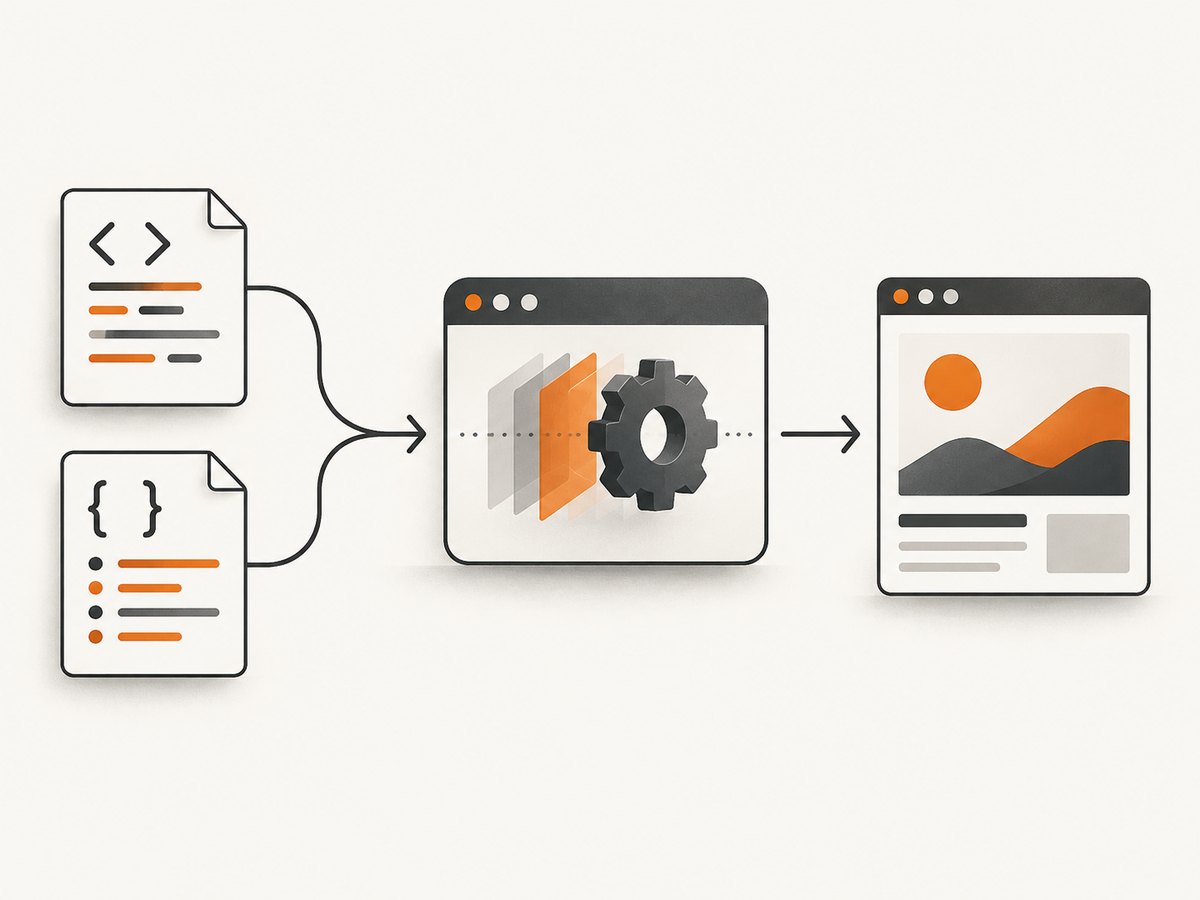
This is a rendered browser capture, not a direct conversion of HTML source into pixels. The browser applies CSS, runs JavaScript, loads images and fonts, and lays out the page before saving the screenshot. That makes the result depend on browser availability, viewport dimensions, page load state and remote assets.
1. Install webshot2 and a browser
Install the package from CRAN:
install.packages("webshot2")Install Chrome, Chromium, or another Chromium-based browser such as Edge separately. webshot2 uses headless Chrome via Chromote; installing the R package alone does not install the browser. The package documentation describes webshot2 as a replacement for the older webshot package, switching from PhantomJS to Chrome through Chromote. See the webshot2 project documentation and function reference.
Check that R can load the package:
library(webshot2)
packageVersion("webshot2")
When running on a server, container, or managed machine, confirm that a supported browser is installed and that the process can launch it. Browser setup varies by operating system and deployment environment, so follow the browser’s installation instructions for that environment.
2. Convert a URL to PNG
The shortest useful example is:
webshot2::webshot(
  url = "https://www.r-project.org/",
  file = "r-project.png"
)
The output filename extension selects the image format. For PNG output, use a .png filename. The function returns after capturing the page and writes the image to the specified path.
A reusable script can make the key capture settings explicit:
library(webshot2)

page_url <- "https://www.r-project.org/"
output_file <- "r-project.png"

webshot(
  url = page_url,
  file = output_file,
  vwidth = 1280,
  vheight = 900,
  delay = 1
)

if (!file.exists(output_file)) {
  stop("Screenshot was not created: ", output_file)
}

message("Saved: ", normalizePath(output_file))
The delay gives a page extra time before capture; it is not a guarantee that every asynchronous application is ready. Adjust it based on the page, then inspect the resulting image. A fixed delay is simple, but too short can capture an intermediate state and too long wastes time in batch jobs.
3. Convert local HTML to PNG
webshot2::webshot() accepts a local file path as its URL input. Create an HTML file and capture it:
html_file <- tempfile(fileext = ".html")
png_file <- "local-page.png"

writeLines(
  c(
    "<!doctype html>",
    "<html><head><meta charset='utf-8'>",
    "<style>body{font:24px sans-serif;padding:40px;color:#172554}</style>",
    "</head><body><h1>Rendered from local HTML</h1>",
    "<p>The browser applies the CSS before capturing.</p></body></html>"
  ),
  html_file
)

webshot2::webshot(
  url = html_file,
  file = png_file,
  vwidth = 1000,
  vheight = 700
)
Keep relative assets in mind. If the HTML references images, stylesheets or scripts with relative paths, those paths must resolve from the local document’s location and be accessible to the browser. A missing local font or image can result in a capture with fallback styling or empty space even when the PNG itself is created successfully.
4. Set the viewport, full page, and capture region
The viewport is the browser window size in CSS pixels. vwidth and vheight affect responsive breakpoints, line wrapping, menus and image layout. Choose dimensions that resemble the target device or layout you need to render.

| Argument | Purpose | Use it when |
|---|---|---|
vwidth, vheight |
Set virtual browser viewport dimensions | You need predictable responsive layout |
cliprect |
Limit output to a clipping rectangle; "viewport" captures the viewport |
You want a viewport-sized result or a defined region |
selector |
Capture an element selected by CSS | You need a chart, card, table, or other component |
expand |
Add pixels around the selector’s clipping rectangle | You need breathing room around a component |
delay |
Wait a number of seconds before capture | Assets or client-side rendering need more time |
zoom |
Scale the screenshot output dimensions | You need more output pixels |
To capture a viewport at desktop dimensions:
webshot2::webshot(
  "https://example.org",
  file = "viewport.png",
  vwidth = 1440,
  vheight = 900,
  cliprect = "viewport"
)
To capture one component by CSS selector:
webshot2::webshot(
  "https://example.org",
  file = "component.png",
  vwidth = 1280,
  vheight = 900,
  selector = "main article",
  expand = c(16, 16, 16, 16)
)
The selector must match an element present in the rendered DOM. If it matches multiple elements, the documented behavior is to capture a region containing the matches. expand applies with a selector and is incompatible with cliprect. If you need a reliable component capture, inspect the page’s actual selector and confirm that it exists after JavaScript has rendered.
For multiple URLs, pass a character vector. If you supply one output filename, webshot2 generates numbered filenames for the additional pages; alternatively, provide corresponding output paths. Multiple captures can run in parallel, controlled by max_concurrent (default is read from the webshot.concurrent option, which defaults to six in the package source). Parallel browser work increases simultaneous resource use, so lower concurrency for memory-constrained machines.
urls <- c("https://example.org", "https://www.r-project.org/")
webshot2::webshot(
  urls,
  file = "page.png",
  vwidth = 1200,
  vheight = 800,
  delay = 0.5,
  max_concurrent = 2
)
5. Alternative: use pagedown for browser printing
pagedown::chrome_print() accepts a URL, a local HTML file, or rendered R Markdown input. Set format = "png" and choose an output path:
install.packages("pagedown")

pagedown::chrome_print(
  input = "report.html",
  output = "report.png",
  format = "png",
  wait = 2
)
It can also capture a URL:
pagedown::chrome_print(
  input = "https://example.org",
  output = "example.png",
  format = "png",
  wait = 1
)
The function uses the Chrome DevTools Protocol and requires Chrome, Microsoft Edge, or Chromium. Its relevant controls include wait, selector, box_model and scale. Use selector when only a particular rendered element is needed. See the pagedown reference for the current argument details. For R Markdown, render the document to HTML first or pass the result of rmarkdown::render() as described in the reference.
6. Alternative: control a Chromote session directly
Use Chromote directly when the script needs explicit navigation and session-level browser control. This is a lower-level workflow than webshot2::webshot():
install.packages("chromote")

browser <- chromote::ChromoteSession$new()
on.exit(browser$close(), add = TRUE)

browser$go_to("https://example.org")
Sys.sleep(1)
browser$screenshot(
  filename = "chromote.png",
  selector = "body",
  scale = 1
)
Chromote’s screenshot method supports a selector or region, clipping, scale, delay, and PNG, JPEG or WebP formats inferred from the filename. A session is useful if a workflow needs to navigate or interact before capture. Always close sessions in long-running processes so browser resources are released. Refer to the Chromote screenshot vignette and session reference.
7. Choose the right R route
| Approach | Best fit | Key requirement or tradeoff |
|---|---|---|
webshot2::webshot() |
Routine URL or local HTML screenshot with viewport and clipping controls | Requires a Chromium-based browser |
pagedown::chrome_print() |
HTML or R Markdown workflow built around browser printing | Requires Chrome, Edge, or Chromium; output is controlled through print-oriented arguments |
ChromoteSession$screenshot() |
Scripted browser session with direct capture control | More session setup and lifecycle management |
Legacy webshot::webshot() |
Maintaining existing older code | Older backend and setup; assess existing project compatibility before changing it |
There is no controlled speed or fidelity comparison in the cited package documentation. Pick based on input type, required browser control, capture region, and what browser is available in the runtime environment. Existing scripts using the older webshot package can remain in place while you evaluate migration; the newer project positions webshot2 as its replacement.
8. Or skip the browser setup
If the goal is a website screenshot rather than an R-managed browser session, ScreenshotNeo provides a one-request screenshot API. The R call uses the standard HTTP client:
install.packages("httr")

response <- httr::GET(
  "https://api.screenshotneo.com/v1/shot",
  query = list(
    access_key = "YOUR_API_KEY",
    url = "https://stripe.com"
  ),
  httr::timeout(90)
)

if (httr::http_error(response)) {
  stop("Screenshot request failed: HTTP ", httr::status_code(response))
}

writeBin(httr::content(response, as = "raw"), "shot.webp")
See the ScreenshotNeo API documentation for request options and key setup. Cookie banners, popups and chat widgets are removed before the shot; bot checks, blank pages and failed loads are never billed. An MCP server lets AI agents take screenshots. The free plan includes 1,000 screenshots a month with no card; paid plans start at $5 for 3,000.
Sign up for ScreenshotNeo and get 1,000 screenshots a month free, with no card.
9. Troubleshooting common problems
| Symptom | Likely cause | What to try |
|---|---|---|
| Browser cannot be found or launched | R package is installed, but Chrome/Chromium/Edge is missing or unavailable to the process | Install a supported browser in the same machine or container, then rerun. Verify the browser can start under the account running R. |
| PNG is blank or has a loading spinner | Capture occurred before client-side rendering completed, or the page failed to load its content | Increase delay or pagedown’s wait; check the URL and network access. Inspect whether content requires authentication or interaction. |
| Images or fonts are missing | Remote assets are slow, blocked, or local relative paths do not resolve | Confirm asset URLs are reachable from the browser environment; for local HTML, fix relative paths or use accessible asset locations. Add a modest delay if assets simply load late. |
| Wrong responsive layout | Viewport dimensions trigger a different CSS breakpoint than expected | Set vwidth and vheight deliberately and capture again. |
| Selector capture fails or clips the wrong area | Selector is invalid, appears only after rendering, or matches multiple nodes | Check the live DOM and selector; use a broader stable selector or full viewport capture to diagnose. Remove cliprect when using expand. |
| Output path does not exist | Parent directory is missing or the script writes relative to an unexpected working directory | Create the directory first and use an absolute output path while debugging. |
| Batch job runs out of memory or becomes unstable | Too many browser captures are running at once or sessions remain open | Reduce max_concurrent, process URLs in smaller batches, and close direct Chromote sessions. |
10. Performance, reliability, and cost
Local capture has no per-shot API charge in the package workflow, but it uses compute, memory, browser installation and maintenance, and time spent diagnosing page-specific behavior. Each capture has to load and render the page. Heavy sites, slow third-party assets, JavaScript applications and large viewports can increase that work. The supplied package references do not provide a reproducible performance ranking, so benchmark your own URLs and environment before setting throughput expectations.
For reliability, pin your R package environment with the dependency-management approach used by your project, keep the browser available in deployment, set viewport and wait behavior explicitly, and validate that output files are nonempty. Treat a successful file write as distinct from a correct visual result: a screenshot can exist while page content is incomplete. For large batches, use modest concurrency and retry only failures you can identify, rather than blindly repeating all captures.
For repeatable visual output, keep the browser version, viewport, zoom and capture timing consistent where practical. Websites change content, CSS, fonts and consent dialogs independently of your R code, so captures of the same URL can vary over time. Remote pages may also serve different content depending on location, login state or user agent.
FAQ
Can I convert an HTML string without saving it first?
The examples here use a URL or local HTML file. For an HTML string, write it to a temporary file and pass that path to webshot2::webshot(), ensuring its referenced assets can be resolved.
Can webshot2 output JPEG?
The package supports image output based on the filename extension, including PNG and JPEG. Use a filename ending in .jpeg or .jpg and consult the current reference for supported formats.
Does a viewport capture include the entire long page?
A viewport capture is limited to the browser’s visible viewport. Use the package’s page capture behavior or an appropriate selector/clipping setup when the desired output extends beyond that view, and inspect the result because page dimensions and lazy loading affect what is present.
Should new projects use the older webshot package?
The webshot2 project describes itself as the replacement using Chrome through Chromote. For an existing project, check its current dependencies and setup before changing the backend.


