Convert HTML to PNG in Ruby
Render HTML as a reliable PNG in Ruby with Grover, Ferrum, or a hosted Chrome API. Includes full-page capture, Rails code, options, errors, and cost notes.

To convert HTML to PNG in Ruby, render the page in a Chromium-based browser and save the browser screenshot as a PNG. For most Ruby applications, Grover is the shortest path: it wraps Puppeteer and Chromium and exposes to_png. For lower-level control over geometry, formats, and page state, use Ferrum. A hosted Chrome renderer is useful when you do not want to operate Chromium on your own servers.
This guide covers inline HTML, public URLs, Rails responses, full-page and element screenshots, deterministic rendering, troubleshooting, and a hosted alternative.
1. Choose a browser-backed renderer
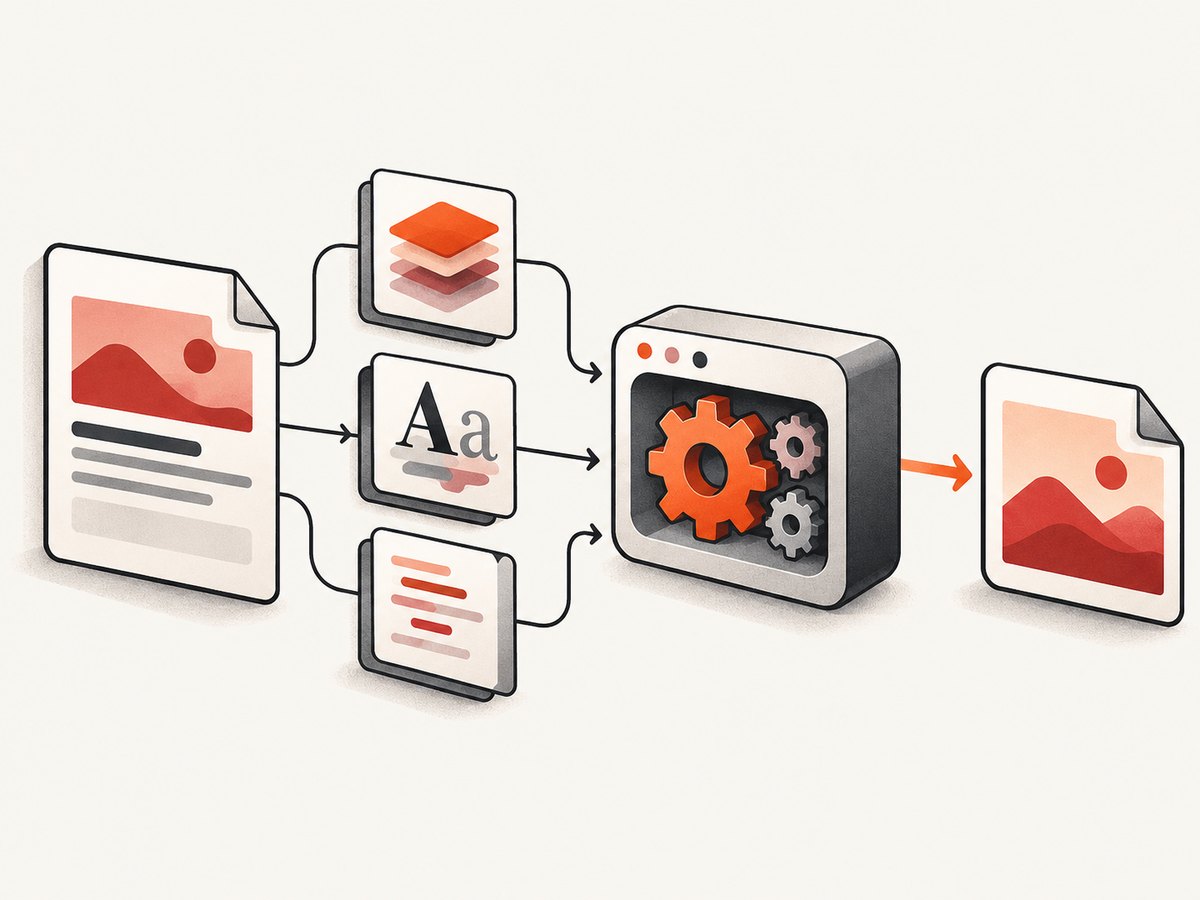
Static HTML parsers cannot reproduce the final pixels when CSS layout, web fonts, images, or JavaScript affect the page. A browser-backed renderer loads the document, runs scripts, applies styles, and captures the rendered surface.
| Need | Recommended path | Why |
|---|---|---|
| Fastest Ruby API | Grover | High-level Puppeteer wrapper with to_png. |
| Exact geometry and output controls | Ferrum | Supports full page, CSS selector, rectangular area, scale, quality, and background color options. |
| No local browser process | Hosted Chrome API | The provider runs Chrome and accepts HTML or a public URL. |
PNG is lossless raster output. Pixel dimensions depend on viewport size, device scale, and page height, so set those values explicitly when images are compared in tests or used in generated documents.
2. Convert HTML to PNG with Grover
Install the gem and browser runtime
Add Grover to your Gemfile and install the Puppeteer/Chromium runtime described in the Grover documentation.
source 'https://rubygems.org'

gem 'grover'
bundle installGrover can receive a URL or a complete HTML string. The following example writes PNG bytes to disk.
require 'grover'

html = <<~HTML
  <!doctype html>
  <html>
    <head>
      <meta charset='utf-8'>
      <style>
        body { font-family: sans-serif; margin: 40px; }
        .card { padding: 24px; border: 1px solid #ddd; border-radius: 12px; }
      </style>
    </head>
    <body>
      <div class='card'>Rendered by Chromium</div>
    </body>
  </html>
HTML

png = Grover.new(html).to_png
File.binwrite('output.png', png)
For a public page, pass its URL instead:
require 'grover'

png = Grover.new('https://example.com').to_png
File.binwrite('example.png', png)
Grover also exposes to_jpeg for JPEG output. Keep the input document complete when rendering inline HTML: include a doctype, character encoding, stylesheets, and any assets that the browser must load.
Return a PNG from Rails
class ScreenshotsController < ApplicationController
  def show
    html = render_to_string(
      template: 'reports/show',
      layout: 'layouts/report',
      locals: { report: Report.find(params[:id]) }
    )

    image = Grover.new(html).to_png
    send_data image,
      type: 'image/png',
      disposition: 'inline',
      filename: 'report.png'
  end
end
Make asset URLs reachable by the browser process. A relative URL that works in a normal Rails request may fail when the renderer receives an isolated HTML string. Use absolute asset URLs or embed critical CSS and images.
3. Control screenshots with Ferrum
Ferrum gives direct access to Chrome DevTools through Ruby. Its Page#screenshot API can save PNG, JPEG, or WebP, return base64, capture the complete page, target a CSS selector, or capture a rectangular area. It also accepts scale, quality, and background-color options; see the Ferrum screenshot documentation.
require 'ferrum'

browser = Ferrum::Browser.new
page = browser.create_page
page.go_to('https://example.com')
page.screenshot(path: 'viewport.png')
browser.quit
Full-page capture
require 'ferrum'

browser = Ferrum::Browser.new
page = browser.create_page
page.go_to('https://example.com')
page.screenshot(path: 'full-page.png', full: true)
browser.quit
Capture one element
require 'ferrum'

browser = Ferrum::Browser.new
page = browser.create_page
page.go_to('https://example.com')
page.screenshot(path: 'hero.png', selector: '.hero')
browser.quit
Capture a rectangle and set output controls
page.screenshot(
  path: 'region.png',
  area: { x: 0, y: 0, width: 1200, height: 800 },
  scale: 2,
  background: '#ffffff'
)
Use a fixed viewport before navigation when dimensions matter:
page = browser.create_page
page.viewport_size = { width: 1440, height: 900 }
page.go_to('https://example.com')
page.screenshot(path: 'fixed.png', full: true)
JPEG quality applies to JPEG output. PNG does not use a lossy quality setting. A transparent background is useful for compositing, but only when the page itself does not paint an opaque body background.
4. Wait for the page to become deterministic
A screenshot taken immediately after navigation can contain an empty chart, unloaded web font, or image placeholder. Wait for the condition that represents a usable page.
Wait for a selector
page.go_to('https://example.com/dashboard')
page.at_css('.dashboard-ready')
page.screenshot(path: 'dashboard.png', full: true)
Wait for JavaScript-rendered content
page.evaluate("document.fonts.ready")
page.evaluate("new Promise(resolve => setTimeout(resolve, 500))")
page.screenshot(path: 'settled.png')
Prefer a semantic ready marker over an arbitrary delay. If the page depends on network activity, wait until the application has rendered its final state, then capture. Lazy-loaded images may require scrolling through the page before a full-page screenshot; a browser renderer that supports full-page loading can handle this for you, but verify pages with long image lists.
5. Handle authentication, assets, and page state
Authenticated pages need the same cookies or headers that a normal browser request uses. In a local Ferrum workflow, establish a session before navigating to the target or configure the browser context with the required cookies. Keep secrets out of the HTML and screenshot URL.
- Fonts: host web fonts where Chrome can reach them and wait for
document.fonts.ready. - Images: use absolute URLs, data URLs, or a reachable asset host; check that hotlink protection does not reject the browser.
- JavaScript: wait for a rendered-state selector instead of assuming navigation completion means the app is ready.
- Animations: disable transitions in capture CSS or wait until the animation reaches a stable frame.
- Time zones: set the browser environment consistently when the page displays dates or times.
- Responsive layout: set viewport width and height explicitly; CSS breakpoints change the resulting image.
6. Or skip the browser setup
ScreenshotNeo provides a website screenshot API and MCP server. One GET request returns PNG, JPEG, WebP, or PDF. It accepts a URL, so your Ruby service does not need to install or supervise Chromium.

See the ScreenshotNeo API documentation for all options. A minimal request is:
curl -G 'https://api.screenshotneo.com/v1/shot' \
  -d access_key=YOUR_API_KEY \
  --data-urlencode url=https://stripe.com \
  -o shot.webp
require 'net/http'
require 'uri'
uri = URI('https://api.screenshotneo.com/v1/shot')
uri.query = URI.encode_www_form(
access_key: ENV.fetch('SCREENSHOTNEO_API_KEY'),
url: 'https://stripe.com'
)
response = Net::HTTP.get_response(uri)
unless response.is_a?(Net::HTTPSuccess)
raise "ScreenshotNeo failed: #{response.code} #{response.body}"
end
File.binwrite('shot.webp', response.body)import requests
r = requests.get(
'https://api.screenshotneo.com/v1/shot',
params={'access_key': 'YOUR_API_KEY', 'url': 'https://stripe.com'},
timeout=90,
)
open('shot.webp', 'wb').write(r.content)const q = new URLSearchParams({ access_key: 'YOUR_API_KEY', url: 'https://stripe.com' });
const res = await fetch(`https://api.screenshotneo.com/v1/shot?${q}`);
if (!res.ok) throw new Error(`ScreenshotNeo failed: ${res.status}`);
const image = Buffer.from(await res.arrayBuffer());
require('fs').writeFileSync('shot.webp', image);ScreenshotNeo removes cookie and consent banners, newsletter popups, and chat widgets before capture. Bot checks, blank pages, timeouts, failed loads, and cache hits are not billed; response headers identify the page verdict and whether the request was billed. You can also capture an element, use full-page mode with lazy images loaded, set a device or viewport, emulate dark mode, inject CSS or JavaScript, click before capture, wait for a selector, delay, or network idle, block ads and resource types, provide headers, cookies, user agents, authorization, timezone, and geolocation, resize images, cache with a chosen TTL, create signed links, submit asynchronous jobs with signed webhooks, capture up to 100 URLs per call, and use PDF or HTML/CSS-to-image output. Its MCP server exposes take_screenshot, get_page_info, and capture_pdf to Claude, Cursor, and other MCP clients.
There is a free plan with 1,000 screenshots per month and no card. Paid plans start at $5 for 3,000 shots; every feature is available on every plan. Create a free ScreenshotNeo account.
7. Troubleshooting common failures
| Symptom | Likely cause | Fix |
|---|---|---|
| Chromium executable not found | Puppeteer or Chrome runtime is missing. | Install the browser runtime documented by Grover, or point the renderer at an installed Chrome binary. |
| PNG is blank | Capture occurred before application rendering or the target is behind a bot check. | Wait for a ready selector, inspect the page state, and provide required authentication. |
| Fonts differ from the browser | Font files are inaccessible or not finished loading. | Use reachable font URLs and wait for document.fonts.ready. |
| Images are missing | Relative URLs, hotlink protection, or lazy loading prevented downloads. | Use absolute URLs, allow the renderer, and scroll or enable full-page lazy-image loading. |
| Only the viewport is captured | Full-page mode was not enabled. | Use Ferrum’s full: true or the equivalent full-page option in your chosen API. |
| Element screenshot has the wrong size | The selector matches multiple nodes or layout changed after selection. | Use a unique selector, set the viewport first, and wait for the final layout. |
| Rails request times out | Browser startup, assets, or JavaScript exceeds the request budget. | Reuse a browser process, reduce page work, wait on a precise condition, or move capture to a background job. |
| Memory grows over time | Pages or browser instances are not closed. | Close pages, reuse a bounded browser pool, and recycle workers periodically. |
8. Performance, reliability, and cost
Local browser performance
Launching Chrome for every image adds startup cost. In a service, keep a bounded browser process or pool, create a fresh page per job, and close it in an ensure block. Limit concurrent captures according to available memory. Full-page images and high device scales consume more memory than viewport captures.
Cache deterministic pages when possible. For dynamic pages, include the relevant record version or timestamp in your cache key. Set an explicit timeout around navigation and rendering, and record the URL, viewport, browser version, elapsed time, and failure stage for diagnosis.
Reliability
Browser rendering depends on the target site’s availability and on every asset it loads. Treat screenshots as jobs: retry transient navigation failures with backoff, make retries idempotent, and avoid retrying a deterministic selector or authentication error indefinitely. For user-facing requests, return a job identifier or queue the work rather than holding an HTTP request open for slow pages.
Hosted API cost
A hosted service removes Chromium operations but adds a per-capture service cost and network dependency. ScreenshotNeo bills only clean shots; failed loads, blank pages, bot checks, timeouts, and cache hits are free, and headers expose the verdict and billing state. Its plans are Free: 1,000 shots/month; Starter: $5 for 3,000; Growth: $15 for 15,000; Pro: $39 for 60,000; Scale: $99 for 250,000; Business: $249 for 1,000,000. Yearly billing gives two months free.
9. A production checklist
- Choose Grover for a simple Ruby API or Ferrum for detailed screenshot controls.
- Pin the viewport, device scale, background, and output format.
- Wait for fonts, images, and a page-specific ready marker.
- Use absolute asset URLs and provide authentication safely.
- Decide whether the capture is viewport, full-page, selector, or rectangular area.
- Disable animations and make time-dependent content deterministic.
- Reuse browser processes, close pages, and cap concurrency.
- Log renderer errors and retry only transient failures.
- Consider a hosted API when operating Chromium is not worth the maintenance.
10. FAQ
Can Ruby convert an HTML string without writing a temporary file?
Yes. Grover accepts the complete HTML string and returns PNG bytes from to_png; write those bytes to a file or send them from a Rails controller.
Can I capture a single CSS element?
Yes. Ferrum supports a selector screenshot, and hosted Chrome APIs commonly expose the same operation. Ensure the selector identifies one stable element.
Why is a browser required?
CSS layout, web fonts, images, and JavaScript are browser behaviors. Chromium-backed tools reproduce those behaviors before rasterizing the result.
Should I use PNG or JPEG?
Use PNG for lossless text, diagrams, and transparent compositing. Use JPEG when smaller lossy files are acceptable; Grover and Ferrum support JPEG output.
What is the simplest managed option?
ScreenshotNeo accepts one GET request with a URL and returns an image or PDF, while handling browser setup and removing common consent and overlay elements before capture.


