How to Convert HTML to PNG in Rust
Render HTML to PNG in Rust with headless Chrome. Set up the browser, wait for dynamic content, capture a page or element, and troubleshoot common failures.
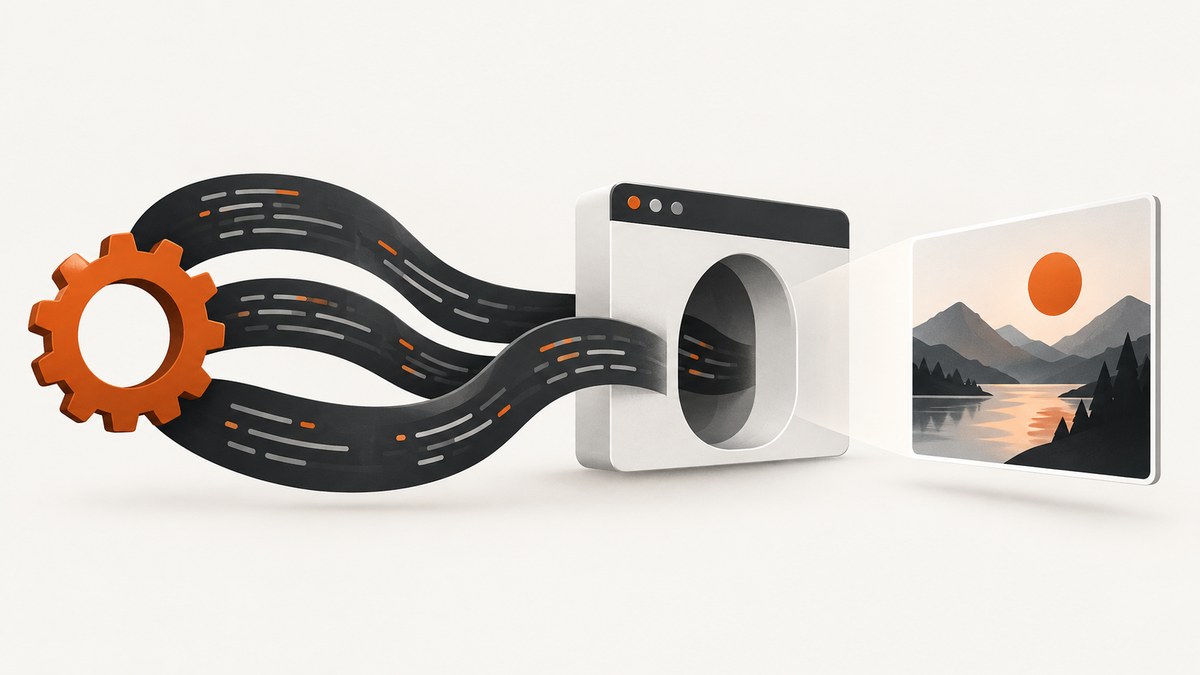
To convert HTML to PNG in Rust, render it in a browser engine and save the screenshot bytes. A practical browser-driven option is the headless_chrome crate, which controls Chrome or Chromium through the DevTools Protocol. It can capture a page or a selected element; Rust writes the returned PNG bytes to a file.
This approach works for a URL or a local page that Chrome can load. The example below captures a URL. If you have an HTML string in memory, first serve it locally or encode it as a data URL; navigate_to accepts a URL, not an HTML string. For browser-faithful output, JavaScript, CSS, fonts and images need to finish loading before the capture.
1. Install Rust and Chrome or Chromium
Create a binary project and add the crate:
cargo new html-to-png
cd html-to-png
cargo add headless_chrome
The current docs.rs page describes headless_chrome 1.0.22 and demonstrates navigation, waiting for an element, capturing PNG bytes and writing them to disk. It can download known-good Chromium binaries with an optional feature, but production deployments often prefer to install and pin a browser version themselves. Check the crate’s API documentation and project repository for the version and feature configuration you choose.
Make sure the Chrome/Chromium binary is installed and executable in the environment where the Rust program runs. Linux containers may also need browser system libraries. Test the binary independently with chrome --version or chromium --version; the executable name and install path vary by operating system and package.
Chrome’s headless packaging has changed. Chromium documents that from M132 the old headless shell is no longer part of the Chrome binary, and --headless=old has no effect. If your environment relies on that legacy mode, use the documented chrome-headless-shell migration path and confirm which binary your crate launches. See the Chromium headless README.
2. Capture a rendered page as PNG
Put this in src/main.rs. Replace the sample URL with the page you need to render.
use headless_chrome::{protocol::cdp::Page, Browser};
use std::error::Error;

fn main() -> Result<(), Box<dyn Error>> {
    let browser = Browser::default()?;
    let tab = browser.new_tab()?;

    tab.navigate_to("https://example.com")?;
    tab.wait_for_element("body")?;

    let png = tab.capture_screenshot(
        Page::CaptureScreenshotFormatOption::Png,
        None,
        None,
        true,
    )?;
    std::fs::write("output.png", png)?;

    Ok(())
}
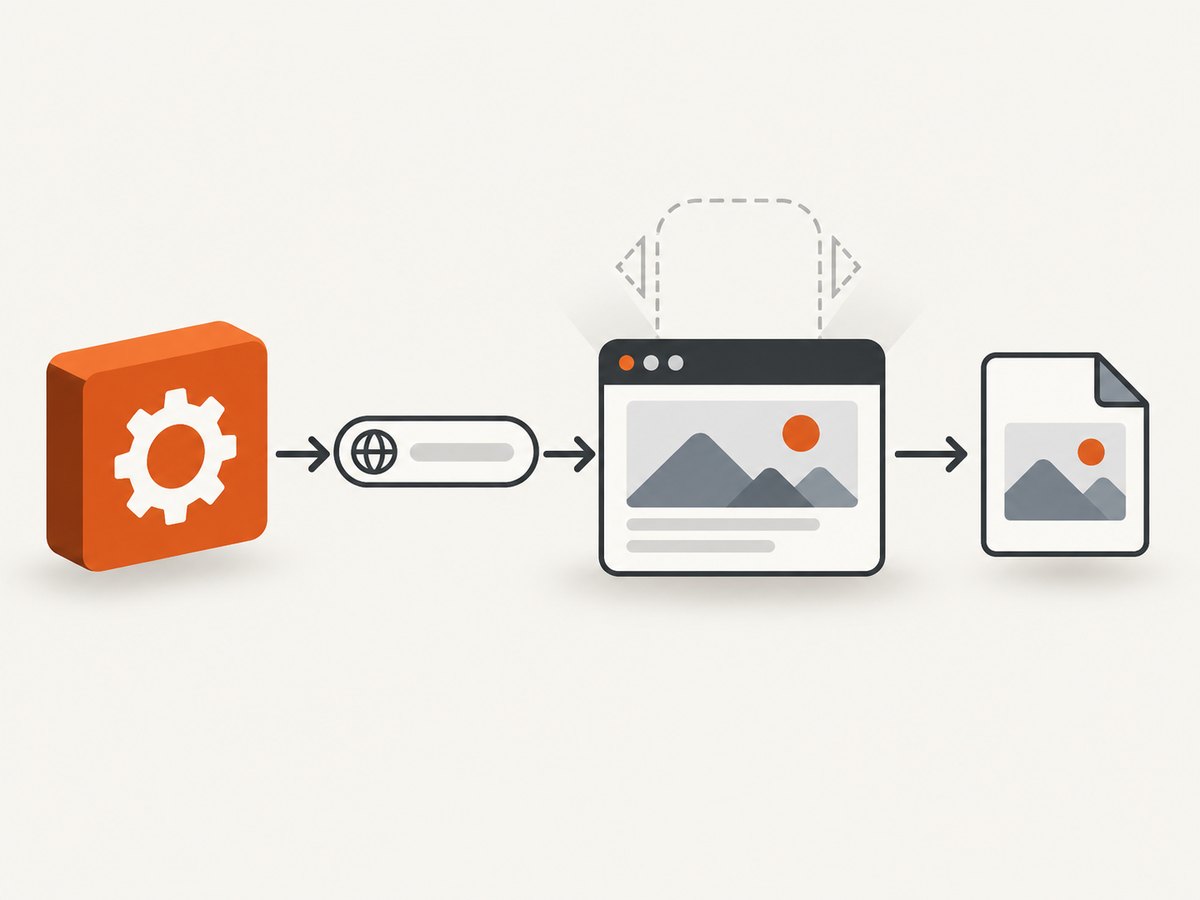
Run it with cargo run. The program starts a browser, opens a tab, navigates to the URL, waits for the body element, captures PNG data, and writes output.png in the current working directory. The screenshot call’s optional arguments control screenshot bounds and related settings; consult the API docs for the crate version in your lockfile before using non-default bounds.
The final boolean in this documented call requests beyond-viewport capture in the crate’s API. Page size and capture limits depend on the browser and page, so don’t assume that every page can produce an arbitrarily tall image. If you need a specific viewport, configure the tab’s device metrics using the supported API for your pinned version and verify the output dimensions.
3. Wait for the page you actually want
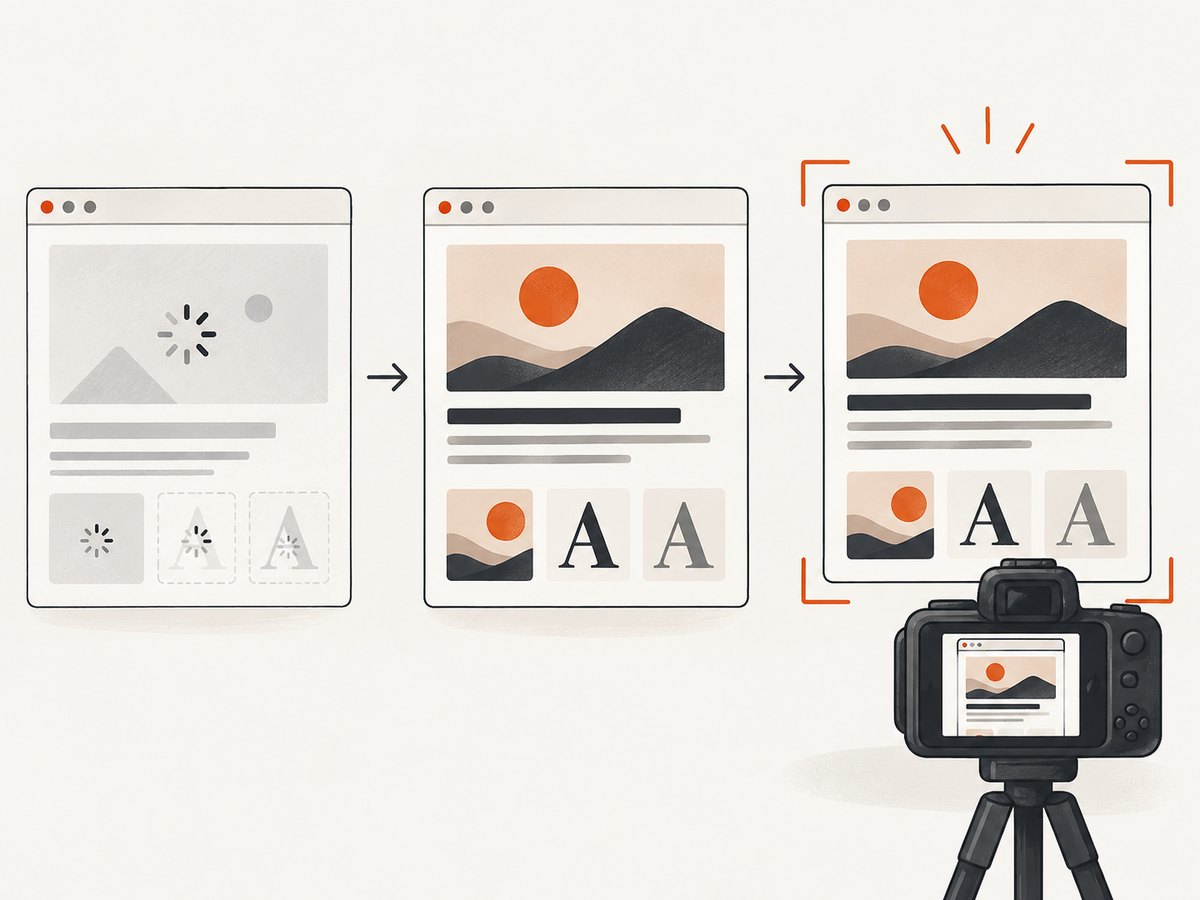
wait_for_element("body") proves the document has a body; it does not prove a client-rendered application is ready. A single-page app may render its shell first and fetch the meaningful content later. Wait for a selector that represents completed content instead:
tab.navigate_to("https://example.com/report")?;
tab.wait_for_element("main .report-ready")?;
Choose a stable selector that appears only when the required content is present. If the page has no suitable marker, use the crate’s JavaScript interaction facilities to inspect an application-specific condition. The crate supports JavaScript execution and element interaction, but it does not implement every Puppeteer or DevTools feature; verify that the API you need exists in your chosen release.
Images and web fonts can load after the main DOM appears. A selector wait alone may still capture placeholders or fallback fonts. For important output, wait for a page-specific “ready” state that includes assets, or use a short, bounded delay after the selector. Avoid waiting for all network traffic to stop on pages with analytics, polling or long-lived connections: those can keep the network busy indefinitely.
4. Render your own HTML
For a file, navigate to its absolute file:// URL using a correctly encoded path. Relative images, CSS and fonts must resolve from that file’s location, and browser security rules can affect local file access. If the document needs linked assets or behaves differently when opened as a file, serve the directory on localhost and navigate to its HTTP URL instead. The Rust example still calls navigate_to with a URL.
For HTML held in memory, one simple option is to write it to a temporary file and open that file URL. A local HTTP server is usually easier when the markup refers to assets or when the page fetches data. A data URL can work for self-contained markup, but it needs correct URL encoding (or base64 encoding), and its document has no ordinary directory from which relative asset paths can resolve. Don’t pass the raw HTML string to navigate_to.
Keep untrusted HTML isolated. Rendering can trigger network requests to URLs embedded in markup and scripts. Do not give a browser process access to sensitive local files or internal services if the HTML is untrusted; control its network and filesystem environment according to your threat model.
5. Capture only one element
When you need a chart, card or invoice section instead of the whole page, wait for the element and call its screenshot method:
let png = tab
    .wait_for_element(".invoice-card")?
    .capture_screenshot(Page::CaptureScreenshotFormatOption::Png)?;
std::fs::write("invoice.png", png)?;
Element capture is useful when browser chrome, navigation or unrelated page content should not appear in the output. The selector must match an element that is visible and laid out. If the selected element is inside a collapsed panel or appears only after interaction, open or reveal it before capture. Very large elements may exceed practical browser image limits; split them into sections if necessary.
6. Options that affect the PNG
| Need | What to configure | Things to check |
|---|---|---|
| Viewport screenshot | Set the tab’s viewport/device metrics for the target width and height. | Responsive breakpoints, scrollbars and device scale affect layout or pixel dimensions. |
| Whole page | Use the page capture mode and beyond-viewport option supported by your crate version. | Long pages, sticky elements, lazy-loaded content and browser size limits. |
| Single component | Wait for a CSS selector and capture that element. | Visibility, clipping, shadows and content outside the element box. |
| PNG bytes | Select CaptureScreenshotFormatOption::Png. |
PNG is lossless but can produce larger files than JPEG or WebP. |
| Page state | Wait for a meaningful selector or application readiness condition. | Fonts, images, animations, remote data and timers can change the frame. |
The crate also exposes browser interaction and other screenshot capabilities. Its docs show page and element capture, but feature coverage is not identical to Puppeteer. Confirm option availability and exact argument behavior against the version you pin rather than copying method signatures from another release.
7. Alternative: run Chromium directly
For a one-off URL screenshot, the browser command line may be enough without Rust-level browser automation:
chrome --headless --disable-gpu --screenshot --window-size=1280,900 https://example.comChrome documents that this writes screenshot.png in the current directory and that --window-size sets the dimensions. The command is convenient for scripts, but offers less convenient control over selector waits, page interactions and element capture than driving the browser from Rust. The Chrome headless CLI reference notes that full-page screenshots require additional steps.
A Rust application can invoke Chromium as a child process with std::process::Command if a shell command fits the job. Pass arguments as separate values rather than assembling a shell string from user input. Check the child’s exit status and confirm the expected output file exists before treating the conversion as successful.
8. Or skip the browser setup
ScreenshotNeo is a website screenshot API and MCP server from Yorker Media. Send one request with a URL to get a PNG, JPEG, WebP or PDF; the API handles browser setup. See the API documentation for request options.
curl -G "https://api.screenshotneo.com/v1/shot" -d access_key=YOUR_API_KEY --data-urlencode url=https://stripe.com -o shot.webpimport requests
r = requests.get("https://api.screenshotneo.com/v1/shot", params={"access_key": "YOUR_API_KEY", "url": "https://stripe.com"}, timeout=90)
open("shot.webp", "wb").write(r.content)const q = new URLSearchParams({ access_key: 'YOUR_API_KEY', url: 'https://stripe.com' });
const res = await fetch(`https://api.screenshotneo.com/v1/shot?${q}`);- Cookie banners, newsletter popups and chat widgets are removed before the shot; each cleanup step can be turned off.
- Bot checks, blank pages, timeouts and failed loads are never billed, and response headers say which page verdict and billing result applied. Cache hits also cost nothing.
- An MCP server gives AI agents tools to take screenshots, get page information and capture PDFs.
- The free plan includes 1,000 screenshots a month with no card; paid plans start at $5 for 3,000.
Sign up free for 1,000 screenshots a month, no card required.
9. Troubleshooting
| Symptom | Likely cause | Fix |
|---|---|---|
| Browser launch fails | Chrome is missing, the binary path is unknown, required system libraries are absent, or the browser and crate configuration do not match. | Install a compatible Chrome/Chromium build, verify it starts, and configure the path or crate feature according to the pinned version. Check container libraries and permissions. |
| Screenshot is blank or incomplete | Capture happened before the app rendered, an element was hidden, or the target blocked the browser. | Wait for a page-specific selector/state, inspect the URL and page behavior, and capture only after the required content is visible. Some bot challenges cannot be rendered as the intended page. |
| Images or fonts are missing | Relative asset paths cannot resolve, remote requests failed, or capture was too early. | Serve local HTML with its assets over localhost, check asset URLs and network access, and wait for the assets needed in the image. |
| Timeout while waiting | The selector never appears, the page is slow, or the selector is wrong. | Confirm the selector in the rendered page, wait for a stable app-specific condition, and use a bounded timeout with an actionable error message. |
| Viewport or image dimensions differ | Device scale, viewport metrics, responsive CSS, browser version or capture bounds changed. | Pin browser/runtime versions, explicitly configure viewport and scale where supported, and inspect the PNG’s pixel dimensions in your pipeline. |
| Old headless flags stop working | Browser packaging changed; Chromium M132 removed old headless functionality from the Chrome binary. | Use current headless mode or migrate legacy headless-shell use to the separately documented binary. |
| Rust API example does not compile | Crate versions differ or an API signature changed. | Check Cargo.lock, consult docs for the resolved version, and adjust imports and arguments to that version. |
10. Performance, reliability and cost
Launching a browser has setup and resource costs, so a batch job should generally reuse a browser process rather than start one for every URL. Keep page or tab lifetimes bounded, close tabs when finished, and cap concurrent captures based on the memory and CPU available to the worker. The research sources provide no benchmark figures, so measure throughput and peak memory with your pages and deployment environment.
Reliability depends on more than Rust code: browser availability, operating-system libraries, network access, remote site behavior, fonts and page scripts all affect the image. Pin the crate and browser versions for repeatable rendering, record failures with the page URL and browser version, and retry only transient failures with a limit. Repeatedly retrying a permanently blocked or malformed page adds work without making its output correct.
The local browser path has no per-screenshot API charge, but it still consumes compute and requires browser installation, maintenance and operational monitoring. For hosted capture, compare that setup cost with API pricing and the value of built-in options. ScreenshotNeo’s published plans are Free: 1,000 per month; Starter: $5 for 3,000; Growth: $15 for 15,000; Pro: $39 for 60,000; Scale: $99 for 250,000; Business: $249 for 1,000,000. Yearly billing gives two months free, and every feature is on every plan. Its billing headers distinguish clean captures from non-billable verdicts and cache hits.
11. FAQ
Can I convert HTML to PNG without Chrome?
You need some renderer. For browser-faithful CSS and JavaScript, this guide uses Chrome/Chromium. A non-browser renderer may differ on modern page behavior; choose it only if its supported HTML and CSS are sufficient.
Does headless_chrome accept HTML text directly?
The documented navigation method takes a URL. Write markup to a local file, serve it locally, or construct a properly encoded data URL; account for relative resources when choosing.
Can I capture an element rather than the whole page?
Yes. Wait for the element and call its capture_screenshot method with PNG format, then write those bytes to a file.
Is the crate asynchronous?
The project describes its API as synchronous. If asynchronous WebDriver control or browser portability is a requirement, compare the WebDriver-based fantoccini route and confirm that it meets your needs.
Will two machines produce pixel-identical images?
Do not assume so. Browser version, installed fonts, device scale, OS rendering, timing and remote content can alter pixels. Pin what you control and verify output on the deployment target.


