Convert HTML to PNG in TypeScript
Render HTML with Playwright, capture full pages or elements, return PNG buffers, and handle fonts, images, waits, transparency, and failures.

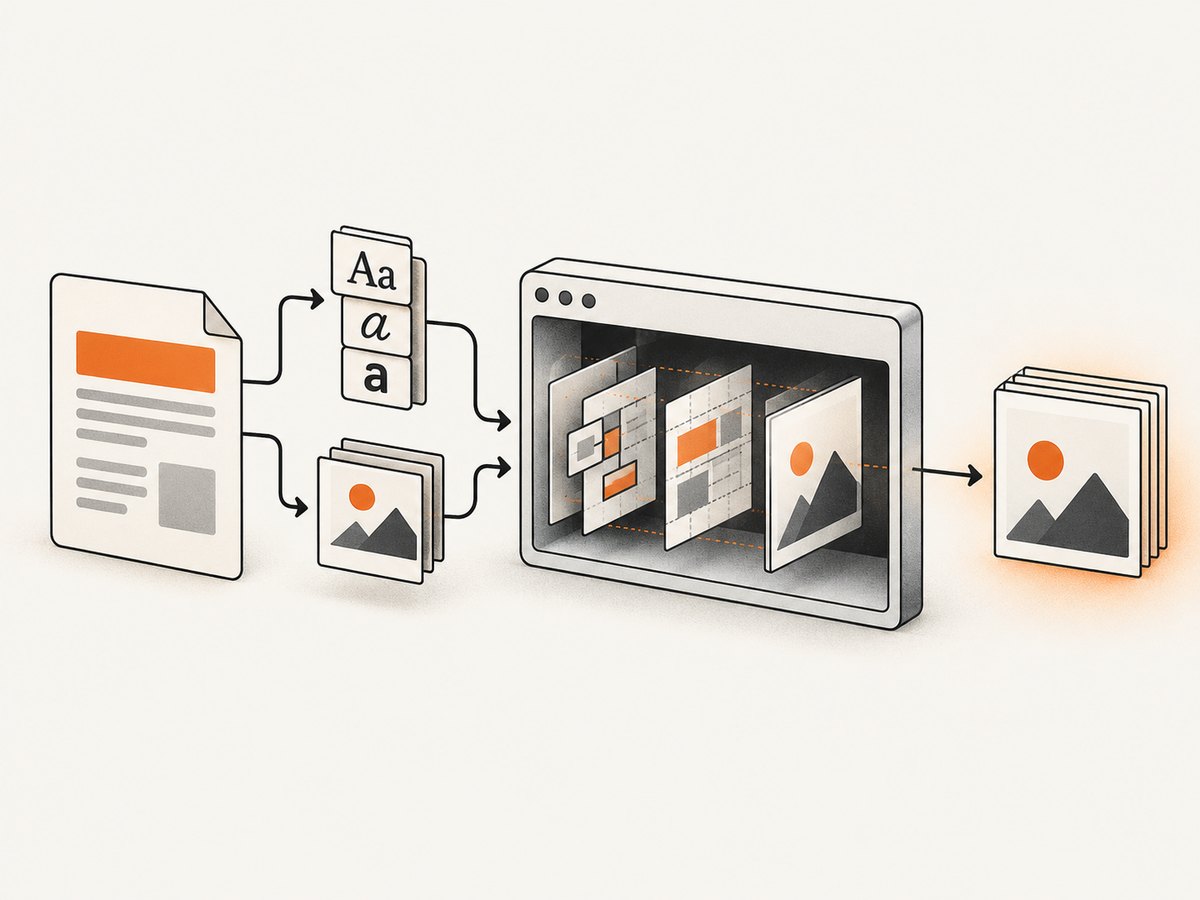
To convert HTML to PNG in TypeScript, render the HTML in a real browser engine and call Playwright’s page.screenshot(). A browser is required because CSS layout, fonts, images, JavaScript, and responsive rules must run before pixels can be encoded.
Playwright returns a Promise<Buffer>. Pass path to write a file, or omit it to keep the PNG in memory. The complete API is documented in the Playwright Page API and the screenshots guide.
1. Install Playwright
npm install playwright
npx playwright install chromium
The browser install is needed on the machine that runs your TypeScript program. In CI or a container, install the browser during the image build so each request does not download it.
2. Convert inline HTML to a PNG file
import { chromium } from 'playwright';

async function main() {
  const browser = await chromium.launch();
  try {
    const page = await browser.newPage({
      viewport: { width: 1200, height: 800 },
    });

    await page.setContent(`<!doctype html>
<html>
  <head>
    <meta charset='utf-8' />
    <style>
      body { margin: 0; font-family: Arial, sans-serif; background: #f5f7fb; }
      main { width: 900px; margin: 80px auto; padding: 48px; background: white; border-radius: 16px; }
      h1 { margin-top: 0; color: #182230; }
    </style>
  </head>
  <body>
    <main><h1>Hello from TypeScript</h1><p>This HTML becomes a PNG.</p></main>
  </body>
</html>`);

    await page.screenshot({
      path: 'output.png',
      type: 'png',
    });
  } finally {
    await browser.close();
  }
}

main().catch((error) => {
  console.error(error);
  process.exitCode = 1;
});
Run it with your TypeScript runner, or compile it with your normal TypeScript build. PNG is the default format, but specifying type: 'png' makes the output explicit.
3. Keep the PNG as a Buffer
Omit path when the next step uploads the image, stores it in object storage, or returns it from an HTTP endpoint.
import { chromium } from 'playwright';

export async function htmlToPng(html: string): Promise<Buffer> {
  const browser = await chromium.launch();
  try {
    const page = await browser.newPage({ viewport: { width: 1200, height: 800 } });
    await page.setContent(html);
    return await page.screenshot({ type: 'png' });
  } finally {
    await browser.close();
  }
}

const png = await htmlToPng('<h1>Rendered in a browser</h1>');
console.log(`Generated ${png.length} bytes`);
4. Capture a complete document
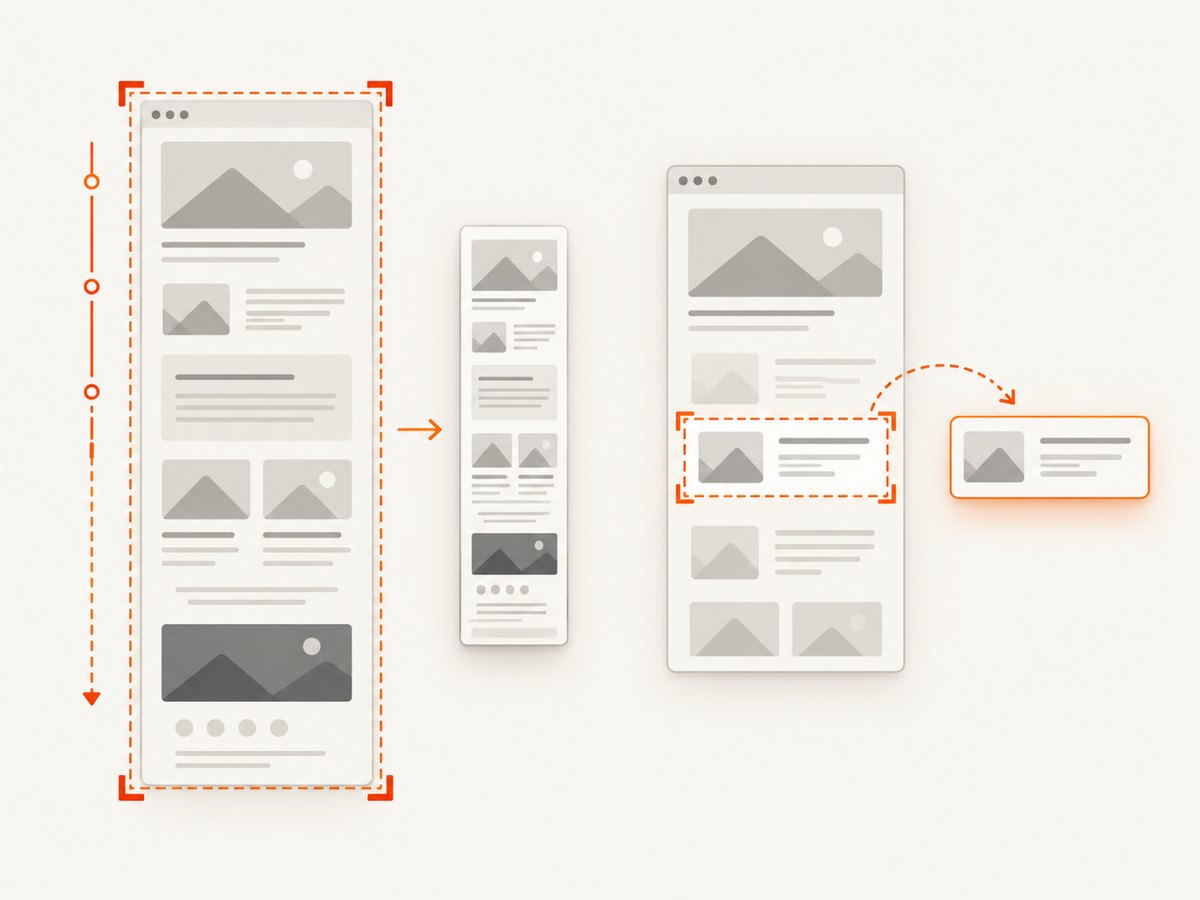
Use fullPage: true when the HTML is taller than the viewport. Playwright scrolls through the document and captures the complete page.
const png = await page.screenshot({
  path: 'full-page.png',
  fullPage: true,
  type: 'png',
});
Full-page captures can become very large. Set a deliberate viewport width, avoid unbounded content, and consider capturing a component when a whole document is not required.
5. Capture one element
Target a component with a locator. This is useful for cards, charts, invoices, and previews.
const card = page.locator('.card');
await card.waitFor();
await card.screenshot({
  path: 'card.png',
  type: 'png',
});
For a stable result, give the element an explicit size and wait for its data, fonts, and images before calling screenshot().
6. Screenshot options that control the PNG
| Option | Use |
|---|---|
path |
Write the image to a file. Omit it to receive a Buffer. |
type |
'png', 'jpeg', or 'webp'. PNG is the default. |
fullPage |
Capture the complete scrollable document. |
clip |
Capture a rectangle with x, y, width, and height. |
omitBackground |
Keep the page background transparent when the page supports transparency. |
scale |
Choose 'css' for CSS pixel dimensions or 'device' for device-pixel output. |
await page.screenshot({
  path: 'transparent-region.png',
  type: 'png',
  omitBackground: true,
  scale: 'css',
  clip: { x: 40, y: 80, width: 640, height: 360 },
});
7. Make assets ready before capture
page.setContent() resolves when the document is set, not necessarily when every image, web font, or application request has finished. Explicitly wait for assets that affect layout.
await page.setContent(html, { waitUntil: 'load' });

await page.evaluate(async () => {
  await document.fonts.ready;
  const images = Array.from(document.images);
  await Promise.all(images.map((image) => {
    if (image.complete) return Promise.resolve();
    return new Promise<void>((resolve) => {
      image.addEventListener('load', () => resolve(), { once: true });
      image.addEventListener('error', () => resolve(), { once: true });
    });
  }));
});

await page.screenshot({ path: 'ready.png', fullPage: true });
For a remote page, navigate first and choose a wait strategy that matches the site:
await page.goto('https://example.com', { waitUntil: 'networkidle' });
await page.screenshot({ path: 'remote.png', fullPage: true });
Network idle is not a guarantee that a page is visually complete: analytics, polling, advertisements, and chat clients may keep connections open. A reliable workflow often combines navigation, a selector wait, and a short application-specific readiness signal.
await page.goto(url, { waitUntil: 'domcontentloaded' });
await page.locator('[data-render-complete]').waitFor({ state: 'visible' });
await page.screenshot({ path: 'page.png', fullPage: true });
8. Control viewport, device scale, and browser context
const context = await browser.newContext({
  viewport: { width: 1440, height: 900 },
  deviceScaleFactor: 1,
  colorScheme: 'light',
  locale: 'en-US',
  timezoneId: 'UTC',
});
const page = await context.newPage();
Use the same browser, viewport, scale, fonts, and operating-system image for repeatable output. Screenshots can vary across browsers, operating systems, fonts, hardware, and headless settings; Playwright documents this in its visual comparison guidance.
9. Navigate to HTML files or URLs
await page.goto(`file://${process.cwd()}/invoice.html`, { waitUntil: 'load' });
await page.screenshot({ path: 'invoice.png', fullPage: true });
For production services, prefer controlled URLs and validate user-supplied addresses. Restrict access to internal networks and local files when the HTML or URL comes from an untrusted user.
10. Puppeteer alternative
Puppeteer offers a comparable API. Its official guide uses page.goto() followed by page.screenshot(), and it supports full-page, clipping, transparency, file output, and element screenshots.
import puppeteer from 'puppeteer';

const browser = await puppeteer.launch();
try {
  const page = await browser.newPage();
  await page.setViewport({ width: 1200, height: 800 });
  await page.goto('https://example.com', { waitUntil: 'networkidle2' });
  const png = await page.screenshot({ fullPage: true, type: 'png' });
  console.log(`Generated ${png.length} bytes`);
} finally {
  await browser.close();
}
See the Puppeteer screenshots guide and its ScreenshotOptions reference.
11. Playwright CLI
For one-off captures, Playwright’s CLI supports a target URL, --filename, --type=<png|jpeg|webp>, --full-page, and --hires. Without a type, the format is inferred from the filename and defaults to PNG.
npx playwright screenshot --full-page --filename=page.png https://example.comOr skip the browser setup
ScreenshotNeo provides a website screenshot API and MCP server. It renders a URL and returns PNG, JPEG, WebP, or PDF without requiring you to install or operate a browser.
See the ScreenshotNeo API documentation for all options. A PNG request is one GET call:
curl -G 'https://api.screenshotneo.com/v1/shot' \
  -d access_key=YOUR_API_KEY \
  --data-urlencode url=https://stripe.com \
  -o shot.webp
import requests
r = requests.get(
'https://api.screenshotneo.com/v1/shot',
params={'access_key': 'YOUR_API_KEY', 'url': 'https://stripe.com'},
timeout=90,
)
r.raise_for_status()
open('shot.webp', 'wb').write(r.content)const q = new URLSearchParams({ access_key: 'YOUR_API_KEY', url: 'https://stripe.com' });
const res = await fetch(`https://api.screenshotneo.com/v1/shot?${q}`);
if (!res.ok) throw new Error(`Screenshot failed: ${res.status}`);
const image = Buffer.from(await res.arrayBuffer());ScreenshotNeo removes cookie and consent banners, newsletter popups, and chat widgets before capture. Bot checks, blank pages, timeouts, failed loads, and cache hits are not billed, and the response identifies the result with X-Page-Verdict and X-Billed headers. Its MCP server exposes take_screenshot, get_page_info, and capture_pdf for Claude, Cursor, and other MCP clients. You can also set full-page capture, CSS element selection, dark mode, device presets, custom viewport and scale, waits, request blocking, headers, cookies, user agent, authorization, timezone, geolocation, transparency, resizing, caching TTL, signed links, asynchronous webhooks, bulk capture, and usage access. Every feature is on every plan; 1,000 screenshots per month are free with no card, and paid plans start at $5 for 3,000 shots. Create a free ScreenshotNeo account.
Troubleshooting
| Symptom | Cause | Fix |
|---|---|---|
| Browser executable not found | Playwright’s browser binaries are missing. | Run npx playwright install chromium during setup. |
| PNG is blank | The page has not rendered, navigation failed, or content is hidden until JavaScript runs. | Check the URL response, wait for a readiness selector, and inspect the page HTML before capture. |
| Images are missing | Images or lazy-loaded content are still pending. | Wait for document.images, scroll lazy content into view, or provide an application-ready marker. |
| Fonts change the layout | Web fonts were not loaded before the screenshot. | Await document.fonts.ready and use a consistent font installation. |
| Full-page image is unexpectedly tall | Infinite scroll, expanding content, or an unbounded element changes document height. | Disable live feeds, cap content, and capture a fixed element or clip. |
| Transparent background is opaque | The document or a parent element paints a background. | Remove CSS backgrounds and use omitBackground: true. |
| Text is clipped | The viewport or element dimensions are too small, or overflow hides content. | Set explicit dimensions, inspect computed styles, and capture after layout settles. |
| Navigation times out | A third-party request never finishes or the origin is unreachable. | Use a bounded timeout, block unnecessary resources, and wait for a specific selector instead of global network idle. |
| Different pixels in CI | Browser, OS, fonts, scale, or hardware differs. | Pin the browser and container image, install fonts, and use deterministic viewport and scale settings. |
Performance, reliability, and cost
- Reuse a browser process and create short-lived contexts for batches; launching a browser for every image adds startup overhead.
- Close pages and contexts after the screenshot so memory does not grow with each job.
- Use element or clipped captures when a full document is unnecessary.
- Wait for the smallest reliable readiness condition. A selector or application signal is usually more predictable than waiting forever for every network connection.
- Set explicit timeouts and record the URL, viewport, browser version, and failure stage in your job logs.
- For large workloads, queue captures and limit concurrent pages according to available CPU and memory.
- PNG preserves lossless detail but can be larger than JPEG or WebP. Choose the format based on whether sharp text, transparency, or transfer size matters.
- Self-hosted Playwright costs the compute and browser operations you provision. With ScreenshotNeo, cache hits and failed, blank, timed-out, or bot-blocked pages are not billed; inspect
X-BilledandX-Page-Verdictwhen accounting for usage.
FAQ
Can TypeScript convert HTML to PNG without a browser?
Not reliably for general HTML and CSS. A browser engine is needed to calculate layout, execute page JavaScript, load fonts, and rasterize the result.
How do I return the image from an Express route?
Use the returned buffer and send it with Content-Type: image/png. Do not write a temporary file unless another system requires one.
Should I use full-page capture for a component?
No. Use a locator screenshot for a component and fullPage: true for a scrolling document.
Why does network idle sometimes never happen?
Analytics, polling, advertisements, and chat clients can keep connections open. Wait for the selector or readiness event that means your page is visually complete.
Can I generate JPEG or WebP instead?
Yes. Set type: 'jpeg' or type: 'webp' in Playwright. PNG remains the default and is the usual choice for crisp text or transparency.


