How to Convert HTML to PNG on Ubuntu
Convert a local HTML file or website to PNG on Ubuntu with wkhtmltoimage or headless Chromium. Learn sizing, JavaScript, local assets, troubleshooting, and a no-install API option.
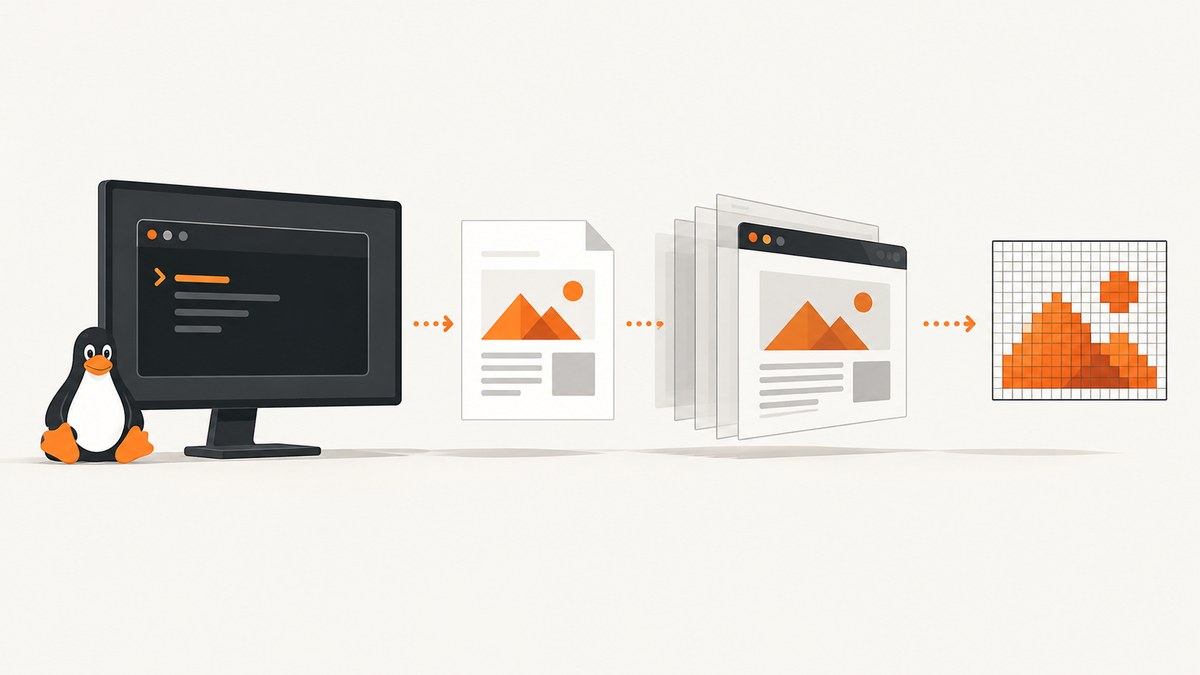
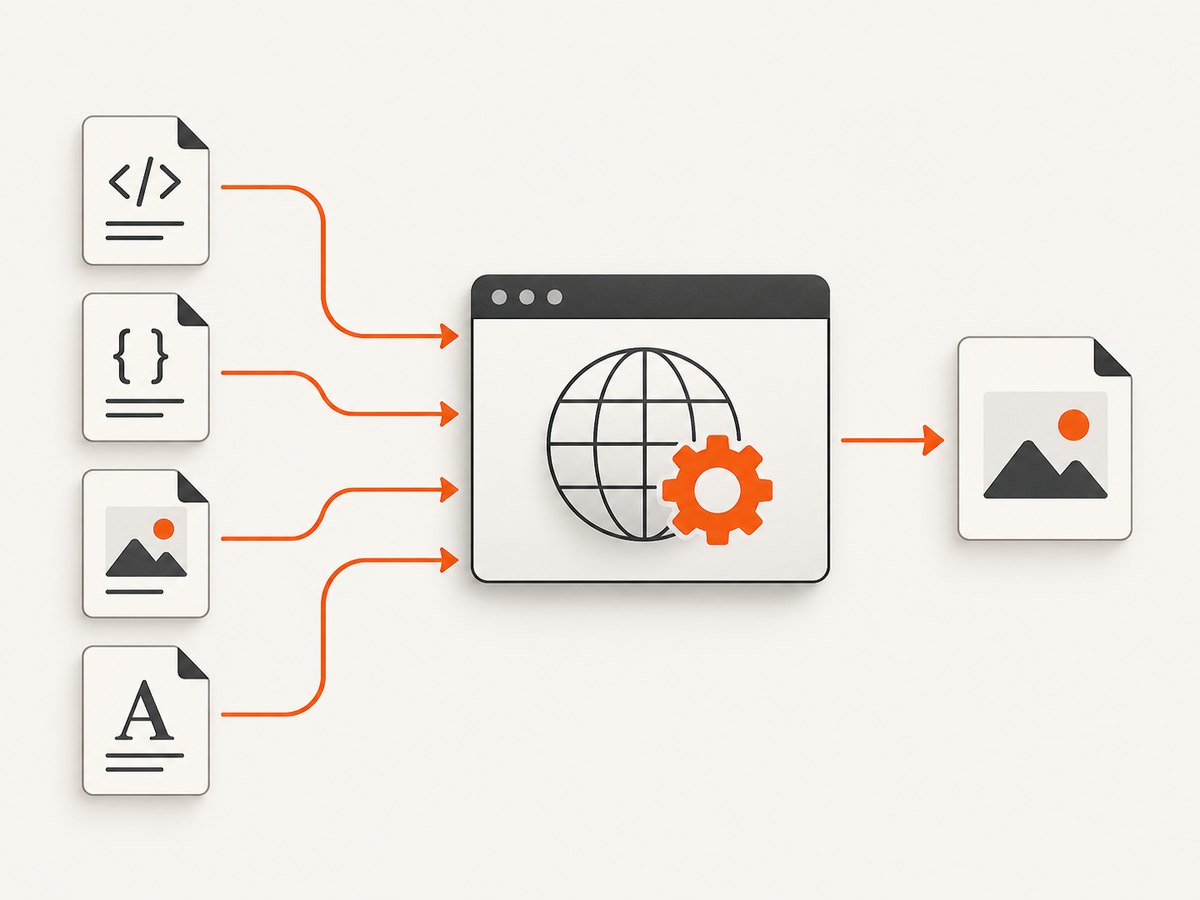
To convert HTML to PNG on Ubuntu, use wkhtmltoimage input.html output.png for a simple command-line conversion, or headless Chromium when the page depends on modern CSS or JavaScript. Chromium is generally the safer choice for current web layouts; this is a practical inference from the documented browser capabilities, not a benchmark result. For a remote webpage, Chromium can screenshot a URL directly. If you do not want to install or maintain a browser on the machine, ScreenshotNeo offers a one-request screenshot API; its [docs](https://screenshotneo.com/docs/) show the available parameters.
1. Choose a conversion method
Pick a method based on what the HTML needs and where it lives.
| Method | Good fit | Things to account for |
|---|---|---|
wkhtmltoimage |
Simple HTML pages and a direct input-file/output-file CLI | Rendering behavior can differ from current browsers; local asset access is restricted by default. |
| Headless Chromium | Modern CSS, browser JavaScript, and remote websites | Browser flags vary by release; CLI screenshot alone has no universal page-ready wait flag. |
| ImageMagick | Resizing, compositing, or converting an image after rendering | It processes images; it is not an HTML/CSS renderer. |
Ubuntu Jammy documents wkhtmltoimage package version 0.12.6-2. Chrome documents the --screenshot option, which writes screenshot.png in the current directory. From Chrome M132, the old headless implementation is no longer part of the Chrome binary; some deployments may need the separate chrome-headless-shell. Check the installed browser’s help and package documentation before relying on flags copied from another release. [Ubuntu wkhtmltoimage manpage](https://manpages.ubuntu.com/manpages/jammy/man1/wkhtmltoimage.1.html) · [Chrome screenshot documentation](https://developer.chrome.com/docs/chromium/headless) · [Chromium headless README](https://chromium.googlesource.com/chromium/src/+/main/headless/README.md)
2. Install and use wkhtmltoimage
Check whether the command is already installed:
wkhtmltoimage --versionIf it is missing, install the Ubuntu package where available:
sudo apt update
sudo apt install wkhtmltopdf
The package name is wkhtmltopdf; it includes the wkhtmltoimage utility on Ubuntu package builds. Confirm the executable path and version after installation:
command -v wkhtmltoimage
wkhtmltoimage --version
Convert a local file from its containing directory:
wkhtmltoimage input.html output.pngFor reproducible dimensions and a page that needs a short period to run scripts, specify width, height and delay explicitly:
wkhtmltoimage \
  --width 1280 \
  --height 2000 \
  --javascript-delay 1000 \
  --enable-javascript \
  --images \
  input.html output.png
The delay is in milliseconds. It gives content time to appear, but it cannot guarantee that every asynchronous page has finished; a fixed delay may be too short or waste time. The default output height is based on page content if you do not supply a height. Consult the installed command’s --help for all supported switches and defaults.
Local CSS, images and fonts
Local-file access is restricted by default in wkhtmltoimage. When assets are needed, allow only the directory that contains them:
wkhtmltoimage \
  --allow /absolute/path/to/site/assets \
  /absolute/path/to/site/index.html \
  /absolute/path/to/output.png
Use absolute paths while diagnosing missing resources. Avoid granting broad local-file access to HTML you do not trust: a page’s asset references are requests the renderer must resolve. For external CSS or fonts, check that the machine has network access and that the asset URLs work independently.
Useful wkhtmltoimage options
| Option | Purpose |
|---|---|
--width, --height |
Set the viewport or output dimensions. Height is content-derived by default if omitted. |
--javascript-delay |
Wait a fixed number of milliseconds before rendering. |
--enable-javascript |
Enable script execution; verify your installed version’s default and help output. |
--images |
Enable image loading. |
--quality |
Set output quality for supported formats; check help for applicable formats and range. |
--crop-w, --crop-h |
Crop the rendered area to specified dimensions. |
--zoom |
Scale page rendering. |
--window-status |
Wait for a page-defined window status value before capture. |
| Headers and cookies | Pass request metadata for pages that require it; consult the local manpage for exact syntax. |
Flags and behavior can vary with the build. The [Ubuntu Jammy manpage](https://manpages.ubuntu.com/manpages/jammy/man1/wkhtmltoimage.1.html) documents these options. Prefer a page-defined status signal over an arbitrary delay when you control the HTML: set it only after the data and layout are ready, then pass that status through --window-status.
3. Capture with headless Chromium
Chromium runs the page through a browser engine, which makes it a sensible option when the screenshot needs modern web layout or JavaScript-rendered content. The following commands use the documented Chrome flags; executable names differ between Ubuntu packages.
Find an available browser binary:
command -v chromium
command -v chromium-browser
command -v google-chrome
For a local HTML page, use an absolute file URL and set the viewport:
chromium --headless=new \
  --screenshot \
  --window-size=1280,2000 \
  file:///absolute/path/to/input.html
For a remote page:
chromium --headless=new \
  --screenshot \
  --window-size=1280,2000 \
  https://example.com/
The default output filename is screenshot.png in the current working directory. Rename it if needed:
mv screenshot.png page.pngTo control where the screenshot goes, run the command in the intended output directory. If your installed binary rejects --headless=new, inspect its supported flags with chromium --help or use the package’s documented headless shell. Chrome’s headless page documents screenshot output and window sizing; Chromium’s project documentation describes headless operation and the M132 change. [Chrome headless documentation](https://developer.chrome.com/docs/chromium/headless) · [Chromium headless README](https://chromium.googlesource.com/chromium/src/+/main/headless/README.md)
Wait for dynamic content
The CLI screenshot option does not define one universal wait condition for every site’s scripts, network calls and animations. A command may finish before content loaded asynchronously appears. Chrome’s --dump-dom behavior demonstrates that headless Chrome can execute scripts that modify the DOM before serializing it, but that is not itself a screenshot wait strategy. [Chrome headless documentation](https://developer.chrome.com/docs/chromium/headless)
For predictable capture, use browser automation through the DevTools protocol or a browser library when you need to wait for a particular selector, network-idle condition, or app-specific ready state. Choose the condition that actually signals completion for your page. If you own the page, expose a ready marker after data and images are ready. A delay can help with a simple known page, but it is not a substitute for a condition when load time varies.
4. Set dimensions, crop and post-process
Decide whether you need a viewport screenshot or a full content image. A large height can expose more of a long page, but it can also produce an unwieldy image and does not necessarily reproduce a user’s scrolling and lazy-loading behavior. Set the viewport width to the layout breakpoint you want to document; responsive pages may change substantially at different widths.
With wkhtmltoimage, set --width and optionally --height; its crop options can trim the result. With Chromium’s documented CLI, set --window-size=width,height. If you need a particular output size after capture, use ImageMagick for image processing:
magick screenshot.png -resize 1600x output.pngThis resizes the already-rendered bitmap; it does not change the browser viewport or reflow the webpage at a new CSS width. See the [ImageMagick format reference](https://imagemagick.org/script/formats.php) for image-format support. For a sharper or less pixel-dense result, render at the intended viewport and choose post-processing dimensions deliberately instead of assuming that resizing is equivalent to changing the browser’s device scale.
5. Make the workflow repeatable
Use a stable working directory and unique output names so concurrent jobs do not overwrite screenshot.png. A small shell wrapper for wkhtmltoimage can fail fast and report a useful error:
#!/usr/bin/env bash
set -euo pipefail

input=${1:?Usage: render.sh input.html output.png}
output=${2:?Usage: render.sh input.html output.png}

if ! command -v wkhtmltoimage >/dev/null 2>&1; then
  echo "wkhtmltoimage is not installed" >&2
  exit 127
fi

wkhtmltoimage --width 1280 --enable-javascript "$input" "$output"
test -s "$output"
echo "Wrote $output"
For unattended jobs, capture standard error and exit status, impose an outer process timeout, and validate that the output exists and is non-empty. For Chromium jobs, isolate each run’s output path and browser profile where your automation setup requires it. Do not treat a zero exit code alone as proof that the page rendered correctly: a blank or stale image can still be a valid PNG.
6. Or skip the browser setup
If you need a screenshot of a public URL without managing an Ubuntu browser installation, [ScreenshotNeo](https://screenshotneo.com) returns an image or PDF from one API request. This is for a URL the service can reach; a local file on your Ubuntu machine is not a public URL until you make it reachable. See the [ScreenshotNeo API docs](https://screenshotneo.com/docs/) for request options.

curl -G "https://api.screenshotneo.com/v1/shot" \
  -d access_key=YOUR_API_KEY \
  --data-urlencode url=https://stripe.com \
  -o shot.webp
The same endpoint works from Python:
import requests

r = requests.get(
    "https://api.screenshotneo.com/v1/shot",
    params={"access_key": "YOUR_API_KEY", "url": "https://stripe.com"},
    timeout=90,
)
r.raise_for_status()
open("shot.webp", "wb").write(r.content)
And from Node.js:
const q = new URLSearchParams({
  access_key: 'YOUR_API_KEY',
  url: 'https://stripe.com'
});
const res = await fetch(`https://api.screenshotneo.com/v1/shot?${q}`);
if (!res.ok) throw new Error(`Screenshot request failed: ${res.status}`);
await import('node:fs/promises').then(async fs => {
  await fs.writeFile('shot.webp', Buffer.from(await res.arrayBuffer()));
});
ScreenshotNeo accepts cookie and consent banners as a visitor and removes 60+ known consent platforms, newsletter popups and chat widgets before the shot; each of these steps can be turned off. Bot checks/CAPTCHAs, blank pages, timeouts, failed loads and cache hits cost nothing, and response headers report the page verdict and billing status. Its MCP server lets AI agents such as Claude and Cursor, or any MCP client, use take_screenshot, get_page_info and capture_pdf. The free plan includes 1,000 screenshots a month with no card; paid plans start at $5 for 3,000 screenshots. [Create a free ScreenshotNeo account](https://screenshotneo.com/account/sign-up/).
7. Troubleshoot common conversion failures
| Symptom | Likely cause | Fix |
|---|---|---|
| Blank or stale screenshot | Scripts or remote data had not finished loading. | For wkhtmltoimage, try --javascript-delay or a page-defined --window-status. For Chromium, use automation and wait for the page’s ready selector or other completion condition. |
| CSS, images or fonts are missing | Broken paths, blocked local-file access, unavailable network resources, or asset load failure. | Check URLs and file permissions. For local wkhtmltoimage assets, allow the narrow asset directory with --allow. Confirm remote assets are reachable from Ubuntu. |
| Unexpected page dimensions | Content height was inferred, a viewport was not set, or the page’s responsive layout changed. | Set wkhtmltoimage width/height or Chromium’s --window-size. Check the requested viewport and crop the output if needed. |
| Different look than desktop browser | The renderer’s browser engine or supported web features differ. | Use headless Chromium for modern CSS and script-heavy pages. Treat wkhtmltoimage as a separate rendering environment, not a pixel-identical desktop browser. |
| Unknown or rejected headless flags | The installed browser version or binary supports a different headless interface. | Inspect --help and package docs. Since M132, old headless functionality is no longer part of Chrome’s binary; a separate headless shell may be needed. |
| Output exists but is unusable | The process created a valid file despite incomplete page content. | Check file size and inspect the image. Add page-level readiness checks, error logging and output validation. |
| Local file works in one tool but not another | File URLs, relative paths and local-access policies differ. | Use an absolute file:/// URL for Chromium and an absolute HTML path for wkhtmltoimage. Keep related assets in an accessible directory and verify references. |
8. Performance, reliability and cost
For a single static local document, a command-line renderer avoids writing an application around the conversion. For modern pages and repeated captures, Chromium automation adds control over readiness and browser state, but it also means managing a browser binary, its flags and process lifecycle. This is a workflow tradeoff inferred from the tools’ interfaces, not a measured speed comparison.
Reliability depends on input stability: local assets should resolve consistently, remote dependencies must be reachable, and dynamic pages need an explicit readiness signal. Record the renderer version, viewport and relevant options alongside generated output when images must be reproducible. Use a process timeout and output validation for batch jobs. Avoid sharing a mutable filename between simultaneous captures.
There is no universal performance benchmark in the cited sources. Rendering time varies with page size, scripts, image loading and network conditions. ImageMagick adds a separate processing step when you resize or convert output. For ScreenshotNeo, the published prices are Free: 1,000 shots/month with no card; Starter: $5 for 3,000; Growth: $15 for 15,000; Pro: $39 for 60,000; Scale: $99 for 250,000; Business: $249 for 1,000,000. Yearly billing gives two months free, and every feature is on every plan. Use the API when a reachable URL and a managed capture service fit the job; local-file conversion calls for a local renderer unless you expose the content by URL.
9. Frequently asked questions
Can I convert HTML with external CSS and JavaScript?
Yes, if the renderer can retrieve the referenced files and scripts. Confirm network access and wait for the page’s actual ready condition when rendering asynchronous content.
Can I convert a local HTML file with ScreenshotNeo?
The one-call API example captures a URL that the service can reach. A file available only on your Ubuntu machine is not reachable by that API; use wkhtmltoimage or Chromium for that file, or arrange a reachable URL.
Does changing PNG to another extension convert the image?
No. Choose a format supported by the renderer or convert the rendered bitmap with an image tool such as ImageMagick.
Which method should I use for a modern website?
Start with headless Chromium because it uses a browser engine and processes page JavaScript. Add browser automation if you need to wait on a specific page state.


