How to Convert HTML to PNG in Visual Studio Code
Render HTML in VS Code with Playwright, save reliable PNGs, troubleshoot missing assets, and skip browser setup with ScreenshotNeo.
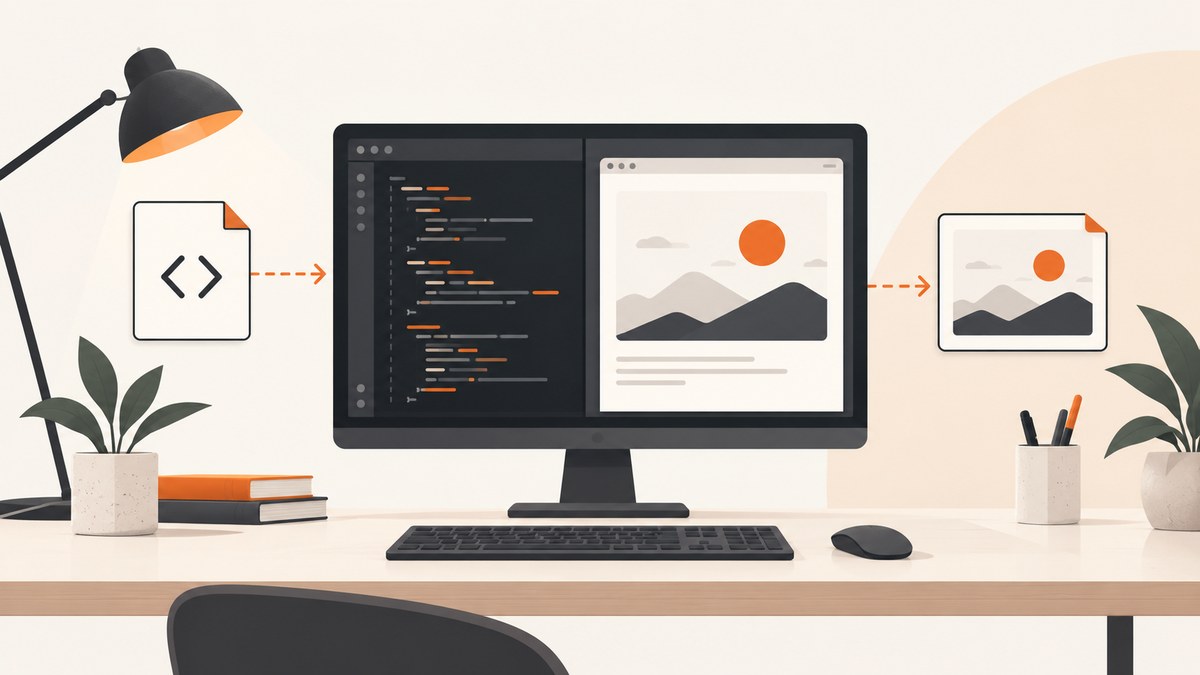
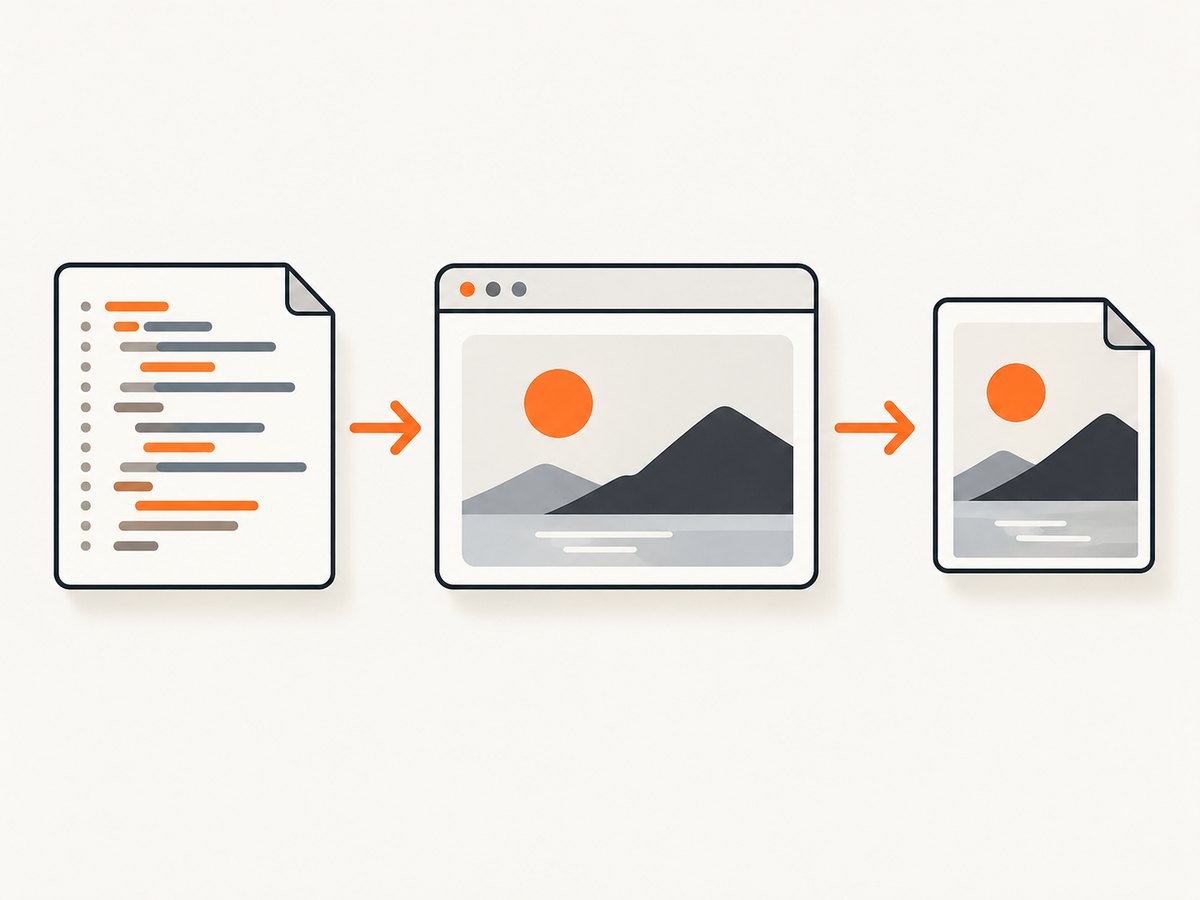
Direct answer: Visual Studio Code does not convert an arbitrary HTML file to PNG by itself. Use VS Code to create and run a browser-automation script, then let Playwright render the page and save the result with page.screenshot({ path: 'screenshot.png' }). A .png path produces PNG output; add fullPage: true for the complete scrollable document or capture a single locator for one element.
This workflow works for a local site, a file served by your development server, or a public URL. The browser, not the editor, loads CSS, fonts, images, JavaScript, and web components, so the page must be reachable and ready before the screenshot call.
What Visual Studio Code does in this workflow
VS Code is the editing and debugging environment. The official Playwright extension adds test discovery, debugging, and test generation; the actual rendering and PNG write happen in Playwright’s browser API. The VS Code guide lists Node.js and VS Code as prerequisites and describes installing Playwright from the Command Palette with Test: Install Playwright (Playwright VS Code guide).
- Install a current Node.js release and Visual Studio Code.
- In VS Code, open Extensions and install the official Playwright extension.
- Open your project folder, press Ctrl/Cmd+Shift+P, run Test: Install Playwright, and accept the browser installation.
- Create a script such as
screenshot.js. - Run it from VS Code’s integrated terminal with
node screenshot.js.
Minimal Playwright conversion (complete runnable example)
Serve the HTML through your project’s development server when possible. This avoids file-URL restrictions and makes relative CSS, modules, and assets behave as they do in production.
const { chromium } = require('playwright');

(async () => {
  const browser = await chromium.launch();
  const page = await browser.newPage({
    viewport: { width: 1280, height: 800 }
  });

  await page.goto('http://localhost:3000', {
    waitUntil: 'domcontentloaded'
  });
  await page.screenshot({
    path: 'screenshot.png',
    fullPage: true
  });

  await browser.close();
})();
The Playwright Page API documents this screenshot call. Replace the URL with your local route or a public page, then open screenshot.png in VS Code or your file viewer.
Opening a standalone HTML file
You can navigate to a file URL, but browser security and relative paths can make local pages behave differently from a server-rendered page. An absolute path is safest:
const path = require('node:path');
const { pathToFileURL } = require('node:url');
const { chromium } = require('playwright');

(async () => {
  const browser = await chromium.launch();
  const page = await browser.newPage({ viewport: { width: 1280, height: 800 } });
  const fileUrl = pathToFileURL(path.resolve('index.html')).href;
  await page.goto(fileUrl, { waitUntil: 'load' });
  await page.screenshot({ path: 'index.png', fullPage: true });
  await browser.close();
})();
If modules, fonts, fetch calls, or images fail from file://, start a local server (for example, your framework’s npm run dev) and use its http://localhost URL instead.
Control exactly what becomes PNG
Viewport versus full page
// Visible viewport only
await page.screenshot({ path: 'viewport.png' });

// Entire scrollable document
await page.screenshot({ path: 'full-page.png', fullPage: true });
A full-page capture can be very tall. Use a deliberate viewport so responsive breakpoints are stable. Full-page mode can also expose lazy content that only appears after scrolling; see the waiting section below.
Capture one element
await page.locator('.header').screenshot({ path: 'header.png' });
await page.locator('#invoice').screenshot({ path: 'invoice.png' });
Prefer a stable role, test id, or ID over a brittle generated class. The locator must resolve to a visible element; otherwise Playwright reports a timeout.
Transparent backgrounds and image format
PNG preserves transparency and lossless pixels. Playwright also supports JPEG and quality settings, but use the .png extension and omit JPEG-only options when PNG is required. For a transparent page background:
await page.screenshot({
  path: 'transparent.png',
  fullPage: true,
  omitBackground: true
});
Wait for dynamic content
Do not rely on a universal fixed delay. Wait for the condition that makes your page complete: a selector, a font, an image, or an application-specific state.
await page.goto('http://localhost:3000', { waitUntil: 'networkidle' });
await page.locator('[data-rendered="true"]').waitFor();
await page.evaluate(() => document.fonts.ready);
await page.screenshot({ path: 'ready.png', fullPage: true });
networkidle can never settle on pages with analytics or streaming connections. In that case, use domcontentloaded plus a targeted locator or a short, page-specific delay. To load lazy images, scroll before capture:
await page.evaluate(async () => {
  window.scrollTo(0, document.body.scrollHeight);
  await new Promise(requestAnimationFrame);
  window.scrollTo(0, 0);
});
await page.screenshot({ path: 'lazy-loaded.png', fullPage: true });
Hide, click, or style content
// Dismiss a consent dialog when it exists
const consent = page.getByRole('button', { name: /accept/i });
if (await consent.count()) await consent.first().click();

// Apply deterministic CSS before capture
await page.addStyleTag({ content: `
  .cookie-banner, .chat-widget { display: none !important; }
` });

// Click a tab before taking the shot
await page.getByRole('tab', { name: 'Details' }).click();
await page.screenshot({ path: 'details.png', fullPage: true });
Use the Playwright test runner inside VS Code
If your project already has Playwright tests, put the capture in a test file so it appears in the Testing sidebar and can be debugged with breakpoints:
const { test } = require('@playwright/test');

test('export the landing page', async ({ page }) => {
  await page.goto('http://localhost:3000');
  await page.locator('main').waitFor();
  await page.screenshot({ path: 'artifacts/landing.png', fullPage: true });
});
Keep screenshots intended as deliverables separate from snapshot assertions. Playwright’s visual comparison documentation explains that rendering can vary with operating system, browser version, fonts, hardware, and headless settings (visual comparisons). Pin your browser and run captures in a consistent environment when pixel stability matters.
Puppeteer alternative
Puppeteer follows the same model: launch Chromium, open a page, and call page.screenshot. Its official guide documents both ordinary and full-page screenshots (Puppeteer screenshots).
const puppeteer = require('puppeteer');

(async () => {
  const browser = await puppeteer.launch();
  const page = await browser.newPage();
  await page.setViewport({ width: 1280, height: 800 });
  await page.goto('http://localhost:3000', { waitUntil: 'networkidle0' });
  await page.screenshot({ path: 'puppeteer.png', fullPage: true });
  await browser.close();
})();
Choose the library already used by your project, or choose Playwright if you want its VS Code testing integration. The cited documentation does not establish a universal image-quality winner.
Common errors and fixes
| Symptom | Likely cause | Fix |
|---|---|---|
Cannot find module 'playwright' |
Dependency was not installed in this folder. | Run npm install -D playwright and install browsers with npx playwright install, or rerun Test: Install Playwright. |
| Browser executable missing | Playwright package exists but browser binaries do not. | Run npx playwright install chromium. |
net::ERR_CONNECTION_REFUSED |
The local server is stopped or the port is wrong. | Start the app, confirm the port in a browser, and update page.goto. |
| Blank or partly styled PNG | Capture ran before fonts, CSS, images, or client rendering finished. | Wait for a meaningful selector, document.fonts.ready, and required images; inspect console and network errors. |
| Element locator timeout | Selector is wrong, hidden, or rendered only after an action. | Use VS Code’s Playwright picker or a stable test id, then wait for visibility and click the required tab. |
| Images missing from a file URL | Relative paths, CORS, or module loading differ under file://. |
Serve the directory over HTTP and capture the local URL. |
| Full page is unexpectedly short | Lazy content has not been triggered, or a scroll container holds the content. | Scroll the page, wait for the content, and capture the relevant container if it is not the document. |
| Different pixels on another machine | Browser, OS fonts, scale, or headless environment changed. | Use the same Playwright/browser versions, viewport, fonts, and execution environment. |
Performance, reliability, and cost considerations
- Performance: Reuse one browser process for multiple URLs, create a fresh page per capture, and avoid unnecessary full-page shots. Waiting on a specific readiness signal is usually faster and more reliable than a large arbitrary delay.
- Reliability: Set an explicit navigation timeout, close pages in a
finallyblock, log the URL and readiness step, and retry only transient navigation failures. Keep consent handling and selectors versioned with the page. - Reproducibility: Fix viewport, device scale, timezone, locale, fonts, and browser version when images are compared in CI. Disable animations with injected CSS if motion creates inconsistent frames.
- Cost: A local Playwright or Puppeteer script has no per-shot API fee, but your CI or server still consumes CPU, memory, browser storage, and maintenance time. A hosted API trades browser operations for request charges and operational simplicity.
Or skip the browser setup
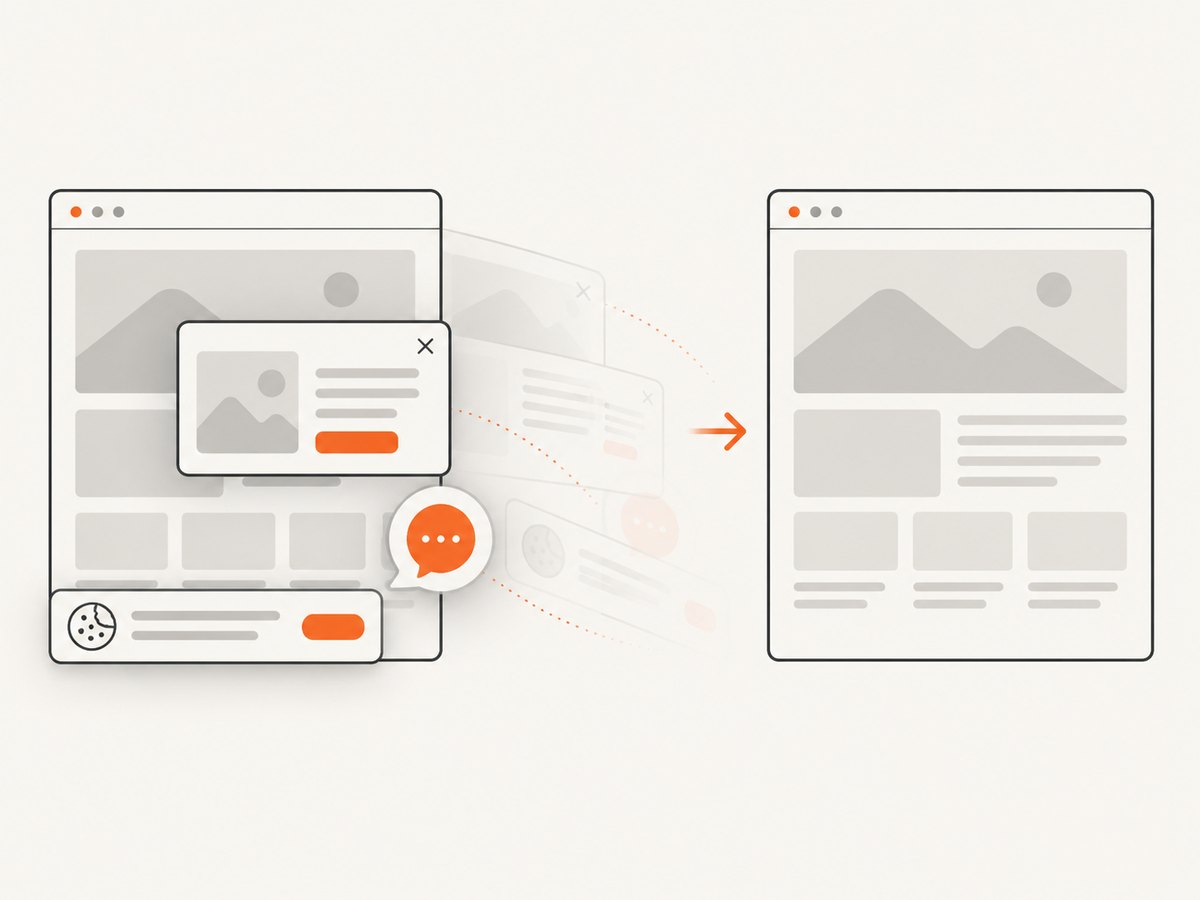
ScreenshotNeo accepts one GET request and returns a PNG, JPEG, WebP, or PDF. Cookie banners, newsletter popups, and chat widgets are removed before the shot; bot checks, blank pages, timeouts, failed loads, and cache hits are not billed. Every response identifies the result with X-Page-Verdict and X-Billed headers. Its MCP server lets Claude, Cursor, and other MCP clients call take_screenshot, get_page_info, and capture_pdf. The free plan includes 1,000 screenshots a month with no card; paid plans start at $5 for 3,000.
See the ScreenshotNeo API documentation for all options.
cURL
curl -G "https://api.screenshotneo.com/v1/shot" \
  -d access_key=YOUR_API_KEY \
  --data-urlencode url=https://stripe.com \
  -o shot.webp
Python
import requests

r = requests.get(
    "https://api.screenshotneo.com/v1/shot",
    params={"access_key": "YOUR_API_KEY", "url": "https://stripe.com"},
    timeout=90,
)
r.raise_for_status()
open("shot.webp", "wb").write(r.content)
Node.js
const q = new URLSearchParams({
  access_key: 'YOUR_API_KEY',
  url: 'https://stripe.com'
});
const res = await fetch(`https://api.screenshotneo.com/v1/shot?${q}`);
if (!res.ok) throw new Error(`Screenshot failed: ${res.status}`);
require('node:fs').writeFileSync('shot.webp', Buffer.from(await res.arrayBuffer()));
Sign up for 1,000 free screenshots each month with no card, then move to $5 for 3,000 when you need more.
FAQ
Can VS Code export HTML to PNG without Node.js?
Not through the Playwright workflow. VS Code edits and runs the code; a browser automation library performs rendering and writes the PNG.
Should I use a screenshot test or a standalone script?
Use a standalone script for an asset or report export. Use a Playwright test when you want the capture discoverable, debuggable, and repeatable from the Testing sidebar.
Why is my screenshot different from the browser window?
Viewport size, device scale, fonts, browser version, animations, and headless rendering can differ. Fix those inputs and wait for the same page state.
Can I capture only a component?
Yes. Use page.locator('selector').screenshot({ path: 'component.png' }) and ensure the locator resolves to a visible element.


