How to Convert HTML to PNG with WeasyPrint
Convert HTML and CSS to PNG with WeasyPrint using its CLI or Python API. Control resolution and page size, handle multi-page output, and troubleshoot assets.
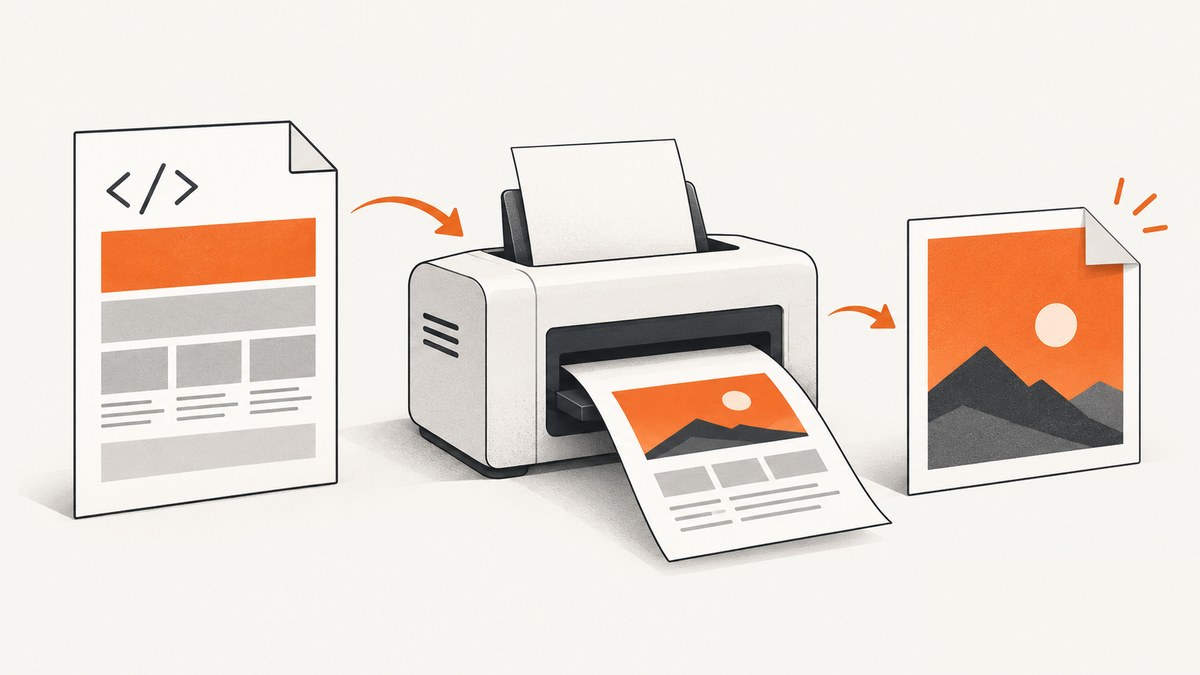
WeasyPrint can convert HTML and CSS directly to PNG from its command-line interface or Python API. For a one-off conversion, run weasyprint input.html output.png. In Python, use HTML(filename="input.html").write_png("output.png"). The default PNG resolution is 96 pixels per CSS inch; use @page to control page dimensions, orientation, and margins. If the document spans multiple pages, WeasyPrint stacks them vertically into one PNG.
1. Install WeasyPrint and choose a conversion method
Use the CLI when you need a straightforward file conversion or a scriptable command. Use the Python API when the HTML is generated dynamically, the output belongs in an application workflow, or you need PNG bytes and dimensions in memory. Both paths use WeasyPrint’s HTML and CSS rendering.
Install WeasyPrint using the instructions for your operating system in the official installation guide. Its native dependencies vary by platform, so follow that guide rather than assuming that installing the Python package alone is sufficient.
Convert a file with the CLI
weasyprint input.html output.pngTo state the output format explicitly, use:
weasyprint --format png input.html output.pngThe CLI accepts PNG as an output format and provides a PNG resolution option. Check weasyprint --help in the installed version for the exact option spelling and defaults available in that environment. The input can be an HTML file; output should have a PNG extension or be specified with the format option.
Convert a string, file, or URL with Python
Install the package in the Python environment where the script runs, then save this as convert.py:
from weasyprint import HTML

HTML(string="<h1>Hello</h1><p>Rendered as PNG.</p>").write_png("output.png")
For an existing file or a public URL, use the corresponding constructor:
from weasyprint import HTML

HTML(filename="input.html").write_png("output.png")
# Or:
HTML(url="https://example.com/page").write_png("page.png")
When called without a target, write_png() returns PNG bytes and the output width and height. This is useful when the next step sends the image to storage or another service without first writing a temporary file:
from weasyprint import HTML

png_bytes, width, height = HTML(string="<h1>Hello</h1>").write_png()
print(f"Rendered {width} × {height} pixels")
with open("output.png", "wb") as image_file:
    image_file.write(png_bytes)
See the WeasyPrint API reference for the current method signatures and return values.
2. Set page dimensions and margins with CSS
WeasyPrint lays HTML out as a document. The CSS @page rule defines the page box, including its size, orientation and margins. For a fixed 1200-by-800 CSS-pixel canvas with no margins:

<!doctype html>
<html>
<head>
  <meta charset="utf-8">
  <style>
    @page {
      size: 1200px 800px;
      margin: 0;
    }
    html, body {
      margin: 0;
    }
    body {
      font-family: sans-serif;
    }
  </style>
</head>
<body>
  <h1>A fixed-size PNG</h1>
</body>
</html>
Use a named paper size or a width and height depending on the desired output. For landscape pages, specify a landscape size or use the appropriate CSS page size and orientation. Set margins explicitly: browser-like default margins are often not what a screenshot or thumbnail needs. The CSS paged media documentation describes supported page rules.
CSS pixels and physical units
At the default 96 PNG pixels per CSS inch, a page width of 1200 CSS pixels produces an image about 1200 pixels wide. Increasing resolution scales the raster output while preserving the CSS layout dimensions. Thus a higher-density image contains more pixels; it does not by itself make the CSS page wider.
Keep CSS dimensions and output resolution as separate decisions: use @page for the document’s size and resolution for raster density. This makes it easier to reason about both layout and final pixel dimensions.
3. Control PNG resolution
The documented default resolution is 96 PNG pixels per CSS inch. Set another resolution when you need more or fewer output pixels for the same CSS page dimensions.
from weasyprint import HTML

html = HTML(filename="input.html")
html.write_png("output-144dpi.png", resolution=144)
The CLI provides a corresponding PNG resolution option; consult weasyprint --help for its spelling in your installed release. A higher resolution increases pixel dimensions and generally increases output size and rendering work. It does not repair unsupported CSS, missing fonts, or incorrect page dimensions.
For predictable output, decide the target pixel dimensions first, set a corresponding CSS page size, and choose a resolution appropriate to how the image will be displayed. Avoid scaling the resolution far beyond the actual use case: it consumes memory and produces a larger file without adding detail to the HTML layout.
4. Understand multi-page HTML output
When the content flows across multiple pages, WeasyPrint paints those pages vertically into one PNG. The resulting image uses the width of the widest page, with individual pages centered horizontally. This is handy when a single tall image is acceptable, but it is not equivalent to a browser’s full-page screenshot in every layout detail: page breaks and paged-media rules affect the result.
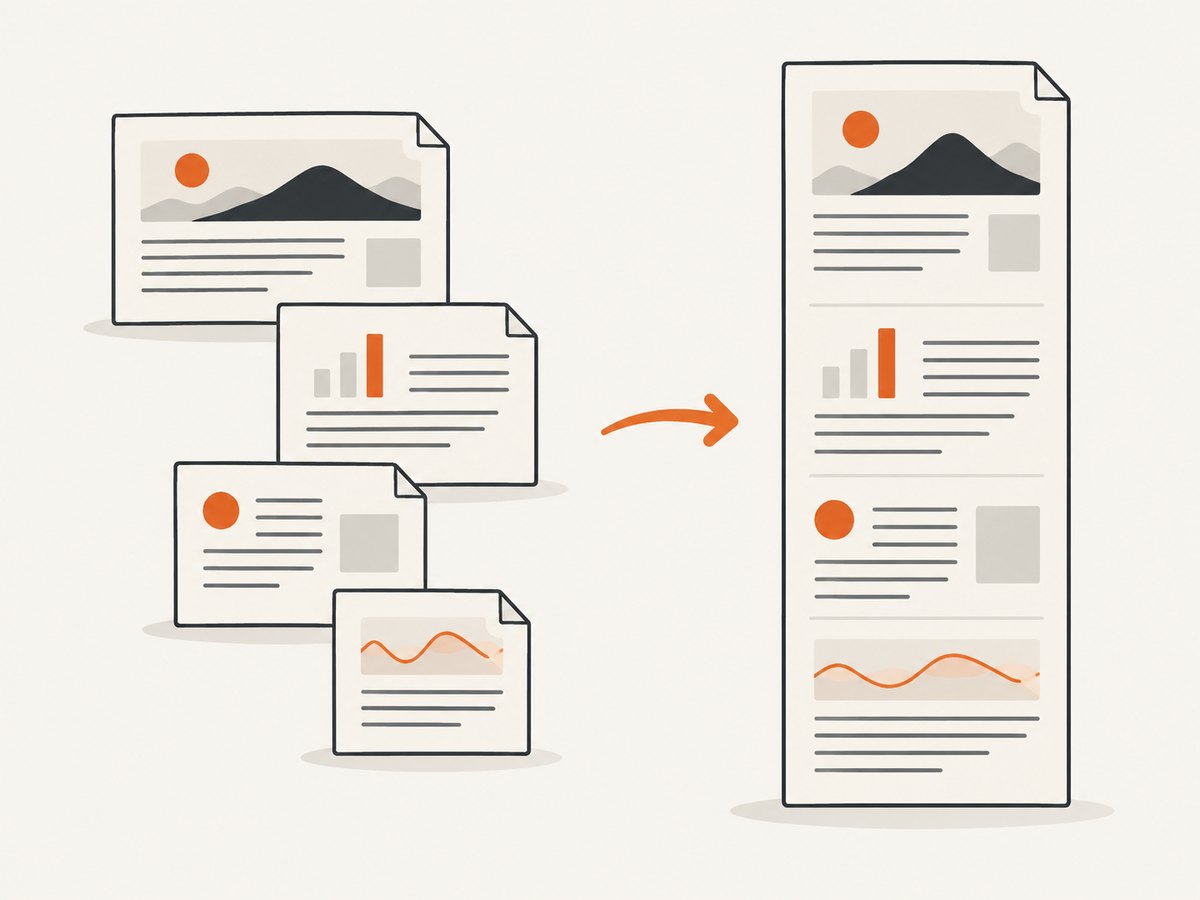
Set a sufficiently large or deliberately chosen @page size if you want one fixed canvas. If you need each document page as a separate PNG, use WeasyPrint’s document and page-level API to render individual pages onto separate Cairo surfaces. The document API exposes individual page objects; use the version’s API reference to match the rendering interface.
Before rendering a long document, estimate the final height. A multi-page document becomes one tall raster, so its memory use can rise quickly with page count, width, and resolution. If downstream tooling has image height limits, render pages separately instead.
5. Load images, stylesheets, fonts, and remote resources
WeasyPrint can fetch local files, HTTP, FTP, and data URLs. Relative asset paths depend on the document’s base URL. When rendering an HTML string that refers to local CSS or images, provide a base URL so those references can be resolved:
from pathlib import Path
from weasyprint import HTML

html_text = """<html><head><link rel='stylesheet' href='styles.css'></head>
<body><img src='assets/chart.png' alt='Chart'></body></html>"""
HTML(string=html_text, base_url=Path(".").resolve().as_uri()).write_png("output.png")
When using HTML(filename=...) or HTML(url=...), resources are generally resolved relative to that source. Verify that the process has access to every local path and that remote servers allow the requests.
The default HTTP fetcher does not provide advanced cookie or authentication handling. If an asset requires credentials, custom headers, or specialized fetching behavior, supply a custom URL fetcher as supported by the API. Keep credentials out of public HTML and logs. The official URL handling guidance documents fetching behavior and custom fetchers.
PNG and JPEG raster inputs are supported. SVG is a vector format, and the documentation discusses its handling in PDF output; verify SVG-heavy designs in the PNG output you intend to ship. Review warnings about unsupported CSS properties, and check fonts and external assets in the actual deployment environment. Rendering can differ if resources are missing or a property is unsupported.
6. CLI versus Python API
| Need | CLI | Python API |
|---|---|---|
| One-off file conversion | Simple input and output paths | Requires a script |
| Application integration | Can be launched as a subprocess | Direct access to HTML constructors and output methods |
| In-memory PNG | Typically writes an output file | write_png() can return bytes and dimensions |
| Resolution | Use the CLI PNG resolution option | Pass resolution to write_png |
| Resource control | Depends on command invocation and input setup | Supports API configuration such as a custom URL fetcher |
| Best fit | Manual or shell-based jobs | Dynamic HTML and application workflows |
7. Troubleshoot common conversion problems
| Symptom | Likely cause | What to check |
|---|---|---|
weasyprint: command not found |
The executable is not installed in the active environment or is not on PATH. |
Activate the intended virtual environment, install WeasyPrint there, and confirm the executable location. Follow the platform installation guide for system dependencies. |
Python cannot import weasyprint |
The package was installed for a different Python interpreter. | Run installation through the same interpreter used by the script, for example python -m pip, and verify the active environment. |
| Image is blank or assets are missing | Relative URLs may resolve against the wrong base, or the renderer cannot access a local or remote resource. | Set base_url for HTML strings, check paths and permissions, and inspect fetch warnings and remote availability. |
| Fonts or layout differ from expectations | A font may not be installed or loaded, or CSS support may differ from a browser. | Install or provide the intended font, inspect renderer warnings, and validate the specific CSS used by the document. |
| PNG dimensions are unexpectedly large | The document spans many pages, the page box is larger than expected, or resolution is high. | Inspect @page, content overflow and the resolution setting. Render page by page if a tall image is not suitable. |
| Only one page appears as expected but content is cut off | A fixed page size or page-break rule excludes content from the assumed canvas. | Check the page count and CSS page rules; use multi-page output or size the page to the intended content. |
| Remote authenticated resources fail | The default HTTP fetcher does not supply advanced cookie or authentication behavior. | Use a custom URL fetcher with appropriate access handling, or make the resource available to the renderer through an authorized route. |
| SVG artwork is missing or unexpected | The design depends on SVG rendering behavior not verified for PNG output. | Test that asset in the target output and, if needed, provide a raster version such as PNG. |
Warnings are useful evidence, not noise to suppress automatically. A conversion can produce a PNG while omitting or approximating unsupported styling. Treat the output as valid only after checking the layout and required assets.
8. Performance, reliability, and cost considerations
For local conversion, the main practical constraints are rendering time, resource fetching, output dimensions, and memory. Large pages, long multi-page documents, high resolution, complex styles, and high-resolution assets can all increase work. Keep the page dimensions and density close to the image’s actual purpose, and avoid turning a large document into one enormous bitmap if page-level output will do.
Make recurring jobs repeatable by pinning the WeasyPrint version and keeping fonts, stylesheets, and image assets available in the runtime. Confirm external URLs are reachable from that runtime; network access and source-site changes make URL-based rendering less predictable than rendering a self-contained HTML file. For authenticated or special resource access, configure fetching deliberately.
WeasyPrint is an open-source renderer; this conversion path does not itself impose a per-screenshot service charge. Your operational costs come from the machine, storage, network traffic, and maintenance needed to run the renderer. If you need managed website capture rather than maintaining local rendering and browser-like infrastructure, ScreenshotNeo provides a website screenshot API and MCP server. Its current plan allowances and prices are described below.
9. Or skip the browser setup
For a website URL, ScreenshotNeo can return an image or PDF with one GET request. See the API documentation for parameters and response details.
curl -G "https://api.screenshotneo.com/v1/shot" \
  -d access_key=YOUR_API_KEY \
  --data-urlencode url=https://stripe.com \
  -o shot.webp
import requests
r = requests.get(
"https://api.screenshotneo.com/v1/shot",
params={"access_key": "YOUR_API_KEY", "url": "https://stripe.com"},
timeout=90,
)
r.raise_for_status()
open("shot.webp", "wb").write(r.content)const q = new URLSearchParams({
access_key: 'YOUR_API_KEY',
url: 'https://stripe.com'
});
const res = await fetch(`https://api.screenshotneo.com/v1/shot?${q}`);
if (!res.ok) throw new Error(`Screenshot request failed: ${res.status}`);
await Bun.write('shot.webp', res);ScreenshotNeo accepts cookie and consent banners before capture and removes more than 60 known consent platforms, newsletter popups, and chat widgets; each step can be turned off. Bot checks, blank pages, timeouts, failed loads, and cache hits are not billed, and response headers report the page verdict and billing status. Its MCP server gives AI agents tools for screenshots, page information, and PDF capture. The Free plan includes 1,000 shots a month without a card; paid plans start at $5 for 3,000 shots. See all options and sign up for 1,000 free screenshots a month, no card required.
10. Frequently asked questions
Can WeasyPrint save HTML as PNG without first creating a PDF?
Yes. Its CLI and Python API support PNG output directly.
Can I get the PNG as bytes instead of a file?
Yes. Call HTML.write_png() without a target; the API returns PNG bytes and the image dimensions.
Does a multi-page document create a PNG for every page?
By default, pages are stacked vertically into one PNG. Use the page-level document API when separate images are required.
What resolution should I choose?
Use 96 pixels per CSS inch for the documented default. Choose another resolution when the output needs a different pixel density, and account for the resulting dimensions and memory.
Can WeasyPrint render a page behind a login?
It can fetch resources, but the default HTTP fetcher does not provide advanced cookie or authentication handling. A custom URL fetcher may be needed for authenticated content.


