How to Convert HTML to PNG on Windows
Convert a local HTML file or webpage to PNG on Windows with Playwright, Edge, Snipping Tool, or a command-line utility. Choose the right capture method and troubleshoot common rendering issues.

To convert HTML to PNG on Windows, render the HTML in a browser and save a screenshot. For repeatable captures to a named file, use Playwright: load a local HTML file or webpage, then save a viewport or full-page screenshot as PNG. For an occasional live webpage capture, Microsoft Edge has a manual Screenshot feature. Snipping Tool captures visible screen content, while Win2PDF documents a command-line HTML-to-PNG option.
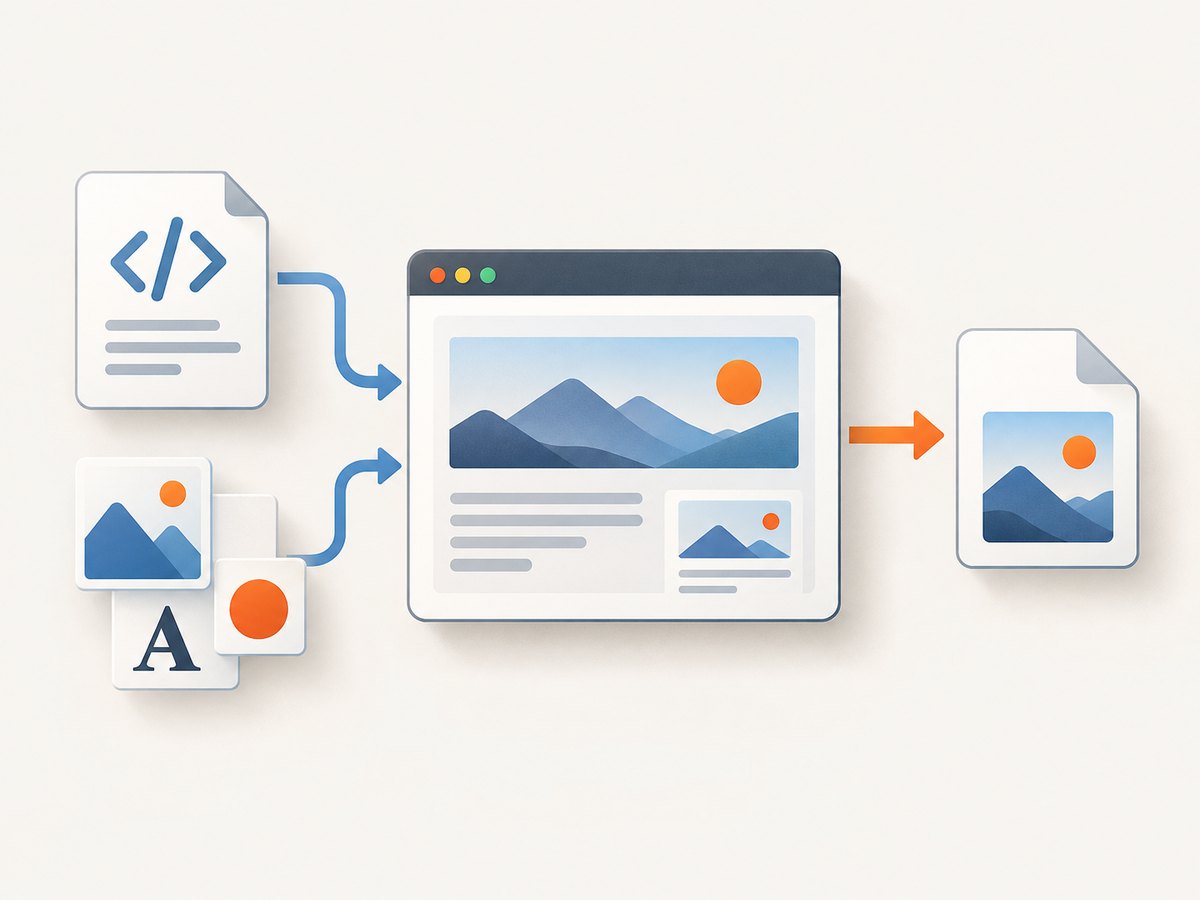
This is rendering, not a direct source-code conversion: the browser lays out HTML and CSS, loads resources such as fonts and images, and captures the resulting pixels. Choose the method according to whether you need a local file or live site, an unattended repeatable process or a manual capture, and the visible viewport or the whole scrollable document.
1. Choose the right method
| Need | Method | Best fit |
|---|---|---|
| Repeatable output to a known PNG path | Playwright | Scripts, documentation builds, batches, and consistent viewport settings. |
| One-time capture of a live webpage | Microsoft Edge Screenshot | Manual full-page or selected-area capture without writing code. |
| Capture what is currently visible on screen | Snipping Tool | A page already arranged on screen, including a particular window or region. |
| Vendor utility with a documented command-line conversion | Win2PDF | Users who want a utility-based HTML source to PNG destination workflow. |
Playwright documents saving a screenshot to a path and capturing the full scrollable page. Edge documents full-page and selected-area screenshots, though availability can vary by device, market, and browser version. Snipping Tool is a manual screen-capture workflow, not an unattended HTML rendering engine. Win2PDF’s guide documents HTML-to-PNG command-line conversion; its current packaging, licensing, and price were not verified for this guide.
2. Convert HTML to PNG with Playwright
Playwright is the best fit when the same capture needs to be produced again, saved to a predictable path, or integrated into a script. Its screenshot API supports a normal viewport image and a full-page image. The examples below use Node.js and Playwright’s documented screenshot API. Navigate to your local file or URL before taking the screenshot.
Install Playwright on Windows
- Install a current Node.js release using your normal Windows software installation process.
- Open PowerShell in a working folder and initialize a project.
- Install Playwright and its Chromium browser.
npm init -y
npm install playwright
npx playwright install chromium
Create capture.mjs in that folder. Set HTML_FILE to the full path of your HTML file. The example converts the file into a full-page PNG. Using a file: URL lets Chromium load a local document; relative images, stylesheets, and fonts should be referenced correctly from the HTML file’s location.
import { chromium } from 'playwright';
import { pathToFileURL } from 'node:url';

const htmlFile = 'C:/work/report/index.html';
const outputFile = 'C:/work/report/screenshot.png';
const browser = await chromium.launch({ headless: true });

try {
  const page = await browser.newPage({
    viewport: { width: 1440, height: 1000 },
    deviceScaleFactor: 1
  });
  await page.goto(pathToFileURL(htmlFile).href, { waitUntil: 'load' });
  await page.screenshot({ path: outputFile, fullPage: true });
  console.log(`Saved ${outputFile}`);
} finally {
  await browser.close();
}
Run it from PowerShell:
node .\capture.mjsTo capture a live page instead, replace the page.goto line with await page.goto('https://example.com', { waitUntil: 'load' });. Use a page you are authorized to access. A site may require sign-in, block automated traffic, or render differently when opened in a browser automation session.
Viewport or full page
The default screenshot is the visible viewport. To capture the complete scrollable document, set fullPage: true. A full-page PNG can become very tall and consume significant memory for long pages. If the target is one component rather than the entire page, Playwright can capture a locator:
const card = page.locator('.report-card');
await card.screenshot({ path: 'card.png' });
Choose the viewport deliberately. Responsive HTML can change layout at different widths, and a narrow viewport may trigger a mobile menu or different typography. deviceScaleFactor controls the pixel density relative to CSS pixels; a value above 1 creates a sharper, larger output. Larger dimensions and full-page capture also increase file size and processing work.
Wait for dynamic content
A page’s load event does not guarantee every delayed image, animation, or application request has finished. If a known element indicates readiness, wait for it before capture. A fixed delay is a simple fallback, but it may be wasteful on fast runs and insufficient on slow ones.
await page.goto('https://example.com/report', { waitUntil: 'domcontentloaded' });
await page.locator('.report-ready').waitFor({ state: 'visible' });
await page.screenshot({ path: 'report.png', fullPage: true });
For a page whose content appears after a predictable delay, add await page.waitForTimeout(1500) before the screenshot and tune the delay for the page. Avoid treating a fixed timeout as a guarantee: network conditions and site behavior can vary. For local HTML, verify that external resources can load or package them locally if offline output must be repeatable.
3. Capture a webpage manually in Microsoft Edge
For a one-off capture of a live webpage, open it in Edge and use the browser’s Screenshot feature. Microsoft’s feature page documents Ctrl+Shift+S for full-page capture and describes selected-area capture. Follow the on-screen controls to choose the page or area and save the resulting image. Exact controls can vary as Edge changes, and Microsoft notes that feature availability and functionality may vary by device type, market, and browser version.
This is a convenient choice when you want to inspect the page and decide manually what to save. It is less suitable for a repeatable job, a scheduled capture, or a large set of URLs because it depends on a person using the browser. It targets a live page in Edge; it is not a scriptable conversion command for an arbitrary local HTML file.
4. Capture visible content with Snipping Tool
Snipping Tool captures all or part of the PC screen. Microsoft’s instructions describe rectangle, window, full-screen, and freeform snips, plus saving and sharing the capture. Open the HTML in a browser, arrange the page as needed, launch Snipping Tool, choose the capture mode, select the screen content, and save it as PNG if that format is offered in the save dialog.
This method records visible pixels. It does not automatically render an entire long HTML document into one full-page image, and it is not an unattended local-file converter. Use it for a visible region, a browser window, or a manually prepared screen. If the whole page is required, use Playwright’s full-page option or Edge’s documented full-page capture.
5. Use Win2PDF’s documented command-line route
The Win2PDF user guide includes an operation titled “Convert HTML to PNG” and describes converting a source HTML file to a destination PNG. This can suit a workflow that already uses that vendor utility. Check the current vendor documentation and installed version for exact command syntax and availability before relying on it; the research for this article did not verify current packaging, price, licensing, or edition requirements.
Because those details can change, don’t copy an assumed command line from an unverified source. Consult the linked guide, confirm the command for your installed product, then try it with a short local HTML file and check the destination image. If you need browser-level control over viewport size, full-page capture, or dynamic content, Playwright’s documented API exposes those screenshot settings directly.
6. Or skip the browser setup
If the input is a public webpage and you want a PNG without installing or maintaining browser automation, ScreenshotNeo is a website screenshot API and MCP server. One GET request returns a screenshot or PDF. The API base is https://api.screenshotneo.com/v1/shot; see the ScreenshotNeo documentation for request options and response details.
curl -G "https://api.screenshotneo.com/v1/shot" -d access_key=YOUR_API_KEY --data-urlencode url=https://stripe.com -o shot.webpimport requests
r = requests.get(
"https://api.screenshotneo.com/v1/shot",
params={"access_key": "YOUR_API_KEY", "url": "https://stripe.com"},
timeout=90,
)
r.raise_for_status()
open("shot.webp", "wb").write(r.content)const q = new URLSearchParams({ access_key: 'YOUR_API_KEY', url: 'https://stripe.com' });
const res = await fetch(`https://api.screenshotneo.com/v1/shot?${q}`);
if (!res.ok) throw new Error(`Screenshot request failed: ${res.status}`);
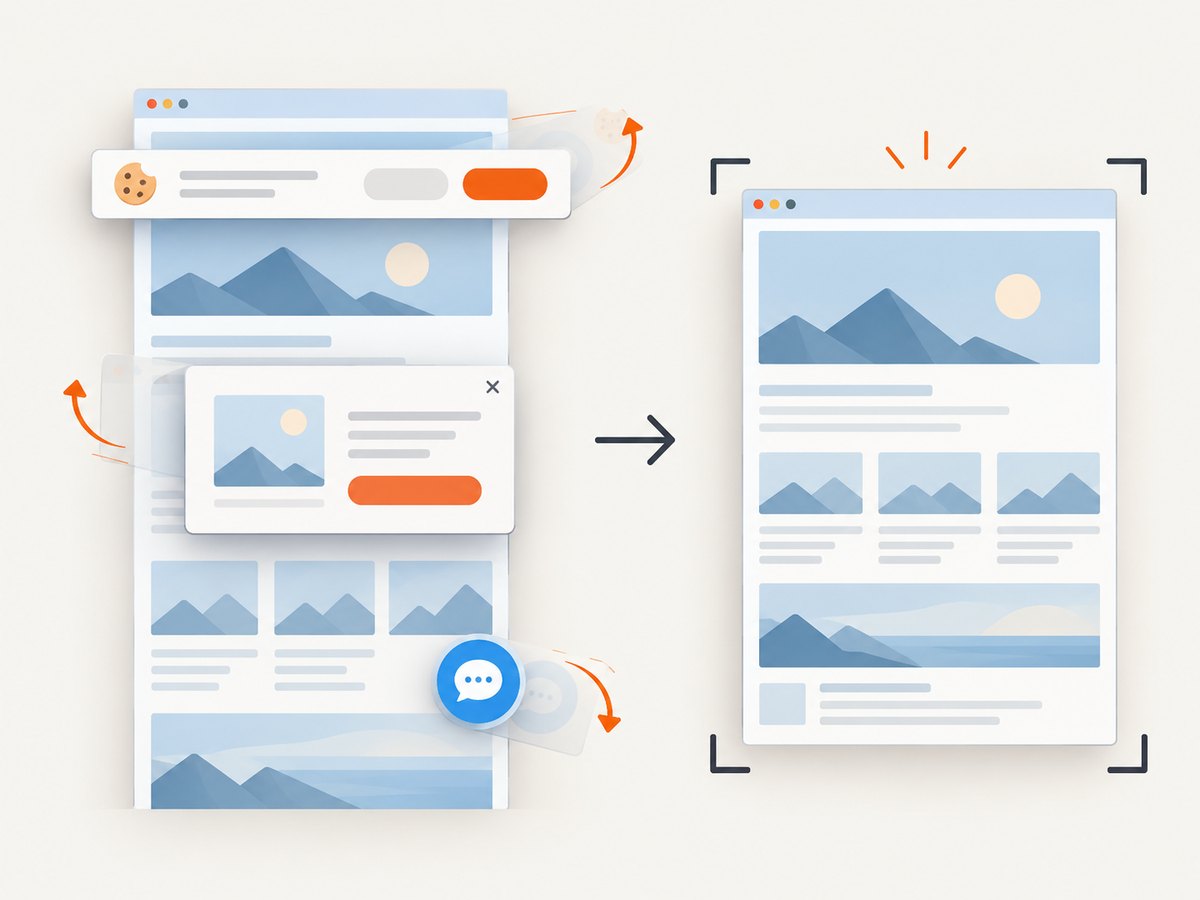
await import('node:fs/promises').then(({ writeFile }) => writeFile('shot.webp', Buffer.from(await res.arrayBuffer())));ScreenshotNeo accepts cookie and consent banners as a visitor and removes more than 60 known consent platforms, newsletter popups, and chat widgets before capture; each step can be turned off. Bot checks and CAPTCHAs, blank pages, timeouts, failed loads, and cache hits cost nothing, and response headers identify the page verdict and billing status. Its MCP server gives AI agents tools to take screenshots, get page information, and capture PDFs.
The free plan includes 1,000 shots a month with no card. Paid plans start at $5 for 3,000 shots; every feature is available on every plan. Sign up free for 1,000 screenshots a month, with no card required.
7. Troubleshoot common problems
| Symptom | Likely cause | What to try |
|---|---|---|
| PNG is blank or missing content | The capture ran before the page finished rendering, or the target page failed to load. | Wait for a visible readiness selector; inspect the page and browser errors; confirm the URL or local file path. |
| Local CSS or images are missing | Relative paths resolve from a different location than expected, or a resource is inaccessible. | Use paths relative to the HTML file, verify each resource exists, and load the file through a proper file URL. |
| Text or fonts look different | The intended font was unavailable or had not loaded before capture. | Check font paths and network access; wait for the page’s ready state before taking the screenshot. |
| Screenshot cuts off the bottom | The default viewport screenshot was used. | Set fullPage: true in Playwright or use a documented full-page Edge capture. |
| Image is blurry | The output has too few pixels for its display size. | Increase the viewport dimensions or set a higher deviceScaleFactor, then account for the larger output. |
| Layout differs from the browser window | Viewport width, device scale, or responsive breakpoints differ. | Set a consistent viewport and device scale; use the same browser rendering environment for repeated captures. |
| Playwright cannot start Chromium | The browser package may not have been installed for the project. | Run npx playwright install chromium from the project folder and review any installation error. |
| Live site shows a challenge or sign-in wall | The site requires a human, session, or access the capture workflow does not have. | Use an authorized session and permitted access method; do not assume a screenshot tool can bypass site access controls. |
| Full-page capture is slow or memory-heavy | The page is extremely long, has heavy assets, or keeps loading content. | Capture only a needed element or viewport, wait on a meaningful readiness condition, and reduce unnecessary page work. |
8. Reliability, performance, and cost
For repeatable output, pin the capture inputs: HTML and asset versions, viewport, device scale, browser version, and readiness condition. External fonts, images, scripts, and changing website content can alter the pixels even when the screenshot code is unchanged. A full-page screenshot captures content beyond the first screen, but pages with endless scrolling or content that appears only after interaction may need additional steps before the capture.
Performance depends on page load, resource size, capture dimensions, and whether the entire page is captured. A named selector or viewport capture can avoid processing an unnecessarily long document. Higher pixel density increases the output dimensions. For batches, limit parallel browser work to the resources available on the Windows machine, and close browser instances when a job finishes.
Playwright is an open-source browser automation library, but its use requires project setup and a browser installation; infrastructure and maintenance costs depend on where and how it runs. Edge and Snipping Tool use built-in browser or Windows workflows, with manual effort as the main operational cost. Win2PDF terms should be checked with the vendor. ScreenshotNeo’s free tier is 1,000 shots each month with no card; paid plans are Starter $5 for 3,000, Growth $15 for 15,000, Pro $39 for 60,000, Scale $99 for 250,000, and Business $249 for 1,000,000. Yearly billing gives two months free, and every feature is on every plan.
9. FAQ
Does converting HTML to PNG preserve selectable text?
No. A PNG is a raster image of the rendered page; its text is pixels rather than document text.
Can I convert HTML without opening a visible browser window?
Yes. Playwright can launch Chromium in headless mode, as in the Node.js example.
Can I capture just one part of the HTML page?
Yes. With Playwright, use a locator’s screenshot method to save a selected element as a PNG.
Which option should I use for a single screenshot?
Use Edge for a manual full-page or area capture of a live webpage, or Snipping Tool for visible screen content. Use Playwright if you need a local HTML input or repeatable output.


