How to Convert HTML to PNG with AI
Render HTML in a real browser, capture a precise PNG, and automate the workflow with Playwright, Puppeteer, Python, Node.js, cURL, or ScreenshotNeo.
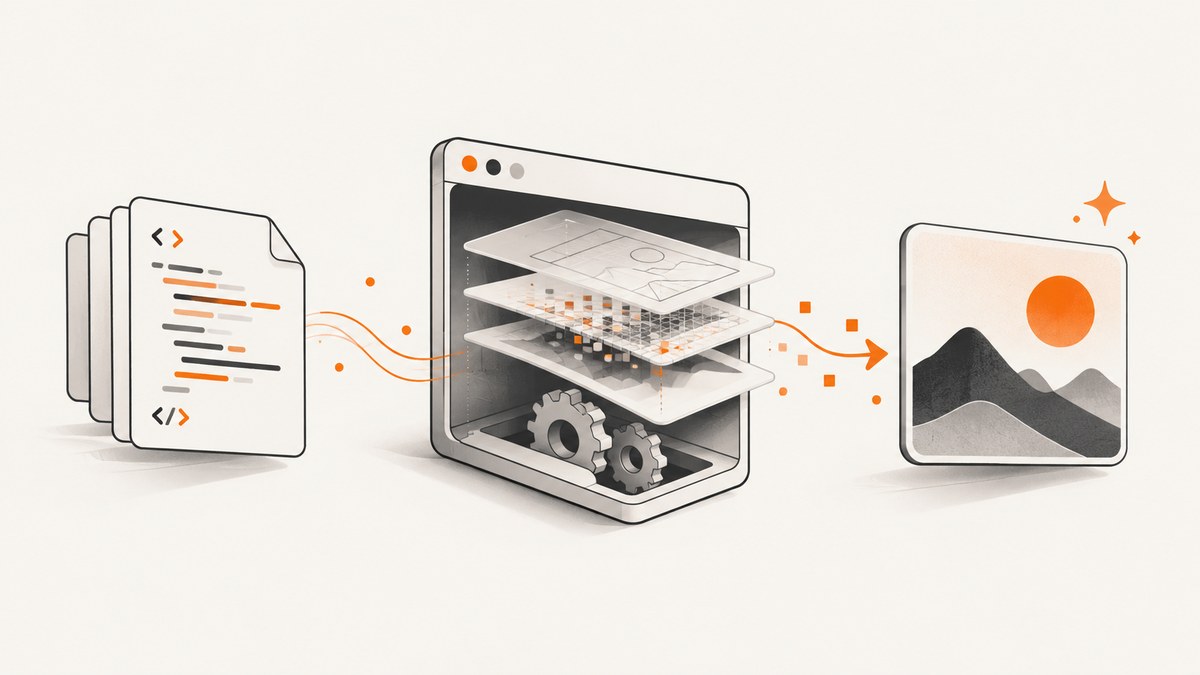
Short answer: HTML must be rendered by a browser before it can become a PNG. “AI” can help you generate or edit the HTML, but the reliable conversion step is browser automation: load the page, wait for the content, and call a screenshot API. Playwright and Puppeteer both do this; the examples below use Playwright because its screenshot API covers viewport, element, and full-page captures.
This guide shows how to convert a local HTML file or a URL to PNG, how to control dimensions and scale, how to handle fonts and lazy content, and how to diagnose blank or clipped output. If you need recurring captures without maintaining a browser, the ScreenshotNeo option near the end makes the same conversion with one request.
What “convert HTML to PNG with AI” actually means
PNG stores pixels, while HTML describes a document. A converter therefore needs a rendering engine that evaluates HTML, CSS, fonts, images, and JavaScript, then records the rendered pixels. A screenshot is an image of appearance; it does not preserve the source markup or provide editable text.
An AI model is useful before or after rendering. It can write a template, fill data, suggest CSS, or inspect the resulting image. It is not required in the capture step, and adding an AI call does not make a screenshot more accurate. For deterministic output, keep rendering in a real browser and make the page state explicit.
Choose the capture scope first
| Scope | Use it when | Typical option |
|---|---|---|
| Viewport | You need exactly what a user sees above the fold. | page.screenshot({ path: 'shot.png' }) |
| Full page | You need the entire scrollable document in one tall PNG. | fullPage: true |
| Element | You need a card, chart, invoice, or component only. | locator.screenshot() |
Playwright documents all three scopes and PNG output in its official screenshot documentation. Puppeteer exposes the same basic page screenshot flow through Page.screenshot() in its official API reference.
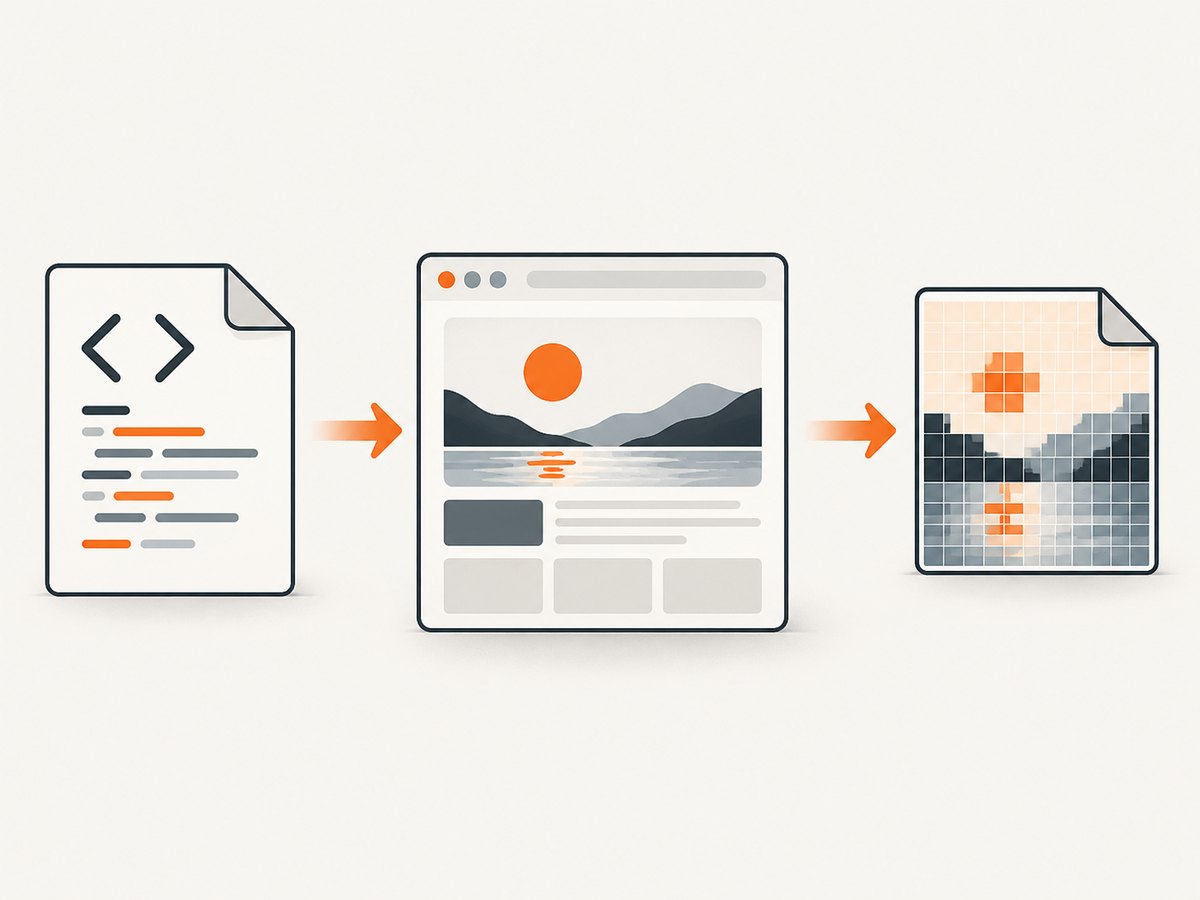
Convert HTML to PNG with Playwright
1. Prepare the page
Put your HTML and assets where Chromium can read them. A local file can be opened with a file:// URL, but a small local HTTP server is usually less surprising because relative URLs, modules, and fonts behave like they do in production. For a public page, navigate directly to its HTTPS URL.
mkdir html-to-png
cd html-to-png
npm init -y
npm install playwright
npx playwright install chromium
The commands install the package and browser binaries. Pin versions in your own project if reproducibility matters; do not assume that a browser update leaves pixel output unchanged.
2. Capture a URL or local file
import { chromium } from 'playwright';

const browser = await chromium.launch();
const page = await browser.newPage({
  viewport: { width: 1440, height: 900 },
  deviceScaleFactor: 1
});

await page.goto('https://example.com', { waitUntil: 'load' });
await page.screenshot({ path: 'example.png', type: 'png' });

await browser.close();
Save this as capture.mjs and run node capture.mjs. Replace the URL with a local path such as file:///absolute/path/index.html. Use an absolute path for local files so the browser does not resolve it against an unexpected working directory.
3. Full-page and element PNGs
import { chromium } from 'playwright';

const browser = await chromium.launch();
const page = await browser.newPage({ viewport: { width: 1280, height: 800 } });
await page.goto('https://example.com/dashboard', { waitUntil: 'domcontentloaded' });

// Wait for the component that determines readiness.
await page.locator('[data-report-ready="true"]').waitFor();

await page.screenshot({ path: 'dashboard-full.png', fullPage: true, type: 'png' });
await page.locator('.invoice-card').screenshot({ path: 'invoice-card.png', type: 'png' });

await browser.close();
fullPage captures the full scrollable page. An element screenshot uses the element’s current bounding box, so make sure it is visible and not covered by a modal. A locator is preferable to a brittle positional selector.
Make the rendered state deterministic
Most conversion bugs are timing bugs. Waiting for load only means the load event fired; a framework may still be rendering, and images may still be lazy-loaded. Wait for a meaningful selector, a known application state, or a bounded delay when the page has no better signal.
await page.goto(url, { waitUntil: 'domcontentloaded' });
await page.locator('#main-chart').waitFor({ state: 'visible' });
await page.waitForFunction(() => document.fonts.status === 'loaded');
await page.waitForTimeout(250); // small, bounded settling delay
For lazy images, scroll the page before capturing so intersection observers load content:
await page.evaluate(async () => {
  await new Promise(resolve => {
    const step = 600;
    const timer = setInterval(() => {
      window.scrollBy(0, step);
      if (window.innerHeight + window.scrollY >= document.body.scrollHeight) {
        clearInterval(timer);
        resolve();
      }
    }, 50);
  });
  window.scrollTo(0, 0);
});
await page.screenshot({ path: 'lazy-loaded.png', fullPage: true, type: 'png' });
When you control the page, add a readiness marker after data and images are complete. That is more reliable than guessing a universal timeout.
PNG options that affect pixels
- Viewport: Set
widthandheightexplicitly. Responsive breakpoints can otherwise change the layout between runs. - Scale:
deviceScaleFactor: 2produces a retina-sized image. It increases dimensions and memory, so use it only when the consumer needs it. - Transparent background: Playwright can capture transparency for PNG. Ensure the page and target element have transparent backgrounds; transparency does not apply to JPEG.
- Animations: Disable transitions and animations in an injected stylesheet when a stable frame matters.
- Color and fonts: Wait for
document.fonts.readyand load the same font files in every environment. A fallback font changes line breaks and therefore the whole image height. - Clipping: Use an element screenshot or an explicit
cliprectangle when you need a fixed region. Check shadows and overflow at the edges.
await page.addStyleTag({ content: `
  *, *::before, *::after {
    animation: none !important;
    transition: none !important;
    caret-color: transparent !important;
  }
` });
await page.screenshot({
  path: 'retina-transparent.png',
  type: 'png',
  scale: 'css',
  omitBackground: true
});
Playwright supports CSS-pixel and device-pixel scaling. Choose one convention and keep it consistent when comparing images.
Convert a local HTML string
If an AI model generated HTML in memory, write it to a temporary file or set page content directly. Direct content is convenient, but relative asset URLs need a base URL or absolute URLs.
import { chromium } from 'playwright';

const html = `<!doctype html>
<html><body><h1>Generated report</h1></body></html>`;
const browser = await chromium.launch();
const page = await browser.newPage({ viewport: { width: 1200, height: 800 } });
await page.setContent(html, { waitUntil: 'load' });
await page.screenshot({ path: 'generated.png', type: 'png' });
await browser.close();
For images, CSS, or fonts referenced as ./asset.png, serve the directory over HTTP or rewrite those URLs to an accessible origin. A browser cannot fetch a path that exists only on your application server unless you expose it to the browser process.
Puppeteer alternative
import puppeteer from 'puppeteer';

const browser = await puppeteer.launch();
const page = await browser.newPage();
await page.setViewport({ width: 1440, height: 900, deviceScaleFactor: 1 });
await page.goto('https://example.com', { waitUntil: 'networkidle2' });
await page.screenshot({ path: 'puppeteer.png', type: 'png', fullPage: true });
await browser.close();
Puppeteer’s documented sequence is navigation followed by page.screenshot(). Its option names differ in some details, so follow the versioned API reference when you need clipping, transparent backgrounds, or element handles.
Python and cURL examples
A hosted API is useful when your application is written in Python or another language and you do not want to package Chromium. The exact parameters vary by provider; verify current limits and privacy terms in that provider’s documentation. The following ScreenshotNeo request is a concrete option.
import requests

r = requests.get(
    "https://api.screenshotneo.com/v1/shot",
    params={"access_key": "YOUR_API_KEY", "url": "https://stripe.com"},
    timeout=90,
)
r.raise_for_status()
open("shot.webp", "wb").write(r.content)
curl -G "https://api.screenshotneo.com/v1/shot" -d access_key=YOUR_API_KEY --data-urlencode url=https://stripe.com -o shot.webpconst q = new URLSearchParams({ access_key: 'YOUR_API_KEY', url: 'https://stripe.com' });
const res = await fetch(`https://api.screenshotneo.com/v1/shot?${q}`);
if (!res.ok) throw new Error(`HTTP ${res.status}`);
const fs = await import('node:fs/promises');
await fs.writeFile('shot.webp', Buffer.from(await res.arrayBuffer()));See the ScreenshotNeo API documentation for the complete option list and response details. The endpoint can return PNG, JPEG, WebP, or PDF; request the format you need and use the matching file extension.
Or skip the browser setup
ScreenshotNeo turns a URL into an image with one GET request. Before capture it accepts cookie and consent banners and removes more than 60 known consent platforms, newsletter popups, and chat widgets; each cleanup step can be turned off. Bot checks or CAPTCHAs, blank pages, timeouts, failed loads, and cache hits cost nothing, and response headers identify the page verdict and whether the shot was billed.

You can still control the browser-level details: full-page capture with lazy images loaded, CSS-selector element capture, dark mode, 12 device presets or any viewport, retina scale, custom CSS and JavaScript, clicks, selector or network-idle waits, blocked ads or resource types, headers, cookies, user agent, authorization, timezone, geolocation, transparent backgrounds, resizing, a chosen cache TTL, signed links, asynchronous jobs with signed webhooks, bulk capture for 100 URLs per call, and a usage API. An MCP server exposes take_screenshot, get_page_info, and capture_pdf to Claude, Cursor, and other MCP clients.
curl -G "https://api.screenshotneo.com/v1/shot" -d access_key=YOUR_API_KEY --data-urlencode url=https://stripe.com -o shot.webpEvery feature is on every plan: 1,000 shots per month are free with no card; paid plans start at $5 for 3,000 shots. Yearly billing gives two months free. Create a free ScreenshotNeo account to get the key.
Troubleshooting checklist
| Symptom | Likely cause | Fix |
|---|---|---|
| Blank PNG | Navigation failed, a bot check appeared, or the page needs more time. | Check the response or browser console, wait for a real readiness selector, and capture a page you can open from the same machine. |
| Missing images | Relative URLs, lazy loading, blocked mixed content, or failed requests. | Use an HTTP origin, inspect network failures, scroll to trigger lazy loading, and wait for image completion. |
| Text uses the wrong font | Web fonts were not loaded before capture. | Await document.fonts.ready; verify font URLs and licensing in the runtime. |
| Bottom of page is clipped | Viewport capture was used for a long document or content expanded after measurement. | Use fullPage: true, wait for the final content, then capture. |
| Different output on each run | Animations, ads, time-dependent data, or responsive dimensions. | Freeze animations, set viewport/timezone, hide unstable regions, and use deterministic test data. |
| Out-of-memory or very slow run | Huge full-page image, high device scale, or many parallel browsers. | Capture an element, reduce scale, split long pages, reuse a browser, and cap concurrency. |
| API response is not an image | Authentication or validation error. | Check HTTP status and content type before writing bytes; confirm the access key and URL encoding. |
Performance, reliability, and cost
- Reuse processes: Keep one browser alive for a batch and create isolated pages or contexts. Launching Chromium for every image adds startup time.
- Limit concurrency: Each page consumes CPU and memory. A queue with a measured worker limit is safer than unbounded parallel jobs.
- Bound waits: Combine a readiness selector with a timeout and record the URL, viewport, and error. Never let a missing selector hang a job forever.
- Cache deliberately: Cache only when the URL and relevant headers produce the same pixels. Time-sensitive pages need a short TTL or no cache.
- Retry carefully: Retry transient navigation or network failures with backoff. Do not blindly retry deterministic 4xx errors or bot challenges.
- Control data: Browser automation can access cookies, authenticated pages, and private HTML. Keep credentials out of logs and run untrusted HTML in an isolated environment.
- Budget image size: Full-page retina PNGs can be large. Resize after capture or choose WebP when the consumer accepts it; keep PNG for lossless output or transparency.
With a hosted service, include the provider’s current limits and pricing in your capacity plan. ScreenshotNeo reports verdict and billing headers, so your usage accounting can distinguish clean captures from failed or cached responses.
FAQ
Can an AI model convert HTML directly to PNG?
An AI model can generate HTML or help transform it, but pixels still need a renderer such as Chromium. Use AI for content and a browser or screenshot API for conversion.
Should I use a screenshot or an HTML-to-image library?
Use a browser screenshot when CSS, web fonts, JavaScript, and real browser layout matter. A lighter library can work for restricted markup but may not match browser rendering.
How do I make screenshots reproducible?
Pin browser versions, set viewport and device scale, wait for fonts and data, disable animation, freeze time-dependent content, and store capture metadata with the PNG.
When is full-page capture a bad fit?
Very long pages can create huge images and high memory use. Capture meaningful sections or elements when a single tall PNG is not required.
Can I capture a page that requires login?
With local automation, provide cookies or an authenticated context and protect the credentials. With an API, use its documented header, cookie, or authorization options and confirm its data-handling terms.


