How to Convert HTML to PNG
Convert HTML to PNG with a real browser, html2canvas, or a command-line tool. Choose the right method and handle fonts, images, full pages, and common failures.
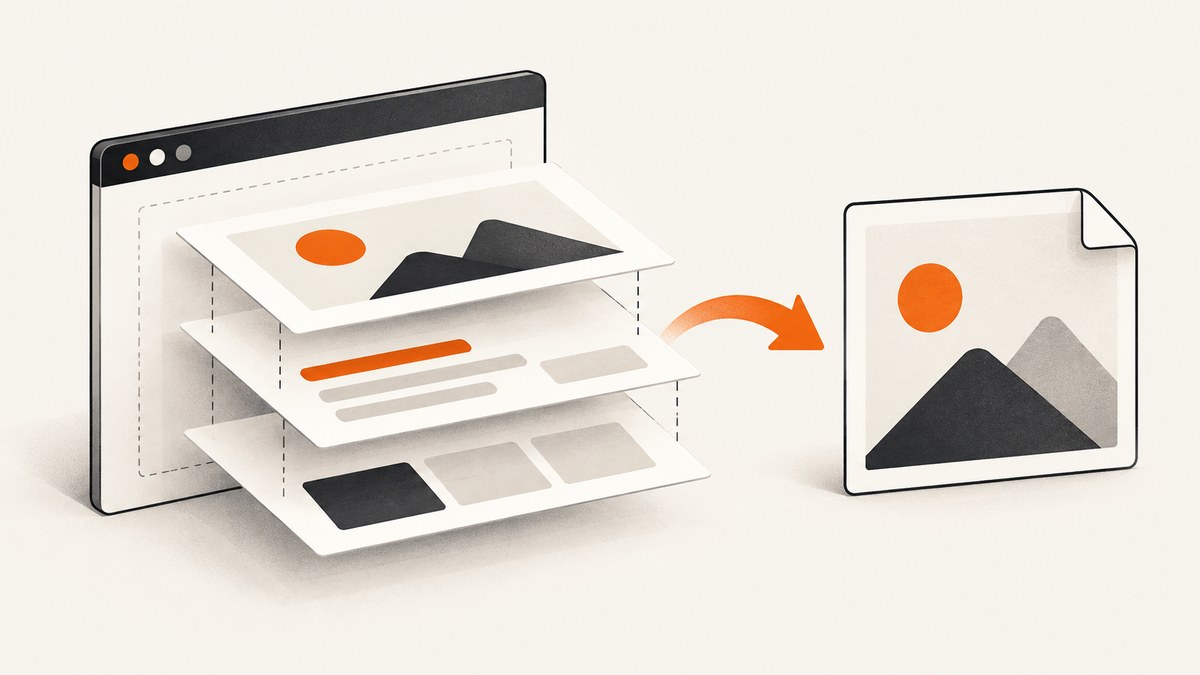
To convert HTML to PNG, render it in a browser and save a screenshot. For modern CSS, JavaScript, web fonts, canvas, and responsive layouts, Playwright or Puppeteer is the strongest default because it captures browser-rendered pixels. If the user is already viewing the page and needs one element, use html2canvas. For a shell workflow, a command-line renderer such as wkhtmltoimage may fit, but validate its output against your target pages.
For a file or URL, the basic process is: choose a renderer, set the viewport and output size, wait for content to load, capture the page or element, and check the resulting PNG dimensions and appearance. The sections below cover runnable examples, choices, deployment, failure fixes, and cost considerations.
1. Choose a conversion method
| Method | Best for | Main limitation |
|---|---|---|
| Playwright or Puppeteer | Automated screenshots of modern pages, local HTML files, and URLs | Requires Node.js and a browser runtime; readiness and viewport need control |
| html2canvas | Letting a visitor export an element in the page they already have open | Reconstructs content from the DOM; CSS and cross-origin limitations can affect output |
| wkhtmltoimage | Simple command-line jobs that suit its renderer | Check modern CSS and JavaScript behavior against your pages |
| Browsershot | PHP application integration where Node and headless Chrome can be installed | It delegates to Puppeteer and Chrome, so the server still needs those dependencies |
A real browser is the sensible starting point when fidelity matters. It executes page JavaScript and lays out CSS as a browser does. html2canvas is convenient for client-side exports, but it is not a pixel-perfect browser screenshot. Its documentation explains that it builds a representation based on properties it reads from the DOM. See the html2canvas documentation for the rendering model and limitations.
2. Convert a local HTML file with Playwright
Install Playwright and its Chromium browser in a Node.js project:
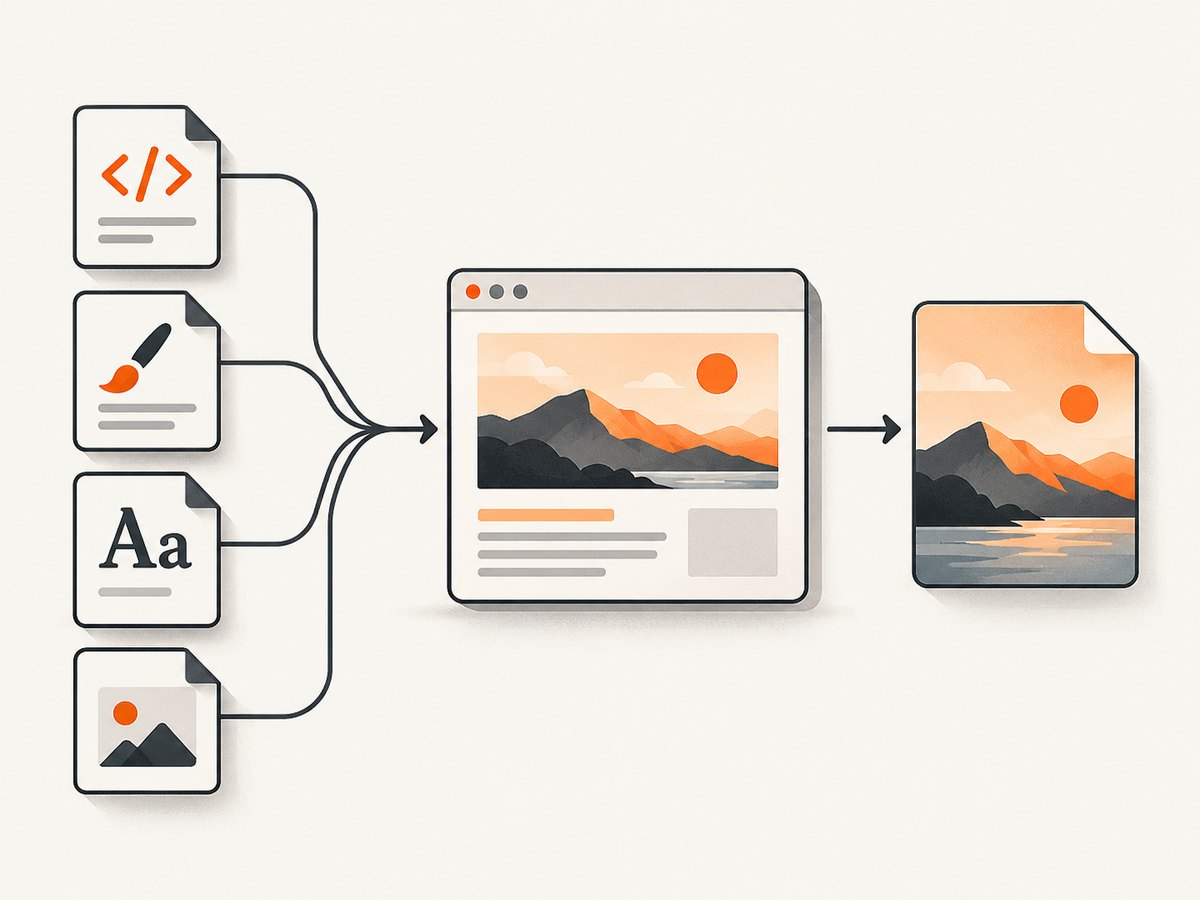
npm install playwright
npx playwright install chromium
Save the following as html-to-png.mjs. Pass the input HTML path and output PNG path as arguments:
import { chromium } from 'playwright';
import { pathToFileURL } from 'node:url';
import path from 'node:path';

const [inputArg, output = 'page.png'] = process.argv.slice(2);
if (!inputArg) {
  throw new Error('Usage: node html-to-png.mjs input.html [output.png]');
}

const inputPath = path.resolve(inputArg);
const browser = await chromium.launch();
try {
  const page = await browser.newPage({
    viewport: { width: 1280, height: 800 },
    deviceScaleFactor: 1
  });
  await page.goto(pathToFileURL(inputPath).href, { waitUntil: 'load' });
  await page.evaluate(async () => {
    if (document.fonts?.ready) await document.fonts.ready;
    const images = Array.from(document.images);
    await Promise.all(images.map(img => {
      if (img.complete) return Promise.resolve();
      return new Promise(resolve => {
        img.addEventListener('load', resolve, { once: true });
        img.addEventListener('error', resolve, { once: true });
      });
    }));
  });
  await page.screenshot({ path: output, type: 'png', fullPage: true });
} finally {
  await browser.close();
}
Run it with:
node html-to-png.mjs ./page.html ./page.pngThe example waits for the document load event, fonts, and image completion. It treats an image error as completed so one missing resource does not hang the job; check the page separately if every asset is required. For a page whose scripts fetch data after load, add a page-specific readiness condition, such as waiting for a selector that appears when the data is rendered.
Capture a URL with Playwright
For a hosted page, navigate to its URL. This version uses networkidle, which can be useful when requests settle, but some pages keep connections open. A selector wait is often more reliable when you know what marks the finished page:
import { chromium } from 'playwright';

const browser = await chromium.launch();
try {
  const page = await browser.newPage({ viewport: { width: 1440, height: 900 } });
  await page.goto('https://example.com', { waitUntil: 'domcontentloaded' });
  await page.locator('main').waitFor({ state: 'visible' });
  await page.evaluate(() => document.fonts.ready);
  await page.screenshot({ path: 'page.png', type: 'png', fullPage: true });
} finally {
  await browser.close();
}
Replace the example URL and selector with your target and its readiness marker. Playwright documents screenshots, full-page capture, and screenshot options in its screenshots guide and Page API.
Capture only an element
Use a locator screenshot when the required PNG is a component, chart, invoice, or card rather than the whole document:
const card = page.locator('#invoice');
await card.waitFor({ state: 'visible' });
await card.screenshot({ path: 'invoice.png', type: 'png' });
The locator must match the intended element. If it matches several, refine it or select a specific occurrence. For a full-page image, set fullPage: true; without it, the screenshot is the viewport. A very tall page creates a correspondingly large bitmap and may use substantial memory.
3. Use Puppeteer instead
Puppeteer provides a similar browser-based route. Install the package and the browser setup recommended for your environment:
npm install puppeteerThis runnable script captures a URL to a full-page PNG:
import puppeteer from 'puppeteer';

const browser = await puppeteer.launch();
try {
  const page = await browser.newPage();
  await page.setViewport({ width: 1280, height: 800, deviceScaleFactor: 1 });
  await page.goto('https://example.com', { waitUntil: 'networkidle2' });
  await page.evaluate(() => document.fonts.ready);
  await page.screenshot({ path: 'page.png', type: 'png', fullPage: true });
} finally {
  await browser.close();
}
Use networkidle2 when a quiet network is a reasonable readiness signal. If analytics, polling, or streaming prevents it from settling, navigate with domcontentloaded and wait for the specific content you need. Puppeteer’s screenshot guide covers page and element screenshots.
4. Convert an element in the browser with html2canvas
Use this when the export runs in a page the user already has open. The module example below captures #capture and downloads its canvas as a PNG:
<div id="capture">
  <h1>Export this section</h1>
  <p>This content becomes a PNG.</p>
</div>
<button id="download">Download PNG</button>

<script type="module">
  import html2canvas from 'https://cdn.jsdelivr.net/npm/html2canvas@1.4.1/+esm';

  document.querySelector('#download').addEventListener('click', async () => {
    const element = document.querySelector('#capture');
    const canvas = await html2canvas(element, {
      backgroundColor: null,
      scale: window.devicePixelRatio
    });
    const link = document.createElement('a');
    link.download = 'capture.png';
    link.href = canvas.toDataURL('image/png');
    link.click();
  });
</script>
The library returns a Promise resolving to a canvas. Set backgroundColor to a color if you want an opaque background; null requests transparency. Use scale to increase pixel density, understanding that larger output increases memory use. Add data-html2canvas-ignore to elements that should not be rendered. Its configuration also supports crop coordinates and dimensions. Review the configuration options and FAQ.
html2canvas cannot read arbitrary cross-origin frame documents, and cross-origin images can taint a canvas. Use assets served from the same origin, configure the asset server’s CORS headers where allowed, or use an appropriate proxy that returns accessible resources as data URIs. CSS support also differs from the browser’s complete rendering, so compare the output for effects such as advanced filters, transforms, and complex layout before shipping.
5. Convert HTML from a command line or PHP
For a command-line workflow, Debian’s wkhtmltoimage reference gives this basic form:
wkhtmltoimage input.html output.pngIt has options for local paths, cropping, cookies, and headers. The renderer may differ from current browsers, so use representative HTML to check CSS and JavaScript before making it a production dependency. See the wkhtmltoimage reference for its available options.
In PHP, Spatie Browsershot delegates rendering to Puppeteer and headless Chrome. Install and configure the required Node and browser dependencies as described in its documentation, then save the image:
<?php

use Spatie\Browsershot\Browsershot;

Browsershot::url('https://example.com')
    ->windowSize(1280, 800)
    ->save('page.png');
For a local HTML string, use the package’s HTML input method and save to a PNG filename. Confirm the image output method and environment setup in the Browsershot image documentation.
6. Control dimensions, readiness, and repeatability
- Fix the viewport. Set width and height explicitly so responsive breakpoints do not vary between runs.
- Choose viewport or full page. Viewport capture produces the visible region; full-page capture extends to the document’s scrollable height. Check output dimensions before storing or publishing.
- Wait for the right signal. Wait for fonts, images, application data, or a known selector. Network-idle is not universal: persistent requests may never stop.
- Decide on pixel density. Device scale factor or screenshot scale affects output pixels and memory. Use higher density only when the output needs it.
- Control moving content. Disable animations or inject CSS when repeatable frames matter. Clocks, carousels, random content, and blinking cursors can change between captures.
- Make resources available. Check external fonts, images, CSS, credentials, and network access. Local files may need relative paths resolved from the correct directory.
- Choose a background. Transparent output is useful for compositing; a defined solid background avoids unexpected transparency or default colors.
For Playwright, screenshot styling can hide animations and other transient elements; see the screenshot API options. Reproducible output also depends on keeping browser versions, fonts, and input content consistent.
7. Or skip the browser setup
If you need a screenshot of a public webpage without installing and maintaining a browser runtime, ScreenshotNeo is a website screenshot API and MCP server. Its API accepts a URL and returns an image or PDF. The one-call request below saves a PNG response:
curl -G "https://api.screenshotneo.com/v1/shot" \
  -d access_key=YOUR_API_KEY \
  --data-urlencode url=https://stripe.com \
  -d format=png \
  -o shot.png
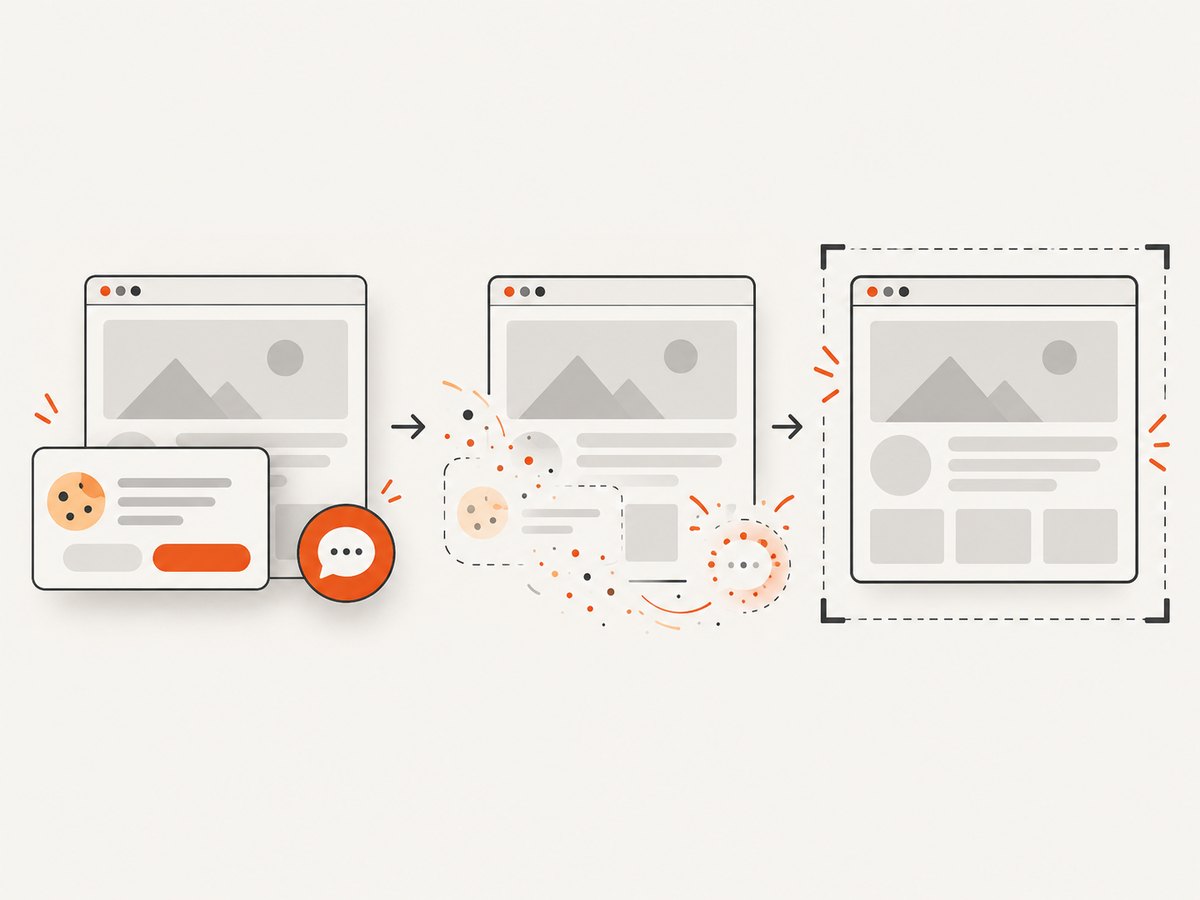
See the ScreenshotNeo API documentation for authentication and request options. Cookie banners are accepted and removed along with known newsletter popups and chat widgets before capture; each cleanup step can be turned off. Bot checks, blank pages, failed loads, timeouts, and cache hits are not billed, and response headers identify the page verdict and billing status. AI agents can use its MCP server tools, including take_screenshot, get_page_info, and capture_pdf.
The free plan includes 1,000 screenshots each month with no card required; paid plans start at $5 for 3,000 screenshots. Create a free ScreenshotNeo account and get 1,000 screenshots a month with no card.
8. Common problems and fixes
| Symptom | Likely cause | Fix |
|---|---|---|
| PNG is blank or missing content | Capture ran before client-side rendering or navigation failed | Check the page response and console; wait for a content-specific selector or application-ready signal |
| Fonts look different | Web font request had not completed, or the runtime lacks a local font | Wait for document.fonts.ready; verify font requests and install required fonts in the environment |
| Images are absent | Delayed loading, broken URL, access restriction, or cross-origin limitation | Wait for image completion; inspect resource errors; use accessible same-origin/CORS-enabled assets for html2canvas |
| Full-page image is unexpectedly huge | Long document or high device scale factor | Capture a selector or viewport, reduce scale, or split the document into sections |
| Screenshot call hangs | Network never becomes idle, or a readiness wait cannot be satisfied | Use a bounded timeout and a selector-based wait; check that the selector exists for the current page state |
| html2canvas throws a security error | A cross-origin image tainted the canvas | Serve the image with permitted CORS headers, use a same-origin copy, or proxy it as data |
| Layout changes between runs | Viewport, fonts, animation, or dynamic content varies | Pin viewport and runtime, wait for assets, and disable transient animation/content |
| Local HTML cannot load styles or images | Relative paths resolve differently from the expected working directory | Use absolute file paths or serve the directory over local HTTP with the intended base URL |
9. Performance, reliability, and cost
PNG is lossless, so detailed pages and large dimensions can produce large files. A full-page capture and a high device scale factor multiply the pixel count; reduce the viewport, capture a single element, or lower density when file size and memory matter. If transparency is unnecessary, select an opaque background. For many pages, reuse a browser process where your application architecture permits it, while creating a fresh page or context per job when isolation is important.
Reliability depends on more than the screenshot call. Pin browser dependencies, set navigation and readiness timeouts, close pages and browsers in cleanup paths, and record the URL, viewport, and failure reason for failed jobs. Treat a timeout as a failed conversion rather than accepting an incomplete PNG. For local and hosted pages alike, external services, authentication, rate limits, and changing content can affect output.
Self-hosted Playwright, Puppeteer, and Browsershot have no per-screenshot service price specified here, but incur infrastructure and maintenance costs: compute, browser installation, upgrades, queue capacity, and engineering time. html2canvas runs in the visitor’s browser but still consumes client memory and CPU and has fidelity constraints. A hosted API makes the service charge explicit; ScreenshotNeo’s listed plans are Free (1,000 per month), Starter ($5 for 3,000), Growth ($15 for 15,000), Pro ($39 for 60,000), Scale ($99 for 250,000), and Business ($249 for 1,000,000); yearly billing gives two months free. Every feature is available on every plan. Check current plan details on its site before choosing a budget.
10. Frequently asked questions
Can I convert HTML to PNG without opening a visible browser?
Yes. Playwright and Puppeteer run Chromium in headless mode by default. The capture still uses a browser engine; it does not require a visible desktop window.
Can HTML alone create a PNG?
HTML describes structure, not a built-in image-export operation. A browser screenshot, a DOM-to-canvas library, or a rendering service must produce the PNG.
Can I capture a page behind a login?
With a browser automation script, establish the required authenticated session or provide the needed cookies and headers before capturing. Keep credentials out of source control and logs.
Should I use PNG for every page?
PNG suits lossless graphics, text, and transparency. If file size matters more than lossless output, consider a lossy image format supported by your chosen renderer; this guide’s examples use PNG because that is the requested output.
What is the best default for a modern webpage?
Use Playwright with a fixed viewport, a page-specific readiness wait, and a full-page setting only when the entire document is needed. Inspect representative results before automating at scale.


