Convert HTML to WebP in C#
Render HTML in Playwright for faithful WebP screenshots, or encode existing pixels with SkiaSharp, ImageMagick, or libwebp.
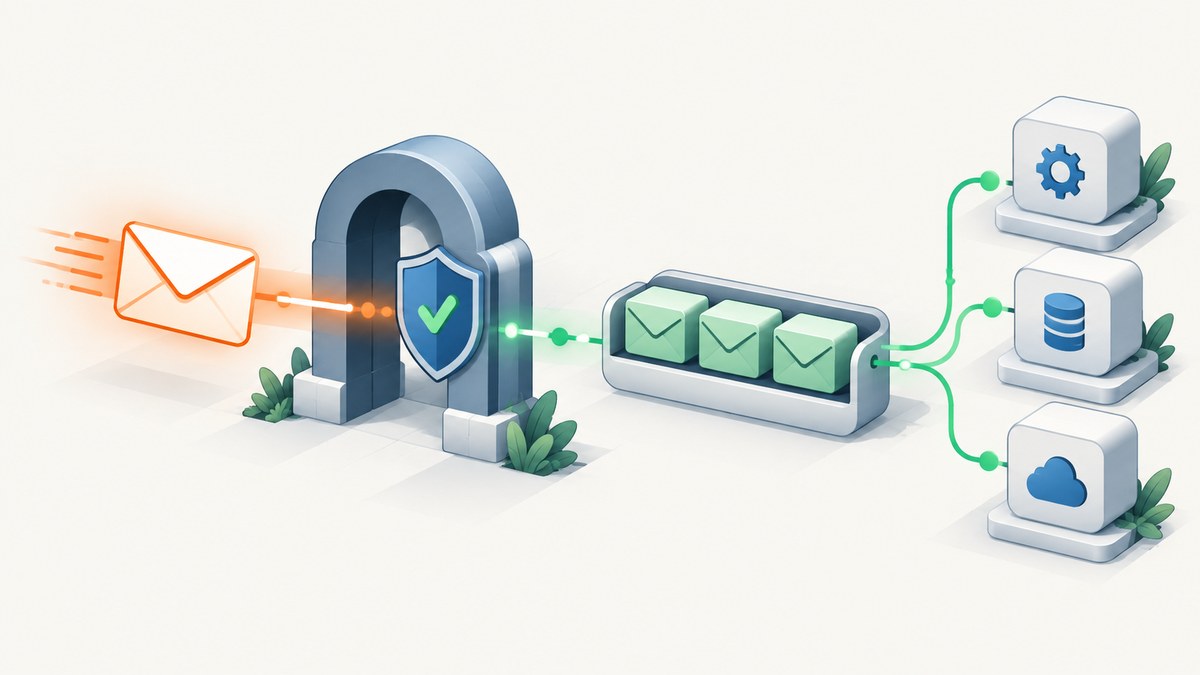
Use a browser when your HTML depends on CSS, fonts, JavaScript, layout, or external assets. In C#, Playwright for .NET renders the page and writes a WebP screenshot directly. Set the output path to .webp or set the screenshot type explicitly, then choose a quality from 0 to 100. Use SkiaSharp, ImageMagick, or libwebp only when you already have pixels and need to encode them without rendering HTML.
This distinction prevents the most common mistake: sending HTML to an image encoder. Encoders understand pixel buffers, not layout rules. A browser must first turn the document into pixels.
1. Choose the right HTML-to-WebP pipeline
| Requirement | Recommended path | Why |
|---|---|---|
| Faithful CSS, JavaScript, fonts, and responsive layout | Playwright for .NET | The browser creates the final pixels before WebP encoding. |
| You already have an RGB/RGBA bitmap | SkiaSharp or libwebp | No browser startup or HTML rendering is required. |
| Many encoder controls in an existing image pipeline | ImageMagick | Quality, lossless mode, compression method, alpha quality, filtering, target size, and target PSNR are configurable. |
| Animated WebP | SkiaSharp animated encoder | SkiaSharp documents EncodeAnimated. The documented cwebp command-line path does not support animated WebP. |
For a new HTML screenshot service, start with Playwright. For a service that receives a bitmap from another renderer, skip the browser and encode that bitmap directly.
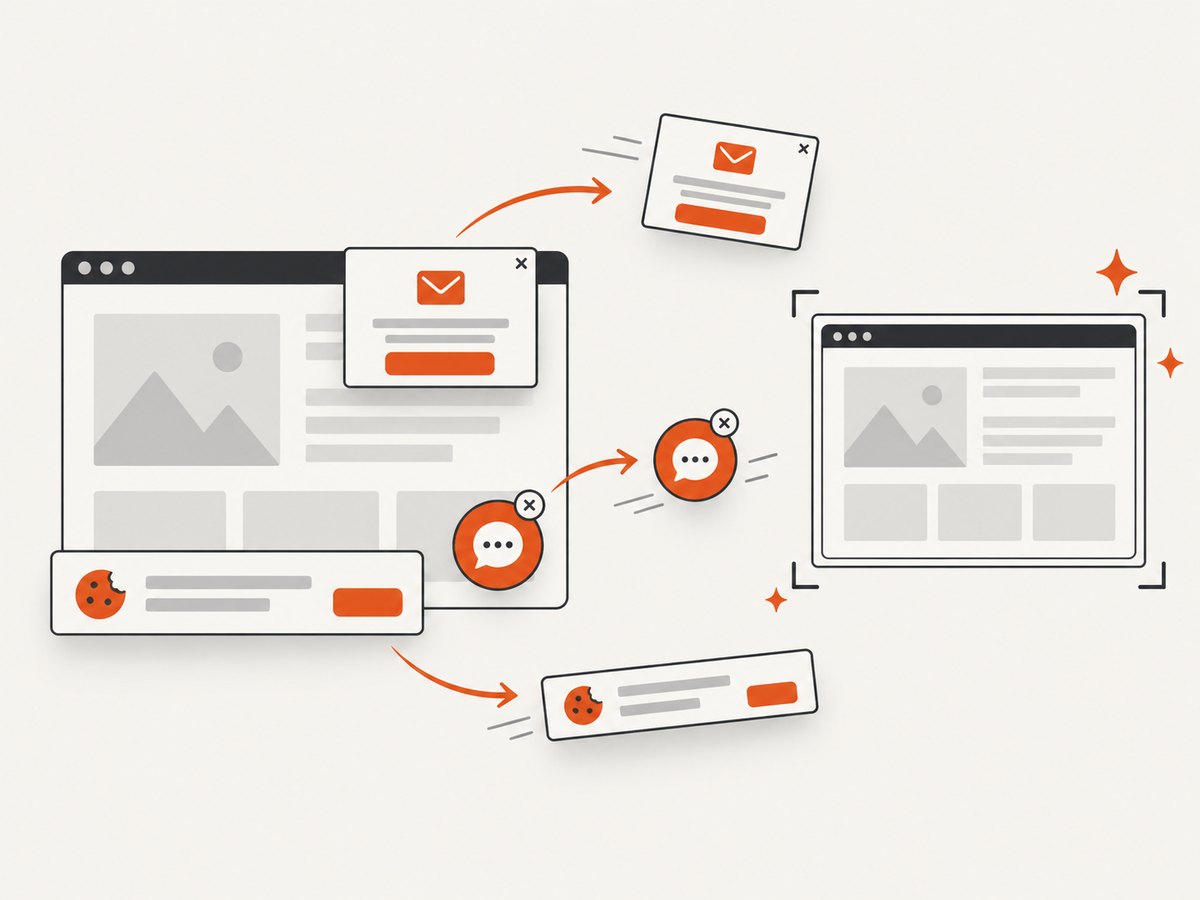
2. Render HTML and save a WebP with Playwright for .NET
Install the .NET package and the browser binaries:
dotnet add package Microsoft.Playwright
# From the project directory, install Playwright browsers:
dotnet build
pwsh bin/Debug/net8.0/playwright.ps1 install chromium
The Playwright .NET page API documents WebP screenshot output, quality, full-page capture, transparency, and viewport controls: Page API. Release notes also track screenshot support changes: Playwright .NET release notes.
Complete console example
using Microsoft.Playwright;

public static class HtmlToWebp
{
    public static async Task Main()
    {
        using var playwright = await Playwright.CreateAsync();
        await using var browser = await playwright.Chromium.LaunchAsync(new BrowserTypeLaunchOptions
        {
            Headless = true
        });

        var page = await browser.NewPageAsync(new BrowserNewPageOptions
        {
            ViewportSize = new ViewportSize { Width = 1440, Height = 900 },
            DeviceScaleFactor = 1
        });

        await page.GotoAsync("https://example.com", new PageGotoOptions
        {
            WaitUntil = WaitUntilState.NetworkIdle,
            Timeout = 60_000
        });

        // Wait for the content that determines the final layout.
        await page.Locator("body").WaitForAsync(new LocatorWaitForOptions
        {
            State = WaitForSelectorState.Visible,
            Timeout = 30_000
        });

        // Make lazy images load before the screenshot.
        await page.EvaluateAsync("""async () => {
            const images = Array.from(document.images);
            for (const image of images) image.scrollIntoView({block: 'center'});
            await new Promise(resolve => setTimeout(resolve, 250));
        }""");

        // Ensure web fonts have finished loading.
        await page.EvaluateAsync("""async () => {
            if (document.fonts) await document.fonts.ready;
        }""");

        await page.ScreenshotAsync(new PageScreenshotOptions
        {
            Path = "page.webp",
            Type = ScreenshotType.Webp,
            Quality = 90,
            FullPage = true,
            OmitBackground = false,
            Animations = ScreenshotAnimations.Disabled
        });

        Console.WriteLine("Wrote page.webp");
    }
}
Quality accepts 0–100. A value of 100 is described as lossless for WebP. Lower values reduce bytes but can soften text edges, thin lines, gradients, and small controls. For UI screenshots, begin at 90 or use 100 when exact edges matter.
Capture an HTML string instead of a URL
var page = await browser.NewPageAsync(new BrowserNewPageOptions
{
ViewportSize = new ViewportSize { Width = 1200, Height = 800 },
DeviceScaleFactor = 2
});
await page.SetContentAsync("""
Invoice
Rendered from HTML.
Capture one element, add CSS, or hide content
await page.AddStyleTagAsync(new PageAddStyleTagOptions
{
    Content = "body { background: white !important; } .debug, .cookie-banner { display:none !important; }"
});

var chart = page.Locator("#sales-chart");
await chart.ScreenshotAsync(new LocatorScreenshotOptions
{
    Path = "sales-chart.webp",
    Type = ScreenshotType.Webp,
    Quality = 95
});
Element screenshots are useful when a full document contains navigation, ads, or unrelated controls. Keep the selector stable and wait for the element to be visible before capturing it.
3. Make browser output deterministic
- Fix the viewport. Responsive breakpoints change the result when width changes. Set width and height explicitly.
- Choose a device scale factor. A factor of 2 produces denser pixels for retina displays and increases output dimensions and memory use.
- Wait for content, not an arbitrary delay. Prefer a selector that signals readiness. Use a short delay only for animations or client-side transitions that have no reliable selector.
- Wait for fonts. Capture after
document.fonts.ready; otherwise fallback fonts can be recorded permanently. - Load lazy content. Scroll through pages or trigger the application’s lazy-load mechanism before capturing.
- Control animation. Disable animations or inject CSS to avoid different frames on each run.
- Control network access. Block analytics, ads, or known third-party requests when they are not part of the intended result. Do not block fonts or images required by the design.
For transparent output, Playwright supports OmitBackground = true. Use this for PNG or WebP assets with alpha. JPEG cannot represent transparency.
4. Encode existing pixels with SkiaSharp
If HTML has already been rendered by another system, SkiaSharp can encode an SKPixmap without starting Chromium. The SKWebpEncoder.Encode API returns SKData and also provides stream overloads. See SKWebpEncoder and Encode methods.
dotnet add package SkiaSharpusing SkiaSharp;
using var bitmap = SKBitmap.Decode("input.png");
if (bitmap is null) throw new InvalidOperationException("Could not decode input.png");
var pixmap = bitmap.PeekPixels();
if (pixmap is null) throw new InvalidOperationException("Could not access pixels");
var options = new SKWebpEncoderOptions
{
Compression = SKWebpEncoderCompression.Lossy,
Quality = 90
};
using var encoded = SKWebpEncoder.Encode(pixmap, options);
using var output = File.Open("output.webp", FileMode.Create, FileAccess.Write);
encoded.SaveTo(output);Use lossless compression for small text, diagrams, and sharp UI edges when the resulting file size is acceptable. SkiaSharp also documents animated encoding; choose it when your input is a sequence of frames rather than one screenshot.
5. ImageMagick and libwebp alternatives
ImageMagick is useful when you already operate an ImageMagick pipeline and need explicit WebP tuning. Its documentation lists quality, lossless mode, compression method, alpha quality, filtering, target size, and target PSNR controls. The documented defaults are quality 75, lossless disabled, and method 4; set values explicitly so an upgrade does not silently change output. See ImageMagick WebP encoding options.
magick input.png -define webp:method=4 -quality 90 output.webp
# Lossless mode:
magick input.png -define webp:lossless=true output.webp
At the lower level, libwebp exposes C functions including WebPEncodeRGB, WebPEncodeRGBA, and lossless RGB encoding. The cwebp utility uses a 0–100 quality scale, defaults to 75, and supports -lossless. The documented command-line path does not support animated WebP. See the WebP API and cwebp documentation.
6. Or skip the browser setup
ScreenshotNeo provides a website screenshot API and MCP server. One GET request renders a URL and returns WebP, PNG, JPEG, or PDF. The API accepts the same parameter names used by many screenshot services, so switching is straightforward. Full options and response details are in the ScreenshotNeo documentation.
curl -G "https://api.screenshotneo.com/v1/shot" -d access_key=YOUR_API_KEY --data-urlencode url=https://stripe.com -o shot.webpimport requests
r = requests.get("https://api.screenshotneo.com/v1/shot", params={"access_key": "YOUR_API_KEY", "url": "https://stripe.com"}, timeout=90)
open("shot.webp", "wb").write(r.content)const q = new URLSearchParams({ access_key: 'YOUR_API_KEY', url: 'https://stripe.com' });
const res = await fetch(`https://api.screenshotneo.com/v1/shot?${q}`);
const bytes = new Uint8Array(await res.arrayBuffer());
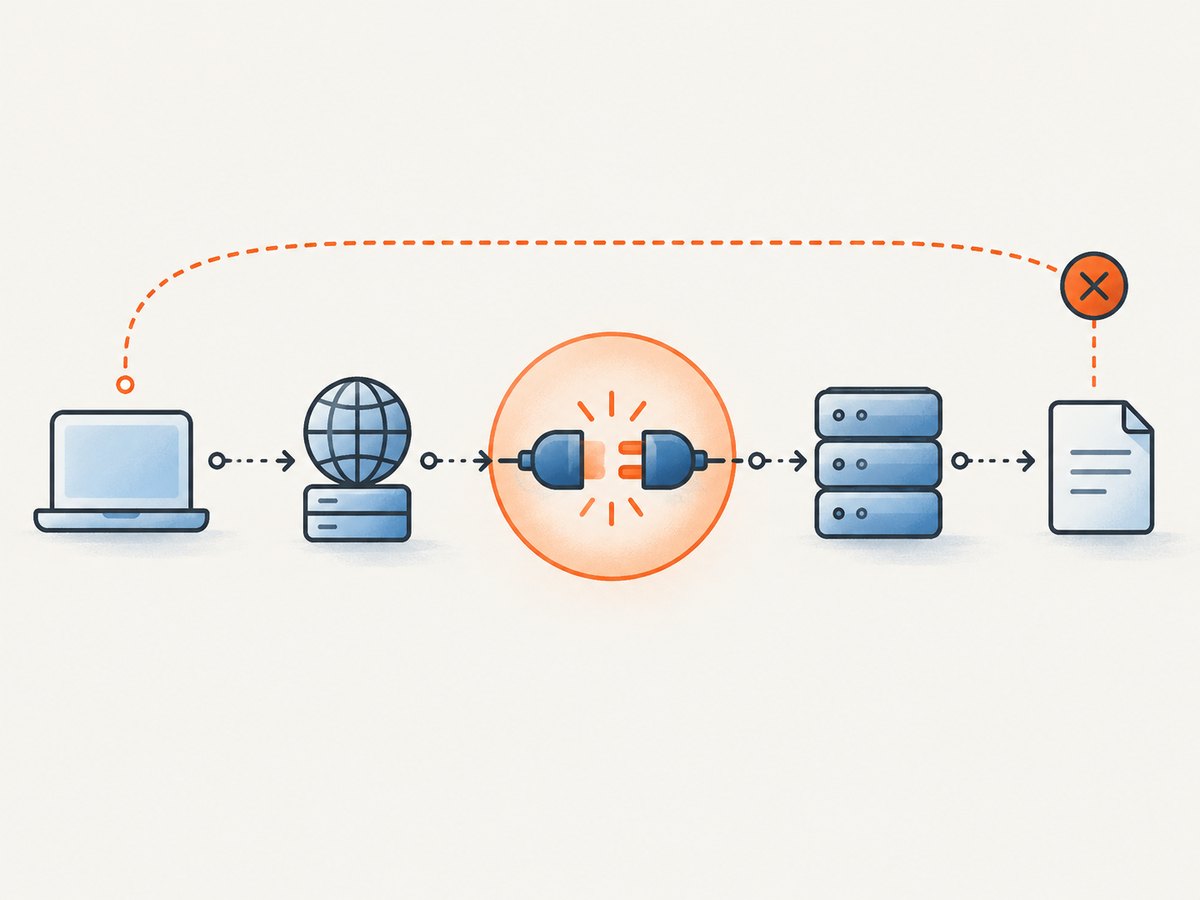
await Bun.write('shot.webp', bytes);Cookie banners, newsletter popups, and chat widgets are removed before the shot. Bot checks, blank pages, timeouts, failed loads, and cache hits are never billed; response headers identify the page verdict and whether it was billed. An MCP server lets Claude, Cursor, and other MCP clients call take_screenshot, get_page_info, and capture_pdf. You get 1,000 screenshots per month free with no card; paid plans start at $5 for 3,000 shots. Create a free ScreenshotNeo account.
7. Screenshot options worth exposing in a C# service
| Option group | Examples | Use case |
|---|---|---|
| Dimensions | Viewport, device preset, retina scale, full page | Repeatable responsive screenshots. |
| Target | CSS selector, click before capture | Capture a chart, modal, or post-login state. |
| Timing | Selector wait, delay, network idle | Wait for client-rendered content. |
| Page control | Custom CSS/JavaScript, hide selectors | Remove dynamic or private elements. |
| Network and identity | Block ads/trackers/requests/resource types, headers, cookies, user agent, Authorization | Stable and authenticated renders. |
| Location | Timezone and geolocation | Region-specific content. |
| Output | WebP quality, transparent background, resize | Control bytes and alpha. |
| Operations | TTL cache, signed links, async jobs, signed webhooks, bulk capture, usage API | Production throughput and public delivery. |
8. Troubleshooting
The screenshot is blank
Cause: the page failed to load, a script crashed, or capture happened before content appeared. Fix: inspect browser logs, increase navigation timeout, wait for a meaningful selector, and verify external assets are reachable from the runtime.
Fonts or icons are wrong
Cause: web fonts were still loading or cross-origin font requests were blocked. Fix: await document.fonts.ready, allow the font origin, and capture after the final font is applied.
Lazy images are missing
Cause: images load only after entering the viewport. Fix: scroll through the document or trigger the site’s lazy-load code, then wait for image requests to finish.
Text looks soft
Cause: low lossy quality or a device scale factor of 1. Fix: raise WebP quality, try lossless mode, or use a scale factor of 2. Compare file size against edge quality.
Output dimensions change between runs
Cause: viewport, device scale, fonts, responsive content, or animation changed. Fix: set all rendering inputs explicitly and disable animations.
Chromium cannot launch in production
Cause: browser binaries or Linux dependencies are missing, or the process lacks a writable temporary directory. Fix: install Playwright browsers during image build, include required OS dependencies, and run with an appropriate sandbox configuration.
SkiaSharp cannot encode
Cause: the bitmap is null, has an unsupported color format, or native Skia assets are missing. Fix: validate the decoded bitmap, use a supported RGB/RGBA format, and deploy the correct SkiaSharp native runtime package.
9. Performance, reliability, and cost
- Browser startup: keep a browser process warm and create isolated pages per request. Reusing one page across concurrent requests can leak cookies or state.
- Memory: full-page and retina screenshots allocate pixels proportional to width × height × scale². Limit untrusted page dimensions and dispose pages, contexts, streams, and encoded data.
- Concurrency: cap parallel pages according to available CPU and memory. Queue large captures instead of launching unlimited Chromium processes.
- Reliability: use navigation and selector timeouts, retry transient network failures with a limit, and record the URL, viewport, browser version, and WebP settings with each artifact.
- Caching: cache only when the page can be stale. Include URL, relevant headers, cookies, viewport, scale, quality, and custom CSS in the cache key.
- Cost: self-hosted Playwright costs your compute and browser maintenance time. A hosted API trades that setup for per-shot billing. ScreenshotNeo bills only clean shots; bot checks, blank pages, timeouts, failed loads, and cache hits cost nothing.
10. Quality checklist
- Choose Playwright when HTML, CSS, JavaScript, fonts, or external assets affect pixels.
- Set viewport and device scale factor explicitly.
- Wait for the content selector and
document.fonts.ready. - Load lazy images before capture.
- Use quality 90–100 for UI text; evaluate lossless output when edges are critical.
- Use
OmitBackgroundonly when you need transparency. - Dispose browser resources and bound concurrency.
- Validate output dimensions, alpha behavior, and file size in CI.
11. FAQ
Can ImageMagick convert raw HTML directly?
It can process image formats, but browser-dependent HTML should be rendered in Playwright first. Use ImageMagick after rendering when you need its encoder controls.
Is WebP always smaller than PNG?
No. Content, quality, transparency, and lossless settings determine the result. Measure representative pages instead of assuming a fixed reduction.
Should screenshots use lossless WebP?
Use lossless when small text, diagrams, or thin lines must remain exact and the file size is acceptable. Otherwise test a high lossy quality such as 90 or 95.
Can I create animated WebP from HTML?
Capture multiple browser frames and encode them with an API that supports animation, such as SkiaSharp’s documented animated methods. The documented cwebp command-line path does not support animated WebP.
How do I capture a page that requires login?
Use a Playwright browser context with the required cookies or storage state, or provide authenticated headers where appropriate. Never place credentials in a public screenshot URL or log them with request parameters.


