Convert HTML to WebP in Python
Render HTML with Playwright and save a full-page WebP in Python, with quality settings, troubleshooting, and an API option.

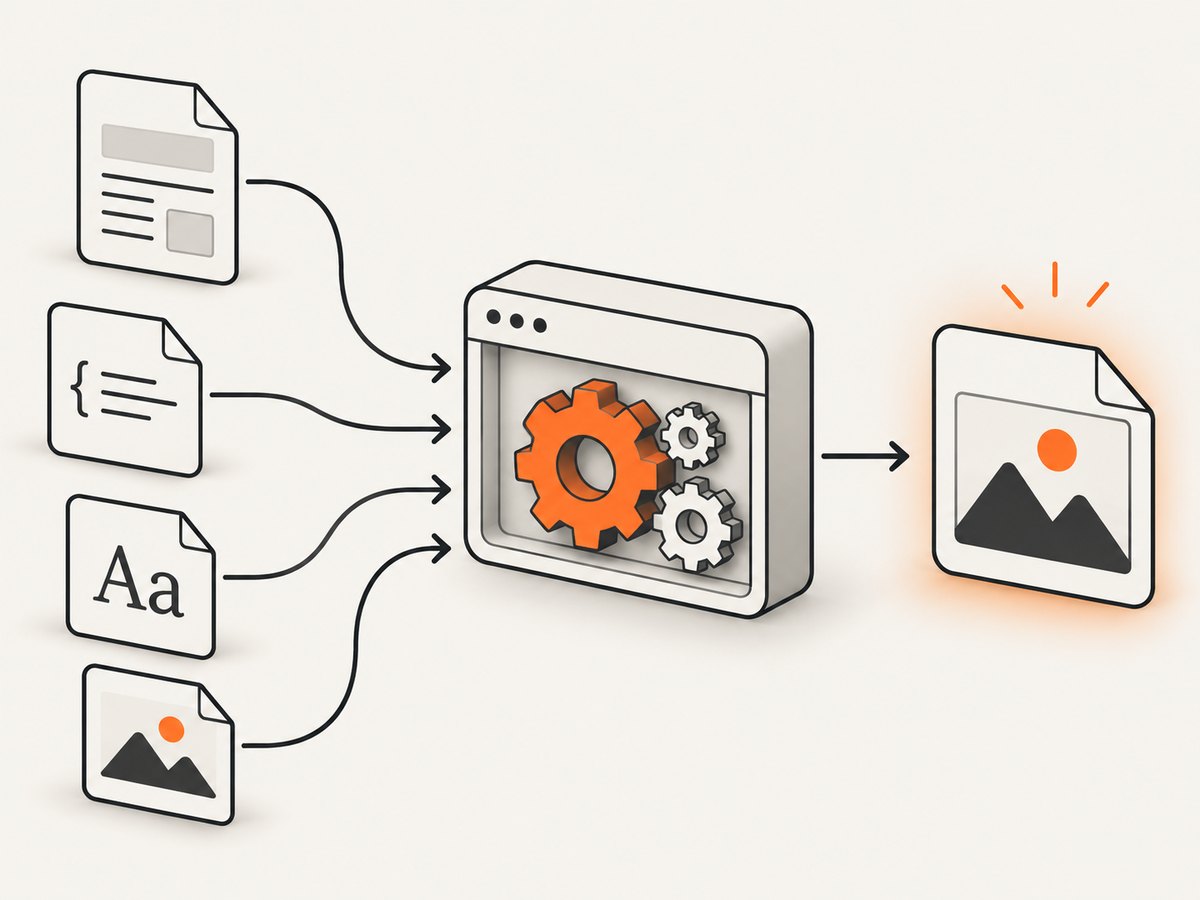
Direct answer: HTML must be rendered in a browser before it can become an image. In Python, use Playwright to load the HTML, wait for the page to finish rendering, and call page.screenshot(path="output.webp", type="webp", full_page=True, quality=85). Playwright handles CSS, JavaScript, fonts, images, and layout; the resulting pixels are encoded directly as WebP.
This guide covers local HTML strings, files, and live URLs; full-page and element screenshots; WebP quality and lossless output; async Python; post-processing with Pillow and pyvips; reliability, performance, cost, and common failures. At the end, ScreenshotNeo provides a hosted option when you do not want to install or operate a browser.
1. Install Playwright and create a WebP screenshot
Install the Python package and the browser binaries:
python -m pip install playwright
python -m playwright install chromium
Save this as convert_html.py and run it with python convert_html.py:
from playwright.sync_api import sync_playwright

html = """
<!doctype html>
<html>
  <head>
    <meta charset="utf-8">
    <style>
      body { font-family: system-ui, sans-serif; margin: 48px; }
      .card { max-width: 720px; padding: 32px; border-radius: 16px; background: #eef2ff; }
    </style>
  </head>
  <body>
    <article class="card">
      <h1>HTML rendered as WebP</h1>
      <p>This page is rendered by Chromium and encoded directly as WebP.</p>
    </article>
  </body>
</html>
"""

with sync_playwright() as p:
    browser = p.chromium.launch()
    page = browser.new_page(viewport={"width": 1280, "height": 800}, device_scale_factor=1)
    page.set_content(html, wait_until="load")
    page.screenshot(
        path="output.webp",
        type="webp",
        full_page=True,
        quality=85,
    )
    browser.close()
The Playwright Python screenshot guide documents page.screenshot() and full_page=True. The Page API documents WebP output and notes that the screenshot type is inferred from the file extension. Supplying both the .webp extension and type="webp" makes the intention explicit.
2. Render a live URL instead of an HTML string
Use page.goto() for a website or local development server. Choose a wait condition that matches the page rather than assuming that the first response means all pixels are ready.
from playwright.sync_api import sync_playwright

url = "https://example.com"

with sync_playwright() as p:
    browser = p.chromium.launch()
    page = browser.new_page(viewport={"width": 1440, "height": 900})
    page.goto(url, wait_until="domcontentloaded", timeout=60_000)
    page.wait_for_load_state("networkidle")
    page.screenshot(path="example.webp", type="webp", full_page=True, quality=85)
    browser.close()
networkidle can be unsuitable for pages with analytics, live data, or long polling. In those cases, wait for the selector that identifies the finished content:
page.goto(url, wait_until="domcontentloaded")
page.locator("main article").wait_for(state="visible", timeout=30_000)
page.screenshot(path="article.webp", type="webp", full_page=True, quality=85)
3. Make the capture deterministic
Wait for fonts and images
Web fonts can change line wrapping after the initial page load. Images may also decode after their network request completes. Wait for both when they affect the final pixels:
page.goto(url, wait_until="domcontentloaded")
page.evaluate("document.fonts.ready")
page.wait_for_function("""() => Array.from(document.images).every(img => img.complete)""")
page.screenshot(path="stable.webp", type="webp", full_page=True, quality=85)
For lazy-loaded images, scroll through the document before capturing:
page.goto(url, wait_until="domcontentloaded")
page.evaluate("""async () => {
  await new Promise(resolve => {
    const distance = 600;
    const timer = setInterval(() => {
      window.scrollBy(0, distance);
      if (window.innerHeight + window.scrollY >= document.body.scrollHeight) {
        clearInterval(timer);
        resolve();
      }
    }, 100);
  });
  window.scrollTo(0, 0);
}""")
page.wait_for_timeout(500)
page.screenshot(path="lazy-loaded.webp", type="webp", full_page=True, quality=85)
Set viewport, device scale, color scheme, and locale
context = browser.new_context(
    viewport={"width": 1280, "height": 800},
    device_scale_factor=2,
    color_scheme="dark",
    locale="en-US",
    timezone_id="UTC",
)
page = context.new_page()
A larger device_scale_factor produces more pixels and usually a larger file. Use it when the image is intended for a retina display; use 1 for smaller files. The color scheme, locale, timezone, and viewport can change the rendered result, so keep them fixed for repeatable output.
Capture one element
card = page.locator(".card")
card.screenshot(path="card.webp", type="webp", quality=85)
Element screenshots are useful for cards, charts, invoices, and social previews. They capture the element’s bounding box rather than the entire scrollable document.
Inject CSS or hide dynamic elements
page.add_style_tag(content="""
  .cookie-banner, .chat-widget, .sticky-ad { display: none !important; }
""")
page.screenshot(path="clean.webp", type="webp", full_page=True, quality=85)
For a one-off script, this is often simpler than modifying the source HTML. You can also use page.add_script_tag or page.evaluate to set application state before capture.
4. WebP quality, lossless output, and file size
Playwright accepts WebP quality from 0 through 100. Lower values use lossy compression; quality 100 is lossless for WebP according to the Page API. Start around 80–90 for screenshots containing text and gradients, then inspect the output for ringing around small text.
# Lossy WebP
page.screenshot(path="quality-80.webp", type="webp", quality=80, full_page=True)

# Lossless WebP
page.screenshot(path="lossless.webp", type="webp", quality=100, full_page=True)
There is no universal best quality: the visual content, dimensions, and browser scale factor determine the result. Measure your own output sizes and inspect representative pages. Do not claim a fixed compression ratio without a benchmark for your pages.
5. Async Python version
Use the async API when your application already runs an asyncio event loop:
import asyncio
from playwright.async_api import async_playwright

async def main():
    async with async_playwright() as p:
        browser = await p.chromium.launch()
        page = await browser.new_page(viewport={"width": 1280, "height": 800})
        await page.goto("https://example.com", wait_until="domcontentloaded")
        await page.screenshot(
            path="async-output.webp",
            type="webp",
            full_page=True,
            quality=85,
        )
        await browser.close()

asyncio.run(main())
Do not call asyncio.run() from inside an already running event loop, such as a notebook or an async web handler. In those environments, await main() directly.
6. Convert an existing raster image with Pillow
Playwright is the rendering step. If another system already produced a PNG or JPEG, Pillow is a simpler WebP encoder. Its documentation states that Pillow reads and writes WebP files.
from PIL import Image

with Image.open("rendered.png") as image:
    image.save("output.webp", "WEBP", quality=85, method=6)
Pillow also supports lossless=True, alpha_quality, method, and exact. Preserve transparency by keeping an image mode with an alpha channel, such as RGBA:
from PIL import Image

with Image.open("rendered.png").convert("RGBA") as image:
    image.save("transparent.webp", "WEBP", lossless=True, method=6)
Pillow cannot turn HTML and CSS into pixels by itself. It only encodes pixels that already exist.
7. Use pyvips for pipeline-oriented encoding
pyvips WebP saving exposes controls such as quality (Q), lossless, near_lossless, effort, and target_size. This can fit high-throughput pipelines where memory behavior matters:
import pyvips

image = pyvips.Image.new_from_file("rendered.png", access="sequential")
image.webpsave("output.webp", Q=85, effort=4)
The searched documentation does not provide a comparative benchmark for Playwright, Pillow, and pyvips. Benchmark with your own page sizes, concurrency, and storage requirements before selecting an encoder.
8. Or skip the browser setup
If you need a hosted screenshot endpoint, ScreenshotNeo renders a URL and returns PNG, JPEG, WebP, or PDF. See the ScreenshotNeo API documentation for all options.

curl -G "https://api.screenshotneo.com/v1/shot" -d access_key=YOUR_API_KEY --data-urlencode url=https://stripe.com -o shot.webpimport requests
r = requests.get(
"https://api.screenshotneo.com/v1/shot",
params={"access_key": "YOUR_API_KEY", "url": "https://stripe.com"},
timeout=90,
)
r.raise_for_status()
open("shot.webp", "wb").write(r.content)const q = new URLSearchParams({ access_key: 'YOUR_API_KEY', url: 'https://stripe.com' });
const res = await fetch(`https://api.screenshotneo.com/v1/shot?${q}`);
if (!res.ok) throw new Error(`HTTP ${res.status}`);
const buffer = Buffer.from(await res.arrayBuffer());
require('fs').writeFileSync('shot.webp', buffer);ScreenshotNeo removes cookie and consent banners, newsletter popups, and chat widgets before the shot. Bot checks, blank pages, timeouts, failed loads, and cache hits are not billed; response headers identify the page verdict and billing result. Its MCP server lets AI agents use take_screenshot, get_page_info, and capture_pdf. The free plan includes 1,000 screenshots per month with no card, and paid plans start at $5 for 3,000 shots. Create a free ScreenshotNeo account.
9. Reliability and production checklist
- Pin a Playwright version and install the matching Chromium binary in every deployment image.
- Set navigation and selector timeouts; never allow a worker to wait forever.
- Reuse a browser process for multiple jobs, but create a fresh context per job to isolate cookies, local storage, viewport, and headers.
- Close contexts and browsers in
finallyblocks so failed jobs do not leak processes. - Use deterministic fonts, timezone, locale, viewport, and device scale factor.
- Record the URL, wait strategy, viewport, WebP quality, output byte size, and error details for each job.
- Retry transient navigation failures with backoff, while avoiding unlimited retries for authentication or bot-check pages.
from playwright.sync_api import sync_playwright

with sync_playwright() as p:
    browser = p.chromium.launch()
    context = browser.new_context(viewport={"width": 1280, "height": 800})
    try:
        page = context.new_page()
        page.goto("https://example.com", wait_until="domcontentloaded", timeout=60_000)
        page.screenshot(path="job.webp", type="webp", full_page=True, quality=85)
    finally:
        context.close()
        browser.close()
10. Performance and cost considerations
Browser startup, page navigation, JavaScript execution, image decoding, and full-page stitching all contribute to a job’s latency. Full-page captures generally use more memory than viewport captures because the output contains the entire scrollable document. Very tall pages should be tested for browser memory limits and downstream image-size limits.
For throughput, keep one browser process warm, limit concurrent pages to the capacity of the machine, and avoid loading resources that do not affect the screenshot. Blocking analytics and advertising requests can reduce work, but blocking fonts, stylesheets, or images changes the result. Store WebP bytes directly instead of writing a temporary PNG when Playwright already produces the required format.
Your infrastructure cost includes browser binaries, CPU, memory, storage, and bandwidth. The official Playwright, Pillow, and pyvips documentation does not publish a universal speed or memory benchmark, so measure representative pages before setting a concurrency limit.
11. Troubleshooting
| Symptom | Likely cause | Fix |
|---|---|---|
Executable doesn't exist |
Chromium was not installed. | Run python -m playwright install chromium in the same environment as the script. |
| Output is blank | The page was captured before client-side rendering finished, or navigation failed. | Check the response and console logs; wait for a content selector or a short, justified delay. |
| Missing images | Lazy loading, blocked requests, or image decoding is incomplete. | Scroll to trigger lazy loading, wait for document.images, and verify network access. |
| Wrong line wrapping | Web fonts loaded after capture or viewport settings differ. | Await document.fonts.ready and fix viewport, locale, and device scale factor. |
| Cookie banner appears | The site requires interaction or stores consent in cookies. | Click the consent control, set the required cookie before navigation, or hide the selector with injected CSS. |
| WebP has jagged text | Quality is too low or the image is being resized again. | Increase quality, use lossless output for critical text, and avoid repeated re-encoding. |
| Huge memory use | A very tall page, high device scale factor, or too many concurrent pages. | Capture an element or viewport, lower scale, split the job, and reduce concurrency. |
| Asyncio error | asyncio.run() was called inside an active loop. |
Await the coroutine from the existing loop instead. |
12. FAQ
Can Python convert raw HTML to WebP without a browser?
Not when the HTML depends on CSS layout, JavaScript, fonts, or remote images. Render it with Playwright first, then encode the resulting pixels.
Does a .webp filename automatically select WebP?
Playwright’s Page API says the screenshot type is inferred from the file extension. Passing type="webp" explicitly also makes the code self-documenting.
Should I use PNG, JPEG, or WebP?
Use WebP when you want a compact modern raster format, PNG when lossless output and broad tooling are priorities, and JPEG when photographic content and compatibility matter more than transparency.
Can I capture only a chart or component?
Yes. Locate it with a CSS selector and call the locator’s screenshot() method.
When is a hosted API preferable?
A hosted API is useful when you do not want to package Chromium, manage browser workers, or maintain capture reliability. ScreenshotNeo also provides cleanup, billing verdict headers, async jobs, bulk capture, and an MCP server.


